How Twitch Amazon Prime Subscriptions Really Work
If you’re paying for Amazon Prime and not using your free Twitch sub every month, you’re basically leaving free money, emotes, and clout on the table.
Let’s fix that.
This guide will walk you through exactly how a Twitch Amazon Prime subscription (aka Prime Gaming sub) works, how to link it, how to use it every month, and how to squeeze every last drop of value out of it—whether you’re a viewer or a streamer.
What Is a Twitch Amazon Prime Subscription?
Short version: If you have Amazon Prime (or Prime Video in some regions), you get Prime Gaming included. With Prime Gaming, you get one free paid subscription to a Twitch channel every month.
So instead of paying $4.99 out of pocket for a Tier 1 sub, you can use your Prime sub to:
- Support a streamer financially
- Get sub-only perks (emotes, badges, ad‑free viewing on that channel, sub-only chat, etc.)
- Pay exactly $0 extra, because it’s bundled with your Prime membership
Think of it as Amazon quietly handing you a Twitch coupon every month and hoping you remember to use it.
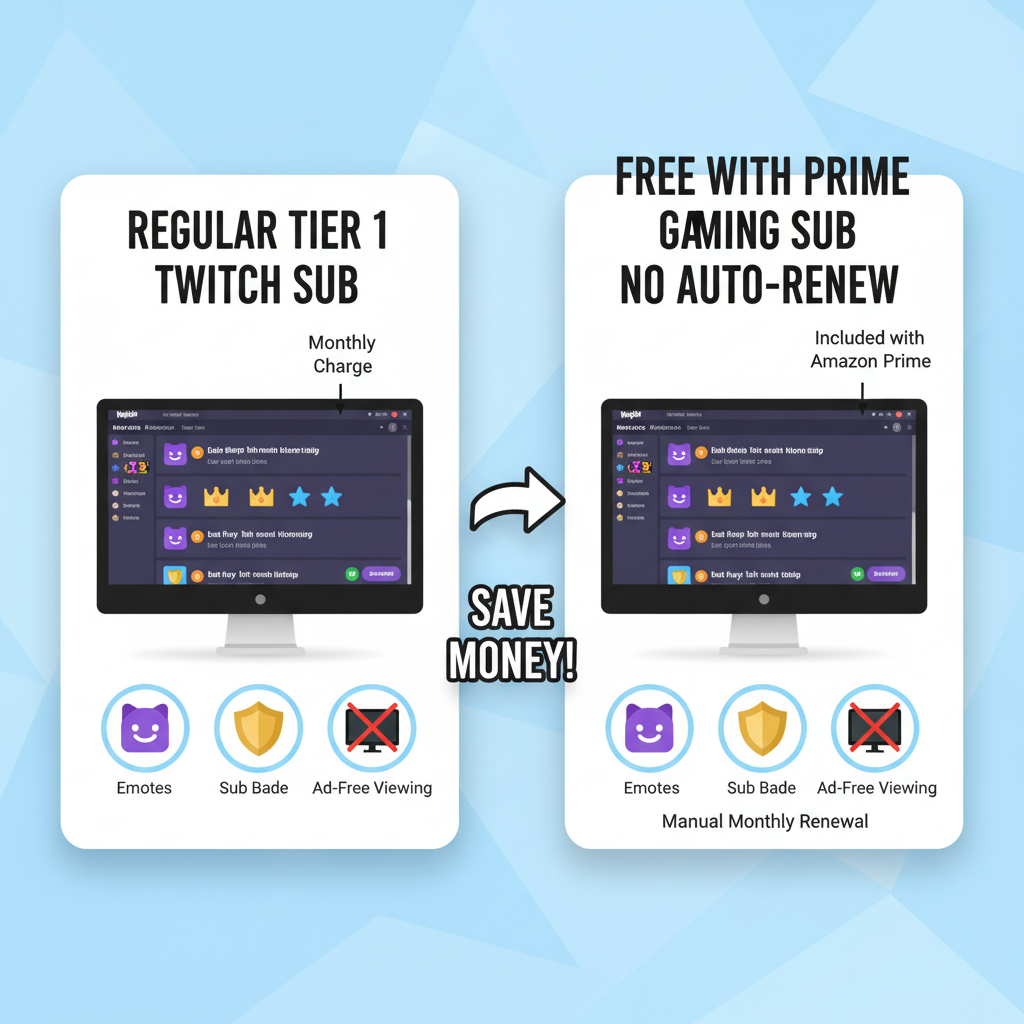
Prime Gaming vs Regular Twitch Sub: What’s the Difference?
You’ll often see people ask: “Is a Prime sub the same as a normal sub?” Yes… and no.
What’s the same
Both a Twitch Prime sub (Prime Gaming sub) and a regular Tier 1 sub:
- Count as a paid subscription for the streamer
- Give you access to that channel’s emotes
- Give you the channel’s sub badge
- Can unlock ad‑free viewing on that channel (if the streamer has it enabled)
- Work toward sub-only features (sub-only chat, sub-only VODs, etc.)
From the viewer’s perspective, on that channel, your perks are basically the same.
From the streamer’s perspective, Prime and normal subs are both revenue—but depending on the region and deal, the payouts can differ slightly. Practically speaking, most streamers are happy to get either.
What’s different
Here’s where Prime subs behave differently:
- You don’t pay extra for Prime subs (it’s part of your Amazon Prime fee)
- You only get one Prime sub to use per month
- It does NOT auto-renew—you must manually re-sub each month
- It’s always equivalent to a Tier 1 sub; you can’t make it Tier 2 or Tier 3
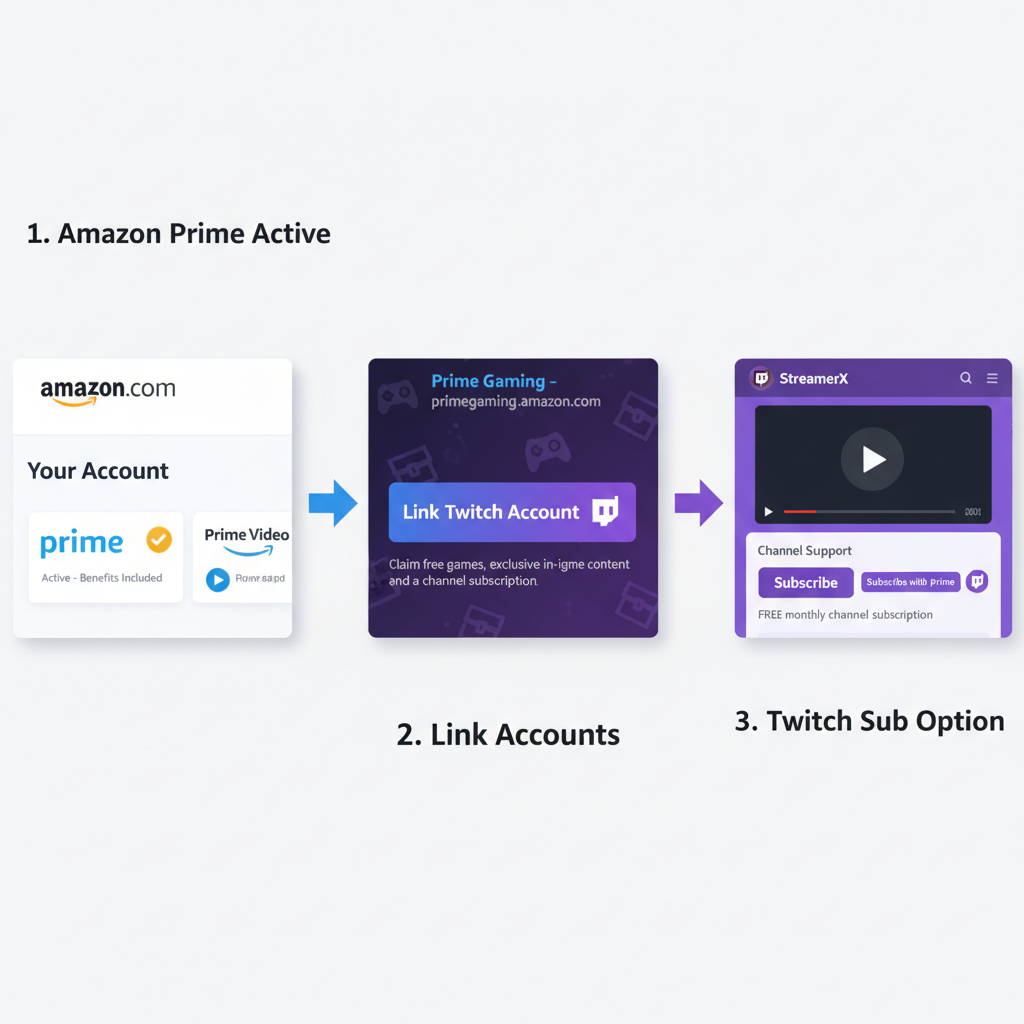
How to Link Your Amazon Prime to Twitch (Step-by-Step)
You only need to do this once. After that, you can use your Prime Gaming sub every month.
Step 1: Check that you actually have Prime
You’ll need one of these:
- Amazon Prime membership, or
- In some regions, a standalone Prime Video subscription that includes Prime Gaming
If you already get free Amazon shipping, Prime Video, or other Prime perks, you’re probably set.
Step 2: Go to Prime Gaming
- Open your browser and go to Prime Gaming (search for “Prime Gaming Twitch” if you don’t know the URL).
- Sign in with the Amazon account that has Prime.
You should see something like “Included with Prime” or a confirmation that your membership is active.
Step 3: Link your Twitch account
- Inside Prime Gaming, look for an option like “Connect Twitch account” or “Link account.”
- Log in with your Twitch account (make sure it’s the right one—double‑check your username).
- Confirm and authorize the connection.
Once it’s linked, your Twitch account will now show Prime benefits.
How to tell it worked: When you visit a channel on Twitch, the Subscribe button should show an option like “Subscribe with Prime” if your free sub is available.
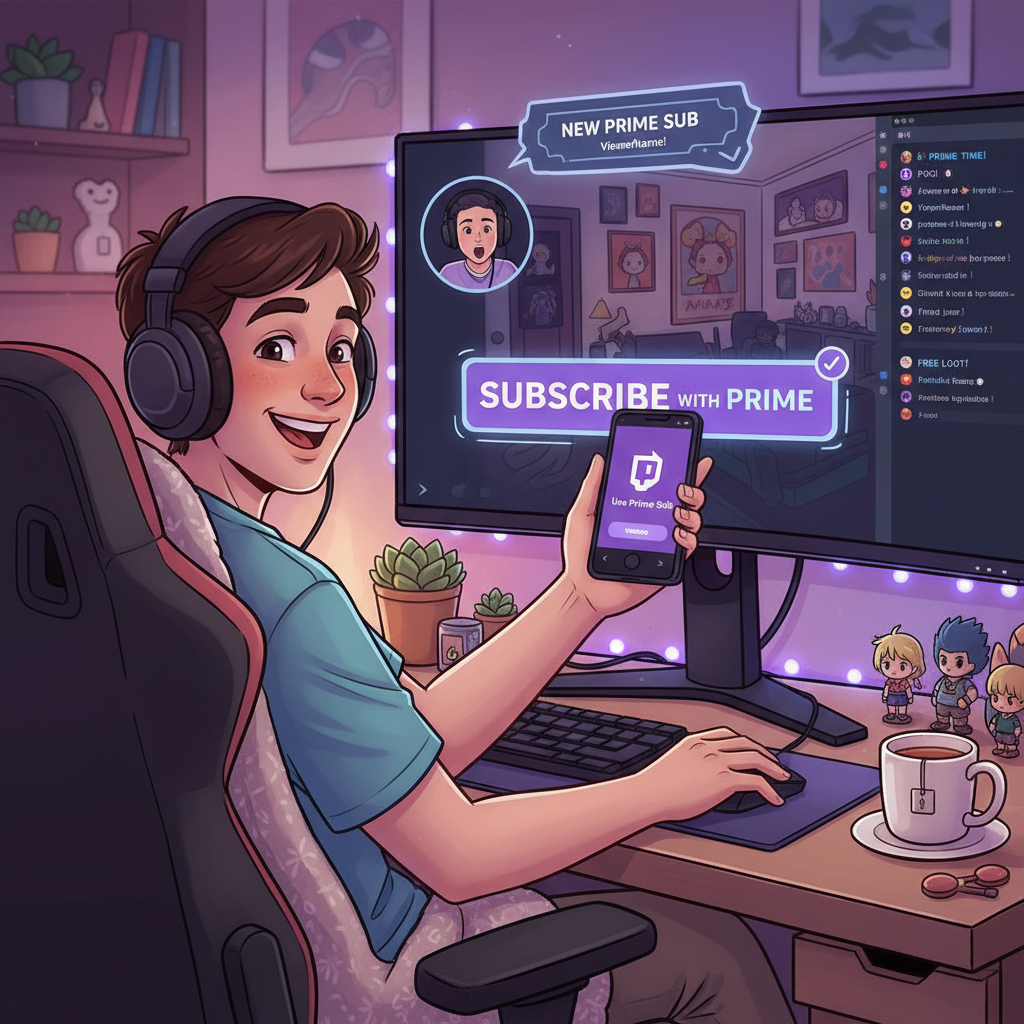
How to Use Your Free Twitch Prime Sub on a Channel
Now the fun part: giving your favorite creator some love.
On desktop
- Go to the Twitch channel you want to support.
- Click the “Subscribe” button under the video player.
- If your monthly Prime sub is unused, you’ll see an option like “Subscribe Free with Prime”.
- Click it. Confirm if there’s a pop-up.
That’s it. You’re now subbed with your Prime Gaming subscription for 30 days.
On mobile (app)
On mobile, the wording/buttons can vary a bit by platform (iOS vs Android), but in general:
- Open the Twitch app and go to the channel page.
- Tap the Sub or Subscribe button.
- If your Prime sub is available, you should see “Prime” or “Use Prime sub” as an option.
- Confirm.
If you don’t see the Prime option, double-check:
- You’re logged into the same Twitch account that’s linked to Amazon
- Your Prime sub hasn’t already been used this month

Does the Twitch Prime Sub Auto-Renew?
No. And this is the single biggest thing people misunderstand.
Your Twitch Amazon Prime subscription does NOT auto-renew.
Every 30 days or so:
- Your Prime sub on that channel expires
- You lose the badge/emotes from that channel
- Your free monthly sub becomes available again to use on any channel
If you want to keep supporting the same streamer with Prime, you must manually resub every month.
This is why streamers constantly say things like, “If you have a Prime sub lying around, check if it’s available!” Your support might’ve quietly expired.
How Much Does a Prime Sub Give the Streamer?
Exact numbers vary based on region and individual contracts, but here’s the general idea:
- A Prime sub is treated similarly to a Tier 1 paid sub for revenue share
- Twitch takes its cut, and the rest goes to the streamer (often 50/50 for small/medium creators, potentially better splits for larger ones)
From a creator’s perspective, Prime subs are real money.
Example:
- You use your Prime sub on a small streamer with 30 viewers
- They see +1 paid sub in their analytics
- Over hundreds of viewers using Prime, this can be a huge part of their monthly income
What Else Comes with Prime Gaming (Besides the Twitch Sub)?
The Twitch Amazon Prime subscription is the star of the show, but Prime Gaming comes with more perks you should at least peek at.
Typically, Prime Gaming offers:
- Free monthly games (PC titles you can claim and keep)
- In‑game loot for popular games (skins, currency, XP boosts, cosmetics)
- Occasional bonus channel subs or special promotions
If you’re only using the sub and ignoring the rest, you’re still doing well—but it’s worth checking Prime Gaming’s homepage once in a while. You might find free content for games you already play.
Best Ways to Use Your Twitch Amazon Prime Subscription
So you’ve got a free sub every month. How do you make it actually matter?
Here are some smart strategies.
1. Support smaller or growing streamers
Big streamers will be fine. Your sub still helps, but for a creator averaging 10–100 viewers, a single Prime sub can feel huge.
Example scenario:
- You find a chill 20-viewer streamer who always reads chat
- You drop your Prime sub on them
- You get instant recognition, they get a meaningful morale + revenue boost
This is a win-win.
2. Use it on the channel you actually watch the most
It’s tempting to sub to a large streamer you rarely catch live just because they’re famous.
But the best use is usually:
- The streamer you watch most often (maximize your ad-free + emote value)
- The community you feel part of
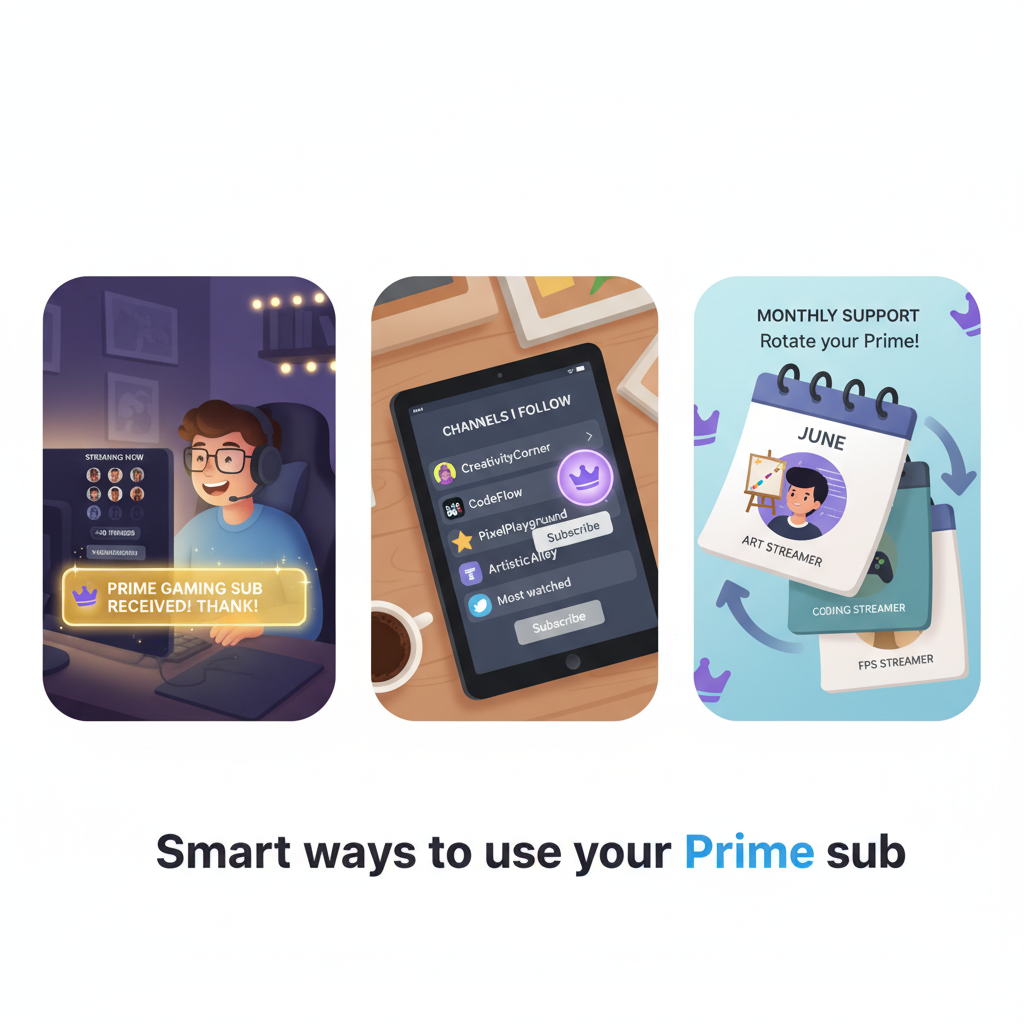
3. Rotate monthly to discover new communities
Another fun approach is to switch your Prime sub each month:
- Month 1: Cozy art streamer
- Month 2: Educational coding streamer
- Month 3: Competitive FPS player
You get to test-drive different communities with no extra cost while spreading support.
Common Problems (and How to Fix Them)
Let’s troubleshoot a few classic headaches with Twitch Amazon Prime subscriptions.
“I don’t see the ‘Subscribe with Prime’ option.”
Check these:
- Is your Amazon account actually Prime?
Log into Amazon and check your membership status. - Is your Twitch linked to the correct Amazon account?
Go to Prime Gaming → manage accounts or re-link. - Did you already use your Prime sub this month?
You can only use it on one channel per 30 days.
“I used my Prime sub and got charged money.”
Most likely:
- You clicked the normal Tier 1 sub button instead of the Prime option
- Or you used Prime once, then manually started a paid recurring sub after it expired
Solution: cancel the recurring paid subscription in your Twitch subscriptions settings if you only wanted to use Prime.
“I want to support two streamers with Prime.”
You can’t split or duplicate the Prime sub. Options:
- Use Prime on one streamer and a paid sub on the other, or
- Alternate: switch which streamer gets Prime every month
Tips for Streamers: Getting More Viewers to Use Prime Subs
If you’re a streamer, understanding how Twitch Amazon Prime subscriptions work is one thing. Getting people to actually use them on your channel is another.
A few practical tips:
1. Explain it clearly on stream
Many viewers don’t even know they have a Prime sub. A simple, friendly script helps:
“If you’ve got Amazon Prime, you probably get a free Twitch sub every month through Prime Gaming. It costs you nothing extra but supports the channel. Check the Sub button—it might say ‘Subscribe with Prime.’”
2. Create a Prime explainer panel
Add a Twitch panel or profile section explaining:
- What Prime Gaming is
- How to link Amazon + Twitch
- How to use “Subscribe with Prime”
3. Gently remind—not spam
Mention Prime subs occasionally:
- At the start of stream
- When someone uses a Prime sub (thank them, and explain what it is)
- During lulls, maybe once every 30–60 minutes
4. Make Prime subs feel appreciated
Treat Prime subs the same as regular paid subs—special alerts, shoutouts, etc. Viewers should feel like their free sub is still valued.
So… Is the Twitch Amazon Prime Subscription Worth Using?
Yes. Unequivocally yes.
If you already pay for Amazon Prime and you watch Twitch even casually, your Prime Gaming sub is essentially free support money plus perks waiting to be claimed every month.
- Viewers get: emotes, badges, fewer ads, stronger connection to a community
- Streamers get: real financial support and encouragement
- You pay: nothing beyond what you already pay for Prime
The only real downside? You have to remember to use it every month.
So next time you open Twitch:
- Check the Subscribe button on your favorite channel.
- Look for “Subscribe with Prime.”
- If it’s there, click it.
Your future self (and your favorite streamer) will thank you.
Leave a Reply