Amazon Digital Downloads Charge Explained
If you’ve ever checked your bank statement and thought, “What on earth is this Amazon Digital Downloads charge?” you’re not alone. Here’s exactly what it means, how to decode it, and what to do if it’s not legit.
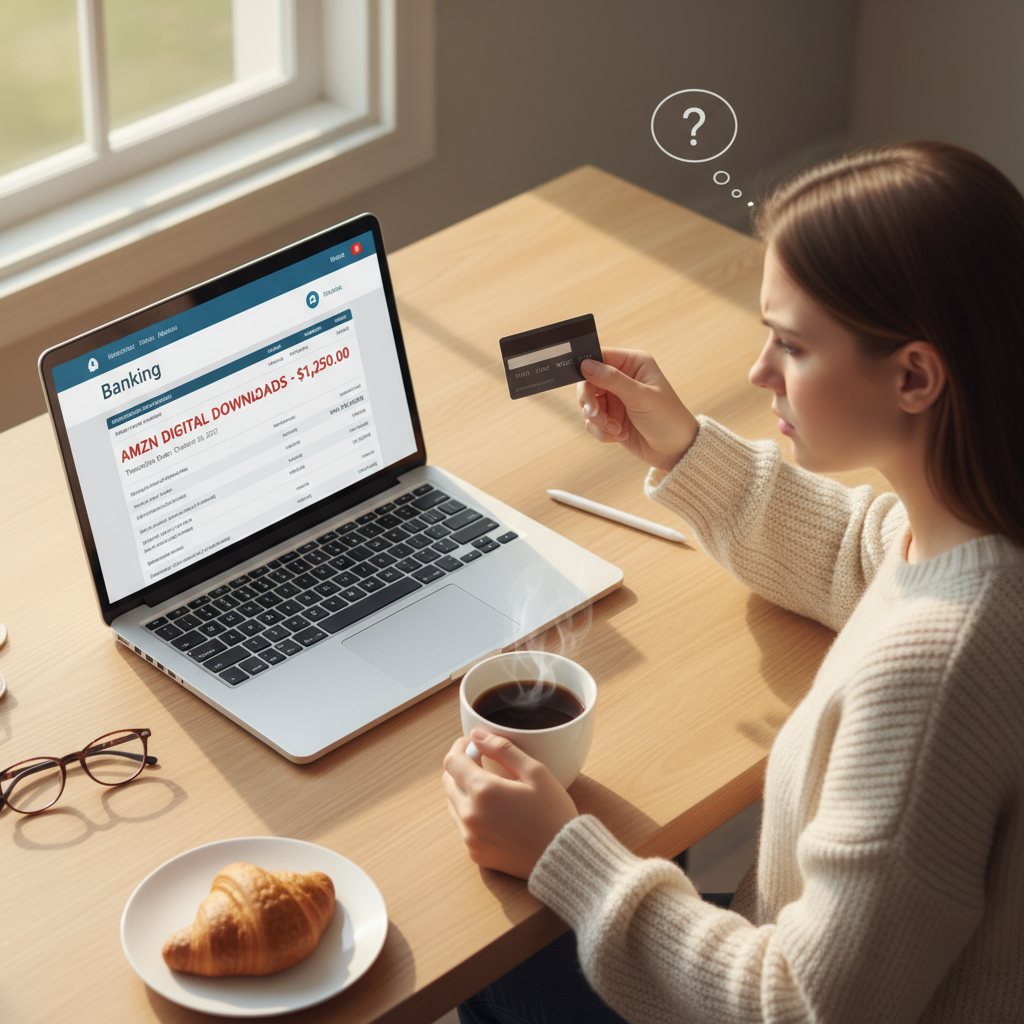
You didn’t order a package. There’s nothing on the way. Yet Amazon still took your money.
So… what exactly is an Amazon digital download charge, and how do you tell if it’s legit or something you need to dispute fast?
Let’s break it down in plain English.
What Is an Amazon Digital Download Charge?
An Amazon digital download charge usually appears when you buy something non-physical from Amazon — meaning nothing shows up at your doorstep, but your card still gets billed.
Common things that trigger these charges include:
- Kindle eBooks
- Audible audiobooks (if billed via Amazon)
- Movies and TV shows (Prime Video purchases or rentals)
- Digital music and albums (Amazon Music store purchases)
- In-game currency or digital game items
- Software licenses and subscriptions
- Some app purchases or digital subscriptions linked to your Amazon account
In other words: if it lives on a screen, not in a box, it can show up as a digital download or similar charge on your card.
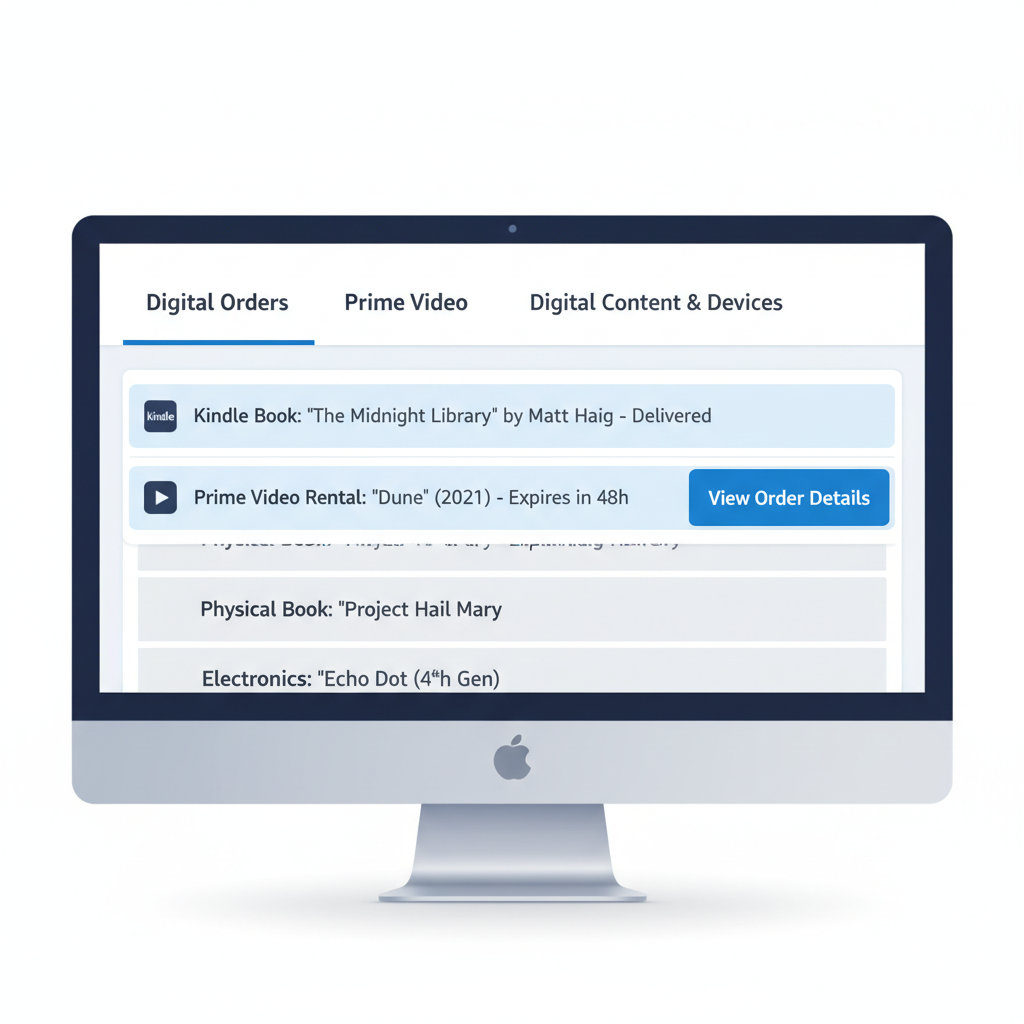
Where You’ll See “Amazon Digital” or Similar Wording
Depending on your bank, the charge description might look like:
- AMAZON DIGITAL DOWNLOADS
- AMZN DIGITAL
- AMAZON MUSIC
- AMZN MKTP US*DIGITAL
- AMAZON VIDEO
The annoying part? Your bank statement description is often vaguer than what you’ll see inside Amazon itself. That’s why the next step is always to cross-check inside your Amazon account.
How to See Exactly What the Charge Was For
Here’s how to track down that mystery Amazon digital downloads charge step-by-step.
1. Check Your Digital Orders on Amazon
On desktop:
- Go to Amazon.com and sign in.
- Hover over “Accounts & Lists.”
- Click “Your Orders.”
- At the top, you’ll see filters like Orders, Not Yet Shipped, Cancelled.
- Look for tabs or filters such as “Digital Orders,” “Digital content and devices,” “Prime Video,” “Digital Services and Device Support,” or similar.
- Change the date range to match when the charge hit your bank.
On mobile (app):
- Open the Amazon app.
- Tap the person icon (bottom nav) or ≡ menu.
- Tap “Your Orders.”
- Use the filters to switch between Orders and Digital orders / Digital items.
Look for:
- Kindle books
- Video rentals or purchases
- Music albums or songs
- Game or software keys
Once you find the matching order, you’ll see:
- The exact title (e.g., a Kindle book or movie)
- The date
- The amount charged
If that amount and date line up with your bank charge, mystery solved.
2. Check Your Subscriptions and Memberships
If you don’t see a one-time digital order, the charge might be a subscription renewal.
Check these sections:
- Amazon Prime (monthly or annual)
- Amazon Music Unlimited
- Kindle Unlimited
- Audible (if billed via Amazon account)
- Third-party subscriptions billed through Amazon (apps, channels, services)
On desktop:
- Go to Accounts & Lists.
- Look for:
- “Memberships & Subscriptions”
- “Your Prime Membership”
- “Manage Your Content and Devices” (for Kindle and digital content)
Scan for anything that bills around the same date and amount.
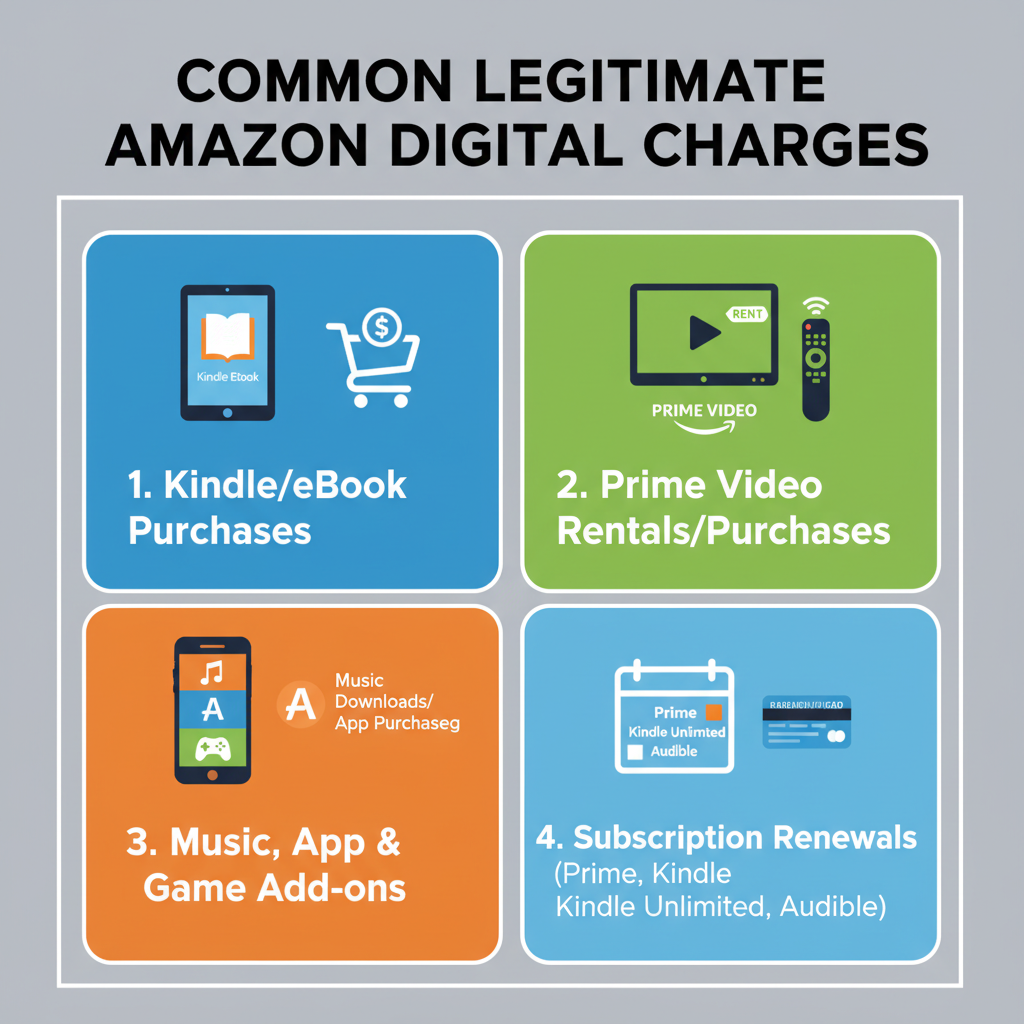
Common Legit Reasons for Amazon Digital Downloads Charges
Here are the most common “ohhhh, right” moments people have when they dig in:
1. Kindle or eBook Purchases
You (or someone on your account) bought a Kindle eBook. This can happen by:
- One-click buying on a Kindle device
- Buying through the Kindle app
- Buying on Amazon.com and forgetting five minutes later
Tip: Turn off 1-Click purchasing or require a PIN on Kindle devices used by kids.
2. Movie Rentals or Purchases (Prime Video)
Prime Video purchases and rentals can show up as Amazon digital charges.
Examples:
- Renting a new release movie for a weekend.
- Buying a full season of a TV show.
If you share your account, someone might have rented/bought something without realizing it costs extra (not everything is included in Prime).
Tip: Turn on purchase restrictions for Prime Video and require a PIN for purchases.
3. Music, Apps, or Game Content
You might see charges for:
- Purchasing a digital album or song
- Buying extra content or in-game currency through Amazon
- Purchasing software licenses or keys (e.g., antivirus, productivity tools)
These tend to be odd amounts (like $4.99, $9.99, $19.99) and easy to forget.
4. Memberships and Subscriptions
Some examples:
- Amazon Prime renewing monthly or annually
- Amazon Music Unlimited
- Kindle Unlimited
- Audible subscription
- Prime Video Channels (Starz, Showtime, Paramount+, etc.)
Many of these have free trials that roll into paid plans. If you started one and forgot to cancel, that explains the surprise.
Could the Amazon Digital Download Charge Be Fraudulent?
Sometimes the charge really isn’t you.
Look for these red flags:
- You don’t have an Amazon account with that card.
- You checked all orders and subscriptions and see nothing matching.
- The email on your Amazon account hasn’t received any order confirmations.
- You see multiple small Amazon digital charges in a row that don’t match your history.
In that case, treat it like potential fraud.
Step 1: Check All Your Amazon Accounts
If you have more than one Amazon account (personal, old college email, shared family account), log into each and:
- Review Your Orders (including digital)
- Check Memberships & Subscriptions
Sometimes a partner or family member has an order on a shared account you forgot about.
Step 2: Contact Amazon Support
If you still can’t match the charge, contact Amazon directly:
- Go to Help at the bottom of the Amazon homepage.
- Select “Customer Service” or “Help & Contact Us.”
- Choose “Something else” → “I have an issue with a charge” (or similar).
- Use chat, phone, or email to give them:
- The date and amount of the charge
- The last 4 digits of the card
They can usually tell you:
- What the charge was for
- Which account it’s tied to
If it’s unauthorized, ask them to reverse the charge and secure the account.
Step 3: Contact Your Bank or Card Issuer
If Amazon confirms it’s not from one of your accounts, call your bank or credit card company:
- Report it as fraudulent.
- Request to dispute the charge.
- Ask for a new card number if needed.
How to Stop Surprise Amazon Digital Charges in the Future
Prevention > Panic. Here’s how to keep future “What is this?!” moments to a minimum.
1. Lock Down Purchases on Devices
On Kindle and Fire devices, you can:
- Require a PIN for purchases
- Turn off 1-Click purchasing
On Prime Video:
- Set up a PIN for purchases/rentals
- Restrict purchases on certain profiles
This is especially important if kids use your devices.
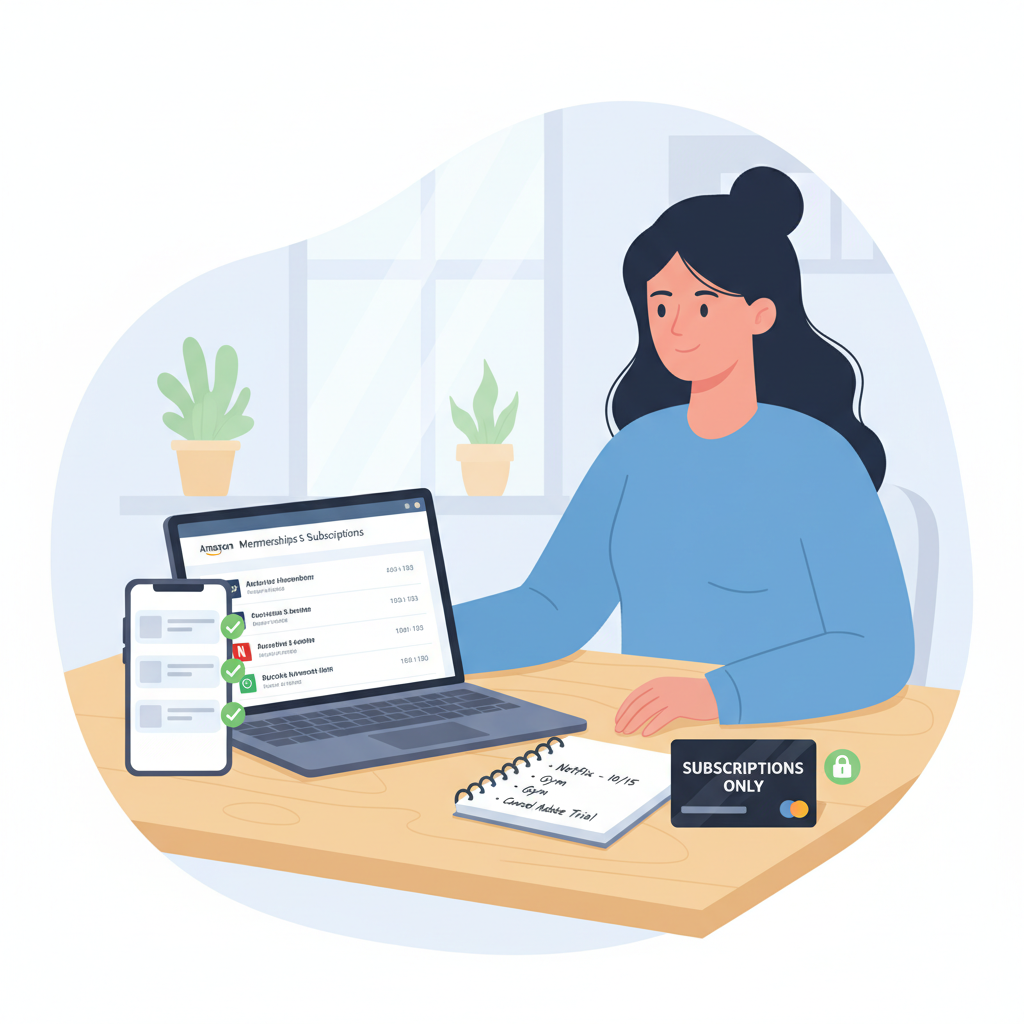
2. Audit Your Subscriptions Regularly
At least every few months:
- Go to Memberships & Subscriptions in your Amazon account.
- Cancel anything you’re not using.
- Note renewal dates for the stuff you keep.
This quick habit can easily save you hundreds per year.
3. Use a Dedicated Card for Subscriptions
Some people use one specific credit card just for recurring charges and subscriptions.
Benefits:
- Easier to spot new or weird charges.
- Cleaner view of how much you’re really spending on subs.
4. Turn On Alerts with Your Bank
Most banks let you:
- Get a text or app alert for every transaction above a certain amount.
- Get alerts specifically for online or card-not-present purchases.
That way you see Amazon digital charges the moment they happen — not three weeks later.
FAQ About Amazon Digital Download Charges
Why did I get charged by Amazon digital downloads when I didn’t buy anything?
Most likely causes:
- A subscription renewal (Prime, Music, Kindle Unlimited, Audible, channels)
- A shared account purchase by a family member
- An accidental tap purchase on a Kindle or streaming device
If none of those fit, investigate it as possible fraud.
How do I get a refund for an Amazon digital charge?
Refunds for digital orders are more limited than for physical items, but you can try:
- Go to Your Orders → Digital orders.
- Find the item.
- Look for a “Return” or “Refund” option.
- If you don’t see it, contact Amazon Customer Service and explain the situation (especially for accidental or child purchases).
For subscriptions, you may be able to:
- Cancel and request a partial or full refund if it renewed very recently.
Is “Amazon Digital” the same as Amazon Prime?
Not always.
- Amazon Prime has very specific price points (monthly or yearly) for membership.
- Amazon Digital / Amazon digital downloads charge is a general label that could be:
- eBooks
- Movies
- Music
- Subscriptions
- Software
So if the amount doesn’t match your Prime plan, assume it’s a different digital item or service.
Final Thoughts: Don’t Ignore “Small” Mystery Charges
A random $4.99 Amazon digital download charge may not seem worth the hassle.
But:
- Small unauthorized charges are often test transactions by fraudsters.
- Subscriptions you’ve forgotten about quietly drain your budget.
So any time you see “Amazon digital downloads” or “AMZN DIGITAL” on your statement and don’t immediately know what it is:
- Check Your Orders (including digital).
- Review Memberships & Subscriptions.
- Talk to Amazon Support if you’re still confused.
- Loop in your bank/card issuer if it looks like fraud.
A 10–15 minute check now can save you from much bigger money headaches later.
Leave a Reply