How To Sign Into Amazon Smile
If you’ve ever tried to support a charity through Amazon Smile and thought, “Wait… where do I even sign in?”, you’re not alone.
Between changing URLs, disappearing links, and Amazon quietly reshuffling features over the years, it’s easy to get confused about how (or whether) you can still sign into Amazon Smile today.
Let’s clear it up in plain English.
Quick reality check: Is Amazon Smile still a thing?
Before we walk through how to sign into Amazon Smile, you need to know this:
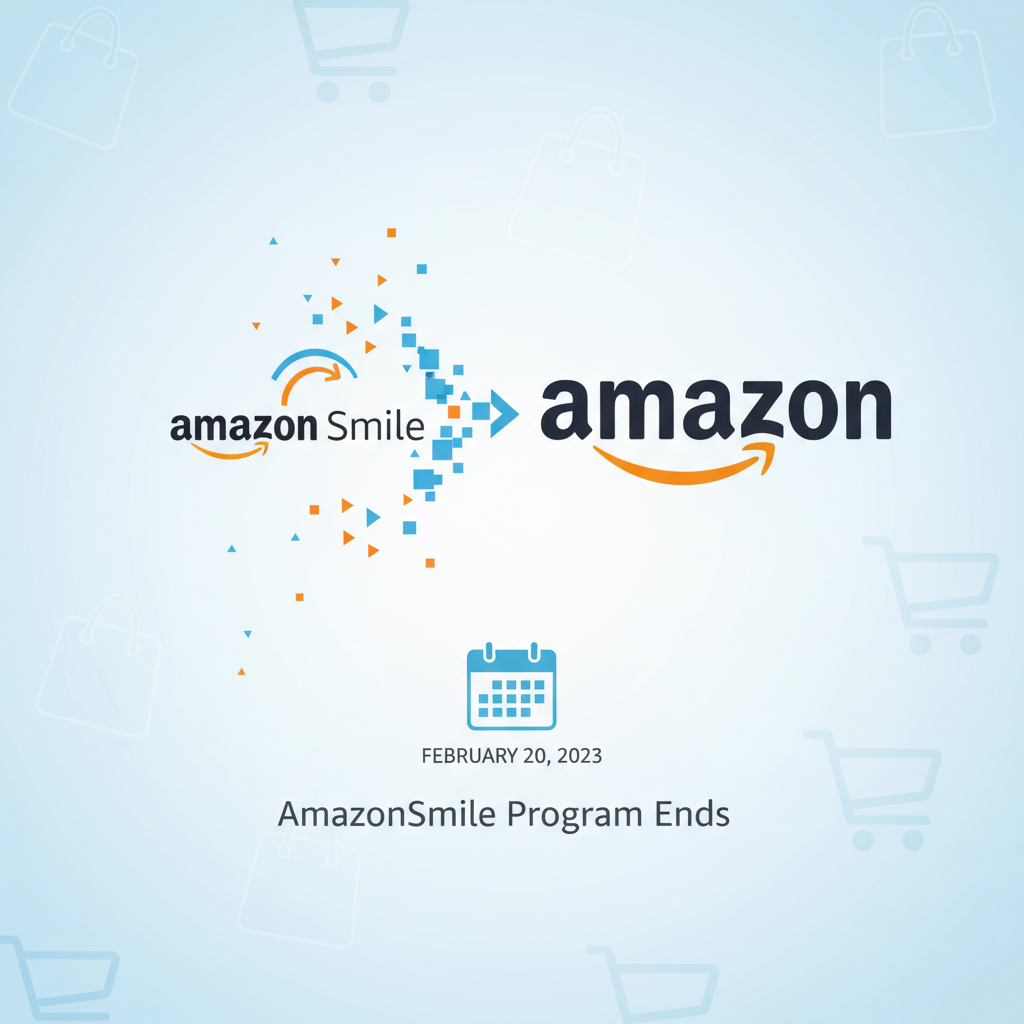
Amazon closed the AmazonSmile program on February 20, 2023.
That means:
- You can no longer sign into a separate “Amazon Smile” site to generate donations.
- Purchases you make on Amazon no longer trigger AmazonSmile donations to your selected charity.
- The old smile.amazon.com sign-in page now either redirects or is non-functional as a donation portal.
So if you’re searching “sign into Amazon Smile” expecting to:
- Log in at a special
smile.amazon.comURL, or - Turn on donations again for your everyday shopping,
…that specific feature has been discontinued.
But don’t leave yet. You still have options if your goal is to support charities while shopping on Amazon.
What Amazon Smile used to be (and why people are still searching for it)
If you’re here, you probably remember the old setup:
- You’d go to smile.amazon.com instead of the regular Amazon site.
- You’d sign in with your normal Amazon account (same email and password).
- You’d pick a charity or nonprofit.
- Then a small percentage of your eligible purchases would be donated to that organization—at no extra cost to you.
Because it felt painless and automatic, a lot of people simply formed the habit of “I shop via Amazon Smile, so I’m doing some good.”
Now that the program is gone, people still type queries like:
- “sign into amazon smile”
- “where is my amazon smile login?”
- “how to reactivate amazon smile”
You’re basically bumping into the ghost of a feature that was genuinely popular with many users and nonprofits.
So what happens when you try to sign into Amazon Smile now?
If you:
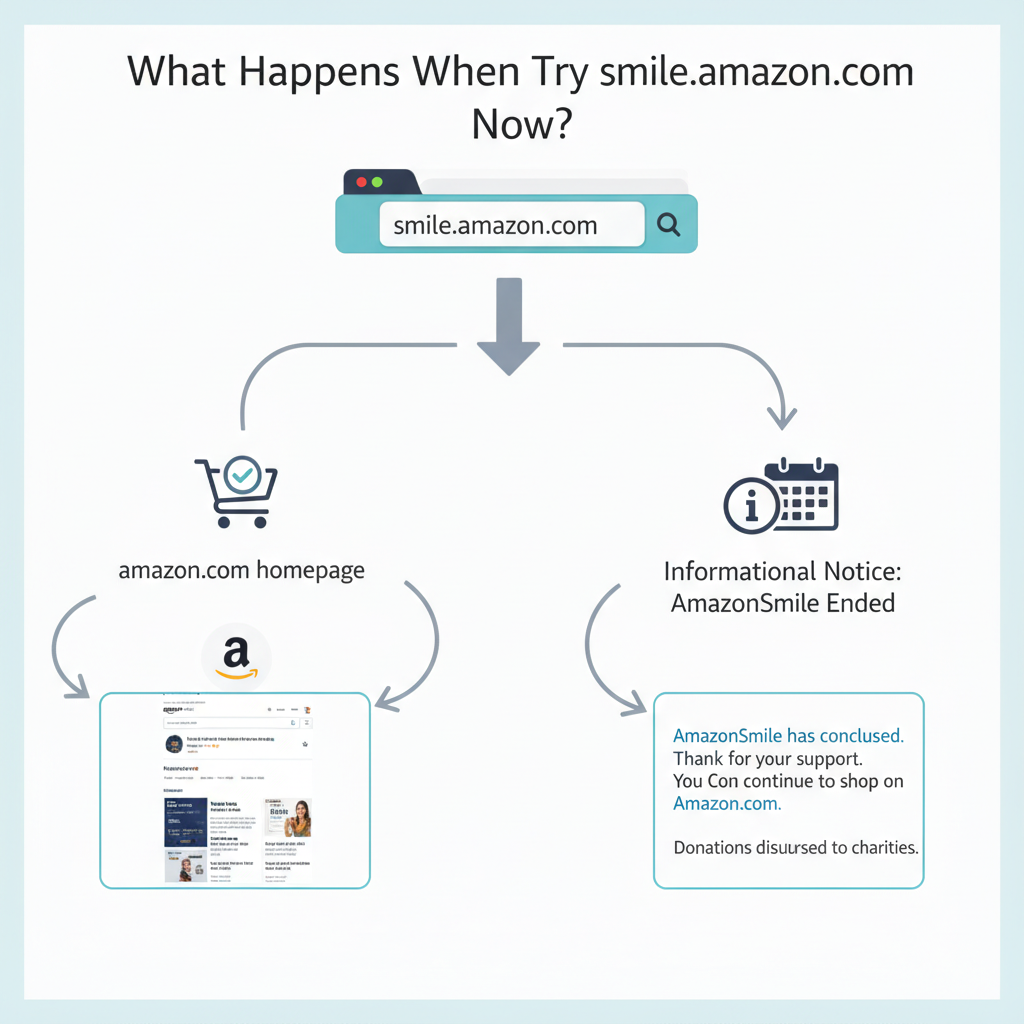
- Type
smile.amazon.cominto your browser, or - Click an old bookmark or email link related to Amazon Smile,
you may experience one of the following:
-
Redirect to the main Amazon site
You’ll simply land on amazon.com and sign in with your usual credentials—no Smile-specific options. -
Informational page (historical/archived)
In some cases, you may see messaging explaining that AmazonSmile has ended and any final eligible donations have already been processed.
Either way, there is no separate sign-in or toggle you can turn back on to resume AmazonSmile donations.
Can you still support charities through Amazon at all?
Yes—just not through Amazon Smile. While the Smile program ended, Amazon still supports giving in other ways from time to time. The details can evolve, but here are some general directions to look at:
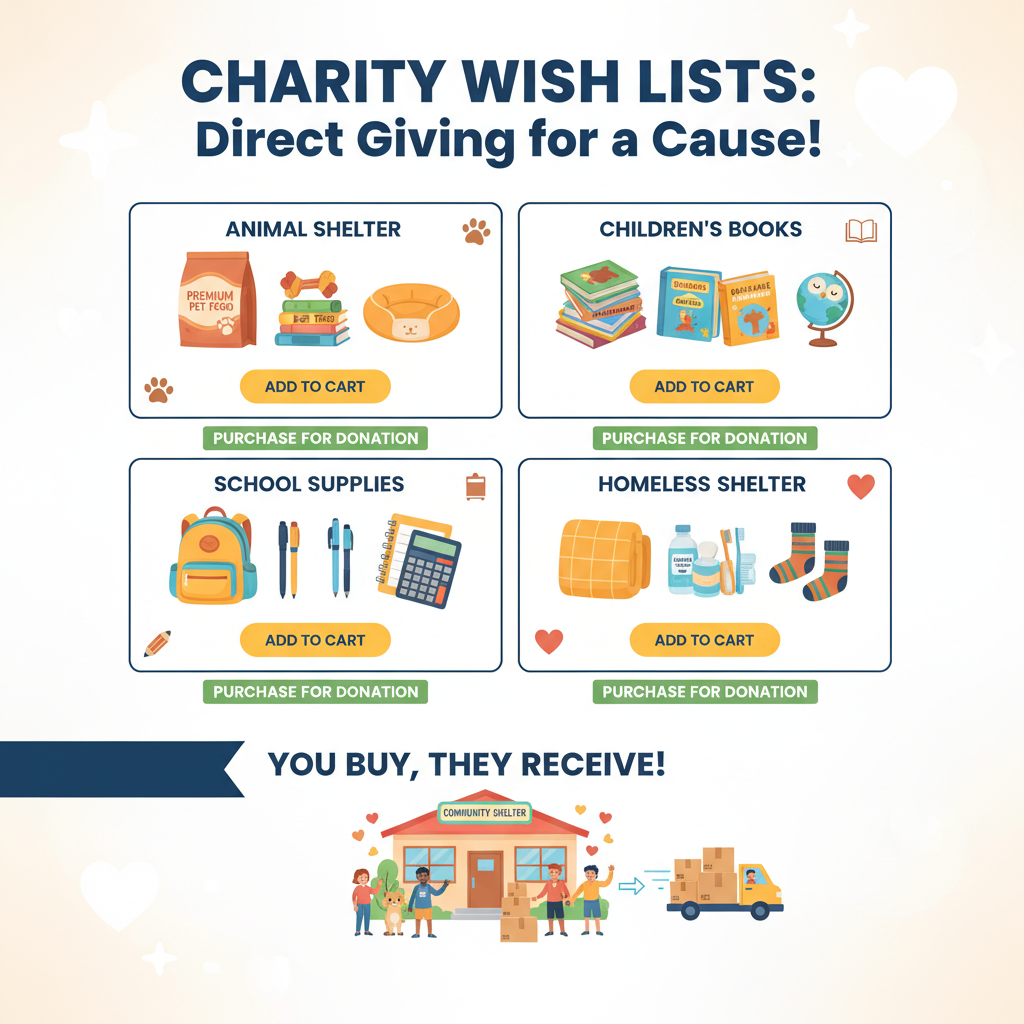
1. Charity wish lists
Many nonprofits create Amazon wish lists of items they actually need—think:
- School supplies
- Hygiene kits
- Pet food and kennels
- Books and educational materials
How this works now:
- Go to Amazon and sign into your normal account.
- In the search bar or menu, look for “Accounts & Lists” → “Find a List or Registry” (wording can vary slightly over time).
- Search for the name of the charity or nonprofit.
- Purchase items from their list—these are shipped directly to them.
This doesn’t automatically donate a percentage of every purchase, but it does send specific, needed items right to the organization.
A local animal shelter might have a list containing dog food, cat litter, cleaning products, and toys. Instead of hoping Smile sends them a small percentage of your random purchases, you can send them exactly what they’ve asked for.
2. Direct donations
Some organizations link to Amazon Pay or other donation tools from their own websites. This isn’t Amazon Smile, but you might still:
- Log into Amazon Pay with your Amazon account.
- Use your stored payment methods to donate directly.
The process here happens on the charity’s side, not through a special Amazon shopping URL.
3. Seasonal or special programs
From time to time, Amazon has historically run:
- Limited-time donation campaigns
- Disaster relief collections
- Matching programs or special events
These come and go, so if you’re reading this much later, your best bet is to:
- Log into amazon.com.
- Scroll the homepage or help section for current “charity,” “donation,” or “relief” initiatives.
What if you only wanted to “turn on” Amazon Smile again?
Short answer: you can’t reactivate it.
But you can recreate the underlying intent—supporting causes you care about—using different methods.
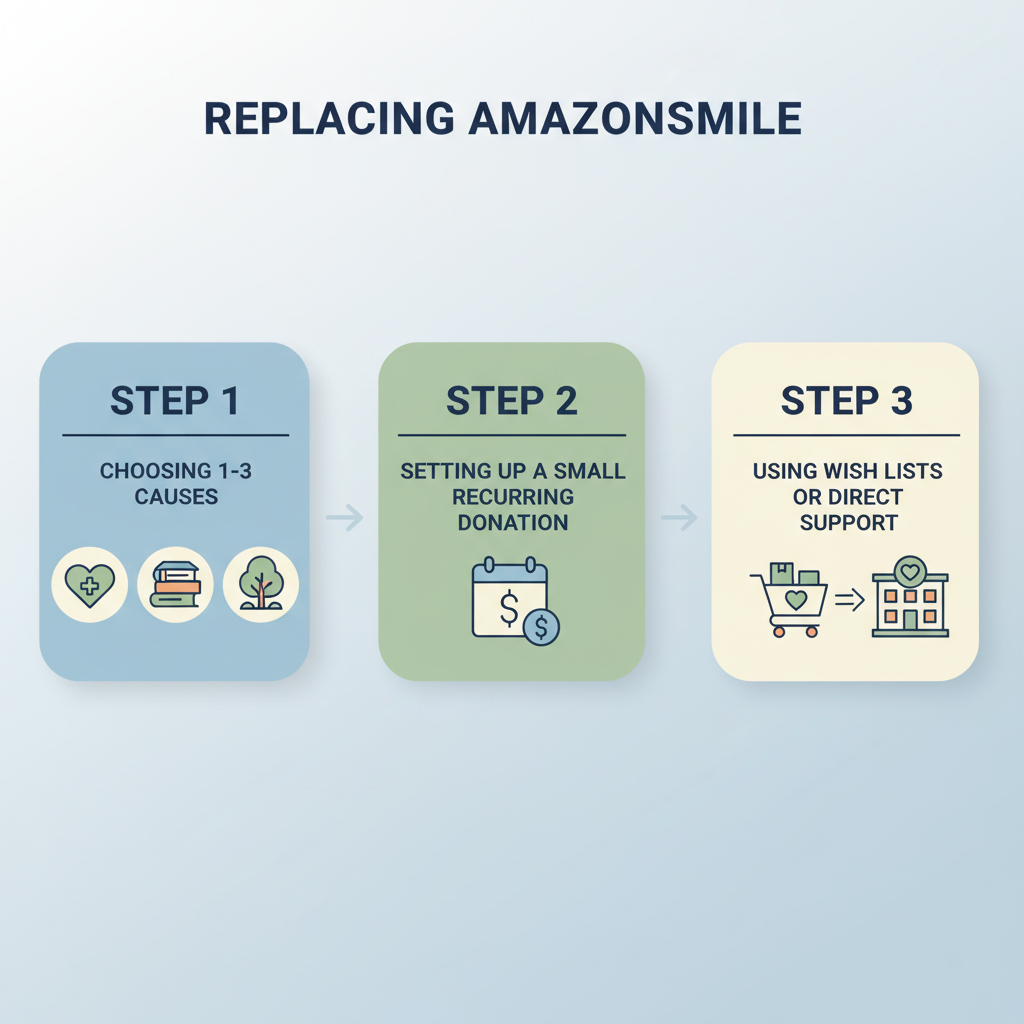
Here’s a simple three-step replacement strategy:
Step 1: Pick your top 1–3 causes
Instead of relying on Amazon to spread a small percent over many purchases, you can:
- Choose one local nonprofit (animal shelter, food bank, library foundation).
- Choose one national or global charity that aligns with what you care most about (education, climate, health, etc.).
This narrows your impact and often makes it more meaningful.
Step 2: Set a small recurring donation
The amount that used to trickle to charity via Amazon Smile was usually quite small per person—often just a few dollars per year unless you were a heavy Amazon shopper.
So instead of waiting on that:
- Set up a recurring monthly donation of even $5–$10 directly on the charity’s website.
- Use a card, PayPal, or bank account—whatever’s easiest for you.
Over a year, you’ll usually give more than you would have via Smile, and the charity gets it more reliably.
Step 3: Use Amazon wish lists or direct support for extras
When you’re already planning a purchase on Amazon, ask:
- “Is there a wish list from a nonprofit I can purchase from instead of just buying something random?”
For example:
- Buying dog treats? Check an animal rescue’s wish list.
- Buying school supplies? See if a community center or teacher has a public list.

But what if I’m a nonprofit that used to rely on Amazon Smile?
If you’re on the nonprofit side and found this article while trying to figure out where your Amazon Smile dashboard or login went, here’s the lay of the land:
- You can’t log into Amazon Smile anymore to manage donations—that portal is gone.
- You should already have received final disbursements from the program (if you were enrolled before it ended).
- The best move now is to communicate clearly with your supporters:
- Update your website to remove Amazon Smile language and logos.
- Replace those with links to your direct donation page.
- Consider adding step-by-step instructions for:
- Setting up recurring gifts.
- Buying from your Amazon (or other retailer) wish list.
Example message you could use to replace an “Support us via Amazon Smile” blurb:
“Amazon has ended the AmazonSmile program. But you can still support [Our Organization] directly! The most impactful ways to help are: 1) setting up a monthly donation, and 2) purchasing in-kind items from our wish list. Thank you for continuing to stand with us!”
FAQ: Common questions about signing into Amazon Smile
1. Can I still sign into Amazon Smile with my old account?
No. There is no separate Amazon Smile account. It always used your regular Amazon login, and the Smile-specific experience is no longer active.
2. Is there a way to enable Amazon Smile in the Amazon mobile app now?
Previously, the Amazon app had a setting where you could turn on AmazonSmile for mobile shopping. That option has been removed. There’s no current built-in toggle that donates a percentage of your purchases in the same way.
3. Are there browser extensions that replace Amazon Smile?
You may see tools or extensions claiming to:
- Automatically redirect your shopping to charity-friendly links, or
- Donate a portion of your purchases somewhere else.
If you explore those:
- Check reviews carefully.
- Read the privacy policy—some extensions track browsing or shopping data.
- Verify that the nonprofit actually receives funds from the provider.
They’re not official Amazon Smile replacements, so treat them like any third-party tool: helpful if legit, risky if shady.
4. Where can I see my past Amazon Smile donations?
If you want a record of your old Amazon Smile impact:
- Log into amazon.com.
- Check your order history and email archives for any reports Amazon may have sent while the program was active.
Detailed historical reporting through a Smile dashboard is no longer available to sign into.
The bottom line: What to do instead of signing into Amazon Smile
If you came here trying to figure out how to sign into Amazon Smile, here’s your quick summary:
- Amazon Smile ended in February 2023, so there’s no longer a separate sign-in or donation toggle.
- Your regular Amazon account still works exactly the same—you just can’t turn purchases into Smile donations anymore.
- To keep supporting your favorite causes:
- Set up direct recurring donations on their websites.
- Use Amazon wish lists to buy items they need right now.
- Watch for seasonal or special campaigns if Amazon promotes any in the future.
You don’t need a special URL like smile.amazon.com to be generous.
You just need the same thing you always did: a cause you care about, and a small, consistent commitment to helping.
Leave a Reply