How To Host An Amazon Prime Watch Party
Ever tried to watch a show with friends long-distance and spent half the night yelling, “Okay, press play on 3… NO, NOT YET!”?
Yeah. We’re retiring that method today.
If you have Amazon Prime Video, you can use Amazon Prime Watch Party to sync movies and shows with friends, chat in real time, and basically turn your couch into a tiny virtual theater.
This guide walks you through what Amazon Watch Party is, how it works, who can join, how to fix common issues, and some fun ways to use it.
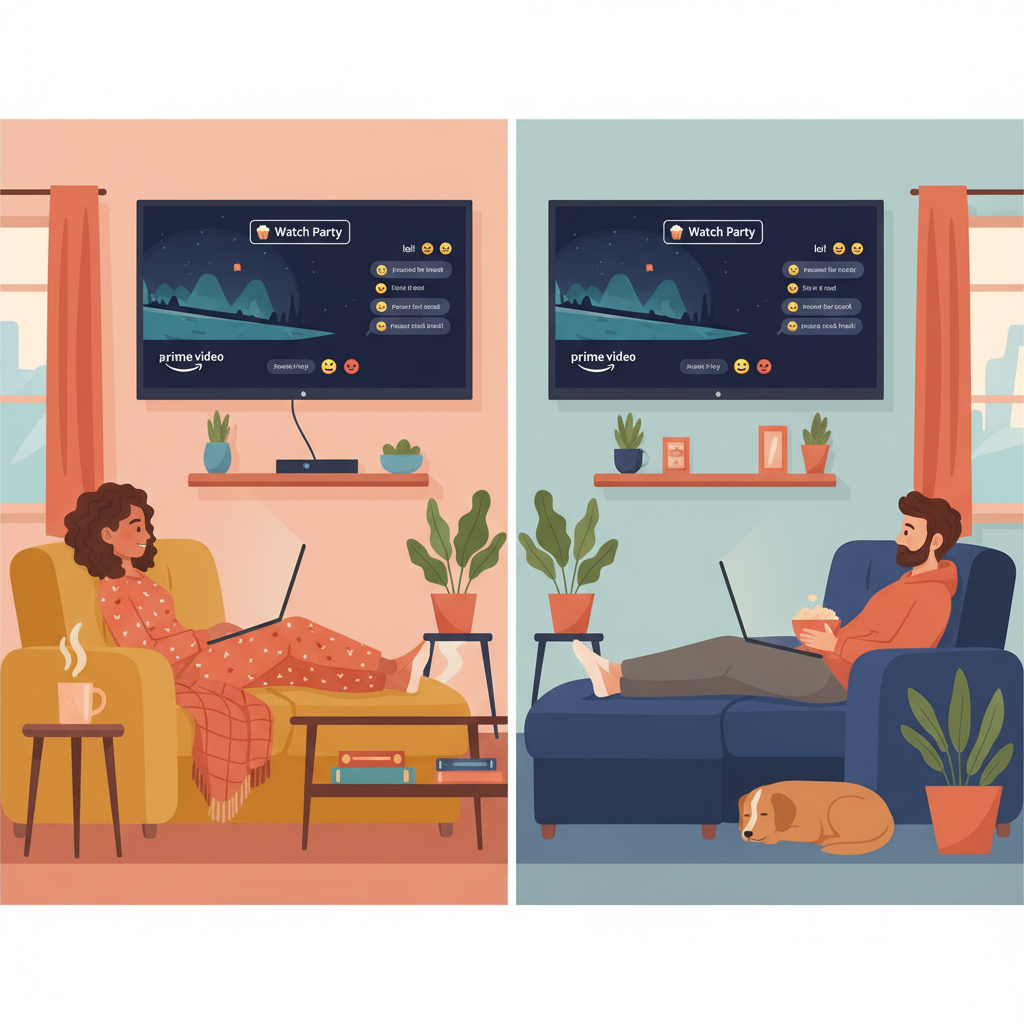
What is Amazon Prime Watch Party?
Amazon Prime Watch Party is a built-in feature of Prime Video that lets you watch the same movie or show with other people online, perfectly synced, with a group chat on the side.
Zoom + Group Chat + Netflix Night — but fully baked into Prime Video.
Key points:
- Everyone watches the same thing at the same time (pause for snacks = paused for everyone).
- There’s a chat window for commentary, reactions, and memes.
- Only one person hosts the watch party, but multiple people can join.
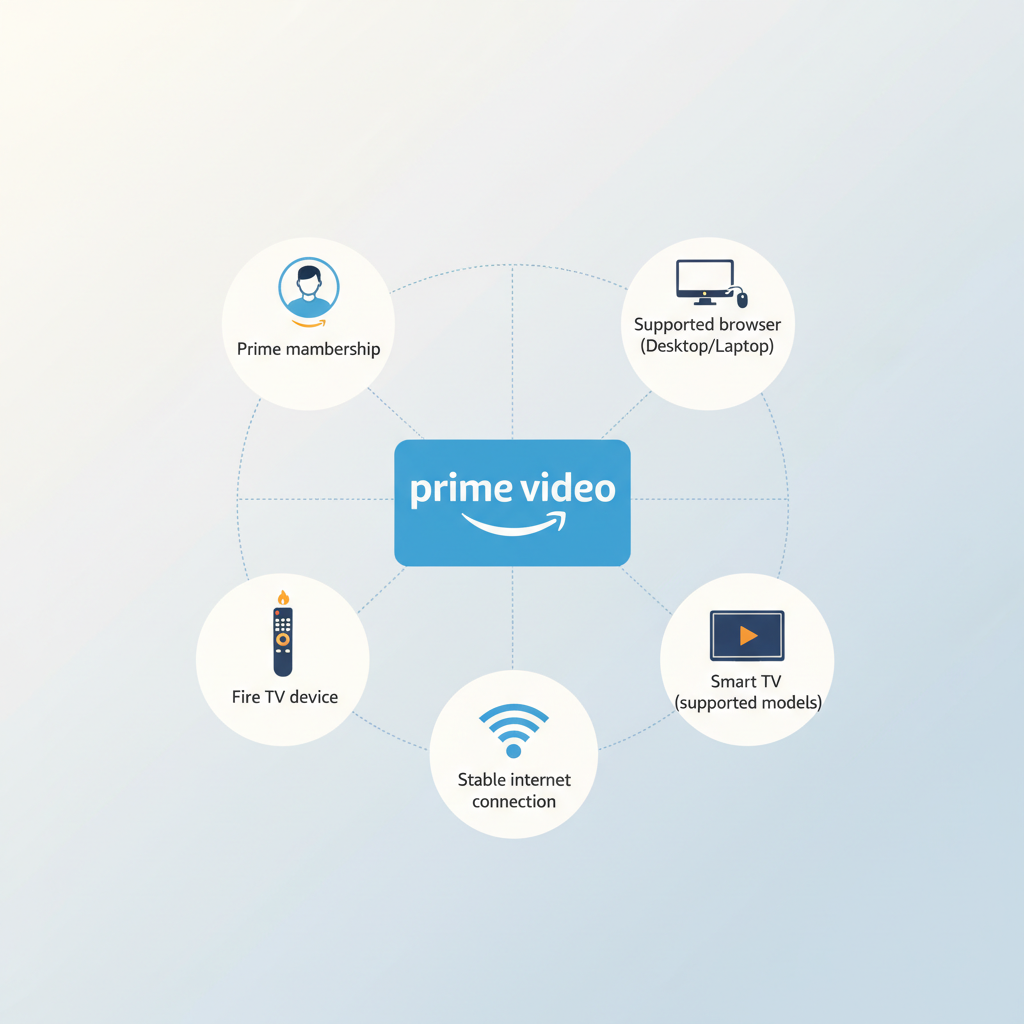
What do you need for an Amazon Watch Party?
Before you send out invites, make sure you’ve got the basics covered.
1. An Amazon account
- Host: Needs an Amazon Prime membership or Prime Video subscription.
- Guests: In most cases, they also need Prime if you’re watching Prime-included titles. If the content is rent/buy only, each participant typically needs to rent or buy the same title on their own account.
2. Supported device
Amazon Watch Party does not work everywhere. At the time of writing, it’s supported on:
- Most desktop/laptop web browsers (Chrome, Firefox, Edge, Safari – ideally updated)
- Many Fire TV devices
- Some smart TVs and streaming devices via the Prime Video app
It may not work properly on:
- Older smart TV apps
- Some game consoles
- Certain mobile browsers
Use a desktop or laptop browser, or a Fire TV device with the Prime Video app.
3. Stable internet connection
Obvious but important: if your Wi‑Fi is chaos, your watch party will be, too.
Aim for:
- At least 5 Mbps per person for HD
- Wired connection if possible for the host
- You have Prime or Prime Video
- Everyone has Amazon accounts
- Everyone can access the same title in their region
- You’re all on a supported device/app
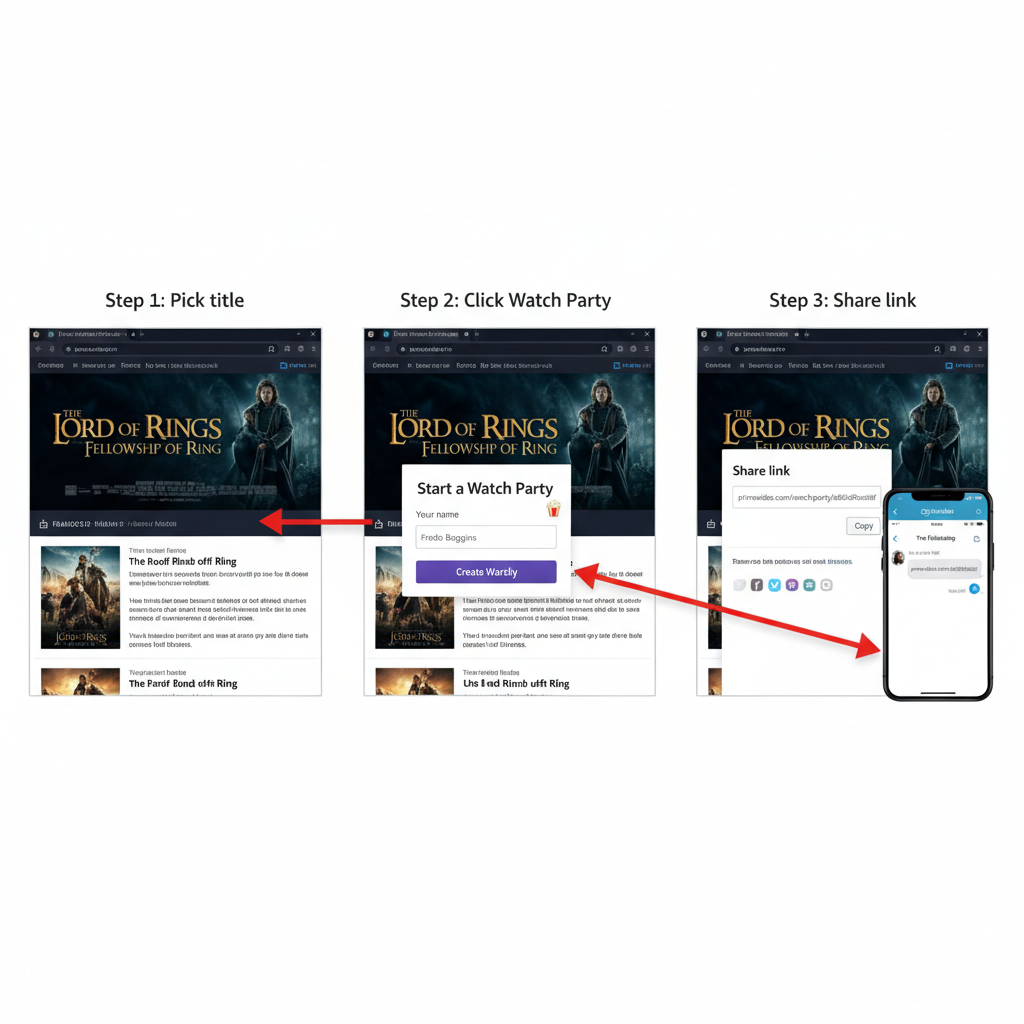
How to start an Amazon Prime Watch Party (step-by-step)
Let’s walk through the desktop/laptop browser flow first, since that’s the most common.
Step 1: Open Prime Video
- Go to Prime Video in your browser.
- Sign in to your Amazon account.
Step 2: Choose what you want to watch
- Browse to the movie or TV show you want.
- Confirm it’s either Included with Prime for everyone or that everyone is willing to rent/buy it.
Step 3: Click “Watch Party”
Once you’re on the title’s detail page, look for a Watch Party button or icon. Depending on your interface, it may be near:
- The Play button
- The More options / three dots menu
Click Watch Party.
Step 4: Name your watch party
You’ll be asked to enter a name. This is your display name in the chat, not the event title.
Examples:
- “Movie Night Chaos Crew”
- “Emily’s Birthday Watch Party”
- “Office Meme Night”
Hit Create Watch Party.
Step 5: Share the invite link
Amazon will give you a shareable link. That’s your golden ticket.
- Copy it and drop it into your group chat, text thread, Discord, or email.
- Anyone with the link (and access to the title) can request to join.
Step 6: Start the show
Once people join:
- The host controls playback: play, pause, skip, etc.
- Everyone is synced automatically.
- Use the chat panel to talk during the show.
You can start the movie even if not everyone has arrived yet — latecomers can still join via the link.
How do guests join an Amazon Watch Party?
If you’re not hosting but got a link, here’s what to do.
- Click the invite link you received.
- Sign in with your Amazon account (or create one).
- Make sure:
- You have Prime (if it’s a Prime title), or
- You’ve rented/purchased the title if required
- Confirm you’re on a supported browser/device.
- Once in, you’ll see the video player and chat.
You don’t control playback — think of yourself as in a virtual theater where only one person has the remote.
Can you use Amazon Watch Party on TV?
Yes, but with some important notes.
Fire TV devices
On many Fire TV sticks and Fire TV devices, Prime Video supports Watch Party directly:
- Open the Prime Video app.
- Select the title.
- Look for and select Watch Party.
- Join using the on-screen or shared link flow.
Smart TVs & other devices
Support varies. Some smart TV Prime Video apps will show the Watch Party option, others won’t.
If yours doesn’t:
- Use your laptop/desktop for video and chat.
- Or cast/mirror your computer screen to the TV while using the browser.
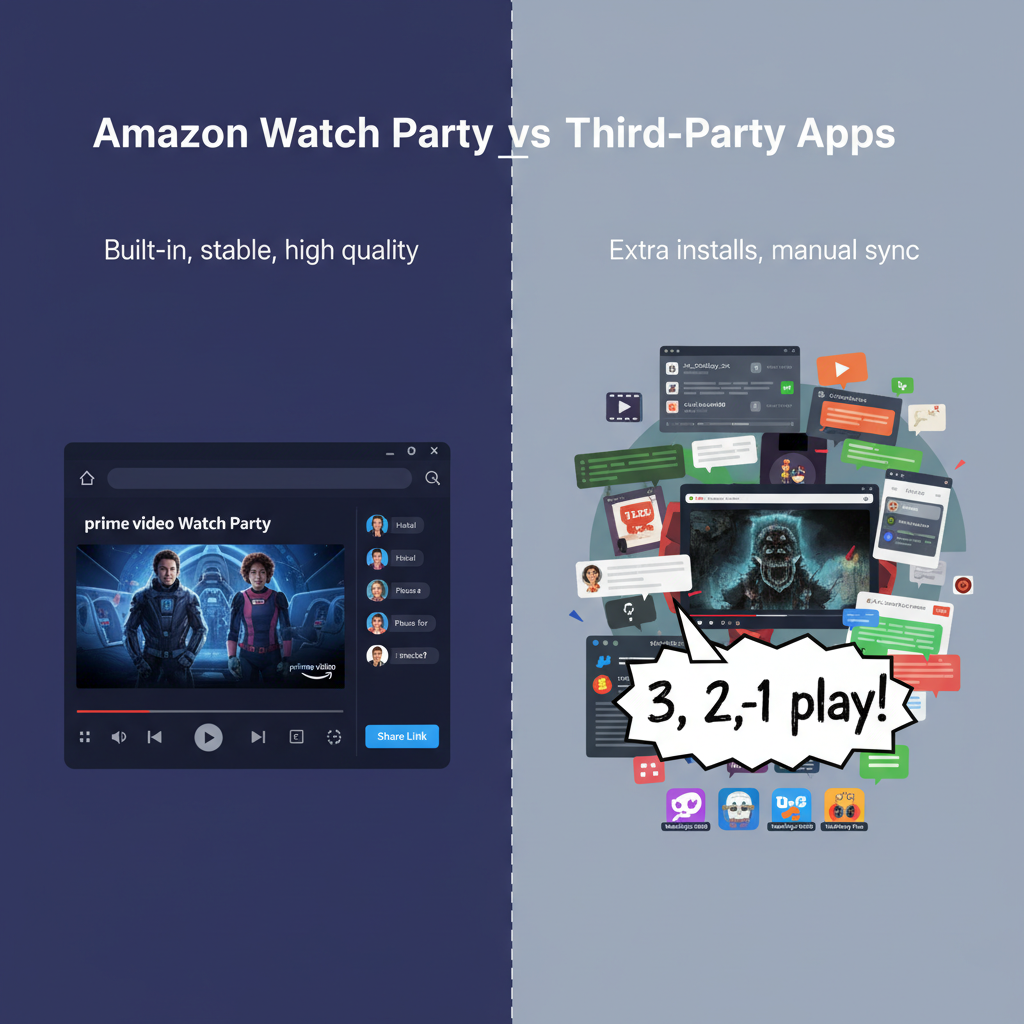
Amazon Watch Party vs. other watch party apps
You might be wondering: why not just use a random third-party extension?
Pros of Amazon Watch Party
- Built into Prime Video — no extra installs on desktop.
- Official support from Amazon.
- Video is high quality and usually more stable than DIY sync tools.
- Host controls make it simple for less tech-savvy friends.
Cons / limitations
- Everyone needs an Amazon account, and often Prime.
- Library is limited to Prime Video content (obviously).
- Cross-country/region parties can be tricky if the title isn’t available everywhere.
Common issues with Amazon Prime Watch Party (and how to fix them)
Even when the tech is solid, something always goes slightly wrong on movie night. Here’s a quick troubleshooting guide.
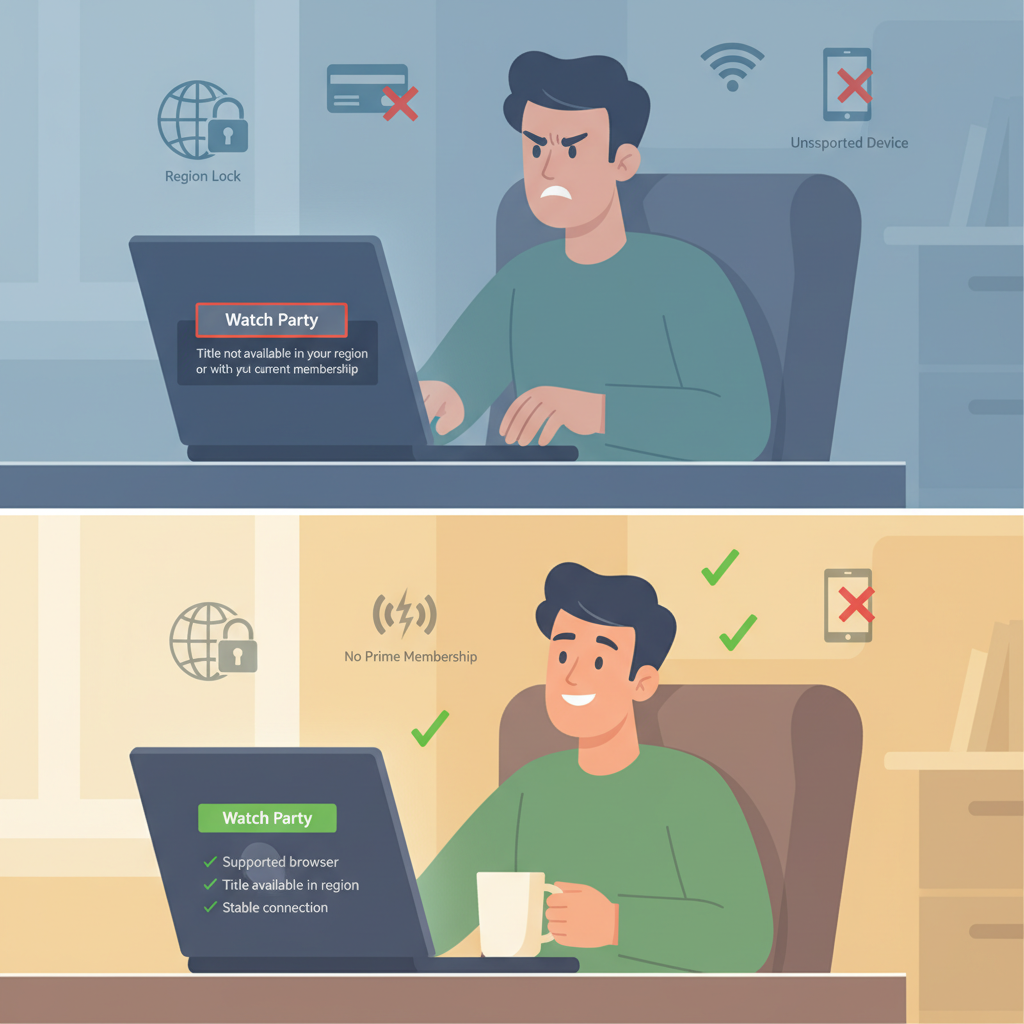
1. “I don’t see the Watch Party button.”
Possible fixes:
- Make sure you’re on a supported device (desktop browser or Fire TV is best).
- Confirm you’re on the Prime Video site/app, not a random Amazon page.
- Try another browser (Chrome, Firefox, Edge, Safari) and update it.
- Check that the title is eligible — some live events or certain channels may not support Watch Party.
2. “It says I can’t watch this title.”
This often means:
- The title isn’t available in your region.
- You don’t have Prime, and it’s a Prime-only title.
- It’s a rental or purchase and you haven’t rented/purchased it yet.
Ask the host to pick a different title that’s Prime-included and available in your country, or rent/buy the title if you’re okay with that.
3. Video is lagging or out of sync
- Close extra tabs and apps using bandwidth.
- If possible, switch to wired Ethernet.
- Lower the video quality in Prime Video settings.
- As a last resort, leave and rejoin the watch party.
4. Chat not working
- Refresh the page.
- Make sure you’re not behind a super-strict VPN or firewall that blocks websockets or chat services.
Fun ideas for your next Amazon Prime Watch Party
Okay, you know how it works. Now let’s make it fun.
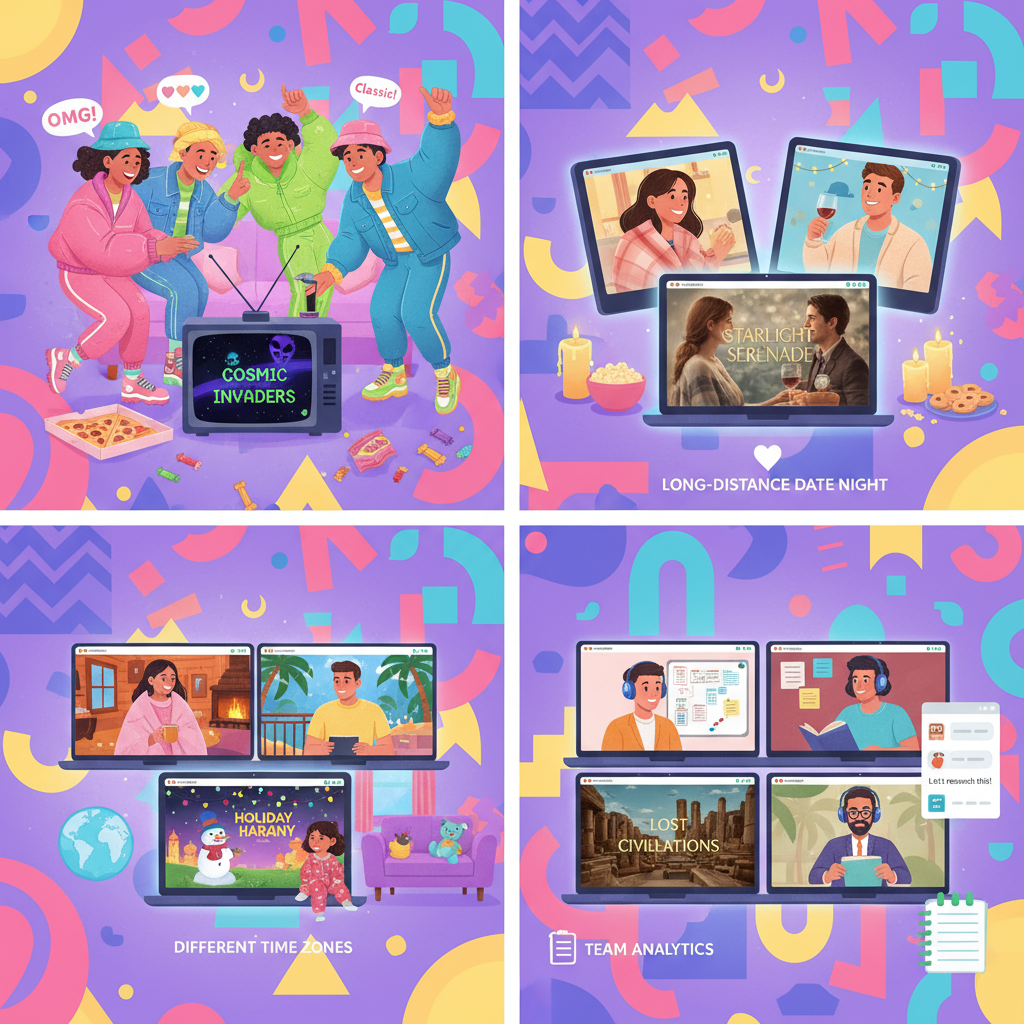
1. Themed movie nights
Pick a theme and commit.
Examples:
- ’90s Nostalgia Night – Old-school comedies or rom-coms.
- Action Overload – Explosions, car chases, questionable plot logic.
- Comfort Rewatch Night – Everyone votes on a movie they’ve already seen and loved.
You can even:
- Ask everyone to bring a themed snack.
- Make a silly Zoom/Discord background to match.
2. Long-distance date night
Watch Party is great for couples or friends doing the long-distance thing.
Ideas:
- Pick a series to binge together weekly.
- Do a cook-along + movie: cook while on video chat, then switch to Watch Party for the film.
3. Family watch party across time zones
Relatives spread all over? Use Watch Party to:
- Watch holiday movies together.
- Start a monthly family movie night tradition.
Pro tip: Use a separate voice call (Zoom/FaceTime/Discord) for people who like talking out loud, and keep the Watch Party chat for text.
4. Remote team or club events
If you run a remote team, book club, or community, you can use Amazon Watch Party to:
- Host a movie night.
- Watch a documentary and then discuss afterward.
Have everyone drop questions and reactions in chat as you go, then hang out on a call at the end.
Tips to host a smooth, drama-free watch party
A little planning goes a long way. Here’s how to level up your host game.
- Decide the title ahead of time.
- Run a quick poll in your group chat.
- Confirm the movie is available in everyone’s region.
- Share the link early.
- Send the watch party link 10–15 minutes before start time.
- Tell people to sign in and check access before showtime.
- Set some light ground rules.
- Will you pause for bathroom/snack breaks?
- Is heavy chat okay during emotional scenes, or should people chill? (No spoilers!)
- Have a backup plan.
- If the title doesn’t work for someone, have a second choice ready.
- Worst case: just hop on a call and stream something separately, but that’s rarely necessary.
Is Amazon Prime Watch Party worth using?
If you:
- Already have Prime Video
- Want an easy, low-effort way to watch something in sync with others
- Are tired of “3…2…1… press play!” chaos
…then yes, Amazon Prime Watch Party is absolutely worth using.
It’s not perfect — device support can be a bit inconsistent, and everyone usually needs Prime or access to the same title. But for most Prime households and friend groups, it’s one of the simplest, most stable ways to do a virtual movie night.
Quick start recap: How to use Amazon Prime Watch Party
One-minute setup recap
- Open Prime Video on a supported browser or Fire TV.
- Pick a movie or show that everyone can access.
- Click Watch Party, name your chat, and create.
- Share the link with friends.
- Hit Play and enjoy the synced chaos together.
Next time someone suggests a movie night and half the group lives in different states, you’ll know exactly what to do.
Leave a Reply