How To Share Your Amazon Profile Link
You’ve left a thoughtful review, built a cute little public wishlist, and maybe even answered a few product questions… but when someone says, “Send me your Amazon profile link,” your brain just goes: 👀
Where is that thing?
Let’s fix that in the next five minutes.
In this guide, you’ll learn exactly what an Amazon profile link is, how to find it on desktop and mobile, how to customize parts of it, and how to share (or hide) what people see when they click it.
What Is an Amazon Profile Link?
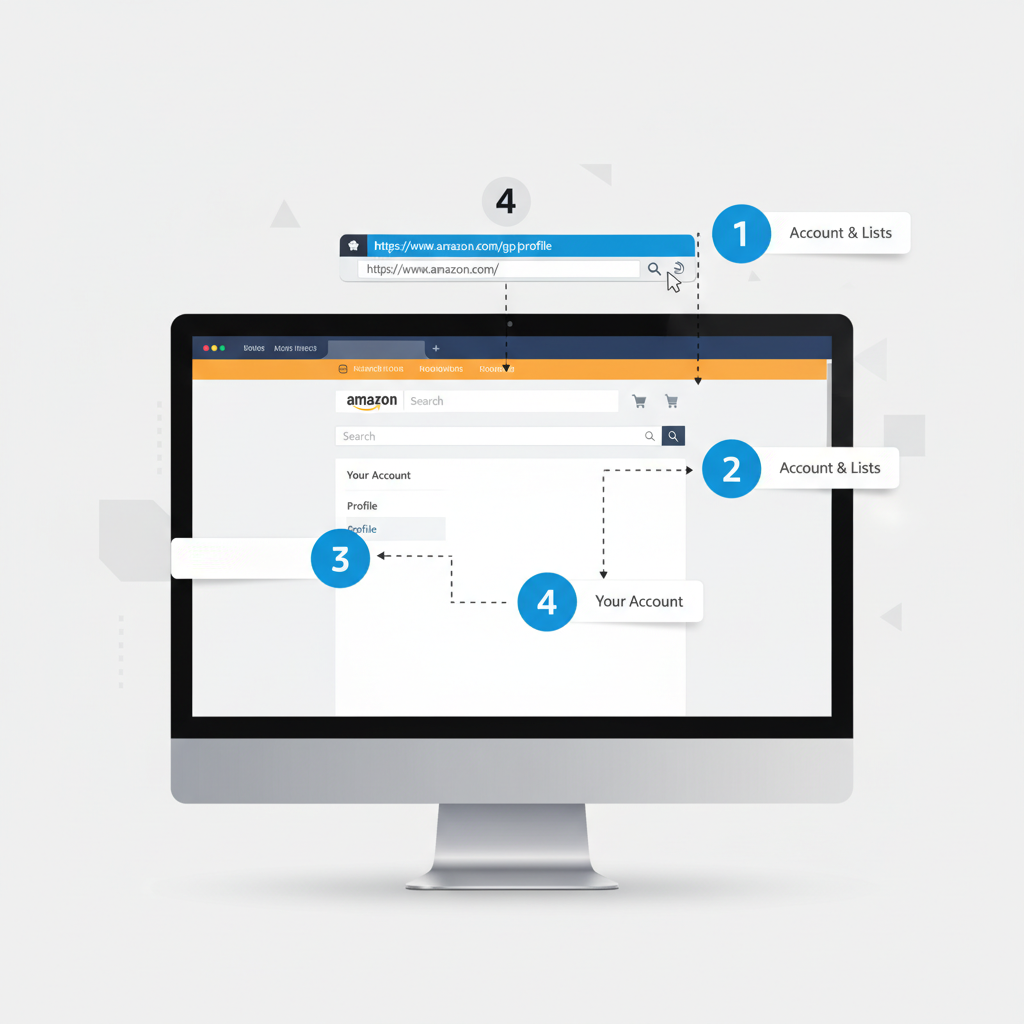
Your Amazon profile link is a unique URL that leads to your public Amazon profile page.
Depending on what you’ve made public, that page can show things like:
- Your public name (not necessarily your legal name)
- Your profile photo (if you added one)
- Your public reviews
- Public wishlists or registries
- Public questions you’ve asked or answered
Think of it as your Amazon identity page – similar to a social profile, but centered around your shopping and reviewing activity.
You can share this link when:
- A brand asks for your reviewer profile
- You want to show off your wish list to friends and family
- You’re doing UGC (user-generated content), affiliate content, or product reviews and need proof of activity
- You’re collaborating in a community or group buy and people want to see your review history
How To Find Your Amazon Profile Link on Desktop
Let’s start with the browser/desktop version of Amazon.
Step-by-step (Web Browser)
- Go to Amazon and sign in
Open amazon.com and make sure you’re logged into the correct account. - Open Your Account page
Hover over “Account & Lists” in the top-right corner, then click “Account” from the dropdown. - Find Your Profile
- Look for a section like “Ordering and shopping preferences” or “Personalization”.
- Click on “Profile” or sometimes “Your Amazon profile”.
- (On many accounts, you can also go directly via:
Accounts & Lists → Your Account → Profile.)
- Copy the URL from the address bar
Once your profile loads, you’ll see a URL in your browser that looks something like:https://www.amazon.com/gp/profile/amzn1.account.ABCDEFGHIJKL- or
https://www.amazon.com/profile/your-public-name-here
- That entire URL is your Amazon profile link
Highlight it, copy it, and paste it wherever you need.
Optional shortcut:
If you’re already logged in, you can often visit https://www.amazon.com/profile and it will redirect you to your profile URL. Once it loads, just copy the URL in the address bar.
How To Find Your Amazon Profile Link on Mobile (App)
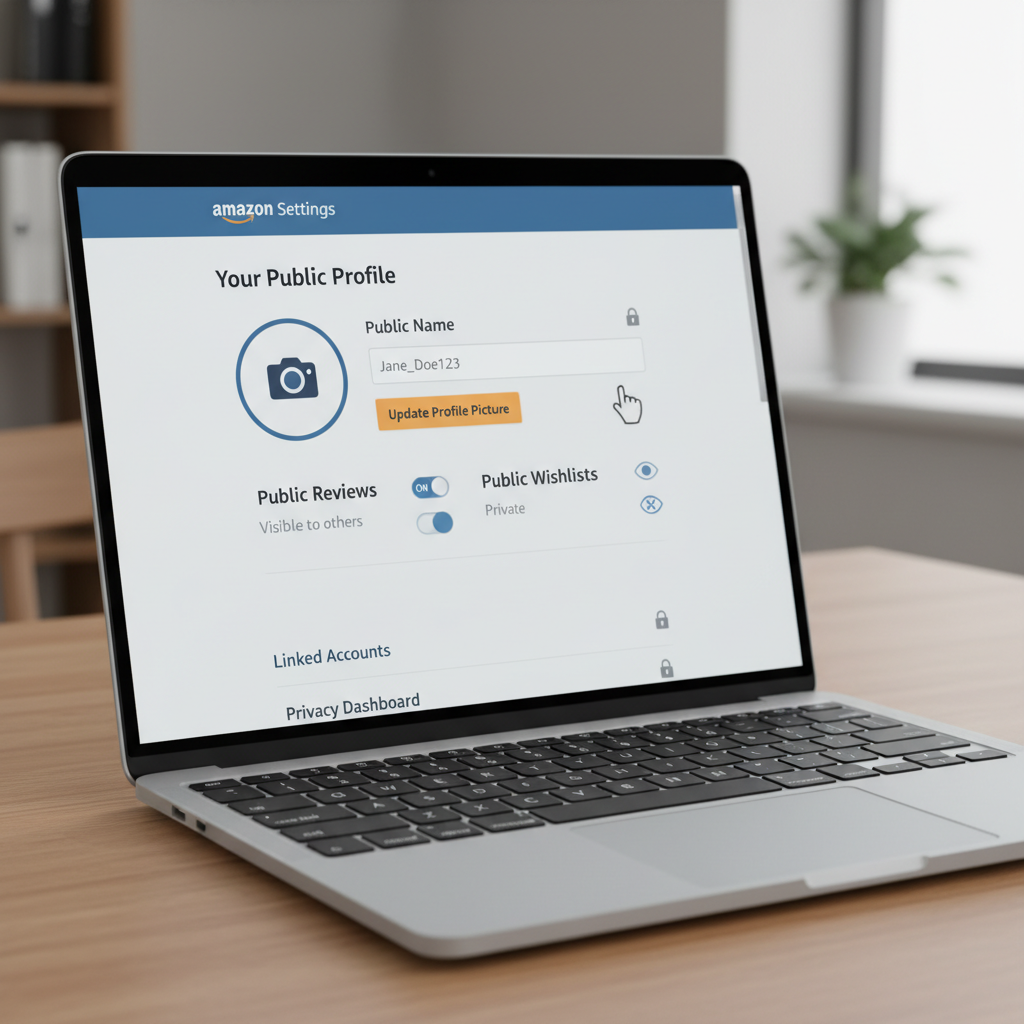
Finding your Amazon profile link in the app is a bit less obvious. Amazon likes to hide things three taps deep.
iOS & Android (Amazon App)
- Open the Amazon app and log in.
- Tap the menu icon (three horizontal lines ☰)
Usually in the bottom bar or top-left/right, depending on your version of the app. - Go to “Your Account.”
- Look for something like “Profile”, “Your Profile”, or occasionally under a section like “Personalized content” or “Profile & community.”
- Open your profile.
You’ll now see your public profile page with your name, reviews, etc. - Share the link.
- Some versions of the app have a Share icon (an arrow or three connected dots). Tap that to copy or share your profile link.
- If there’s no Share button, tap the three dots (⋯) on your profile page and see if there’s an option like “Share profile” or “Copy link.”
If the app doesn’t easily give you the URL, use this simple workaround: open Amazon in your mobile browser instead of the app, go to your profile as described in the desktop steps, and copy the link from the browser address bar.
How To Customize What Shows on Your Amazon Profile
Sharing your Amazon profile link is one thing. Sharing your entire life story of impulse buys? Maybe not the vibe.
Before you send that link around, you’ll probably want to tweak your public info and privacy settings.
Change Your Public Name
Your public profile name is what people see when they view your profile or your reviews. It does not have to be your real name.
On Desktop:
- Go to Account & Lists → Account → Profile.
- On your profile page, look for an “Edit your profile” or “Edit profile” button.
- You can typically change:
- Public name
- Bio (if available)
- Profile picture
- Save your changes.
On Mobile:
- Go to your profile in the app.
- Look for Edit profile or a pencil icon.
- Change your public name and other visible details, then save.
Adjust What Activity Is Public
Inside the same Edit profile or Profile settings section, you may see options to control things like:
- Whether your reviews are public
- Whether your wish lists or shopping lists are public
- Whether registries (wedding, baby, etc.) are visible
You can:
- Turn some items private
- Change a list from “Public” to “Private” or “Shared”
This way, someone clicking your Amazon profile link sees only what you actually want shared.
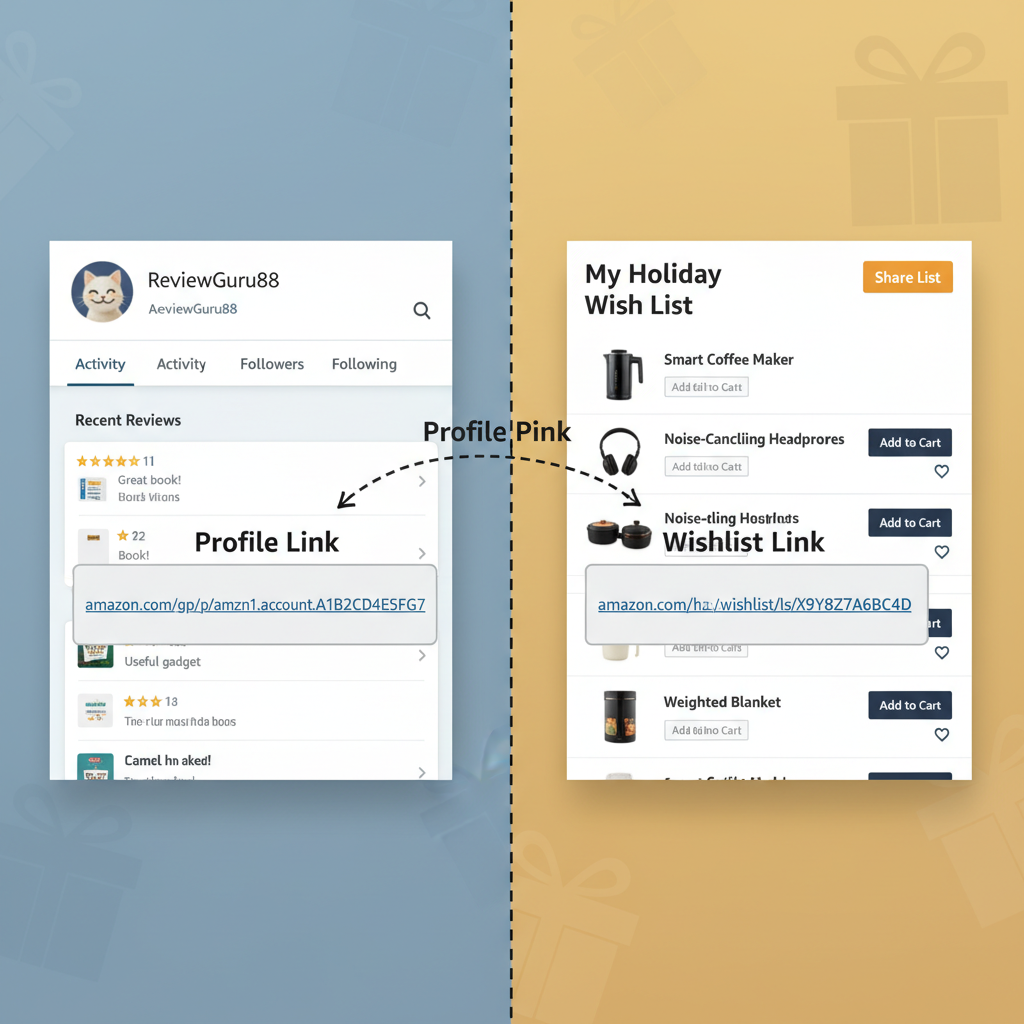
How To Share a Wishlist Link vs. Your Profile Link
Sometimes people don’t want your entire Amazon profile. They just want your wishlist, especially around birthdays, holidays, baby showers, or weddings.
Those are two different links:
- Amazon profile link → Your overall public profile
- Amazon wishlist link → A specific list you created
How To Get a Wishlist Link
On Desktop:
- Go to Account & Lists.
- Click “Your Lists”.
- Select the list (e.g., “Wishlist,” “Birthday List,” “Baby Registry”).
- Look for “Send list to others,” “Share,” or a Share icon.
- Choose Copy link.
On Mobile:
- In the app, open the menu (☰).
- Tap “Your Lists” or “Your Wish List.”
- Select the specific list you want to share.
- Tap Share and copy the link, or send via text, email, etc.
You can set lists to:
- Public – searchable and fully shareable
- Shared – only people with the link can see
- Private – only you can see
If someone has specifically asked for your Amazon profile link to verify reviews, don’t send just your wishlist. Those are separate.
Where People Commonly Use Their Amazon Profile Link
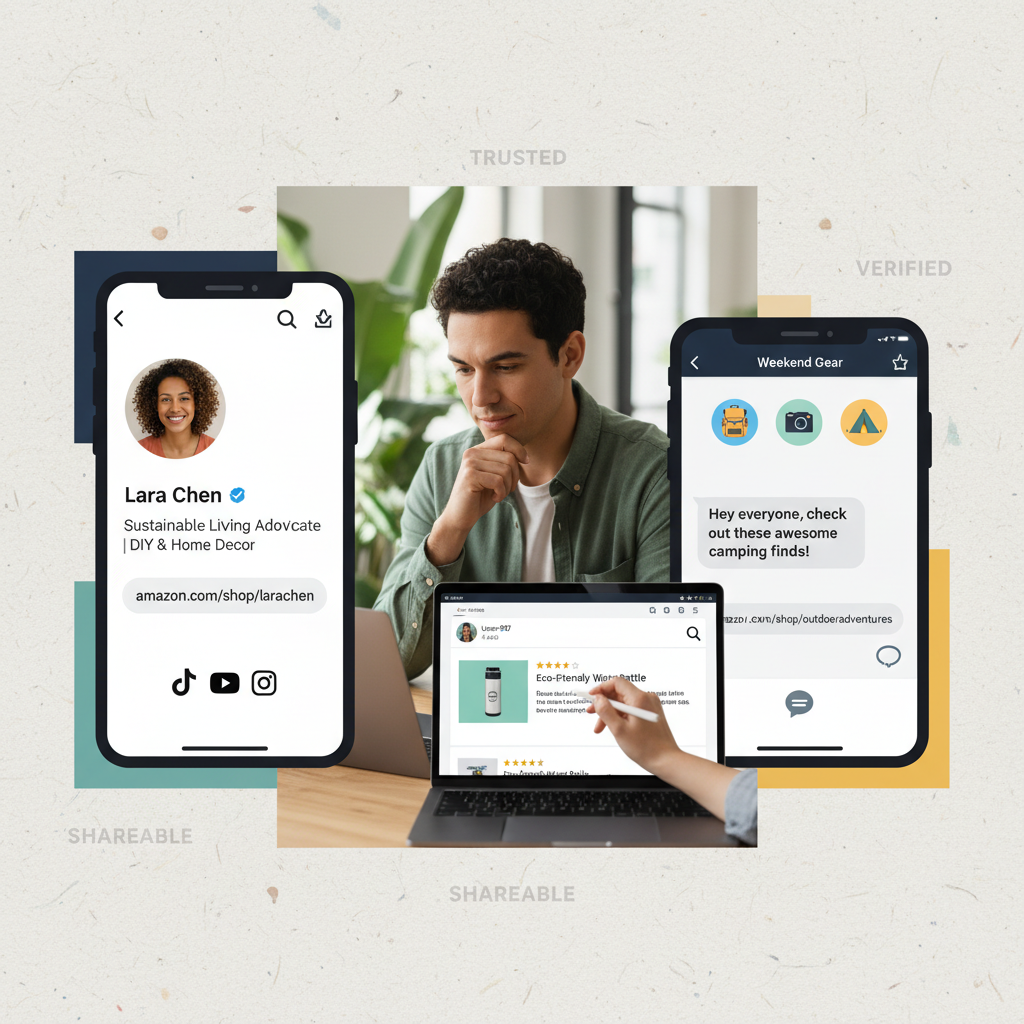
If you’re wondering, “Why would I ever need this link?” — here are common real-world examples.
1. Brand Collaborations & UGC
Brands or Amazon sellers might ask for your Amazon reviewer profile to:
- See your historical reviews
- Confirm that your account is active and legit
- Check what kind of products you usually review
Here, your full Amazon profile link is what they want.
2. Influencer & Affiliate Content
If you create content on TikTok, YouTube, Instagram, or a blog, you might:
- Put your Amazon profile link in your bio or link-in-bio tool so people can see reviews
- Combine it with your Amazon Storefront or Influencer storefront if you have one (different link, same ecosystem)
3. Friends, Family, and Groups
You might share your profile when:
- Someone wants to see your reviews before buying something you recommended
- You’re in a niche community (e.g., book clubs, tech groups, hobby forums) and they want to see your Amazon history
Quick FAQs About Amazon Profile Links
1. Is my Amazon profile link public?
Yes. Your profile page is public by design.
But you control:
- Your public name
- Which lists are public/shared/private
- Whether certain activity is visible
If privacy is a concern, edit your profile and list settings before sharing.
2. Can I change my Amazon profile URL?
You generally can’t manually pick a custom URL like you do on social platforms (e.g., amazon.com/@yourname).
However, Amazon may generate a more readable URL that includes your public name. Either way, whatever URL appears in your browser after visiting amazon.com/profile while logged in is the one to share.
3. Is my order history visible from my profile link?
No, your full order history is private.
People may see your reviews that relate to items you bought, but they won’t see your entire purchase history or account details.
4. Why does my profile show someone else’s name?
If your account was created years ago or shared with a family member, the public profile name might not match what you expect.
You can fix this by going to Profile → Edit profile and updating the public name.
5. Do I need an Amazon account to view someone’s profile link?
Most of the time, no. People can usually open and view a public profile link in a browser without logging in, as long as the content is public.
Fast Recap: Your Amazon Profile Link in 30 Seconds
- Your Amazon profile link is a unique URL leading to your public Amazon profile.
- On desktop, go to Account → Profile, then copy the URL from your browser.
- On mobile, open Your Account → Profile and use the Share/Copy link option — or use your mobile browser.
- Tweak what shows on that page via Edit profile and privacy settings.
- Use separate wishlist links for gift lists (different from your profile link).
- Share your profile link with brands, friends, communities, or anywhere someone wants to verify your Amazon review activity.
Now you’ve got your Amazon profile link in your digital back pocket — ready to paste, share, and flex those reviews whenever you need.
Leave a Reply