What Are Amazon Digital Services, Really?
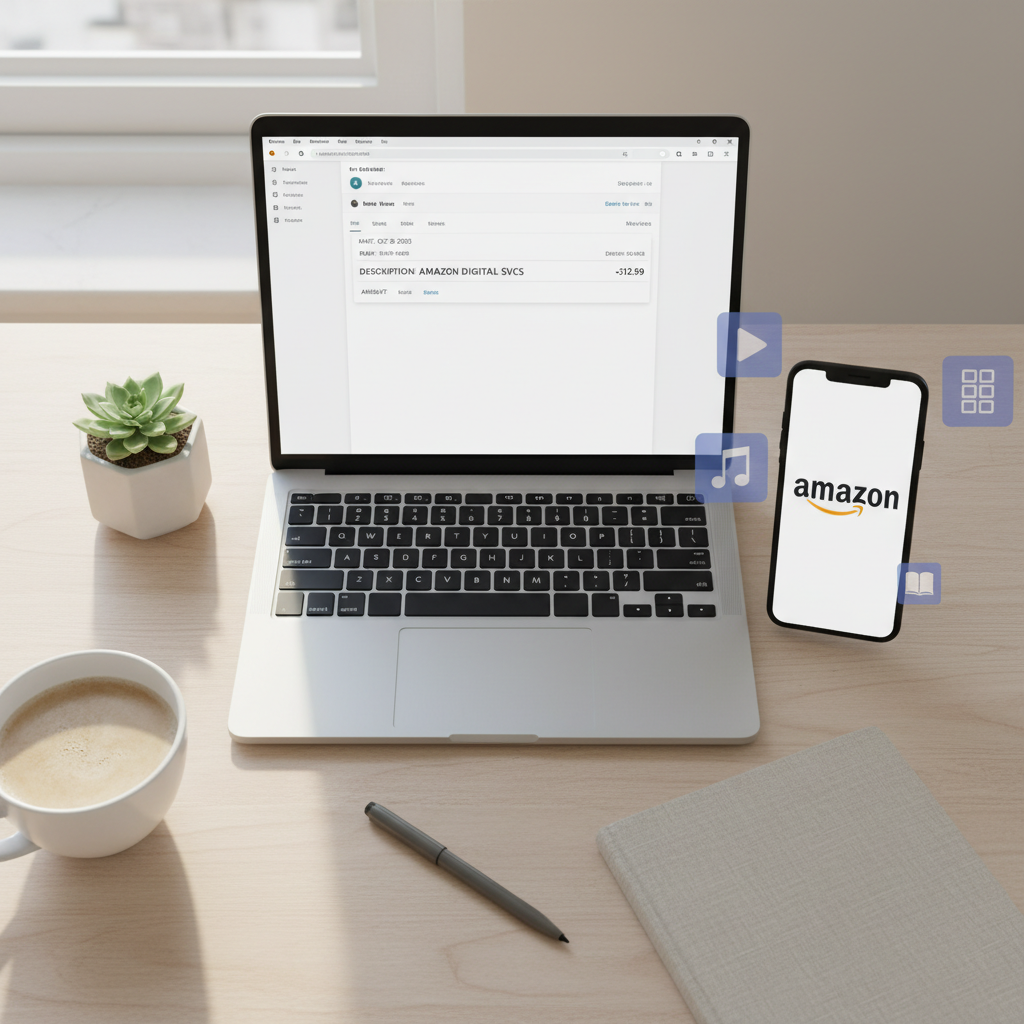
Ever checked your bank statement, seen a charge from “Amazon Digital Svcs” and thought:
“Did I just get hacked… or did I buy something weird at 2 a.m. again?”
Let’s untangle that.
In this post, you’ll learn what Amazon Digital Services actually are, what those mystery charges usually mean, how to see exactly what you’re paying for, and how to cancel anything you don’t want.
What Are Amazon Digital Services?
Amazon Digital Services is basically Amazon’s umbrella label for products you don’t get in a box.
Instead of physical stuff (like headphones or a toaster), these are digital products and subscriptions, such as:
- Streaming video (Prime Video rentals, channels)
- Digital books (Kindle eBooks, Audible credits)
- Music (Amazon Music subscriptions)
- Apps, games, and in-app purchases via Amazon
- Cloud and software subscriptions (for some users)
On your card or bank statement, these may show up as:
- Amazon Digital Svcs
- AMZN DIGITAL
- Amazon Prime Video
- Amazon Music
So no, it’s usually not a hacker. It’s often past-you buying digital stuff that present-you forgot about.
Common Types of Amazon Digital Services (With Examples)
Let’s break down the most common categories and what they actually look like in real life.
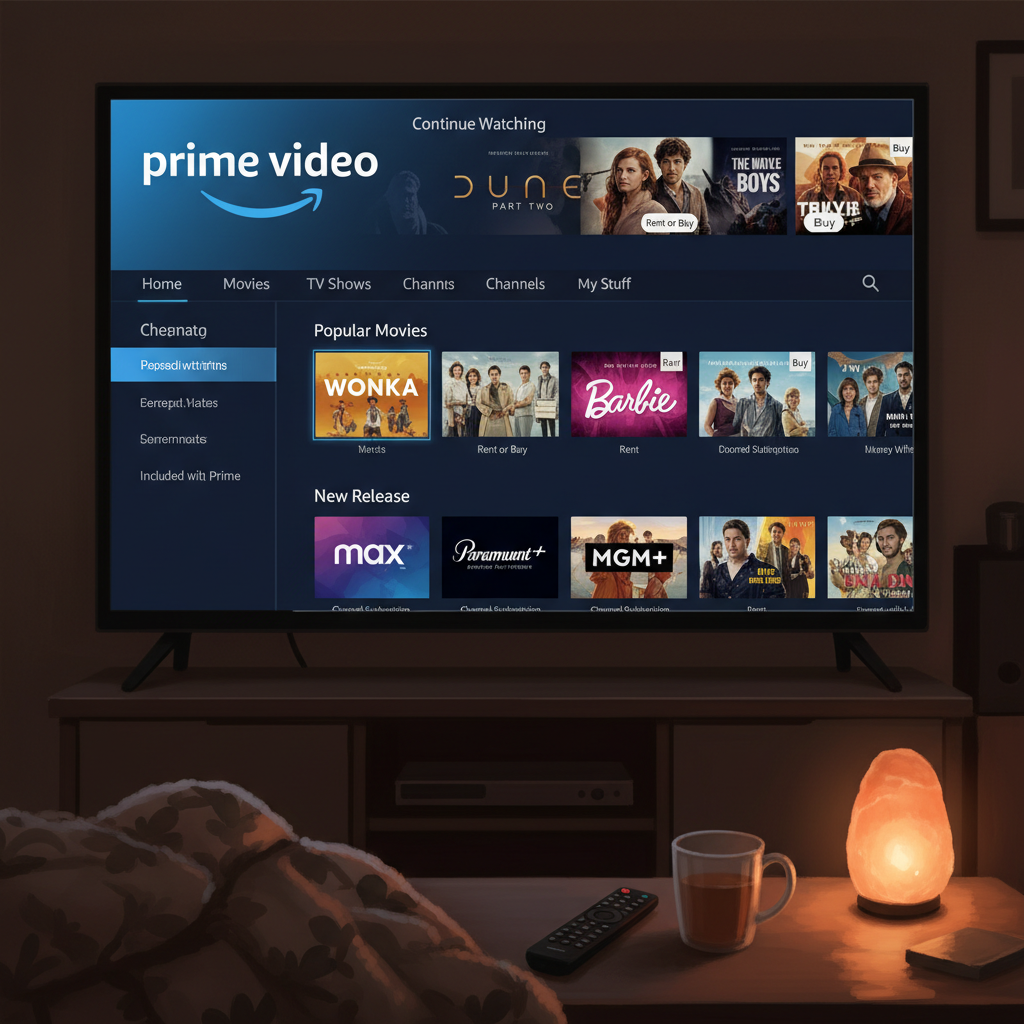
1. Prime Video: Rentals, Purchases, and Channels
Even if you have Amazon Prime, not everything on Prime Video is free.
You can be charged for:
- Movie rentals (e.g., you rent a new release for 48 hours)
- Digital purchases (buying a movie or show permanently in your library)
- Prime Video Channels (add-ons like Max, Paramount+, Starz, etc.)
Real-world example:
- You subscribe to the Paramount+ channel through Prime Video for a free trial.
- You forget about it.
- 7 or 30 days later: “Amazon Digital Svcs” charge hits your card for the monthly fee.
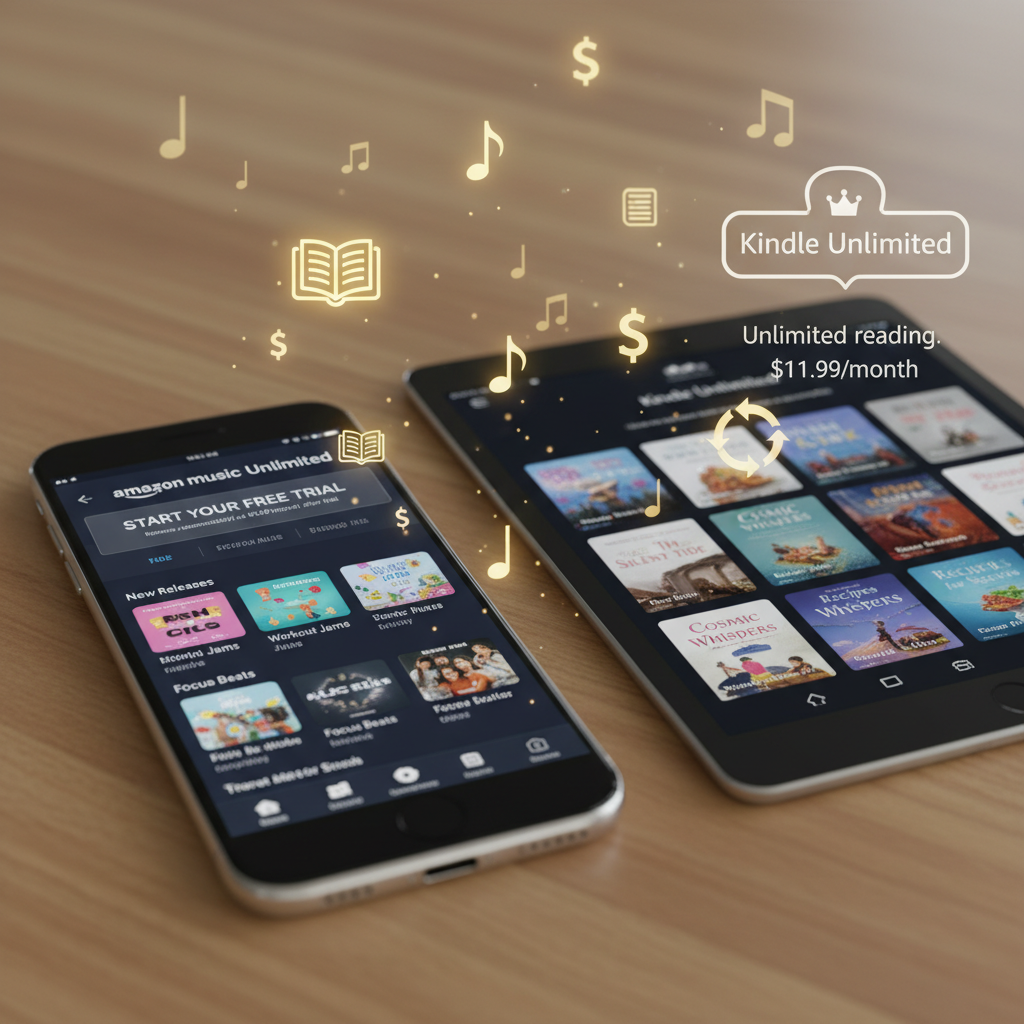
2. Amazon Music (Free, Prime, and Unlimited)
Amazon offers multiple music tiers:
- Amazon Music Free – ad-supported, very limited.
- Amazon Music Prime – included with a Prime membership (no extra charge beyond Prime itself).
- Amazon Music Unlimited – a separate paid subscription with more features and a larger catalog.
If you see a charge that looks like $9.99 / $10.99-ish per month from Amazon Digital, it could be:
- A standalone Amazon Music Unlimited subscription.
- A family plan or device-linked music subscription.
Real-world example:
You buy an Echo device. During setup, you tap through a prompt for a 3-month free trial of Music Unlimited. Three months go by, and suddenly: recurring “Amazon Digital” music charges.
3. Kindle eBooks and Kindle Unlimited
If you ever bought:
- A Kindle eBook
- A digital comic or manga
- A Kindle short read
…it may be labeled as an Amazon Digital charge.
Separate from one-time book purchases, there’s also Kindle Unlimited, a subscription that lets you read from a large catalog for a monthly fee.
Real-world example:
You subscribe to Kindle Unlimited for a free trial, thinking you’ll cancel once you’re done binging. Your future self does not, in fact, cancel.
Your bank statement: recurring Amazon Digital Svcs every month.
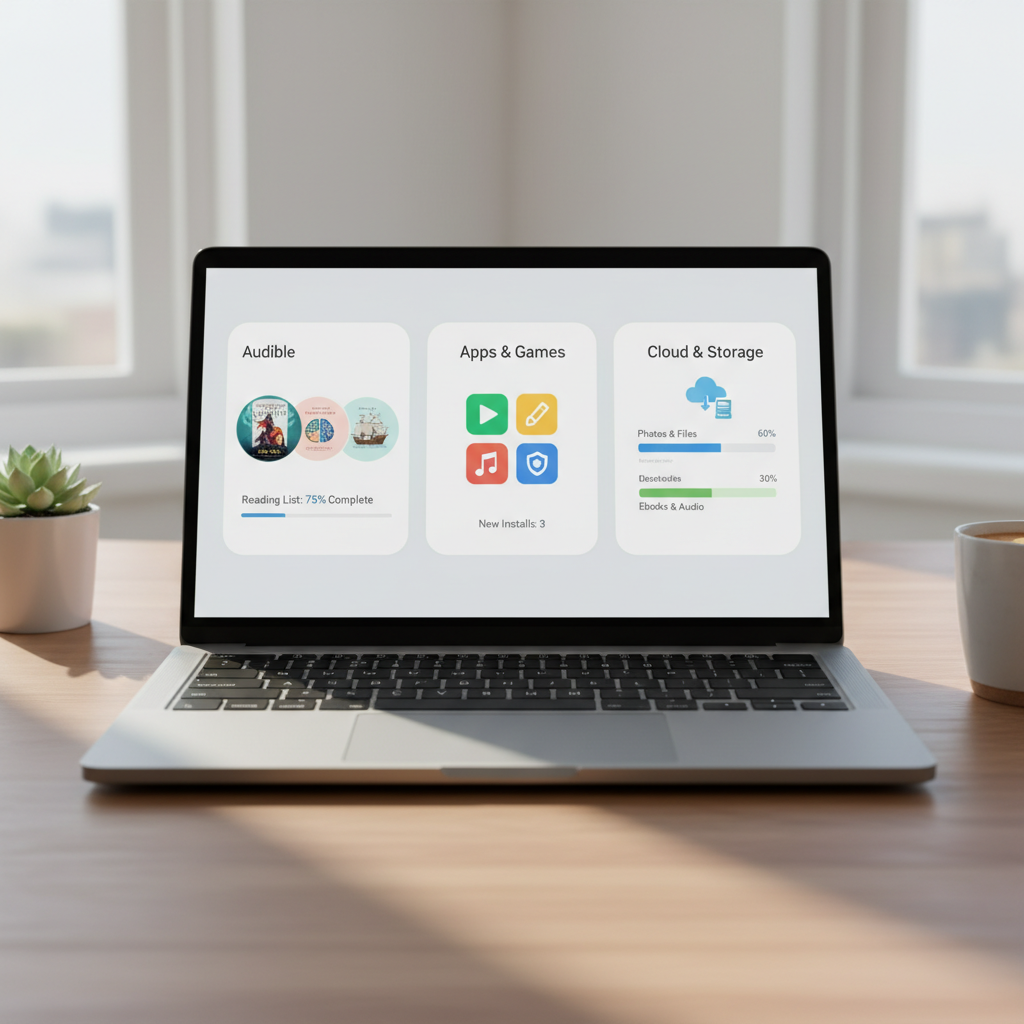
4. Audible (Sometimes Shows as Digital Services)
Audible, Amazon’s audiobook service, sometimes appears directly as Audible on statements, but depending on your bank, it may show up along the lines of Amazon Digital or AMZN Digital.
You might be paying for:
- Audible Premium Plus: includes credits for audiobooks.
- Audible Plus: streaming access to a catalog of audiobooks and podcasts.
Real-world example:
You signed up to get that “1 free audiobook” deal.
Guess what: that was a trial that converts to a monthly subscription unless you cancel.
5. Apps, Games, and In-App Purchases
If you’ve used:
- A Fire tablet
- A Fire TV
- The Amazon Appstore on Android
…then some of your app purchases, game coins, subscriptions, or add-ons can show up as Amazon Digital Services.
This is especially common if:
- Kids use your device and click on in-app purchases.
- You subscribe to services (like streaming apps or games) through Amazon instead of directly from the provider.
Real-world example:
Your kid plays a game on a Fire tablet and buys extra coins or bonus levels. You later see weird $0.99, $4.99, $9.99 charges from Amazon Digital.
6. Cloud, Storage, and Other Niche Services
Depending on how deep you are in the Amazon ecosystem, you might also see digital charges for things like:
- Amazon Drive / Photos extra storage (legacy users)
- Some software subscriptions processed through Amazon
- Certain digital magazines or news subscriptions
Most regular shoppers won’t see many of these, but if you’re techy or use Amazon for business tools, it’s possible.
How to See Exactly What an Amazon Digital Charge Is
Instead of guessing, you can match the charge to a specific order or subscription.
Step 1: Check Your Digital Orders
- Go to Amazon.com and sign in.
- Hover over “Accounts & Lists” > click “Your Orders”.
- Switch the filter from “Orders” to “Digital Orders” or “Digital Content and Devices”.
- Look for items around the date and amount of the charge.
You may see:
- Movie rentals
- eBooks
- Game purchases
- Channel subscriptions
Step 2: Check Your Subscriptions & Memberships
- In your Amazon account, go to “Your Memberships & Subscriptions” (wording may vary slightly).
- Look for any active items under:
- Prime Video Channels
- Kindle Unlimited
- Amazon Music Unlimited
- Audible
- App or game subscriptions via Amazon
- Note the next billing date and amount.
Step 3: Check Prime Video, Music, and Audible Individually
Some services have their own settings pages:
- Prime Video: Manage channels and purchases in your Prime Video account.
- Amazon Music: Go to settings > Your Subscription.
- Audible: Check your Membership details.
How to Cancel Amazon Digital Services You Don’t Want
Once you find the culprit, canceling is pretty straightforward.
To Cancel a Prime Video Channel
- Go to Prime Video.
- Open Settings > Channels (or “Manage Your Channels”).
- Find the channel.
- Click Cancel Channel.
You’ll often keep access until the end of the current billing period.
To Cancel Amazon Music Unlimited
- Go to Amazon Music.
- Open your account or subscription settings.
- Click Cancel Subscription and confirm.
To Cancel Kindle Unlimited
- Log in to Amazon.
- Go to Your Memberships & Subscriptions or Manage Your Content and Devices.
- Find Kindle Unlimited.
- Select Cancel Membership.
To Cancel Audible
- Sign in to Audible (desktop browser is easiest).
- Go to Account Details.
- Click Cancel Membership and follow the steps.
To Stop In-App Purchases / Kid Surprises
On Fire devices or accounts that kids use:
- Turn on Parental Controls.
- Require a PIN for purchases.
- Disable 1-Click purchasing where possible.
Is Amazon Digital Services a Scam or Fraud?
Most of the time, no.
Amazon Digital Services is just the billing label Amazon uses for many of its digital products and subscriptions.
However, you should be cautious if:
- You never use Amazon video, music, or books and suddenly see multiple digital charges.
- The charges are from a country or currency that doesn’t match your account.
- You find no matching orders or subscriptions in your account.
In those cases:
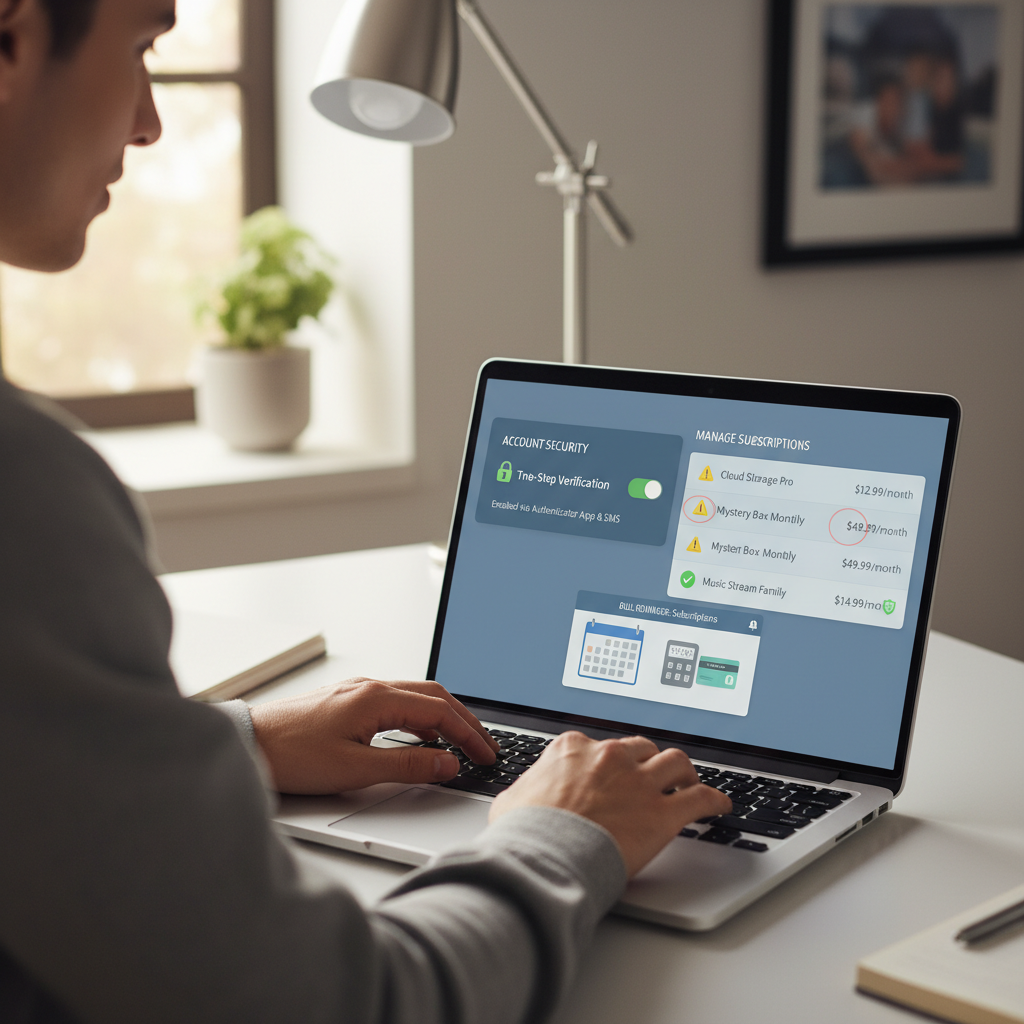
- Change your Amazon password and enable two-step verification.
- Remove any saved cards you don’t recognize.
- Contact Amazon Customer Support and your bank to dispute unknown charges.
How to Avoid Surprise Amazon Digital Charges in the Future
A little setup now can save you from future “What is this?!” moments.
1. Track and Review Subscriptions Monthly
- Once a month, visit “Your Memberships & Subscriptions”.
- Cancel what you’re not actively using.
- Set a calendar reminder for the end of any free trial.
2. Turn Off One-Click or Require Password/PIN
Especially on devices kids or guests can access:
- Require a PIN or password for purchases.
- Turn off 1-Click ordering where you can.
3. Avoid Stacking Too Many Trials
It sounds fun in the moment: 7-day trial here, 30-day trial there.
But when they all convert in the same month, it’s… less fun.
Try to:
- Only start trials when you have time to actually use them.
- Cancel early if you already know you won’t keep them.
4. Use a Virtual or Limited Card (Advanced Option)
Some people use virtual cards or limited-amount cards just for subscriptions. If the card expires or limits out, the subscription can’t silently renew.
Quick FAQ About Amazon Digital Services
What is Amazon Digital Services on my bank statement?
It’s a generic label for Amazon’s digital products and subscriptions: things like Prime Video rentals, channels, Kindle eBooks, Kindle Unlimited, Amazon Music, Audible, apps, games, and in-app purchases.
How do I see what I was charged for?
Check your Digital Orders and Memberships & Subscriptions in your Amazon account, and cross-reference the date and amount with your statement.
Why am I being charged every month?
You likely have an active subscription—for example Prime Video Channels, Amazon Music Unlimited, Kindle Unlimited, Audible, or a game/app subscription.
How do I stop Amazon Digital Services charges?
Find the corresponding subscription in your Amazon account and hit Cancel. If you can’t find it, contact Amazon Support and your bank.
The Bottom Line: Amazon Digital Services = Your Invisible Purchases
If Amazon’s cardboard boxes are the visible part of your spending, Amazon Digital Services are the invisible subscriptions and downloads quietly living in the background.
Once you know where to look, those mystery charges stop being scary and start being manageable:
- Identify the charge via Digital Orders and Subscriptions.
- Decide if you still want it.
- Cancel what you don’t.
And maybe next time you accept a free trial at 1:37 a.m., set a reminder for future-you. They’ll appreciate it.
Leave a Reply