What Is An Amazon Digital Charge?
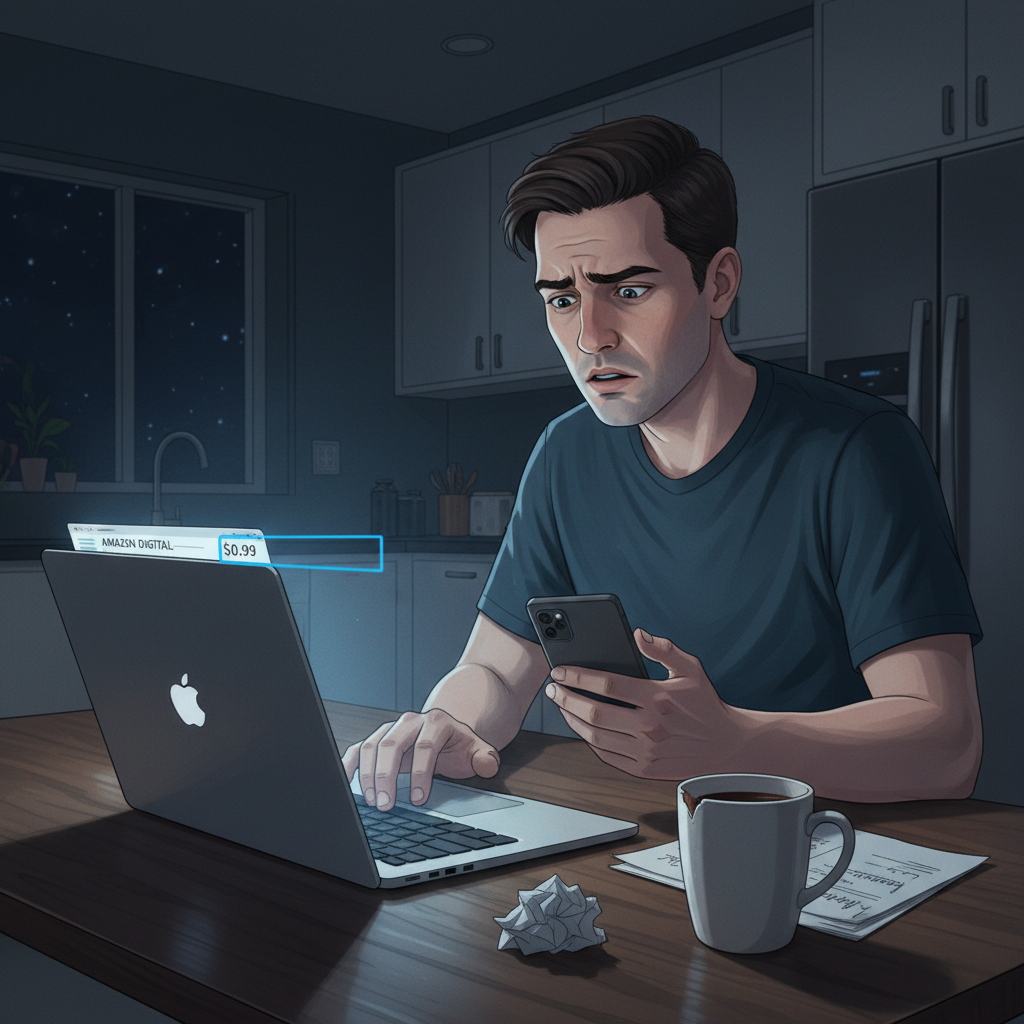
You’re scrolling through your bank statement, feeling responsible and very adult…
Then you see it:
“AMAZON DIGITAL” – $0.99
Or $2.99. Or $9.99. And your brain goes: Did I just get hacked for the price of a snack?
Let’s unpack what an Amazon Digital charge actually is, how to figure out where it came from, and what to do if it’s not legit.
What Is an Amazon Digital Charge?
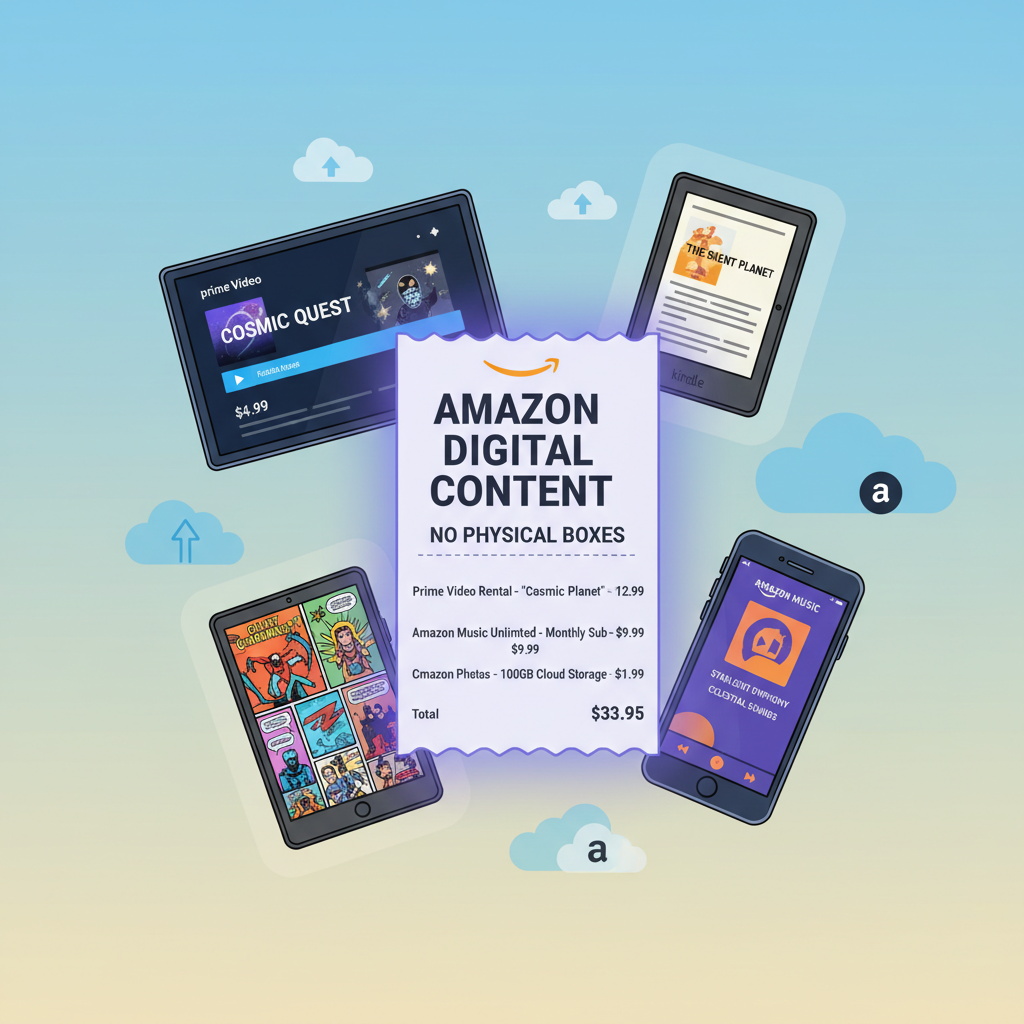
In simple terms, an Amazon Digital charge is a line item on your bank or credit card statement for digital content or services you bought through Amazon.
Instead of shipping you a physical box, Amazon delivered something digital, like:
- A movie or TV show rental/purchase on Prime Video
- A Kindle ebook or comic
- A digital subscription (e.g., channels, apps, cloud storage)
- An Audible audiobook or membership
- In‑app or in‑game purchases made through Amazon on certain devices
On your bank statement, these often show up as:
- AMAZON DIGITAL
- AMZN DIGITAL
- AMAZON SUBSCRIPTION or similar wording
Think of it as Amazon’s umbrella label for “you bought something that lives on a screen, not in a box.”
Common Types of Amazon Digital Charges (With Examples)
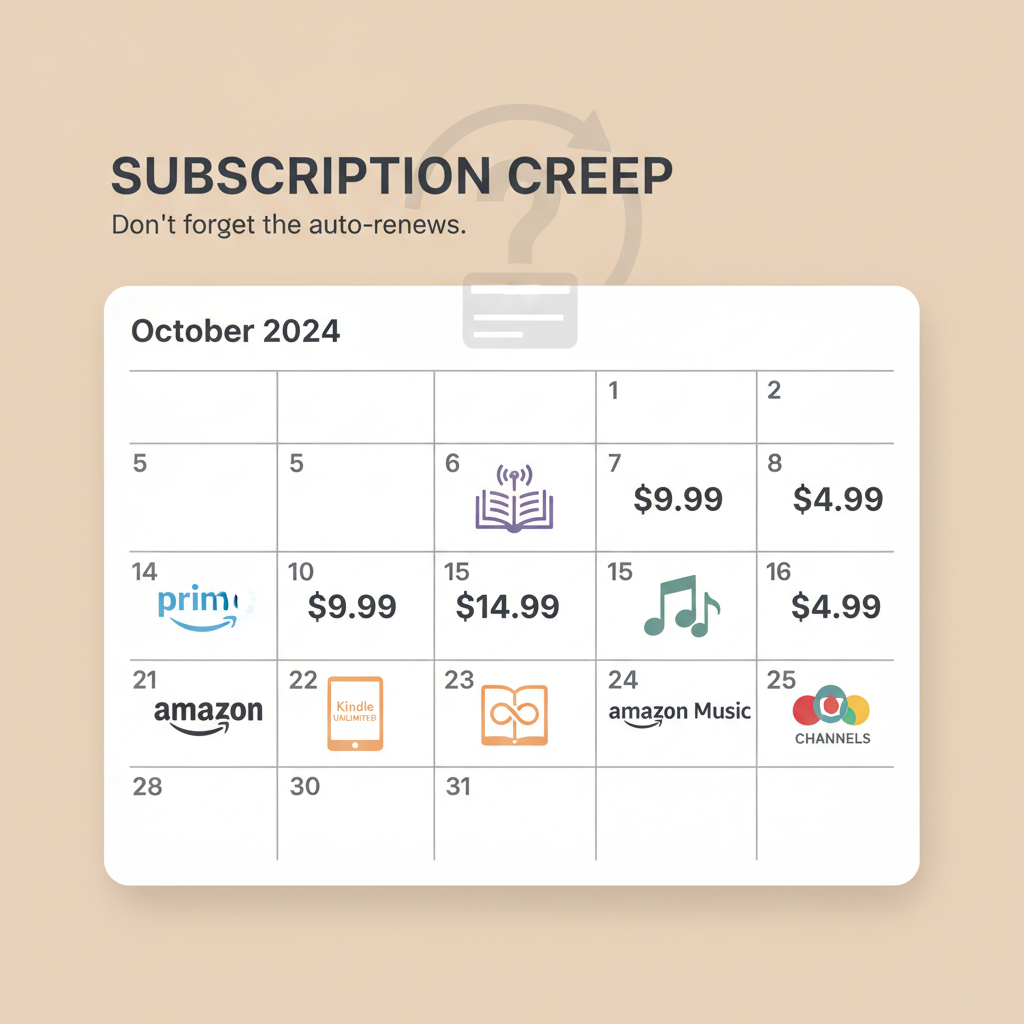
Here are the most common reasons you’ll see an Amazon Digital charge and what they usually look like in real life.
1. Prime Video rentals and purchases
You’re watching a show, see a new movie, and click “Rent for $3.99.” Two days later you’ve forgotten all about it, but your bank didn’t.
Typical examples:
- Movie rentals (usually $2.99–$6.99)
- Full-season TV passes
- Buying a movie to own digitally
These are often connected to your main Amazon account and can show as Amazon Digital Video or Amazon Digital on your statement.
2. Kindle ebooks, comics, and digital magazines
Any Kindle book you buy—whether on a Kindle device or from the Amazon app—will show as an Amazon digital charge.
That includes:
- Kindle ebooks
- Kindle Unlimited add‑ons (if you buy books outside of the subscription)
- Single‑issue comics or graphic novels
- Digital magazine or newspaper issues
If you share your account with family, a mystery $1.99 or $9.99 charge might be someone quietly binge‑reading on your dime.
3. Subscriptions and memberships (the sneaky recurring ones)
This is where many people get surprised. Amazon runs or processes a ton of recurring digital subscriptions, including:
- Amazon Prime membership (monthly or yearly)
- Kindle Unlimited
- Audible (membership and extra credits)
- Amazon Music Unlimited or other music tiers
- Amazon Kids+ (formerly FreeTime Unlimited)
- Prime Video Channels (like Paramount+, Max, STARZ, MLB, etc.)
- Some app or game subscriptions through Amazon on Fire tablets/Fire TV
These can post as AMAZON DIGITAL instead of spelling out the full service name, especially on bank/credit card statements.
Red flags to watch for:
- Same day every month? Probably a subscription.
- Amount never changes (e.g., $5.99, $9.99, $14.99)? Almost definitely a subscription.
4. In‑app or in‑game purchases (especially on Fire devices)
If you (or your kid) use a Fire tablet, Fire TV, or apps tied to your Amazon account, some in‑app purchases are billed through Amazon.
Examples:
- Extra game coins or gems
- Unlocking a premium version of an app
- Buying add‑on content inside a kids’ game or streaming app
These may bundle under a generic Amazon Digital description on your statement, which makes them easy to forget and hard to recognize.
5. Cloud and storage services
Less common, but still possible:
- Amazon Drive / Amazon Photos paid storage plans (for older accounts)
- Other niche Amazon digital services or add‑ons
If you’ve ever upgraded storage for photos or files, those can also appear as digital charges.
How to See Exactly What an Amazon Digital Charge Is For
Good news: You don’t have to rely on your memory. Amazon actually lets you trace most digital charges pretty precisely.
Here’s how to investigate.
1. Start with Your Amazon Order History
- Go to Amazon.com and sign in.
- Hover over or click “Accounts & Lists.”
- Click “Your Orders.”
- Switch the filter (usually “Orders”) to “Digital Orders” or “Digital Content and Devices.”
Here you’ll see ebooks, digital rentals, subscriptions, and more tied directly to your account.
2. Check Your Subscriptions and Memberships
If it’s recurring, it may not show like a regular order.
On Amazon:
- Go to “Your Account.”
- Click “Memberships & Subscriptions” (or “Your Memberships & Subscriptions”).
- Review the list for anything with a monthly or yearly renewal.
Things to look for:
- Trial offers you forgot to cancel
- Channel add‑ons for Prime Video
- Separate subscriptions for Audible, Kindle Unlimited, Music, or Kids+.
You can usually see:
- Next billing date
- Cost per cycle
- Option to cancel or turn off auto‑renew
3. Check Digital Content Sections Directly
Depending on the type of charge, check:
- Prime Video → Your purchases & rentals
- Kindle → Your Content & Devices
- Audible → Your account & billing
If someone in your household uses your login on a TV, tablet, or e‑reader, you’ll see their activity here too.
What If You Don’t Recognize the Amazon Digital Charge?
Sometimes you genuinely don’t remember buying anything—or you’re sure you didn’t.
Before you panic, go through this quick checklist.
1. Check for family members or shared devices
Ask yourself:
- Does your partner, roommate, or child know your Amazon password?
- Is your account logged in on a Fire TV, smart TV, or tablet?
- Is 1‑Click purchasing enabled?
It’s very common for kids to click “Buy” or “Rent” without realizing it costs money—especially in games or streaming apps.
What to do:
- Review your device list in Accounts & Lists → Content & Devices → Devices and deregister anything you don’t know.
- Turn on purchase restrictions or PIN protection for Prime Video and in‑app purchases.
2. Make sure it’s not from another Amazon account you own
You might have:
- A separate business Amazon account
- An old account tied to a different email
- A child’s profile that’s still linked to your card
Check other email addresses for Amazon receipts around the date of the charge.
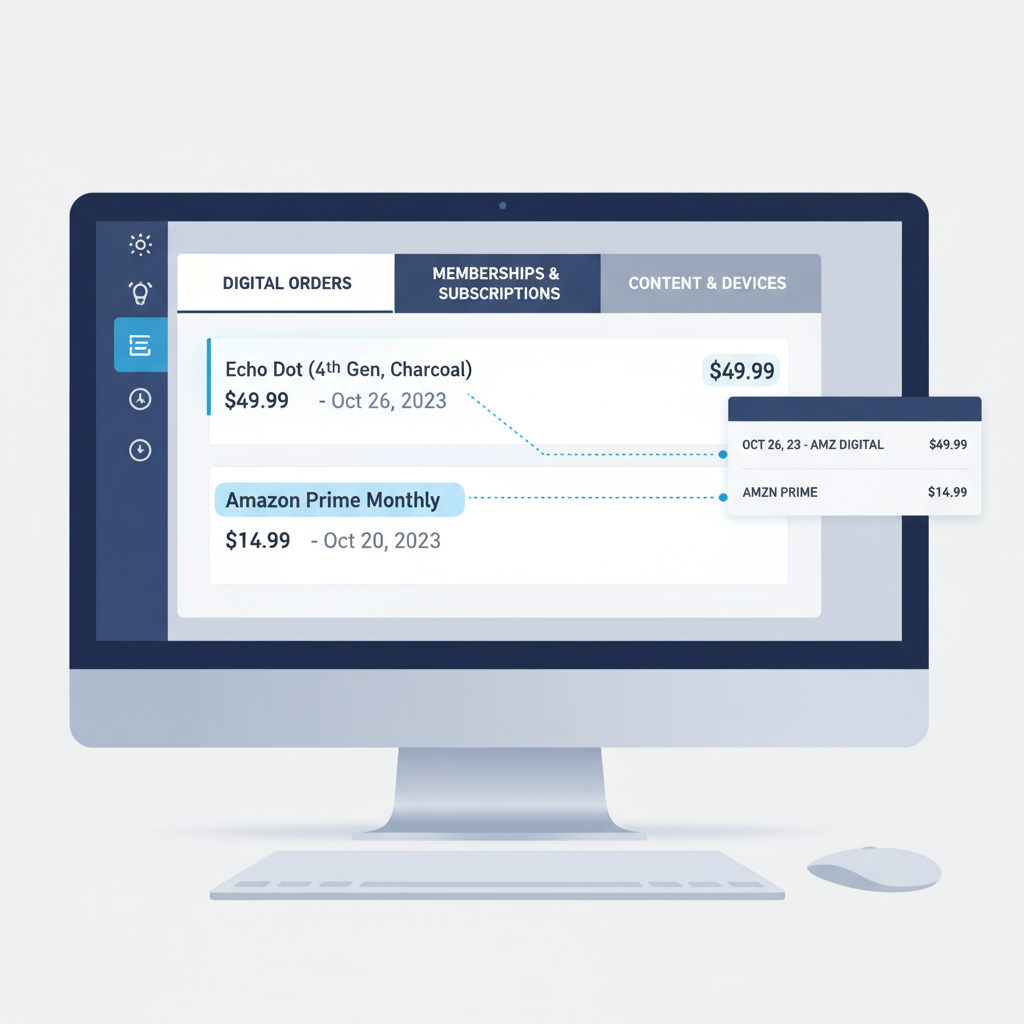
3. Compare exact amounts and dates
Pull up your:
- Bank/credit card statement (exact amount and posting date)
- Amazon Digital Orders & Subscriptions history
Look for an exact or close match. Some charges may authorize on one day and officially post the next, so give a 1–2 day window.
If nothing lines up, move to the next step.
4. Contact Amazon support
If you still don’t recognize the charge:
- Go to Help on Amazon.
- Choose “Something else → Payments → Unknown charge.”
- Use chat or phone support to ask them to identify the charge.
Have this ready:
- Exact amount of the charge
- Date it appeared on your statement
- Last 4 digits of the card charged
Amazon can usually see what product or subscription triggered the charge and on which account.
How to Stop Future Unwanted Amazon Digital Charges
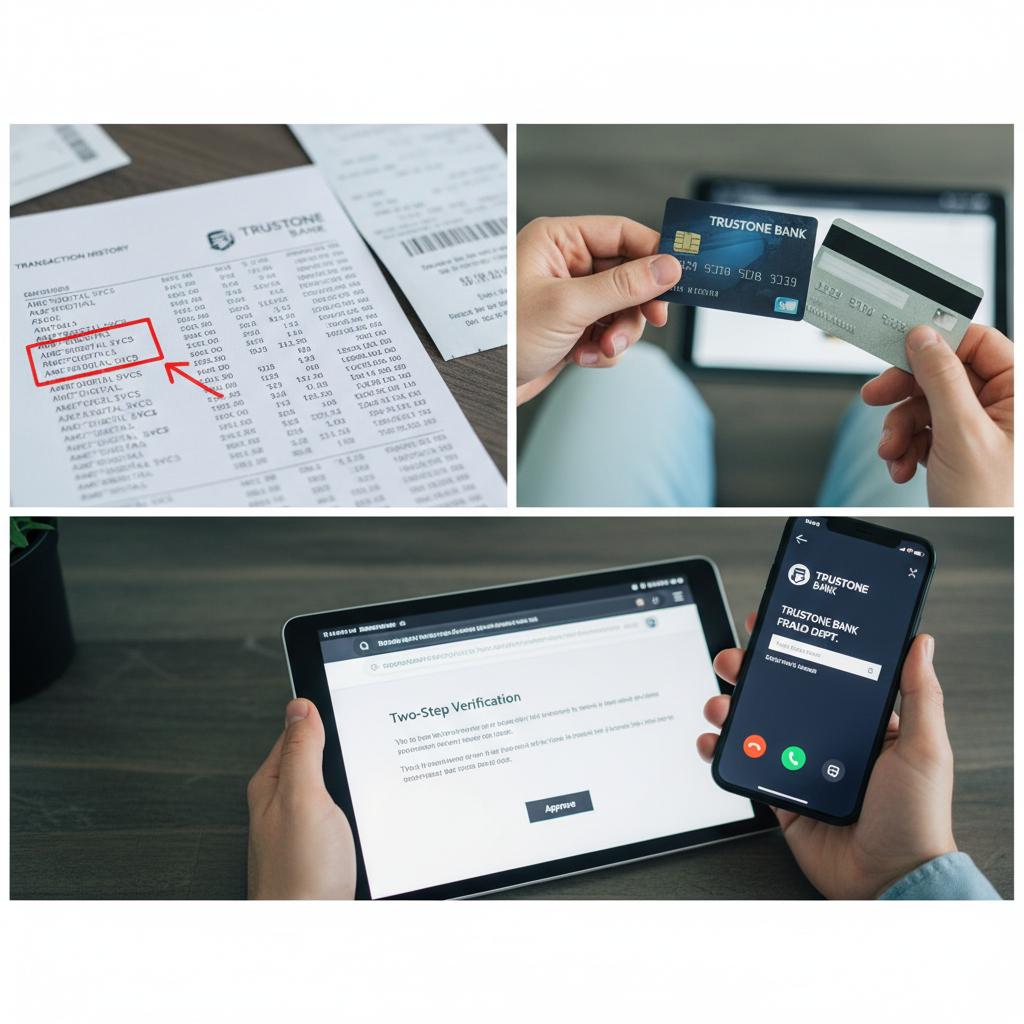
Once you’ve solved the mystery, you probably want to make sure it doesn’t happen again—especially if surprise subscriptions are part of the story.
1. Cancel unused or surprise subscriptions
In Memberships & Subscriptions:
- Cancel anything you don’t actively use.
- Downgrade if there’s a cheaper plan that fits you better.
- Watch for free trials that auto‑renew.
If you cancel right after being billed, Amazon sometimes offers:
- A partial refund, or
- Keeping access until the end of the billing cycle
(Not guaranteed, but worth checking.)
2. Lock down purchases on shared devices
If kids or guests use your devices, set these up:
- Prime Video PIN for purchases and rentals
- Parental controls on Fire tablets and smart TVs
- Turn off 1‑Click purchasing where you don’t need it
- Set up separate profiles for kids with restricted access
That way, nobody can accidentally rent five movies and buy three seasons of a cartoon at 6 a.m.
3. Use alerts and virtual cards (optional but powerful)
You can often:
- Turn on transaction alerts in your banking app so every Amazon charge pings your phone.
- Use a virtual card or a separate card just for subscriptions to track and control them more easily.
This is overkill for some people—but very handy if you’ve been burned by surprise renewals before.
When an Amazon Digital Charge Might Be Fraud
Most of the time, Amazon Digital charges are legit but forgotten.
It starts to look like fraud when:
- You have no Amazon account tied to that card at all
- You see multiple small charges in a short period you don’t recognize
- Amazon support confirms the charge isn’t linked to your account
In that case:
-
Contact your bank or card issuer immediately.
- Ask them to freeze or replace the card.
- Dispute the unauthorized charge.
- Change your Amazon password if there’s any chance your account was accessed.
- Turn on two‑factor authentication (2FA) for extra security.
Quick FAQ: Amazon Digital Charge Edition
1. Why does my statement just say “Amazon Digital” and not what I bought?
Because banks/card issuers often show only the merchant descriptor, not the specific item. Amazon groups digital content under a generic label, so you have to log into Amazon to see the details.
2. Can Amazon refund an accidental digital purchase?
Sometimes, yes—especially for things like accidental Prime Video rentals or ebook purchases, if you act quickly. You can often request a refund directly from the Order Details page for recently purchased digital items.
3. Is Amazon Digital the same as Amazon Prime?
Not exactly. Amazon Prime is one type of digital service. Prime charges may show as Amazon Digital on your statement, but so do many other things (ebooks, channels, music, etc.).
4. How do I see all my Amazon digital subscriptions in one place?
Go to Your Account → Memberships & Subscriptions. That’s your hub for recurring charges.
The Bottom Line: Don’t Ignore Unknown Amazon Digital Charges
If you see an Amazon Digital charge on your bank or credit card statement, it usually means you (or someone using your account):
- Rented or bought digital content (movie, show, ebook, etc.)
- Signed up for a subscription or free trial that renewed
- Made an in‑app or in‑game purchase through Amazon
Your action plan:
- Check Digital Orders and Memberships & Subscriptions in your Amazon account.
- Match the amount and date to a specific order or subscription.
- Cancel anything you don’t want going forward.
- Tighten up parental controls, PINs, and account security.
- If nothing matches, contact Amazon support—then your bank if needed.
Once you know where to look, “Amazon Digital” goes from scary mystery charge to “oh… that audiobook I forgot I bought.”
And hey, maybe this is your sign to finally do that subscription spring‑clean you’ve been avoiding.
Leave a Reply