How To Clear Your Amazon Search History
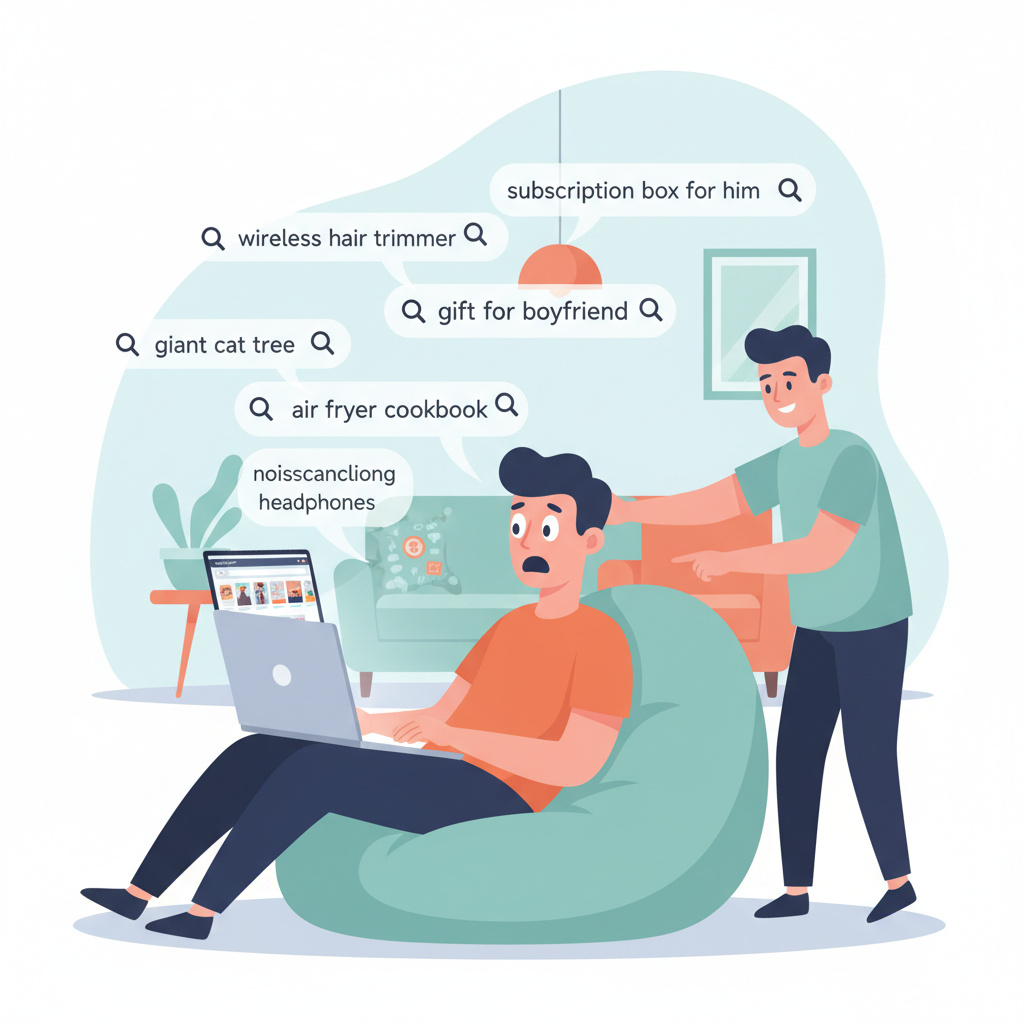
You open Amazon once and suddenly your entire search history is snitching on you.
“Wireless hair trimmer.”
“Gift for boyfriend who has everything.”
“Embarrassingly large cat tree.”
Then someone borrows your laptop, opens Amazon…and boom, they know everything about your life choices.
If you’d rather keep your browsing private (or just want to clean things up so Amazon stops recommending salsa-making robots because of that one 2 a.m. search), this guide will walk you through exactly how to clear your search history on Amazon—on desktop, mobile browser, and the Amazon app.
We’ll also cover how to turn off browsing history entirely, and what Amazon does not let you fully erase.
Quick Answer: How Do I Clear My Amazon Search History?

Amazon doesn’t call it “search history.” It calls it Browsing History.
Here’s the super-condensed version:
- On desktop: Go to Amazon.com → Accounts & Lists → Browsing History → Remove items or Manage history → Turn Browsing History on/off.
- On mobile browser: Open the menu (☰) → Browsing History → remove items or toggle off history.
- In the Amazon app: Tap ☰ (or profile icon depending on version) → Your Account or Your Stuff → Browsing history → delete items or turn it off.
Now let’s walk through each one step by step with a bit more detail.
Part 1: How To Clear Amazon Search/Browsing History on Desktop
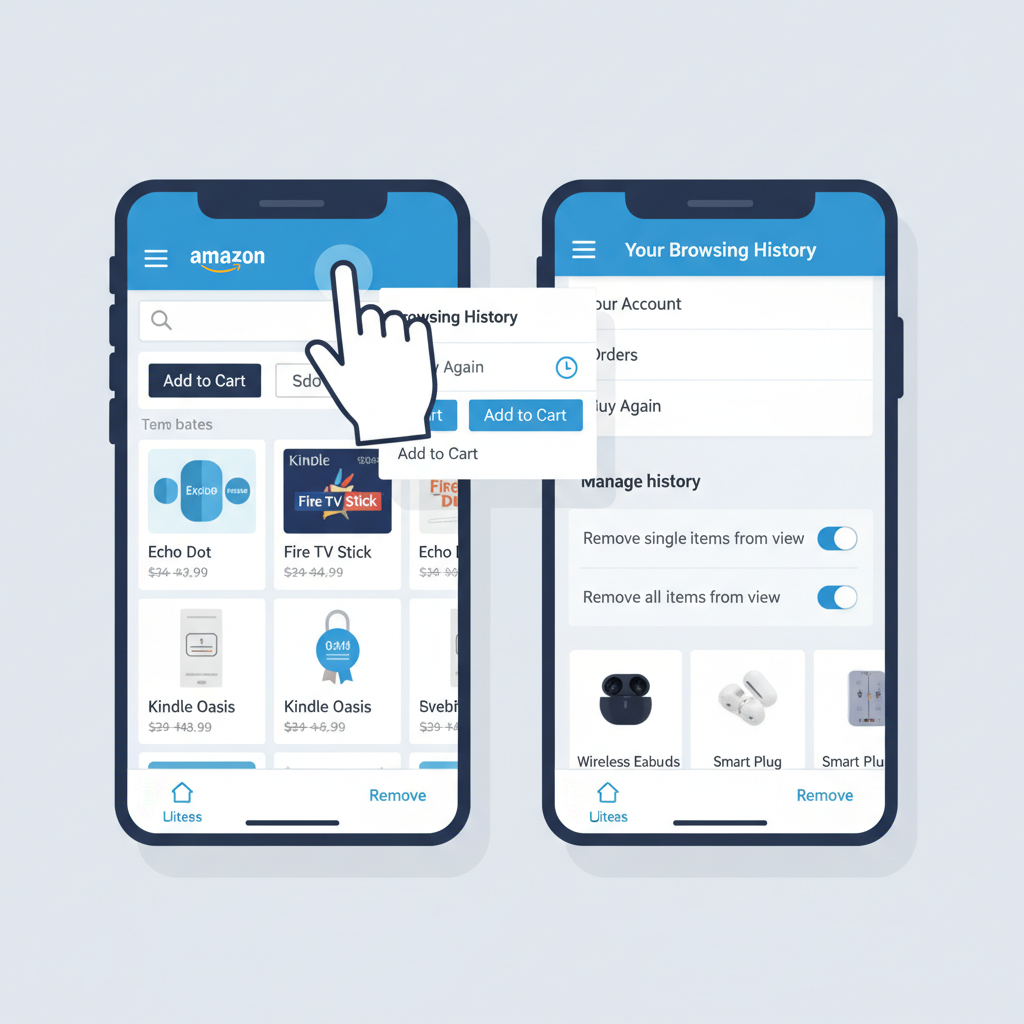
If you mainly use Amazon on a laptop or desktop browser, follow this.
Step 1: Go to Your Browsing History
- Open Amazon.com and sign in.
- At the top-right, hover over Accounts & Lists.
- Click Browsing History (you may also see it as a link at the top near “Customer Service” or under a small “Browsing History” tab depending on layout).
This opens a page showing the items you’ve viewed recently.
Step 2: Remove Individual Items
If you only want to hide a few suspicious or gift-related items:
- In Browsing History, scroll through your list.
- Under each product, click Remove from view (or a small “Remove”/“X” link/icon).
That item will disappear from your visible browsing history and no longer be used for some recommendations.
Good for: hiding that one weird purchase idea or surprise gifts, without nuking everything.
Step 3: Clear All Browsing History at Once
If you want a full reset:
- On the Browsing History page, look for Manage history at the top-right of the list.
- Click Manage history to expand it.
- Click Remove all items from view.
- Confirm if Amazon asks.
Your visible browsing history will now be empty.
Takeaway: Desktop makes it pretty easy to selectively prune or wipe your history. Think of it as spring cleaning for your impulse shopping.
Part 2: How To Clear Amazon Search History on Mobile Browser
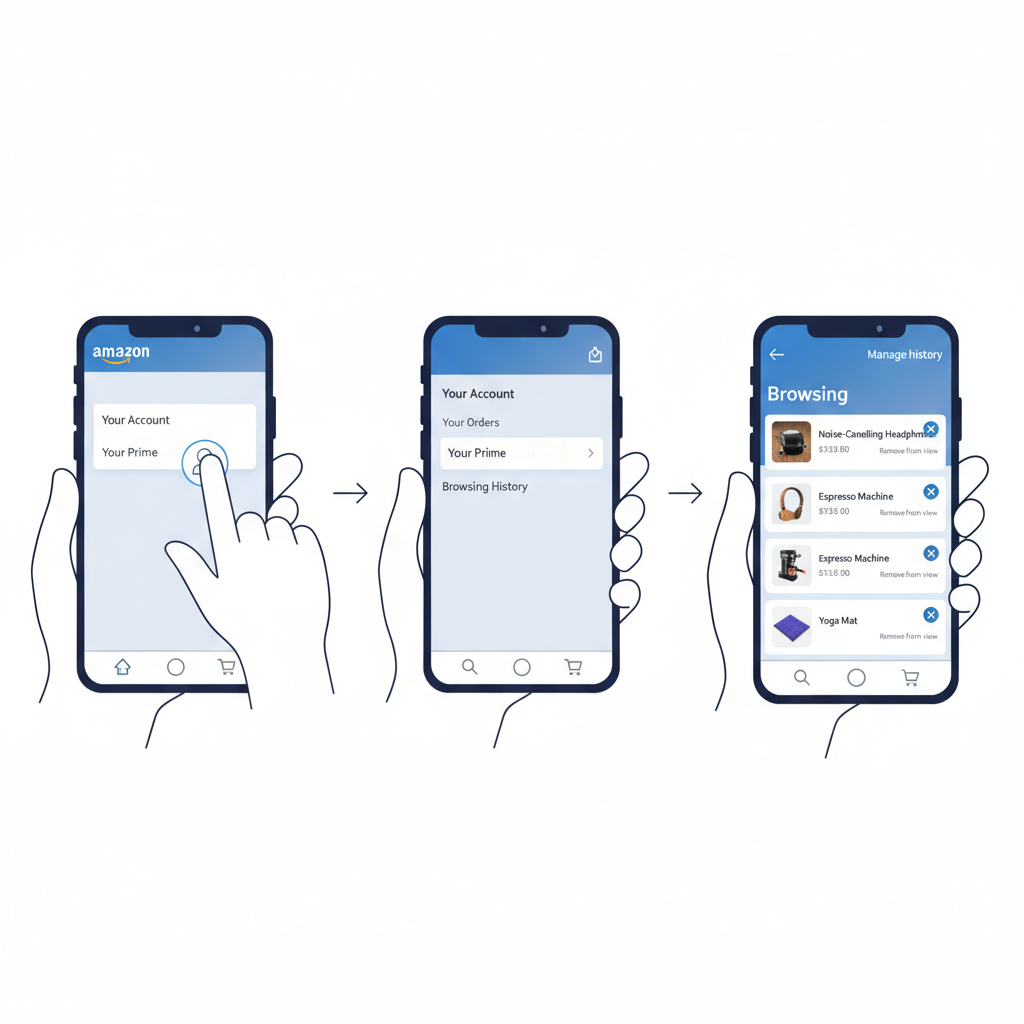
If you’re using Amazon in Safari, Chrome, or another mobile browser (not the app), the steps are similar but the buttons move around a bit.
Step 1: Open Browsing History on Mobile Web
- Go to Amazon.com on your phone and sign in.
- Tap the menu icon (☰) in the top-left or bottom-right (depends on layout/version).
- Scroll and tap Browsing History.
You’ll now see your recently viewed items.
Step 2: Remove Single Items
- On each item, look for Remove from view, an X, or three-dot menu (
⋮). - Tap it to remove that item.
Repeat for other items you want to hide.
Step 3: Clear All Items at Once
- At the top of the Browsing History page, tap Manage history.
- Tap Remove all items from view.
- Confirm if prompted.
Boom. Clean slate.
Takeaway: The mobile browser version mirrors desktop, just more scrolling and smaller buttons. Same power to erase, though.
Part 3: How To Clear Amazon Search History in the Amazon App
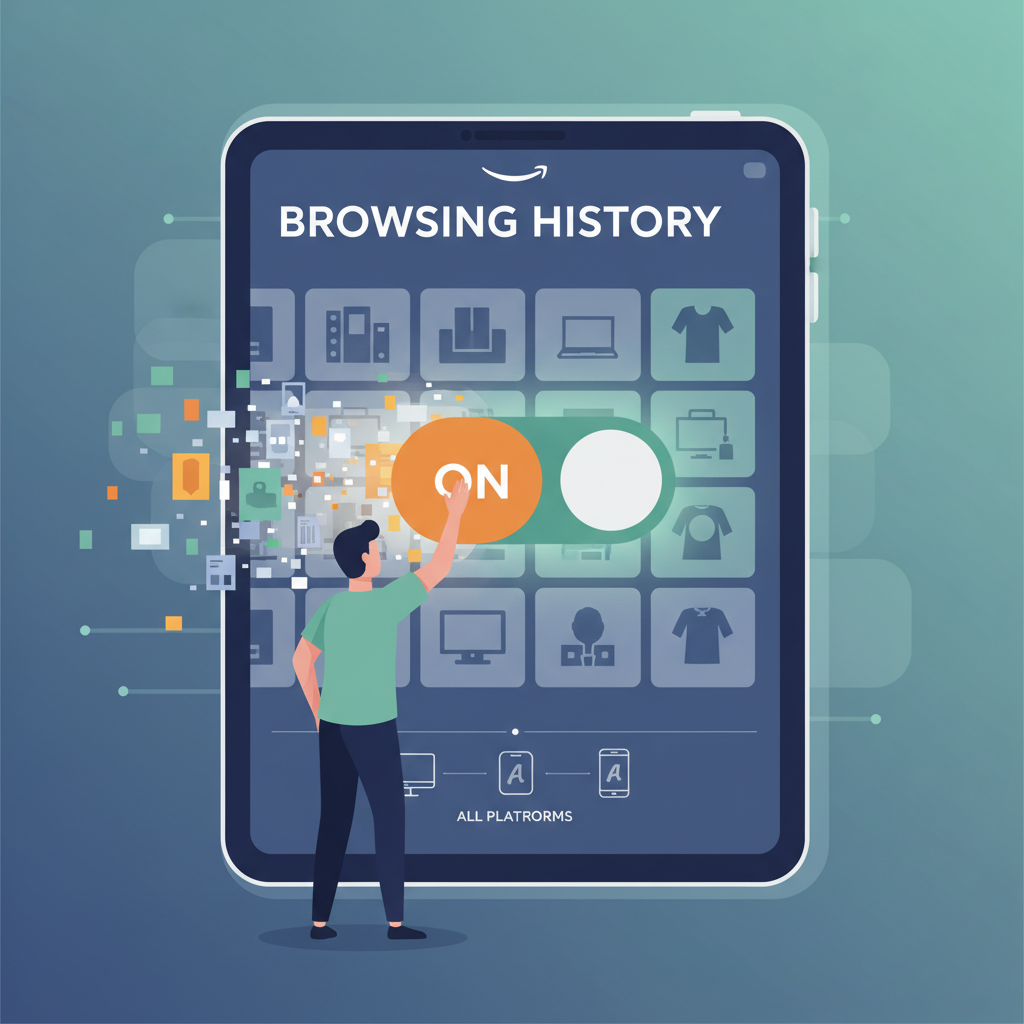
The Amazon app changes its layout from time to time, but the core idea is the same: find Browsing history, then remove or disable.
(If your app looks slightly different, the labels may be “Your account,” “Your stuff,” or “Settings,” but the Browsing History option is usually under account-related sections.)
Step 1: Open Browsing History in the App
On most recent versions of the Amazon Shopping app (iOS and Android):
- Open the Amazon app and sign in.
- Tap the menu icon (☰) or person/profile icon (often at the bottom or top-right).
- Look for and tap Browsing history.
- If you don’t see it immediately, tap Your Account or Your Stuff and scroll — it’s often grouped with personalization or account preferences.
You should now see a feed of items you’ve viewed.
Step 2: Remove Individual Items in the App
- On each item, look for an X, three-dot menu, or Remove from view link.
- Tap it to delete that item from your visible browsing history.
This is perfect if you’re searching for a surprise gift or something…less than shareable.
Step 3: Remove All Items in Browsing History (App)
- At the top of the Browsing History page, find Manage or Manage history.
- Tap Remove all items from view.
- Confirm when prompted.
All items will vanish from your visible app browsing history.
Takeaway: The app gives you the same control, but the menu labels move a bit with updates. If in doubt, search “Browsing history” inside the app’s search bar and it often jumps you there.
Part 4: How To Turn Off Amazon Browsing History (So It Stops Tracking New Stuff)

Deleting your current history is great, but what if you don’t want Amazon to keep adding to it every time you browse?
You can turn off Browsing History, which stops new items from being added (at least to the part you see and control).
On Desktop & Mobile Browser
- Go to Browsing History (as described earlier).
- Click or tap Manage history at the top.
- You’ll see a toggle for something like:
- “Turn Browsing History on/off”
- Switch it Off.
When off, Amazon shouldn’t keep adding new items to your visible browsing history.
In the Amazon App
- Open the Amazon app → go to Browsing history.
- Look for Manage or a settings/gear icon on that screen.
- Toggle off Browsing History or similar wording.
Check by visiting a few products: if the toggle is truly off, they shouldn’t appear in your history list.
Takeaway: Clearing history is step one; turning it off is how you stop future surprises.
Part 5: Important Reality Check — What You Can’t Fully Erase
Here’s where we need to be honest: clearing your browsing history doesn’t mean Amazon forgets you ever looked at those items.
A few key points:
- Order history is separate.
- Even if you clear browsing history, your orders still appear under Your Orders.
- You can archive orders to hide them from the default list, but that’s more like hiding them in a back closet, not deleting them.
- Amazon still keeps some data internally.
- Deleting browsing history mainly affects what you (and anyone using your account) can see, and how some recommendations behave.
- It does not guarantee that Amazon has erased all records internally. That level of deletion is usually tied to account deletion or specific privacy requests.
- Search box suggestions may still show things temporarily.
- Even after clearing browsing history, the search bar’s recent terms or autocomplete may still try to guess based on your usage pattern, cookies, or other signals.
- Clearing your browser’s cache/cookies and app data can help reduce that.
- Recommendations take time to reset.
- You might still see recommendations influenced by past behavior. You can manually adjust recommendations by:
- Going to Your Account → Your Recommendations.
- Marking certain items or categories as not interested or adjusting personalization.
- You might still see recommendations influenced by past behavior. You can manually adjust recommendations by:
Takeaway: Clearing history is about visibility and convenience, not becoming invisible to Amazon’s servers. Manage your expectations (and maybe your shopping habits).
Part 6: Extra Privacy Moves Beyond Just Clearing History
If you’re in full privacy-cleanup mode, here are some bonus steps:
1. Clear Your Browser’s Data
If you shop on Amazon via a browser:
- Clear cookies, cache, and site data for Amazon.
- This can:
- Log you out.
- Remove saved search bar suggestions from the browser side.
- Reduce cross-site tracking.
Check your browser settings under Privacy or Site Data.
2. Use Separate Profiles or Accounts
If multiple people use the same device, consider:
- Different browser profiles (Chrome/Edge/Firefox all support this).
- Separate Amazon accounts for truly private shopping.
This way your partner, roommate, or kids don’t see your recommendations, orders, and search habits.
3. Archive Sensitive Orders
For items you really don’t want at the front of your order history:
- Go to Your Orders.
- Find the purchase.
- Click Archive order.
It won’t delete the order, but it tucks it away from the main list.
4. Review Amazon Privacy & Personalization Settings
Inside Your Account, look for sections like:
- Advertising preferences or Ad settings
- Personalized recommendations
- Privacy settings
You can usually limit some forms of personalization, voice recordings (if you use Alexa), and more.
Takeaway: Clearing history is just one tool. If you’re serious about privacy, think in terms of accounts, devices, and data settings together.
FAQs: Amazon Search & Browsing History, Answered Fast
Is Amazon “search history” the same as “browsing history”?
Amazon doesn’t expose a separate, detailed “search terms” history the way some services do. Instead, it mainly surfaces your Browsing History — items you viewed.
Your searches influence what you see and what Amazon recommends, but the part you can easily control and clear is the browsing history of product pages.
Does clearing browsing history delete my orders?
No. Orders are separate. Clearing browsing history does not cancel, delete, or hide any past orders.
You can:
- View orders under Your Orders.
- Archive specific orders to hide them from the main list, but they still exist.
Can my family see what I looked at if we share an Amazon account?
If they log into the same account, then yes, unless you:
- Clear or turn off Browsing History.
- Archive certain orders.
- Use separate device profiles or accounts.
If I turn off Browsing History, does Amazon truly stop tracking me?
Turning off Browsing History stops new items from being added to the visible list you can manage. It doesn’t necessarily stop Amazon from tracking data for internal analytics, fraud prevention, or recommendations at a deeper level.
Think of it as: you don’t see the list, but Amazon still knows you exist.
Final Wrap-Up: Keep Amazon From Oversharing For You
If you’ve made it this far, you now know how to:
- Clear Amazon browsing/search history on desktop, mobile web, and in the app.
- Delete specific items (for gifts or guilty pleasures) or wipe everything.
- Turn off Browsing History so Amazon stops adding new items to the list.
- Use some extra privacy tricks like clearing browser data, archiving orders, and tweaking settings.
Next time someone borrows your laptop or opens the Amazon app on your phone, they’ll see…nothing suspicious. Just the calm, curated version of your shopping life.
And the giant cat tree? That can be our little secret.
Leave a Reply