Using Josh.ai To Control Amazon Prime Video
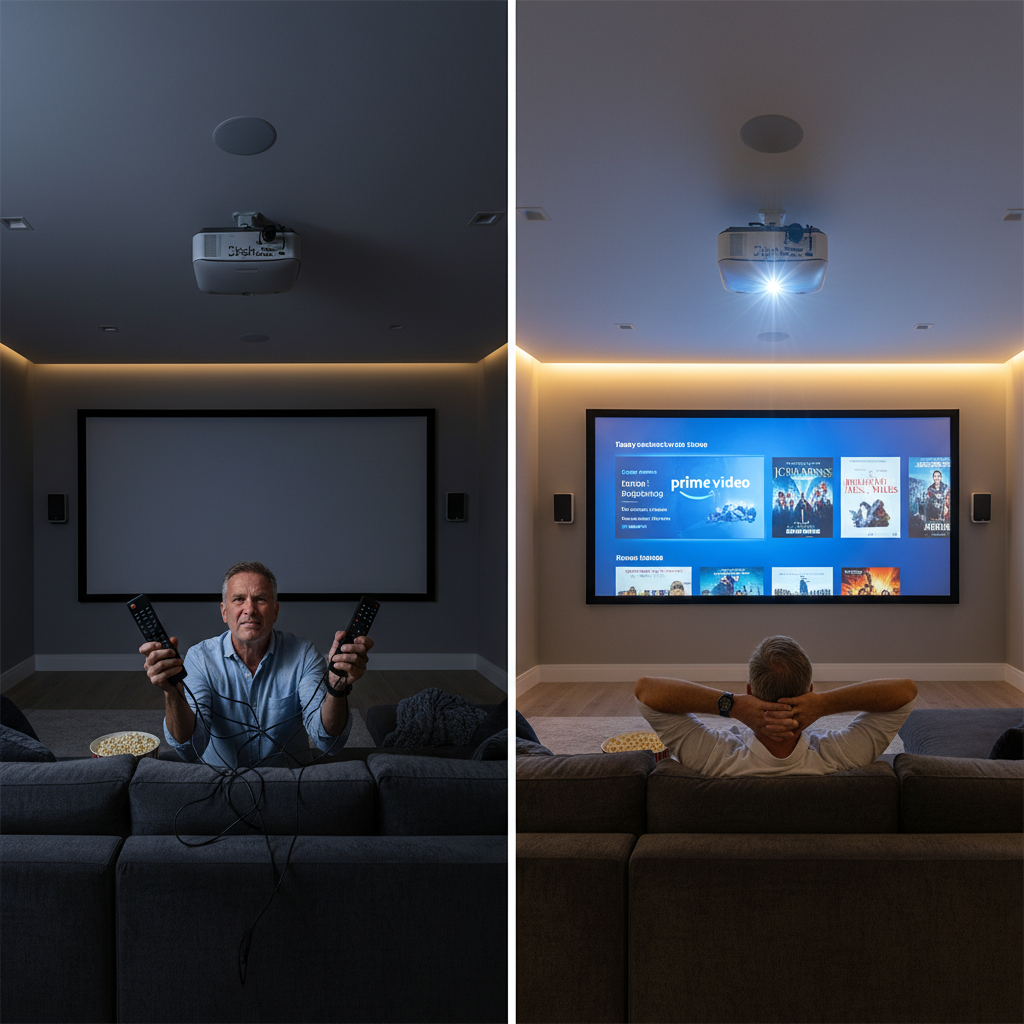
If you’ve ever fumbled for three different remotes just to watch a show, this one’s for you.
You’ve got a beautiful Josh.ai voice system, a slick cinema or media room, and Amazon Prime Video loaded with content. But how do you actually marry the Josh remote experience with Amazon Prime so movie night feels like magic instead of tech support?
Let’s walk through how Josh, your control system/remote, and Amazon Prime Video can work together—and what to expect in real life.
What Do People Mean By “Josh Cinema Remote Amazon Prime”?
Most people searching for “Josh cinema remote Amazon Prime” are trying to solve one (or all) of these problems:
- Use voice to open and control Amazon Prime Video (without digging through menus)
- Start a movie in a dedicated home theater/cinema with a single command
- Avoid juggling multiple remotes (TV, AVR, streamer, lighting, etc.)
In practice, this usually looks like:
“Hey Josh, watch Jack Ryan on Prime in the cinema.”
…and having all of this happen:
- Projector/TV turns on
- AVR or processor switches to the right input
- Lights dim to your preferred scene
- Streaming device (Apple TV, Fire TV, Roku, etc.) opens Amazon Prime Video
- The show or movie starts playing
That’s the dream. Now let’s break down what has to be true for that to work.
Takeaway: When people say Josh cinema remote Amazon Prime, they’re really talking about tying voice control, AV hardware, and Prime Video streaming into one smooth experience.

How Josh.ai Fits Into a Home Cinema Setup
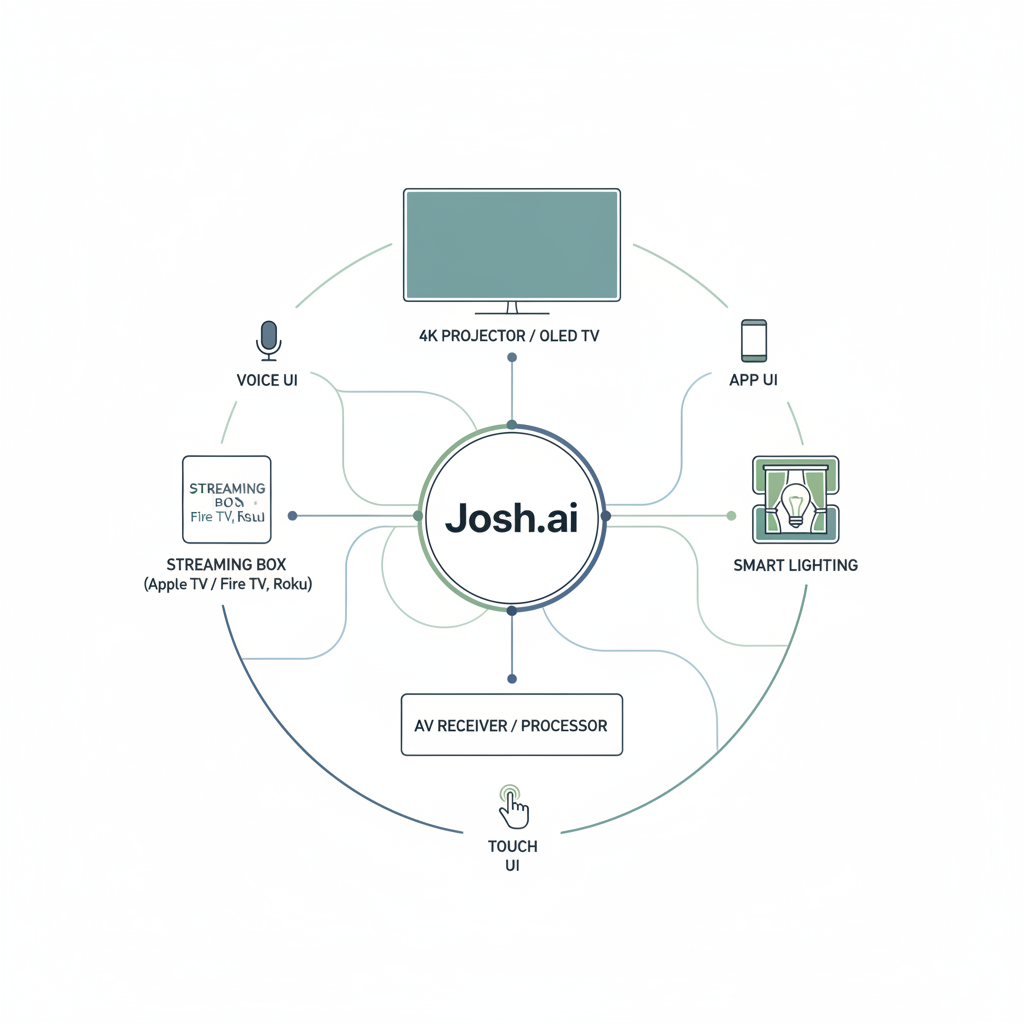
Josh.ai is a voice-first home automation platform that also provides an app and touch interfaces for control. It doesn’t stream the content itself; instead, it controls the devices that do.
Common cinema stack Josh works with:
- Display: Projector or large TV
- Audio: AV receiver or surround processor
- Source device: Apple TV, NVIDIA Shield, Roku, Amazon Fire TV, built‑in smart TV apps, etc.
- Room systems: Lights, shades, climate
Josh sits on top of all this and provides:
- Natural language voice control (“watch”, “pause”, “make it darker”, etc.)
- Scenes (e.g., Movie Time, Intermission, All Off)
- Unified control through the app or wall keypads/touchscreens
Takeaway: Josh is the brain and voice, not the streaming box. Amazon Prime Video still runs on your streaming device or TV.
Ways To Control Amazon Prime Video With Josh
There are three main patterns for getting a “Josh cinema remote” experience for Amazon Prime:
1. Using a Streaming Box (Most Common & Flexible)
If you’re using:
- Apple TV
- Amazon Fire TV / Fire TV Stick
- Roku
- NVIDIA Shield / Android TV
…then Josh typically controls that device, which in turn runs the Amazon Prime Video app.
What this can look like:
- “Hey Josh, watch Amazon Prime in the cinema.”
→ Josh powers the system, switches to your streaming device, and sends commands to launch the Prime Video app (often via IP or IR control depending on integration). - “Hey Josh, pause.”
→ Josh sends a pause command to that active source.
Some integrators take it further and create Josh scenes or custom commands like:
- “Hey Josh, Movie Time”
→ Lights dim to 10%, projector and AVR turn on, input switches to Apple TV, Prime Video opens.
Pros:
- Very reliable when programmed correctly
- Works with high-end AV gear and cinema processors
- You get full-room control (lights, shades, volume) in addition to streaming control
Watch-out:
- Deep linking directly to specific Amazon Prime titles by voice (e.g., “Play The Boys on Prime”) may depend on the capabilities of the streaming box and how your integrator set things up. Sometimes you’ll get the app open and then navigate, rather than instant play.
Takeaway: For most home cinemas, the best Josh–Prime setup is Josh → streaming box → Amazon Prime Video, with your installer handling all the routing and macros.
2. Using a Smart TV’s Built‑In Amazon Prime App
If your TV (Sony, LG, Samsung, etc.) has the Amazon Prime Video app built in, Josh can often control the TV directly. Your integrator can:
- Map an input or command to open Prime Video on the TV
- Combine that with room scenes:
- Turn on TV
- Switch to the “apps” or home interface
- Launch Prime Video
- Dim lights and adjust audio
Example command you might use:
“Hey Josh, open Prime Video on the theater TV.”
Pros:
- Fewer devices (no extra streaming box required)
- One remote / app experience for the TV itself
Cons:
- Smart TV app performance and update cycles can be hit‑or‑miss
- Integrations are sometimes more limited versus a dedicated streaming box
Takeaway: Built‑in Prime apps work, but for serious cinema rooms, integrators still tend to prefer dedicated streamers for reliability and video processing.
3. Hybrid: Cinema Room + Whole‑Home Experience
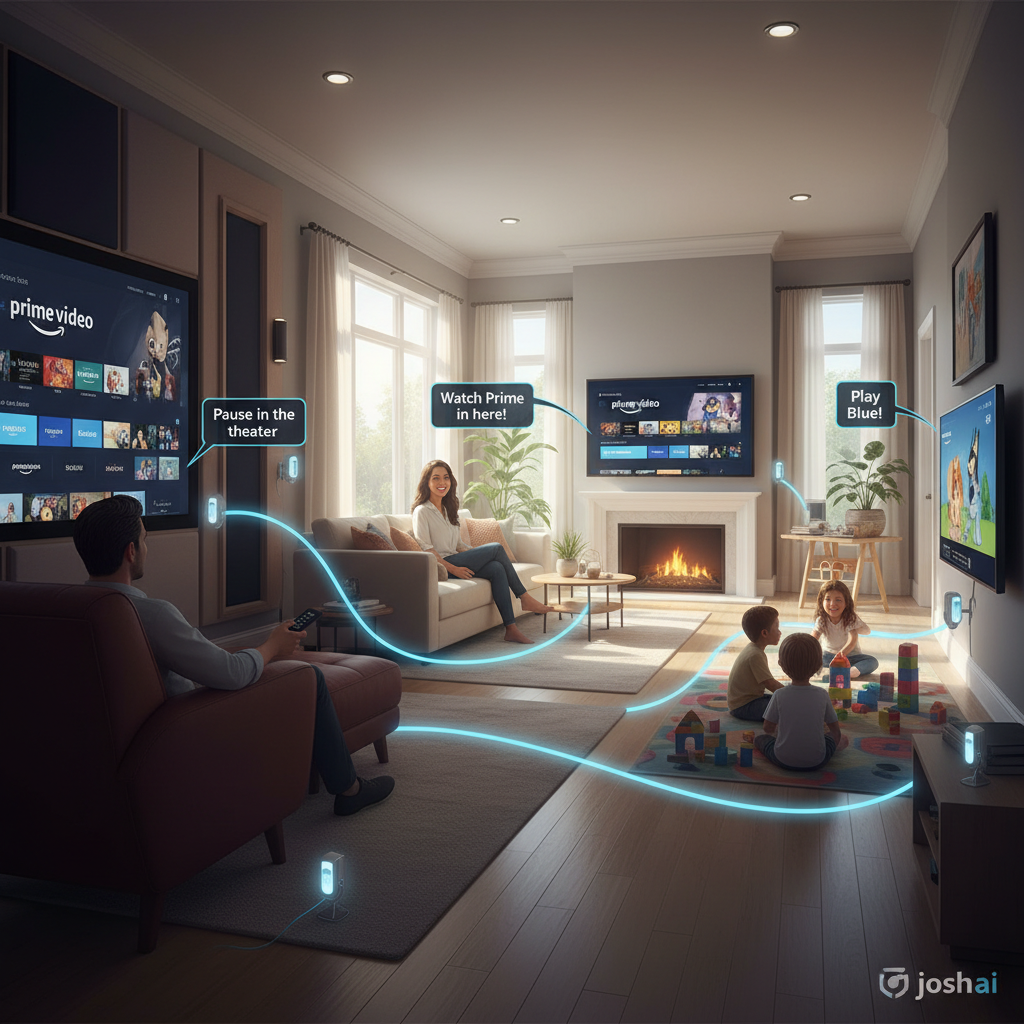
One underrated perk of using Josh is having a consistent control language across your entire house.
Example scenarios:
- Kids’ Media Room:
“Hey Josh, play Prime Video in the playroom.” → Turns on the TV, launches Prime, sets volume lower. - Living Room Casual Watching:
“Hey Josh, continue watching Prime in the living room.” → Switches to your streaming source there and opens the app. - Dedicated Cinema:
“Hey Josh, it’s movie night.” → Runs your custom cinema scene and opens your preferred streaming app (Prime, Netflix, Apple TV+, etc.).
Your integrator can label devices and rooms so you can say natural-language things like:
- “Watch Prime in here.”
- “Pause in the theater.”
- “Resume in the family room.”
Takeaway: Josh turns Amazon Prime Video from “a single screen app” into part of a multi-room entertainment system.
What About a Physical “Josh Remote”?
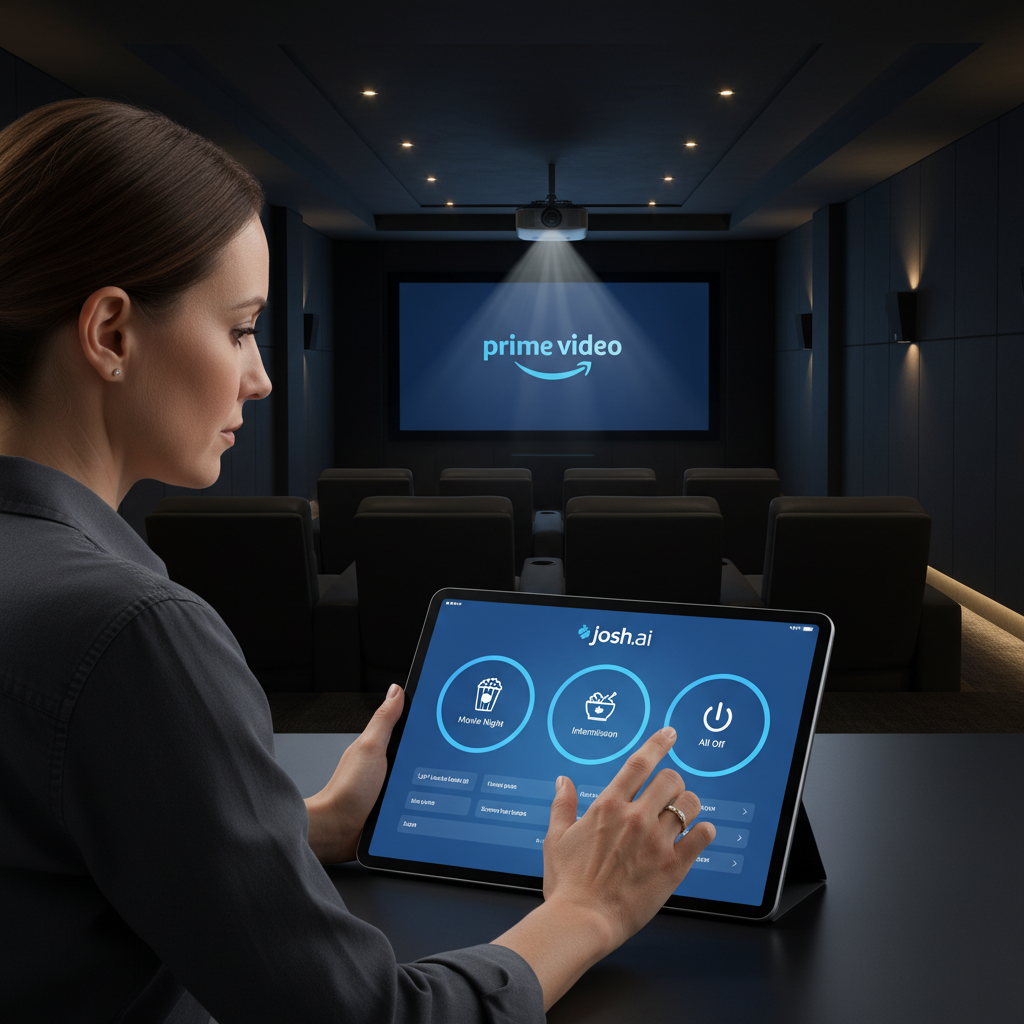
Technically, Josh.ai is more voice + app + touch UI than a traditional handheld plastic remote. In many cinema installs, you’ll see one of these patterns:
- Josh + a traditional hard‑button remote (like a control system remote)
- Josh + touchscreens (on-wall or tabletop)
- Josh app on phone/tablet as the main “remote” interface
How they work together with Amazon Prime Video:
- Use voice (Josh) to launch the activity and scene: “Watch Prime in the cinema.”
- Use hard buttons for frequent controls: volume, skip, play/pause, fast forward.
- Use touch UI (Josh app or control system UI) for browsing content or switching apps.
This gives you the best of all worlds:
- Fast, natural voice control to get started
- Tactile buttons during the movie
- Visual interface when you’re deciding what to watch
Takeaway: When someone says “Josh cinema remote,” they usually mean a blended experience: Josh for brains and voice, plus a separate remote or touchscreen for detailed control.
Example Voice Commands For Josh + Amazon Prime In a Cinema
Here are realistic examples you can ask your integrator to support:
- “Hey Josh, watch Amazon Prime in the cinema.”
→ Power sequence, input change, open Prime Video. - “Hey Josh, start movie night.”
→ Lights dim, projector on, AVR on, streaming box to the front, Prime Video or your default app opens. - “Hey Josh, pause.”
→ Pauses current playback on the active device. - “Hey Josh, intermission.”
→ Pause playback, raise lights to 50%, maybe bring up a softer music scene. - “Hey Josh, all off in the cinema.”
→ Everything powers down and lights return to normal.
Depending on your device ecosystem and programming, you may also get:
“Hey Josh, watch The Marvelous Mrs. Maisel on Prime in the theater.”
…but that level of title-specific control is where you’ll want to talk with your integrator, because it depends heavily on the streamer and how deep the integration allows them to go.
Takeaway: Don’t just ask for “control of Prime.” Ask your installer for phrase‑based actions like movie night, intermission, and all off.
Working With Your Integrator: What To Ask For
To make sure your Josh–Amazon Prime–cinema experience feels premium, here’s a checklist to give your installer:
1. Primary Streaming Device Decision
- Which box or TV app will be your main way of watching Amazon Prime Video in the cinema?
- Ask: “What device gives the best reliability and picture quality for Prime in my theater?”
2. Scene Design
Request at least these scenes/commands:
- Movie Night (turn on everything, launch Prime or your preferred app, set lights)
- Intermission (pause + lights to mid-level)
- End of Movie or All Off (power down, lights up)
3. Voice Phrases You Actually Use
Share how you naturally talk:
- “Watch Prime,” “Watch Amazon,” “Watch TV,” “Movie time,” etc.
- Ask them to map those phrases into Josh scenes or device commands.
4. Remote Strategy
Decide how you want to interact:
- A hard‑button remote for fine control
- Josh voice for mode changes and launching apps
- Touchscreens or app for browsing and deep settings
5. Room Naming & Multi‑Room Logic
Make sure rooms are named in a way you’ll remember: Cinema, Theater, Family Room, Kids Room, etc.
Then set up phrases like:
- “Watch Prime in the family room.”
- “Pause in the theater.”
Takeaway: Your experience won’t just depend on Josh and Amazon Prime—it depends a lot on how your integrator programs the system.
Is Josh + Amazon Prime Worth It For a Home Cinema?
If you:
- Have (or are building) a dedicated cinema or serious media room
- Already use Amazon Prime Video a lot
- Want hands‑free control and tight integration with lighting, shades, and audio
…then yes, tying Josh into your Prime setup is absolutely worth it.
You’re not just getting “voice control for a TV app.” You’re getting:
- Cinematic scenes with one phrase
- Unified control of the entire room
- A system that feels more like living in the future than fighting with electronics
If you mostly watch on a single living-room TV with a basic streaming stick, a full Josh-powered cinema might be overkill—but if you’re reading this and planning a theater, you’re probably not that person.
Final takeaway: For a proper home cinema, the combo of Josh.ai + a well-chosen streaming device + Amazon Prime Video + good programming gives you that “Hollywood screening room” vibe without the Hollywood chaos.
Quick Summary: How To Get the Best “Josh Cinema Remote Amazon Prime” Setup
- Use Josh.ai as the voice and automation brain, not the streaming box.
- Pick a reliable streamer or TV app to run Amazon Prime Video in your cinema (Apple TV, Fire TV, etc.).
- Have your integrator program scenes and natural phrases: “Movie Night,” “Watch Prime in the cinema,” “Intermission,” “All off.”
- Combine voice + a physical remote + touch UI for the best control experience.
- Name rooms and devices clearly so you can move Prime playback naturally around your home.
Do that, and the next time you say, “Hey Josh, let’s watch something on Prime,” your only remaining decision will be what to watch—not how to make the system cooperate.
Leave a Reply