How To Hide An Amazon Order (Without Breaking Anything)
You love your Amazon account.
You also love surprises.
Unfortunately, Amazon really loves showing everything to anyone who logs in.
If you’re trying to hide an Amazon order from a spouse, roommate, kid, or just Future You doing a shame scroll through past purchases… you’ve got options. Limited options, but still options.
This guide breaks down what you can and can’t actually hide on Amazon, plus practical ways to keep your orders private without breaking any rules.
First, Let’s Be Honest: Can You Really Hide an Amazon Order?
Short answer: not exactly.
Amazon does not let you permanently delete order history from your account. What you can do is:
- Archive an order so it’s not front and center in your main order history
- Hide or clear browsing history so people don’t see what you clicked on
- Turn off shared devices / recommendations that expose your interests
- Use Gift lists or wish lists more discreetly
- Use separate accounts, profiles, or gift cards to reduce the trail
If you were hoping for a big red “Delete My Questionable Purchase” button… it doesn’t exist.
But we can still make things harder to find.
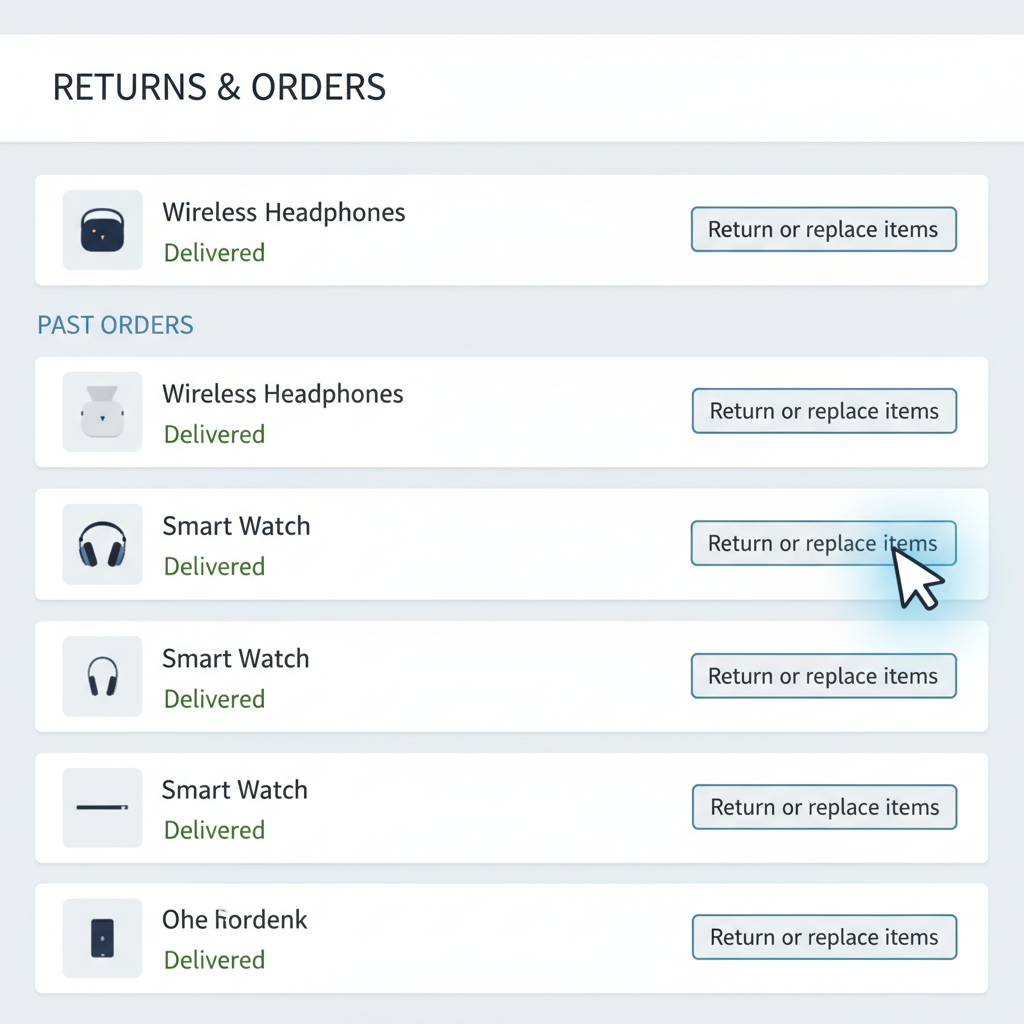
Method #1: How to Archive an Amazon Order (Desktop & Mobile)
Archiving is Amazon’s built-in way to tuck orders out of your main history view. They’re still there, just not obvious.
On Desktop (amazon.com)
- Log into your Amazon account.
- Go to “Returns & Orders” (top-right of the screen).
- Find the order you want to hide.
- At the bottom of that order, click “Archive order.”
- Confirm when prompted.
That order moves from your main list into your Archived Orders.
To see archived orders later:
- Go to “Accounts & Lists” > “Account.”
- Click “Archived orders.”
On Mobile Browser
The Amazon app doesn’t always show the “Archive order” option, but you can:
- Open a mobile browser (like Chrome or Safari).
- Go to amazon.com and log in.
- Switch to Desktop Site (usually via your browser menu).
- Then follow the same desktop steps above to archive.
Limit: Amazon caps how many orders you can archive (it’s usually around 500–1000; it can change). If you’re trying to bury a lot, you may hit that ceiling.

Method #2: Hide Your Browsing History on Amazon
Even if someone doesn’t open your orders, they can see what you’ve been clicking on via Browsing History.
How to Clear or Hide Items from Browsing History
On desktop:
- Go to Amazon.com and log in.
- Hover over “Browsing History” near the top (or click it directly if visible).
- Click “Manage history.”
- To remove specific items, click “Remove from view” next to each.
- To wipe more broadly, click “Remove all items from view” if available.
You can also turn off browsing history:
- In the same “Manage history” area, toggle Browsing History off.
On mobile app:
- Open the Amazon app.
- Tap the person icon or profile tab (varies by version).
- Look for Browsing History (sometimes under Your Account or “Your stuff”).
- Remove individual items or clear all.
Method #3: Turn Off Personalized Recommendations (a Sneaky Leak)
Amazon recommendations are like that friend who overshares: “Because you looked at engagement rings…”
Those carousels on the homepage can absolutely rat you out.
To reduce that:
- Go to “Accounts & Lists” > “Account.”
- Click “Your Recommendations” (name may vary slightly over time).
- Remove items you don’t want influencing recs by clicking “Remove this recommendation” or similar.
- Optionally, adjust your interest settings to clean up what Amazon thinks you like.
Also, related to this: clearing Browsing History (previous section) will help, because recommendations often use that data.
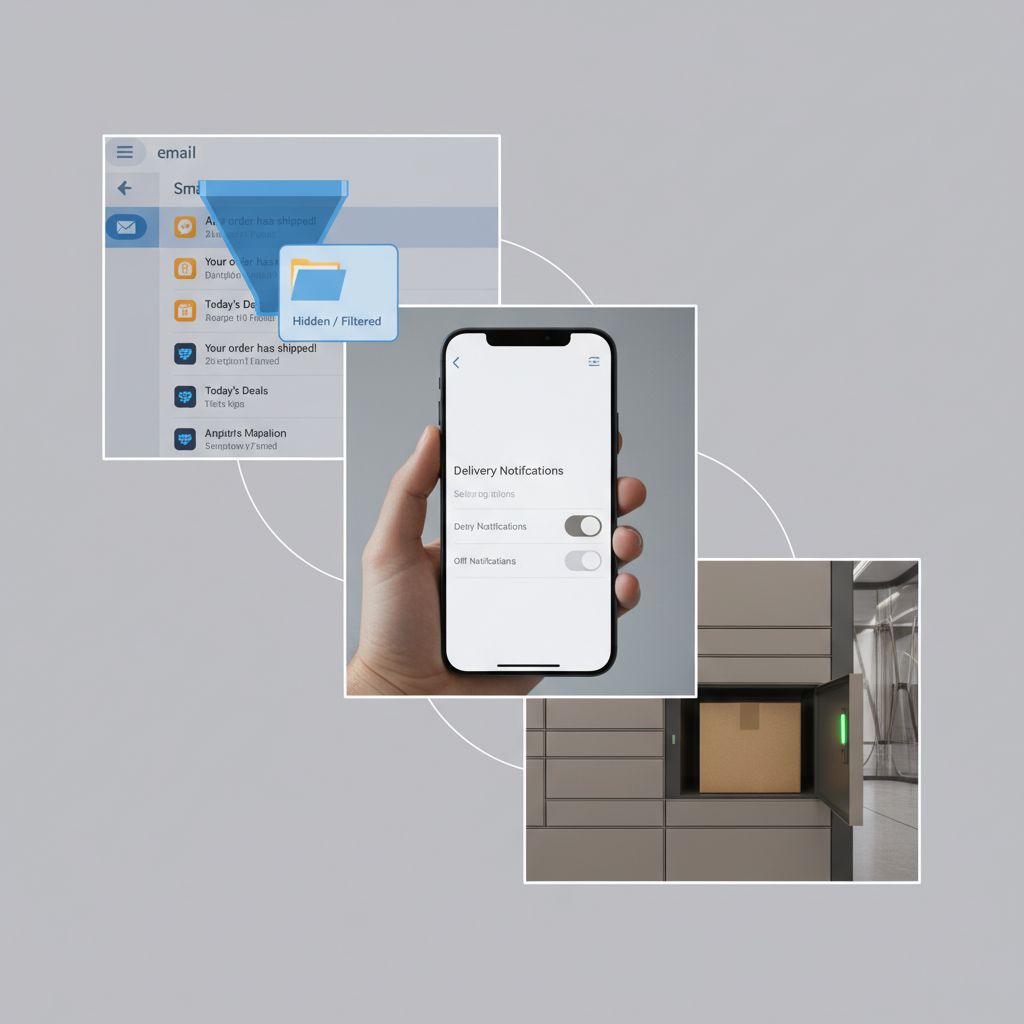
Method #4: Hide Orders from Alexa and Shared Devices
Smart speakers and shared Fire tablets can give away more than you think.
Check Alexa’s Order Announcements
If you use Alexa devices:
- Open the Alexa app.
- Go to More > Settings > Notifications > Amazon Shopping (exact menu names can vary slightly).
- Turn off:
- “Out for delivery” and “Delivered” announcements for specific devices.
- Or disable “Include items in this category” for gifts.
This helps if you don’t want your Echo loudly announcing: “Your order of 12-foot inflatable skeleton has been delivered.”
Check Amazon Household & Profiles
If you share an Amazon Household:
- Understand that Adult profiles in a Household keep separate order histories, but there can still be shared payment methods and Prime benefits.
- Kids/Teen profiles usually need approval for purchases—those show up on the main adult account.
If you truly don’t want another adult seeing purchases:
- Use separate Amazon accounts with separate logins and, ideally, separate payment methods.
Method #5: Keep Email, Notifications, and Packages Discreet
Sometimes the problem isn’t Amazon’s website—it's everything around it.
1. Tidy Up Email Notifications
- Amazon sends order, shipping, and delivery confirmation emails.
- If you share an email account or someone knows your email password, they can see everything.
Options:
- Use a personal, private email address for your Amazon account.
- Create an email filter (in Gmail, Outlook, etc.) that auto-archives Amazon notifications or sends them to a hidden folder.
2. Turn Off Delivery Notifications (Text / App)
In the Amazon app:
- Tap your profile or menu icon (≡).
- Go to Settings > Notifications.
- Adjust Order updates, Delivery notifications, etc.
If you share devices, these banners popping up at awkward times can be an issue.
3. Make the Physical Package Less Obvious
Amazon generally ships in Amazon-branded boxes, but you can sometimes:
- Use “Ship in Amazon packaging” (or NOT) depending on whether you’re trying to blend in or hide branding—this option sometimes appears at checkout for certain items.
- Ship to a locker, pickup point, or work address, if appropriate.
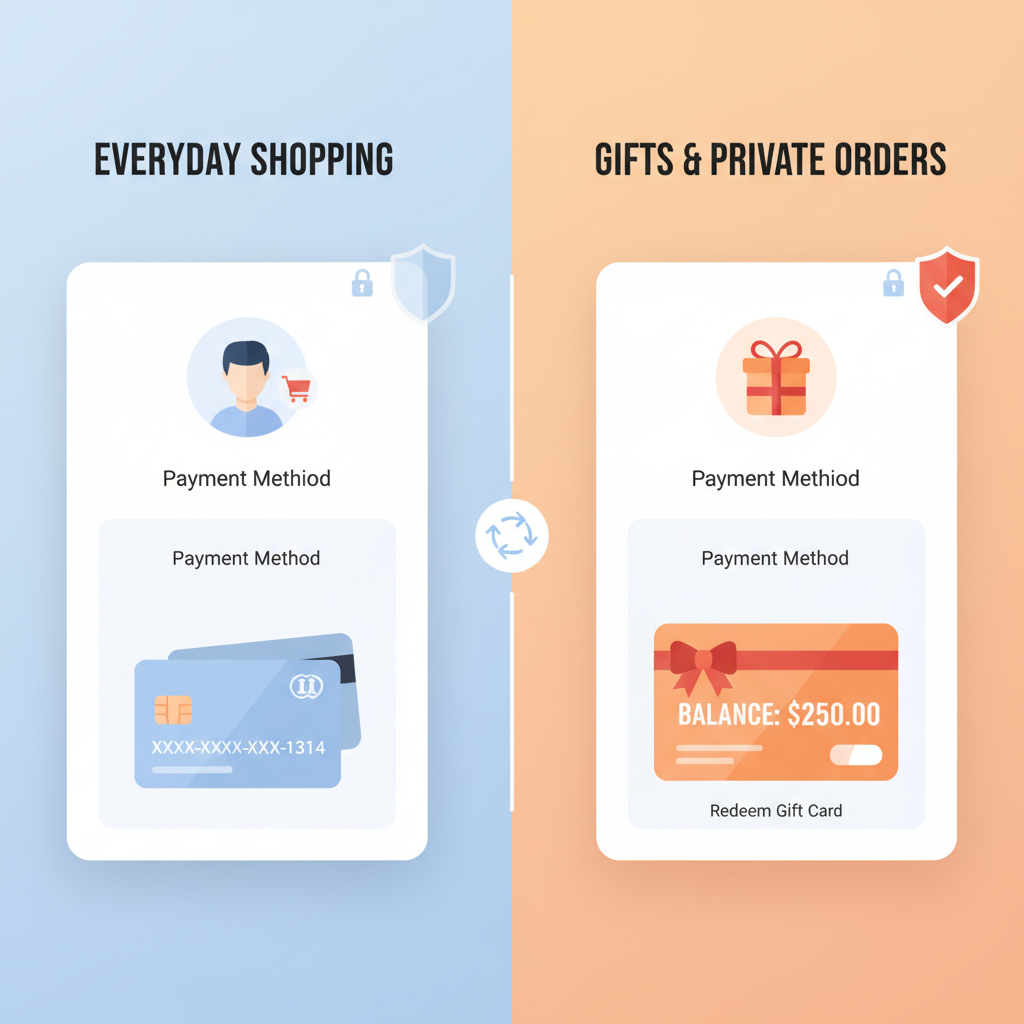
Method #6: Using Separate Accounts, Gift Cards, and Payment Methods
If privacy is truly important (think: gifts, medical items, personal stuff), the most reliable approach is to limit the trail at the source.
Separate Amazon Account
Consider:
- Creating a second Amazon account using a different email address.
- Using that account only for gifts or privacy-sensitive orders.
Pros:
- Completely separate order history.
- Less chance of surprise suggestions or order lists revealing anything.
Cons:
- You may need a separate Prime membership if you want fast/free shipping there.
- Managing multiple accounts can be a bit of a hassle.
Use Gift Cards Instead of Shared Cards
If you share a credit card with someone who watches statements like a hawk:
- Buy an Amazon Gift Card (in cash or via your own card) and load it to your account.
- Use that gift card balance to place more private orders.
This way, your bank/credit card statement might just show “Amazon Gift Card” rather than the exact item breakdown.
Important: This does not hide orders inside Amazon itself. It just reduces what appears on shared financial statements.
FAQ: Common Questions About Hiding Amazon Orders
Can I permanently delete an Amazon order from my history?
No. As of early 2026, Amazon does not offer a way for regular users to permanently delete orders from their account history. You can only archive them.
Does archiving an Amazon order hide it from everyone?
Archiving simply moves it out of your default order list; anyone who logs into your account and knows where to click can still find it under Archived Orders.
If I clear browsing history, does that delete my orders?
No. Browsing history and order history are separate. Clearing one does nothing to the other.
Will using Incognito Mode help hide orders?
No. Incognito/private browsing only affects what’s stored on your device—cookies, local history, etc. Amazon still tracks your activity on their servers after you log in.
Is it against Amazon’s rules to try to “hide” orders?
Using Amazon’s settings—archiving, clearing browsing history, turning off recommendations, etc.—is totally normal. What you shouldn’t do is:
- Share or use someone else’s account without their permission.
- Try any shady tools or hacks that claim to “erase” Amazon data.
Quick Privacy Checklist: How to Hide an Amazon Order (Practically Speaking)
If you’re trying to keep one specific order low-key, here’s a simple checklist:
1. Before ordering
- Consider using a separate account for ultra-private stuff.
- Decide if you need to use gift cards instead of a shared credit card.
2. During checkout
- Double-check shipping address (home, locker, work?).
- Check if there are options for packaging that help it blend in.
3. Right after ordering
- Go to Orders > Archive order to move it out of your main list.
4. Clean up your digital trail
- Clear or edit Browsing History.
- Review Your Recommendations and remove anything suspicious.
- Adjust email filters so order emails don’t show up in a shared inbox.
5. Check shared devices
- Turn off Alexa shopping announcements.
- Review app notification settings on shared phones/tablets.
Do all that, and your Amazon order is about as “hidden” as Amazon currently allows.
Final Thoughts: Manage Expectations (and Passwords)
You can’t fully erase an order from Amazon’s memory—but you can make it much harder for casual snoops to stumble across.
The real privacy game boils down to:
- Who has access to your Amazon login
- Who sees your email and notifications
- Who reads your bank / credit card statements
Lock those down, use archiving and history tools wisely, and your secret gift / hobby / mildly embarrassing purchase is likely safe from everyday eyes.
And if all else fails? Blame it on “recommended for you.” Works every time.
Leave a Reply