How To Use A Vanilla Gift Card On Amazon
You finally scratched the silver strip, typed in the numbers, and… now what?
If you’re staring at a Vanilla Visa or Vanilla MasterCard gift card and wondering how on earth to use it on Amazon, you’re not alone. The good news: yes, you can use a Vanilla gift card on Amazon. The catch: there are a few easy-to-miss steps that trip people up.
This guide walks you through everything: how to add a Vanilla gift card to Amazon, how to avoid that annoying “card declined” error, and what to do if your balance is small or awkward (hello, $3.17 leftover).

Quick answer: Can you use a Vanilla gift card on Amazon?
Yes. You can usually use a Vanilla Visa or Vanilla MasterCard gift card on Amazon just like a regular credit/debit card or by converting it into an Amazon gift card balance.
However, you cannot split a single Amazon order between a Vanilla card and a second card. Amazon typically only allows:
- One credit/debit card or
- Your Amazon gift card balance (and sometimes a backup card)
So the smoothest method is often to load your Vanilla gift card balance into your Amazon account as an Amazon gift card, then shop normally.

Step 1: Check and register your Vanilla gift card
Before you touch Amazon, get your Vanilla card ready.
1. Check your balance
Go to the website listed on the back of your Vanilla card (usually something like vanillagift.com):
- Enter the card number, expiration date, and CVV.
- Confirm your exact balance (down to the cent).
You’ll need this because Amazon won’t let you overshoot the amount on a prepaid card.
2. Register your billing address (important!)
Most Vanilla Visa/MasterCard gift cards need a billing address attached before they’ll work for online purchases. Many people skip this and get declined.
On the Vanilla card website:
- Find the option to register or edit billing information.
- Add your name and a U.S. billing address (use your real address).
- Save the information.
Make sure this address matches what you’ll enter on Amazon as the billing address when you use the card like a regular payment method.
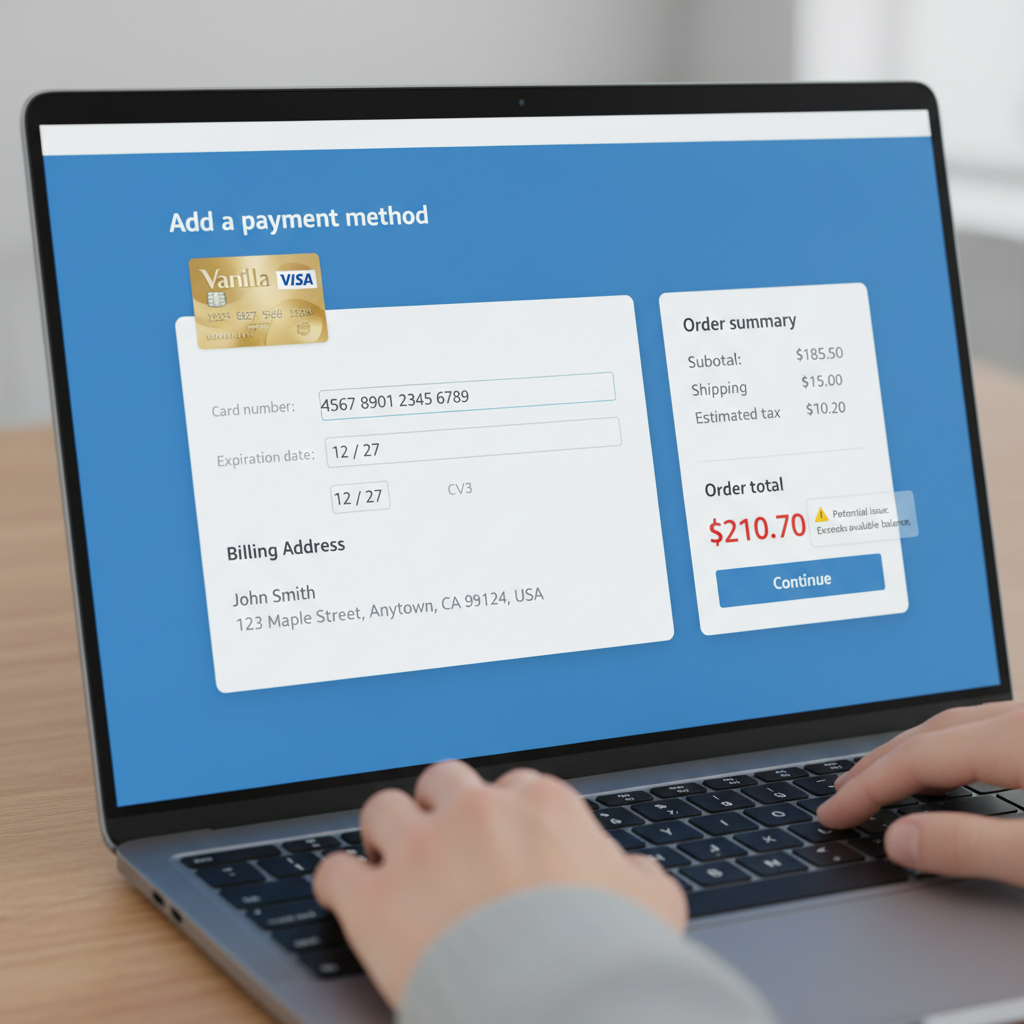
Option 1: Use your Vanilla card as a regular payment method
This is the most straightforward way to use your Vanilla gift card on Amazon, but it has two common pain points: declined payments and unused small balances.
How to add your Vanilla card at checkout
- Add items to your cart and go to Checkout.
- On the Payment step, choose Add a credit or debit card.
- Enter:
- Name on card (you can use your own name)
- Card number (from the Vanilla card)
- Expiration date
- Security code (CVV)
- For the billing address, enter the same address you registered on the Vanilla card’s website.
Then submit your order.
Why your Vanilla card might be declined on Amazon
If Amazon says your Vanilla card is invalid or declined, common causes are:
- No billing address registered on the Vanilla card site.
- Order total is higher than your card balance. Even a few cents over will cause a decline.
- Temporary hold / pre-authorization. Some merchants place a small temporary hold; if your balance is tight, this can cause issues.
Pro tip: Match your order total to your card balance
If your Vanilla card has $50.00 on it, try to make your Amazon order subtotal (after tax and shipping) less than or equal to $50.00.
Because Amazon doesn’t easily let you split between two cards, if your order is more than the card balance, you’ll usually need to:
- Lower your cart total, or
- Use the Vanilla card to buy an Amazon eGift card for the exact balance (Option 2 below), then place a separate order.

Option 2 (Recommended): Convert your Vanilla card into Amazon gift card balance
This is the cleanest, least-frustrating way to use a Vanilla gift card on Amazon.
Instead of trying to pay for an order directly, you:
- Buy an Amazon eGift card using your Vanilla card.
- Send it to your own email.
- Redeem the eGift card to your Amazon account.
After that, you just shop using your Amazon balance like normal.
Step-by-step: Turn your Vanilla card into Amazon credit
- Go to “Gift Cards” on Amazon (search “Amazon eGift card”).
- Choose Email delivery.
- Set the amount to the exact balance on your Vanilla card (or slightly less, to be safe).
- In the To field, enter your email address.
- Complete checkout and choose Add a credit or debit card.
- Enter your Vanilla card details (number, expiration, CVV).
- Use the same billing address you registered on the Vanilla card website.
Amazon will process the purchase and email you the eGift card.
Redeem the eGift card
- Open the email from Amazon with the eGift card.
- Click “Apply to your Amazon account” or copy the claim code.
- On Amazon, go to Accounts & Lists → Gift Cards.
- Click “Redeem a Gift Card” and enter the claim code.
Your Amazon balance now reflects the amount from your Vanilla card.
From here, just:
- Add items to your cart
- At checkout, choose to pay with your Amazon gift card balance
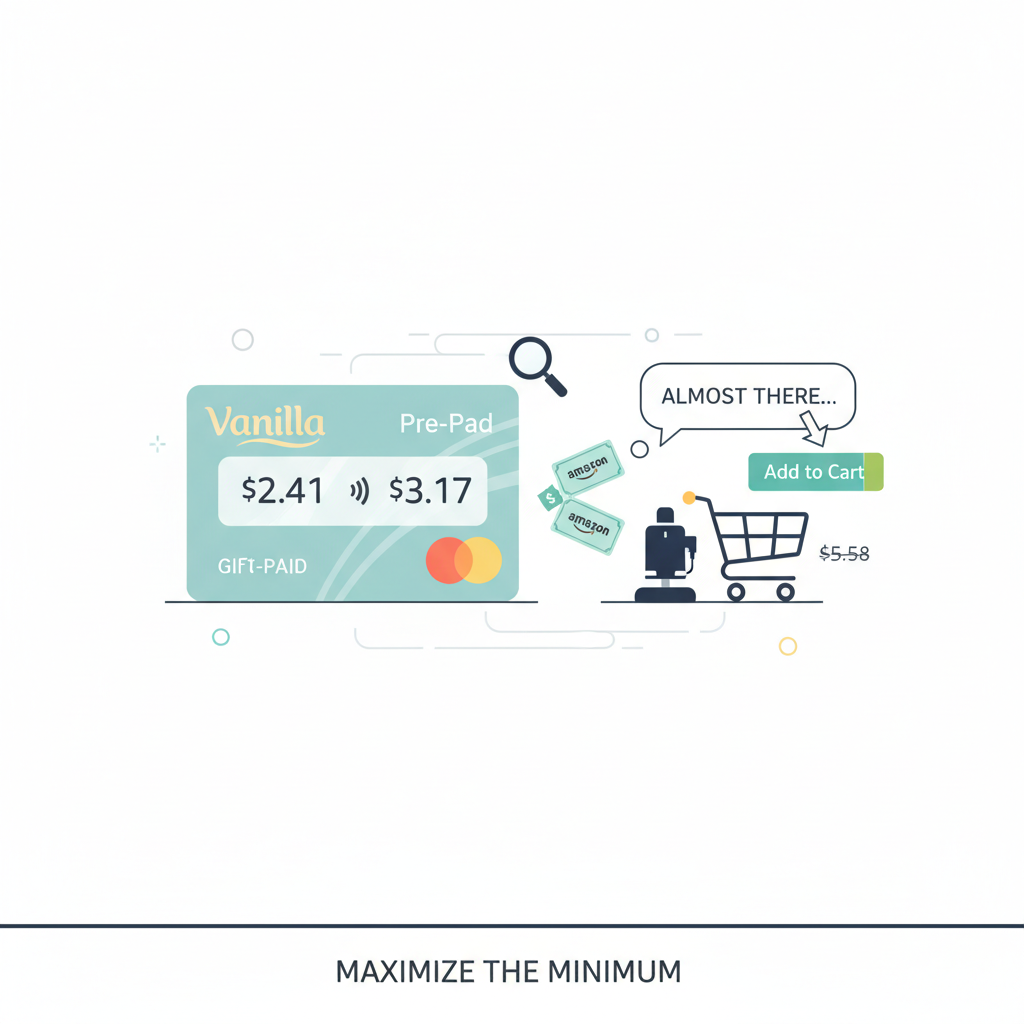
What about small leftover balances on a Vanilla gift card?
The classic problem: you use most of your Vanilla card somewhere else and are left with something like $2.41. Annoying, but not useless.
You have a few options:
1. Buy a tiny Amazon eGift card
Repeat Option 2 above, but set the amount to exactly what’s left on the card.
This is ideal because Amazon will let you buy an eGift card for small amounts, and you’ll turn that random leftover balance into usable Amazon credit.
2. Add a low-priced item to match your balance
If you use your Vanilla card directly on Amazon and know you’ve got $5.00 left:
- Look for an item (digital or physical) that costs less than or equal to that amount.
- Use the Vanilla card as the payment method.
This is more trial-and-error, but it can work.
3. Use it elsewhere where split payments are allowed
Many in-store retailers let you do split tenders: you can tell the cashier, “Put $3.17 on this card, and the rest on my other card.”
Use that flexibility to drain the remaining value if Amazon feels too rigid.
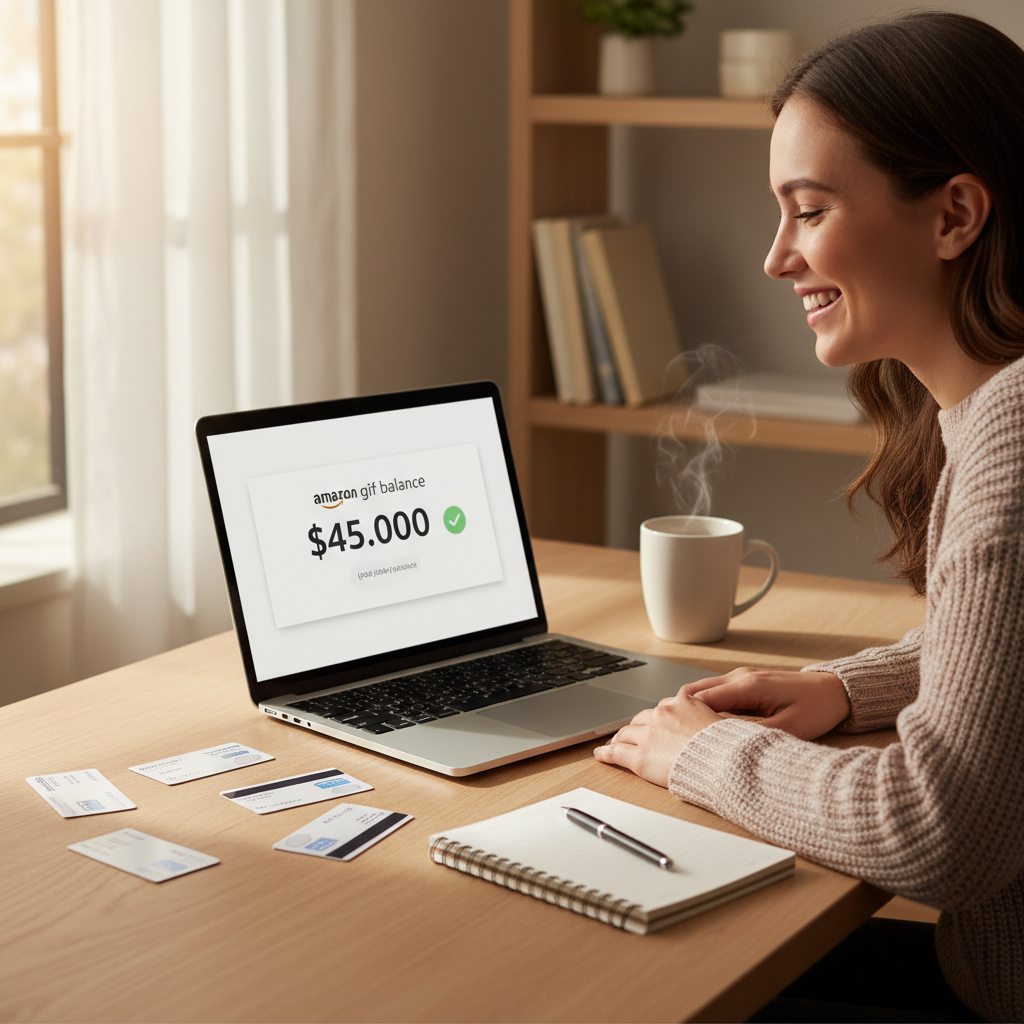
Common questions about using Vanilla gift cards on Amazon
Do Vanilla gift cards work for Amazon Prime or subscriptions?
Not reliably.
Amazon often requires a traditional credit or debit card for subscriptions like Prime, Audible, or recurring payments. Prepaid cards (including many Vanilla cards) may be declined or accepted only temporarily.
If you want to use your Vanilla balance on Amazon-related services, you’re usually better off:
- Converting it to Amazon gift card balance, then
- Using that to pay for one-time purchases (books, products, digital items).
Can I use multiple Vanilla cards on one Amazon order?
Not directly.
Amazon generally doesn’t let you split a single order across multiple credit/debit cards. But you can work around this by:
- Turning each Vanilla card into an Amazon eGift card (sent to yourself).
- Redeeming all of those into your single Amazon gift card balance.
- Using that combined balance to pay for your order.
Can I add a Vanilla card as a saved payment method on my Amazon account?
Yes, you can add it under Wallet → Add a credit or debit card.
However, remember:
- The card only works until its balance is empty (and sometimes until it expires).
- Once the card is drained, you can remove it from your wallet to avoid confusion later.
Why does Amazon show a $0.00 charge or a small pending amount?
Sometimes Amazon (and other merchants) place a temporary authorization hold to verify the card. This is usually a small amount (like $1) and often reverses automatically.
If your Vanilla card balance is barely enough to cover your purchase, that temporary hold can cause your main charge to fail.
Real-world examples
Example 1: Brand-new $100 Vanilla Visa
You have a $100 Vanilla Visa gift card and want to buy $95 worth of stuff on Amazon.
Best move:
- Register the card with your billing address on the Vanilla site.
- Buy a $100 Amazon eGift card using the Vanilla card.
- Email it to yourself and redeem it into your Amazon balance.
- Place your $95 order using gift card balance. You’ll still have $5 left in your Amazon balance for next time.
Example 2: Weird leftover $7.32 balance
You used the Vanilla card at a restaurant and now you’ve got $7.32 left.
Options:
- Buy a $7.32 (or slightly lower) Amazon eGift card and send it to yourself.
- Or find a small digital item (like an eBook or cheap accessory) under that amount and pay with the Vanilla card directly.
Example 3: Two half-used Vanilla cards
You have:
- Card A: $12.50
- Card B: $23.18
What to do:
- Buy a $12.50 Amazon eGift card with Card A; send it to yourself.
- Buy a $23.18 Amazon eGift card with Card B; send it to yourself.
- Redeem both into your Amazon account. Now you’ve got $35.68 in one place.
Summary: The easiest way to use a Vanilla gift card on Amazon
To recap, here’s the smooth, frustration-free method:
- Register your Vanilla card and billing address on the website on the back.
- Check your exact balance.
- On Amazon, buy an eGift card (email delivery) for that amount using the Vanilla card.
- Send it to yourself and redeem the gift card into your Amazon account.
- Shop like normal using your Amazon gift card balance at checkout.
If you’re okay doing a bit more manual work, you can use the Vanilla card directly as a regular payment method—but you’ll need to watch your cart total and avoid going even a few cents over the card’s balance.
Once you’ve done this once, every future Vanilla card becomes easy free Amazon money instead of a plastic headache. You’re basically just upgrading gift cards into store credit.
And honestly, that tiny dopamine hit when your Amazon balance jumps up? Still elite.
Leave a Reply