How To Archive Amazon Orders Fast

If your Amazon order history looks like a digital attic full of stuff you’d rather not see again… you’re in the right place.
We’re talking gifts you’d like to keep secret, one‑time purchases you’ll never repeat, and a whole lot of “why did I even buy this?”
Let’s fix that by walking through exactly how to archive Amazon orders (and what that really means) on desktop and mobile.
Quick primer: What does “archive order” mean on Amazon?
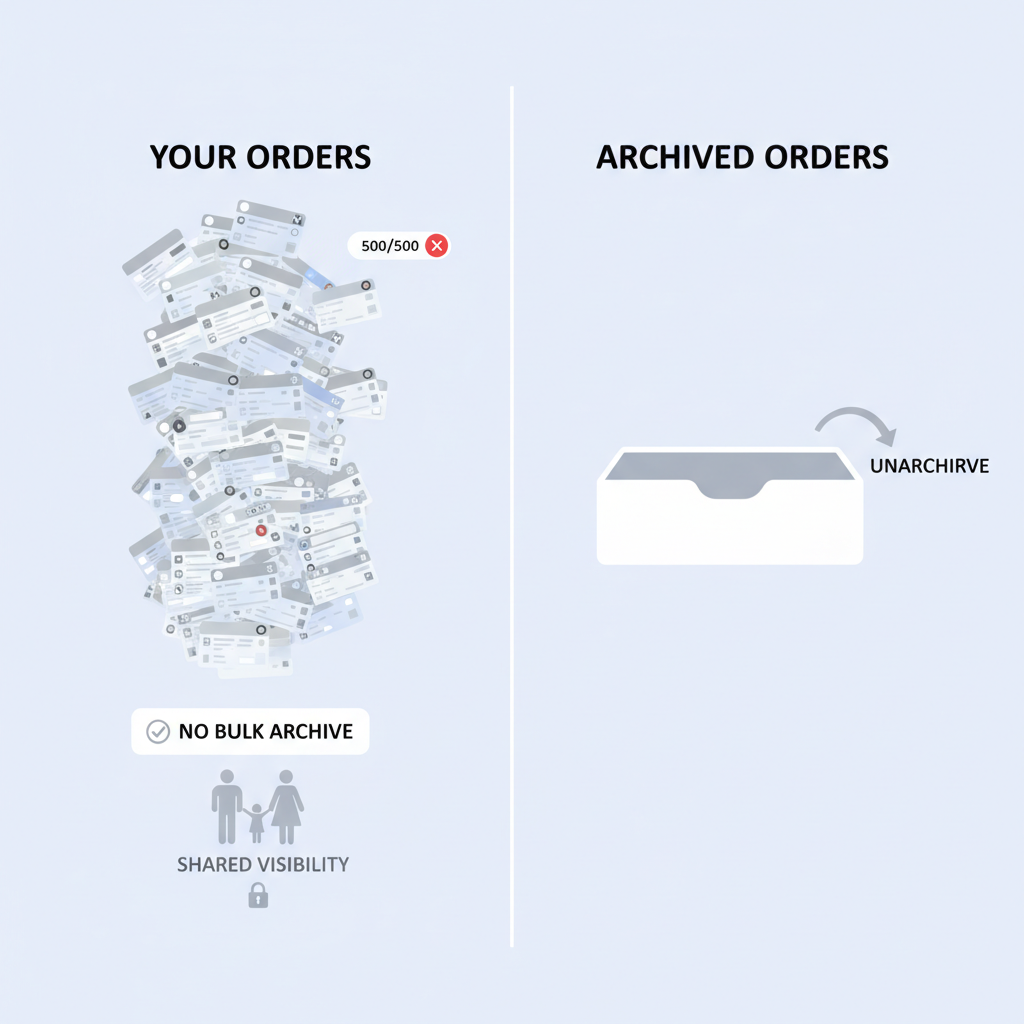
Archiving an order on Amazon does not delete it.
When you archive an order, Amazon simply moves it out of your default Orders view into a separate section called “Archived orders.” Think of it as putting something in a drawer instead of leaving it on the kitchen counter.
You can still:
- View order details
- Print invoices
- Start returns (if still eligible)
- See it in your account history
You just won’t see it in the main list every time you open Your Orders.
Key limitations you should know (before you tap everything)
Before you start aggressively archiving, a few rules:
-
There’s a limit (per account).
Amazon only lets you archive a limited number of orders (traditionally 500 per account). If you’re a very heavy Amazon shopper, you can hit that cap. -
You can’t mass‑archive orders.
There’s no “select 50 orders and archive all” button. You have to archive one order at a time. -
Archiving does not hide orders from everyone.
- Family members with access to your account can still go to Account › Archived orders and see them.
- If you really need privacy, use separate Amazon accounts, or consider an Amazon Household with different profiles.
-
You can unarchive later.
Archiving is reversible. If you archived something by mistake, you can move it back.
How to archive Amazon orders on desktop (Web browser)
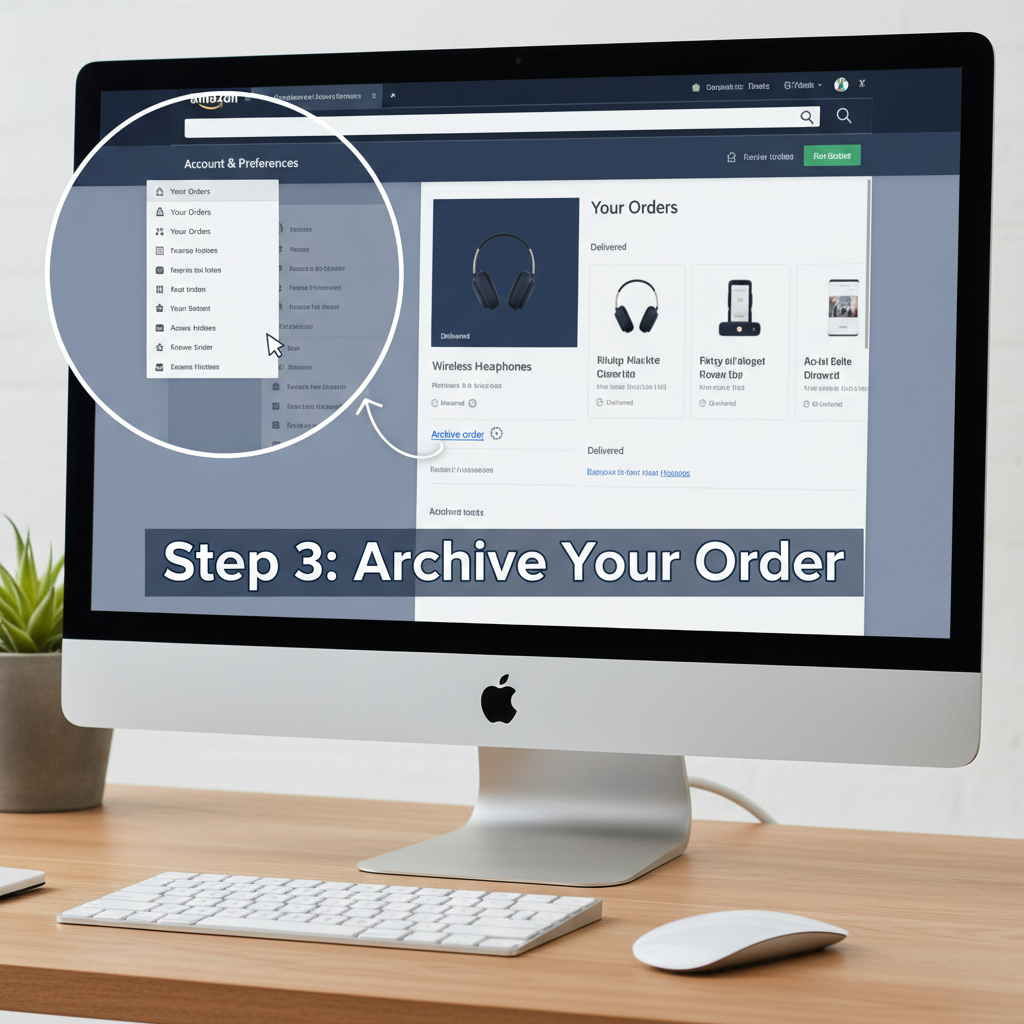
This is the most reliable way, since the full feature set is available on the website.
Step‑by‑step: Archive an Amazon order on web
-
Go to Amazon and sign in.
Open your browser, head toamazon.com, and log in to the right account. -
Open Your Orders.
On desktop, hover over “Account & Lists” (top right).
Click “Your Orders” from the dropdown. -
Find the order you want to archive.
- Use the search bar on the Orders page (product name, order number, etc.), or
- Filter by year using the dropdown (e.g., “2024”, “2023”), or
- Scroll through the list if it’s recent.
-
Click “Archive order.”
On each order, you’ll see several small links/buttons like “Track package”, “Return or replace items”, etc.
Look for “Archive order” (usually at the bottom of the order box). Click “Archive order.” -
Confirm the archive.
A prompt will ask you to confirm. Click “Archive order” again.
That order is now moved out of your default Orders view and into Archived orders.
Your Orders.
How to archive Amazon orders on the mobile website
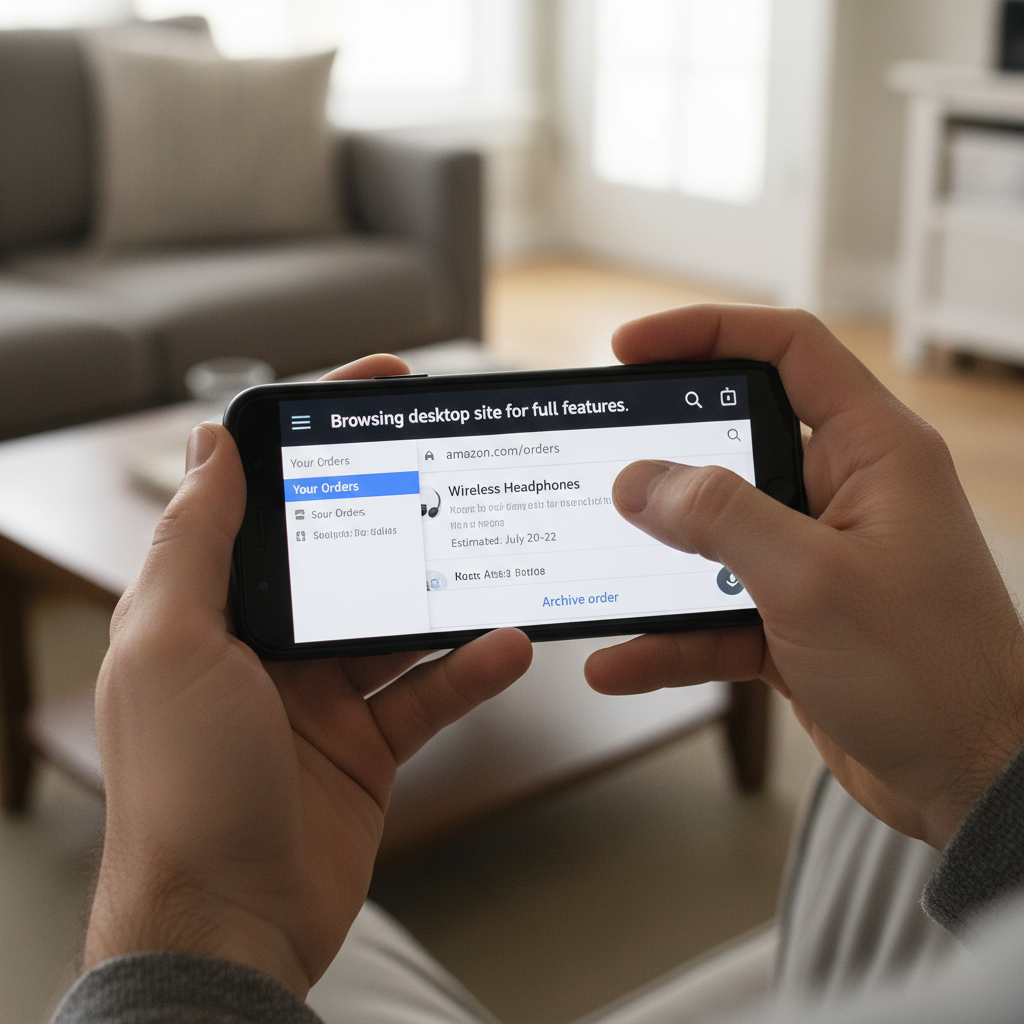
If you’re using a phone browser (Safari, Chrome, etc.), you can still archive orders—it’s just a little more cramped.
Steps (mobile browser):
-
Open your mobile browser and go to
amazon.com.
Log in to your account. -
Open the full site if needed.
If you don’t see the usual desktop‑style options, scroll down and look for a “Desktop site” or “Full site” link in your browser menu. Some mobile layouts hide certain links. -
Go to Your Orders.
Tap the menu icon (≡).
Tap “Your Orders.” -
Locate the order.
Scroll, filter by year, or search by product. -
Tap “Archive order.”
Within that order’s box, look for “Archive order”.
Tap it, then confirm.
Can you archive orders in the Amazon app?
This is where things get a little annoying.
The Amazon mobile apps (iOS and Android) often don’t show the “Archive order” option directly in the app interface. That means:
- You can view orders in the app.
- You usually cannot archive them from there.
-
The workaround is to use your mobile browser (Safari, Chrome) and go to
amazon.com, then follow the web steps above.
A quick workaround:
- Open your phone browser.
- Go to
amazon.comand log in. - Request Desktop site (in your browser’s menu) if you don’t see the right layout.
- Follow the same web archiving steps from earlier.
How to view your archived Amazon orders
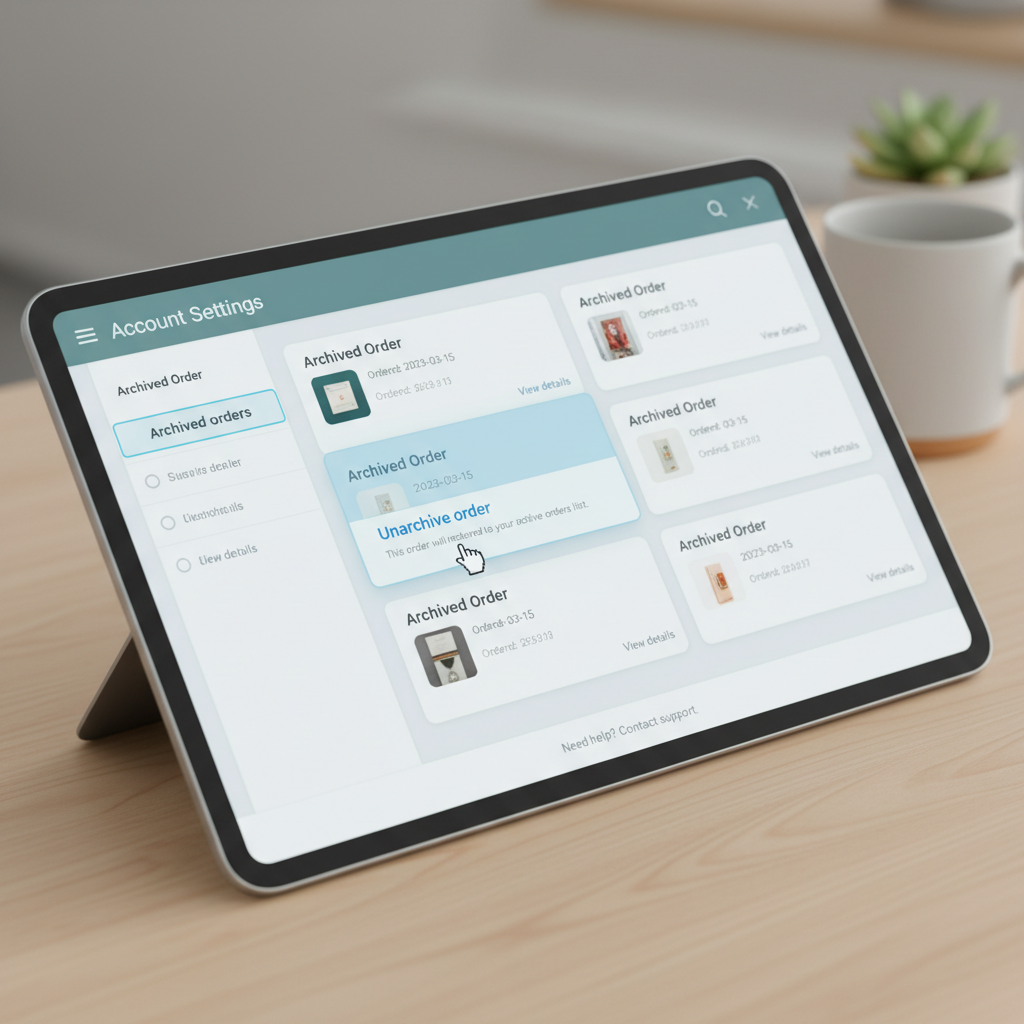
Archiving is useless if you can’t ever find those orders again. Here’s how to get them back.
On desktop or mobile browser
- Go to
amazon.comand sign in. - Hover over or tap “Account & Lists.”
- Click or tap “Account” (not just “Your Orders” this time).
- Scroll to the “Ordering and shopping preferences” or similar section.
- Click “Archived orders.”
You’ll now see a list of all your archived orders.
From that page you can:
- View order details
- Print receipts/invoices
- Unarchive an order (move it back to your main Orders list)
How to unarchive an Amazon order
Changed your mind? Archived the wrong thing? Easy fix.
- Go to Account › Archived orders on the Amazon website.
- Find the order you want to restore.
- Click “Unarchive order” (or similar wording).
- The order will move back into your regular Your Orders list.
Common questions about archiving Amazon orders

Does archiving hide orders from family members or shared accounts?
Not really.
If someone has full access to your Amazon account (they can log in as you), they can:
- Go to Account › Archived orders and see everything you archived.
If you want more privacy:
- Use a separate Amazon account for gifts or personal items, or
- Set up Amazon Household, where each adult has their own login and order history.
Can you delete an Amazon order permanently?
No, Amazon doesn’t give customers a true “delete order history” option.
You can:
- Archive orders (hide them from the main list).
- Hide them from quick view and recommendations to some extent (by adjusting your browsing/purchase history).
But the core order record remains in Amazon’s system.
Does archiving affect returns, warranties, or support?
No.
An archived order is still a normal order as far as Amazon is concerned. You can still:
- Start a return (if within the return window).
- Contact support about that order.
- Access invoices and shipping details.
Real‑life ways archiving orders comes in handy
A few scenarios where “archive order” actually saves you stress:
1. Hiding surprise gifts
You ordered a surprise birthday gift for someone who occasionally glances at your orders when you’re logged in on a shared computer.
- Archive that gift order so it doesn’t show up in the default Your Orders list.
- Is it foolproof? No. But it does make it less obvious.
2. Cleaning up a messy order history
If you’ve been using Amazon for years, your order history is basically a timeline of your life (and questionable shopping decisions).
You might archive:
- Embarrassing novelty items
- One‑time products you’ll never reorder
- Temporary purchases you just don’t want to see again
Result: A cleaner, more useful Your Orders page with stuff you actually reference.
3. Keeping work and personal purchases mentally separate
Maybe you buy both work gear and personal items on the same account.
You can:
- Archive old work orders after expense reports are done.
- Leave personal purchases in the main view.
It won’t change billing, but it makes your visible history less chaotic.
Fast recap: How to archive an Amazon order
On desktop or browser:
- Go to
amazon.comand sign in. - Click Account & Lists › Your Orders.
- Find the order you want.
- Click “Archive order” next to that order.
- Confirm.
To view archived orders:
- Go to Account › Archived orders.
- Review, unarchive, or manage as needed.
If you remember just one thing, make it this:
Archiving on Amazon is the digital equivalent of putting stuff in a drawer. It’s still there—you just don’t have to look at it every day.
Now, go clean up that order history. Your future self (and your scrolling thumb) will thank you.
Leave a Reply