Author: Eric Lai

  • LPN Barcodes on Amazon: A No‑Stress Guide


    LPN Barcodes on Amazon: A No‑Stress Guide


    LPN Barcodes on Amazon: A No‑Stress Guide

    If you’ve ever stared at a tiny white Amazon label that says LPN and thought, “Is this important or can I ignore it like software updates?” — this post is for you.

    Let’s unpack what an LPN barcode is on Amazon, why it matters for sellers, prep centers, and resellers, and how not to get your inventory (or account) in trouble.


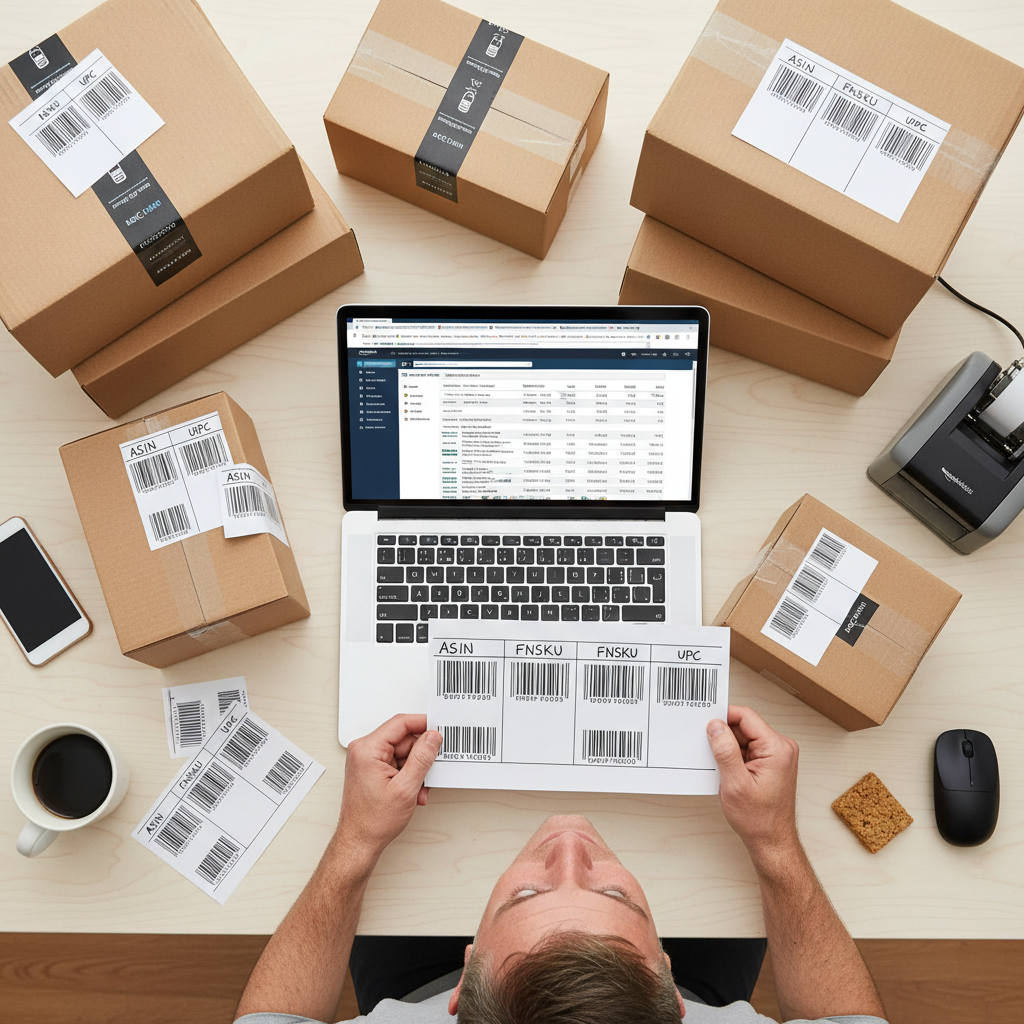
    Infographic explaining how Amazon LPN barcodes relate to ASIN, FNSKU, and UPC using a parking lot license plate analogy

    Amazon LPNs are like license plates for individual units—separate from your product identifiers.

    What Is an LPN Barcode on Amazon?

    LPN stands for License Plate Number.

    On Amazon, an LPN barcode is a small label Amazon uses to uniquely identify a specific physical unit of an item inside their fulfillment network.

    Think of it like a car license plate:

    • The product ASIN/FNSKU = the model of the car.
    • The LPN = this exact car sitting in this parking space.

    Key points:

    • LPNs are usually found on products that have been returned, repackaged, inspected, or otherwise handled by Amazon.
    • They are internal tracking labels used by Amazon’s fulfillment centers and returns processing.
    • They are not meant to be used as your selling barcode (not a replacement for UPC, EAN, FNSKU, etc.).
    Takeaway: LPNs are Amazon’s internal “unit license plates,” not your product ID.

    Warehouse scene with Amazon return pallets and a reseller sorting items with visible LPN stickers

    You’ll bump into LPN labels most often when you’re dealing with returns, liquidation, and reprocessed inventory.

    Where Do You See LPN Barcodes?

    You’ll typically run into Amazon LPN barcodes in a few scenarios:

    1. On Amazon Return Pallets / Liquidation Lots

    If you buy Amazon customer return pallets or liquidation lots from marketplaces (like Liquidation.com, B-Stock, local liquidators, etc.), many items arrive with an LPN sticker on them.

    That LPN:

    • Tells Amazon which exact order/return that piece came from.
    • Helps them log inspections, refunds, and disposal or resale decisions.

    For you as a reseller, it’s a clue that:

    • The item was previously sold and returned.
    • The condition may be “used,” “open box,” or “like new,” even if it looks fine.

    2. On Repackaged or Warehouse-Deal Style Items

    Some items Amazon sells as “Warehouse Deals,” “Used – Like New,” or “Renewed” may have LPN barcodes from earlier handling in the network.

    3. Occasionally on Inventory You Send to FBA (After Amazon Handles It)

    If:

    • Your item is returned by a customer and re-accepted into sellable stock, or
    • Amazon repackages/inspects it,

    Amazon may stick an LPN on it as part of that process.

    Takeaway: If it has an LPN, assume Amazon has already “had a relationship” with that exact unit.

    Graphic comparing valid selling barcodes like FNSKU and UPC to internal-only LPN labels

    LPNs are for Amazon’s internal tracking—your selling barcodes are still FNSKU, UPC, EAN, ISBN, and your own SKUs.

    Do LPN Barcodes Matter for Amazon Sellers?

    Yes — especially if you are reselling Amazon returns or sending LPN-tagged inventory back into FBA.

    Here’s why it matters:

    1. Policy & condition accuracy
      An item with an LPN is very likely a return. Listing it again as “New” on Amazon can be risky if there’s any sign it’s been opened or used.
    2. Risk of account issues
      If a buyer complains (“This isn’t new,” “It’s missing parts,” “Damaged packaging”), and Amazon can tie the LPN to prior return history, you may be the one taking the hit — poor metrics, returns, or even condition complaints.
    3. Confusion between your labels and Amazon’s
      LPN labels can sit right next to FNSKU/UPC labels and cause confusion during:

      • Prep center work
      • Listing/scanning
      • Returns processing
    Takeaway: LPNs are little flags that the unit has a history. Treat them with respect.

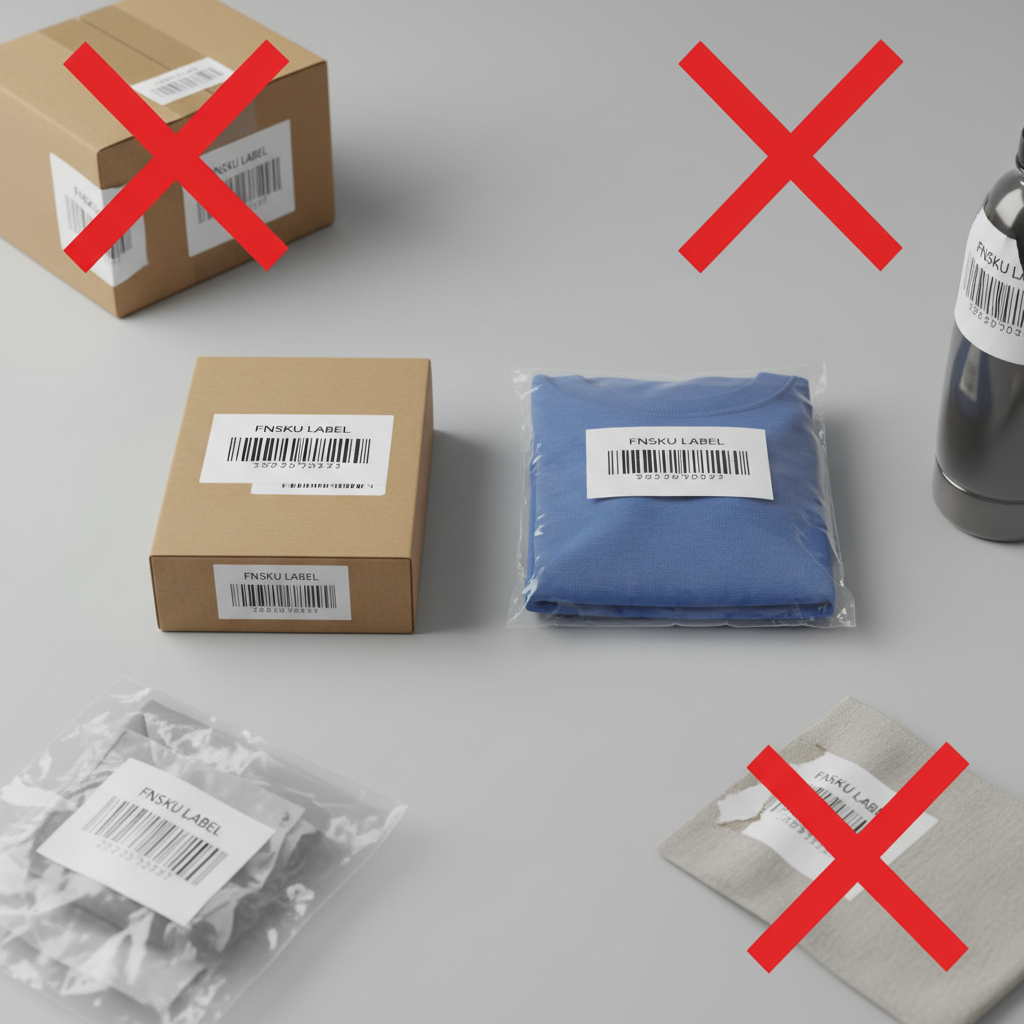
    Close-up of a product box with multiple labels while a hand removes or covers the LPN sticker

    Clean packaging beats label chaos—remove or fully cover LPNs before resale.

    Can You Use an LPN as a Product Barcode?

    No.

    An LPN barcode:

    • Is not a product identifier (like UPC, EAN, ISBN, or ASIN).
    • Is not your FNSKU (the barcode Amazon uses to attribute inventory to you).
    • Should not be scanned as your main listing barcode in your listing tools.

    If you’re listing on Amazon, eBay, or elsewhere, your identifiers should be:

    • UPC/EAN/ISBN (for catalog products)
    • ASIN/FNSKU for Amazon FBA
    • Your own internal SKU for tracking
    Takeaway: LPN = internal tracking. FNSKU/UPC = selling barcode.

    Should You Remove LPN Stickers Before Reselling?

    This is one of the biggest practical questions people have about LPN barcodes on Amazon returns.

    Short answer: Usually, yes — remove or fully cover them.

    Here’s why that’s a smart move:

    1. Reduces confusion for buyers
      Some savvy buyers recognize Amazon LPN labels and immediately know, “Ah, this was a return.” That can trigger doubts and extra scrutiny.
    2. Avoids mix-ups if the product ever goes back to Amazon
      If a customer returns an item to Amazon and there’s an old LPN plus your FNSKU, you’re creating unnecessary complexity. Clean labeling is just safer.
    3. More professional presentation
      Multiple overlapping labels scream “I’ve lived many lives.” That’s not the vibe you want if you’re claiming “New” or “Like New.”

    How to handle LPN labels in practice

    If you’re selling on Amazon FBA:

    • Treat LPN-tagged inventory as used/open box unless you personally verify it’s truly new and untouched (and even then, be cautious).
    • Remove/cover the LPN and apply a clean FNSKU label based on the correct listing and condition.

    If you’re selling on eBay, Mercari, etc.:

    • Remove or cover the LPN so your customer doesn’t get confused.
    • In the listing, be transparent: “Item sourced from Amazon returns. Inspected and tested.”
    Takeaway: A clean box without mysterious extra labels is better for everyone.

    Infographic breaking down the parts of an Amazon LPN label and emphasizing that it is not for product ID

    You don’t need to decode LPNs; you just need to know what they signal about an item’s history.

    How to Read an Amazon LPN Label (At a High Level)

    LPN labels usually look like this (pattern may vary):

    • A printed code starting with LPN
      Example: LPN RR 1234 5678 9012

    The structure typically encodes:

    • The LPN prefix
    • A set of internal numbers/letters related to FC, shipment, or transaction

    For resellers, the exact breakdown isn’t super important. What you can use it for:

    • Matching items to manifests from liquidation auctions (when they provide LPN lists).
    • Tracking lots: You can log which LPNs you purchased in which pallet.

    But you cannot:

    • Pull buyer personal data from it (and you shouldn’t try).
    • Use it as official proof of authenticity.
    • Use it as your main SKU in Amazon listings.
    Takeaway: You don’t need to “decode” LPNs; you just need to respect what they imply.

    Seller workstation with checklist and products showing best practices for handling LPN-labeled inventory

    Turn LPN labels into a workflow cue: inspect, downgrade if unsure, remove/cover, then label correctly.

    Practical Use Cases: Real-World Scenarios

    Let’s walk through some examples so this doesn’t stay abstract.

    Scenario 1: You Buy an Amazon Return Pallet to Flip

    You crack open the pallet and see:

    • Mix of electronics and home goods
    • Lots of items with small white LPN labels

    What you should do:

    1. Sort by condition
      • New and sealed
      • Open box but working
      • Damaged/for parts
    2. Remove/cover LPN labels before photographing and listing.
    3. List accurately
      • New sealed items: can often be sold as “New,” but double-check shrink wrap, seals, and contents.
      • Opened items: list as “Used – Like New” / “Open Box” and be transparent that packaging may show signs of handling.
    4. Track your cost & source
      You might keep LPNs in a spreadsheet purely for your records (e.g., “This unit came from Pallet A, Lot #1234”).

    Scenario 2: You’re an Amazon FBA Seller Getting Returns Back

    You create a removal order. Your items arrive with:

    • Your FNSKU label
    • A new LPN label added by Amazon

    What you should do:

    1. Inspect the item carefully: packaging, accessories, any signs of use.
    2. Decide the new condition:
      • Truly untouched? You might re-send as new, but this is risky if packaging is even slightly off.
      • More realistically: re-list as Used – Like New or Used – Very Good if you send it back into FBA.
    3. Before re-sending to FBA:
      • Remove or fully cover the LPN label.
      • Ensure a clean FNSKU label is applied, matching the correct condition and listing.

    Scenario 3: You Run a Prep Center or Work With One

    Your client sends in a batch of items, some of which arrived from liquidation sources with LPN labels.

    Good standard operating procedure (SOP):

    • During inbound inspection, flag any LPN-tagged units.
    • Ask the client how they want them handled:
      • Can they be listed as new?
      • Should they be used/open-box only?
    • Document condition with photos if things look sketchy.
    • Make it part of your SOP to remove/cover LPNs and ensure only the correct FNSKU and any regulatory labels are visible.
    Takeaway: Treat LPNs as a signal for extra caution and better documentation.

    Are LPN Barcodes Dangerous to Leave On?

    They’re not “dangerous,” but they can be problematic if:

    • You relist an obviously returned/open item as Brand New.
    • Buyers recognize the label and feel misled.
    • An item with mixed labels causes confusion in Amazon’s warehouse.

    Also, from a branding standpoint, visible LPNs can:

    • Make your packaging look cluttered and unprofessional.
    • Signal to savvy customers that you’re flipping returns, which they may or may not love.
    Takeaway: It’s not about paranoia; it’s about clean, professional, policy-compliant inventory.

    Quick FAQ About Amazon LPN Barcodes

    Can I look up an LPN number inside my Amazon seller account?

    Generally, no. LPNs are internal to Amazon’s systems. You don’t get a handy “LPN search” dashboard.

    Can I use LPN barcodes in my inventory system?

    You can record them as notes (e.g., in a spreadsheet) if you’re dealing with returns and pallets. But don’t rely on them as your primary SKU/barcode.

    Do all Amazon products have LPNs?

    No. Most new, standard inventory will not show an LPN on the outside. You’re far more likely to see LPNs on returns, reprocessed units, and liquidation goods.

    Is it illegal to leave LPN labels on?

    It’s not about legality so much as compliance and customer trust. Amazon’s policies focus on accurate condition, authentic products, and not misleading buyers. Visible LPNs on obviously returned items listed as New can draw unwanted attention.

    Seller workstation with laptop checklist and products, illustrating best practices for handling LPN inventory

    Build a repeatable checklist so every LPN-tagged unit is handled the same careful way.

    Best Practices for Handling LPN Barcodes on Amazon Inventory

    Field Checklist

    Simple Rules for LPN-Tagged Inventory

    1. Assume LPN = returned/handled unit.
      Don’t blindly treat it as new.
    2. Always inspect LPN-tagged items.
      Check condition, packaging, accessories.
    3. Match listing condition to reality.
      When in doubt, downgrade the condition rather than overpromise.
    4. Remove or cover LPN labels before resale.
      Especially if you’re sending back to FBA or shipping to a retail customer.
    5. Don’t use LPNs as your main barcode.
      Stick to UPC/EAN/ISBN, ASIN/FNSKU, and your own SKU system.
    6. Train your team/VA/prep center.
      Make “spot LPN, double-check condition” part of your standard workflow.

    If you treat LPN barcodes as what they really are — Amazon’s internal name tag for a very specific item with a history — you’ll make smarter decisions about condition, pricing, and where that item should (or should not) be sold.

    And the next time you see LPN RR 1234… on a box, you’ll know: this thing has a backstory. Your job is to make sure it gets a future that won’t get your account in trouble.


  • Using Josh.ai To Control Amazon Prime Video


    Using Josh.ai To Control Amazon Prime Video


    Using Josh.ai To Control Amazon Prime Video

    Homeowner juggling remotes compared to seamless Josh.ai voice-controlled cinema with Amazon Prime Video on a big screen

    If you’ve ever fumbled for three different remotes just to watch a show, this one’s for you.

    You’ve got a beautiful Josh.ai voice system, a slick cinema or media room, and Amazon Prime Video loaded with content. But how do you actually marry the Josh remote experience with Amazon Prime so movie night feels like magic instead of tech support?

    Let’s walk through how Josh, your control system/remote, and Amazon Prime Video can work together—and what to expect in real life.


    Diagram of a Josh.ai-powered home cinema stack with projector, AVR, streaming box, lights and shades, all tied into one control brain

    What Do People Mean By “Josh Cinema Remote Amazon Prime”?

    Most people searching for “Josh cinema remote Amazon Prime” are trying to solve one (or all) of these problems:

    • Use voice to open and control Amazon Prime Video (without digging through menus)
    • Start a movie in a dedicated home theater/cinema with a single command
    • Avoid juggling multiple remotes (TV, AVR, streamer, lighting, etc.)

    In practice, this usually looks like:

    “Hey Josh, watch Jack Ryan on Prime in the cinema.”

    …and having all of this happen:

    • Projector/TV turns on
    • AVR or processor switches to the right input
    • Lights dim to your preferred scene
    • Streaming device (Apple TV, Fire TV, Roku, etc.) opens Amazon Prime Video
    • The show or movie starts playing

    That’s the dream. Now let’s break down what has to be true for that to work.

    Takeaway: When people say Josh cinema remote Amazon Prime, they’re really talking about tying voice control, AV hardware, and Prime Video streaming into one smooth experience.

    Luxury home cinema reacting to a Josh.ai voice command to watch Amazon Prime Video, with projector, AVR, and lighting all changing at once

    How Josh.ai Fits Into a Home Cinema Setup

    Josh.ai is a voice-first home automation platform that also provides an app and touch interfaces for control. It doesn’t stream the content itself; instead, it controls the devices that do.

    Common cinema stack Josh works with:

    • Display: Projector or large TV
    • Audio: AV receiver or surround processor
    • Source device: Apple TV, NVIDIA Shield, Roku, Amazon Fire TV, built‑in smart TV apps, etc.
    • Room systems: Lights, shades, climate

    Josh sits on top of all this and provides:

    • Natural language voice control (“watch”, “pause”, “make it darker”, etc.)
    • Scenes (e.g., Movie Time, Intermission, All Off)
    • Unified control through the app or wall keypads/touchscreens

    Takeaway: Josh is the brain and voice, not the streaming box. Amazon Prime Video still runs on your streaming device or TV.

    Comparison of a smart TV with built-in Prime Video and a dedicated streaming box in an AV rack, highlighting reliability and performance

    Ways To Control Amazon Prime Video With Josh

    There are three main patterns for getting a “Josh cinema remote” experience for Amazon Prime:

    1. Using a Streaming Box (Most Common & Flexible)

    If you’re using:

    • Apple TV
    • Amazon Fire TV / Fire TV Stick
    • Roku
    • NVIDIA Shield / Android TV

    …then Josh typically controls that device, which in turn runs the Amazon Prime Video app.

    What this can look like:

    • “Hey Josh, watch Amazon Prime in the cinema.”
      → Josh powers the system, switches to your streaming device, and sends commands to launch the Prime Video app (often via IP or IR control depending on integration).
    • “Hey Josh, pause.”
      → Josh sends a pause command to that active source.

    Some integrators take it further and create Josh scenes or custom commands like:

    • “Hey Josh, Movie Time”
      → Lights dim to 10%, projector and AVR turn on, input switches to Apple TV, Prime Video opens.

    Pros:

    • Very reliable when programmed correctly
    • Works with high-end AV gear and cinema processors
    • You get full-room control (lights, shades, volume) in addition to streaming control

    Watch-out:

    • Deep linking directly to specific Amazon Prime titles by voice (e.g., “Play The Boys on Prime”) may depend on the capabilities of the streaming box and how your integrator set things up. Sometimes you’ll get the app open and then navigate, rather than instant play.

    Takeaway: For most home cinemas, the best Josh–Prime setup is Josh → streaming box → Amazon Prime Video, with your installer handling all the routing and macros.

    2. Using a Smart TV’s Built‑In Amazon Prime App

    If your TV (Sony, LG, Samsung, etc.) has the Amazon Prime Video app built in, Josh can often control the TV directly. Your integrator can:

    • Map an input or command to open Prime Video on the TV
    • Combine that with room scenes:
      • Turn on TV
      • Switch to the “apps” or home interface
      • Launch Prime Video
      • Dim lights and adjust audio

    Example command you might use:

    “Hey Josh, open Prime Video on the theater TV.”

    Pros:

    • Fewer devices (no extra streaming box required)
    • One remote / app experience for the TV itself

    Cons:

    • Smart TV app performance and update cycles can be hit‑or‑miss
    • Integrations are sometimes more limited versus a dedicated streaming box

    Takeaway: Built‑in Prime apps work, but for serious cinema rooms, integrators still tend to prefer dedicated streamers for reliability and video processing.

    3. Hybrid: Cinema Room + Whole‑Home Experience

    Family using Josh.ai to control Amazon Prime Video across multiple rooms, showing cinema, family room, and playroom all connected

    One underrated perk of using Josh is having a consistent control language across your entire house.

    Example scenarios:

    • Kids’ Media Room:
      “Hey Josh, play Prime Video in the playroom.” → Turns on the TV, launches Prime, sets volume lower.
    • Living Room Casual Watching:
      “Hey Josh, continue watching Prime in the living room.” → Switches to your streaming source there and opens the app.
    • Dedicated Cinema:
      “Hey Josh, it’s movie night.” → Runs your custom cinema scene and opens your preferred streaming app (Prime, Netflix, Apple TV+, etc.).

    Your integrator can label devices and rooms so you can say natural-language things like:

    • “Watch Prime in here.”
    • “Pause in the theater.”
    • “Resume in the family room.”

    Takeaway: Josh turns Amazon Prime Video from “a single screen app” into part of a multi-room entertainment system.

    Smart home integrator configuring Josh.ai scenes like Movie Night and Intermission for a cinema with Amazon Prime Video

    What About a Physical “Josh Remote”?

    Technically, Josh.ai is more voice + app + touch UI than a traditional handheld plastic remote. In many cinema installs, you’ll see one of these patterns:

    1. Josh + a traditional hard‑button remote (like a control system remote)
    2. Josh + touchscreens (on-wall or tabletop)
    3. Josh app on phone/tablet as the main “remote” interface

    How they work together with Amazon Prime Video:

    • Use voice (Josh) to launch the activity and scene: “Watch Prime in the cinema.”
    • Use hard buttons for frequent controls: volume, skip, play/pause, fast forward.
    • Use touch UI (Josh app or control system UI) for browsing content or switching apps.

    This gives you the best of all worlds:

    • Fast, natural voice control to get started
    • Tactile buttons during the movie
    • Visual interface when you’re deciding what to watch

    Takeaway: When someone says “Josh cinema remote,” they usually mean a blended experience: Josh for brains and voice, plus a separate remote or touchscreen for detailed control.

    Scene of a user giving Josh.ai voice commands to control Amazon Prime Video in a cinema, with visual cues showing automation across devices

    Example Voice Commands For Josh + Amazon Prime In a Cinema

    Here are realistic examples you can ask your integrator to support:

    • “Hey Josh, watch Amazon Prime in the cinema.”
      → Power sequence, input change, open Prime Video.
    • “Hey Josh, start movie night.”
      → Lights dim, projector on, AVR on, streaming box to the front, Prime Video or your default app opens.
    • “Hey Josh, pause.”
      → Pauses current playback on the active device.
    • “Hey Josh, intermission.”
      → Pause playback, raise lights to 50%, maybe bring up a softer music scene.
    • “Hey Josh, all off in the cinema.”
      → Everything powers down and lights return to normal.

    Depending on your device ecosystem and programming, you may also get:

    “Hey Josh, watch The Marvelous Mrs. Maisel on Prime in the theater.”

    …but that level of title-specific control is where you’ll want to talk with your integrator, because it depends heavily on the streamer and how deep the integration allows them to go.

    Takeaway: Don’t just ask for “control of Prime.” Ask your installer for phrase‑based actions like movie night, intermission, and all off.

    Home layout showing multiple rooms each using Josh.ai scenes to watch Amazon Prime Video seamlessly

    Working With Your Integrator: What To Ask For

    To make sure your Josh–Amazon Prime–cinema experience feels premium, here’s a checklist to give your installer:

    1. Primary Streaming Device Decision

    • Which box or TV app will be your main way of watching Amazon Prime Video in the cinema?
    • Ask: “What device gives the best reliability and picture quality for Prime in my theater?”

    2. Scene Design

    Request at least these scenes/commands:

    • Movie Night (turn on everything, launch Prime or your preferred app, set lights)
    • Intermission (pause + lights to mid-level)
    • End of Movie or All Off (power down, lights up)

    3. Voice Phrases You Actually Use

    Share how you naturally talk:

    • “Watch Prime,” “Watch Amazon,” “Watch TV,” “Movie time,” etc.
    • Ask them to map those phrases into Josh scenes or device commands.

    4. Remote Strategy

    Decide how you want to interact:

    • A hard‑button remote for fine control
    • Josh voice for mode changes and launching apps
    • Touchscreens or app for browsing and deep settings

    5. Room Naming & Multi‑Room Logic

    Make sure rooms are named in a way you’ll remember: Cinema, Theater, Family Room, Kids Room, etc.

    Then set up phrases like:

    • “Watch Prime in the family room.”
    • “Pause in the theater.”

    Takeaway: Your experience won’t just depend on Josh and Amazon Prime—it depends a lot on how your integrator programs the system.

    Professional integrator fine-tuning Josh.ai and Amazon Prime Video scenes for a high-end theater installation

    Is Josh + Amazon Prime Worth It For a Home Cinema?

    If you:

    • Have (or are building) a dedicated cinema or serious media room
    • Already use Amazon Prime Video a lot
    • Want hands‑free control and tight integration with lighting, shades, and audio

    …then yes, tying Josh into your Prime setup is absolutely worth it.

    You’re not just getting “voice control for a TV app.” You’re getting:

    • Cinematic scenes with one phrase
    • Unified control of the entire room
    • A system that feels more like living in the future than fighting with electronics

    If you mostly watch on a single living-room TV with a basic streaming stick, a full Josh-powered cinema might be overkill—but if you’re reading this and planning a theater, you’re probably not that person.

    Final takeaway: For a proper home cinema, the combo of Josh.ai + a well-chosen streaming device + Amazon Prime Video + good programming gives you that “Hollywood screening room” vibe without the Hollywood chaos.

    High-end home theater with Amazon Prime Video on screen, perfectly tuned lighting, and Josh.ai ready for the next voice command

    Quick Summary: How To Get the Best “Josh Cinema Remote Amazon Prime” Setup

    • Use Josh.ai as the voice and automation brain, not the streaming box.
    • Pick a reliable streamer or TV app to run Amazon Prime Video in your cinema (Apple TV, Fire TV, etc.).
    • Have your integrator program scenes and natural phrases: “Movie Night,” “Watch Prime in the cinema,” “Intermission,” “All off.”
    • Combine voice + a physical remote + touch UI for the best control experience.
    • Name rooms and devices clearly so you can move Prime playback naturally around your home.

    Do that, and the next time you say, “Hey Josh, let’s watch something on Prime,” your only remaining decision will be what to watch—not how to make the system cooperate.


  • 12 Flexible Jobs Like Amazon Flex


    12 Flexible Jobs Like Amazon Flex

    12 Flexible Jobs Like Amazon Flex

    Flexible, app-based gigs you can stack, swap, and strategize—without being tied to a single platform.

    Rideshare and delivery driver juggling multiple gig apps in their own car

    If you like the idea of Amazon Flex — choose your own hours, use your own car, get in and out without a boss breathing down your neck — but want options, you’re in the right place.

    Maybe your Amazon Flex market is saturated.

    Maybe the blocks just aren’t popping up.

    Or maybe you just want a backup income stream so you’re not at the mercy of one app.

    Let’s walk through the best jobs like Amazon Flex: what they pay, what they’re really like on a Tuesday afternoon, and which ones are actually worth your time.

    Split scene showing food and grocery delivery gigs in a city

    Quick Primer: What Makes a Job “Like Amazon Flex”?

    When people search for jobs like Amazon Flex, they usually want:

    • Flexible scheduling – pick your own hours or shifts
    • App-based work – get and complete tasks through your phone
    • Use your own vehicle – car, SUV, or sometimes even a bike
    • Low barrier to entry – no advanced degree or long interview process
    • Fast payouts – weekly or even same-day

    The gigs below hit some or all of those.

    Pro tip before we dive in: for most people, the best strategy isn’t to find one perfect app, but to build a
    small stack of 2–4 apps you can rotate between depending on demand.

    Food delivery driver picking up orders from busy restaurants at dusk

    1. Uber Eats & DoorDash: The Classic Food Delivery Route

    If you like the delivery side of Amazon Flex but want more constant work, food delivery is the usual first stop.

    How they’re similar to Amazon Flex

    • Use your own car, scooter, or bike
    • App shows available orders, routes, and pay estimate
    • You choose when you go online and when you stop

    Pros

    • High demand, especially during lunch, dinner, weekends, and big events
    • Can stack multiple apps (e.g., Uber Eats + DoorDash + Grubhub) to reduce downtime
    • In many markets, you can cash out daily for a small fee

    Cons

    • Pay can be highly variable and tip-dependent
    • Lots of short trips; more wear and tear than bulk-style routes
    • Busy restaurant delays can kill your hourly rate

    Best for: People who want constant smaller orders vs. Amazon Flex–style big blocks.

    Takeaway: Food delivery is the easiest “plug-in” alternative to Amazon Flex and often pairs well with it.

    Instacart style shopper loading grocery bags into their car trunk

    2. Instacart & Shipt: Grocery Delivery (With or Without Shopping)

    Instacart and Shipt are grocery-focused apps: customers order groceries, you either shop and deliver or sometimes just
    deliver pre-bagged orders.

    Similar to Amazon Flex

    • You reserve batches or grab them as they appear
    • You drive your own car and set your own hours
    • App-based routing and payouts

    Pros

    • Larger batch payouts can be solid, especially in higher-income areas
    • You can learn store layouts and get much faster (and earn more per hour)
    • Shipt in particular can build regular customers who tip well

    Cons

    • Shopping can be stressful: out-of-stock items, pickiness, replacements
    • Peak hours often overlap with everyone else (nights/weekends)
    • You’ll do a lot of walking and lifting

    Best for: People who don’t mind shopping and want higher-ticket orders instead of constant short food runs.

    Takeaway: If you like Amazon Flex’s “load the car, deliver a bunch at once” vibe, large Instacart or Shipt batches can feel similar.

    Driver loading multiple delivery boxes from a small warehouse hub into their car

    3. Roadie: Package Delivery Without the Warehouse

    Roadie (owned by UPS) connects drivers with individual package and gig deliveries — everything from a single box to small business runs.

    How it compares to Amazon Flex

    • Still package-focused, but you’re not tied to a single warehouse
    • Jobs can include retail store pickups, business deliveries, and more
    • You see pay and distance before accepting

    Pros

    • Some higher-paying longer-distance gigs
    • Good if you’re already planning to drive somewhere (airport, another city)
    • Mix of one-off and multi-stop routes

    Cons

    • Availability depends heavily on your city
    • Some jobs can disappear quickly; you have to check often
    • Not as consistently busy as the big food apps in some markets

    Best for: Drivers with flexible time windows who like variety in what they’re delivering.

    Takeaway: Think of Roadie as “freestyle” Amazon Flex: similar concept, more variance in who you’re delivering for.

    Driver working from a micro-fulfillment hub delivering multiple convenience orders

    4. GoPuff & Other Micro-Fulfillment Apps

    GoPuff and similar apps use local micro-warehouses to deliver convenience-store-type items: snacks, drinks, OTC meds, household basics.

    Similarities to Amazon Flex

    • You often work in blocks/shifts rather than pure on-demand
    • You pick up from one location and do multiple deliveries
    • App-guided routes and scanning

    Pros

    • Fewer restaurant wait times (you pick up from a single hub)
    • Predictable workflow once you get used to your warehouse
    • Some markets offer hourly guarantees during certain shifts

    Cons

    • Not in every city
    • You may have to commit to a specific shift vs. hopping on/off whenever
    • Pay depends heavily on your local demand and tips

    Best for: People who like the structure of a hub (like Amazon Flex stations) and don’t want to drive back and forth to dozens of restaurants.

    Takeaway: If you like the Amazon Flex model of picking up lots of items from one place, these micro-fulfillment apps feel familiar.

    Driver delivering bulk Walmart-style retail and grocery orders from a store

    5. Walmart Spark: Retail & Grocery Delivery

    Walmart Spark focuses on delivering Walmart orders — groceries, general merchandise, and pickup orders.

    Why it feels like Amazon Flex

    • Bulk orders from a single store, sometimes multiple drops per run
    • You get routes and pickup windows similar to Flex blocks
    • Use your own vehicle and smartphone

    Pros

    • Larger orders can mean higher payouts
    • Many drivers report decent earnings in suburbs and smaller cities
    • Can be less saturated than the biggest food apps in some areas

    Cons

    • Earnings and order volume vary widely by region
    • Some heavy lifting: big grocery orders, cases of water, etc.
    • You may wait for orders to be brought out from inside the store

    Best for: Drivers who prefer fewer, larger deliveries over dozens of tiny food runs.

    Takeaway: If you want a job almost designed to feel like Amazon Flex but with Walmart instead of Amazon, Spark is your closest cousin.

    Multiple food delivery platforms and drivers operating in a busy restaurant district

    6. Grubhub, Postmates (via Uber), & Other Food Apps

    Beyond Uber Eats and DoorDash, you’ve got Grubhub and (in many places) Postmates orders running through Uber.

    Why care? Because the secret to gig work is multi-apping. When Amazon Flex blocks dry up, you want backup.

    Pros

    • More platforms = more chances to stay busy
    • Certain apps pay better in certain neighborhoods; you learn your local pattern

    Cons

    • Juggling too many apps at once can be overwhelming (and unsafe) if you’re not disciplined

    Best for: People serious about maximizing income by switching apps in real time.

    Takeaway: Don’t marry an app. Date around.

    Last-mile delivery driver following a multi-stop route for retail and pharmacy deliveries

    7. Point Pickup, Dispatch & Other Last-Mile Delivery Platforms

    There are a handful of regional or specialized last-mile apps (like Point Pickup or Dispatch) that offer
    retail, pharmacy, or business deliveries.

    Why they’re worth a look

    • Often less known = less saturated
    • Some partner with pharmacies, office suppliers, or regional chains
    • Work can feel very similar to Amazon Flex: pick up, scan, run a route

    Watch-outs

    • Availability by city is hit-or-miss
    • Onboarding may take longer than a big national app

    Best for: People in medium-sized cities willing to try smaller platforms for potentially better pay.

    Takeaway: These won’t replace Amazon Flex on day one, but they can be valuable side channels.

    Rideshare driver in their car using rideshare and delivery apps simultaneously

    8. Uber & Lyft: Rideshare Instead of Packages

    If you’re okay with people in your car (big “if” for some folks), rideshare can be a higher-earning alternative.

    Similar to Amazon Flex

    • Extreme scheduling flexibility
    • Paid per trip, plus potential bonuses and surge pricing
    • App-based navigation and earnings

    Pros

    • In busy times/areas, hourly earnings can beat many delivery apps
    • Tips and surge pricing can spike your income
    • You sometimes get bonuses for hitting trip targets

    Cons

    • More wear on your car
    • Dealing with people: intoxicated riders, chatty riders, rude riders — it’s a mixed bag
    • Higher insurance and safety considerations

    Best for: People who don’t mind customer interaction and want to maximize income during peak hours.

    Takeaway: If you’re already comfortable driving for Amazon Flex, rideshare is the “advanced mode” version with people instead of parcels.

    Handy gig worker assembling furniture and mounting a TV using a task-based app

    9. Taskrabbit: From Furniture Builds to Errands

    Taskrabbit is less about driving and more about odd jobs and local tasks — furniture assembly, moving help, mounting TVs, running errands, etc.

    How it compares

    • Still an app-based, flexible gig platform
    • You set your hourly rates and choose which jobs to accept
    • Some tasks involve driving, others don’t

    Pros

    • Potentially much higher hourly pay once you build reviews
    • Work can be more interesting and less repetitive
    • Can transition into repeat clients and even a small business

    Cons

    • Requires more skills for certain categories (handyman work, mounting, etc.)
    • Less instant-gratification than “tap app, start delivering”
    • Income is less predictable at first

    Best for: People who are handy, strong, or just versatile and want to earn more than pure driving usually pays.

    Takeaway: If you’re burned out on driving, Taskrabbit can be a smart pivot while keeping your flexibility.

    Courier routes visualized between clinics, offices, and facilities on a city map

    10. Local Courier & Medical Courier Work

    This is where you move from app-only gigs into more traditional but still flexible courier jobs.

    What this looks like

    • Deliver lab samples, medications, documents, or parts between offices or facilities
    • You might work as an independent contractor with recurring routes
    • Some companies post routes on job boards rather than apps

    Pros

    • More predictable routes and schedules
    • Often paid per route, not per tiny trip
    • Less competition than mass-market apps

    Cons

    • Onboarding and background checks can be stricter
    • May require specific hours or availability
    • Not always as casual or “log in whenever” as Flex

    Best for: People who like routine and prefer steady routes over app chaos.

    Takeaway: If you’re thinking beyond pure gig apps, local courier work can feel like a more stable, Flex-adjacent job.

    Professional delivery driver loading an Amazon-style van on a planned route

    11. Amazon DSP Driver: The W-2 Version of Flex

    If you like Amazon packages but want full-time hours and more consistency, look at Amazon’s DSP (Delivery Service Partner) jobs.

    How it’s different from Amazon Flex

    • You’re a W-2 employee of a local partner company, not an independent contractor
    • You drive an Amazon-branded van, not your own car
    • Set shifts, uniforms, and performance expectations

    Pros

    • More stable hours and income
    • Benefits may be available (depending on the DSP): health, PTO, etc.
    • No wear and tear on your own vehicle

    Cons

    • Much less flexibility than Flex
    • Harder to just log in for a few hours when you feel like it

    Best for: People who want a full-time job with benefits but like the delivery lifestyle.

    Takeaway: If you outgrow pure gig work but love Amazon Flex–style routes, DSP roles are the next logical step.

    Local delivery business owner planning routes and clients in a home office

    12. Building Your Own Local Delivery or Errand Service

    This one’s more entrepreneurial, but worth mentioning.

    Instead of running 100% through apps, you can:

    • Offer local delivery for small businesses (flower shops, bakeries, print shops)
    • Run errands for seniors or busy families
    • Partner with local restaurants that don’t like third-party apps

    You can still:

    • Use tools like Square, Google Business Profile, and basic route-planning apps
    • Set your own rates and schedule

    It’s slower to start, but long term, this can out-earn Amazon Flex and give you more control.

    Takeaway: The ultimate “job like Amazon Flex” is one you design yourself — same skills, more ownership.

    Neighborhood map overlayed with icons for different gig types and multi-app choices

    How to Choose the Best Amazon Flex Alternative for You

    Instead of asking “What’s the best app?”, ask:

    1. How flexible do I really need my schedule to be?

      Maximum freedom: Amazon Flex, food delivery, rideshare, Instacart.
      More structure: GoPuff, Walmart Spark, courier routes, DSP.
    2. How much do I want to interact with people?

      Introvert-friendly: Amazon Flex, Spark, Roadie, many courier gigs.
      People-heavy: Uber/Lyft, Taskrabbit, in-home services.
    3. What’s my vehicle situation?

      Older or smaller car: shorter-distance food delivery, bikes in dense areas.
      Larger or newer vehicle: Amazon Flex, Spark, Roadie, courier routes.
    4. What’s actually busy in my city?

      Sign up for 2–3 apps, track your earnings for a few weeks, and see:

      • Which app gives you the most active time vs. waiting in a parking lot
      • Which one feels the least frustrating for the money

    Single car choosing between various gig app icons showing a multi-app strategy

    Building a Simple Multi-App Strategy

    Here’s a sample setup if you’re currently doing Amazon Flex or looking for similar jobs:

    Anchor app (your main earner):
    Amazon Flex, Walmart Spark, or Instacart

    Backup app for slow times:
    Uber Eats, DoorDash, or Grubhub

    Occasional high-value app:
    Roadie, Taskrabbit, or local courier routes

    Start with two apps, not five. Learn their patterns, then add a third if your schedule and brain can handle it.

    Entrepreneurial gig worker planning income and apps on a whiteboard

    Final Thoughts: Don’t Be Loyal, Be Strategic

    Amazon Flex is a solid option, but gig work is like the weather: it changes fast. New drivers sign up, policies shift, demand goes up and down.

    The smart move is to:

    • Treat Amazon Flex as one tool, not your entire toolbox
    • Test a couple of jobs like Amazon Flex that match your personality and city
    • Keep notes on your actual earnings per hour (after gas) — not just what the app promises

    Do that, and you’ll be in a much better position than someone who just refreshes one app and hopes for the best.

    If you tell me your city and whether you prefer driving, shopping, or people interaction, I can suggest a more tailored combo of apps to try next.


  • Using Paramount Plus Through Amazon Prime


    Using Paramount Plus Through Amazon Prime


    Using Paramount Plus Through Amazon Prime

    If you’ve ever opened your Amazon Prime Video app and thought, “Wait… do I have Paramount Plus or not?” you’re not alone.

    Between channels, add-ons, and standalone apps, it’s easy to feel like your shows are hiding behind a paywall maze. Let’s untangle what it actually means to have Paramount Plus through Amazon Prime—and how to make the most of it.


    Frustrated viewer on couch looking at Amazon Prime Video interface, confused about Paramount Plus subscription

    First Things First: What Does “Paramount Plus Through Amazon Prime” Mean?

    When you have Paramount Plus through Amazon Prime, it usually means:

    • You subscribed to Paramount+ as a Prime Video Channel inside Amazon.
    • You pay for it via your Amazon account instead of directly through Paramount.
    • You mostly watch Paramount+ content inside the Prime Video app or website.

    So, instead of going to ParamountPlus.com and signing up there, you added it like an extra channel in Prime Video (similar to STARZ, MGM+, or Max).

    Key takeaway: Your subscription and billing are handled by Amazon, but the content library is from Paramount Plus.

    Amazon account page showing Memberships & Subscriptions with a Paramount Plus style channel highlighted

    How to Check If You Actually Have Paramount Plus via Amazon

    Not sure if you really subscribed or just did a free trial six months ago and forgot? Here’s how to confirm.

    On a browser (desktop or mobile)

    • Go to Amazon.com and log into your account.
    • Hover over “Accounts & Lists” and click “Memberships & Subscriptions” or “Your Prime Video Channels” (wording can vary slightly).
    • Look for Paramount+ in the list of channels.
    • If you see it listed with a renewal date or monthly fee, you’re subscribed through Amazon.

    Inside the Prime Video app

    • Open the Prime Video app.
    • Go to the “My Stuff” or “Channels” tab (depending on your device layout).
    • Look under “Your Channels” for Paramount+.

    If you can click Paramount+ under “Your Channels” and watch its content without hitting a paywall or trial screen, you’re in.

    Quick takeaway: If Amazon shows Paramount+ under Your Channels or Memberships & Subscriptions with a renewal date, you have Paramount Plus through Amazon Prime.

    Split view of Prime Video Channels tab and a separate Paramount Plus style app, showing different ways to watch

    Where Do You Watch Paramount Plus If It’s Through Prime?

    This is where people get tripped up:

    If you subscribed via Amazon, you generally watch through the Prime Video app or site.

    That means:

    • Watch on: Prime Video app (TV, phone, tablet, streaming device) or PrimeVideo.com.
    • Find it under: “Channels” → Paramount+.

    You might still be able to log into the Paramount+ app or website, but whether that works depends on how Amazon and Paramount are linking accounts at the moment in your region. Often, if you want guaranteed access via the Paramount+ app, you need to subscribe directly with Paramount+.

    Takeaway: If your subscription is through Amazon, use the Prime Video ecosystem as your main way to watch Paramount Plus content.

    Colorful streaming library grid showing sci-fi, drama, kids, comedy and movie tiles inside a Paramount Plus style section on Prime Video

    What Content Do You Get with Paramount Plus on Amazon?

    Assuming you have the standard Paramount+ subscription level offered through Amazon in the U.S., you’ll typically get:

    • Paramount+ originals (e.g., Star Trek shows, Halo, 1923/1883, etc.)
    • CBS series (many past seasons and some current shows on-demand)
    • Nickelodeon, MTV, Comedy Central, BET, and more library content
    • Paramount movies from their catalog

    Whether you get live local CBS or certain premium features (like Showtime integration) depends on the specific tier that Amazon is selling at the time and what you picked during signup.

    Takeaway: You’re getting the Paramount+ catalog, but the exact tier (with or without extras like live TV or Showtime) depends on your subscription level.

    User managing a Prime Video Channel subscription for Paramount Plus with manage and cancel options on a laptop

    Can You Use the Paramount+ App If You Subscribed Through Amazon?

    This is the confusing part.

    If you:

    • Subscribed directly on ParamountPlus.com or through their app → you can use the Paramount+ app everywhere, no problem.
    • Subscribed through Amazon Prime Video Channels → your login is tied to Amazon, not always directly to a standalone Paramount+ account.

    Sometimes, providers allow you to create a secondary login for their own app by linking your Amazon-billed subscription. Sometimes they don’t. This behavior can change over time.

    What to try if you want the Paramount+ app:

    1. Go to the Paramount+ website or app.
    2. Look for an option like “Sign in with a provider” or “Sign in with Amazon”.
    3. If available, choose Amazon and follow the prompts.

    If that’s not supported or doesn’t work, you may be limited to watching via Prime Video only unless you:

    • Cancel your Amazon-channel version.
    • Re-subscribe directly through Paramount+ with a new account.
    Takeaway: In many cases, Amazon-channel subscriptions are best treated as “watch in Prime Video only” unless there’s an explicit way to link to the Paramount+ app.

    Laptop screen showing Prime Video Channel Paramount Plus billing details including price, renewal date and cancel option

    How Billing Works When You Have Paramount Plus Through Amazon

    Here’s what happens behind the scenes:

    • You pay Amazon, not Paramount+ directly.
    • The charge shows under your Amazon account, usually listed as a Prime Video Channel (e.g., “Prime Video Channel – Paramount+”).
    • It renews automatically every month (or annually, if that’s the option you chose), until you cancel.

    To see or manage that billing:

    1. Go to Amazon → Your Account → Memberships & Subscriptions (or “Your Prime Video Channels”).
    2. Look for Paramount+.
    3. You’ll see:
      • The price you’re paying.
      • The renewal date.
      • A Cancel Channel or Manage Subscription button.
    Takeaway: Any changes to your Paramount+ billing, like canceling or updating payment, are done through Amazon, not Paramount+.

    Over the shoulder view of someone canceling a Prime Video Channel Paramount Plus subscription on Amazon

    How to Cancel Paramount Plus If It’s Through Amazon

    Maybe you only signed up to watch one show and now you’re done bingeing. Here’s how to cancel so you don’t keep getting charged.

    Cancel on a web browser

    1. Go to Amazon.com and log in.
    2. Navigate to Accounts & Lists → Memberships & Subscriptions or Your Prime Video Channels.
    3. Find Paramount+ in the list.
    4. Click “Cancel Channel” or “Cancel Subscription”.
    5. Confirm the cancellation.

    You’ll usually keep access until the end of your current billing period, even after canceling.

    Cancel through Prime Video

    1. Open the Prime Video app or website.
    2. Go to “Settings” or “Channels” → “Your Channels”.
    3. Select Paramount+.
    4. Look for a Manage or Cancel Channel option—it may bounce you to Amazon’s website to finish the process.
    Takeaway: Always assume you must cancel in Amazon’s account settings, not in the Paramount+ app.

    Comparison style view of Amazon Prime Video channels versus standalone Paramount Plus app showing convenience versus control

    Should You Keep Paramount Plus Through Amazon or Switch to Direct?

    If you’re wondering whether to stay with the Amazon version or cancel and sign up directly with Paramount+, here are a few things to consider.

    Reasons to keep it through Amazon

    • One bill, one ecosystem – All streaming add-ons show up under the same Amazon account.
    • Simple access – You mostly watch through the Prime Video app anyway.
    • Easy free trials – Amazon often offers short trials on channels, and you can set a reminder to cancel.

    Reasons to go direct with Paramount+

    • Better app features – Sometimes the official Paramount+ app gets new features, profiles, or updates faster than the channel experience inside Prime Video.
    • Promos and bundles – Paramount+ occasionally runs its own deals, bundles, or special tiers that might not exist via Amazon.
    • More flexible login – A direct Paramount+ account is easier to use across devices, logins, and with features like profiles or kids’ settings.

    A smart approach:

    • If you want simplicity: stay with Amazon.
    • If you want maximum control and app features: consider canceling via Amazon and re-subscribing directly through Paramount+ after your billing cycle ends.
    Takeaway: There’s no “wrong” choice; it depends whether you value convenience (Amazon) or flexibility and features (direct) more.

    Person on couch comparing Prime Video channels and standalone streaming apps on a TV screen

    Common Questions About Paramount Plus on Amazon

    1. Do I get Paramount Plus free with Amazon Prime?

    No. Prime membership doesn’t include Paramount+ for free.

    You can:

    • Use the Prime Video app for free with your Prime membership.
    • But Paramount+ is a separate paid add-on (sometimes with a free trial, then a monthly fee).

    2. Can I share my Paramount+ (through Amazon) with family?

    You can share your Amazon account or use Amazon Household, but options like multiple concurrent streams and profiles are controlled by how the channel is integrated.

    If you share your Amazon login, they can likely watch Paramount+ via Prime Video on their devices—just keep in mind this also gives them access to your Amazon shopping account, payment methods, etc.

    3. Why can’t I log into ParamountPlus.com with my Amazon email?

    Because your subscription and login live with Amazon, not directly with Paramount+.

    Unless Paramount offers a way to link your Amazon-billed subscription to a standalone Paramount+ login, you may not be able to use the official Paramount+ app/website with that same subscription.

    4. I canceled Paramount+ on Amazon but I’m still seeing charges.

    Double-check that:

    • You canceled the correct Amazon account (if you have more than one).
    • The next charge might have been already pending if it was close to your renewal date.
    • You’re not also subscribed directly to Paramount+ elsewhere (e.g., through a smart TV or mobile app).

    If it looks wrong, contact Amazon customer support and ask them to review your Prime Video Channels.

    Takeaway: If something seems off with charges, always start by checking Amazon → Memberships & Subscriptions.

    Streaming interface with highlighted Paramount Plus category inside Prime Video watchlist

    How to Make the Most of Paramount Plus Through Amazon

    Once you’ve confirmed your setup, here’s how to squeeze more value out of it:

    1. Build a watchlist inside Prime Video
      Add Paramount+ shows and movies to your Prime Video watchlist so you don’t forget what you signed up for.
    2. Use profiles and parental controls (if available)
      Depending on your device and Prime Video settings, you can set up profiles or viewing restrictions.
    3. Check regularly for new series & movies
      Paramount+ rotates in fresh originals and movies—don’t just watch one flagship show and forget about it.
    4. Set a reminder before your renewal date
      If you only subscribed for a specific show, put a reminder in your phone a few days before the renewal date. Decide then whether to keep or cancel.
    Takeaway: Treat it like a gym membership—if you’re not using it, cancel or pause before it auto-renews.

    Quick Recap

    • “Paramount Plus through Amazon Prime” means you added Paramount+ as a Prime Video Channel.
    • You watch its content mainly via the Prime Video app or website.
    • Billing and cancellation go through Amazon, not Paramount.
    • You usually don’t get it free with Prime; it’s a separate paid add-on.
    • If you want more direct control or app features, consider switching to a direct Paramount+ subscription after canceling the Amazon-channel version.

    If you’re staring at your TV wondering where your show went, start by checking: Amazon → Your Account → Memberships & Subscriptions / Prime Video Channels. That screen will tell you instantly whether you really have Paramount Plus through Amazon Prime—or if it’s time for a free trial (again).


  • How To Use Two Accounts On Amazon Echo


    How To Use Two Accounts On Amazon Echo


    How To Use Two Accounts On Amazon Echo (Without Losing Your Mind)

    Two adults frustrated and tugging a single Amazon Echo between them, with icons for shopping lists, music, and Spotify floating above to show account conflict

    So you bought an Echo for the house… and now everyone’s fighting over the shopping list, music history, and Spotify.

    One Echo, two humans, one question: how do you have 2 accounts on an Amazon Echo so each person gets their own stuff?

    The good news: Amazon does support multiple accounts and users on Alexa.
    The bad news: it’s not super obvious, and there are actually two different systems involved.

    This guide walks you step‑by‑step through setting up two accounts on your Echo, how to switch between them, and how to avoid common “Why is this using your playlist again?!” headaches.


    Conceptual diagram showing three pillars representing the different ways two accounts can exist on an Amazon Echo

    First, What Does “Two Accounts” Really Mean on Echo?

    There are three related-but-different things people mean when they say “two accounts on Amazon Echo”:

    1. Two separate Amazon accounts on one Echo
      This uses Amazon Household / Amazon Family (naming varies slightly by region and UI). It lets two adults share some benefits, but keep their Amazon shopping, recommendations, and some content separate. You can then say, “Alexa, switch accounts.” (aboutamazon.com)
    2. Multiple personal profiles / voice profiles on one Amazon account
      This is where Alexa recognizes who’s speaking and personalizes responses (calendar, messages, some skills) based on voice ID and personal profile, but everything is still under one main Amazon account. (developer.amazon.com)
    3. Kids’ profiles (Amazon Kids / FreeTime)
      These are restricted child profiles with parental controls. They’re tied to your main account and/or Household. Not what most adults mean when they say “two accounts,” but useful to know it exists. (aboutamazon.com)
    Takeaway

    In this post, we’ll mainly focus on #1 (two adult accounts) and then show how voice profiles can make everything smoother.


    Infographic showing an overview of the quick steps for using two accounts on an Amazon Echo

    Overview: The Quick Path To Two Accounts On Echo

    At a high level, here’s what you’ll do:

    1. Create or confirm two separate Amazon accounts (one for each adult).
    2. Create an Amazon Household / Amazon Family and add the second adult. (aboutamazon.com)
    3. Make sure your Echo devices are registered to one of those accounts.
    4. Use Alexa voice commands to switch between accounts.
    5. (Optional but recommended) Set up voice profiles so Alexa knows who’s talking.

    Let’s go step‑by‑step.


    Step-by-step illustration of two adults each creating their own Amazon login on separate devices

    Step 1: Make Sure Each Person Has Their Own Amazon Account

    You cannot share one login if you want true separate accounts.

    Each adult needs:

    • Their own email address
    • Their own Amazon login (with its own password)

    If one person doesn’t have an account yet:

    • Go to Amazon in a browser or app
    • Sign out, tap Create account, and follow the prompts
    Takeaway

    Two adults = two Amazon logins. No sharing one login if you want separate profiles and content.


    Amazon Household or Amazon Family setup screen illustrating two adults linked in one household

    Step 2: Set Up Amazon Household / Amazon Family

    This is the feature that lets two adults share benefits and connect their accounts to the same Echo devices, while still keeping order history and some content private. (aboutamazon.com)

    How to add a second adult using Amazon Household / Amazon Family

    On a computer or mobile browser (recommended for clarity):

    1. Sign in as the primary adult (the one whose account the Echo is currently using).
    2. Go to Your Account.
    3. Look for Your Amazon Household or Your Amazon Family (naming can vary slightly by country/region). (aboutamazon.com)
    4. Choose Add Adult.
    5. Either:
      • Send an email invitation to the other adult, or
      • Add them while you’re together and have them sign in right there.
    6. Both adults will need to agree to share certain payment methods and digital content (this is required for Household).

    Once accepted, you’ll see both adults listed as members of the same Household/Family.

    Important caveats

    • Only two adults can be in an Amazon Household at a time. (aboutamazon.com)
    • If you remove an adult, there’s a cooldown period (Amazon notes you generally can’t immediately join a new Household; historically this has been ~180 days in many regions). (aboutamazon.com)
    • By default, Household members can share Prime benefits, some content, and payment methods, so set purchasing controls if that makes you nervous.
    Takeaway

    Household/Family is the official way to give one Echo access to two separate adult Amazon accounts.


    Alexa app and Echo device demonstrating how to confirm which Amazon account an Echo is registered to

    Step 3: Confirm Your Echo Is Set Up Under One of Those Accounts

    Your Echo devices are always registered to a single Amazon account at a time. That account must be one of the adults in the Household.

    To check which account your Echo is using:

    1. Open the Alexa app (iOS/Android).
    2. Tap DevicesEcho & Alexa → select your Echo.
    3. Check the device settings screen for the registration info (e.g., “Registered to John’s Account”).

    If it’s not the right account, you can:

    • Deregister the device from the current account in the Alexa app or on the Amazon “Manage Your Content and Devices” page.
    • Set up the Echo again while signed into the correct Amazon account in the Alexa app.
    Takeaway

    All your switching magic happens on top of a device that still has one “main” registered account.


    Illustration of an Echo responding to voice commands that switch between different user accounts

    Step 4: Switch Between Two Amazon Accounts With Your Voice

    Once the two adult accounts are in the same Household/Family, and your Echo is registered to one of them, the fun part starts.

    You can now say:

    • “Alexa, switch accounts.”
      Alexa will toggle between the available adult accounts.
    • “Alexa, switch to [name]’s account.”
      For example: “Alexa, switch to Sarah’s account.”
    • “Alexa, which account is this?”
      Alexa will tell you which adult account is currently active. (aboutamazon.com)

    What changes when you switch accounts?

    When you switch from one adult account to another, things like:

    • Shopping lists
    • Orders and recommendations
    • Some music services (if linked separately per account)
    • Calendars and certain skills

    …will behave according to whichever account is active.

    Example:

    • You: “Alexa, switch to Alex’s account.”
    • Then: “Alexa, play my Spotify.”
    • Echo uses Alex’s linked Spotify (if Alex has linked Spotify to their account), not yours.
    Takeaway

    Think of the active account as whoever is “holding the remote” for Alexa at that moment.


    Person using the Alexa app to train Voice ID while an Echo listens nearby

    Step 5: Set Up Voice Profiles So Alexa Knows Who’s Talking

    If you don’t want to constantly say “Alexa, switch accounts,” you can use voice profiles and personalization.

    According to Amazon’s developer documentation, Alexa can create voice IDs for recognized speakers and personalize some experiences (and even some skill account linking) on a per-person basis if they’ve set up a personal profile and enabled personalization. (developer.amazon.com)

    How to set up a voice profile (Voice ID)

    Each adult should do this on their own phone with the Alexa app:

    1. Open the Alexa app.
    2. Tap More (☰) → Settings.
    3. Tap Your Profile & Family (wording may be Your Profile & Family or Your Profile & familiar).
    4. Select Voice ID.
    5. Follow the prompts to read the on‑screen phrases.
    6. Hit Done.

    Repeat for the second adult.

    Once set up, Alexa can:

    • Recognize who is speaking
    • Provide more personalized answers (flash briefings, some skills, etc.)

    This doesn’t completely replace account switching in every situation, but it makes multi-user use feel much more natural.

    Takeaway

    Voice IDs help Alexa respond “per person” instead of treating everyone as one anonymous human.


    Visual comparison between adult accounts and kids profiles on Amazon Echo

    Bonus: What About Kids’ Profiles On Echo?

    If you have children, you can add them as child profiles and use Amazon Kids (formerly FreeTime). This lets you:

    • Restrict content by age
    • Set time limits
    • See activity in a Parent Dashboard

    Kids’ profiles live under your Household/Family and work differently from adult accounts. You generally:

    1. Go to Your Amazon Family / Amazon Household or the Parent Dashboard.
    2. Add a child profile.
    3. Enable that child profile on specific Echo devices.

    Switching between adult accounts is via:
    “Alexa, switch to [adult name]’s account.” (stateofjeffersonrotary.org)

    Switching between adult and child modes often involves turning Amazon Kids/FreeTime on or off for that device from the Alexa app, not just a simple voice command.

    Takeaway

    Adults use Household accounts; kids use Amazon Kids profiles with parental controls.


    Troubleshooting-style dashboard visual for managing multiple Amazon Echo accounts and profiles

    Common Problems (And How To Fix Them)

    1. “Alexa says there’s only one account on this device.”

    This usually means:

    • You created a second Amazon account, but did not link it via Amazon Household/Family, or
    • The Household was created, but the Echo is registered to an Amazon account that’s not in that Household.

    Fix:

    • Revisit Your Amazon Household / Your Amazon Family and make sure both adults are listed. (aboutamazon.com)
    • Confirm the Echo is registered to one of those accounts.

    2. “I can’t find ‘Household’ in the Alexa app.”

    Over the years, Amazon has shifted some Household management from the Alexa app to the main Amazon account settings in a browser or the Amazon Shopping app. If you don’t see “Household” in Alexa:

    • Try going to Your Amazon Household / Your Amazon Family in the browser or Amazon Shopping app instead. (aboutamazon.com)

    3. “I added a second profile, but music/Spotify is still messed up.”

    A frequent gotcha: a simple profile in the Alexa app is not the same as a full Household adult account.

    For truly separate music accounts (e.g., two different Spotify accounts):

    • Each adult needs their own Amazon account.
    • Both must be part of the same Household.
    • Each logs into Alexa (under their own account) and links their own Spotify.
    • On the Echo, you then say: “Alexa, switch to [name]’s account,” then “Alexa, play Spotify.” (reddit.com)

    4. “The app is buggy or crashes when switching profiles.”

    Unfortunately, app bugs do happen.

    Try:

    • Logging out and back into the Alexa app.
    • Clearing cache / reinstalling the Alexa app.
    • Managing Household from the Amazon website as a fallback.

    If all else fails, Amazon support can see the current Household setup and device registrations.

    Takeaway

    Most issues come from mixing up “profile” vs “Household” or not linking the second adult correctly.


    Clean recap visual summarizing the key steps to using two accounts on one Amazon Echo

    Quick Recap: Two Accounts On Amazon Echo, Simplified

    Here’s the entire process in plain English:

    1. Create two Amazon accounts (one per adult).
    2. On the primary adult’s account, go to Your Amazon Household / Your Amazon Family and add the second adult.
    3. Make sure your Echo is registered to one of the Household adults.
    4. Start using:
      • “Alexa, switch accounts.”
      • “Alexa, switch to [name]’s account.”
      • “Alexa, which account is this?”
    5. (Optional) Set up Voice ID for each person so Alexa recognizes who’s talking.
    6. For kids, use Amazon Kids profiles and manage them from the Parent Dashboard.

    Do this once, and you’ll go from “Who messed up my playlist again?” to a calmer, more personalized Echo where everyone gets their own space.

    And if your Echo still insists on playing your partner’s 90s boy band playlist under your name?
    Well… that’s between you and Alexa.


  • How To Clear Your Amazon Search History


    How To Clear Your Amazon Search History


    How To Clear Your Amazon Search History

    Humorous illustration of a person panicking at Amazon search history on their laptop while someone else goes to borrow it

    You open Amazon once and suddenly your entire search history is snitching on you.

    “Wireless hair trimmer.”
    “Gift for boyfriend who has everything.”
    “Embarrassingly large cat tree.”

    Then someone borrows your laptop, opens Amazon…and boom, they know everything about your life choices.

    If you’d rather keep your browsing private (or just want to clean things up so Amazon stops recommending salsa-making robots because of that one 2 a.m. search), this guide will walk you through exactly how to clear your search history on Amazon—on desktop, mobile browser, and the Amazon app.

    We’ll also cover how to turn off browsing history entirely, and what Amazon does not let you fully erase.


    Quick Answer: How Do I Clear My Amazon Search History?

    Infographic-style overview of how to clear Amazon browsing history on different devices

    Amazon doesn’t call it “search history.” It calls it Browsing History.

    Here’s the super-condensed version:

    • On desktop: Go to Amazon.com → Accounts & Lists → Browsing History → Remove items or Manage history → Turn Browsing History on/off.
    • On mobile browser: Open the menu (☰) → Browsing History → remove items or toggle off history.
    • In the Amazon app: Tap ☰ (or profile icon depending on version) → Your Account or Your StuffBrowsing history → delete items or turn it off.

    Now let’s walk through each one step by step with a bit more detail.


    Part 1: How To Clear Amazon Search/Browsing History on Desktop

    Desktop walkthrough of navigating to Amazon browsing history and removing items or all history

    If you mainly use Amazon on a laptop or desktop browser, follow this.

    Step 1: Go to Your Browsing History

    1. Open Amazon.com and sign in.
    2. At the top-right, hover over Accounts & Lists.
    3. Click Browsing History (you may also see it as a link at the top near “Customer Service” or under a small “Browsing History” tab depending on layout).

    This opens a page showing the items you’ve viewed recently.

    Step 2: Remove Individual Items

    If you only want to hide a few suspicious or gift-related items:

    1. In Browsing History, scroll through your list.
    2. Under each product, click Remove from view (or a small “Remove”/“X” link/icon).

    That item will disappear from your visible browsing history and no longer be used for some recommendations.

    Good for: hiding that one weird purchase idea or surprise gifts, without nuking everything.

    Step 3: Clear All Browsing History at Once

    If you want a full reset:

    1. On the Browsing History page, look for Manage history at the top-right of the list.
    2. Click Manage history to expand it.
    3. Click Remove all items from view.
    4. Confirm if Amazon asks.

    Your visible browsing history will now be empty.

    Takeaway: Desktop makes it pretty easy to selectively prune or wipe your history. Think of it as spring cleaning for your impulse shopping.

    Part 2: How To Clear Amazon Search History on Mobile Browser

    Smartphone illustration showing Amazon mobile website browsing history and manage history options

    If you’re using Amazon in Safari, Chrome, or another mobile browser (not the app), the steps are similar but the buttons move around a bit.

    Step 1: Open Browsing History on Mobile Web

    1. Go to Amazon.com on your phone and sign in.
    2. Tap the menu icon (☰) in the top-left or bottom-right (depends on layout/version).
    3. Scroll and tap Browsing History.

    You’ll now see your recently viewed items.

    Step 2: Remove Single Items

    1. On each item, look for Remove from view, an X, or three-dot menu ().
    2. Tap it to remove that item.

    Repeat for other items you want to hide.

    Step 3: Clear All Items at Once

    1. At the top of the Browsing History page, tap Manage history.
    2. Tap Remove all items from view.
    3. Confirm if prompted.

    Boom. Clean slate.

    Takeaway: The mobile browser version mirrors desktop, just more scrolling and smaller buttons. Same power to erase, though.

    Part 3: How To Clear Amazon Search History in the Amazon App

    Amazon app interface showing how to access and clear browsing history on mobile

    The Amazon app changes its layout from time to time, but the core idea is the same: find Browsing history, then remove or disable.

    (If your app looks slightly different, the labels may be “Your account,” “Your stuff,” or “Settings,” but the Browsing History option is usually under account-related sections.)

    Step 1: Open Browsing History in the App

    On most recent versions of the Amazon Shopping app (iOS and Android):

    1. Open the Amazon app and sign in.
    2. Tap the menu icon (☰) or person/profile icon (often at the bottom or top-right).
    3. Look for and tap Browsing history.
      • If you don’t see it immediately, tap Your Account or Your Stuff and scroll — it’s often grouped with personalization or account preferences.

    You should now see a feed of items you’ve viewed.

    Step 2: Remove Individual Items in the App

    1. On each item, look for an X, three-dot menu, or Remove from view link.
    2. Tap it to delete that item from your visible browsing history.

    This is perfect if you’re searching for a surprise gift or something…less than shareable.

    Step 3: Remove All Items in Browsing History (App)

    1. At the top of the Browsing History page, find Manage or Manage history.
    2. Tap Remove all items from view.
    3. Confirm when prompted.

    All items will vanish from your visible app browsing history.

    Takeaway: The app gives you the same control, but the menu labels move a bit with updates. If in doubt, search “Browsing history” inside the app’s search bar and it often jumps you there.

    Part 4: How To Turn Off Amazon Browsing History (So It Stops Tracking New Stuff)

    Concept illustration of turning off Amazon browsing history with a large toggle switch

    Deleting your current history is great, but what if you don’t want Amazon to keep adding to it every time you browse?

    You can turn off Browsing History, which stops new items from being added (at least to the part you see and control).

    On Desktop & Mobile Browser

    1. Go to Browsing History (as described earlier).
    2. Click or tap Manage history at the top.
    3. You’ll see a toggle for something like:
      • “Turn Browsing History on/off”
    4. Switch it Off.

    When off, Amazon shouldn’t keep adding new items to your visible browsing history.

    In the Amazon App

    1. Open the Amazon app → go to Browsing history.
    2. Look for Manage or a settings/gear icon on that screen.
    3. Toggle off Browsing History or similar wording.

    Check by visiting a few products: if the toggle is truly off, they shouldn’t appear in your history list.

    Takeaway: Clearing history is step one; turning it off is how you stop future surprises.

    Part 5: Important Reality Check — What You Can’t Fully Erase

    Split illustration showing archived orders and remaining data on Amazon servers to explain limits of erasing

    Here’s where we need to be honest: clearing your browsing history doesn’t mean Amazon forgets you ever looked at those items.

    A few key points:

    1. Order history is separate.
      • Even if you clear browsing history, your orders still appear under Your Orders.
      • You can archive orders to hide them from the default list, but that’s more like hiding them in a back closet, not deleting them.
    2. Amazon still keeps some data internally.
      • Deleting browsing history mainly affects what you (and anyone using your account) can see, and how some recommendations behave.
      • It does not guarantee that Amazon has erased all records internally. That level of deletion is usually tied to account deletion or specific privacy requests.
    3. Search box suggestions may still show things temporarily.
      • Even after clearing browsing history, the search bar’s recent terms or autocomplete may still try to guess based on your usage pattern, cookies, or other signals.
      • Clearing your browser’s cache/cookies and app data can help reduce that.
    4. Recommendations take time to reset.
      • You might still see recommendations influenced by past behavior. You can manually adjust recommendations by:
        • Going to Your Account → Your Recommendations.
        • Marking certain items or categories as not interested or adjusting personalization.

    Takeaway: Clearing history is about visibility and convenience, not becoming invisible to Amazon’s servers. Manage your expectations (and maybe your shopping habits).

    Part 6: Extra Privacy Moves Beyond Just Clearing History

    Conceptual privacy illustration with user managing browsing history and privacy options

    If you’re in full privacy-cleanup mode, here are some bonus steps:

    1. Clear Your Browser’s Data

    If you shop on Amazon via a browser:

    • Clear cookies, cache, and site data for Amazon.
    • This can:
      • Log you out.
      • Remove saved search bar suggestions from the browser side.
      • Reduce cross-site tracking.

    Check your browser settings under Privacy or Site Data.

    2. Use Separate Profiles or Accounts

    If multiple people use the same device, consider:

    • Different browser profiles (Chrome/Edge/Firefox all support this).
    • Separate Amazon accounts for truly private shopping.

    This way your partner, roommate, or kids don’t see your recommendations, orders, and search habits.

    3. Archive Sensitive Orders

    For items you really don’t want at the front of your order history:

    • Go to Your Orders.
    • Find the purchase.
    • Click Archive order.

    It won’t delete the order, but it tucks it away from the main list.

    4. Review Amazon Privacy & Personalization Settings

    Inside Your Account, look for sections like:

    • Advertising preferences or Ad settings
    • Personalized recommendations
    • Privacy settings

    You can usually limit some forms of personalization, voice recordings (if you use Alexa), and more.

    Takeaway: Clearing history is just one tool. If you’re serious about privacy, think in terms of accounts, devices, and data settings together.

    FAQs: Amazon Search & Browsing History, Answered Fast

    Clean FAQ-style visual about Amazon search and browsing history on different devices

    Is Amazon “search history” the same as “browsing history”?

    Amazon doesn’t expose a separate, detailed “search terms” history the way some services do. Instead, it mainly surfaces your Browsing History — items you viewed.

    Your searches influence what you see and what Amazon recommends, but the part you can easily control and clear is the browsing history of product pages.

    Does clearing browsing history delete my orders?

    No. Orders are separate. Clearing browsing history does not cancel, delete, or hide any past orders.

    You can:

    • View orders under Your Orders.
    • Archive specific orders to hide them from the main list, but they still exist.

    Can my family see what I looked at if we share an Amazon account?

    If they log into the same account, then yes, unless you:

    • Clear or turn off Browsing History.
    • Archive certain orders.
    • Use separate device profiles or accounts.

    If I turn off Browsing History, does Amazon truly stop tracking me?

    Turning off Browsing History stops new items from being added to the visible list you can manage. It doesn’t necessarily stop Amazon from tracking data for internal analytics, fraud prevention, or recommendations at a deeper level.

    Think of it as: you don’t see the list, but Amazon still knows you exist.

    Final Wrap-Up: Keep Amazon From Oversharing For You

    Calm closing visual of a tidy Amazon-like interface after clearing search and browsing history

    If you’ve made it this far, you now know how to:

    • Clear Amazon browsing/search history on desktop, mobile web, and in the app.
    • Delete specific items (for gifts or guilty pleasures) or wipe everything.
    • Turn off Browsing History so Amazon stops adding new items to the list.
    • Use some extra privacy tricks like clearing browser data, archiving orders, and tweaking settings.

    Next time someone borrows your laptop or opens the Amazon app on your phone, they’ll see…nothing suspicious. Just the calm, curated version of your shopping life.

    And the giant cat tree? That can be our little secret.


  • How To Cancel Amazon Music Fast


    How To Cancel Amazon Music Fast


    How To Cancel Amazon Music Fast

    If you’ve ever tried to cancel anything on a big subscription platform, you already know: finding the “Cancel” button can feel like playing hide-and-seek on expert mode.

    Amazon Music is no exception.

    The good news? You can cancel Amazon Music—whether it’s Amazon Music Unlimited, a free trial, or a subscription you started through Apple/Google or your mobile carrier—as long as you know where to look.

    This guide walks you step-by-step through how to cancel Amazon Music on desktop, mobile, and third‑party billing platforms, plus what happens to your music afterward.


    Frustrated user trying to find the cancel button on Amazon Music subscriptions page

    Quick Overview: Which Amazon Music Subscription Do You Have?

    Before you start rage‑clicking, figure out what type of Amazon Music plan you’re on and who is billing you. That determines where you need to cancel.

    Common setups:

    1. Amazon Music Unlimited (Individual/Family/Student) billed directly through Amazon
    2. Amazon Music Unlimited through Prime (discounted but still a separate subscription)
    3. Amazon Music Prime (included with your Amazon Prime membership)
    4. Amazon Music Unlimited via Apple (iOS) – billed through your Apple ID
    5. Amazon Music Unlimited via Google Play (Android)
    6. Amazon Music via a mobile carrier or third party (e.g., Verizon, T‑Mobile, etc.)
    Fast check:
    Open Amazon Music mobile app → SettingsYour Subscription (or similar wording). It will show your plan and often where it’s billed.
    Takeaway: Step one is not canceling—it’s figuring out who is actually charging you.

    Infographic of different Amazon Music subscription types and billing sources

    How To Cancel Amazon Music Unlimited on the Amazon Website

    This is the most common situation: you signed up directly with Amazon, and they bill your card on file.

    Step‑by‑step on desktop (browser)

    1. Go to Amazon.com and sign in.
    2. Hover over Accounts & Lists (top right) and click Memberships & Subscriptions (sometimes just “Memberships & Subscriptions” in the menu).
    3. Under Music subscriptions, look for Amazon Music Unlimited (or whatever your plan is called).
    4. Click Manage Subscription (or Manage on the right side).
    5. Find and click Cancel subscription or Cancel.
    6. Amazon may show multiple screens trying to keep you (e.g., “Switch to monthly,” “Pause instead of cancel”). Continue selecting Cancel or End Now/End at Renewal until you see confirmation.

    You should end with a page that clearly states your renewal date and that your subscription will end on that date.

    Step‑by‑step in a mobile browser

    If you’re on your phone but using a browser (Safari, Chrome, etc.):

    1. Go to Amazon.com in your mobile browser and sign in.
    2. Tap the menu (☰)AccountMemberships & Subscriptions.
    3. Find Amazon Music Unlimited.
    4. Tap Manage Subscription.
    5. Tap Cancel subscription and keep confirming until you see the end date.
    Takeaway: If Amazon is billing you directly, cancellations always live under Memberships & Subscriptions → Manage → Cancel.

    Desktop view of Amazon website showing navigation path to cancel Amazon Music Unlimited

    How To Cancel Amazon Music in the Amazon Music App

    You can usually jump to the right place from inside the Amazon Music app, but often it hands you off to Amazon’s site or your phone’s app store.

    On iPhone/iPad (Amazon billing, not Apple)

    1. Open the Amazon Music app.
    2. Tap the gear icon or three dots for Settings.
    3. Tap Your Subscription (or Amazon Music Unlimited).
    4. If Amazon is billing you directly, you’ll see a link like Go to Amazon or Manage your subscription.
    5. Tap that—it will open your browser to the manage/cancel page.
    6. Follow the same steps as in the website section: Manage Subscription → Cancel.

    On Android (Amazon billing, not Google Play)

    1. Open the Amazon Music app.
    2. Go to Settings.
    3. Tap Your Subscription.
    4. Tap Manage Subscription (or the equivalent link).
    5. You’ll be taken to an Amazon page—log in if prompted.
    6. Hit Cancel subscription and confirm.
    Takeaway: The app itself is more of a shortcut; actual cancellation usually happens in a browser page linked from Your Subscription.

    iPhone and Android screens showing Amazon Music app settings and subscription management

    How To Cancel Amazon Music Billed Through Apple (iPhone/iPad)

    If you subscribed via your Apple ID (using the App Store), Amazon won’t let you cancel from their website. You must cancel through Apple.

    How to tell if Apple is billing you

    Signs it’s billed by Apple:

    • You saw an Apple receipt email when you signed up.
    • In Amazon Music’s Your Subscription screen, it says something like “Your subscription is billed through Apple.”

    Cancel Amazon Music via iOS settings

    On iPhone or iPad:

    1. Open Settings.
    2. Tap your name/Apple ID at the top.
    3. Tap Subscriptions.
    4. Find Amazon Music or Amazon Music Unlimited in the list.
    5. Tap it → tap Cancel Subscription (or Cancel Free Trial).
    6. Confirm.

    Or via the App Store

    1. Open the App Store.
    2. Tap your profile icon (top right).
    3. Tap Subscriptions.
    4. Tap Amazon Music.
    5. Tap Cancel Subscription and confirm.
    Takeaway: If Apple charges you, only Apple can stop charging you—Amazon’s website won’t work for the cancellation step.

    User viewing grayed-out Amazon Music tracks and end date after canceling subscription

    How To Cancel Amazon Music Billed Through Google Play (Android)

    If you subscribed through Google Play, you have to cancel there.

    Confirm it’s billed by Google Play

    You likely:

    • Got a Google Play receipt in your Gmail.
    • See a note in Amazon Music like “Subscription managed by Google Play.”

    Cancel via Google Play Store

    1. Open the Google Play Store app.
    2. Tap your profile icon (top right).
    3. Tap Payments & subscriptionsSubscriptions.
    4. Find Amazon Music.
    5. Tap it → tap Cancel subscription.
    6. Follow the prompts until you see confirmation and end date.
    Takeaway: For Google Play subscriptions, the rule is simple: Play Store → Subscriptions → Amazon Music → Cancel.

    User calmly reviewing subscription status and end date to confirm Amazon Music cancellation

    How To Cancel Amazon Music From a Mobile Carrier or Third Party

    Some phone/internet providers bundle Amazon Music Unlimited as part of a promo or plan (for example, with certain unlimited phone plans).

    In that case, the subscription might not even appear under your Amazon account, or it will show as managed by another provider.

    How to handle carrier/third‑party bundles

    1. Check Your Subscription inside the Amazon Music app.
      • If it says something like “Your subscription is provided by [Carrier Name]”, that’s your clue.
    2. Log in to your carrier account (Verizon, T‑Mobile, etc.) online or via their app.
    3. Go to Add‑ons / Extras / Entertainment / Subscriptions (names vary).
    4. Find Amazon Music in your add‑ons.
    5. Choose Remove or ManageCancel.
    6. If you can’t find it, contact your carrier’s customer support and ask them to remove Amazon Music from your plan.
    Takeaway: When it’s bundled through a carrier, Amazon can’t cancel it for you. You must go through the carrier or third‑party provider.

    Diagram connecting mobile carriers and third-party providers to Amazon Music subscriptions

    How To Cancel Amazon Music Prime (Music That Comes With Prime)

    This part is a little different.

    If you’re using Amazon Music Prime, that’s the version included with your Amazon Prime membership. It’s not a separate Amazon Music subscription you turn off by itself.

    To stop being charged for that, you’d have to cancel Prime entirely.

    Cancel Amazon Prime (and lose Amazon Music Prime with it)

    1. Go to Amazon.com and sign in.
    2. Hover over Accounts & Lists → click Prime Membership.
    3. Click Manage membership.
    4. Choose End membership or similar wording.
    5. Follow the steps until it confirms your Prime end date.

    Be aware: canceling Prime means losing Prime free shipping, Prime Video, and other benefits—not just Amazon Music.

    Takeaway: You can’t surgically remove just Amazon Music Prime. It lives and dies with your Prime membership.

    Conceptual illustration of Prime membership and Amazon Music benefits being turned off

    What Happens to Your Music After You Cancel?

    So you’ve finally hit Cancel—now what?

    Here’s what typically happens when you cancel Amazon Music Unlimited or a similar paid plan:

    • You keep access until the end of the current billing period.

      If you cancel on the 10th and your renewal date is the 25th, you still get full access until the 25th.
    • Downloaded songs stop working offline after your subscription ends.

      The files are essentially licenses, not permanent downloads. They’ll appear but won’t play.
    • Playlists made from Unlimited tracks remain, but songs may be grayed out.

      Any songs that are only available via Unlimited or that leave the service will become unplayable.
    • If you still have Prime, your account usually drops back to Amazon Music Prime.

      You’ll get a smaller catalog and more limits, but your account itself still works.
    Takeaway: Your playlists and account don’t vanish, but your access level drops and offline listening disappears once the billing period ends.

    User checking Amazon Music app with some tracks grayed out after cancellation

    How To Make Sure Your Amazon Music Subscription Is Really Canceled

    Let’s be honest: most of us have canceled something, relaxed, and then—surprise—got billed again.

    Do a quick check so you’re not dealing with that in 30 days.

    1. Check your Amazon subscriptions page

    • Go to Account → Memberships & Subscriptions.
    • Confirm Amazon Music Unlimited is:
      • Gone or
      • Showing “Ends on [date]” instead of auto‑renewing.

    2. Watch for confirmation emails

    • Amazon (or Apple/Google/your carrier) usually sends a cancellation confirmation email.
    • If you don’t see it, check spam/junk.

    3. Verify after your original renewal date

    • After the renewal date passes, open Amazon Music.
    • If you see prompts like “Upgrade to Amazon Music Unlimited”, you’re no longer subscribed.
    Takeaway: Don’t just cancel—trust but verify. One minute of checking saves you from surprise charges.

    Person checking subscription dashboard showing Amazon Music ends on a specific date

    How To Avoid Accidental Re‑Subscriptions

    You know how easy it is to tap one wrong button and suddenly you’re in a 30‑day free trial you never wanted?

    A few simple habits can help:

    • Turn off one‑click or in‑app purchasing for kids’ profiles/devices if others use your account.
    • Be careful with pop‑ups in the Amazon Music app that say things like “Try Unlimited for free”—they can start a trial that auto‑renews.
    • Use a subscription tracker app or a simple calendar reminder near your renewal date if you’re just “trying it out.”
    Takeaway: The best cancellation is the one you don’t have to repeat every month.

    Calm user with shield and checkmark icons representing safe subscription management

    Short FAQ: Canceling Amazon Music

    1. Can I get a refund after I cancel Amazon Music?
    Often, you’ll just keep access until the end of your billing period instead of getting a refund. Sometimes, especially with very recent renewals, you may be able to request a refund through Amazon customer support, Apple, or Google Play, depending on who billed you. Results vary.
    2. Does deleting the Amazon Music app cancel my subscription?
    No. Deleting the app does not cancel your subscription. You must cancel through Amazon, Apple, Google Play, or your carrier.
    3. Will I lose my playlists?
    You’ll lose access to songs that require a paid plan, but the playlists themselves usually stay in your account, just with unplayable or grayed‑out songs.
    4. Can I pause instead of canceling?
    Depending on your region and current offers, Amazon may show you an option to pause your Music Unlimited subscription. If you truly don’t want to be billed, always confirm you selected Cancel, not pause.
    5. Can I still listen to some music for free after canceling?
    Yes. You can usually still access ad‑supported stations or, if you keep Amazon Prime, Amazon Music Prime, which has a more limited catalog and features compared to Unlimited.

    If you’ve made it this far, you now know more about canceling Amazon Music than most people who work in customer support scripts.

    Cancel on the right platform, double‑check your end date, and you’re free to move on—to silence, Spotify, vinyl, or whatever your ears are craving next.


  • How Many Amazon Warehouses Are In Miami‑Dade?


    How Many Amazon Warehouses Are In Miami‑Dade?


    How Many Amazon Warehouses Are In Miami‑Dade?

    If it feels like there’s an Amazon truck on every block in Miami‑Dade County, you’re not imagining it. But how many Amazon warehouses are actually in Miami‑Dade—and where are they? Let’s unpack that (pun very much intended).

    Aerial view of Miami-Dade neighborhoods and highways with multiple Amazon delivery trucks, symbolizing a hidden logistics network beneath the city

    Short answer

    Depending on how you define “warehouse,” Miami‑Dade County today has roughly 6–10 Amazon facilities that function as fulfillment centers, delivery stations, or specialized logistics sites. At least 3–4 of these are major, headline‑making facilities.

    Reality check

    First, a quick reality check

    Here’s the key thing to understand up front:

    • Amazon does not publish a clean, official, public list that says: “Here are all our warehouses in Miami‑Dade County.”
    • Facilities open, expand, change use, or get subleased as Amazon adjusts its logistics network.

    So anyone giving you a precise, guaranteed‑current number is either guessing or working off partial data.

    What we can do, though, is combine local government releases, commercial real‑estate reports, and warehouse databases to build a best‑available picture as of early 2026.

    Infographic-style illustration comparing a large Amazon fulfillment center, a delivery station, and a specialized oversized-item warehouse

    Definitions matter

    What counts as an “Amazon warehouse” anyway?

    When people say “Amazon warehouse,” they usually mean one of three things:

    1. Fulfillment Centers (FCs)
      Big, robotics‑heavy buildings where inventory is stored and customer orders are picked, packed, and shipped.
    2. Sortation / Delivery Stations
      Smaller or mid‑sized buildings closer to neighborhoods where packages are sorted by route and loaded onto vans.
    3. Specialized / Oversized Facilities (AMXL, etc.)
      Sites focused on big and bulky items (furniture, appliances) or niche services.

    Miami‑Dade has all three types in play.


    Aerial view of the Opa-locka airport area with a large Amazon fulfillment center and rows of trailers at loading docks

    Mega hubs

    The big, headline Amazon facilities in Miami‑Dade

    1. Opa‑locka fulfillment center (near Miami‑Opa Locka Executive Airport)

    This is the one that really put Amazon on the map in Miami‑Dade logistics.

    • Announced in 2017 as an 800,000+ sq. ft. fulfillment center at the Miami‑Opa Locka Executive Airport.
    • Amazon and local officials promoted it as a 1,000+ job facility using Amazon Robotics, with a sortation center and Prime Now hub function baked in.
    • It was described as Amazon’s third facility in Miami‑Dade at the time of announcement, reflecting earlier, smaller operations in the county.

    In media and worker communities, this site is often referenced under codes like MIA1 / MIA3 / or similar airport‑area codes, though the exact internal code can vary by function.

    Takeaway: Opa‑locka is one of the core mega‑hubs for Amazon in Miami‑Dade.

    2. Naranja fulfillment center (South Dade)

    This is the newer star of the show.

    • In September 2024, Miami‑Dade District 9 officials announced the opening of a new, 1‑million‑sq‑ft Amazon fulfillment center in Naranja (South Dade).
    • The building is described as roughly the size of 17 football fields and is expected to employ 1,000+ local residents in full‑time roles.
    • It’s explicitly framed as a major economic development project for South Dade, tied to county initiatives to draw large employers.

    Both county news releases and local coverage confirm that this facility is fully open and operating.

    Takeaway: Naranja is a second major, modern fulfillment center in Miami‑Dade, with regional impact.

    3. Doral / Northwest Miami‑Dade fulfillment center (MIA5)

    Another key site sits in the Doral / Northwest industrial cluster—one of Miami‑Dade’s busiest warehouse corridors.

    • Databases that track Amazon FBA and fulfillment locations list MIA5, a large Amazon fulfillment center at 1900 NW 132nd Pl, Miami, FL 33178.
    • This isn’t as loudly publicized in county press releases as Opa‑locka or Naranja, but for shippers and FBA sellers, MIA5 is a known major node.
    Takeaway: MIA5 in the Doral area is another large fulfillment‑type warehouse, bringing the count of big FC‑style facilities in Miami‑Dade to at least three.

    4. Specialized AMXL facility in Opa‑locka (oversized items)

    On top of the airport‑adjacent fulfillment center, Amazon has also expanded with a specialized oversized‑items site in Opa‑locka:

    • In 2025, commercial real‑estate reports noted that Amazon leased a ~235,000‑sq‑ft warehouse in Opa‑locka for its AMXL division, which focuses on extra‑large packages like furniture and big appliances.
    • This site sits less than a mile from the big Opa‑locka fulfillment center, effectively deepening Amazon’s micro‑cluster in that submarket.
    Takeaway: This AMXL site counts as another Amazon warehouse in Miami‑Dade, but with a specialized, large‑item focus rather than general e‑commerce.
    Stylized map of Miami-Dade highlighting Opa-locka, Doral, and South Dade industrial corridors with Amazon warehouses and delivery routes

    Last mile

    Smaller delivery stations and support sites

    Beyond the big headlines, there’s a layer of smaller or mid‑size facilities that most consumers never hear about but drivers know very well.

    A few patterns show up in public databases and logistics maps:

    • Codes like MIA2, DMI3, etc.:
      Third‑party warehouse directories and Flex‑driver tools list Amazon locations in the Miami metro such as MIA2 (Aviation Dr / Miami Gardens area) and DMI3 (NW 67th Ave, Miami).
    • Driver‑facing lists:
      Sites that track Amazon Flex and delivery partner locations mention around a dozen Amazon‑affiliated delivery or warehouse points within the broader Miami area, some of which fall squarely in Miami‑Dade County.

    Not all of these are full‑blown fulfillment centers; many are:

    • Delivery stations (where packages arrive from bigger FCs and then get loaded on vans), or
    • Support / cross‑dock facilities that help Amazon rebalance inventory and routes.
    Takeaway: Once you include delivery stations and Flex/AMXL nodes, the practical count of “Amazon warehouses” used for last‑mile operations within Miami‑Dade rises into the high single digits, potentially around 6–10 active sites at any given time.
    Clean infographic-style illustration summarizing different sizes and types of Amazon facilities representing the total count in Miami-Dade

    The number

    So… how many Amazon warehouses are there in Miami‑Dade County right now?

    If you want a one‑line answer you can quote at a dinner party, here’s a reasonable, evidence‑backed summary as of January 2026:

    • Major fulfillment centers (big, regional FCs):
      At least 3 clearly documented in Miami‑Dade County:

      • Opa‑locka (airport area) large fulfillment/sortation center
      • Naranja (South Dade) 1‑million‑sq‑ft fulfillment center
      • MIA5 (Doral / NW 132nd Pl) fulfillment center
    • Specialized / large‑item facility (AMXL):
      At least 1 sizable warehouse in Opa‑locka focused on oversized items.
    • Additional delivery stations and smaller nodes:
      Several more facilities (likely 2–6 additional sites) function as Amazon delivery or cross‑dock locations in Miami‑Dade, based on driver, Flex, and warehouse‑listing data.

    Conservative, defensible estimate:
    Miami‑Dade County currently hosts roughly 6–10 Amazon warehouses of various types, with 3–4 of them being large, flagship facilities that anchor the regional network.

    Could that number change next year? Absolutely. Amazon has already slowed, delayed, or subleased some facilities across South Florida as e‑commerce growth cooled from its pandemic surge, and it can dial capacity up or down as needed.

    Abstract visual showing shifting warehouse icons and timelines to represent the changing count of Amazon facilities over time

    Why it’s messy

    Why it’s so hard to get an exact, official count

    If you’ve tried to Google this and ended up frustrated, you’re not alone. There are a few reasons the number feels slippery:

    1. Amazon doesn’t maintain a public, county‑by‑county master list.
      You’ll find press releases for big openings, but not a neat database filtered by “Miami‑Dade only.”
    2. Facility roles change over time.
      A building might start as a delivery station, then be converted, expanded, subleased, or repurposed as a different kind of logistics node.
    3. Real‑estate data lags reality.
      By the time a lease shows up in market reports, the on‑the‑ground use may already have shifted.
    4. Metro vs. county lines are fuzzy to outsiders.
      Many articles say “Miami” or “South Florida” but mix together Miami‑Dade, Broward, and Palm Beach facilities.
    Takeaway: Any answer you see online has to be read as “best available snapshot,” not permanent truth.
    Split-scene illustration with a job seeker viewing Amazon job listings and a logistics professional reviewing warehouse maps and charts

    For job seekers

    What this means if you’re a job seeker

    If you’re asking about Amazon warehouses in Miami‑Dade because you’re job‑hunting, here’s how to use this info:

    1. Target the big three+ first.

      • Opa‑locka fulfillment center (airport area)
      • Naranja fulfillment center (South Dade)
      • MIA5 (Doral / NW industrial corridor)
      • AMXL Opa‑locka site for oversized items
    2. Search by ZIPs and neighborhood, not just “Miami.”
      Use Amazon Jobs and plug in ZIP codes around Opa‑locka, Doral, Miami Gardens, Naranja, and general “Miami‑Dade County.” You’ll usually see postings tagged with the facility code (MIAx / DMIx) in the listing.
    3. Watch county and local news.
      New openings and expansions (like the Naranja center in 2024) often show up first in local government or community news sites, months before they’re widely known.
    4. Be flexible on role type.
      Some sites skew more toward warehouse associate roles, others toward delivery, dispatch, or maintenance—and benefits/shift patterns can differ.
    Semi-realistic illustration of a logistics professional analyzing Miami-Dade industrial real-estate maps and Amazon warehouse distribution

    For pros

    What this means if you’re in logistics, real estate, or e‑commerce

    If you’re a 3PL, carrier, investor, or high‑volume seller, the warehouse count matters for a different reason: network density and last‑mile speed.

    Here’s how Miami‑Dade’s Amazon footprint translates for you:

    • Multiple FCs + delivery stations = faster SLA options.
      With Opa‑locka, Doral, and Naranja, Amazon can cover both north‑central and south Miami‑Dade more efficiently, while specialized AMXL adds coverage for bulky categories.
    • Industrial rents and land prices feel the pressure.
      Each large Amazon lease—or the threat of one—helps push industrial rents up and vacancy down, especially near airport and seaport corridors.
    • Don’t ignore the smaller nodes.
      Those little‑talked‑about delivery stations and cross‑docks are often where the operational magic (and bottlenecks) actually live.
    Takeaway: Whether you’re moving goods or buying warehouses, assume Amazon is a long‑term anchor tenant in Miami‑Dade’s industrial market.
    Stylized timeline and browser-window graphics representing ways to keep up with changing Amazon warehouse information in Miami-Dade

    Staying current

    How to keep your info current

    Because Amazon’s footprint shifts, here’s a simple playbook to keep your understanding of Miami‑Dade warehouses up to date:

    1. Check Amazon’s own channels regularly.

      • Amazon Jobs (filter by Miami‑Dade and nearby ZIP codes)
      • Amazon press releases for “Miami” or “South Florida”
    2. Monitor local government and economic‑development sites.
      New big centers, like Naranja, usually show up in county commission, district, or economic‑development council news releases.
    3. Watch commercial real‑estate reports.
      Firms tracking industrial leases in South Florida often highlight large Amazon deals, especially when they’re the largest lease of a quarter.
    4. Use multiple third‑party warehouse lists, but don’t trust any one of them blindly.
      Cross‑reference FBA/warehouse directories, driver‑oriented maps, and Flex resources.

    Final recap

    If you skimmed to the bottom (no shade), here’s the distilled answer:

    • Miami‑Dade County currently has roughly 6–10 Amazon warehouse‑type facilities, depending on how you count smaller delivery and Flex locations.
    • Of those, at least 3–4 are major, well‑documented centers:

      • The Opa‑locka airport‑area fulfillment/sortation hub
      • The Naranja 1‑million‑sq‑ft South Dade fulfillment center
      • The MIA5 fulfillment center in the Doral / NW Miami area
      • A specialized AMXL oversized‑item warehouse in Opa‑locka
    • The exact number can shift as Amazon opens, delays, expands, or repurposes sites—but the trend line is clear: Miami‑Dade is a key logistics base in Amazon’s Florida network.

    So next time you see a cluster of Amazon vans on the Palmetto or down in South Dade, just remember: there’s an entire, ever‑evolving web of warehouses behind that one little brown box on your doorstep.


  • Does Amazon Offer a Military Discount?


    Does Amazon Offer a Military Discount?


    Does Amazon Offer a Military Discount?

    Service member in uniform in a long base exchange line checking Amazon app for a military discount

    If you’ve ever stood in a long exchange line wondering, “Couldn’t I just Prime this to my door…and maybe get a military discount?”, you’re not alone.

    Let’s walk through what Amazon actually offers service members, veterans, and military families — and how to still squeeze every possible dollar of value out of it.


    Quick answer: Does Amazon offer a military discount?

    Infographic comparing old 2019 Veterans Day Amazon Prime promo with current no ongoing military discount message

    Short version: No, Amazon does not currently offer an ongoing, sitewide military discount or a permanent Amazon Prime military discount.

    According to multiple deal and military-focused sites, Amazon does not have a standard, year-round military discount program for Prime or regular shopping. (dealnews.com)

    In the past, Amazon has tested a few one-off deals for military members:

    • In 2019, Amazon ran a Veterans Day promo offering $40 off one year of Prime for verified veterans and service members (Prime dropped from $119 to $79 for that year). (news.va.gov)
    • Some Veterans Day seasons since then have featured big discounts on select items (often 20% or more), but those were open to everyone, not just military. (dealnews.com)

    As of early 2026, there is no official, ongoing Amazon military discount on Prime or general purchases.

    Takeaway: Amazon is great for convenience and shipping — but don’t plan your budget around a standing military discount there.

    So… why do people think Amazon has a military discount?

    A lot of confusion comes from two things:

    1. Old Veterans Day promos
      That 2019 Prime deal was heavily promoted by the VA and military sites, so articles and posts about it still float around the internet. (news.va.gov)
    2. Military-focused deal pages and headlines
      You’ll see pages titled things like “Amazon Military Discount” or “Amazon Veterans Day Discount,” but when you read the fine print, they usually clarify: there’s no ongoing discount; they’re just tracking occasional promos or general Amazon deals that happen to be good for military families. (dealnews.com)
    Takeaway: If you see “Amazon military discount” in a headline, always skim down to the actual details. Nine times out of ten, it means “good deals that military folks might like,” not a verified percentage off with ID.

    Does Amazon offer any military perks at all?

    Military family overseas with APO mailbox and Amazon Prime packages being delivered

    While there’s no standing military discount, there are a few perks that are especially useful if you’re in uniform, a veteran, or part of a military family.

    1. Free Prime shipping to APO/FPO addresses

    If you’re OCONUS, this is a big one.

    Amazon ships many Prime-eligible items free to APO/FPO/DPO addresses, with the usual fast shipping — often 2-day within the U.S., longer overseas but still free for Prime items. (thekrazycouponlady.com)

    Catches to know about:

    • Some products can’t ship to APO/FPO (for example, certain electronics, lithium batteries, bulky items, or specific programs like “Try Before You Buy”). (thekrazycouponlady.com)
    • Shipping times can vary significantly depending on where you’re stationed.
    Mini scenario:
    You’re at an APO in Germany. Kids need school supplies that the exchange doesn’t have. You order via Amazon Prime — notebooks, pencils, a backpack. All ship free to your APO address. But that electric scooter with a lithium battery? That one might be blocked from APO shipment.
    Takeaway: Free Prime shipping to APO/FPO is not labeled as a “military discount,” but functionally, it’s a major money and time saver.

    2. On-base pickup and returns at many Army & Air Force exchanges

    Army and Air Force Exchange interior with Amazon package pickup lockers and box-free returns counter

    Amazon has partnered with the Army & Air Force Exchange Service (AAFES) to offer package pickup and label-free, box-free returns at more than 90 U.S. Army and Air Force installations. (aboutamazon.com)

    What this means in real life:

    • You can send Amazon orders to designated pickup spots on base.
    • You can return items without a printer, tape, or a spare box — just drop them at a participating Exchange location.
    Mini scenario:
    You’re living on base, juggling kids, PT, and duty. Instead of stalking porch pirates or wrestling with shipping labels, you:

    1. Ship your package to the Exchange pickup location.
    2. Grab it on your way back from the commissary.
    3. If you need to return something, you just bring the item; Amazon and the Exchange handle the rest.

    Takeaway: Again, not technically a discount — but it’s a quality-of-life upgrade that matters when base mail and off-base trips are a hassle.

    3. Occasional Veterans Day deals (but usually not military-only)

    In recent years, Amazon has shifted away from specific “Prime discount for military only” and more toward sitewide or category-based sales around Veterans Day.

    For example:

    • Military-focused deal sites report that Amazon has offered at least 20% off select items around Veterans Day — open to all customers, not just service members. (dealnews.com)

    These sometimes get labeled as “Veterans Day military deals,” but they don’t require proof of service.

    Takeaway: You might see big savings around military holidays — just know those are public sales, not exclusive military discounts like you’d get at some brick-and-mortar stores.

    How Amazon compares to other military discounts

    Comparison infographic showing Home Depot and Lowe’s 10% military discount next to Amazon focus on convenience without year-round military discount

    If you’re specifically hunting for true, year-round military discounts, Amazon is… not the star of the show.

    Many other retailers do offer ongoing savings for service members, like:

    • Home Depot: typically 10% off eligible purchases for active duty and veterans (with some restrictions).
    • Lowe’s: usually 10% off eligible full-priced items for military members and immediate family. (dealnews.com)

    By comparison, Amazon:

    • Has no across-the-board percentage-off military discount. (dealnews.com)
    • Focuses more on shipping, convenience, and occasional promos.
    Takeaway: For big home projects or in-person shopping, traditional retailers might beat Amazon on pure military savings. For everyday convenience and variety — Amazon still wins.

    Ways military members can still save money on Amazon

    Strategic collage of Amazon savings tools like Subscribe & Save, Warehouse, Lightning Deals, Prime Day alongside cash-back cards and gift cards with subtle military life details

    No dedicated military discount? Fine. We work the system.

    Here are legit ways to lower your Amazon bill, even without a uniform-specific deal.

    1. Use alternative Amazon Prime discounts (if you qualify)

    While there is no Prime military discount, there are Prime discounts for other groups:

    • Prime Student:
      Free 6-month trial, then roughly 50% off Prime pricing for eligible college students. (dealnews.com)
    • Government assistance discount:
      Discounted Prime pricing for customers using eligible EBT or Medicaid benefits (about 50% off the regular monthly cost). (dealnews.com)

    These aren’t tied to service, but many military spouses, veterans, or dependents might qualify under student or assistance criteria.

    Takeaway: If you or a family member is in school or using qualifying benefits, you might effectively get a “Prime discount” — just not labeled as military.

    2. Stack Amazon’s own deal ecosystems

    Even without a military discount, Amazon has layers of ways to pay less:

    • Subscribe & Save:
      Save up to 15% when you bundle 5+ subscriptions in one delivery (think diapers, detergent, pet food).
    • Amazon Warehouse & Renewed:
      Open-box or refurbished items at a discount — great for electronics, tools, and household gear.
    • Lightning Deals & Coupons:
      Extra savings for limited-time promos; you’ll often find solid deals around Prime Day, Black Friday, and Veterans Day that rival what a 10% military discount would give you.
    Mini scenario:
    You’re restocking household basics after a PCS. You:

    1. Put cleaning supplies, TP, dog food, and snacks on Subscribe & Save.
    2. Grab a refurbished vacuum from Amazon Warehouse at 30% off.
    3. Clip an extra coupon on detergent.

    Result: You’re effectively beating or matching the 10% you’d get at some military-discount retailers — just through stacking.

    Takeaway: If you’re willing to plan a little, Amazon’s own discount tools can outdo a simple “10% off” military discount.

    3. Use rewards cards and gift card hacks

    If you’re already disciplined with credit, this can be powerful:

    • Use a cash-back or points credit card that offers bonuses on online shopping, grocery, or general purchases.
    • Watch the Exchange or other retailers for discounted Amazon gift cards around holidays — their sale + your normal Prime savings = extra margin. (iptvthefox.com)
    Takeaway: Between cash-back and periodic discounted gift cards, you can mimic or exceed a small discount on most Amazon spending.

    4. Time big purchases around Amazon’s major sale events

    Amazon’s mega-sales can save you more than a typical military discount would:

    • Prime Day (often in the summer)
    • Black Friday/Cyber Monday
    • Veterans Day–adjacent promotions

    Military-focused sites regularly track the best Amazon deals for service members and families around these events. (dealnews.com)

    Takeaway: If you can wait to buy big-ticket items (electronics, appliances, tools), pairing those with major sale days can easily beat 10–15% off.

    Should you still get Amazon Prime if you’re military?

    Visual balance between Amazon convenience benefits and traditional retailers’ military discounts

    Let’s be real: whether Prime is “worth it” depends less on your branch and more on your lifestyle.

    Prime might still be worth it if:

    • You live on or near base where shopping is limited and you order online a lot.
    • Your family is separated (deployments, geo-baching, training) and you rely on shipping gifts and care packages.
    • You regularly use Prime Video, Prime Music, photo storage, and other bundled services.

    It might not be worth it if:

    • You don’t shop online that often.
    • You live near great local stores that already give strong military discounts.
    • You only signed up hoping for a big, ongoing military discount that doesn’t exist.

    Quick mental math test:

    1. Estimate what you’d save each year in shipping and discounts.
    2. Compare that to the current annual Prime cost.
    3. If your realistic savings don’t comfortably beat the membership fee, it’s probably not worth it.
    Takeaway: Military status alone doesn’t automatically make Prime a “must.” Run the numbers for your actual usage.

    Bottom line: Does Amazon offer a military discount?

    Summary visual of Amazon savings strategy instead of official military discount

    • No ongoing Amazon military discount on Prime or regular purchases as of early 2026. (dealnews.com)
    • Past Veterans Day Prime discounts for military (like 2019’s $40-off offer) were limited-time and haven’t become permanent. (news.va.gov)
    • There are meaningful perks for military families — APO/FPO shipping, on-base pickup/returns, and huge periodic sales — but they’re not labeled as formal military discounts. (aboutamazon.com)

    If you’re active duty, a veteran, or a military spouse, the real strategy is:

    1. Use Amazon for what it’s unbeatable at: selection, fast shipping (especially to APO/FPO), and convenience.
    2. Stack its built-in savings tools: Subscribe & Save, Warehouse, coupons, Prime Day, Veterans Day promos.
    3. Use other retailers for true military discounts when they clearly beat Amazon’s pricing.

    No magic 10%-off code for your CAC card… yet. But with a little strategy, you can still make Amazon work for your military life — not against your budget.


  • Does Amazon Drug Test? What To Know


    Does Amazon Drug Test? What To Know

    Does Amazon Drug Test? What To Know

    How Amazon handles drug testing in 2025-ish terms—what’s changed, what hasn’t, and what it means for applicants, warehouse workers, and drivers in the U.S.

    So you’re thinking about working at Amazon and you’re wondering: does Amazon drug test… or are they too busy shipping packages to care what’s in your system?

    Let’s walk through how Amazon handles drug testing in 2025-ish terms: what’s changed, what hasn’t, and what it means for applicants, warehouse workers, and drivers in the U.S.

    Illustration of different Amazon roles and drug testing policies varying by position

    Quick answer: Does Amazon drug test?

    Yes, Amazon does drug test — but not every role, and not for everything.

    In the United States:

    • Many warehouse/fulfillment center jobs involve a drug test (usually after a conditional job offer).
    • Delivery drivers (especially Amazon DSP drivers and DOT-regulated roles) are very likely to be tested.
    • Corporate/office roles generally are not tested, except in certain safety‑sensitive or regulated positions.
    • Amazon has changed how it treats marijuana/THC, but that doesn’t mean it’s a free‑for‑all.

    Takeaway: Amazon drug tests, but how and for what depends heavily on role, location, and whether the job is safety‑sensitive.

    Illustration of Amazon marijuana policy showing off-duty use vs no impairment at work

    Amazon and marijuana: What changed?

    For years, a positive marijuana test could knock you out of hiring consideration at Amazon, just like most other drugs.

    In 2021, Amazon publicly announced that it would:

    • Stop testing for marijuana for most positions that are not regulated by the Department of Transportation (DOT).
    • Treat marijuana use more like alcohol use for many roles — focusing on on-the-job impairment rather than off-duty use.

    However:

    • DOT-regulated roles (like certain commercial driving jobs) are still under federal rules, where marijuana is illegal and absolutely tested for.
    • Amazon still expects workers to be sober on the job. Showing up impaired can still get you fired, even if weed is legal in your state and you’re not being routinely screened for it.

    Takeaway: For many non-driving roles, marijuana is no longer a pre-employment dealbreaker, but being impaired at work still is.

    Amazon fulfillment center illustration showing safety-sensitive work and hiring checklist including drug screen

    Which Amazon jobs usually require a drug test?

    Policies can vary by warehouse, region, and third-party contractors, but here’s the general pattern in the U.S.:

    1. Fulfillment center & warehouse workers (associate roles)

    These are the classic Amazon warehouse jobs: picking, packing, stowing, lifting, operating equipment.

    • Historically, these roles have often included a pre-employment drug test, typically after a conditional offer.
    • Testing is usually for a standard panel of drugs (excluding marijuana in many locations for non-DOT roles), but that panel can vary by vendor and state.
    • Because the work involves heavy machinery, conveyor belts, forklifts, ladders, and lots of physical activity, Amazon treats many of these jobs as safety-sensitive.

    What to expect:

    You apply → get a conditional offer → complete background check → possibly go for a drug test (often same day or within a few days) → start date.

    Takeaway: If the job involves physical labor in a warehouse, assume there may be a drug test unless the hiring materials clearly say otherwise.

    2. Delivery drivers (DSP, Amazon-branded vans, etc.)

    This is where testing is most strict and most consistent.

    • Many Amazon packages are delivered by Delivery Service Partners (DSPs) — independent companies that contract with Amazon.
    • DSPs almost always require pre-employment drug testing, often including marijuana.
    • If the role is CDL/DOT-regulated (commercial driver, larger trucks in some operations), expect:

      • Pre-employment testing
      • Random testing
      • Post-accident testing
      • Return-to-duty testing if there has been a prior issue

    Even where marijuana is legal, federal DOT rules still treat it as illegal, and a positive test can disqualify you from those roles.

    Takeaway: If you’re driving for Amazon in any serious capacity, assume yes, you will be drug tested, and marijuana is not safe to rely on.

    3. Amazon Flex drivers

    Amazon Flex drivers are gig workers who use their own cars and deliver packages, similar to rideshare:

    • Drug testing for Flex is less standardized than for DSP drivers, because you’re essentially an independent contractor.
    • Amazon still has the right to act if there are reports of impairment, accidents, or safety issues.
    • Background checks are normal; drug tests are possible if there’s a safety investigation or incident.

    Takeaway: Flex is generally less strict than full-time DSP driver roles, but it’s not a no-rules situation. If there’s an incident, testing can come into play.

    4. Corporate, tech, and office roles

    Software engineers, product managers, HR, marketing, finance, etc. have a much lower chance of being drug tested.

    Typically:

    • No routine pre-employment drug test for standard office roles.
    • Exceptions may exist for roles that are:

      • Tied to safety-sensitive operations
      • Governed by federal contracts or specific regulations

    Even where there’s no drug test, the usual policy still applies: no being impaired at work, period.

    Takeaway: For many white-collar roles, drug testing isn’t standard, but don’t assume that means there are zero substance policies.

    Diagram of different drug test scenarios such as pre-employment, post-accident, reasonable suspicion, and random testing with common test types

    When does Amazon drug test? (Timing and scenarios)

    Different testing situations you might encounter:

    1. Pre-employment testing

    The most common scenario for warehouse and driver jobs.

    • You receive a conditional offer: “We’d like to hire you, pending background check and drug screen.”
    • You’re sent to a third-party collection site (clinic or lab partner).
    • You may have a deadline to complete the test (often within 24–72 hours).

    If you miss the window or refuse the test, the offer can be withdrawn.

    2. Post-accident / incident testing

    If there’s a workplace accident, injury, or serious safety incident, Amazon (or a DSP) may require drug/alcohol testing as part of the investigation. This is especially common for:

    • Forklift or machinery accidents
    • Vehicle collisions while on the job
    • Any incident that could involve OSHA or insurance review

    3. Reasonable suspicion testing

    If a supervisor believes someone may be impaired at work (slurred speech, odor, bizarre behavior, unsafe actions), they may send the person for reasonable suspicion testing.

    This is about on-the-job behavior, not what you do on the weekend.

    4. Random testing (select roles)

    • Some driver and DOT-regulated positions are subject to random drug testing, as required by federal law and/or company policy.
    • For typical warehouse associates, ongoing random testing is less common, but not impossible depending on the site and role.

    Takeaway: Most people encounter testing at the pre-employment stage, but safety incidents and suspicion can trigger tests later.

    Simple illustration of urine and saliva drug test methods used by employers

    What kind of drug test does Amazon use?

    Testing methods can vary by location and vendor, but commonly used ones include:

    • Urine tests

      Frequently used for pre-employment. Detects a range of substances within a typical recent-use window.
    • Oral fluid (saliva) tests

      Sometimes used because they’re fast and harder to tamper with.

    The exact panel of substances (which drugs they test for) can differ based on:

    • State laws
    • Role (safety-sensitive vs not)
    • Vendor or program (DOT vs non-DOT)

    In many non-DOT roles, marijuana has been removed from the standard panel, but again, that is not universal and can depend heavily on the job type and jurisdiction.

    Takeaway: Expect urine or saliva testing; don’t assume marijuana is always excluded unless it’s explicitly stated.

    Visual explanation of how state marijuana legalization does not override employer and federal rules for drug testing

    Does Amazon drug test for weed in legal states?

    Here’s where people get tripped up.

    • State legalization (medical or recreational) does not override federal law or an employer’s internal policies.
    • Amazon has voluntarily relaxed marijuana testing for many non-safety-sensitive roles, but:

      • DSPs and other third-party employers delivering for Amazon may still test for it.
      • DOT roles must still treat marijuana as illegal.

    So yes, you can absolutely lose out on some Amazon-adjacent jobs in a legal state over marijuana — especially driving and heavy-equipment roles.

    Takeaway: Legal in your state ≠ safe for every Amazon job. Always check the specific job and employer policy.

    Applicant at laptop reviewing Amazon job posting with highlighted drug screening requirements and questions for recruiters

    Will Amazon tell me up front if there’s a drug test?

    Most of the time, yes, at least for U.S. roles.

    Typical signals:

    • Job postings or hiring emails mention “contingent on passing a drug screen and background check.”
    • At hiring events or on the Amazon Jobs portal, you’ll often see testing requirements specified for warehouse and delivery roles.
    • For DSP jobs, the third-party company’s listing will usually spell it out.

    If you’re unsure:

    • Ask the recruiter or hiring manager directly: “Does this role require a pre-employment drug test? Does the panel include marijuana?”
    • There is nothing unprofessional about asking; it’s a normal policy question.

    Takeaway: Don’t guess — just ask. Policy can differ even between buildings in the same city.

    Instructional illustration indicating consequences like offer rescinded or termination after failing a drug test

    What happens if you fail an Amazon drug test?

    Again, the details can vary, but common outcomes:

    Pre-employment test (before you start):

    • Conditional offer is usually rescinded.
    • You may need to wait a period (or indefinitely) before reapplying, depending on role and region.

    On-the-job test (post-accident or suspicion):

    • You may be removed from duty immediately.
    • Could be termination, especially in safety-sensitive roles.
    • For DOT positions, results are typically reported to the appropriate systems, which can affect your ability to work for other employers as a driver.

    There’s typically no “do-over” for a failed test in the hiring process.

    Takeaway: For roles that test, a positive result is usually a hard stop, especially for drivers and safety-sensitive positions.

    Job seeker checking Amazon drug testing policy details in job description and recruiter messages

    How to check the current policy for your exact role

    Because these policies evolve and differ by role, here’s how to get the most accurate, up-to-date info for your situation:

    1. Read the job description carefully.

      Look for language like “contingent on successful completion of a drug screening.”
    2. Watch your email after applying.

      Amazon will often spell out background check and drug test steps in the hiring flow.
    3. Ask directly during the hiring process:

      “Is this considered a safety-sensitive role?”
      “Is there a pre-employment drug test? Does it include marijuana?”
    4. Clarify who the employer is.

      Amazon corporate vs Amazon Warehouse vs a DSP or contractor. Third-party employers may have stricter or different testing policies than Amazon itself.
    5. Stay aware of legal changes.

      As laws shift (especially around marijuana), large employers sometimes adjust their testing policies.

    Takeaway: The smartest move is to treat online info as general guidance, then verify the specifics with the actual recruiter or hiring portal for your role and location.

    Summary graphic combining Amazon warehouse, driver, and corporate roles with differing drug testing expectations

    Bottom line: Does Amazon drug test?

    • Yes, Amazon drug tests many workers, especially in warehouse and delivery roles.
    • Drivers and DOT-regulated jobs face the strictest and most frequent testing.
    • Many corporate roles do not have routine pre-employment drug tests.
    • Marijuana testing has been scaled back for a lot of non-safety-sensitive positions, but it’s very much still a factor for driving and safety-critical jobs.

    If you’re applying, your best move is simple:

    • Assume there could be testing for any role involving vehicles, machinery, or physical safety.
    • Confirm the current policy with your recruiter or in the official hiring materials.

    That way, you’re not guessing based on old rumors or someone else’s experience at a different site — you’re working with the actual rules that apply to you.