Author: Eric Lai

  • Inside Amazon’s BWI2 Fulfillment Center Tour


    Inside Amazon’s BWI2 Fulfillment Center Tour


    Inside Amazon’s BWI2 Fulfillment Center Tour

    If you’ve ever impulse-bought something at 11:47 p.m. and had it show up the next day, you’ve probably wondered: Okay but… how?

    That’s exactly what an Amazon fulfillment center tour at BWI2 in Baltimore lets you see up close: the people, robots, and wild choreography that kick into gear after you click “Buy now.”

    Let’s walk through what to expect from an Amazon BWI2 tour, how to book it, and whether it’s actually worth carving out 90 minutes of your life.


    Wide interior view of an Amazon-style robotics sortable fulfillment center with shelves, conveyors, and orange robots in motion

    What is BWI2, exactly?

    BWI2 is one of Amazon’s massive fulfillment centers in Baltimore, Maryland, located at 2010 Broening Hwy, Baltimore, MD 21224. It’s a robotics sortable facility, which means it handles millions of smaller items—think books, gadgets, cosmetics, toys—using a mix of human workers and squat orange robots that ferry shelves around the floor. (help.amazontours.com)

    During a tour, you walk around elevated catwalks and marked paths above or alongside the action, so you can see:

    • Long stretches of conveyor belts moving packages like a high-speed luggage carousel.
    • Kiva-style robots (the little orange guys) gliding around, bringing shelves to workers.
    • Packing stations where associates box, tape, label, and route your orders.
    • Quality and safety checks sprinkled all along the process.

    Takeaway: BWI2 is the real-life version of those “How it’s made” videos—except it’s your online cart being made real.

    Exterior of a large modern Baltimore fulfillment center complex with a water tower and visitor parking lot

    Are Amazon fulfillment center tours at BWI2 still available?

    Amazon’s fulfillment center tours are offered through the Amazon Tours program. BWI2 is one of the sites that has hosted free, in‑person walking tours, typically lasting 60–90 minutes. (events.amazontours.com)

    However, availability can change:

    • According to Amazon’s official tour page for BWI2, all in‑person tours are periodically paused and can be marked as fully booked or temporarily unavailable. (events.amazontours.com)
    • Tripadvisor currently lists “BWI2 – Amazon Fulfillment Center Tours” as temporarily closed until further notice, with reviews mentioning that tours used to run twice daily on weekdays but are now paused. (tripadvisor.com)

    Because of that, don’t just show up. You need to check the live schedule.

    How to check current tour status

    1. Go to the official BWI2 tour registration page (via Amazon Tours).
    2. Look for the BWI2 location card and open the onsite tour page.
    3. Scroll through the calendar to see if any dates show available tickets.
    4. If the page notes that tours are paused or fully booked, check back mid‑month—Amazon often releases new spots then. (events.amazontours.com)

    Takeaway: Treat BWI2 tours like concert tickets. If you don’t see dates, they’re either full or temporarily paused—keep checking back.

    Small group of visitors checking in inside a fulfillment center lobby, receiving badges and safety briefing

    How to book an Amazon BWI2 fulfillment center tour

    Once tours are open and dates are available, booking is straightforward:

    1. Head to Amazon Tours
      Use the official Amazon Tours website and search for BWI2 (Baltimore, MD).
    2. Pick your date and time
      Tours are free, but each time slot has limited capacity. The system will show how many spots remain for each available tour. (events.amazontours.com)
    3. Register with your details
      You’ll provide your name, email, and the number of guests. BWI2 follows the standard Amazon Tours age rules:

      • Minimum age is typically 6 years old.
      • All minors must be accompanied by an adult (18+ with ID), with at least 1 adult per 10 kids for group visits. (events.amazontours.com)
    4. Watch your email
      You’ll get a confirmation with:

      • Your tour date and time
      • Site address: 2010 Broening Hwy, Baltimore, MD 21224
      • Basic rules (dress code, arrival time, etc.) (help.amazontours.com)

    Takeaway: Booking is easy—but BWI2 spots can vanish fast, especially when tours first re‑open after a pause.

    Overhead interior view of an active robotics fulfillment center with inbound pallets, robots, and conveyor network

    Where is BWI2 and how do you get there?

    Address:
    Amazon Fulfillment Center (BWI2)
    2010 Broening Hwy, Baltimore, MD 21224 (help.amazontours.com)

    Driving & parking

    Amazon’s own guidance gives a few key tips:

    • Arrive 15 minutes early to allow for parking and check‑in.
    • When you reach the campus, follow the road toward the water tower (listed in newer info as a black Prologis/Duke’s Realty style tower) and park in that lot.
    • During 7:45 a.m. – 5:00 p.m., vehicle entry is through the Broening Highway entrance, where a security guard will open the vehicle gate. Pedestrian gates at both entrances stay unlocked for those walking or using transit. (help.amazontours.com)

    Tripadvisor visitors add a few practical notes:

    • Parking can feel limited, so early arrival helps.
    • If using navigation, plug in the street address instead of generic “Amazon tours parking,” which can drop you on the wrong side of the building.
    • The correct tour entrance isn’t screamingly obvious—look for the main doors near the center of the building and the “West Entry” label mentioned in Amazon’s site instructions. (help.amazontours.com)

    Takeaway: Budget extra time. Worst case, you sit in your car for 10 minutes. Best case, you don’t miss the tour because you were stuck at the wrong gate.

    Visitors on an elevated catwalk observing inbound, robots, and outbound conveyors inside a fulfillment center

    What actually happens on the BWI2 tour?

    While specific routes can change, BWI2 follows Amazon’s typical warehouse tour flow.

    1. Check‑in and safety briefing

    When you arrive:

    • You’ll check in with your government‑issued photo ID (especially if you’re the adult responsible for minors).
    • Staff confirm your reservation and give you a visitor badge on a breakaway lanyard.
    • A guide gives a quick rundown of safety rules (stay with the group, no crossing certain lines, etc.) and a restroom break before you start. (events.amazontours.com)

    2. Walking the route

    Expect to:

    • Walk about 1 mile over 60–90 minutes.
    • Possibly go up and down at least one flight of stairs.
    • Stand for most of the tour while your guide explains each area. (events.amazontours.com)

    You’ll see:

    • Inbound: Where large pallets arrive from suppliers, are unloaded, and get prepped for storage.
    • Stowing: How associates scan and place items into storage pods, while robots move those pods across the floor.
    • Picking: The moment an order hits the system and robots race to bring the right shelf to a picker.
    • Packing: Boxes, tape machines, label printers, and weight checks that make sure the box is just right.
    • SLAM & outbound: Scan, Label, Apply, Manifest—where packages get their final label and are sorted into trucks by region and carrier.

    Guides typically explain:

    • How barcodes and scanners track your order’s journey in real time.
    • Why robotics are used (speed, ergonomics, space efficiency), and what humans still do better.
    • Safety practices, like guardrails, designated walkways, and the strict rules around moving equipment. (events.amazontours.com)

    3. Q&A and wrap‑up

    At the end, tour guides usually leave time for questions:

    • “How many orders go out of BWI2 every day?”
    • “How fast can an order move from click to truck?”
    • “What’s it like to work here?”

    Some visitors have described the experience as “fascinating” and surprisingly transparent about the process. (mapquest.com)

    Takeaway: Think of it as a behind‑the‑scenes docu‑series, except you’re standing on the set while it’s filming.

    Close-up of visitors’ safe tour attire with closed-toe shoes and safety markings on an industrial floor

    What should you wear and bring to an Amazon BWI2 tour?

    Amazon has a pretty clear dress and safety code for all warehouse tours, and BWI2 follows it closely. (events.amazontours.com)

    Dress code

    • Shoes: Flat, closed‑toed and closed‑heeled shoes only. No sandals, Crocs, clogs, or high heels.
    • Clothing:
      • Long pants recommended.
      • Shirts must have sleeves (short or long).
      • Avoid loose‑hanging items like scarves, ties, or dangly necklaces.
    • Hair: Long hair should be tied up at or above shoulder length.

    What to bring (and not bring)

    Do bring:

    • A valid photo ID for adult guests.
    • The confirmation email on your phone (or printed) just in case.
    • Comfortable socks and shoes—you’ll be walking and standing a lot.

    Don’t plan on using:

    • Phones and cameras on the floor. Many tours do not allow photography or video inside active warehouse areas for safety and security reasons. Visitors mention that while employees have stricter rules, you’ll still be limited in what you can record. (events.amazontours.com)

    Takeaway: Dress like you’re going on a casual walk through a factory, not a photoshoot. Safety first, Instagram later.

    Guide explaining robotics and conveyors to a mixed group of kids, students, and adults on a catwalk

    Who is a BWI2 fulfillment center tour good for?

    A tour of Amazon’s BWI2 is surprisingly versatile. It works well for:

    1. Curious shoppers

    If you’ve always wondered “What happens after I click buy?”, this tour answers that in vivid detail. You’ll finally connect your online order history to real people and machines in Baltimore.

    2. Families with older kids

    Because the minimum age is 6, this can be a fun STEM‑adjacent field trip:

    • Kids see robots, scanners, and conveyor belts in action.
    • They get a gentle intro to operations, logistics, and automation—without a textbook in sight.

    Just make sure everyone can handle walking a mile and following rules.

    3. Students and educators

    For high school or college classes in:

    • Supply chain and logistics
    • Industrial engineering
    • Data and operations management
    • Business, economics, or even labor studies

    …BWI2 is a live case study. You can see how data, humans, and machines all come together in a large‑scale system.

    4. Professionals

    If you work in warehousing, e‑commerce, robotics, or process improvement, the tour is a goldmine of practical inspiration—from layout choices to real‑time scanning workflows.

    Takeaway: If you care about how things move from Point A to Point You, BWI2 is worth your time.

    Cinematic interior view of conveyors, robots, and workers in a robotics sortable fulfillment center

    Is an Amazon BWI2 tour worth it?

    Short answer: Yes—if you’re even mildly interested in how modern logistics works, it’s absolutely worth 60–90 minutes.

    Here’s why:

    • It’s free.
    • You get a rare, live view into a system most of us only experience as a tracking number.
    • It’s kid‑friendly (with age limits) and surprisingly engaging even for non‑tech people.
    • You’ll leave with a much deeper understanding of what “arriving tomorrow by 10 p.m.” actually takes.

    The main downside right now is availability—with in‑person tours periodically paused and demand high when they resume, it can be tricky to grab a spot at BWI2. (events.amazontours.com)

    Takeaway: When tours are open, BWI2 is one of the more unique “things to do in Baltimore” if you enjoy tech, logistics, or just seeing big complicated systems demystified.

    STEM-style tour moment with a guide explaining automated systems to curious visitors

    Quick checklist: BWI2 Amazon fulfillment center tour

    If you skimmed everything (no judgment), here’s the TL;DR:

    • Location: Amazon Fulfillment Center BWI2, 2010 Broening Hwy, Baltimore, MD 21224.
    • What it is: A robotics sortable Amazon fulfillment center with millions of smaller items.
    • Duration: About 60–90 minutes, walking roughly 1 mile, including stairs.
    • Cost: Free, but advance online registration is mandatory.
    • Age: Minimum 6 years old, minors must be with an 18+ adult.
    • Dress code: Closed‑toe, closed‑heel shoes; shirts with sleeves; avoid loose clothing; long hair tied back.
    • Phones/cameras: Expect limited or no photos on the warehouse floor.
    • Status: In‑person tours at BWI2 have been temporarily paused at times—always check the Amazon Tours site for current availability before you go.

    If you’re anywhere near Baltimore and tours are open, snag a spot. Future You will never look at a brown Amazon box the same way again.


  • Amazon Fire TV Blocking Your Streaming Apps?


    Amazon Fire TV Blocking Your Streaming Apps?


    Amazon Fire TV Blocking Your Streaming Apps?

    Frustrated person on couch looking at Fire TV home screen with some streaming apps unavailable

    Your Amazon Fire TV was working perfectly yesterday…

    Today? Suddenly Netflix won’t open, YouTube won’t load, and a random app says it’s “not available in your region.”

    Did your TV wake up and choose violence?

    If your Amazon Fire TV is blocking streaming apps – whether they’re randomly disappearing, force-closing, or saying “unavailable” – this guide walks you through why it happens and exactly how to fix it.


    Quick Answer: Why Is My Amazon Fire TV Blocking Streaming Apps?

    Fire TV mid restart and router being reset to fix streaming app problems

    Most of the time, blocked or missing streaming apps on Fire TV come down to one (or more) of these:

    1. Account / Region issues – Your Amazon account region doesn’t match your current location or the app’s region.
    2. Parental controls or content restrictions – Fire TV or your profile is blocking certain apps or age-rated content.
    3. Network restrictions – Work/school/Wi‑Fi network is blocking streaming or specific domains.
    4. VPN / DNS settings – A VPN, Smart DNS, or custom DNS is triggering geo-blocking or app errors.
    5. Out-of-date software or app versions – Older Fire OS or app builds stop working.
    6. Storage or corrupted data – Fire TV is full or the app cache/data is messed up.
    7. App removed or unsupported – The app has been pulled from the Amazon Appstore or no longer supports your device.

    We’ll go through each, step-by-step.

    TL;DR Fix Flow:

    1. Restart Fire TV + router.
    2. Check parental controls & profile restrictions.
    3. Turn off VPN/Smart DNS and test.
    4. Check Amazon account country & app availability.
    5. Clear app cache/data or reinstall the app.
    6. Update Fire OS.

    Now let’s dig in.


    1. First Things First: Simple Resets (That Actually Work)

    Fire TV logo on screen while restarting and user pressing remote buttons and router power cycling

    Before you dive into obscure settings, knock out the low-effort stuff that fixes a shocking number of Fire TV problems.

    Restart your Fire TV the right way

    Not just turning the TV off – actually reboot the Fire device.

    On your Fire TV:

    1. Go to Settings > My Fire TV (or Device & Software).
    2. Select Restart.

    Or, use the remote shortcut:

    • Hold Select (center button) + Play/Pause together for about 5 seconds.

    Power cycle your modem/router

    If streaming apps won’t load or say “no internet,” your Wi‑Fi might be the real villain.

    1. Unplug modem and router for 30–60 seconds.
    2. Plug them back in, wait a couple of minutes.
    3. Try the apps again.
    Quick takeaway: If a simple restart fixes it, your Fire TV wasn’t blocking anything – it was just being dramatic.

    2. Check If Only Some Apps Are Blocked (Key Diagnostic Step)

    Split screen Fire TV parental controls locked profile versus adult profile with all apps visible

    Figure out if all streaming apps are blocked or just some.

    Ask yourself:

    • Do ANY apps work? (Prime Video, YouTube, Pluto TV, etc.)
    • Are only paid/subscription apps failing? (HBO Max/Max, Hulu, Netflix, Disney+)
    • Do you get error codes? (e.g., “App unavailable in your region,” “Unable to connect,” error numbers)

    If ALL streaming apps are blocked

    This usually points to:

    • Network problems
    • VPN or DNS interference
    • Fire OS bugs
    • Massive parental controls

    If ONLY specific apps are blocked

    This usually means:

    • Region/app availability issue
    • App-specific bug or corrupt data
    • The app has been removed or no longer supports your device
    • Account/subscription issue with that service
    Quick takeaway: The pattern of what’s broken tells you where to look next.

    3. Parental Controls & Profile Restrictions (The Silent App Killer)

    Fire TV parental control settings showing restricted and unrestricted profiles and apps

    If your Fire TV suddenly started blocking apps after a kid’s profile was used, or after enabling some “safety” feature, this section is for you.

    Check Fire TV parental controls

    1. Go to Settings > Preferences > Parental Controls.
    2. If Parental Controls is ON, select it and enter your PIN.
    3. Review:
      • App Restrictions / Appstore Restrictions
      • Viewing Restrictions (by age rating)
      • Purchase Restrictions (app installs may be blocked)

    If certain apps are marked as restricted, they may:

    • Not appear on the home screen
    • Prompt for a PIN
    • Refuse to open

    You can either:

    • Turn Parental Controls OFF temporarily and test the app.
    • Or loosen the restriction level (e.g., allow apps rated Teen or above).

    Check Amazon Household / Kids profiles

    If you’re using a Kids profile or a restricted profile:

    • Switch to an adult profile.
    • Try installing/opening the app again.

    If it works on the adult profile, your Kids profile simply doesn’t allow that app.

    Quick takeaway: If you see a padlock icon, PIN prompts, or missing apps, parental controls are the first place to look.

    4. Region & Geo-Blocking: “This App Is Not Available” Problems

    Fire TV region blocking message and Amazon account country region settings with VPN toggle

    One of the most confusing Fire TV issues is when the Appstore says:

    “This app is not available in your region”

    or the app installs but then refuses to play content because of location.

    Check your Amazon account country/region

    Your Fire TV gets its Appstore region from your Amazon account.

    On a phone or computer:

    1. Go to Your Account on Amazon.
    2. Find Content & Devices or Manage Your Content and Devices.
    3. Look for Preferences > Country/Region Settings.
    4. Confirm the country is where you actually are.

    If your account is set to a different country, you may:

    • See some apps missing from the Fire TV Appstore.
    • Be unable to install certain streaming services meant for your actual location.

    Changing your country may:

    • Affect your digital content availability.
    • Require a local address and possibly a local payment method.

    VPNs & Smart DNS: Helping or Hurting?

    If you’re using a VPN or Smart DNS to access other regions, it can:

    • Unlock some services
    • But also break others that don’t like VPN IPs

    Try this:

    1. Turn off the VPN on your router or Fire TV.
    2. Reboot your Fire TV.
    3. Test the blocked app again.

    If it works without the VPN, you’ve found the culprit. You may need to:

    • Use a different VPN location
    • Use a more streaming-friendly VPN provider
    • Or accept that some apps just dislike VPNs on principle
    Quick takeaway: If your Fire TV thinks it lives in another country, your app list and streaming rights will act accordingly.

    5. Network Restrictions: Is Your Wi‑Fi the Real Villain?

    Network and app troubleshooting view with Fire TV manage installed applications screen and storage bar

    If your Fire TV works at home but not at work, school, or a hotel, it’s very likely network-level blocking.

    Common signs your network is blocking streaming

    • Other devices on the same Wi‑Fi can’t stream either.
    • Some apps work (like basic ones) but big-name streaming apps buffer forever or show connection errors.
    • You’re on public Wi‑Fi that requires sign-in or has content filtering.

    What you can do:

    1. Test with a mobile hotspot

    • Turn on hotspot on your phone.
    • Connect Fire TV to that hotspot.
    • Try the app again.
    • If it works, your original Wi‑Fi is blocking something.

    2. If it’s your own router:

    • Log in to router admin page.
    • Check for Parental Controls, Access Control, QoS, or Firewall settings.
    • Make sure the Fire TV isn’t on a restricted list.

    3. If it’s work/school/hotel Wi‑Fi:

    • You may just be out of luck if they block streaming.
    • In some hotels, you can connect via the captive portal browser on Fire TV or use a travel router to “bridge” the connection.
    Quick takeaway: If your apps magically start working on a phone hotspot, your Wi‑Fi is the one throwing the tantrum, not the Fire TV.

    6. App-Specific Issues: When One App Refuses to Behave

    Fire TV app settings showing options to force stop clear cache clear data and update Fire OS

    If only one or two apps are blocked or misbehaving on your Amazon Fire TV, treat them individually.

    Step 1: Force stop + clear cache

    1. Go to Settings > Applications > Manage Installed Applications.
    2. Select the problem app (e.g., Netflix, Max, Hulu).
    3. Choose Force Stop.
    4. Then select Clear Cache.
    5. Try opening the app again.

    Step 2: Clear data (you’ll be logged out)

    If clearing cache doesn’t help:

    1. Repeat the steps above.
    2. This time choose Clear Data.
    3. Re-open the app and sign back in.

    Step 3: Uninstall and reinstall

    1. From the same Manage Installed Applications screen, select Uninstall.
    2. Go back to the Appstore on Fire TV.
    3. Search for the app and reinstall it.

    If you can’t reinstall because the Appstore says it’s not available or doesn’t show the app at all:

    • The app may have been removed from the store for your device or region.
    • Check the app provider’s website to see if they still support Fire TV.
    Quick takeaway: If a single app is cursed, clearing cache/data and reinstalling solves it most of the time.

    7. Fire OS Updates, Storage, and Older Devices

    Fire TV storage almost full and update available dialog indicating need to update and free space

    Sometimes your Fire TV isn’t blocking apps – it’s just old, full, or out of date.

    Update your Fire TV software (Fire OS)

    1. Go to Settings > My Fire TV > About.
    2. Select Check for Updates or Install Update.
    3. Let it download and reboot.

    Newer Fire OS versions often fix bugs, login problems, and compatibility issues with updated streaming apps.

    Free up storage space

    If your Fire TV storage is nearly full, apps can:

    • Crash on launch
    • Fail to update
    • Behave randomly

    Check your storage:

    1. Go to Settings > My Fire TV > About > Storage.
    2. If space is low, uninstall apps you don’t use:
      • Settings > Applications > Manage Installed Applications > [Select app] > Uninstall

    Check if your device is just too old

    Some older Fire TV devices eventually stop being supported by newer versions of certain apps. When that happens, you may notice:

    • Apps no longer updating
    • Appstore saying “not compatible with your device”

    In that case, your choices are:

    • Use alternative apps/services that still support your device.
    • Or, realistically, consider upgrading to a newer Fire TV Stick or Fire TV device.
    Quick takeaway: A healthy Fire TV has enough storage and up-to-date software; without those, apps get flaky.

    8. What If Your Amazon Account Itself Is the Problem?

    Amazon account settings for devices and country region that can impact Fire TV app availability

    In more rare cases, your Amazon account can be the reason apps are blocked or missing.

    Possible issues:

    • Your account has purchase restrictions enabled.
    • Your 1‑Click payment method or billing info is invalid, affecting app downloads.
    • There’s a Household/Family setup that limits what certain profiles can install.

    Things to check in your Amazon account (on web or mobile browser)

    1. Digital content & devices
      • Make sure your Fire TV is registered to the correct account.
    2. Payment methods
      • Ensure you have at least one valid card on file (sometimes needed for app downloads, even if they’re free).
    3. Amazon Kids / Household
      • If using Amazon Kids, check which apps are allowed for your child profile.

    If you recently changed your Amazon password or added 2FA, make sure your Fire TV is still properly signed in.

    Quick takeaway: If app install issues follow your account from one Fire TV to another, your Amazon account settings are probably to blame.

    9. Advanced: VPNs, Custom DNS, and “I Got Fancy and Now It’s Broken”

    Conceptual illustration of VPN smart DNS and region issues affecting Fire TV apps

    If you’ve tweaked your Fire TV or router with:

    • Custom DNS (e.g., Smart DNS providers)
    • System-wide VPN on your router or Fire TV
    • Sideloaded apps that use special network settings

    Then some apps may:

    • Think you’re in a different country
    • Fail DRM checks
    • Refuse to play content or even open

    How to test if your network tweaks are the issue

    1. Disable VPN/Smart DNS on your router or Fire TV.
    2. On Fire TV, go to Settings > Network, forget the current network.
    3. Reconnect to your regular Wi‑Fi with default settings.
    4. Restart Fire TV.
    5. Test the blocked apps again.

    If they start working:

    • Re-enable your VPN/Smart DNS more selectively.
    • Some people dedicate one SSID (Wi‑Fi network name) to VPN and leave another one “clean” just for streaming devices.
    Quick takeaway: The fancier your network setup, the more likely it is to confuse streaming apps.

    10. When Nothing Works: Last Resorts

    Calm user relaxing on couch with Fire TV checklist of troubleshooting steps beside TV

    If you’ve tried everything above and your Amazon Fire TV is still blocking streaming apps:

    Option A: Deregister and re-register your Fire TV

    1. On Fire TV, go to Settings > My Account or Account & Profile Settings.
    2. Choose Deregister.
    3. Restart the device.
    4. Sign back in with your Amazon account.

    This can clear weird account-linking bugs.

    Option B: Factory reset (nuclear option)

    Warning: This erases all apps, settings, and accounts. You’ll start fresh.

    1. Go to Settings > My Fire TV > Reset to Factory Defaults.
    2. Confirm and wait for the device to wipe and reboot.
    3. Set it up again like new.

    If streaming apps still won’t work after a factory reset on a good network, you’re likely dealing with:

    • A hardware failure
    • Or a very old, no-longer-supported Fire TV model

    At that point, contacting Amazon Support or considering a newer model is usually the most time-effective path.

    Quick takeaway: Factory reset is your “last life” in this game. Use it only after you’ve tried everything else.

    Final Cheat Sheet: Fixing Blocked Streaming Apps on Amazon Fire TV

    Checklist of Fire TV troubleshooting steps next to a TV streaming successfully

    Here’s a rapid-fire checklist you can run through:

    1. Restart Fire TV and router.
    2. Test different apps – is it all apps or just some?
    3. Check parental controls and profile restrictions.
    4. Verify Amazon account country/region and app availability.
    5. Disable VPN/Smart DNS temporarily and reconnect.
    6. Try another network (phone hotspot test).
    7. Clear cache/data for the problematic app; reinstall if needed.
    8. Update Fire OS and free up storage.
    9. Deregister / re-register your Fire TV.
    10. Factory reset only if absolutely necessary.

    If your Amazon Fire TV is blocking streaming apps, it’s almost always a mix of network + account + settings – not some mysterious curse.

    Walk through these steps systematically, and in most cases, you’ll be back to your regularly scheduled binge-watching in under an hour.

    And hey, if nothing else worked… the universe might just be telling you to go outside for a bit. Then come back and try a new Fire TV Stick.


  • Amazon’s Record-Size GDPR Wake‑Up Call


    Amazon’s Record-Size GDPR Wake‑Up Call


    Amazon’s Record-Size GDPR Wake‑Up Call

    Illustration of a user accepting cookies on an Amazon-like website with GDPR and euro symbols in the background

    If you ever clicked “accept cookies” on Amazon and wondered what exactly you just agreed to… turns out regulators were wondering the same thing.

    And they didn’t like the answer.

    In Europe, that curiosity turned into one of the largest GDPR fines in history: a €746 million penalty against Amazon Europe for unlawful personal data processing and targeted advertising practices.

    Let’s unpack what actually happened, what rules Amazon broke, and what this means for anyone doing business (or advertising) in the EU.


    Infographic-style justice scale comparing business interests and user privacy under GDPR

    What happened in the Amazon Europe GDPR case?

    In July 2021, Luxembourg’s data protection authority, the CNPD, fined Amazon Europe Core S.à r.l. €746 million for violating the EU’s General Data Protection Regulation (GDPR). The decision centered on how Amazon processed user data for interest‑based (personalized) advertising. (cnbc.com)

    Why Luxembourg? Amazon’s main European headquarters is based there, so Luxembourg’s CNPD is its lead supervisory authority under the GDPR’s “one‑stop shop” mechanism.

    Amazon immediately pushed back, arguing there was no data breach, no leak to third parties, and that the decision relied on “subjective and untested” interpretations of privacy law. (cnbc.com)

    Fast‑forward:

    • March 18, 2025 – Luxembourg’s Administrative Court upheld the CNPD’s original decision, confirming the full €746 million fine and the corrective measures. (today.rtl.lu)
    • Amazon is still considering a further appeal, but for now the ruling stands and is a major precedent for GDPR enforcement. (today.rtl.lu)

    Takeaway: This isn’t just “Amazon got fined.” It’s a detailed judgment about how platforms can (and can’t) use personal data for advertising in Europe.


    Concept visualization contrasting opaque dark-pattern consent with clear GDPR-compliant consent design

    What GDPR rules did Amazon allegedly violate?

    The full CNPD decision isn’t public, but summaries of the authority’s and court’s findings paint a pretty clear picture. The violations cluster around four big GDPR themes: legal basis, consent, transparency, and user rights.

    1. Wrong legal basis for targeted advertising

    Amazon relied heavily on “legitimate interest” (Article 6(1)(f) GDPR) as the legal basis for using personal data to build advertising profiles and deliver personalized ads.

    The CNPD – and later the Administrative Court – said: not good enough. (digitalpolicyalert.org)

    Why?

    • The scale and intensity of profiling (tracking users across services, building detailed profiles for ad targeting) significantly impacted users’ privacy.
    • Those impacts outweighed Amazon’s economic interest in showing more relevant ads.
    • Given the intrusiveness of the processing, valid consent (Article 6(1)(a)) should have been the basis, not legitimate interest.

    In other words: if you’re going to track people in depth to micro‑target them, you need a clear yes, not a vague claim of “but this is good for business.”

    Mini‑takeaway: Legitimate interest is not a magic “we can do anything” button.

    2. Consent that wasn’t really consent

    Even where consent mechanisms existed, regulators found Amazon did not properly obtain explicit, informed consent for the way it used data in interest‑based advertising. (digitalpolicyalert.org)

    Under GDPR, consent has to be:

    • Freely given (no dark patterns or “take it or leave it” for non‑essential processing)
    • Specific (you know what you’re agreeing to)
    • Informed (you understand the purposes and consequences)
    • Unambiguous (a clear affirmative action – not silence or vague wording)

    The CNPD concluded that Amazon’s implementation didn’t hit these marks, especially for the more invasive tracking and profiling used for personalized ads.

    Mini‑takeaway: “You used our site, so you must be fine with deep ad profiling” doesn’t count as consent in the EU.

    3. Transparency failures: people didn’t know what was really happening

    The case also highlighted serious transparency and information failures:

    • Privacy information was unclear, incomplete, and hard to navigate.
    • Users weren’t sufficiently informed about the purposes of processing and the extent of profiling.
    • Key details were buried or fragmented, making it difficult to understand what data was used and why. (2b-advice.com)

    This was treated as a violation of GDPR Articles 12–14, which require concise, intelligible, easily accessible information about data use.

    Mini‑takeaway: If your privacy policy reads like a legal puzzle box, regulators are not going to be impressed.

    4. Ignoring or mishandling user rights

    The CNPD and the court also found Amazon fell short on data subject rights, including: (digitalpolicyalert.org)

    • Right of access (Art. 15) – Requests were reportedly unanswered, incomplete, or overly delayed.
    • Right to rectification and erasure (Arts. 16 & 17) – Corrections and deletion requests weren’t handled properly or promptly.
    • Right to object (Art. 21) – Objections to processing for advertising purposes weren’t effectively honored.

    These weren’t treated as one‑off mistakes. The authority described them as systematic shortcomings in Amazon’s data protection management.

    Mini‑takeaway: You don’t just need a privacy policy; you need working processes and teams that actually respond to people’s requests.


    Illustration showing civil society complaints sparking GDPR enforcement against big tech

    Who started this? The role of La Quadrature du Net

    This wasn’t a regulator randomly waking up one day and deciding to check Amazon.

    The case traces back to collective complaints filed in 2018 by French digital rights group La Quadrature du Net, which has been very active in challenging big tech ad practices under GDPR. (cnbc.com)

    Their complaint focused on targeted advertising and tracking, arguing that Amazon’s systems violated fundamental GDPR principles and user rights.

    Mini‑takeaway: Civil society groups can be extremely influential in how GDPR gets enforced.


    Dramatic visualization of a massive GDPR fine overshadowing an Amazon-like facility

    Why was the fine so massive?

    Under GDPR, regulators can fine companies up to 4% of their global annual turnover for serious violations. For a company of Amazon’s size, that’s… a lot.

    The €746 million fine was (at the time) the largest GDPR penalty ever imposed on a single company, before Meta’s later €1.2 billion fine in 2023. (heise.de)

    The CNPD and the court considered factors like: (digitalpolicyalert.org)

    • Scale of processing – Massive numbers of users affected across the EU.
    • Systemic nature – Not a glitch, but how the ad system was designed.
    • Duration – The practices had been in place over a considerable period.
    • Lack of timely remediation – Amazon was found not to have taken adequate corrective steps for a long time.

    On top of the lump‑sum fine, regulators attached corrective orders and even a daily penalty of €746,000 for failing to implement required changes. (digitalpolicyalert.org)

    Mini‑takeaway: EU regulators are willing to use the full weight of GDPR for large, persistent, and structural violations.


    Business team reviewing a data protection action plan for GDPR compliance

    Amazon’s response: “We disagree”

    Throughout this saga, Amazon has maintained that: (cnbc.com)

    • There was no data breach and no exposure of customer data to third parties.
    • The decision is based on subjective interpretations of GDPR.
    • The fine is disproportionate.

    After losing in Luxembourg’s Administrative Court in March 2025, Amazon signaled it was considering further appeals, potentially up to Luxembourg’s higher courts.

    From Amazon’s perspective, this case isn’t just about one fine; it’s about legal clarity on what is – and isn’t – allowed in personalized advertising under GDPR.

    Mini‑takeaway: Expect this to stay in the courts and legal textbooks for a while.


    Legal scale balancing user privacy with business interests in data-driven advertising

    What does this mean for businesses using data in Europe?

    Let’s talk practical implications. If you process personal data in the EU – especially for marketing, analytics, or profiling – this case has important lessons.

    1. Re‑evaluate your legal bases for advertising

    If you’re doing:

    • Cross‑site or cross‑service tracking
    • Detailed behavioral profiling
    • Highly personalized or predictive advertising

    …then relying on legitimate interest is risky.

    You should:

    1. Map your processing activities – What data, from where, used for what specific ads or segments?
    2. Run a Legitimate Interest Assessment (LIA) if you think you can rely on it – and document it.
    3. Where profiling is intrusive or large‑scale, strongly consider consent instead.

    2. Fix your consent flows (no dark patterns)

    If consent is your legal basis:

    • Use clear, granular options (e.g., separate toggles for analytics vs marketing vs third‑party sharing).
    • Avoid pre‑ticked boxes, deceptive design, or “agree or leave” for non‑essential processing.
    • Make withdrawal of consent as easy as giving it.

    Think: could someone who’s not a lawyer explain what they’re agreeing to in one sentence? If not, you probably need to simplify.

    3. Make transparency an actual UX priority

    Treat your privacy information like product content, not compliance leftovers.

    Concretely:

    • Provide layered notices – short, plain‑language summaries with links to more detail.
    • Explain in human terms what data you collect, how long you keep it, who you share it with, and why.
    • Don’t bury key information in walls of text or hard‑to‑find pages.

    If users can’t quickly answer, “What exactly are you doing with my data?” you have a transparency problem.

    4. Operationalize data subject rights

    GDPR rights sound simple on paper, but implementing them at scale is hard. This case shows regulators will look at how well your processes work in practice.

    You should have:

    • A clear intake process for access/erasure/objection requests.
    • Standard response templates and SLAs (usually 1 month under GDPR).
    • Internal tooling to find, export, correct, and delete data reliably.
    • A way to enforce objections to advertising across your systems (not just one database).

    If a regulator sampled 20 access or deletion requests from the last year, would you be proud of how they were handled?

    5. Don’t ignore corrective orders

    A key detail in the Amazon case: courts noted that Amazon failed to sufficiently address the violations over time, which helped justify the severity of sanctions and daily penalty threats. (today.rtl.lu)

    If a regulator issues:

    • An order to stop certain processing
    • An instruction to change your consent or privacy notices
    • A mandate to improve user rights handling

    …you need a concrete remediation plan with timelines, documentation, and clear accountability.

    Mini‑takeaway: GDPR enforcement isn’t just about what you did; it’s about how fast and seriously you fix things once you’re called out.


    Visual metaphor of GDPR ruling shaping the future of digital advertising and platforms

    Why the Amazon GDPR ruling matters beyond Amazon

    This case is bigger than one company:

    • It clarifies the limits of legitimate interest for ad‑driven profiling.
    • It reinforces that consent must be real, not implied by clever UX or vague wording.
    • It shows regulators and courts are willing to hold massive platforms to the same rules as everyone else.
    • It sets a reference point for future fines and enforcement across ad‑tech, e‑commerce, and platforms.

    For privacy advocates, it’s a signal that GDPR isn’t just symbolic. For businesses, it’s a warning shot: design your data strategy assuming full‑strength enforcement, not best‑case interpretation.


    Office team creating a GDPR data protection action plan and compliance roadmap

    So… what should you do now?

    If you’re operating in or targeting users in the EU, now is a very good time to:

    1. Audit your tracking and profiling – Know exactly what data you collect and for which purposes.
    2. Review legal bases – Especially for marketing, analytics, and cross‑site tracking.
    3. Upgrade consent and transparency – Treat them as product features, not fine print.
    4. Stress‑test user rights handling – Run a mock access or erasure request and follow it end‑to‑end.
    5. Document everything – If regulators knock, you want to show you’ve thought this through.

    Because if a regulator can tell Amazon, “Your ad system overstepped the line,” they can absolutely say it to you.

    And unlike Amazon, you probably don’t have a spare €746 million lying around to make the problem go away.


  • Why Amazon Paused Drone Delivery in Arizona


    Why Amazon Paused Drone Delivery in Arizona


    Why Amazon Paused Drone Delivery in Arizona

    Amazon MK30 drone descending toward a Tolleson, Arizona backyard at golden hour with a same-day facility in the distance

    Prime Air over the West Valley: Tolleson, Arizona becomes a real-world testbed for flying robots with packages.

    If you blinked, you might’ve missed it: Amazon’s futuristic drone delivery in Arizona went from big launch… to sudden pause… to cautious restart.

    So what actually happened with Amazon’s drone delivery pause in Arizona—and what does it say about the future of getting ChapStick dropped into your backyard by a flying robot?

    Let’s unpack it.


    Infographic-style illustration of Amazon MK30 drone with labeled payload limit, delivery speed, and 7-mile radius around Tolleson in the Phoenix West Valley

    Prime Air 101: a 5-pound payload, under-60-minute targets, and a tight radius around Tolleson.

    Quick recap: When did Amazon drone delivery start in Arizona?

    Amazon’s Prime Air drone delivery officially took off in the West Valley of the Phoenix metro area (around Tolleson, Arizona) in late 2024. Customers within a limited radius could order eligible products—up to about 5 pounds—and get them delivered by drone in under an hour. (aboutamazon.com)

    A few key details of the Arizona rollout:

    • Location: West Valley / Tolleson area, linked to a same‑day delivery site.
    • Weight limit: Items up to 5 lbs (think toiletries, small electronics, office supplies).
    • Speed: Targeted delivery in 60 minutes or less.
    • Drone model: Amazon’s MK30 drone, designed to be quieter, fly farther, and handle light rain.

    The service was marketed as an ultra‑fast option, tightly integrated into Amazon’s existing same‑day network rather than a standalone science experiment. (aboutamazon.com)

    Takeaway: Arizona wasn’t just another test site; it was the U.S. commercial showcase for Prime Air.
    Dramatic operations control room with screens showing drone flight paths, sensor warnings, and altitude anomalies for Amazon drones

    Behind the scenes: control rooms, live telemetry, and a constant watch on what the MK30 is doing in the sky.

    So why did Amazon pause drone delivery in Arizona?

    In January 2025, Amazon voluntarily paused all commercial Prime Air drone deliveries in both Tolleson, Arizona and College Station, Texas. (azfamily.com)

    According to company statements, the core reasons were:

    1. Software changes to the MK30 drone

    Amazon said it needed to update the drone’s software and would suspend commercial operations until those updates were completed and approved by the FAA. (azfamily.com)

    2. Safety and regulatory alignment

    The company emphasized that “safety underscores everything we do in Prime Air” and framed the pause as precautionary, not reactive. Employees at the affected sites stayed on payroll during the pause, signaling this wasn’t a shutdown, but a time‑out. (azfamily.com)

    3. Environmental and sensor challenges (the unglamorous part)

    Reporting later highlighted that Arizona’s dusty environment contributed to altitude sensor issues in the MK30, which led to the need for a software fix. Desert dust particles were interfering with how accurately the drone measured its distance from the ground—obviously a big deal when you’re descending into people’s yards. (ecommercenorthamerica.org)

    There was also a separate crash at Amazon’s Pendleton, Oregon, test site in December 2024 involving two MK30 drones, one of which reportedly caught fire after crashing. Amazon insisted this incident was not the primary reason for the commercial pause in Arizona and Texas, but it certainly intensified scrutiny and urgency around safety and software reliability. (geekwire.com)

    Takeaway: Officially, the Arizona pause was about proactive safety and software upgrades—unofficially, it was a reminder that real‑world conditions (dust, cranes, weather, human infrastructure) are a lot messier than lab tests.
    Technical cutaway illustration of a drone’s altitude sensors being disrupted by swirling Arizona desert dust and micro-sand

    Unexpected villain: micro-sand and desert dust confusing the MK30’s sense of how far it is from the ground.

    Was the Oregon crash the real reason?

    Short answer: Amazon says no, but it definitely didn’t help.

    Here’s the timeline:

    • Dec 2024: Two MK30 drones crash at Amazon’s Pendleton, Oregon test facility; one reportedly catches fire. (geekwire.com)
    • Jan 17, 2025: Amazon voluntarily pauses commercial drone deliveries in Arizona and Texas to implement software updates and seek FAA approval. (azfamily.com)

    Amazon has been firm that the Oregon incident was not the primary reason for pausing operations—pointing instead to software changes and ongoing system improvements. But practically speaking, a high‑profile crash at a test site plus altitude sensor glitches in dusty Arizona were always going to converge into one reality: hit pause, fix the system, then resume.

    Takeaway: Even if the Oregon crash wasn’t the “official” cause, it likely accelerated Amazon’s willingness to slam the brakes and recalibrate.
    Split-screen showing a traditional Amazon van delivering large boxes and an MK30 drone delivering a single small urgent item to a backyard

    Different jobs, different vehicles: vans for bulk, drones for “I need this right now” items.

    How long did the Arizona pause last?

    The pause wasn’t permanent.

    • The operational halt began around January 17, 2025. (azfamily.com)
    • After roughly two months of downtime, Amazon resumed Prime Air operations in both Tolleson, AZ and College Station, TX, once the MK30 software updates were complete and the FAA signed off. (ecommercenorthamerica.org)

    By spring 2025, local coverage in Arizona showed Amazon actively flying again, demonstrating drone drops within a 7‑mile radius of the Tolleson facility and promoting 60‑minute deliveries of small items like headphones, batteries, and toiletries. (azfamily.com)

    Takeaway: This was a pause, not a retreat—but it was long enough to signal that Amazon is treating these incidents seriously.
    Comparison of Amazon van and MK30 drone highlighting different types of deliveries each handles

    Drones are for the fast, light stuff—not your 55-inch TV or Costco bulk order. Yet.

    What exactly can drones deliver in Arizona?

    Even post‑pause, Amazon’s drone service in Arizona is intentionally narrow.

    Typical constraints include:

    • Weight: Up to about 5 pounds.
    • Product types: Smaller, high‑need items (health, household, tech accessories, personal care, etc.). (techcrunch.com)
    • Coverage area: Limited radius (about 7 miles) around the Tolleson drone hub, covering parts of the West Valley. (azfamily.com)
    • Timing: Daylight hours, favorable weather—no heavy winds, no heavy rain, and no late‑night missions (yet). (techcrunch.com)

    “Help, I need baby wipes, batteries, or allergy meds right now, but I don’t want to leave the house.”

    Not:

    “Please air‑drop my 55‑inch TV and Costco haul.”

    Takeaway: Drones are solving for speed on small, urgent items, not replacing your regular UPS truck.
    Multiple drones flying along regulated aerial corridors above a Phoenix-area neighborhood with digital airspace overlays

    Tomorrow’s sky: tightly managed aerial “lanes” where drones weave around cranes, power lines, and regulations.

    What does the Arizona pause tell us about the future of drone delivery?

    The Arizona pause is a case study in how emerging tech actually rolls out in the real world.

    1. Safety will always trump speed

    No matter how cool 30‑minute drone delivery sounds in a keynote, the FAA, local communities, and Amazon’s own lawyers care a lot more about:

    • Where drones fly relative to power lines, cranes, and homes.
    • How they behave in wind, dust, and heat.
    • What happens when systems misread altitude or have sensor issues.

    The Arizona pause, plus separate drone crash investigations (like the later collision with a crane boom near Tolleson in 2025), show regulators are closely watching, and Amazon can’t just “move fast and break things” in the sky. (techcrunch.com)

    Mini‑takeaway: Airspace rules are less forgiving than app store rules.

    2. Environmental realities matter (dust is the villain now)

    Arizona is beautiful—but from an engineering perspective, it’s also dusty, hot, and windy.

    Dust fouling altitude sensors isn’t the kind of futuristic problem you see in sci‑fi movies, but it’s exactly the kind of thing that determines whether drone delivery can operate safely at scale in desert metros like Phoenix. (ecommercenorthamerica.org)

    Mini‑takeaway: The drones aren’t just fighting gravity—they’re fighting micro‑sand too.

    3. This is still a pilot, not a mass rollout

    Despite all the media hype, Prime Air remains tiny compared to Amazon’s core logistics network. As of mid‑2020s reporting, even after years of development, the total number of commercial drone deliveries was minuscule relative to competitors like Wing and Zipline, which have hundreds of thousands to millions of flights under their belts. (ecommercenorthamerica.org)

    In other words: Tolleson and College Station are test beds, not the new normal.

    Mini‑takeaway: If you don’t live in a specific slice of West Valley, you’re still getting your packages the old‑fashioned way.
    Amazon MK30 drone flying above Tolleson-area neighborhoods as residents watch from below

    For now, most Arizonans are spectators, not users, of drone delivery—unless you live in the right slice of the West Valley.

    What does this mean if you live in Arizona?

    If you’re in the West Valley near Tolleson and inside the eligible radius:

    • You might see drone delivery as an option at checkout for certain small items.
    • Expect restrictions based on time of day and weather.
    • Service availability can still change if regulators, software updates, or incidents trigger new pauses.

    If you’re not in that zone:

    • Drone delivery is more of a future‑watch story than a usable service right now.
    • The Arizona pause and restart cycle is still meaningful—it shows how Amazon and regulators respond to real‑world risks, which will shape if/when the service ever expands.
    Practical takeaway: For most Arizonans, drone delivery is still an experiment happening nearby, not a standard shipping option.
    Visionary scene of multiple drones operating safely above Phoenix neighborhoods with digital compliance markers

    The Jetsons version of delivery looks sleek—but it’s built on years of debugging in places like Tolleson.

    So… is Amazon drone delivery in Arizona the future or just a very expensive demo?

    Honestly? It’s both.

    As a demo, it proves Amazon can:

    • Integrate drones into its same‑day fulfillment network.
    • Hit under‑an‑hour delivery windows for small items.
    • Operate in a complex metro environment, not just rural test zones.

    As “the future of delivery,” it’s still facing huge hurdles:

    • Safety incidents and investigations.
    • Sensor and software reliability in harsh environments.
    • Regulatory approval for wider, denser routes.
    • Public acceptance of low‑flying robots buzzing above neighborhoods.

    The Arizona pause was a reality check: you don’t get Jetsons‑style delivery without years of unglamorous debugging.

    Engineers in a control room reviewing drone safety incidents and crafting communication strategy on large screens

    Tech, safety, and storytelling: how Amazon turns drone hiccups into a “safety-first” narrative.

    If you’re watching this as a business, what should you learn from Arizona’s pause?

    Three blunt lessons you can steal (no drone required):

    1. Pilot small, then stress‑test in the wild.

    Don’t mistake a controlled launch for a fully validated solution. Arizona showed how quickly real environments can expose hidden flaws.

    2. Bake in safety pauses as a feature, not a failure.

    Amazon paused, fixed, and resumed. If your innovation touches safety, compliance, or public infrastructure, you should plan for intentional pauses as part of your rollout strategy.

    3. Control the narrative when things go wrong.

    Amazon was quick to clarify that the Oregon crash wasn’t the primary reason for the Arizona pause, while still leaning hard on a safety‑first message. That kind of framing can be the difference between “responsible innovator” and “reckless tech giant” in the public eye. (azfamily.com)

    Cinematic view of a single 5-pound package being lowered by an MK30 drone into an Arizona backyard

    One tiny package, one big question: can this scale safely in a dusty, crowded, very human world?

    Final thought

    Amazon’s drone delivery pause in Arizona wasn’t the end of the story—it was a plot twist.

    Prime Air is flying again in Tolleson, but on a tight leash: small items, small radius, heavily watched. The big question isn’t “Can drones deliver packages in Arizona?” We already know they can.

    The real question is: Can they do it safely, reliably, and at scale, in a world full of dust, cranes, regulations, and very skeptical neighbors?

    Arizona is where we’re starting to get that answer—in real time, one tiny 5‑pound package at a time.


  • Amazon Digital Downloads Charge Explained


    Amazon Digital Downloads Charge Explained


    Amazon Digital Downloads Charge Explained

    If you’ve ever checked your bank statement and thought, “What on earth is this Amazon Digital Downloads charge?” you’re not alone. Here’s exactly what it means, how to decode it, and what to do if it’s not legit.

    Person reviewing an online bank statement with a confusing Amazon digital downloads charge

    You didn’t order a package. There’s nothing on the way. Yet Amazon still took your money.

    So… what exactly is an Amazon digital download charge, and how do you tell if it’s legit or something you need to dispute fast?

    Let’s break it down in plain English.


    Collage of Amazon-related digital products like ebooks, movies, music, and game currency

    What Is an Amazon Digital Download Charge?

    An Amazon digital download charge usually appears when you buy something non-physical from Amazon — meaning nothing shows up at your doorstep, but your card still gets billed.

    Common things that trigger these charges include:

    • Kindle eBooks
    • Audible audiobooks (if billed via Amazon)
    • Movies and TV shows (Prime Video purchases or rentals)
    • Digital music and albums (Amazon Music store purchases)
    • In-game currency or digital game items
    • Software licenses and subscriptions
    • Some app purchases or digital subscriptions linked to your Amazon account

    In other words: if it lives on a screen, not in a box, it can show up as a digital download or similar charge on your card.

    Quick takeaway: Not all Amazon charges ship in a box — many are for instantly delivered digital goods you might have forgotten you bought.

    Examples of Amazon digital wording on different bank statements

    Where You’ll See “Amazon Digital” or Similar Wording

    Depending on your bank, the charge description might look like:

    • AMAZON DIGITAL DOWNLOADS
    • AMZN DIGITAL
    • AMAZON MUSIC
    • AMZN MKTP US*DIGITAL
    • AMAZON VIDEO

    The annoying part? Your bank statement description is often vaguer than what you’ll see inside Amazon itself. That’s why the next step is always to cross-check inside your Amazon account.

    Quick takeaway: Don’t trust the bank line item alone. Always confirm details inside your Amazon account.

    Amazon account screen zoomed in on the Your Orders and digital orders sections

    How to See Exactly What the Charge Was For

    Here’s how to track down that mystery Amazon digital downloads charge step-by-step.

    1. Check Your Digital Orders on Amazon

    On desktop:

    1. Go to Amazon.com and sign in.
    2. Hover over “Accounts & Lists.”
    3. Click “Your Orders.”
    4. At the top, you’ll see filters like Orders, Not Yet Shipped, Cancelled.
    5. Look for tabs or filters such as “Digital Orders,” “Digital content and devices,” “Prime Video,” “Digital Services and Device Support,” or similar.
    6. Change the date range to match when the charge hit your bank.

    On mobile (app):

    1. Open the Amazon app.

    2. Tap the person icon (bottom nav) or ≡ menu.
    3. Tap “Your Orders.”
    4. Use the filters to switch between Orders and Digital orders / Digital items.

    Look for:

    • Kindle books
    • Video rentals or purchases
    • Music albums or songs
    • Game or software keys

    Once you find the matching order, you’ll see:

    • The exact title (e.g., a Kindle book or movie)
    • The date
    • The amount charged

    If that amount and date line up with your bank charge, mystery solved.

    2. Check Your Subscriptions and Memberships

    If you don’t see a one-time digital order, the charge might be a subscription renewal.

    Check these sections:

    • Amazon Prime (monthly or annual)
    • Amazon Music Unlimited
    • Kindle Unlimited
    • Audible (if billed via Amazon account)
    • Third-party subscriptions billed through Amazon (apps, channels, services)

    On desktop:

    1. Go to Accounts & Lists.
    2. Look for:
      • “Memberships & Subscriptions”
      • “Your Prime Membership”
      • “Manage Your Content and Devices” (for Kindle and digital content)

    Scan for anything that bills around the same date and amount.

    Quick takeaway: If it’s recurring yearly or monthly and amounts are similar, you’re probably looking at a subscription renewal.

    Infographic illustrating common types of legitimate Amazon digital charges like ebooks, streaming and subscriptions

    Common Legit Reasons for Amazon Digital Downloads Charges

    Here are the most common “ohhhh, right” moments people have when they dig in:

    1. Kindle or eBook Purchases

    You (or someone on your account) bought a Kindle eBook. This can happen by:

    • One-click buying on a Kindle device
    • Buying through the Kindle app
    • Buying on Amazon.com and forgetting five minutes later

    Tip: Turn off 1-Click purchasing or require a PIN on Kindle devices used by kids.

    2. Movie Rentals or Purchases (Prime Video)

    Prime Video purchases and rentals can show up as Amazon digital charges.

    Examples:

    • Renting a new release movie for a weekend.
    • Buying a full season of a TV show.

    If you share your account, someone might have rented/bought something without realizing it costs extra (not everything is included in Prime).

    Tip: Turn on purchase restrictions for Prime Video and require a PIN for purchases.

    3. Music, Apps, or Game Content

    You might see charges for:

    • Purchasing a digital album or song
    • Buying extra content or in-game currency through Amazon
    • Purchasing software licenses or keys (e.g., antivirus, productivity tools)

    These tend to be odd amounts (like $4.99, $9.99, $19.99) and easy to forget.

    4. Memberships and Subscriptions

    Some examples:

    • Amazon Prime renewing monthly or annually
    • Amazon Music Unlimited
    • Kindle Unlimited
    • Audible subscription
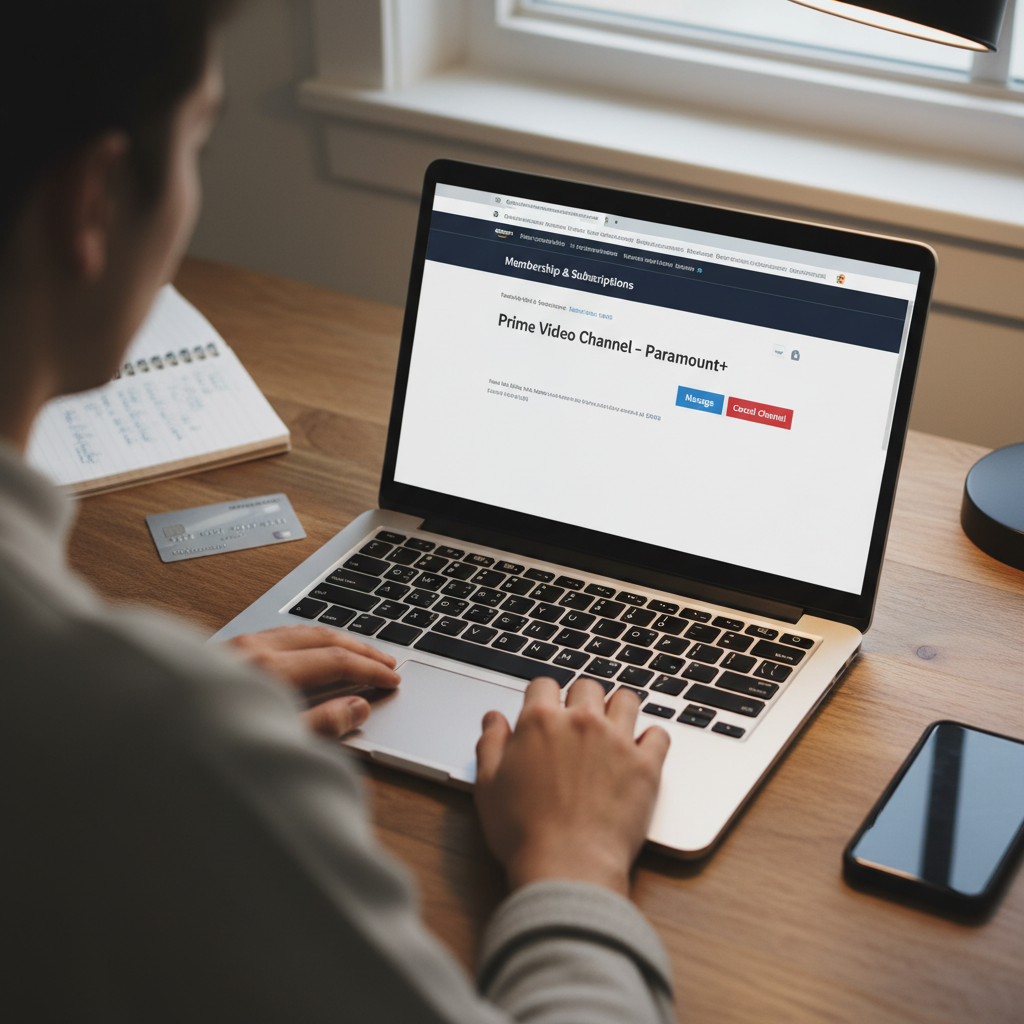
    • Prime Video Channels (Starz, Showtime, Paramount+, etc.)

    Many of these have free trials that roll into paid plans. If you started one and forgot to cancel, that explains the surprise.

    Quick takeaway: If it renews on a schedule, set a reminder in your calendar for a few days before the next billing date.

    Split-screen illustration of legitimate versus fraudulent Amazon digital charges

    Could the Amazon Digital Download Charge Be Fraudulent?

    Sometimes the charge really isn’t you.

    Look for these red flags:

    • You don’t have an Amazon account with that card.
    • You checked all orders and subscriptions and see nothing matching.
    • The email on your Amazon account hasn’t received any order confirmations.
    • You see multiple small Amazon digital charges in a row that don’t match your history.

    In that case, treat it like potential fraud.

    Step 1: Check All Your Amazon Accounts

    If you have more than one Amazon account (personal, old college email, shared family account), log into each and:

    • Review Your Orders (including digital)
    • Check Memberships & Subscriptions

    Sometimes a partner or family member has an order on a shared account you forgot about.

    Step 2: Contact Amazon Support

    If you still can’t match the charge, contact Amazon directly:

    1. Go to Help at the bottom of the Amazon homepage.
    2. Select “Customer Service” or “Help & Contact Us.”
    3. Choose “Something else” → “I have an issue with a charge” (or similar).
    4. Use chat, phone, or email to give them:
      • The date and amount of the charge
      • The last 4 digits of the card

    They can usually tell you:

    • What the charge was for
    • Which account it’s tied to

    If it’s unauthorized, ask them to reverse the charge and secure the account.

    Step 3: Contact Your Bank or Card Issuer

    If Amazon confirms it’s not from one of your accounts, call your bank or credit card company:

    • Report it as fraudulent.
    • Request to dispute the charge.
    • Ask for a new card number if needed.
    Quick takeaway: If you can’t match the charge to any order or subscription, treat it like fraud and move fast.

    Person managing Amazon subscriptions, bank alerts, and a dedicated card for subscriptions

    How to Stop Surprise Amazon Digital Charges in the Future

    Prevention > Panic. Here’s how to keep future “What is this?!” moments to a minimum.

    1. Lock Down Purchases on Devices

    On Kindle and Fire devices, you can:

    • Require a PIN for purchases
    • Turn off 1-Click purchasing

    On Prime Video:

    • Set up a PIN for purchases/rentals
    • Restrict purchases on certain profiles

    This is especially important if kids use your devices.

    2. Audit Your Subscriptions Regularly

    At least every few months:

    1. Go to Memberships & Subscriptions in your Amazon account.
    2. Cancel anything you’re not using.
    3. Note renewal dates for the stuff you keep.

    This quick habit can easily save you hundreds per year.

    3. Use a Dedicated Card for Subscriptions

    Some people use one specific credit card just for recurring charges and subscriptions.

    Benefits:

    • Easier to spot new or weird charges.
    • Cleaner view of how much you’re really spending on subs.

    4. Turn On Alerts with Your Bank

    Most banks let you:

    • Get a text or app alert for every transaction above a certain amount.
    • Get alerts specifically for online or card-not-present purchases.

    That way you see Amazon digital charges the moment they happen — not three weeks later.

    Quick takeaway: A few simple settings on Amazon + your bank can dramatically reduce surprise charges.

    FAQ-style layout with questions about Amazon digital download charges and answers

    FAQ About Amazon Digital Download Charges

    Why did I get charged by Amazon digital downloads when I didn’t buy anything?

    Most likely causes:

    • A subscription renewal (Prime, Music, Kindle Unlimited, Audible, channels)
    • A shared account purchase by a family member
    • An accidental tap purchase on a Kindle or streaming device

    If none of those fit, investigate it as possible fraud.

    How do I get a refund for an Amazon digital charge?

    Refunds for digital orders are more limited than for physical items, but you can try:

    1. Go to Your Orders → Digital orders.
    2. Find the item.
    3. Look for a “Return” or “Refund” option.
    4. If you don’t see it, contact Amazon Customer Service and explain the situation (especially for accidental or child purchases).

    For subscriptions, you may be able to:

    • Cancel and request a partial or full refund if it renewed very recently.

    Is “Amazon Digital” the same as Amazon Prime?

    Not always.

    • Amazon Prime has very specific price points (monthly or yearly) for membership.
    • Amazon Digital / Amazon digital downloads charge is a general label that could be:
      • eBooks
      • Movies
      • Music
      • Subscriptions
      • Software

    So if the amount doesn’t match your Prime plan, assume it’s a different digital item or service.

    Person double-checking Amazon orders and subscriptions to avoid small mystery charges

    Final Thoughts: Don’t Ignore “Small” Mystery Charges

    A random $4.99 Amazon digital download charge may not seem worth the hassle.

    But:

    • Small unauthorized charges are often test transactions by fraudsters.
    • Subscriptions you’ve forgotten about quietly drain your budget.

    So any time you see “Amazon digital downloads” or “AMZN DIGITAL” on your statement and don’t immediately know what it is:

    1. Check Your Orders (including digital).
    2. Review Memberships & Subscriptions.
    3. Talk to Amazon Support if you’re still confused.
    4. Loop in your bank/card issuer if it looks like fraud.

    A 10–15 minute check now can save you from much bigger money headaches later.


  • Amazon 401(k) Match Explained Simply


    Amazon 401(k) Match Explained Simply


    Amazon 401(k) Match Explained Simply

    If you work at Amazon and you kind of know there’s a 401(k) match but aren’t totally sure how it works… you’re not alone.

    You’ve probably heard things like:

    • “Amazon doesn’t match that much.”
    • “It gets better after a few years.”
    • “I think there’s a cap? Maybe?”

    Let’s clean this up so you actually know how much free money you’re leaving on the table (or hopefully not leaving).

    Quick note: Amazon tweaks benefits from time to time. Always confirm with your latest benefits guide or A to Z / internal HR portal for the most current numbers.


    Amazon employee viewing 401(k) dashboard with Amazon match illustrated as extra money being added

    What is the Amazon 401(k) match, in plain English?

    At a high level, Amazon offers:

    • A traditional 401(k) and Roth 401(k) option through its retirement plan.
    • A company matching contribution based on a percentage of your eligible pay, up to a yearly dollar cap.
    • Contributions that vest over time, meaning the money becomes fully yours after you’ve worked there a certain number of years.

    The exact percentages and caps can vary by role, location, and plan year, but the core idea stays the same: Amazon will put in extra money toward your retirement if you contribute.

    Takeaway: Think of the match as a guaranteed, risk‑free return. If you’re not contributing enough to get the full match, you’re literally turning down free compensation.

    Infographic showing how an $80,000 salary and Amazon 401(k) match combine into higher total retirement contributions

    How a typical 401(k) match works (using Amazon-style numbers)

    Even if Amazon adjusts the exact numbers, the mechanics tend to look like this:

    1. You contribute a percentage of your paycheck
      Example: You choose to save 5% of your salary into your 401(k).
    2. Amazon matches up to a certain percentage of pay
      For illustration, imagine Amazon matches 50% of the first 4% of your eligible pay.
      That means if you contribute at least 4%, Amazon throws in an extra 2%.
    3. There’s an annual cap
      Even if you earn a very high salary, Amazon’s match usually won’t exceed a set dollar amount each year.
    4. Your contributions vs. Amazon’s contributions

      • Your money (employee contributions): Always 100% yours, immediately.
      • Amazon’s money (match): Usually subject to a vesting schedule.

    Example: $80,000 salary

    Say you earn $80,000 per year and contribute 5%:

    • Your contribution: 5% of $80,000 = $4,000 per year
    • Match (example structure: 50% of first 4%):
      • Amazon matches 50% × 4% of $80,000 = 0.5 × $3,200 = $1,600

    So instead of just $4,000 going into your 401(k), you now have $5,600 going in.

    Takeaway: The match is basically a built‑in raise you only get if you contribute enough.

    Stair-step visual showing vesting over multiple years with increasing amounts of Amazon 401(k) match becoming owned

    What does “vesting” mean for Amazon’s 401(k) match?

    Here’s where a lot of people get tripped up.

    Vesting = when the employer contributions (Amazon’s match) become fully, permanently yours.

    • Your own contributions: 100% vested immediately.
    • Amazon’s matching contributions: Usually vest over a few years.

    Why vesting exists

    Vesting is a way companies encourage you to stay longer. If you leave before you’re fully vested, you may lose some (or all) of the employer match.

    Example: 3-year vesting schedule (illustrative)

    Let’s say Amazon uses a vesting schedule like:

    • 0–1 year: 0% vested in employer match
    • 1–2 years: 33% vested
    • 2–3 years: 66% vested
    • 3+ years: 100% vested

    If you leave after 18 months:

    • You keep all of your own contributions.
    • You keep only 33% of the match that was contributed on your behalf.

    If you stay 3+ years:

    • You keep 100% of your contributions + 100% of vested employer match (and all investment growth on that money).
    Takeaway: If you’re close to a vesting milestone, it can be financially meaningful to understand exactly what you’d forfeit by leaving early.

    Side-by-side jars illustrating Traditional vs Roth 401(k) tax timing and employer match going into traditional bucket

    Should you choose Traditional or Roth 401(k) at Amazon?

    Most big employers, including Amazon, now offer:

    • Traditional 401(k) – contributions are pre‑tax, lower your taxable income now, but you pay taxes when you withdraw in retirement.
    • Roth 401(k) – contributions use after‑tax money, no tax deduction now, but qualified withdrawals in retirement are tax‑free.

    The company match typically goes into a traditional 401(k) bucket, even if you choose Roth for your own contributions.

    How to think about your choice

    Very simplified rules of thumb (not tax advice):

    • If you expect to be in a higher tax bracket later → Roth can be attractive.
    • If you need a tax break now or expect a lower tax bracket in retirement → Traditional can help.
    • Many people split the difference: part Roth, part Traditional.
    Takeaway: The match happens either way. The Traditional vs. Roth question is mostly about when you want to pay taxes, not if.

    Prioritization flow for Amazon employees showing emergency fund, getting full 401(k) match, paying high-interest debt, and investing RSUs

    How much should you contribute to Amazon’s 401(k)?

    You’ll see a lot of complicated advice online, but let’s keep it simple.

    Step 1: At minimum, get the full Amazon 401(k) match

    Whatever the match formula is in your current plan, aim to contribute at least enough to get 100% of that match.

    • If Amazon matches up to 4% of pay → contribute at least 4%.
    • If you can’t afford that yet, start lower and auto‑increase 1% per year until you do.

    Skipping the match is like saying, “No thanks, I don’t want part of my compensation.”

    Step 2: If you can, go higher

    For 2025–2026, the IRS sets annual 401(k) contribution limits (your own contributions, not counting employer match). These limits usually increase over time to keep up with inflation.

    If you’re able to:

    1. Get the full Amazon match first.
    2. Then, once you’re comfortably doing that, you can:
      • Increase contributions by 1–2% per year, or
      • Set a target (e.g., 10–15% of income) and work up to it.

    Step 3: Don’t forget RSUs and other benefits

    If you’re at Amazon, there’s a good chance part of your compensation is in restricted stock units (RSUs). Those can be a big part of your financial picture.

    A basic priority order many employees use:

    1. Emergency fund (1–3 months of expenses to start, 3–6+ months as a more stable target).
    2. Contribute enough to Amazon’s 401(k) to get the full match.
    3. Pay down any high‑interest debt (especially credit cards).
    4. Increase 401(k) contributions, invest RSU proceeds smartly, and consider IRAs or other accounts.
    Takeaway: The Amazon 401(k) match is a foundational piece. Nail that first, then optimize everything else.

    Checklist dashboard illustrating the key steps to dial in Amazon 401(k) settings and contributions

    What happens if you leave Amazon? (Your 401(k) options)

    People don’t always stay at one company forever. When you leave Amazon, you generally have a few options for your 401(k):

    1. Leave it in the Amazon plan (if allowed)

      • Pros: Simple, no immediate action or taxes.
      • Cons: Limited to that plan’s investment menu and rules.
    2. Roll it into a new employer’s 401(k)

      • Pros: Everything in one place, preserves tax advantages.
      • Cons: Depends on how good your new employer’s plan is.
    3. Roll it into an IRA

      • Pros: Often more investment choices, more control.
      • Cons: You’re on your own for choosing investments and providers.
    4. Cash it out (usually the worst option)

      • Taxes + possible early‑withdrawal penalties.
      • You lose out on decades of compounded growth.

    Also remember vesting:

    • Any unvested Amazon match may be forfeited if you leave before you’re fully vested.
    • 100% of your contributions and any vested match are still yours.
    Takeaway: Don’t just rage‑quit and forget about your 401(k). There’s real money there, and the way you move it can have long‑term consequences.

    Visual of common mistakes and priorities around Amazon 401(k) contributions and financial planning

    Common Amazon 401(k) mistakes to avoid

    A lot of Amazon employees make the same avoidable mistakes. Here are a few to watch out for:

    1. Not enrolling or delaying enrollment

    Whether you’re hourly, corporate, or somewhere in between, it’s easy to say “I’ll set that up later” and then… it’s December.

    Fix: Enroll as soon as you’re eligible and at least contribute enough to get the full match.

    2. Contributing, but not enough to get the full match

    Example: Amazon matches up to 4%, and you’re contributing 2%. That’s half the free money.

    Fix: Check your current contribution rate in the benefits portal. If it’s below the match threshold, increase it today.

    3. Ignoring vesting when planning a job change

    If you’re close to a vesting milestone (like hitting 1 or 3 years of service, depending on your plan), leaving even a couple months early could cost you thousands.

    Fix: Before you make a move, confirm:

    • Your vesting schedule
    • How much of the match is currently vested
    • How much you’d forfeit if you left on a certain date

    4. Letting all your investments sit in one default fund

    Default funds (like target‑date funds) are often reasonable for many people, but they’re not the only option.

    Fix: At least once a year, review:

    • Your investment options
    • Your risk level (stock vs. bond mix)
    • Whether your choices still match your time horizon and comfort with risk
    Takeaway: A few small tweaks—like raising your contribution rate or hitting a vesting date—can add up to tens of thousands of dollars over a career.

    Motivational dashboard checklist encouraging Amazon employees to finalize their 401(k) match setup

    Action checklist: Dial in your Amazon 401(k) match in 20 minutes

    Quick setup flow

    • Log in to your Amazon benefits/401(k) portal.
    • Find your current contribution rate (percentage of pay).
    • Find the exact Amazon 401(k) match formula and the vesting schedule.
    • Increase your contribution (if needed) to at least the level that gets the full match.
    • Turn on auto‑increase (1% per year is a great nudge).
    • Glance at your investment allocation to make sure it matches your risk tolerance and time horizon.
    • Set a calendar reminder to review everything again in 6–12 months.

    Do that, and you’ll be ahead of most of your coworkers.


    Bottom line: Don’t sleep on the Amazon 401(k) match

    Your salary, bonuses, and RSUs might get all the attention, but the Amazon 401(k) match is one of the quiet MVPs of your compensation.

    • It’s free money—if you contribute enough.
    • It can grow for decades with compounding.
    • It rewards you more the longer you stay (thanks to vesting).

    You don’t need to become a Wall Street pro. You just need to:

    1. Enroll.
    2. Contribute enough to get the full match.
    3. Stick with it and adjust over time.

    Future‑you is going to be very pleased you treated that Amazon 401(k) match like the raise it actually is.


  • When Does Amazon Black Friday Start?


    When Does Amazon Black Friday Start?


    When Does Amazon Black Friday Start?

    If you’re asking “When does Amazon Black Friday start?” it probably means one thing:

    You’ve learned the hard way that Amazon’s best Black Friday deals do not wait for actual Black Friday.

    Let’s fix that.

    Below is a clear, no-filler breakdown of when Amazon Black Friday really starts, how long it runs, and how to time your purchases so you don’t miss the best prices.


    Laptop open to Amazon homepage with Black Friday banners and a calendar showing mid-November start for deals

    Quick Answer: When Does Amazon Black Friday Start?

    Short version: Amazon turns Black Friday into a multi‑day (sometimes multi‑week) event.

    While exact dates change every year, here’s the pattern you can reliably expect if you’re in the U.S.:

    • Early Black Friday deals: Typically start in early to mid‑November (often the first or second week of November).
    • Main Amazon Black Friday event: Usually kicks off the Monday–Wednesday before Thanksgiving and continues through Black Friday itself.
    • Black Friday → Cyber Monday window: Amazon treats this as one long sales stretch, from Thanksgiving Day (Thursday) through Cyber Monday (the following Monday).

    So practically speaking, Amazon Black Friday “starts” at least a week before Thanksgiving, and the heaviest wave of deals hits between Thanksgiving and Cyber Monday.

    Takeaway: Don’t wait for actual Black Friday to start shopping on Amazon—you’ll already be late to some of the best early deals.


    Illustration showing Black Friday expanding from one day to a month with Early Deals, Black Friday Week, and Cyber Monday on a timeline with Amazon-style boxes

    Why Doesn’t Amazon Just Start on Black Friday?

    Because Black Friday isn’t a single day anymore; it’s a season.

    Retailers (especially Amazon) learned that:

    1. Starting early locks in your budget before you see competitors’ offers.
    2. Spreading deals out reduces website crashes and inventory chaos.
    3. A longer event means more chances to move inventory and test prices.

    So Amazon leans hard into:

    • “Early Black Friday Deals” (or “Holiday Deals”) in early November
    • “Black Friday Week” in the days leading up to Thanksgiving
    • “Cyber Monday Weekend” or similar branding after Black Friday

    Takeaway: If you’re waiting for one magical 24‑hour window on Amazon, that era is over. Think Black Friday month, not Black Friday day.


    Clean infographic-style November timeline showing Amazon Black Friday phases with icons for TVs, toys, devices, and laptops

    Typical Timeline: Amazon Black Friday (U.S.)

    Exact dates change every year, but this is the general structure Amazon has used recently. Use it as a template for future years.

    1. Early November: “Early Black Friday” / “Holiday” Deals

    When: Around November 1–15

    What you’ll see:

    • Site‑wide “Early Black Friday” banners
    • Rotating deals in categories like electronics, home, toys, and fashion
    • Solid discounts on Amazon devices (Echo, Fire TV, Kindles, etc.) start showing up

    Are these the best deals?

    • Sometimes yes for lower‑demand products or mid‑range items.
    • For top‑tier electronics (premium TVs, latest consoles, big‑name laptops), the deepest discounts often appear closer to Black Friday / Cyber Monday.

    Takeaway: Use early November for warm‑up purchases and items you’re not super picky about.

    2. Week Before Thanksgiving: Black Friday Week Ramps Up

    When: Generally the Monday–Wednesday before Thanksgiving

    This is when Amazon starts pushing messaging like “Black Friday Week” or similar.

    What to expect:

    • More aggressive lightning deals and short‑term discounts
    • Heavy promotion on giftable items: headphones, small appliances, toys, gaming accessories
    • “Deal of the Day” offers that are close to Black Friday strength

    This is also when:

    • Popular colors/sizes start selling out.
    • Some items hit their best price of the season early, then go out of stock before Black Friday even lands.

    Takeaway: If you see a good price on something high‑demand (like a popular headset or toy) in this week, don’t wait “just in case.” It may not come back.

    3. Thanksgiving Day & Black Friday: Peak Deal Window

    When: Thanksgiving Thursday through Black Friday (Friday)

    This is the core Amazon Black Friday period, even though deals started earlier.

    What’s different about this window:

    • Largest number of active deals at once
    • Many of the season’s headline offers go live (big TV brands, popular laptops, premium headphones, gaming, etc.)
    • Deeper cuts on Amazon devices and smart‑home bundles
    • A rush of limited‑time Lightning Deals that sell out fast

    Common move from shoppers: open the Amazon app/site Thanksgiving morning or Thursday evening and start checking:

    • Today’s Deal page
    • Lightning Deals (sorted by upcoming and active)
    • Category‑specific Black Friday pages

    Takeaway: Treat Thanksgiving + Black Friday as your main hunting ground for big‑ticket electronics and Amazon devices.

    4. Weekend Through Cyber Monday: The Second Wave

    When: Saturday–Sunday after Black Friday through Cyber Monday

    Amazon doesn’t slam the brakes after Black Friday. Instead, it pivots into Cyber Weekend / Cyber Monday branding.

    What typically happens:

    • Some Black Friday deals continue unchanged.
    • New Cyber Monday–branded tech deals appear (laptops, software, peripherals, smart home, etc.).
    • Good chance to grab accessories and secondary items (mice, keyboards, extra controllers, chargers, etc.) at strong prices.

    If you missed something on Black Friday:

    • Sometimes the same or similar price will appear on Cyber Monday.
    • But limited‑stock items (hot toys, special TV models) may already be gone.

    Takeaway: Cyber Monday is especially good for tech and accessories, but don’t rely on it for must‑have products that were already low on stock.


    Shopper at home planning Amazon Black Friday strategy with wishlist on screen and price-tracking alerts on phone

    So… When Should You Actually Start Shopping?

    Let’s talk practical strategy instead of watching the calendar like a hawk.

    1. For Big‑Ticket Electronics (TVs, Laptops, Consoles)

    Best time to watch closely:

    • Week before Thanksgiving through Cyber Monday

    What to do:

    1. Add items to your cart / wishlist by early November.
    2. Use price‑tracking tools or browser extensions to watch for drops.
    3. Check for deals daily from the Monday before Thanksgiving onward.

    If you see your target item hit a price that looks like a serious discount (especially if it’s flagged as a Black Friday Deal or Deal of the Day), buy it rather than waiting for a hypothetical extra $10–20 savings.

    2. For Gifts, Toys, and Household Items

    These are more vulnerable to going out of stock than to huge extra discounts later.

    • Start seriously shopping as soon as early Black Friday deals launch in November.
    • If the price looks reasonable and you need it by the holidays, grab it.

    3. For Amazon Devices (Echo, Fire TV, Kindle, Ring, etc.)

    Amazon loves cutting prices on its own hardware multiple times:

    • Prime Day (summer / fall)
    • Early Black Friday period
    • Thanksgiving–Cyber Monday

    If you’re strictly optimizing price:

    • Watch during Black Friday week and Cyber Monday—those are often the lowest prices of the year for Amazon devices.

    Takeaway: Start planning in early November, but be on high alert the week of Thanksgiving for maximum savings.


    Split-screen illustration showing big-ticket electronics bought during Thanksgiving week and gifts and Amazon devices bought earlier in November

    How to Know the Exact Start Date This Year

    Amazon changes the exact start date of its Black Friday event every year, and it usually announces details in a press release or on its homepage in early November.

    Here’s how to get the precise dates for the current year:

    1. Check Amazon’s homepage in early November.
      • Look for banners like “Black Friday Deals Start [Date]” or “Early Black Friday Deals”.
    2. Search online for “Amazon Black Friday [year] dates”.
      • Major outlets and deal sites recap the official announced window.
    3. Watch your email/app notifications.
      • If you’re opted in, Amazon will push “Black Friday Is On”–style alerts.

    Takeaway: Use the patterns in this guide for planning, then confirm exact dates once Amazon posts its official announcement each year.


    Modern illustration of a shopper confidently navigating Amazon Black Friday with icons for lightning deals, filters, and comparison tools

    Pro Tips to Survive (and Win) Amazon Black Friday

    A few ways to stack the deck in your favor.

    1. Build Your List Before Deals Go Live

    Treat this like meal‑prepping, but for your wallet.

    • Create wishlists or save items for later in your cart.
    • Note your must‑haves vs. nice‑to‑haves.
    • That way, when deals hit, you’re checking specific items, not doom‑scrolling the entire site.

    2. Use Filters and Deal Pages

    During Black Friday week, Amazon will have:

    • A main Black Friday deals page
    • Category‑specific pages (Electronics, Home, Toys, etc.)
    • Filters for discount percentage, price range, and brands

    Use them. Otherwise you’ll drown in 40 pages of “meh” discounts.

    3. Watch Lightning Deals and “Deal of the Day”

    • Lightning Deals: Limited time and limited quantity.
    • Deal of the Day: Usually a strong discount good for that calendar day.

    If something you actually want appears as either of these, move quickly—especially during the Thursday–Monday window.

    4. Compare vs. Other Retailers

    Even in Black Friday season, Amazon is not automatically the cheapest.

    • Check prices at Best Buy, Walmart, Target, Costco, or brand websites.
    • Factor in shipping, rewards, and return policies.

    Sometimes Amazon is best on price; sometimes another retailer wins with bundles or gift cards.

    Takeaway: Don’t let the “Black Friday” label hypnotize you. A bad deal with a fancy banner is still a bad deal.


    Black Friday questions illustrated around a laptop with Amazon offers on the screen

    FAQ: Common Amazon Black Friday Questions

    Does Amazon Black Friday start at midnight?

    Not in a neat, one‑time “switch flips at 12:00 a.m.” way.

    • Deals roll out in waves, often starting at specific times depending on your time zone.
    • You’ll see new deals go live throughout the days leading into Thanksgiving and Black Friday, not just at midnight.

    Is Black Friday or Cyber Monday better on Amazon?

    It depends what you’re after:

    • Black Friday (and Thanksgiving): Often better for big electronics, TVs, Amazon devices, and hot items.
    • Cyber Monday: Strong for laptops, PC gear, software, and accessories.

    Many deals overlap both days, but some are day‑specific, especially Lightning Deals.

    Can I return Amazon Black Friday purchases?

    Amazon usually extends its holiday return window for items bought in November and December (for example, returns allowed through early or mid‑January). The exact dates change year to year, so always check the return policy on the product page when you buy.


    Stylized Black Friday month timeline storm of discounts across November with emphasis on Thanksgiving through Cyber Monday

    Final Take: When Should You Care About Amazon Black Friday?

    If you remember nothing else, remember this:

    • Start paying attention in early November.
    • Turn on deal‑hunting mode the week before Thanksgiving.
    • Expect the biggest wave of deals from Thanksgiving through Cyber Monday.

    Amazon’s Black Friday doesn’t have a single official “start” moment like a rocket launch. It’s more like a rolling storm of discounts—and if you know the pattern, you can step in right when the prices are best for the things you actually want.

    Plan early, set alerts, make a list, and future‑you (and your bank account) will be very, very grateful.


  • Amazon Package Delayed In Transit: What Now?


    Amazon Package Delayed In Transit: What Now?


    Amazon Package Delayed In Transit: What Now?

    Impatient online shopper staring at an Amazon tracking page showing package delayed in transit

    We’ve all done it.

    You order something on Amazon, blink once, and suddenly you’ve checked the tracking page 14 times in one day. Then you see it:

    “Package delayed in transit.”

    Cool cool cool. What does that even mean? Is your package lost? Stuck in a truck? Taking a gap year?

    Let’s break down what “delayed in transit” actually means on Amazon, what usually causes it, and the realistic moves you can make (beyond refreshing the tracking page like it owes you money).


    What does “package delayed in transit” mean on Amazon?

    Map illustration showing a delivery truck delayed mid-route under storm clouds, representing shipping delays

    In plain English: your package is still on its way, but something slowed it down.

    It usually means:

    • The carrier (UPS, USPS, FedEx, Amazon Logistics, or a regional courier) hit a snag.
    • The package hasn’t necessarily gone missing.
    • The original delivery date is no longer guaranteed.

    Think of it as: “We didn’t totally mess this up… yet. But the schedule? She’s gone.”

    Quick takeaway: “Delayed in transit” ≠ automatically lost. It just means something interfered with the normal route or timing.

    Common reasons your Amazon package gets delayed in transit

    Busy warehouse and sorting facility overflowing with Amazon packages and a screen showing high volume expect delays

    There are a handful of usual suspects behind that dreaded message.

    1. Weather and natural disruptions

    Storms, floods, snow, wildfires, hurricanes—anything that affects transportation routes can slow or halt deliveries. Carriers may pause operations in specific regions entirely when conditions are unsafe.

    What you’ll often see:

    • Tracking stalls at a distribution center.
    • Vague updates like “Delivery delayed due to weather.”

    What to do: Honestly? Not much. Carriers will usually resume as soon as it’s safe and clear the backlog.

    Takeaway: If the weather’s bad in your state (or along the route), assume that’s your culprit.

    2. High-volume periods (hello, holiday chaos)

    Around Prime Day, Black Friday, Cyber Monday, and December holidays, carriers and Amazon warehouses run at max capacity. That’s when packages most often get marked as “delayed in transit”.

    Why?

    • Way more packages than usual.
    • Limited truck space and driver capacity.
    • Backlogs at sorting centers.

    Real talk: When you order 7 things on Christmas week and all say “arriving tomorrow,” you’re betting against math.

    Takeaway: If it’s a big shopping season, delays are common and often clear up on their own within a day or two.

    3. Misrouted or stuck at a facility

    Sometimes a package is scanned into the wrong facility or ends up in a sorting loop.

    Signs this might be happening:

    • Tracking shows your package bouncing between the same two facilities.
    • It goes to a city that makes zero geographic sense.
    • No movement for 2–4 days while still marked “in transit.”

    Carriers can usually fix a misroute, but it eats up time.

    Takeaway: Weird routing doesn’t always mean “lost,” but if scans stop for several days, it may be time to contact Amazon.

    4. Address issues

    Tiny address mistakes can cause big delays:

    • Missing apartment or unit number
    • Old address still saved in your Amazon account
    • Ambiguous or incomplete street info
    • Gated communities or tricky building access

    Carriers might:

    • Hold the package for clarification
    • Attempt delivery and fail
    • Eventually return it to sender (Amazon or the seller)

    Takeaway: If your address in the order is off by even a little, assume that’s part of the problem.

    5. Carrier logistics and staffing problems

    Behind the scenes, things go wrong:

    • A truck breaks down.
    • A trailer gets overloaded and some packages miss that run.
    • A facility is understaffed or backlogged.
    • A scan was missed (the package is moving but the tracking isn’t updated).

    This is why tracking sometimes jumps from “delayed in transit” to “out for delivery” with no in-between.

    Takeaway: The tracking page doesn’t show the full story; a lack of scans isn’t always bad news.

    How long do Amazon “delayed in transit” packages usually take?

    Stylized map showing a package looping between distribution centers and going off-route, symbolizing prolonged shipping delays

    There’s no one exact answer, but here’s what typically happens:

    • Minor delay: 1–2 extra days, often after a weather hiccup or high-volume day.
    • Moderate delay: 3–5 days if misrouted or heavily backlogged.
    • Major issue / likely lost: 7+ days with no movement or a tracking page that stops updating entirely.

    Amazon will usually show a new “expected by” date or change the status to something like “Running late – we’re working on it” or “Your package may be lost” when delays go beyond the norm.

    Takeaway: A one- or two-day delay is very normal. Start worrying (and acting) if you’re past several days with no updates.

    What should you do when your Amazon package is delayed in transit?

    Map and delivery icons under storm clouds, representing what to do during Amazon shipping delays

    Here’s a practical game plan that doesn’t involve yelling at your tracking page.

    Step 1
    Check the tracking details carefully

    Open your order, then:

    • Look for: Last scan location and time.
    • Check: Any notes about weather, address, or delivery issues.
    • See if: Amazon has already updated the delivery window.

    If you see a message like “Running late, but still arriving”, Amazon still believes it will get to you without further action.

    When to just wait:

    • Delay is under 48 hours.
    • There was a recent scan (within the last 1–2 days).
    • Weather or holidays are clearly a factor.

    Step 2
    Give it a short grace period

    As annoying as it is, waiting 24–48 hours past the original delivery date often solves the issue. Many delayed-in-transit packages just show up late.

    Good rule of thumb:

    • If the status is still updating (even slowly), it’s probably still moving.
    • If it hasn’t updated at all in several days, that’s different.

    Takeaway: If it’s only been a day or two, patience is actually the best move (I know, I hate it too).

    Step 3
    Contact Amazon when it crosses the line

    If your package is several days late or tracking has been frozen with “delayed in transit” and no new scans, it’s time to pull Amazon into the conversation.

    You can:

    1. Go to Your Orders.
    2. Find the delayed order.
    3. Click “Problem with order” or “Track package” → “Get help with order.”
    4. Choose delivery issue options like:
      • “Package didn’t arrive”
      • “Running late”

    Amazon support is usually very generous with solutions like:

    • A free replacement (for items still in stock)
    • A full refund (especially if the item is no longer needed or available)

    When to contact them immediately:

    • The item was time-sensitive (travel dates, medical supplies, gifts).
    • The tracking says “delivered” but you didn’t receive it.

    Takeaway: Once it’s clearly late (not just slightly behind), Amazon support is your best option—not the carrier.

    Step 4
    Decide between refund, replacement, or waiting

    Amazon may ask: “Do you want a refund or a replacement?”

    Things to consider:

    Refund makes sense if:

    • You no longer need the item.
    • You had to buy a replacement locally.
    • The delay is long and there’s still no tracking movement.

    Replacement makes sense if:

    • You still really want the item.
    • It’s something you can wait a few more days for.

    Sometimes the original package still shows up after you’ve gotten a refund or replacement. In that case, Amazon will tell you what to do (often they’ll just say you can keep it or they’ll provide return instructions depending on the item and price).

    Takeaway: There’s no “wrong” choice here—pick what makes your life easier.

    What if your Amazon package is marked “delayed in transit” for a week?

    Delivery route illustration with a package stuck for days, showing prolonged delayed in transit status

    If it’s been around 5–7 days with:

    • No new scans
    • Still stuck on “delayed in transit”
    • Or Amazon changing the message to “Your package may be lost”

    …then it’s almost certainly not showing up on time—if at all.

    At that point:

    1. Stop waiting. Don’t keep giving it “one more day.”
    2. Go through Your Orders → Problem with order.
    3. Request a refund or replacement.

    If Amazon itself sold and shipped the item (not a third-party seller), resolutions are usually faster and more consistent. If it’s a marketplace seller, Amazon still often steps in on your behalf when delivery fails.

    Takeaway: A week of “delayed in transit” limbo = time to officially close the chapter.

    Can you contact the carrier directly about a delayed Amazon package?

    Friendly Amazon customer support screen offering refund or replacement for a delayed package

    You can, but it’s often a mixed experience.

    • Some carriers will let you start a trace or service request for a delayed package.
    • Others will tell you to work through Amazon, especially for Amazon Logistics shipments.

    And realistically:

    • The carrier can rarely refund you directly.
    • Amazon is the one with the power to resend or refund.

    Best move: Skip the middle steps and let Amazon deal with the carrier. That’s part of what you’re paying for with their platform.

    Takeaway: When in doubt, always start with Amazon customer support—not the carrier.

    How to reduce the chances of “delayed in transit” next time

    Illustration of a delivery driver facing address issues at an apartment building alongside a partially filled address form

    You can’t control the weather or holiday shopping chaos, but you can stack the deck in your favor.

    1. Triple-check your shipping address

    Before checking out, make sure:

    • Apartment/suite number is included and correct.
    • Your phone number is up to date (helpful for some couriers).
    • You’ve removed old or similar addresses that might confuse you when selecting.

    Pro tip: If you recently moved, delete or clearly label old addresses in your address book.

    2. Avoid cutting it too close on time-sensitive items

    If you must have something by a specific date (trip, event, holiday gift):

    • Order a few days earlier than you think you need to.
    • Avoid depending on “Arrives tomorrow” if a delay would ruin your plan.

    Future you will be very grateful you didn’t gamble the birthday gift on a snowstorm three states away.

    3. Consider Amazon Locker or secure delivery locations

    If you live in an apartment complex, busy city area, or a place with tricky delivery access:

    • Use an Amazon Locker or Amazon Hub counter when available.
    • These locations can reduce failed attempts, misdelivery, or driver confusion.

    While this doesn’t prevent every “delayed in transit” issue, it does reduce address-related drama.

    4. Expect delays during huge sales and peak seasons

    Plan for some Amazon packages to be late during:

    • Prime Day
    • Black Friday / Cyber Monday
    • The weeks before major holidays

    Build that into your expectations and timing. If you get everything early, it’s a pleasant surprise instead of a crisis.

    Takeaway: You can’t eliminate all delays, but you can make them less stressful—and less likely to ruin plans.

    When an Amazon delay is annoying vs. when it’s a red flag

    Busy warehouse with Amazon packages showing normal and problematic delay scenarios

    Annoying but normal:

    • Delayed 1–2 days
    • Recent tracking scans show movement
    • Clear weather/seasonal pattern

    Red flag:

    • No tracking updates for 3–7 days
    • Amazon pushes the date back multiple times with no details
    • Status changes to “may be lost” or disappears from carrier tracking

    If your gut says, “This is taking way too long,” it’s probably time to message Amazon.

    They’ve handled millions of delayed and lost packages. Their systems and policies are built around solving this exact irritation.

    Final word: Your package is delayed, not your power

    Calm customer viewing Amazon options for refund or replacement after a delayed package

    Seeing “package delayed in transit” on Amazon is frustrating, but it doesn’t mean you’re stuck.

    Your playbook is simple:

    • Check tracking and give it a short grace period (24–48 hours).
    • If there’s no real movement or it’s clearly late, contact Amazon, not the carrier.
    • Choose what works for you: refund or replacement.
    • Next time, reduce risk with better timing, accurate addresses, and realistic expectations around big shopping events.

    The tracking page may not always have good news—but at least you now know exactly what to do when it doesn’t.


  • How To Print A Receipt From Amazon


    How To Print A Receipt From Amazon


    How To Print A Receipt From Amazon

    Person searching for the print receipt option on Amazon on laptop and phone, surrounded by tax paperwork

    You’d think finding an Amazon receipt would be easy.

    But then tax season hits, your company asks for proof of purchase, or you just need that warranty invoice…and suddenly you’re 27 clicks deep wondering where the “Print Receipt” button went.

    Let’s fix that.

    This guide walks you step‑by‑step through how to print a receipt from Amazon on desktop and mobile, plus how to get tax invoices, gift receipts, and business receipts without losing your mind.


    Infographic comparing Amazon order summary, invoice, and gift receipt side by side

    First: Amazon “receipt” vs “invoice” (what you actually need)

    Amazon uses a few different terms that confuse everyone:

    • Order summary / order details – shows what you bought, how much, and how you paid. Works as a basic receipt for many situations.
    • Invoice – more formal document with seller details, item prices, tax, and total. Often needed for reimbursements, tax records, or warranties.
    • Gift receipt – hides prices, shows the item and allows returns.

    Most of the time when people say “print an Amazon receipt,” they actually mean one of these:

    • A printable invoice for taxes or accounting
    • A payment receipt to submit as an expense
    • A gift receipt to include in a present
    Takeaway: Know which version you need before you click around for 10 minutes.

    Desktop user navigating to Amazon Your Orders and opening printable invoice on a large monitor

    How to print a receipt from Amazon on desktop (fastest way)

    These steps work in a web browser on a laptop or desktop.

    Step 1: Go to “Your Orders”

    1. Open a browser and sign in to your Amazon account.
    2. In the top-right corner, hover over or click “Returns & Orders”.
    3. You’ll land on the Your Orders page, which lists all your recent purchases.

    Pro tip: If you have multiple Amazon accounts (personal, work, family), double‑check you’re in the right one before you panic because “the order is gone.”

    Step 2: Find the order you need a receipt for

    On the Your Orders page, you can:

    • Use the search bar (e.g., type “monitor,” “headphones,” etc.).
    • Filter by date range from the dropdown (last 30 days, 2024, 2023, etc.).

    Once you find the correct order, look at the options under the item.

    Step 3: Click “Invoice”

    Under the item (or to the right of the order), look for:

    • “Invoice” or
    • “Order details” or
    • A three-dot (⋯) menu with more options

    Most desktop accounts in the U.S. will show a link like:

    • Invoice → then options such as “View invoice” or “Printable invoice”

    Click “View invoice” or “Invoice”.

    This opens a detailed invoice page with:

    • Order date and order number
    • Billing and shipping address
    • Itemized list of products
    • Price, tax, shipping, and total

    Step 4: Print or save as PDF

    Once the invoice is open:

    1. Press Ctrl + P (Windows) or Cmd + P (Mac), or click your browser’s menu and choose Print.
    2. In the printer dialog:
      • Choose your actual printer or
      • Select “Save as PDF” if you just need a digital copy.
    3. Click Print or Save.

    Quick desktop recap

    Your Orders → find purchase → Invoice → View/Printable invoice → print/save.

    Smartphone showing Amazon app order details with download and share invoice options near a printer

    How to print an Amazon receipt from the mobile app

    The Amazon app doesn’t always have a super obvious “print receipt” button, but you can still get there.

    Step 1: Open your orders in the app

    1. Open the Amazon app (iOS or Android).
    2. Tap the profile icon (or the three horizontal lines ☰ depending on your version).
    3. Tap “Your Orders.”

    Step 2: Select the order

    Scroll or search for the order you want.

    • Tap “Filter” or date filters if you’re looking for older orders.
    • Tap on the order to open the Order Details screen.

    Step 3: Look for the invoice option

    On the order details page, look for one of the following (it can vary by region and seller type):

    • “Download invoice”
    • “Share invoice”
    • A “View order details” link that then leads to invoice options

    If you see “Share invoice”:

    • Tap it, and choose Mail, Gmail, Files, or another app.
    • Email it to yourself, then open it on a computer and print.

    If you see “Download invoice”:

    • It will download a PDF to your phone.
    • Open the PDF and tap Share → Print (if you have a printer set up) or share it to email/cloud.

    Step 4: Print from your phone or computer

    • From phone: Use AirPrint (iOS) or Mopria/Print Service (Android) if your printer supports mobile printing.
    • From computer: Email the PDF to yourself, open it on your laptop/desktop, and print normally.
    Takeaway: On mobile, it’s usually a two-step dance: get the invoice → send it somewhere you can print.

    Cozy gift scene with an Amazon style package and printed gift receipt beside a greeting card

    How to print a gift receipt on Amazon

    Giving a gift and want the recipient to be able to return it, but without seeing the price? That’s a gift receipt.

    If you haven’t ordered the gift yet

    1. Add the item(s) to your cart.
    2. During checkout, look for “This order contains a gift” and check the box.
    3. On the gift options page, there’s usually an option like:
      • “Email the recipient a gift receipt” or
      • “Include a gift receipt” in the package.

    In many cases, Amazon will include the gift receipt in the box, or the recipient can access it digitally.

    If you already placed the order

    1. Go to Your Orders.
    2. Find the gift order.
    3. Look for “Share gift receipt” or “View gift receipt.”
    4. You can:
      • Copy a link to the gift receipt.
      • Email the link to the recipient.
      • Open it yourself and print from your browser.

    Note: Gift receipts don’t show prices but still allow returns or exchanges.

    Takeaway: For gifts, you want “gift receipt,” not a normal invoice. It’s more polite.

    Organized accounting desk with multiple Amazon invoices open on a laptop and printed receipts filed for taxes

    Need a receipt for business or taxes? Use Amazon Business or tax invoices

    If you’re submitting expenses or doing bookkeeping, you usually need a proper invoice with:

    • Seller info
    • Tax breakdown
    • Itemized line items

    Here are your main options.

    Option 1: Regular Amazon account (most people)

    For many standard purchases shipped and sold by Amazon, the Invoice link in Your Orders is enough as a receipt.

    Steps:

    1. Your Orders → Choose order.
    2. Click Invoice → View/Printable invoice.
    3. Print or save as PDF.

    Double-check that the invoice shows:

    • Your name or business name
    • Purchase date
    • Tax and total amount

    If your business requires a certain format, save it as PDF and attach it to your expense software (Expensify, Concur, etc.).

    Option 2: Amazon Business account (if you buy for work a lot)

    If you frequently buy for work, a free Amazon Business account can help. It gives you:

    • Easier access to tax invoices
    • Ability to add your company name and tax ID
    • Better reporting and order exports

    Once set up, invoices are still found in Your Orders, but they’ll include your business details.

    Takeaway: For serious record‑keeping, set up your account with your real billing info and save invoices as PDFs.

    What if there’s no “Invoice” button at all?

    Sometimes you open an order and…nothing. No invoice. No download option. Just vibes.

    Here are a few common reasons and fixes:

    1. It’s a third‑party marketplace seller

    Some marketplace sellers don’t automatically upload an invoice.

    What you can do:

    1. Go to Your Orders.
    2. Find the order and click “Problem with order” or “Get help with order.”
    3. Choose an option closest to “I need an invoice/receipt” or contact the seller directly.
    4. Ask them to send a PDF invoice with:
      • Seller name and address
      • Item details
      • Tax breakdown (if applicable)

    2. It’s a digital product (eBook, app, video, subscription)

    Digital orders often live in a slightly different place.

    Try this:

    1. Go to Your Account → look for “Your Payments” or “Digital orders” / “Digital content and devices.””
    2. Open the relevant digital store (Kindle, Appstore, etc.).
    3. Look for “View purchase history” or “Order details.”
    4. From there, many digital orders will have a “View receipt” or “Invoice” option.

    If nothing else works, you can:

    • Screenshot the order details page
    • Print that screenshot or add it to a PDF

    Not as clean, but often acceptable for simple reimbursement.

    3. You ordered as a guest or through another country site

    If you ever checked out without logging in or used a different Amazon region (like Amazon.ca or Amazon.co.uk), the order might be on that site/account.

    Try:

    • Logging into the correct regional Amazon site.
    • Checking the email inbox used for that purchase for an order confirmation email. In many cases, that email works as a receipt.
    Takeaway: No invoice button doesn’t always mean “no receipt” – it just might be hiding behind seller contact or a different section.

    How to print multiple Amazon receipts at once (batch-friendly options)

    If you’re doing expense reports or accounting, you might need many receipts at once.

    While Amazon doesn’t offer a perfect “export all invoices as PDFs” button, you can make this easier:

    1. Filter orders by date and open invoices in new tabs

    On desktop:

    1. Go to Your Orders.
    2. Filter to “Last 30 days”, “This year”, or a specific year.
    3. For each relevant order, Ctrl/Cmd + Click the Invoice link to open it in a new tab.
    4. Once you have them all open, print or save each PDF.

    2. Use your browser’s “Save to PDF” feature

    Rather than physically printing each invoice:

    • Set Destination to “Save as PDF” in the print dialog.
    • Organize them in a folder by month or category.

    This makes it much easier to:

    • Upload to accounting software
    • Share with a bookkeeper or tax pro
    Takeaway: It’s still a bit manual, but filters + tabs + PDF saves make it bearable.

    Quick troubleshooting FAQ

    Can I print a receipt for an Amazon order someone else placed?

    If you don’t have access to their account, not directly.

    Options:

    • Ask them to download the invoice from their account and send it.
    • If it’s a shared family account, ask them to log you in or forward the email receipt.

    Is the email order confirmation enough as a receipt?

    For casual purposes (personal records, basic proof of purchase), often yes.

    For business, taxes, or warranties, it’s safer to use the official invoice from Your Orders → Invoice.

    Will Amazon mail me a paper receipt?

    Generally, no. Amazon mostly relies on digital order history and invoices.

    If you absolutely need a paper copy, your best bet is:

    • Open the invoice online
    • Print it on your own printer or at a print shop

    Summary: Your simple Amazon receipt checklist

    When you need to print a receipt from Amazon, follow this mental checklist:

    1. Go to Your Orders.
    2. Find the correct order. Use search and date filters.
    3. Click Invoice. Look for “Invoice,” “View invoice,” or “Download invoice.”
    4. Print or Save as PDF. Use your browser or device print options.
    5. No invoice? Contact the seller, check digital orders, or find the email confirmation.

    Do this once or twice, and the next time someone says, “Can you send me the Amazon receipt?” you’ll have it in their inbox before they finish the sentence.

    And hey, that’s one less tiny life annoyance to deal with.


  • How To Create An Amazon Storefront


    How To Create An Amazon Storefront


    How To Create An Amazon Storefront

    You’ve seen those slick Amazon pages with curated products, pretty banners, and custom categories and thought: “Wait… regular people can do that? Not just big brands?”
    Yep. You can. And if you’re a creator, influencer, or brand, an Amazon storefront can quietly become one of your most reliable income streams.

    This guide walks you step‑by‑step through how to create an Amazon storefront, the different types (influencer vs. brand), and what to do after you set it up so it actually makes money—not just look cute.


    Side-by-side visual comparison of an Amazon influencer storefront and a polished Amazon brand storefront layout

    A split‑screen comparison of two Amazon storefronts: on the left, a vibrant influencer-style page with curated product collections; on the right, a sleek branded Amazon store with logo, navigation, and a bold hero banner.

    First: What Exactly Is an Amazon Storefront?

    Think of an Amazon storefront like your own mini shop inside Amazon.

    Depending on who you are, it’s usually one of two things:

    1. Amazon Influencer Storefront
      A curated page where influencers/creators list products they recommend. You earn commissions via Amazon Associates (their affiliate program) when followers buy using your links.
    2. Amazon Brand Store (Storefront for sellers/brands)
      A multi-page, customizable “brand hub” for trademarked brands enrolled in Amazon Brand Registry. It lets you showcase your catalog, tell your brand story, and drive ads and traffic to a polished, branded experience.

    Influencer path

    If you create content on TikTok, Instagram, YouTube, Pinterest, etc. → you probably want the Amazon Influencer Storefront.

    Brand / seller path

    If you sell your own branded products on Amazon → you want an Amazon Brand Store.

    I’ll walk you through both.

    Quick takeaway: You don’t need to be a giant brand to get a storefront. You just need to know which path fits you.

    Content creator at a desk applying for the Amazon Influencer Program on a laptop with social media icons visible

    A creator applying for the Amazon Influencer Program: your social platforms, engagement, and content style all play into getting that storefront approved.

    How To Create an Amazon Influencer Storefront (Step‑by‑Step)

    This is the “content creator” path. You do not need to have your own physical products—you’re recommending other people’s.

    Step 1: Check If You Qualify For the Amazon Influencer Program

    To get a storefront as a creator, you must first join the Amazon Influencer Program. That’s built on top of Amazon Associates.

    Amazon looks at:

    • Your social media accounts (TikTok, Instagram, YouTube, Facebook, etc.)
    • Your follower count & engagement
    • Whether your content is a good fit for product recommendations (hauls, reviews, tutorials, etc.)

    You don’t need millions of followers, but you should have:

    • A real audience (not 27 bots and your mom)
    • Public, active profiles with consistent content
    Mini tip: If you’re tiny right now, focus on growing one platform first (Reels, TikTok, or YouTube Shorts) with product-focused content. That greatly improves approval odds later.

    Step 2: Apply to the Amazon Influencer Program

    Here’s the general process:

    1. Go to Amazon and sign in with the account you want tied to your earnings.
    2. Search for “Amazon Influencer Program apply” (or, from Amazon Associates, look for the Influencer option).
    3. Click Sign Up or Get Started under the Influencer Program.
    4. Connect one of your social channels (they may ask for TikTok, Instagram, YouTube, or Facebook).
    5. Fill out the required info and submit.

    Amazon will review your application. Approval can be:

    • Instant (sometimes)
    • Or take a few days

    If you’re denied, don’t panic:

    • Improve your content quality and consistency.
    • Grow your audience.
    • Reapply after your presence looks stronger and more on-brand for product recommendations.
    Takeaway: The influencer storefront starts with the Influencer Program. No approval = no storefront yet.

    Mockup of a customized Amazon influencer storefront with branded banner, profile photo, and organized product lists

    A stylized influencer storefront: branded cover, clean profile photo, and clearly named product lists that feel like a curated, shoppable version of your brain.

    Step 3: Set Up Your Amazon Influencer Storefront

    Once you’re approved, you’ll see access to your Storefront area in your Amazon Influencer dashboard.

    Here’s how to set it up like a pro:

    3.1 Choose Your Storefront Name & URL

    You’ll be prompted to:

    • Pick a display name (often your creator name or brand)
    • Customize your storefront URL slug (e.g., amazon.com/shop/yourname)

    Tips:

    • Use something consistent with your handle on TikTok/IG/YouTube.
    • Keep it short, clear, and easy to say out loud in videos.

    3.2 Add a Profile Photo & Cover Image

    Treat this like social media branding, not an afterthought.

    • Profile photo: clear headshot or logo
    • Cover image: a banner that matches your vibe (clean, bold, colorful, aesthetic—whatever fits your brand)

    Make sure it looks good on both desktop and mobile (check it from your phone—90%+ of your audience will).

    3.3 Create Idea Lists / Product Collections

    This is where your storefront stops being empty and starts making money.

    You can create lists (sometimes called Idea Lists, categories, or collections), such as:

    • “Filming Setup & Creator Gear”
    • “Kitchen Favorites I Actually Use”
    • “Work From Home Essentials”
    • “Toddler Must-Haves That Save My Sanity”

    Inside each list, add products you genuinely recommend.

    How to add products:

    • Search for products on Amazon as usual.
    • On qualifying product pages, you’ll see options in your influencer/associate tools to add to list or add to storefront.
    • Organize them into the most intuitive list for your audience.

    3.4 Write Snappy List Names & Descriptions

    Don’t just call a list “Stuff” or “Amazon Finds.” That doesn’t help anyone.

    Examples of better names:

    • “Small Apartment Organization (No Drilling!)”
    • “Starter Camera Gear for Beginners Under $500”
    • “Cozy Reading Nook Essentials”

    Under each list, add a short description:

    • Who it’s for
    • Why you picked these items
    • How they should use it (if relevant)
    Takeaway: Your storefront is basically a curated, shoppable version of your brain. Make it obvious who each list helps and why.

    Visual collage showing social platforms all directing traffic to a central Amazon influencer storefront

    Your storefront becomes the hub: every haul, routine, and “Amazon finds” post should point viewers back to one clean, on-brand page.

    Step 4: Customize and Make It On-Brand

    You don’t get total design freedom, but you do have enough to make it feel like you.

    Ways to level it up:

    • Consistent visuals: Use similar tones or styles for your profile + cover.
    • Clear sections: Put your most popular or most requested lists at the top.
    • Pin “starter” collections: For example, “Start Here: My Everyday Essentials.”

    Remember: people landing on your Amazon storefront don’t know where to click first. Your job is to guide them.

    Step 5: Drive Traffic To Your Storefront (Where the Money Happens)

    Creating an Amazon storefront doesn’t magically bring traffic; you have to feed it.

    Here are practical ways to send people there:

    5.1 Add Your Storefront Link Everywhere

    • TikTok bio
    • Instagram bio (or Link in Bio tool)
    • YouTube channel links + video descriptions
    • Pinterest profile
    • Blog/website sidebar or menu
    • Email newsletter footer

    Use short, memorable CTAs like:

    • “Shop my Amazon storefront here: …”
    • “Everything I mentioned is linked in my Amazon shop.”

    5.2 Mention It Naturally in Content

    Whenever you:

    • Do an unboxing or haul
    • Share routines (“Get Ready With Me,” “Clean With Me,” “Day in the Life”)
    • Show products on camera

    …say something like:

    • “If you want any of these, they’re all in my Amazon storefront under ‘Kitchen Faves.’”

    Repetition is not annoying when it’s useful.

    5.3 Create Storefront-Specific Content

    Examples:

    • “Amazon favorites I regret not buying sooner”
    • “My top 10 Amazon productivity tools”
    • “Everything on my Amazon storefront under $25”

    Then pin or highlight that content and link the storefront.

    Takeaway: Treat your storefront like a landing page that your content is constantly pointing back to.

    Premium Amazon Brand Store homepage mockup with hero banner, logo, navigation, and product tiles

    A polished Amazon Brand Store becomes your on-Amazon home base: hero visuals, clear navigation, and curated product groupings designed to convert.

    How To Create an Amazon Brand Storefront (For Sellers)

    Now let’s switch gears.

    If you sell your own products on Amazon and want a branded store (with a logo, custom pages, navigation, and product categories), you’ll create an Amazon Store inside Seller Central.

    Step 1: Get Into Amazon Brand Registry

    To create a Brand Store, you must:

    • Have a registered trademark (or be in the process, depending on your region and rules)
    • Enroll that brand in Amazon Brand Registry using that trademark

    Once your brand is successfully enrolled, you’ll see the option to create a Store.

    If you don’t have a trademark yet:

    • Consider filing one (or working with a trademark attorney).
    • Until then, you can still sell on Amazon, but you won’t get full Brand Store features.

    Step 2: Open the Store Builder in Seller Central

    From the Seller Central dashboard:

    1. Go to the Stores tab (may show as “Stores > Manage Stores”).
    2. Click Create Store.
    3. Select the brand that’s enrolled in Brand Registry.

    You’ll now be in the drag‑and‑drop Store Builder.

    Step 3: Set Up Your Brand Homepage

    You’ll choose a template layout (grid, hero image with product tiles, etc.) and then customize:

    • Brand logo
    • Hero image or banner (high-quality visual that communicates your brand)
    • Tagline or short copy that explains what you sell and why it matters

    Best practices:

    • Keep copy punchy and benefit-based: “Comfortable, minimalist home office gear” beats “We sell office products.”
    • Use lifestyle images, not just white-background product photos.

    Step 4: Add Pages and Organize Products

    You can add multiple pages to mimic a website structure, for example:

    • Home
    • Shop All
    • By Category (e.g., “Skincare,” “Hair,” “Tools”)
    • Bundles
    • Bestsellers
    • About the Brand

    On each page, use content tiles to:

    • Feature specific products (ASINs)
    • Add carousels (for scrolling through items)
    • Insert images with text overlays
    • Drop in video content (product demos, founder story, etc.)

    Make navigation obvious:

    • Limit top menu items to what actually matters
    • Add a “Shop All” for people who just want to browse everything

    Step 5: Optimize Your Brand Storefront for Conversions

    Your Brand Store isn’t just decoration—it’s a conversion machine if set up right.

    Focus on:

    • Clear paths: Put bestsellers and hero products above the fold.
    • Social proof: Use tiles that highlight top‑reviewed products, “bestseller” badges (where allowed), or “As seen in…” logos if you have press.
    • Bundles & collections: Create groups like “New Customer Starter Kit” or “Gifts Under $50.”
    • Mobile layout: Preview on mobile; rearrange tiles if needed so the most important things show first on phones.

    Step 6: Send Traffic To Your Brand Store

    Once your store is live, you can:

    • Use Sponsored Brands ads to send ads to your Store instead of a single product page.
    • Link your Store from social media, email, website, QR codes on packaging, etc.
    • Use short links (Amazon lets you create a custom URL path for your store) so it’s easy to share.
    Takeaway: A Brand Storefront is your Amazon “home base” as a seller. Don’t just build it once—keep refining it based on what people click and buy.

    Influencer vs. Brand Storefront: Which Is Right for You?

    Choose an Influencer Storefront if:

    • You’re a creator recommending products (not necessarily your own)
    • Your main asset is your audience, not your warehouse
    • You want affiliate commissions without managing inventory

    Choose a Brand Storefront if:

    • You own a brand selling physical products on Amazon
    • You have (or plan to have) a registered trademark
    • You want a polished, on‑Amazon brand experience and to run ads to it

    You can technically be both (a creator and a brand owner), but treat them as separate strategies.

    Examples of Smart Amazon Storefront Strategies

    Here are a few simple “plays” you can steal:

    Example 1: The TikTok Home Organizer

    • Niche: Small apartment organization hacks.
    • Storefront lists: “Tiny Kitchen Must-Haves,” “Bathroom Storage,” “Closet Organization,” “Rental-Friendly Fixes.”
    • Content: Before/after videos, “Watch me organize this chaotic cabinet with items from my Amazon storefront.”
    • Result: Viewers binge those videos, then hit the storefront to copy the exact setup.

    Example 2: The Beauty Brand Store

    • Brand: Indie skincare brand selling on Amazon.
    • Store pages: Home, Bestsellers, Routines (AM/PM), Ingredients, About.
    • Homepage: Hero image with their hero serum + short copy about their differentiator.
    • Traffic: TikTok routine videos + Sponsored Brands ads leading straight to “Routines” page.

    Example 3: The WFH Productivity Creator

    • Niche: Remote work, productivity, and tech.
    • Storefront lists: “Desk Setup Essentials,” “Budget Tech Gear,” “Ergonomic Favorites,” “Video Call Setup.”
    • Content: Desk tours, “What’s on my desk,” “Zoom setup for under $300.”
    • CTA: “Everything is linked in my Amazon storefront under ‘Desk Setup Essentials.’”
    Takeaway: The most successful storefronts solve a specific problem for a specific audience.

    Common Mistakes When Creating an Amazon Storefront

    Avoid these if you don’t want your storefront to flop silently:

    1. Being too generic
      “Random Amazon Finds” is not a niche. Get specific.
    2. Overloading with products
      200+ random items in one list = decision fatigue. Curate.
    3. No context or descriptions
      People need to know why you love something, not just see a thumbnail.
    4. Never updating your storefront
      Out-of-stock items, dead trends, or old products make your page feel abandoned.
    5. Forgetting mobile
      Design and check everything like your audience is viewing on a phone—because they are.

    Overhead desk view with an Amazon Storefront 30-day plan notebook and analytics on a laptop

    Treat your storefront like an evolving asset: plan content, refine lists, and use analytics over the first 30 days to move bestsellers up and retire duds.

    What To Do In Your First 30 Days After Launch

    Once your Amazon storefront is live, here’s a simple 30‑day game plan:

    Week 1

    • Finalize your lists/pages and polish visuals.
    • Add your storefront link to all bios, websites, and link-in-bio tools.

    Week 2

    • Create at least 3–5 content pieces that directly reference your storefront.
    • Test different CTAs: “linked in bio,” “shop my Amazon storefront,” “in my Amazon list called…”

    Week 3

    • Check which lists/products are getting the most clicks and sales.
    • Move those higher up your storefront.

    Week 4

    • Refresh any underperforming lists.
    • Add a new themed collection based on what your audience is asking for.
    Takeaway: Don’t treat your storefront as a one‑time project. It’s an asset that gets better the more you iterate.

    Final Thoughts: Your Amazon Storefront Is a Launchpad, Not the Finish Line

    Creating an Amazon storefront—whether as an influencer or a brand—is not hard. The strategy behind it is where most people win or lose.

    If you:

    • Know who you’re talking to
    • Curate products or pages that solve real problems
    • Consistently send traffic from your content or ads

    …your storefront can turn into a surprisingly steady revenue stream.

    So yes, build the storefront. But then? Spend your real energy making it the most helpful, obvious next step for the people already watching you or shopping your products.

    That’s where the magic (and the commissions) live.