Category: Uncategorized

  • How To Print A Receipt From Amazon


    How To Print A Receipt From Amazon


    How To Print A Receipt From Amazon

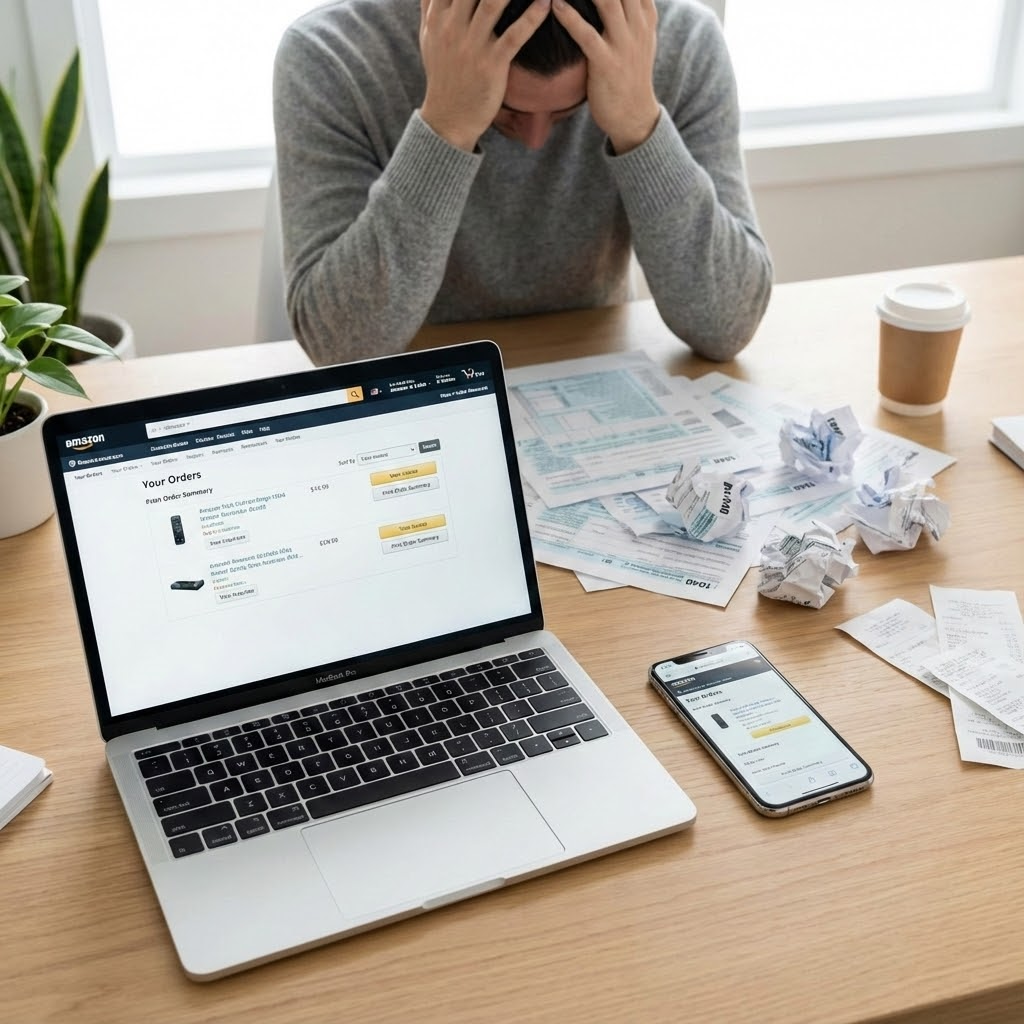
    Person searching for the print receipt option on Amazon on laptop and phone, surrounded by tax paperwork

    You’d think finding an Amazon receipt would be easy.

    But then tax season hits, your company asks for proof of purchase, or you just need that warranty invoice…and suddenly you’re 27 clicks deep wondering where the “Print Receipt” button went.

    Let’s fix that.

    This guide walks you step‑by‑step through how to print a receipt from Amazon on desktop and mobile, plus how to get tax invoices, gift receipts, and business receipts without losing your mind.
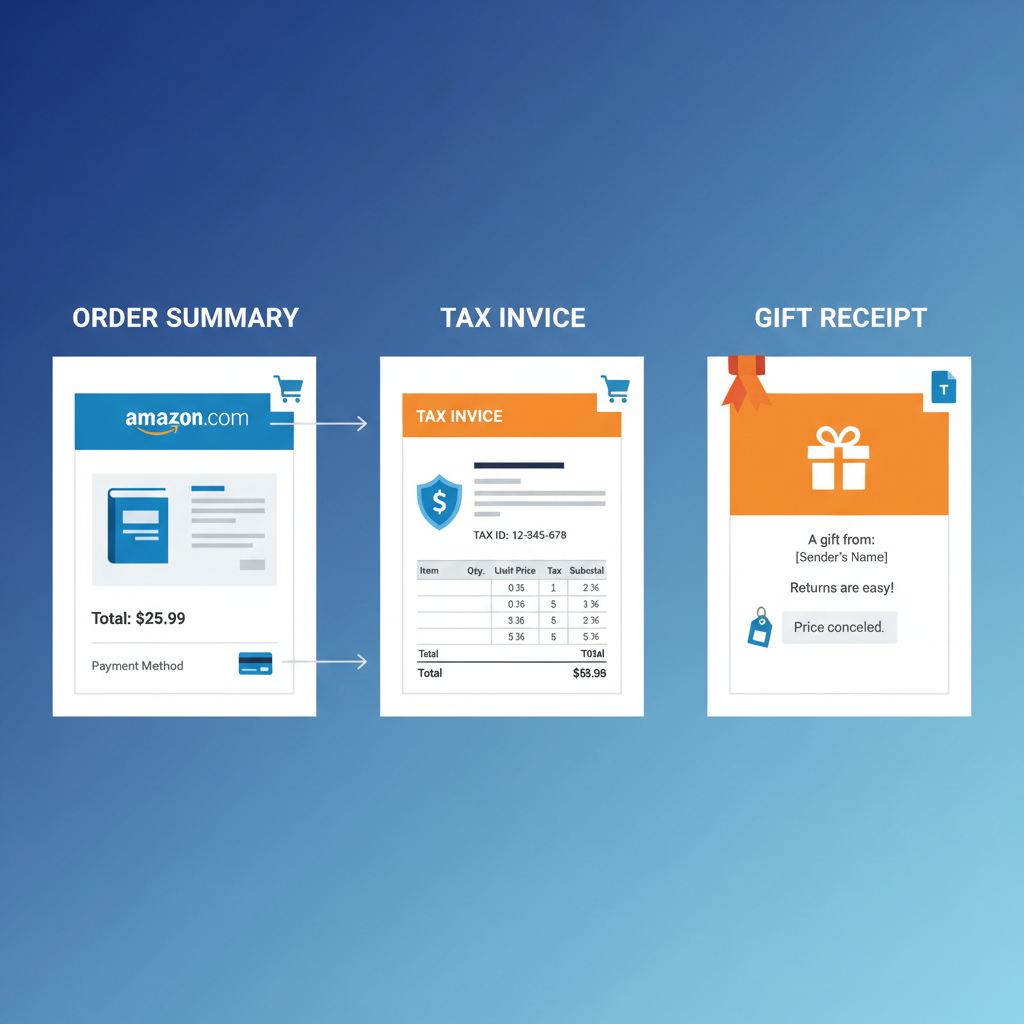

    Infographic comparing Amazon order summary, invoice, and gift receipt side by side

    First: Amazon “receipt” vs “invoice” (what you actually need)

    Amazon uses a few different terms that confuse everyone:

    • Order summary / order details – shows what you bought, how much, and how you paid. Works as a basic receipt for many situations.
    • Invoice – more formal document with seller details, item prices, tax, and total. Often needed for reimbursements, tax records, or warranties.
    • Gift receipt – hides prices, shows the item and allows returns.

    Most of the time when people say “print an Amazon receipt,” they actually mean one of these:

    • A printable invoice for taxes or accounting
    • A payment receipt to submit as an expense
    • A gift receipt to include in a present
    Takeaway: Know which version you need before you click around for 10 minutes.

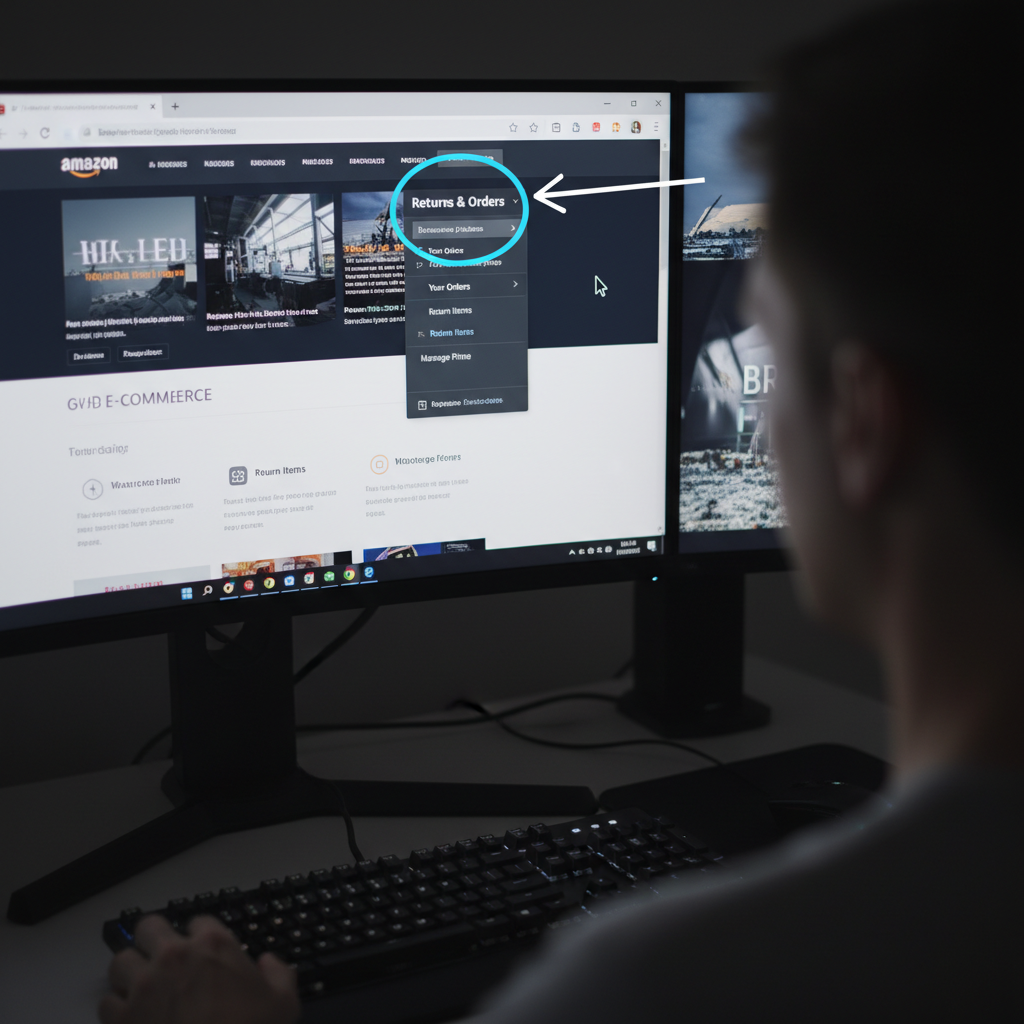
    Desktop user navigating to Amazon Your Orders and opening printable invoice on a large monitor

    How to print a receipt from Amazon on desktop (fastest way)

    These steps work in a web browser on a laptop or desktop.

    Step 1: Go to “Your Orders”

    1. Open a browser and sign in to your Amazon account.
    2. In the top-right corner, hover over or click “Returns & Orders”.
    3. You’ll land on the Your Orders page, which lists all your recent purchases.

    Pro tip: If you have multiple Amazon accounts (personal, work, family), double‑check you’re in the right one before you panic because “the order is gone.”

    Step 2: Find the order you need a receipt for

    On the Your Orders page, you can:

    • Use the search bar (e.g., type “monitor,” “headphones,” etc.).
    • Filter by date range from the dropdown (last 30 days, 2024, 2023, etc.).

    Once you find the correct order, look at the options under the item.

    Step 3: Click “Invoice”

    Under the item (or to the right of the order), look for:

    • “Invoice” or
    • “Order details” or
    • A three-dot (⋯) menu with more options

    Most desktop accounts in the U.S. will show a link like:

    • Invoice → then options such as “View invoice” or “Printable invoice”

    Click “View invoice” or “Invoice”.

    This opens a detailed invoice page with:

    • Order date and order number
    • Billing and shipping address
    • Itemized list of products
    • Price, tax, shipping, and total

    Step 4: Print or save as PDF

    Once the invoice is open:

    1. Press Ctrl + P (Windows) or Cmd + P (Mac), or click your browser’s menu and choose Print.
    2. In the printer dialog:
      • Choose your actual printer or
      • Select “Save as PDF” if you just need a digital copy.
    3. Click Print or Save.

    Quick desktop recap

    Your Orders → find purchase → Invoice → View/Printable invoice → print/save.
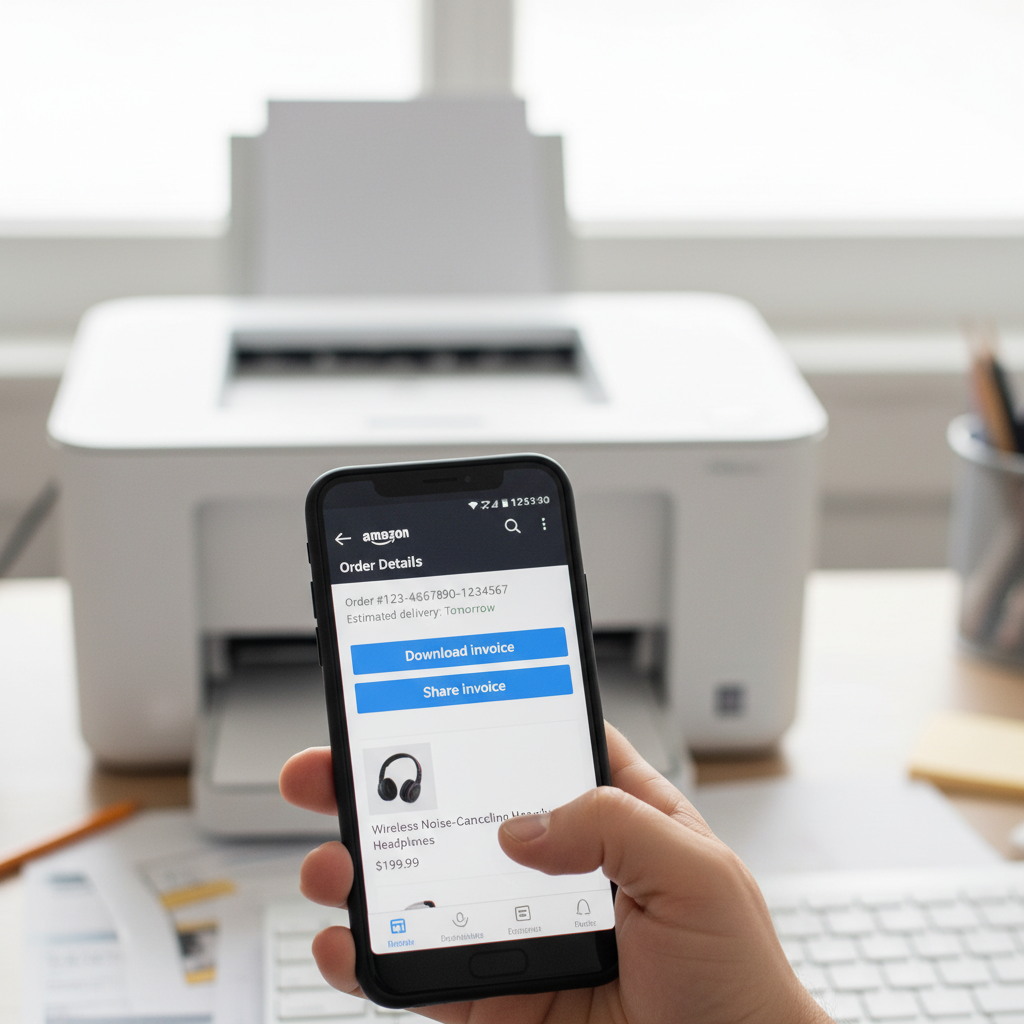
    Smartphone showing Amazon app order details with download and share invoice options near a printer

    How to print an Amazon receipt from the mobile app

    The Amazon app doesn’t always have a super obvious “print receipt” button, but you can still get there.

    Step 1: Open your orders in the app

    1. Open the Amazon app (iOS or Android).
    2. Tap the profile icon (or the three horizontal lines ☰ depending on your version).
    3. Tap “Your Orders.”

    Step 2: Select the order

    Scroll or search for the order you want.

    • Tap “Filter” or date filters if you’re looking for older orders.
    • Tap on the order to open the Order Details screen.

    Step 3: Look for the invoice option

    On the order details page, look for one of the following (it can vary by region and seller type):

    • “Download invoice”
    • “Share invoice”
    • A “View order details” link that then leads to invoice options

    If you see “Share invoice”:

    • Tap it, and choose Mail, Gmail, Files, or another app.
    • Email it to yourself, then open it on a computer and print.

    If you see “Download invoice”:

    • It will download a PDF to your phone.
    • Open the PDF and tap Share → Print (if you have a printer set up) or share it to email/cloud.

    Step 4: Print from your phone or computer

    • From phone: Use AirPrint (iOS) or Mopria/Print Service (Android) if your printer supports mobile printing.
    • From computer: Email the PDF to yourself, open it on your laptop/desktop, and print normally.
    Takeaway: On mobile, it’s usually a two-step dance: get the invoice → send it somewhere you can print.

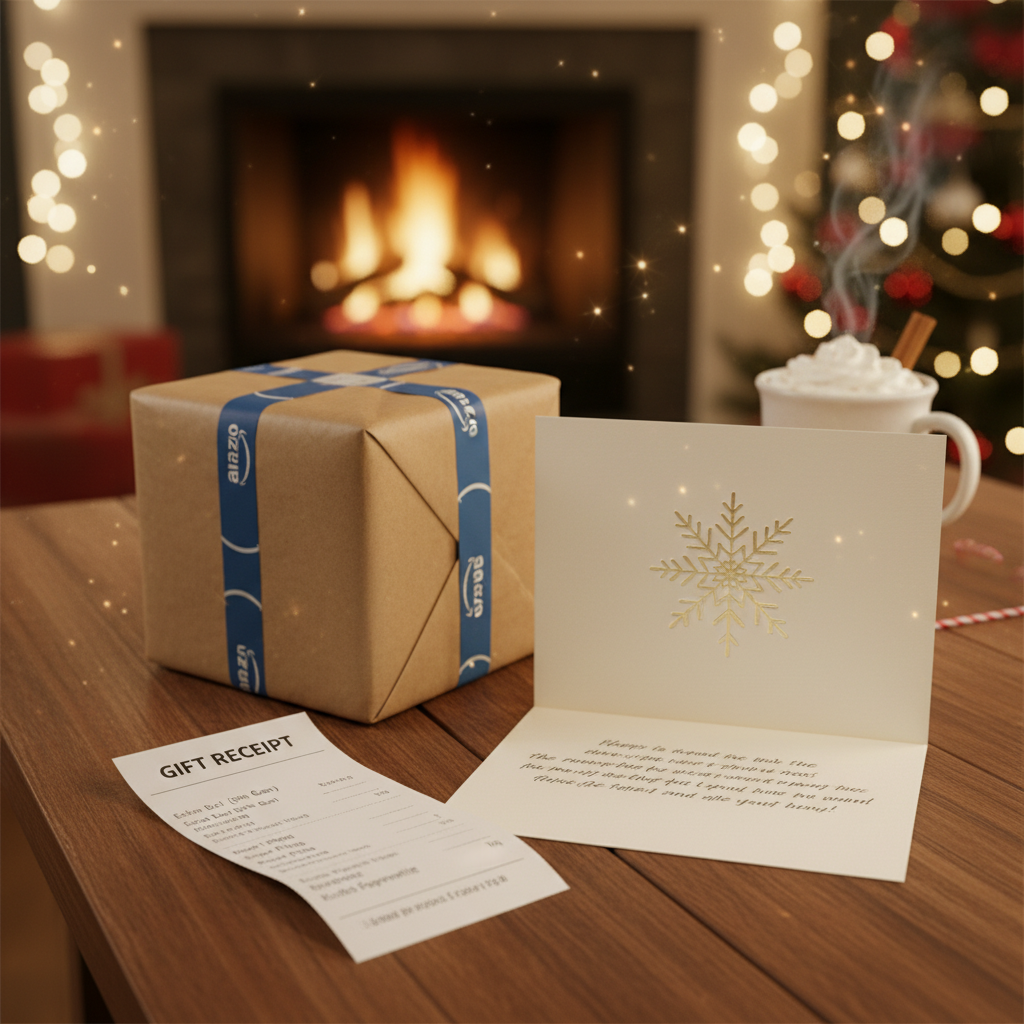
    Cozy gift scene with an Amazon style package and printed gift receipt beside a greeting card

    How to print a gift receipt on Amazon

    Giving a gift and want the recipient to be able to return it, but without seeing the price? That’s a gift receipt.

    If you haven’t ordered the gift yet

    1. Add the item(s) to your cart.
    2. During checkout, look for “This order contains a gift” and check the box.
    3. On the gift options page, there’s usually an option like:
      • “Email the recipient a gift receipt” or
      • “Include a gift receipt” in the package.

    In many cases, Amazon will include the gift receipt in the box, or the recipient can access it digitally.

    If you already placed the order

    1. Go to Your Orders.
    2. Find the gift order.
    3. Look for “Share gift receipt” or “View gift receipt.”
    4. You can:
      • Copy a link to the gift receipt.
      • Email the link to the recipient.
      • Open it yourself and print from your browser.

    Note: Gift receipts don’t show prices but still allow returns or exchanges.
    Takeaway: For gifts, you want “gift receipt,” not a normal invoice. It’s more polite.

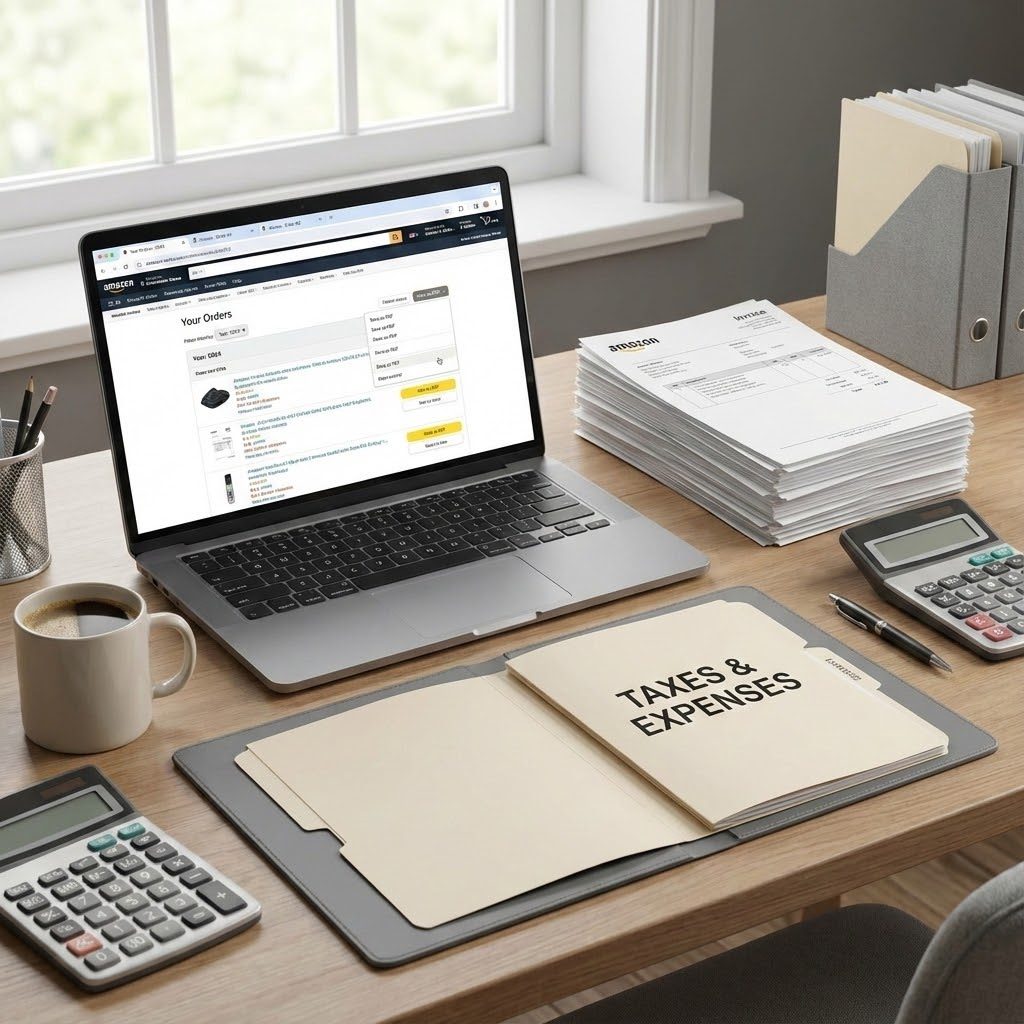
    Organized accounting desk with multiple Amazon invoices open on a laptop and printed receipts filed for taxes

    Need a receipt for business or taxes? Use Amazon Business or tax invoices

    If you’re submitting expenses or doing bookkeeping, you usually need a proper invoice with:

    • Seller info
    • Tax breakdown
    • Itemized line items

    Here are your main options.

    Option 1: Regular Amazon account (most people)

    For many standard purchases shipped and sold by Amazon, the Invoice link in Your Orders is enough as a receipt.

    Steps:

    1. Your Orders → Choose order.
    2. Click Invoice → View/Printable invoice.
    3. Print or save as PDF.

    Double-check that the invoice shows:

    • Your name or business name
    • Purchase date
    • Tax and total amount

    If your business requires a certain format, save it as PDF and attach it to your expense software (Expensify, Concur, etc.).

    Option 2: Amazon Business account (if you buy for work a lot)

    If you frequently buy for work, a free Amazon Business account can help. It gives you:

    • Easier access to tax invoices
    • Ability to add your company name and tax ID
    • Better reporting and order exports

    Once set up, invoices are still found in Your Orders, but they’ll include your business details.

    Takeaway: For serious record‑keeping, set up your account with your real billing info and save invoices as PDFs.

    What if there’s no “Invoice” button at all?

    Sometimes you open an order and…nothing. No invoice. No download option. Just vibes.

    Here are a few common reasons and fixes:

    1. It’s a third‑party marketplace seller

    Some marketplace sellers don’t automatically upload an invoice.

    What you can do:

    1. Go to Your Orders.
    2. Find the order and click “Problem with order” or “Get help with order.”
    3. Choose an option closest to “I need an invoice/receipt” or contact the seller directly.
    4. Ask them to send a PDF invoice with:
      • Seller name and address
      • Item details
      • Tax breakdown (if applicable)

    2. It’s a digital product (eBook, app, video, subscription)

    Digital orders often live in a slightly different place.

    Try this:

    1. Go to Your Account → look for “Your Payments” or “Digital orders” / “Digital content and devices.””
    2. Open the relevant digital store (Kindle, Appstore, etc.).
    3. Look for “View purchase history” or “Order details.”
    4. From there, many digital orders will have a “View receipt” or “Invoice” option.

    If nothing else works, you can:

    • Screenshot the order details page
    • Print that screenshot or add it to a PDF

    Not as clean, but often acceptable for simple reimbursement.

    3. You ordered as a guest or through another country site

    If you ever checked out without logging in or used a different Amazon region (like Amazon.ca or Amazon.co.uk), the order might be on that site/account.

    Try:

    • Logging into the correct regional Amazon site.
    • Checking the email inbox used for that purchase for an order confirmation email. In many cases, that email works as a receipt.
    Takeaway: No invoice button doesn’t always mean “no receipt” – it just might be hiding behind seller contact or a different section.

    How to print multiple Amazon receipts at once (batch-friendly options)

    If you’re doing expense reports or accounting, you might need many receipts at once.

    While Amazon doesn’t offer a perfect “export all invoices as PDFs” button, you can make this easier:

    1. Filter orders by date and open invoices in new tabs

    On desktop:

    1. Go to Your Orders.
    2. Filter to “Last 30 days”, “This year”, or a specific year.
    3. For each relevant order, Ctrl/Cmd + Click the Invoice link to open it in a new tab.
    4. Once you have them all open, print or save each PDF.

    2. Use your browser’s “Save to PDF” feature

    Rather than physically printing each invoice:

    • Set Destination to “Save as PDF” in the print dialog.
    • Organize them in a folder by month or category.

    This makes it much easier to:

    • Upload to accounting software
    • Share with a bookkeeper or tax pro
    Takeaway: It’s still a bit manual, but filters + tabs + PDF saves make it bearable.

    Quick troubleshooting FAQ

    Can I print a receipt for an Amazon order someone else placed?

    If you don’t have access to their account, not directly.

    Options:

    • Ask them to download the invoice from their account and send it.
    • If it’s a shared family account, ask them to log you in or forward the email receipt.

    Is the email order confirmation enough as a receipt?

    For casual purposes (personal records, basic proof of purchase), often yes.

    For business, taxes, or warranties, it’s safer to use the official invoice from Your Orders → Invoice.

    Will Amazon mail me a paper receipt?

    Generally, no. Amazon mostly relies on digital order history and invoices.

    If you absolutely need a paper copy, your best bet is:

    • Open the invoice online
    • Print it on your own printer or at a print shop

    Summary: Your simple Amazon receipt checklist

    When you need to print a receipt from Amazon, follow this mental checklist:

    1. Go to Your Orders.
    2. Find the correct order. Use search and date filters.
    3. Click Invoice. Look for “Invoice,” “View invoice,” or “Download invoice.”
    4. Print or Save as PDF. Use your browser or device print options.
    5. No invoice? Contact the seller, check digital orders, or find the email confirmation.

    Do this once or twice, and the next time someone says, “Can you send me the Amazon receipt?” you’ll have it in their inbox before they finish the sentence.

    And hey, that’s one less tiny life annoyance to deal with.

  • How To Create An Amazon Storefront


    How To Create An Amazon Storefront


    How To Create An Amazon Storefront

    You’ve seen those slick Amazon pages with curated products, pretty banners, and custom categories and thought: “Wait… regular people can do that? Not just big brands?”
    Yep. You can. And if you’re a creator, influencer, or brand, an Amazon storefront can quietly become one of your most reliable income streams.

    This guide walks you step‑by‑step through how to create an Amazon storefront, the different types (influencer vs. brand), and what to do after you set it up so it actually makes money—not just look cute.


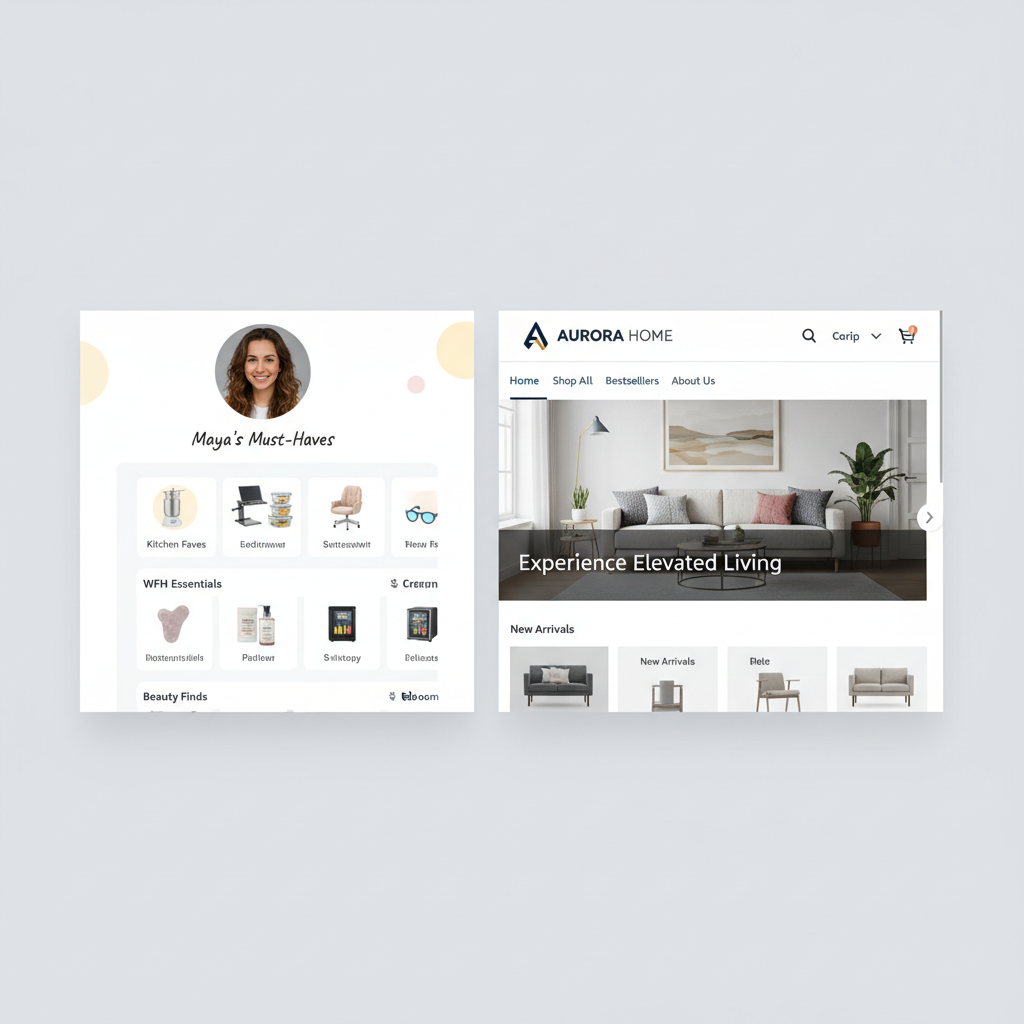
    Side-by-side visual comparison of an Amazon influencer storefront and a polished Amazon brand storefront layout

    A split‑screen comparison of two Amazon storefronts: on the left, a vibrant influencer-style page with curated product collections; on the right, a sleek branded Amazon store with logo, navigation, and a bold hero banner.

    First: What Exactly Is an Amazon Storefront?

    Think of an Amazon storefront like your own mini shop inside Amazon.

    Depending on who you are, it’s usually one of two things:

    1. Amazon Influencer Storefront
      A curated page where influencers/creators list products they recommend. You earn commissions via Amazon Associates (their affiliate program) when followers buy using your links.
    2. Amazon Brand Store (Storefront for sellers/brands)
      A multi-page, customizable “brand hub” for trademarked brands enrolled in Amazon Brand Registry. It lets you showcase your catalog, tell your brand story, and drive ads and traffic to a polished, branded experience.

    Influencer path

    If you create content on TikTok, Instagram, YouTube, Pinterest, etc. → you probably want the Amazon Influencer Storefront.

    Brand / seller path

    If you sell your own branded products on Amazon → you want an Amazon Brand Store.

    I’ll walk you through both.
    Quick takeaway: You don’t need to be a giant brand to get a storefront. You just need to know which path fits you.

    Content creator at a desk applying for the Amazon Influencer Program on a laptop with social media icons visible

    A creator applying for the Amazon Influencer Program: your social platforms, engagement, and content style all play into getting that storefront approved.

    How To Create an Amazon Influencer Storefront (Step‑by‑Step)

    This is the “content creator” path. You do not need to have your own physical products—you’re recommending other people’s.
    Step 1: Check If You Qualify For the Amazon Influencer Program

    To get a storefront as a creator, you must first join the Amazon Influencer Program. That’s built on top of Amazon Associates.

    Amazon looks at:

    • Your social media accounts (TikTok, Instagram, YouTube, Facebook, etc.)
    • Your follower count & engagement
    • Whether your content is a good fit for product recommendations (hauls, reviews, tutorials, etc.)

    You don’t need millions of followers, but you should have:

    • A real audience (not 27 bots and your mom)
    • Public, active profiles with consistent content
    Mini tip: If you’re tiny right now, focus on growing one platform first (Reels, TikTok, or YouTube Shorts) with product-focused content. That greatly improves approval odds later.

    Step 2: Apply to the Amazon Influencer Program

    Here’s the general process:

    1. Go to Amazon and sign in with the account you want tied to your earnings.
    2. Search for “Amazon Influencer Program apply” (or, from Amazon Associates, look for the Influencer option).
    3. Click Sign Up or Get Started under the Influencer Program.
    4. Connect one of your social channels (they may ask for TikTok, Instagram, YouTube, or Facebook).
    5. Fill out the required info and submit.

    Amazon will review your application. Approval can be:

    • Instant (sometimes)
    • Or take a few days

    If you’re denied, don’t panic:

    • Improve your content quality and consistency.
    • Grow your audience.
    • Reapply after your presence looks stronger and more on-brand for product recommendations.
    Takeaway: The influencer storefront starts with the Influencer Program. No approval = no storefront yet.

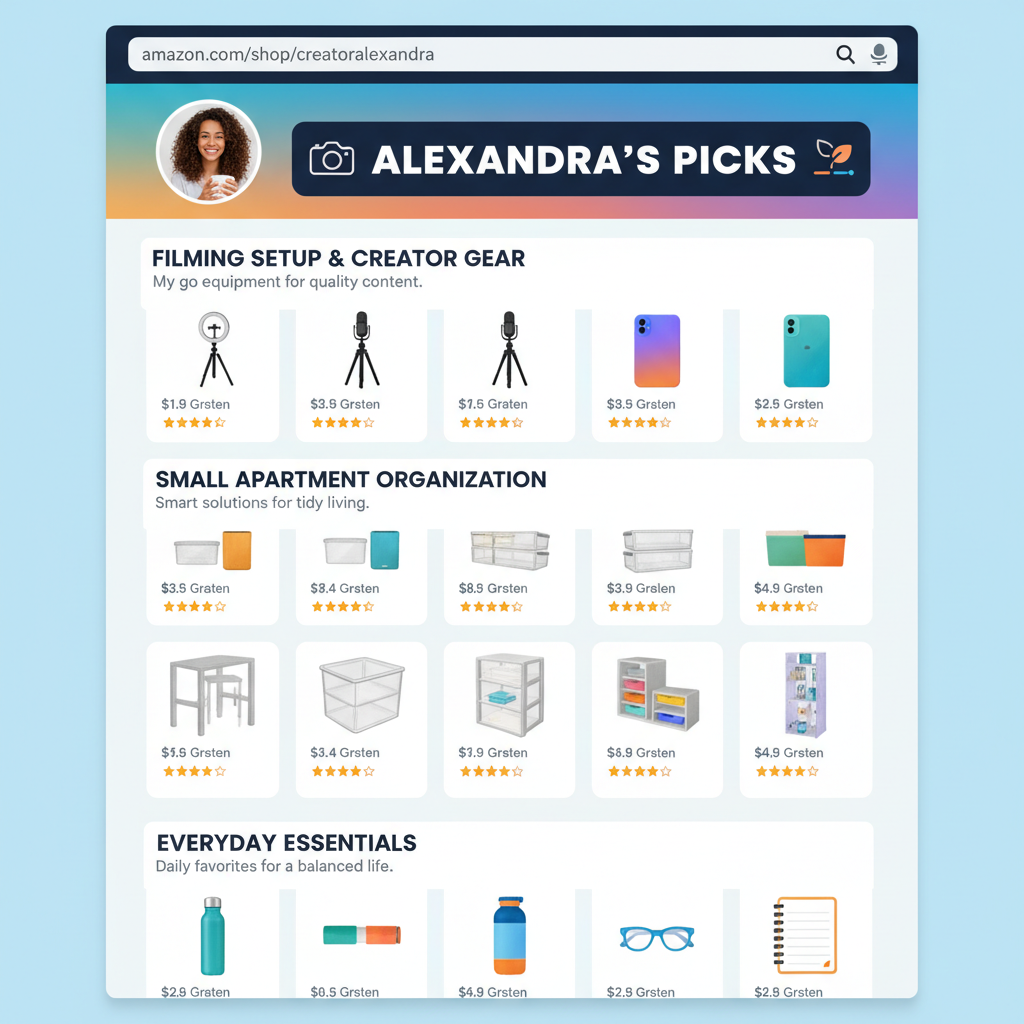
    Mockup of a customized Amazon influencer storefront with branded banner, profile photo, and organized product lists

    A stylized influencer storefront: branded cover, clean profile photo, and clearly named product lists that feel like a curated, shoppable version of your brain.

    Step 3: Set Up Your Amazon Influencer Storefront

    Once you’re approved, you’ll see access to your Storefront area in your Amazon Influencer dashboard.

    Here’s how to set it up like a pro:

    3.1 Choose Your Storefront Name & URL

    You’ll be prompted to:

    • Pick a display name (often your creator name or brand)
    • Customize your storefront URL slug (e.g., amazon.com/shop/yourname)

    Tips:

    • Use something consistent with your handle on TikTok/IG/YouTube.
    • Keep it short, clear, and easy to say out loud in videos.

    3.2 Add a Profile Photo & Cover Image

    Treat this like social media branding, not an afterthought.

    • Profile photo: clear headshot or logo
    • Cover image: a banner that matches your vibe (clean, bold, colorful, aesthetic—whatever fits your brand)

    Make sure it looks good on both desktop and mobile (check it from your phone—90%+ of your audience will).

    3.3 Create Idea Lists / Product Collections

    This is where your storefront stops being empty and starts making money.

    You can create lists (sometimes called Idea Lists, categories, or collections), such as:

    • “Filming Setup & Creator Gear”
    • “Kitchen Favorites I Actually Use”
    • “Work From Home Essentials”
    • “Toddler Must-Haves That Save My Sanity”

    Inside each list, add products you genuinely recommend.

    How to add products:

    • Search for products on Amazon as usual.
    • On qualifying product pages, you’ll see options in your influencer/associate tools to add to list or add to storefront.
    • Organize them into the most intuitive list for your audience.

    3.4 Write Snappy List Names & Descriptions

    Don’t just call a list “Stuff” or “Amazon Finds.” That doesn’t help anyone.

    Examples of better names:

    • “Small Apartment Organization (No Drilling!)”
    • “Starter Camera Gear for Beginners Under $500”
    • “Cozy Reading Nook Essentials”

    Under each list, add a short description:

    • Who it’s for
    • Why you picked these items
    • How they should use it (if relevant)
    Takeaway: Your storefront is basically a curated, shoppable version of your brain. Make it obvious who each list helps and why.

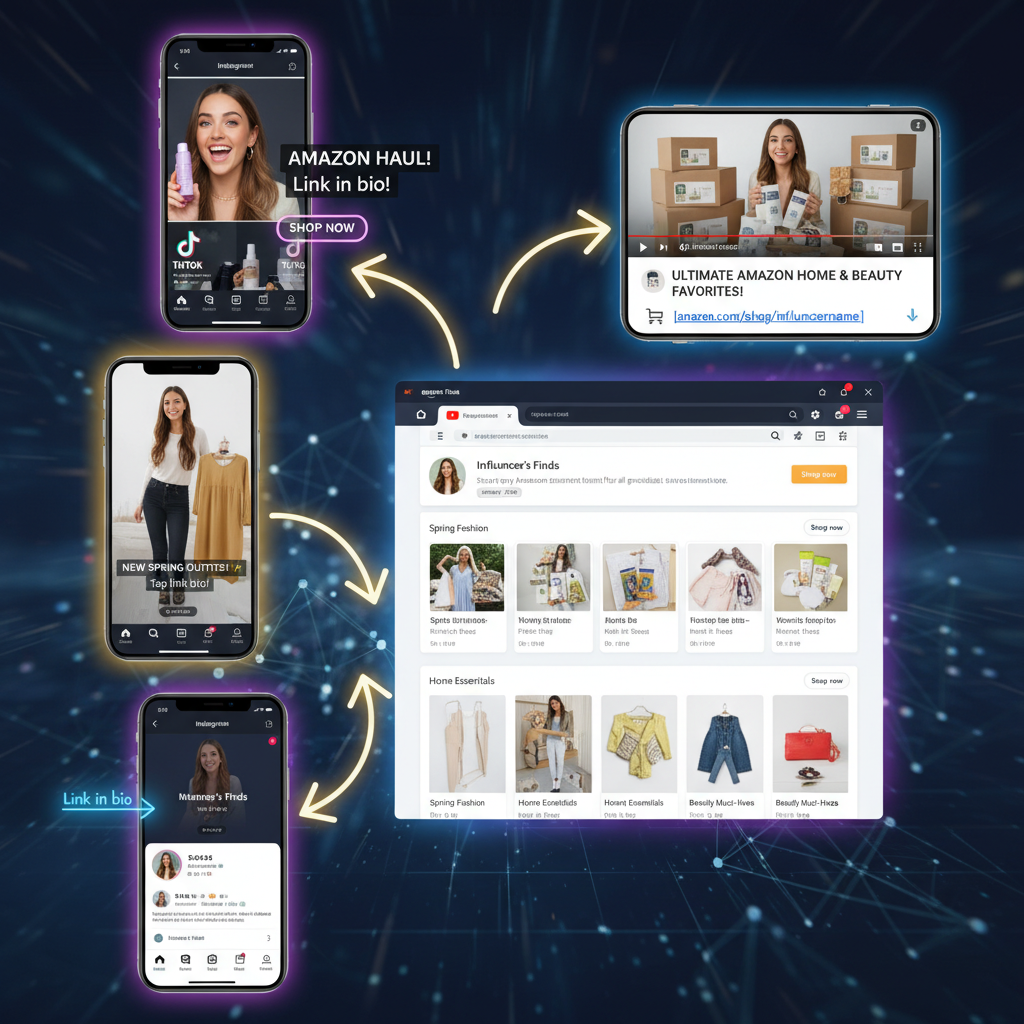
    Visual collage showing social platforms all directing traffic to a central Amazon influencer storefront

    Your storefront becomes the hub: every haul, routine, and “Amazon finds” post should point viewers back to one clean, on-brand page.

    Step 4: Customize and Make It On-Brand

    You don’t get total design freedom, but you do have enough to make it feel like you.

    Ways to level it up:

    • Consistent visuals: Use similar tones or styles for your profile + cover.
    • Clear sections: Put your most popular or most requested lists at the top.
    • Pin “starter” collections: For example, “Start Here: My Everyday Essentials.”

    Remember: people landing on your Amazon storefront don’t know where to click first. Your job is to guide them.

    Step 5: Drive Traffic To Your Storefront (Where the Money Happens)

    Creating an Amazon storefront doesn’t magically bring traffic; you have to feed it.

    Here are practical ways to send people there:

    5.1 Add Your Storefront Link Everywhere

    • TikTok bio
    • Instagram bio (or Link in Bio tool)
    • YouTube channel links + video descriptions
    • Pinterest profile
    • Blog/website sidebar or menu
    • Email newsletter footer

    Use short, memorable CTAs like:

    • “Shop my Amazon storefront here: …”
    • “Everything I mentioned is linked in my Amazon shop.”

    5.2 Mention It Naturally in Content

    Whenever you:

    • Do an unboxing or haul
    • Share routines (“Get Ready With Me,” “Clean With Me,” “Day in the Life”)
    • Show products on camera

    …say something like:

    • “If you want any of these, they’re all in my Amazon storefront under ‘Kitchen Faves.’”

    Repetition is not annoying when it’s useful.

    5.3 Create Storefront-Specific Content

    Examples:

    • “Amazon favorites I regret not buying sooner”
    • “My top 10 Amazon productivity tools”
    • “Everything on my Amazon storefront under $25”

    Then pin or highlight that content and link the storefront.

    Takeaway: Treat your storefront like a landing page that your content is constantly pointing back to.

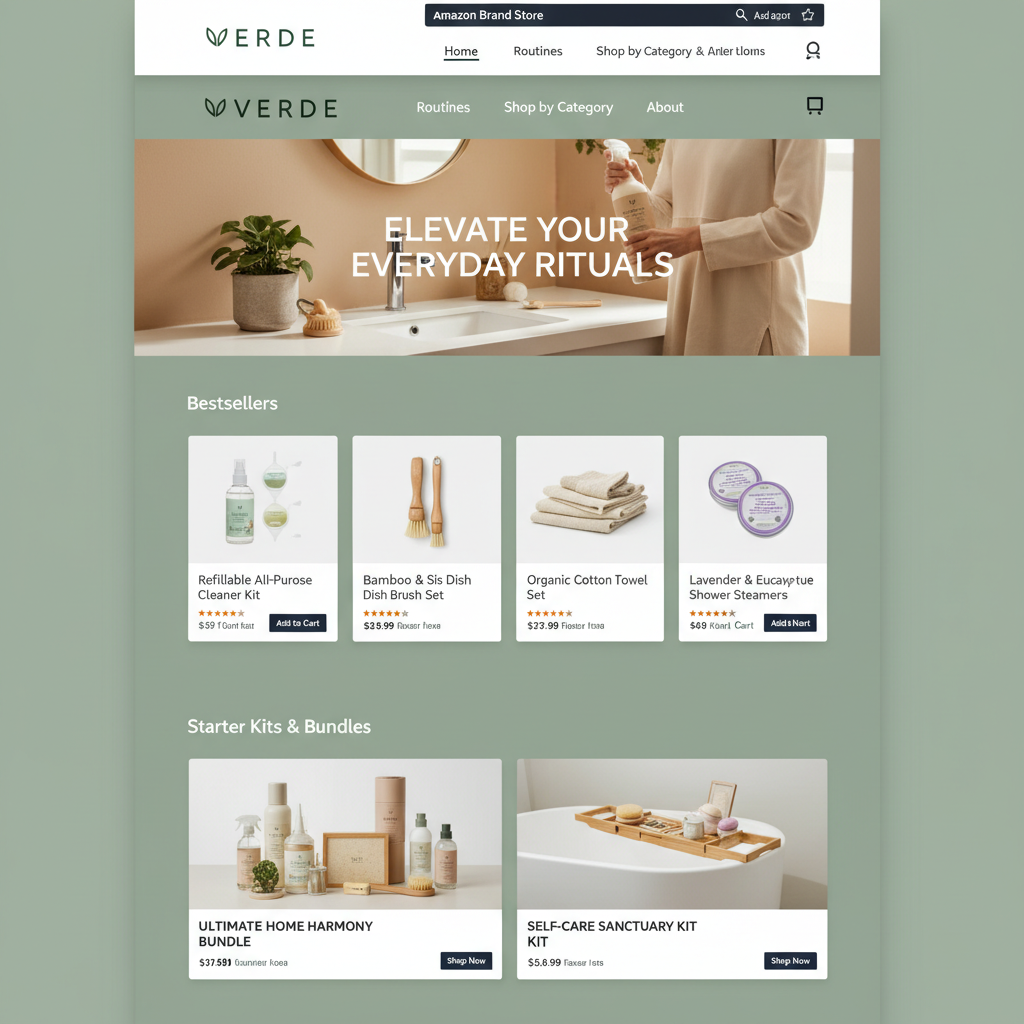
    Premium Amazon Brand Store homepage mockup with hero banner, logo, navigation, and product tiles

    A polished Amazon Brand Store becomes your on-Amazon home base: hero visuals, clear navigation, and curated product groupings designed to convert.

    How To Create an Amazon Brand Storefront (For Sellers)

    Now let’s switch gears.

    If you sell your own products on Amazon and want a branded store (with a logo, custom pages, navigation, and product categories), you’ll create an Amazon Store inside Seller Central.

    Step 1: Get Into Amazon Brand Registry

    To create a Brand Store, you must:

    • Have a registered trademark (or be in the process, depending on your region and rules)
    • Enroll that brand in Amazon Brand Registry using that trademark

    Once your brand is successfully enrolled, you’ll see the option to create a Store.

    If you don’t have a trademark yet:

    • Consider filing one (or working with a trademark attorney).
    • Until then, you can still sell on Amazon, but you won’t get full Brand Store features.

    Step 2: Open the Store Builder in Seller Central

    From the Seller Central dashboard:

    1. Go to the Stores tab (may show as “Stores > Manage Stores”).
    2. Click Create Store.
    3. Select the brand that’s enrolled in Brand Registry.

    You’ll now be in the drag‑and‑drop Store Builder.

    Step 3: Set Up Your Brand Homepage

    You’ll choose a template layout (grid, hero image with product tiles, etc.) and then customize:

    • Brand logo
    • Hero image or banner (high-quality visual that communicates your brand)
    • Tagline or short copy that explains what you sell and why it matters

    Best practices:

    • Keep copy punchy and benefit-based: “Comfortable, minimalist home office gear” beats “We sell office products.”
    • Use lifestyle images, not just white-background product photos.

    Step 4: Add Pages and Organize Products

    You can add multiple pages to mimic a website structure, for example:

    • Home
    • Shop All
    • By Category (e.g., “Skincare,” “Hair,” “Tools”)
    • Bundles
    • Bestsellers
    • About the Brand

    On each page, use content tiles to:

    • Feature specific products (ASINs)
    • Add carousels (for scrolling through items)
    • Insert images with text overlays
    • Drop in video content (product demos, founder story, etc.)

    Make navigation obvious:

    • Limit top menu items to what actually matters
    • Add a “Shop All” for people who just want to browse everything

    Step 5: Optimize Your Brand Storefront for Conversions

    Your Brand Store isn’t just decoration—it’s a conversion machine if set up right.

    Focus on:

    • Clear paths: Put bestsellers and hero products above the fold.
    • Social proof: Use tiles that highlight top‑reviewed products, “bestseller” badges (where allowed), or “As seen in…” logos if you have press.
    • Bundles & collections: Create groups like “New Customer Starter Kit” or “Gifts Under $50.”
    • Mobile layout: Preview on mobile; rearrange tiles if needed so the most important things show first on phones.

    Step 6: Send Traffic To Your Brand Store

    Once your store is live, you can:

    • Use Sponsored Brands ads to send ads to your Store instead of a single product page.
    • Link your Store from social media, email, website, QR codes on packaging, etc.
    • Use short links (Amazon lets you create a custom URL path for your store) so it’s easy to share.
    Takeaway: A Brand Storefront is your Amazon “home base” as a seller. Don’t just build it once—keep refining it based on what people click and buy.

    Influencer vs. Brand Storefront: Which Is Right for You?

    Choose an Influencer Storefront if:

    • You’re a creator recommending products (not necessarily your own)
    • Your main asset is your audience, not your warehouse
    • You want affiliate commissions without managing inventory

    Choose a Brand Storefront if:

    • You own a brand selling physical products on Amazon
    • You have (or plan to have) a registered trademark
    • You want a polished, on‑Amazon brand experience and to run ads to it

    You can technically be both (a creator and a brand owner), but treat them as separate strategies.

    Examples of Smart Amazon Storefront Strategies

    Here are a few simple “plays” you can steal:

    Example 1: The TikTok Home Organizer

    • Niche: Small apartment organization hacks.
    • Storefront lists: “Tiny Kitchen Must-Haves,” “Bathroom Storage,” “Closet Organization,” “Rental-Friendly Fixes.”
    • Content: Before/after videos, “Watch me organize this chaotic cabinet with items from my Amazon storefront.”
    • Result: Viewers binge those videos, then hit the storefront to copy the exact setup.

    Example 2: The Beauty Brand Store

    • Brand: Indie skincare brand selling on Amazon.
    • Store pages: Home, Bestsellers, Routines (AM/PM), Ingredients, About.
    • Homepage: Hero image with their hero serum + short copy about their differentiator.
    • Traffic: TikTok routine videos + Sponsored Brands ads leading straight to “Routines” page.

    Example 3: The WFH Productivity Creator

    • Niche: Remote work, productivity, and tech.
    • Storefront lists: “Desk Setup Essentials,” “Budget Tech Gear,” “Ergonomic Favorites,” “Video Call Setup.”
    • Content: Desk tours, “What’s on my desk,” “Zoom setup for under $300.”
    • CTA: “Everything is linked in my Amazon storefront under ‘Desk Setup Essentials.’”
    Takeaway: The most successful storefronts solve a specific problem for a specific audience.

    Common Mistakes When Creating an Amazon Storefront

    Avoid these if you don’t want your storefront to flop silently:

    1. Being too generic
      “Random Amazon Finds” is not a niche. Get specific.
    2. Overloading with products
      200+ random items in one list = decision fatigue. Curate.
    3. No context or descriptions
      People need to know why you love something, not just see a thumbnail.
    4. Never updating your storefront
      Out-of-stock items, dead trends, or old products make your page feel abandoned.
    5. Forgetting mobile
      Design and check everything like your audience is viewing on a phone—because they are.

    Overhead desk view with an Amazon Storefront 30-day plan notebook and analytics on a laptop

    Treat your storefront like an evolving asset: plan content, refine lists, and use analytics over the first 30 days to move bestsellers up and retire duds.

    What To Do In Your First 30 Days After Launch

    Once your Amazon storefront is live, here’s a simple 30‑day game plan:

    Week 1

    • Finalize your lists/pages and polish visuals.
    • Add your storefront link to all bios, websites, and link-in-bio tools.

    Week 2

    • Create at least 3–5 content pieces that directly reference your storefront.
    • Test different CTAs: “linked in bio,” “shop my Amazon storefront,” “in my Amazon list called…”

    Week 3

    • Check which lists/products are getting the most clicks and sales.
    • Move those higher up your storefront.

    Week 4

    • Refresh any underperforming lists.
    • Add a new themed collection based on what your audience is asking for.
    Takeaway: Don’t treat your storefront as a one‑time project. It’s an asset that gets better the more you iterate.

    Final Thoughts: Your Amazon Storefront Is a Launchpad, Not the Finish Line

    Creating an Amazon storefront—whether as an influencer or a brand—is not hard. The strategy behind it is where most people win or lose.

    If you:

    • Know who you’re talking to
    • Curate products or pages that solve real problems
    • Consistently send traffic from your content or ads

    …your storefront can turn into a surprisingly steady revenue stream.

    So yes, build the storefront. But then? Spend your real energy making it the most helpful, obvious next step for the people already watching you or shopping your products.

    That’s where the magic (and the commissions) live.


  • How To Contact A Seller On Amazon


    How To Contact A Seller On Amazon


    How To Contact A Seller On Amazon

    Illustration of Amazon product page on laptop and smartphone highlighting Sold by and Contact seller links

    You found the almost perfect item on Amazon… but you’ve got questions.

    Is this actually compatible with your device?
    Can it arrive before your trip?
    Why does the size chart look like a math problem?

    For all of that, you’ll want to contact the Amazon seller directly.

    The good news: it’s pretty easy once you know where to click.
    The bad news: Amazon does a great job of hiding that tiny “Contact” link like it’s a national secret.

    This guide walks you through exactly how to contact a seller on Amazon on desktop, mobile app, before buying, and after buying—plus what to say so you actually get a helpful answer.


    Quick Overview: Ways You Can Contact an Amazon Seller

    Overview graphic showing Amazon product page and hidden contact seller links as clues

    You can contact a seller on Amazon in three main situations:

    1. Before you buy – to ask about product details, shipping, compatibility, etc.
    2. After you buy (order not yet delivered) – to ask about shipping, changes, or issues.
    3. After delivery – to resolve problems like missing parts, defects, or wrong item.

    The basic pattern is:

    • Find the product page or your order
    • Look for the seller’s name
    • Click something like “Contact seller” or “Ask a question”

    We’ll go step-by-step for each scenario, with both desktop and mobile.

    Takeaway: If you can find the seller’s name, you’re 90% of the way to finding the contact button.

    Step 1: How to Tell If You’re Buying From Amazon or a Third-Party Seller

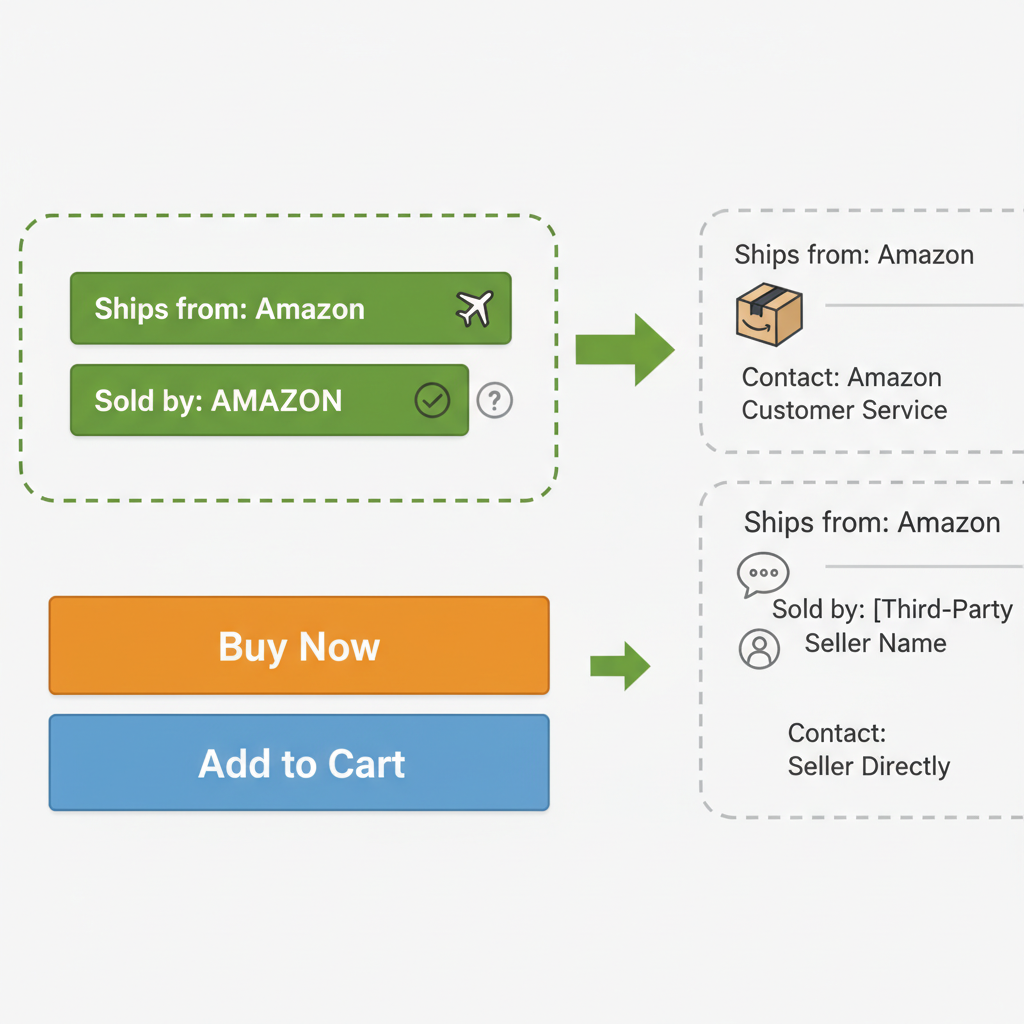
    Close-up infographic of Amazon product detail page showing Ships from and Sold by sections

    Before you even try to contact someone, it helps to know who you’re talking to.

    On the product page, look under the price or near the Buy Now/Add to Cart buttons. You’ll usually see lines like:

    • “Ships from: Amazon”
    • “Sold by: [Seller Name]”

    Here’s how to read that:

    • Sold by Amazon → You’re buying directly from Amazon.
    • Sold by Third-Party Seller, Fulfilled by Amazon → Independent seller uses Amazon’s warehouse.
    • Sold by Third-Party Seller, Ships from Third-Party → Independent seller handles everything.

    Why this matters:

    • If the product is sold by Amazon, you’ll mainly work with Amazon Customer Service.
    • If it’s sold by a third-party, you can (and usually should) contact the seller first about item-specific problems.
    Takeaway: Look for the “Sold by” line. That tells you whose inbox you’re about to invade (politely).

    How to Contact a Seller on Amazon Before Buying

    Split-screen illustration of desktop and mobile Amazon product pages with Ask a question buttons highlighted

    Say you’re shopping and you want to ask:

    • “Does this work with iPhone 15?”
    • “Is there a warranty?”
    • “Are the shoes true to size?”

    You don’t need to buy first. Here’s how to reach out.

    On Desktop (Browser)

    1. Open the product page on Amazon.
    2. On the right side (near the Buy Now box), find “Sold by [Seller Name]”.
    3. Click the seller’s name (it’s a link).
    4. You’ll land on the seller’s profile page.
    5. Look for a button like “Ask a question” or “Contact seller.”
    6. Click it, then choose a topic (e.g., “Product details,” “Shipping,” etc.).
    7. Type your message and hit Send.

    On Mobile (Amazon App)

    1. Open the Amazon app and go to the product page.
    2. Scroll down a bit until you see “Sold by [Seller Name]”.
    3. Tap the seller’s name.
    4. On the seller’s profile page, tap “Ask a question” or “Contact seller.”
    5. Pick your topic/category.
    6. Type your question and send.

    Pro Tip: Be specific. Instead of “Will this work?”, ask “Will this work with a 2023 MacBook Pro (M2, 16-inch)?”

    Takeaway: To contact a seller before buying, click or tap their name, then look for “Ask a question.”

    How to Contact a Seller on Amazon After You Order

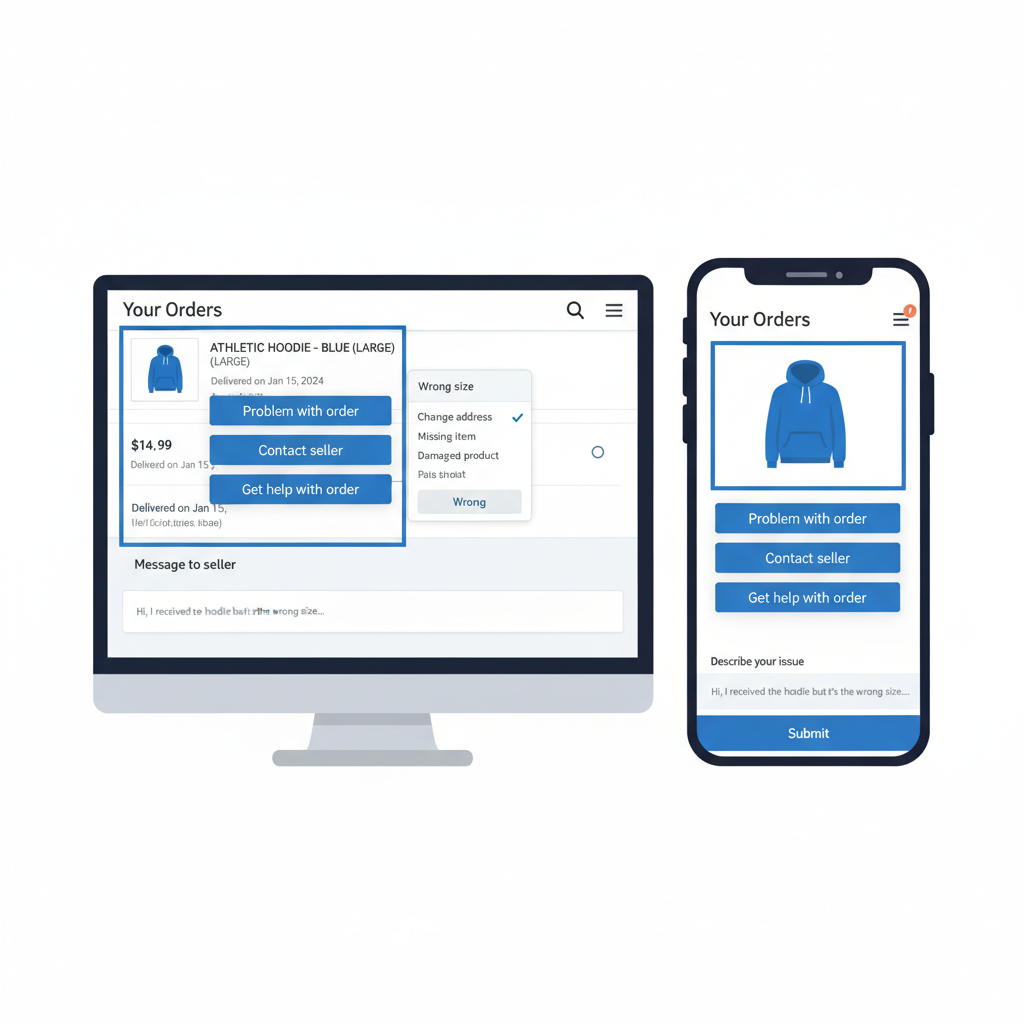
    Illustration of Amazon Your Orders page highlighting Problem with order and Contact seller buttons

    Already placed an order and now something’s wrong—or you just want an update?

    Common reasons to contact a seller after ordering:

    • You entered the wrong address (and are praying it’s not too late).
    • You want to change color/size before it ships.
    • You’re worried the package is late.
    • You want clarification on tracking info.

    On Desktop (Browser)

    1. Go to Amazon.com and make sure you’re signed in.
    2. Hover over or click “Returns & Orders” (top-right).
    3. Find the order you’re concerned about.
    4. Click “Problem with order” or “Order details”.
    5. Look for a button like “Contact seller” or “Get help with order.”
    6. Choose your issue type from the dropdown.
    7. You’ll be guided to messaging options. When available, choose “Message seller”.

    On Mobile (Amazon App)

    1. Open the Amazon app.
    2. Tap the person icon or menu icon, then go to “Your Orders.”
    3. Find the item/order you’re worried about.
    4. Tap “Order details” or “Problem with order.”
    5. Scroll until you see “Contact seller” or “Get help with order.”
    6. Select your issue category.
    7. Write and send your message.

    Note: For some issues (like delivery problems with Amazon drivers), Amazon may route you to Amazon Customer Service instead of the seller.

    Takeaway: After ordering, always start from Your Orders—that’s your shortcut to the right seller and the correct order.

    How to Contact a Seller on Amazon After Delivery

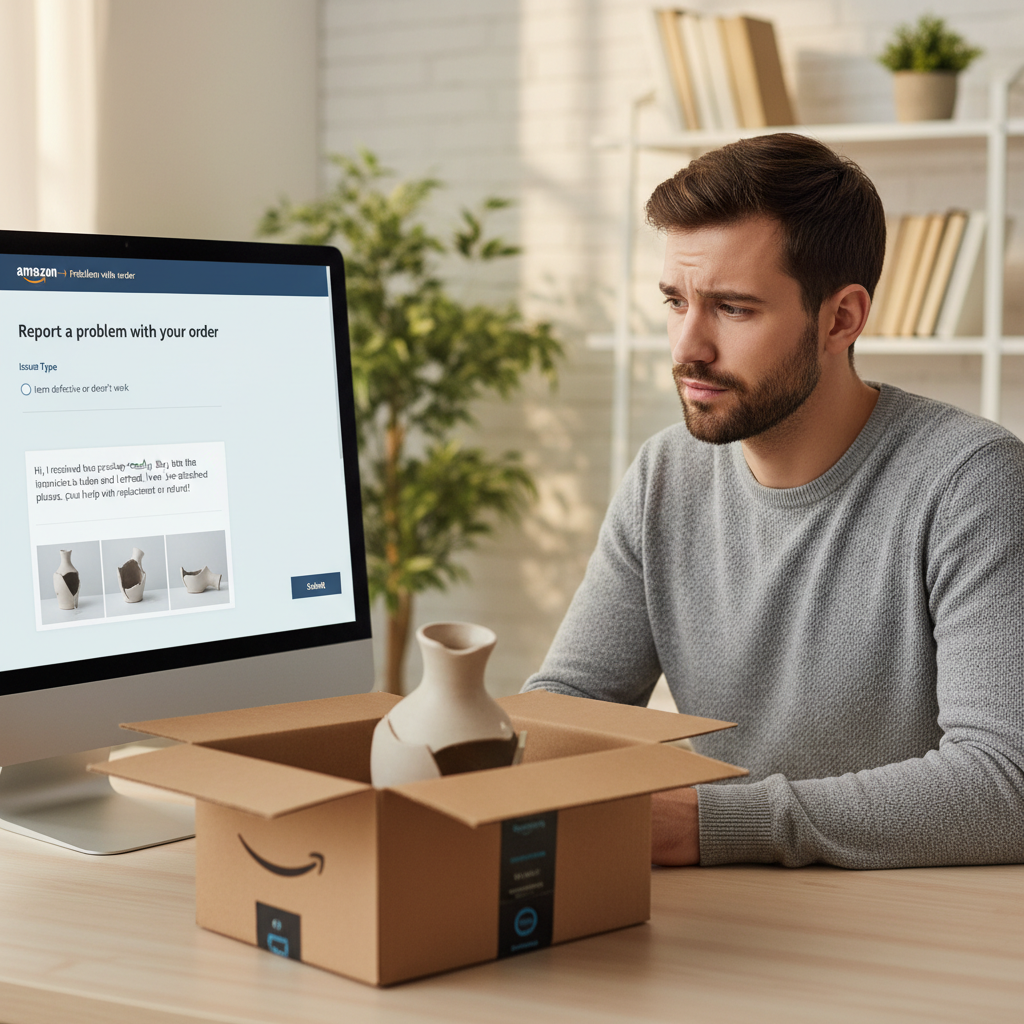
    Customer with opened package and Amazon Problem with order screen open to report a defective or wrong item

    So the package arrived, but:

    • The item is defective
    • It’s not as described
    • Parts are missing
    • You got the wrong color/size/entirely different thing (it happens)

    Here’s what to do.

    Step 1: Decide – Contact Seller vs. Start a Return

    • If you want a quick replacement, missing part, or clarification, start by messaging the seller.
    • If you mainly want your money back, you can often go straight to “Return or replace items” under Your Orders.

    Step 2: Message the Seller (Desktop & Mobile)

    The process is almost identical to contacting them after ordering:

    1. Go to Your Orders.
    2. Find the item.
    3. Click or tap “Problem with order.”
    4. Choose the type of issue (e.g., “Item defective,” “Missing parts,” “Wrong item sent”).
    5. When the system offers “Contact seller” or “Message seller,” select it.
    6. Explain the problem clearly and attach photos if Amazon’s message system allows it.

    Example message:

    “Hi, I received my order today (Order #113-xxxxxxx). The product looks used and has visible scratches on the front panel. The packaging was also open. Can you please send a replacement or advise the best way to resolve this?”

    Takeaway: After delivery, go through Your Orders → Problem with order to reach the seller and document the issue properly.

    What If There’s No “Contact Seller” Button?

    Interface-focused view of Amazon help and contact options when Contact seller is unavailable

    Sometimes you won’t see a clear “Contact seller” option, either:

    • The item is sold directly by Amazon
    • The order is very old
    • The seller is no longer active

    In those cases, you still have options:

    1. If sold by Amazon: Use Amazon Customer Service via Help → Customer Service → Something else → I need more help (options change over time, but you’ll find chat/call/email).
    2. If the seller is inactive/unavailable: Open an issue via Your Orders → Problem with order and Amazon may step in.
    3. For orders outside the normal return window: You may still be able to message the seller, but Amazon’s A-to-z Guarantee and return policies might not apply. Still worth trying.
    Takeaway: No “Contact seller” button? Go straight to Amazon Customer Service instead.

    How Long Does It Take for an Amazon Seller to Reply?

    Concept of Amazon message response time with customer calmly waiting and interface open

    Most third‑party sellers on Amazon are expected to respond within 24–48 hours.

    A few tips to get faster, better responses:

    • Be clear and concise – Long rants get skimmed. Short, specific messages get answers.
    • Include your order number – Especially if you’re messaging from outside the order page.
    • Attach photos when there’s physical damage, defects, or missing pieces.
    • Check your email and Amazon messages – Replies may show up in both.

    If the seller doesn’t respond in a reasonable time and your issue is serious (e.g., defective, not as described, missing package), contact Amazon Customer Service and/or start a return or A-to-z Guarantee claim (if eligible).

    Takeaway: Give sellers up to 48 hours, then escalate to Amazon if they ghost you.

    What Should You Say When You Contact a Seller?

    Amazon-style message window showing clear concise message with order number and request

    You don’t need to write an essay. Just cover the basics:

    • What the item is (and variation like size/color)
    • Order number (if you’ve purchased already)
    • Date you ordered/received it
    • Clear description of your question or issue
    • What you want (refund, replacement, missing part, clarification)

    Example: Pre‑Purchase Question

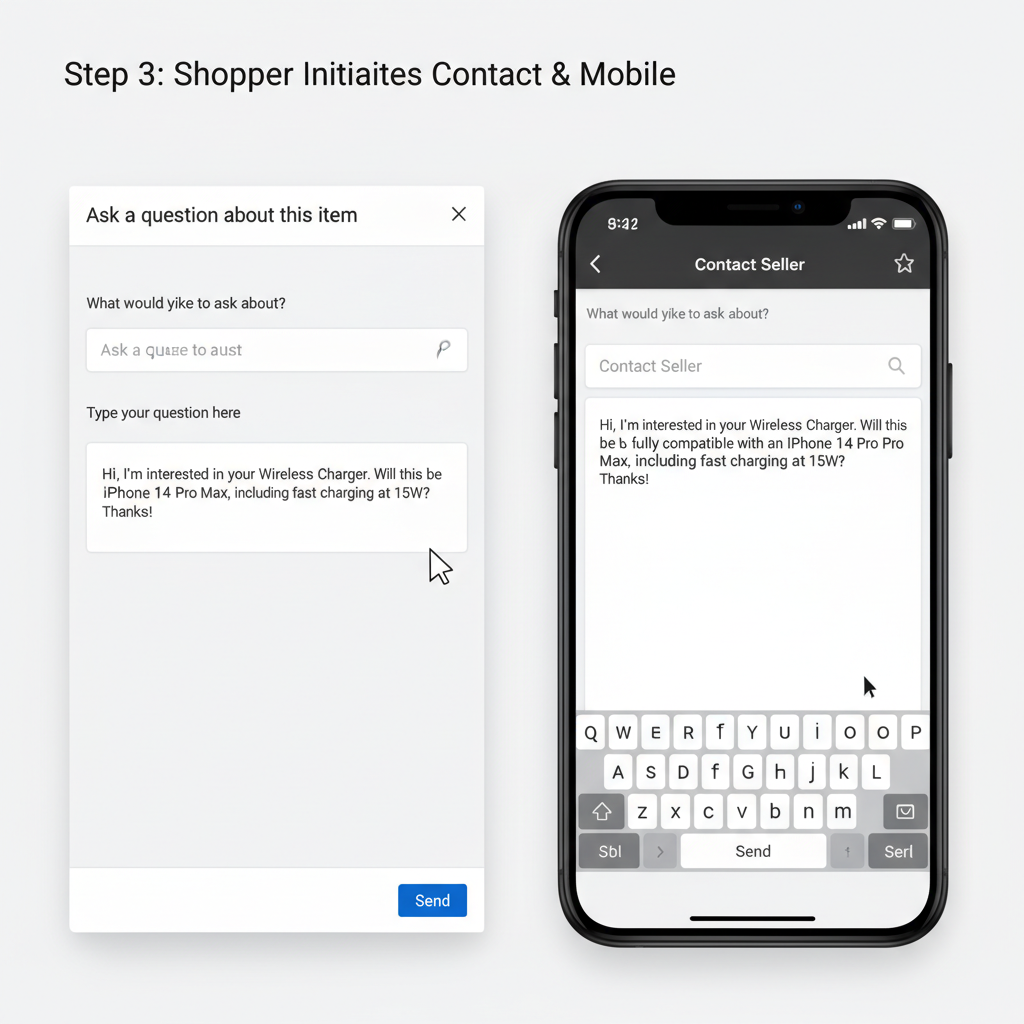
    “Hi, I’m interested in the 10-foot USB-C charging cable in black. Will this work with an iPad Pro 12.9" (2022 model)? And does it support fast charging at 60W or higher?”

    Example: Post‑Purchase Issue

    “Hi, I ordered the blue medium hoodie (Order #113-xxxxxxx) and received a small in red instead. Could you send the correct size and color, or should I process a return through Amazon?”

    Takeaway: The clearer your message, the higher your odds of getting exactly what you need on the first try.

    Safety Tips When Messaging Sellers on Amazon

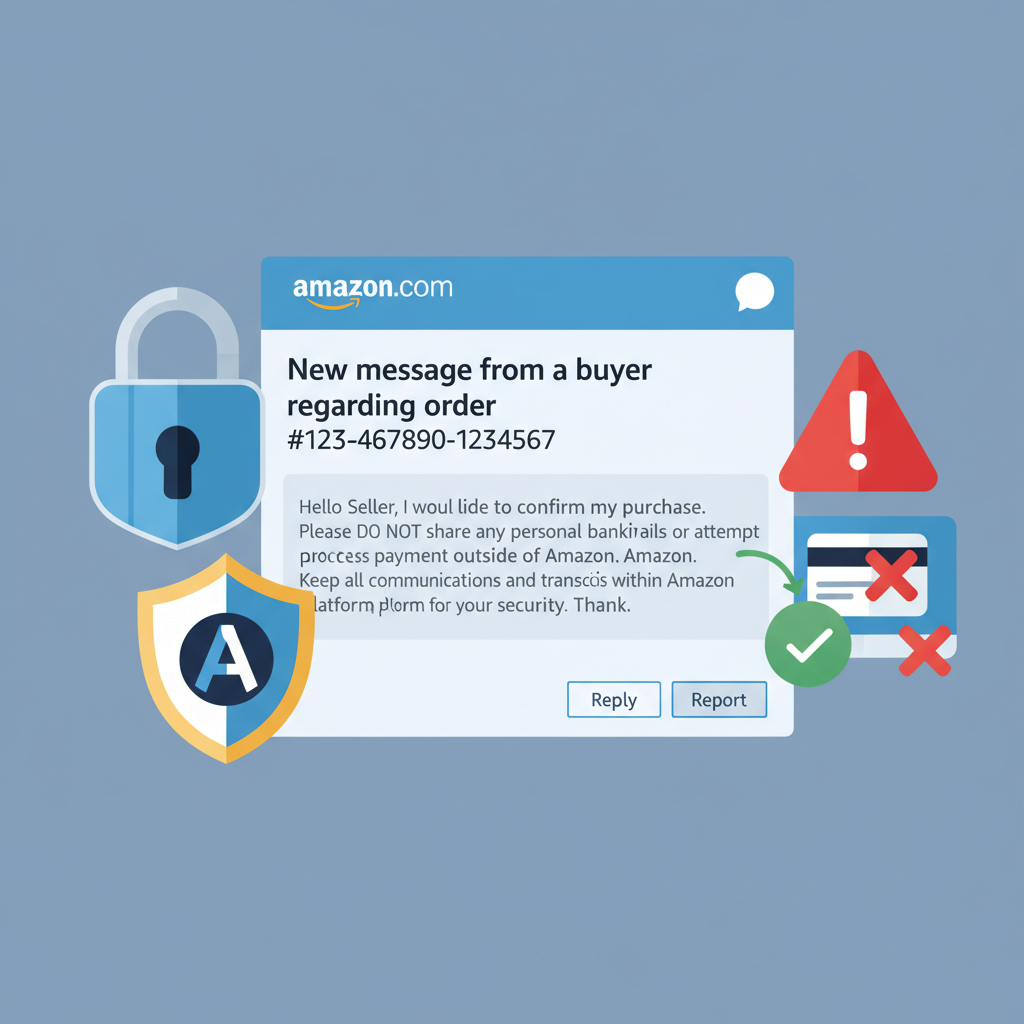
    Security-focused illustration with Amazon message window, lock and shield icons, and warnings against sharing sensitive info

    • Keep everything inside Amazon’s messaging system. Don’t move to private email, text, or random messaging apps.
    • Never share sensitive info like full credit card numbers, bank details, or passwords.
    • Be cautious if a seller asks you to cancel your order and pay them directly via another website or payment method.

    If anything feels off, report it through Amazon Help/Customer Service.

    Takeaway: If a seller wants to take the conversation or payment off Amazon, that’s a red flag.

    FAQ: Fast Answers About Contacting Amazon Sellers

    Clean FAQ-style illustration about ways to contact Amazon sellers and typical questions

    Can I call an Amazon seller by phone?

    Most sellers are contacted through Amazon’s message system, not by phone. Some might list a business phone number on their seller profile, but messaging is the standard and safest option.

    Can I contact a seller without an Amazon account?

    No. You’ll need to sign in to your Amazon account to message a seller.

    Can I negotiate prices with a seller?

    Not in the usual sense. Amazon listings are typically fixed price, and most sellers won’t negotiate in messages. However, you can ask about:

    • Bulk discounts
    • Different variations
    • Upcoming restocks

    Is it better to contact the seller or Amazon?

    • Product-specific questions/defects? Start with the seller.
    • Delivery issues, payment problems, or unresponsive seller? Go to Amazon Customer Service.
    Takeaway: Think of sellers for product questions, and Amazon for platform, payment, and guarantee issues.

    Final Recap: The Simple Formula

    Final recap graphic summarizing how to contact sellers before buying, after ordering, and after delivery

    If you remember nothing else, remember this:

    • Before buying → Product page → click seller nameAsk a question
    • After orderingYour Orders → find item → Problem with order / Contact seller
    • After delivery issuesYour OrdersProblem with order → message seller or start a return
    • No contact button or serious problem? → Go to Amazon Customer Service

    Once you know where to look, contacting a seller on Amazon is actually pretty painless.

    Now go get your questions answered—and maybe that perfect, actually compatible product too.


  • Amazon Watch Party: The Complete Guide


    Amazon Watch Party: The Complete Guide


    Amazon Watch Party: The Complete Guide

    Remember when “movie night” meant arguing over DVDs and someone losing the remote in the couch? Cute. Now you can watch the same movie or show with friends in different cities, chatting in real time, all without leaving your couch (or your sweatpants).

    That’s where Amazon Watch Party comes in.

    If you’ve ever wanted to host a virtual movie night, binge a show with your long-distance partner, or do a group reaction to the latest episode everyone’s screaming about online, this guide is for you.

    We’ll cover:

    • What Amazon Watch Party is and how it works
    • What you need to use it
    • Step-by-step setup on desktop and mobile
    • How to host smoother, less-chaotic watch parties
    • Common issues and how to fix them

    Friends in different apartments connected in a cozy virtual Amazon Watch Party movie night

    What Is Amazon Watch Party?

    Amazon Watch Party is a built-in feature in Prime Video that lets multiple people watch the same movie or show at the same time with synced playback and a chat window on the side.

    Think of it as a virtual living room inside Amazon’s streaming platform:

    • One person hosts and controls the playback (pause, play, skip).
    • Up to a set number of people (varies by region, typically up to 100) can join the same session.
    • Everyone watches the same content at the same time.
    • There’s a text chat where you can react, roast, and quote lines in real time.
    Quick takeaway: It’s like watching together IRL, minus the fight over who holds the remote.

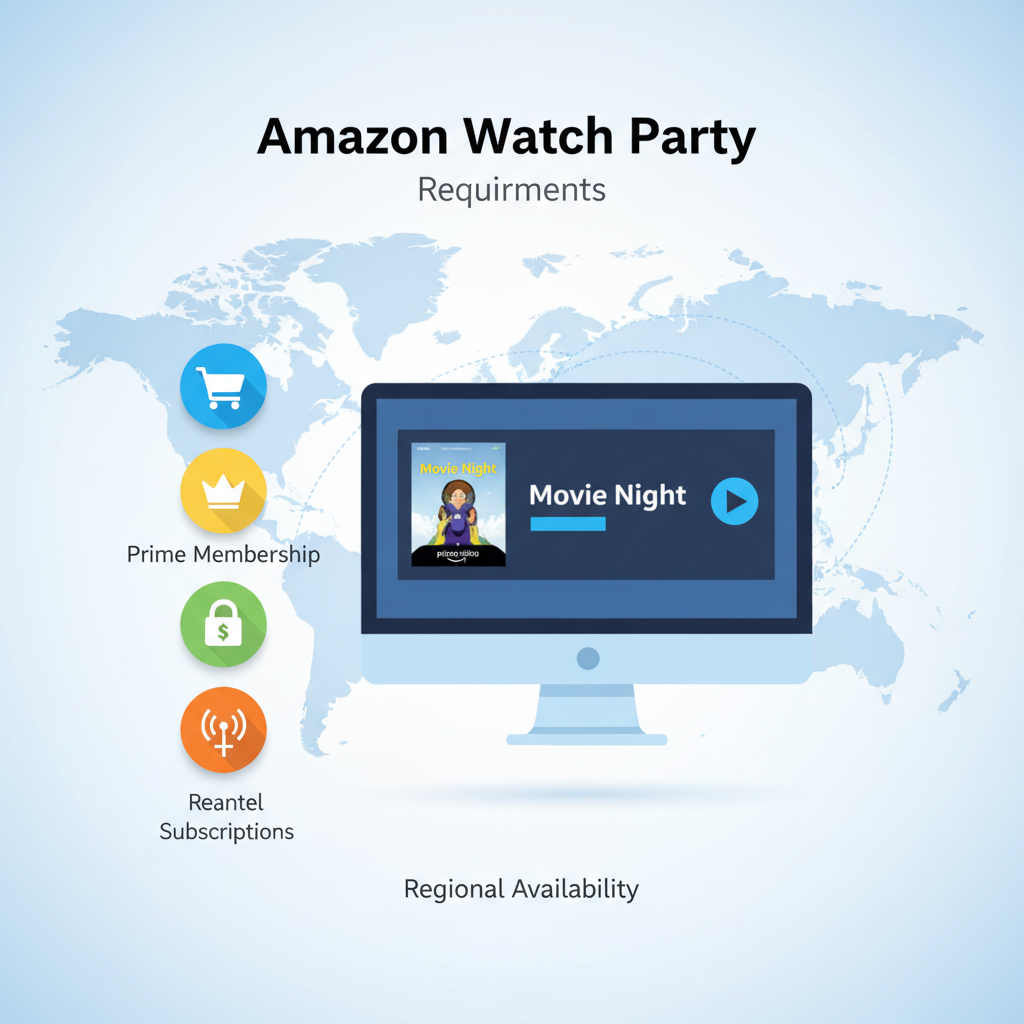
    Infographic showing device, account, and regional requirements for Amazon Watch Party

    What Do You Need for an Amazon Watch Party?

    Before you start inviting people, make sure your setup checks these boxes.

    1. A Supported Device

    Amazon Watch Party is primarily supported on:

    • Desktop web browsers (like Chrome, Firefox, Edge) via the Prime Video website.
    • Some Fire TV devices and Prime Video apps (support can vary by region and device generation).

    Note: Watch Party does not reliably work in every mobile browser or smart TV app, and availability can shift by region. If you want the least headache, use a desktop browser.

    2. Prime Video Access

    Every participant needs:

    • An Amazon account, and
    • Access to the same title through one of these:
      • Amazon Prime membership with Prime Video
      • Rental or purchase of the movie/show
      • Subscription to the specific channel the content is on (e.g., a paid channel add-on)

    In other words: if you’re watching a movie that’s only available via a paid channel, everyone joining needs access to that channel too.

    3. Same Region Catalog

    Content libraries can differ between countries. If one friend is in the U.S. and another is abroad, a title might be available in one region but not the other.

    Quick check: Before you plan a big watch night with international friends, confirm everyone can see the movie or show in their Prime Video catalog.

    Quick takeaway: Everyone needs: the right device, the right account, and access to the same title in their region.

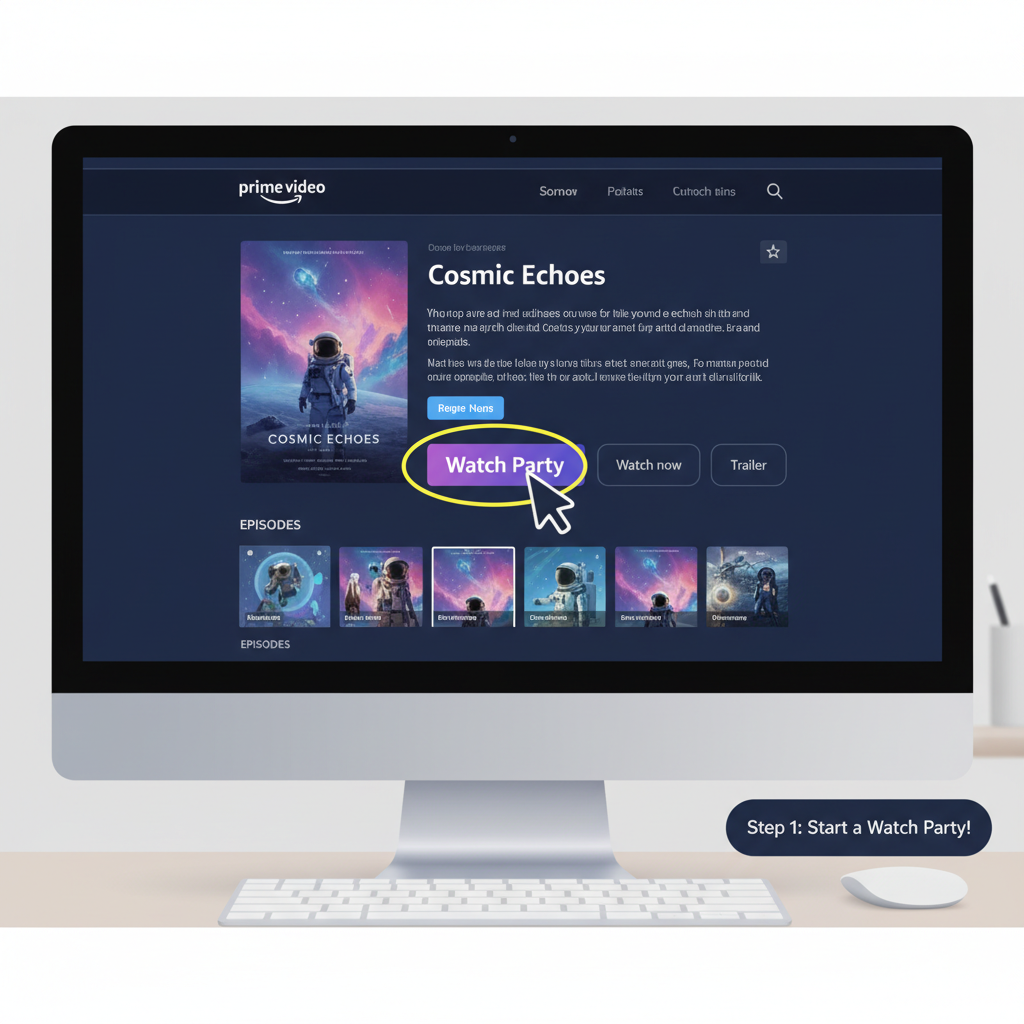
    Step-by-step desktop tutorial of starting an Amazon Watch Party on Prime Video

    How to Use Amazon Watch Party on Desktop (Step-by-Step)

    This is the most reliable way to use Amazon Watch Party, and usually where new features show up first.

    Step 1: Open Prime Video

    1. Go to the Prime Video website in a supported browser.
    2. Sign in to your Amazon account.

    Step 2: Choose What You Want to Watch

    1. Find the movie or TV episode you want to watch.
    2. Open the title’s detail page.

    You’ll typically see a “Watch Party” button or icon near the Play or Watch Now button (exact layout can change over time, but it’s usually obvious once you’re on the title page).

    Step 3: Start the Watch Party

    1. Click Watch Party.
    2. Enter a name or nickname that will appear in the chat.
    3. Click Create Watch Party.

    Amazon will then create a session and give you a shareable link.

    Step 4: Invite Your Friends

    1. Copy the Watch Party link.
    2. Share it via text, email, group chat, Discord, wherever your friends live online.
    3. Your friends click the link, sign in to Prime Video, and join.

    They’ll need access to the same content. If they don’t, they’ll be prompted to sign up, rent, or purchase.

    Step 5: Press Play and Control the Party

    As the host, you can:

    • Play / pause / scrub the video.
    • Everyone will stay in sync with your controls.
    • Chat in the sidebar while the video plays.

    If someone arrives late, they can still join from the link; they’ll simply start watching where the party currently is.

    Quick takeaway: Desktop is the easiest and most consistent way to run Amazon Watch Party with a group.

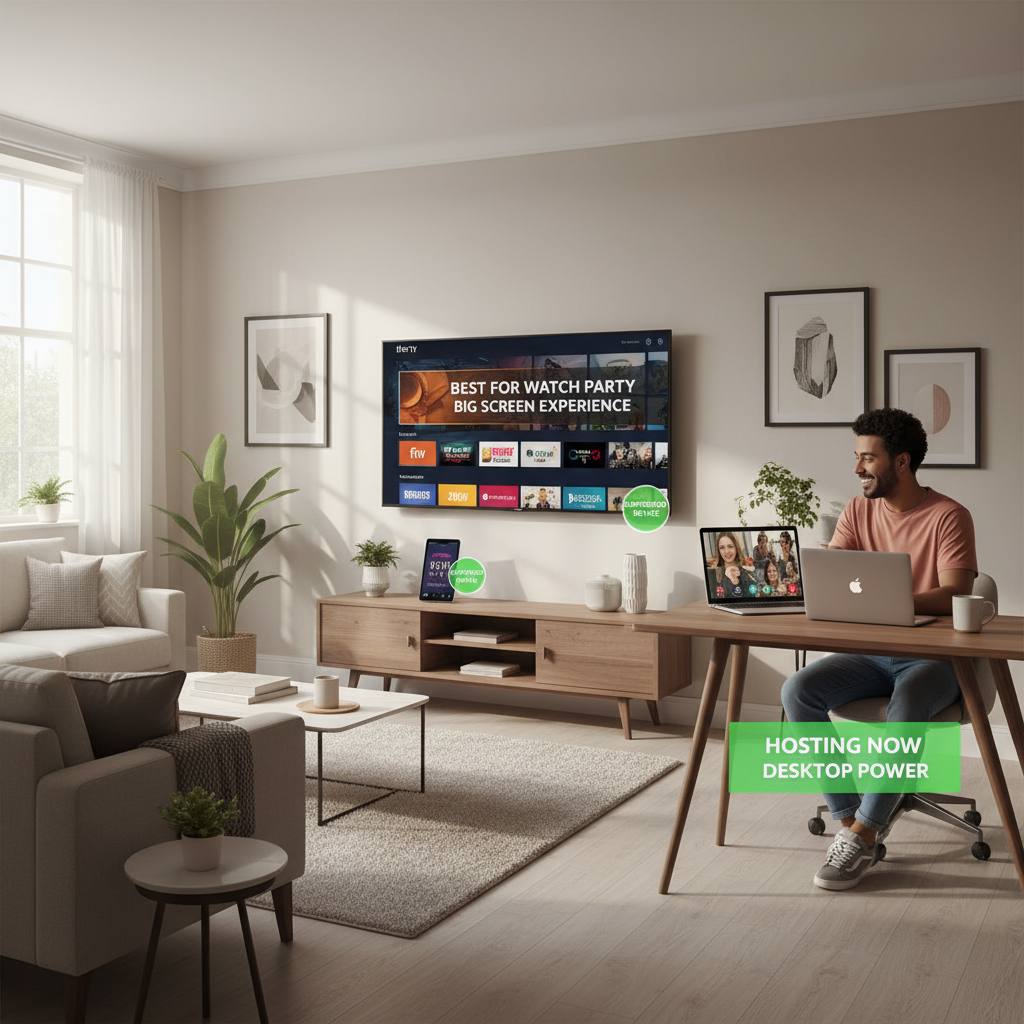
    Living room with laptop, Fire TV, tablet, and phone showing which devices are best for Amazon Watch Party

    Can You Use Amazon Watch Party on Mobile or TV?

    This is where things get a bit… nuanced.

    Mobile

    • The Prime Video app may not support creating or joining Watch Parties in every region or on every OS version.
    • If you want a sure thing, use a desktop browser instead, even on a tablet or laptop.

    Fire TV / Smart TVs

    Some Fire TV devices and newer app versions can support Watch Party, letting you use your TV for the main screen and possibly your phone or another device for chat.

    But support can vary a lot by:

    • Device model
    • App version
    • Region

    Best practice: If you insist on using a TV, do a short test run with a friend before planning a big group hang.

    Quick takeaway: If reliability matters, host and join from a desktop browser first. Treat anything else as a bonus.

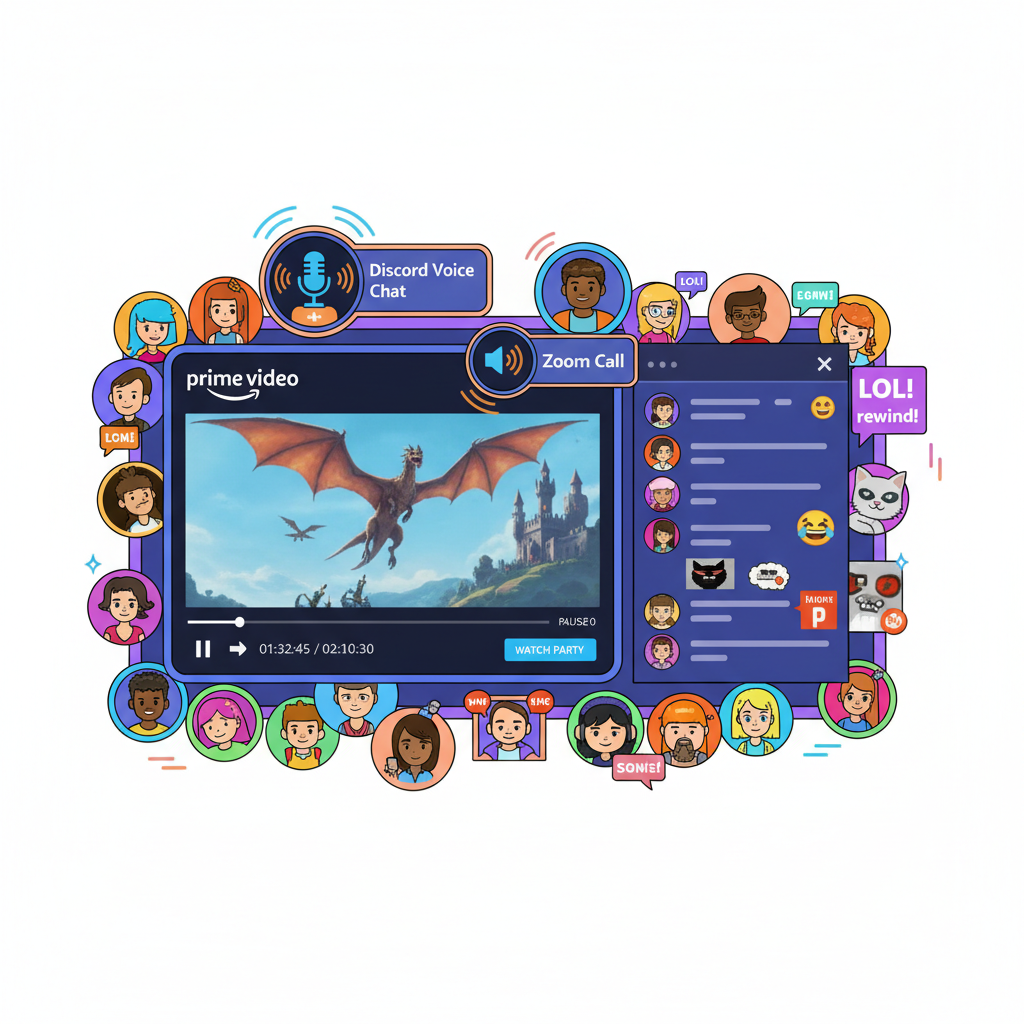
    Prime Video player mockup with lively chat sidebar and multiple participants in an Amazon Watch Party

    What Can You Watch in an Amazon Watch Party?

    You can’t just sync anything in the Prime Video app, but there’s a lot you can do.

    Eligible Content

    Typically, you can host Watch Parties with:

    • Prime Video titles included with your Prime membership
    • Rentals and purchases (if everyone has rented or bought the title)
    • Channel subscriptions (Starz, Paramount+, etc., as long as everyone has the same channel)

    Ineligible Content

    Some content may not support Watch Party due to licensing restrictions. If there’s no Watch Party button on the title page, that title likely isn’t eligible.

    Quick takeaway: If the Watch Party option doesn’t show up on a title’s page, assume it’s not eligible.

    How Many People Can Join an Amazon Watch Party?

    The exact number can depend on region and Amazon’s current limits, but historically Watch Party has supported dozens of participants (often up to 100 per session in many regions).

    That makes it useful for:

    • Friend groups and families
    • Remote birthdays or celebrations
    • Small community or club events

    Just remember: the more people in chat, the faster it scrolls. If you’re hosting a big group, set some ground rules (more on that next).

    Quick takeaway: Watch Party is built to handle more than just two or three viewers — you can host full-on virtual events.

    Panels showing troubleshooting common Amazon Watch Party issues and a final smooth streaming celebration

    How to Host a Great Amazon Watch Party (Not a Chaotic One)

    Technology is only half the story. The other half is: are people actually having fun?

    Here are some practical tips.

    1. Decide the Vibe Up Front

    Is this:

    • A serious movie night (no talking during key scenes)?
    • A roast fest (talk all you want, memes encouraged)?
    • A live reaction party for a finale or sports-style event?

    Let everyone know in advance so expectations are aligned.

    2. Test Before You Invite 20 People

    Do a mini test with one trusted friend:

    • Start a Watch Party
    • Send the link
    • Make sure they can join, see video, and use chat

    Fixing issues in a calm two-person test is much nicer than troubleshooting while 15 people spam, “I HAVE NO SOUND.”

    3. Use Another App for Voice Chat (If You Want)

    Amazon Watch Party has text chat, but no built-in voice chat.

    If you want to talk while watching, combine it with:

    • Discord voice channels
    • Zoom / Google Meet / Teams
    • A group phone call

    Just remind people to mute themselves if there’s background noise.

    4. Set a Schedule and Be On Time

    Send details like:

    • Date and time (with time zone for long-distance friends)
    • Title you’re watching
    • How long it is
    • Link to the Watch Party right before start time

    Aim to start 10–15 minutes after the scheduled time to allow latecomers to join without constant pausing later.

    5. Have an Intermission Plan

    For longer movies or marathons:

    • Plan a midpoint break (bathroom, refill snacks, stretch)
    • Tell everyone: “We’ll pause around halfway for 5 minutes.”
    Quick takeaway: A great Watch Party is less about the feature and more about clear expectations, a little structure, and a host who plans ahead.

    Common Amazon Watch Party Problems (and How to Fix Them)

    Let’s troubleshoot the usual chaos.

    1. The Watch Party Button Is Missing

    Try this:

    • Make sure you’re on PrimeVideo.com in a supported desktop browser.
    • Check if you’re signed into your Amazon account.
    • Confirm the title is eligible (if there’s no button after a refresh, it might not support Watch Party).

    2. Friend Can’t Join the Party

    Ask them to check:

    • Are they logged into an Amazon account?
    • Do they have Prime Video access or have they rented/purchased the title?
    • Are they in a different country or region where the title isn’t available?
    • Are they trying to join from a non-supported device or browser?

    A quick workaround: have them switch to a desktop browser and try again.

    3. Video Is Laggy or Out of Sync

    While Amazon handles sync for everyone, bad internet can still cause:

    • Buffering
    • Slight delays

    Ask everyone to:

    • Close unnecessary tabs or apps using bandwidth
    • Switch from Wi‑Fi to a more stable connection if possible
    • If needed, leave and rejoin the Watch Party

    4. No Chat or Chat Not Updating

    • Have them refresh the page.
    • Ensure no aggressive browser extensions or ad blockers are interfering.
    Quick takeaway: Most problems boil down to device support, region differences, or internet issues. Desktop browser + stable connection solves a lot.

    Fun Ideas for Your Next Amazon Watch Party

    Need inspiration beyond “uh, what do we watch?” Here are a few themes that work really well with Amazon Watch Party.

    1. Long-Distance Date Night

    • Pick a rom-com or shared favorite movie.
    • Cook or order the same kind of food (pizza, takeout, popcorn).
    • Use text chat or a separate voice call for commentary like you’re on the same couch.

    2. Sibling or Family Rewatch

    • Revisit a childhood classic everyone remembers.
    • Share family stories in chat — “Remember when dad fell asleep in the theater during this scene?”

    3. Season Premiere or Finale Party

    • Pick a buzzy show episode dropping on Prime Video.
    • Watch together in real-time instead of dodging spoilers on social media.

    4. Movie Club or Classroom-Style Discussion

    • Watch a documentary or thought‑provoking film.
    • Pause occasionally (as the host) for short breaks to discuss in chat or another call.
    Quick takeaway: Watch Party is great for more than just casual background watching — it can turn movies and shows into shared experiences again.

    Is Amazon Watch Party Worth Using?

    If you:

    • Have friends or family in different places,
    • Struggle to find time for in‑person movie nights,
    • Or just love reacting together in real time…

    …then yes, Amazon Watch Party is absolutely worth trying.

    You’re already paying for Prime Video (or individual rentals/purchases). Watch Party is a free feature layered on top that makes your streaming time more social and memorable.

    Final takeaway: Amazon Watch Party turns passive watching into a shared event — and in a world where everyone’s scattered across cities and time zones, that’s kind of a big deal.

    If you want to start simple, pick a 30–40 minute episode, test the feature with one or two friends, and go from there. You might never go back to watching alone again.


  • Amazon Frontier: The Next Big Digital Battleground


    Amazon Frontier: The Next Big Digital Battleground


    Amazon Frontier: The Next Big Digital Battleground

    Cinematic illustration of Amazon's expanding frontier across small towns, warehouses, data centers, and satellites

    If you think “Amazon frontier” just means a warehouse farther away from your house, buckle up. The real frontier is much bigger — and it’s coming for retail, cloud, logistics, AI, and even how countries think about economic power.

    In this post, we’ll unpack what the Amazon frontier really is: not just geography, but the expanding edge of Amazon’s influence — from remote towns to cloud servers, from smart speakers in your kitchen to satellites in low Earth orbit.

    Let’s walk that frontier line.


    What Do We Mean by the “Amazon Frontier”?

    Conceptual frontier line where rules, risks, and opportunities are still forming around Amazon

    When people say the frontier, they usually mean:

    • A boundary where the known meets the unknown
    • A place where rules are still forming
    • A space full of opportunity — and risk

    Apply that to Amazon and you get three overlapping frontiers:

    • Geographic frontier – Expanding into new countries, smaller cities, and rural regions.
    • Digital frontier – Pushing deeper into cloud, AI, automation, and devices.
    • Economic & regulatory frontier – Testing the limits of antitrust law, labor rules, and competition.
    Takeaway: The Amazon frontier isn’t one place; it’s every edge where Amazon is the first big mover.

    Frontier #1: Reaching the Physical Edges of Commerce

    Rural American main street transformed by Amazon vans and drones reshaping local commerce

    Amazon’s first frontier was pretty simple: Can we get this package to you faster than anyone else?

    That question has led to:

    • Dense fulfillment networks in and around major cities
    • Regional sortation centers that break down packages by zip code
    • Last‑mile delivery fleets (Amazon vans, gig drivers, even bikes in some cities)

    But the new frontier is rural and remote.

    Why rural and small-town America matters

    For years, same‑day and one‑day delivery were big‑city perks. Now, more small towns are starting to see dramatically faster delivery windows compared to even a few years ago.

    That matters because:

    • Local retail in these regions is often fragile.
    • Big box stores may be far away.
    • When online becomes more convenient and fast, buying patterns change permanently.

    Imagine a town with:

    • One struggling hardware store
    • A 45‑minute drive to the nearest big-box chain
    • Suddenly, two‑day or next‑day delivery on nearly every tool, appliance part, and household item

    Over a few years, Amazon can shift where money leaves or stays in a community.

    Takeaway: On the geographic frontier, Amazon is quietly becoming infrastructure — like roads and power lines — for shopping.

    Frontier #2: The Cloud and AI Powering Everything

    Cutaway illustration of AWS data centers and global edge computing network powering the digital economy

    If you only think of Amazon as “the place my packages come from,” you’re missing the biggest frontier: AWS (Amazon Web Services).

    What is the Amazon frontier in the cloud?

    AWS powers huge chunks of the internet: startups, Fortune 500s, government agencies, streaming platforms — you name it. When a company says “we’re moving to the cloud,” AWS is usually on the short list.

    This frontier looks like:

    • New data center regions in more countries
    • Edge computing close to users for super low‑latency apps
    • AI and machine learning services that any developer can plug into

    So what?

    Because as AWS expands, Amazon becomes the quiet backbone of other companies’ growth. Even some of Amazon’s direct competitors run parts of their business on AWS.

    AI: From recommendations to full-on copilots

    Amazon’s AI frontier used to be mostly:

    • “People who bought this also bought…”
    • Personalizing your homepage
    • Tuning warehouse operations

    Now AI is much more central:

    • Smarter search and product discovery
    • Better demand forecasting and inventory placement
    • Developer tools and AI models that others can build on

    You might never see it directly, but the Amazon frontier in AI is shaping which products you see, the prices you pay, and how fast things ship.

    Takeaway: The deeper Amazon goes into cloud and AI, the more it stops being “just a store” and becomes part of the digital skeleton of the economy.

    Frontier #3: Logistics, Drones, and the Race to Zero Friction

    Semi-futuristic Amazon logistics system with micro-fulfillment centers, robots, cargo planes, and drones

    If Amazon has a religion, it’s removing friction: fewer clicks, faster shipping, easier returns.

    The logistics frontier is where things get really sci‑fi.

    Faster, cheaper, closer

    To push the frontier of speed and cost, Amazon keeps experimenting with:

    • Micro-fulfillment centers close to population centers for same‑day delivery
    • Robotics in warehouses to move, sort, and pack more efficiently
    • In‑house air cargo fleets to control shipping end‑to‑end

    The goal is simple but extreme: make buying on Amazon so fast and predictable that other options feel annoying.

    What about drones and futuristic delivery?

    You’ve probably seen drone delivery headlines. The reality is still early and heavily regulated, but the direction is clear: Amazon wants to deliver more, faster, with less human involvement per package.

    Why it matters:

    • Fewer touchpoints can mean lower costs.
    • Lower costs can reinforce Amazon’s pricing power.
    • That pricing power can pressure smaller competitors — again.
    Takeaway: The logistics frontier is Amazon’s long game: own the rails of commerce, not just the storefront.

    Frontier #4: The Home as an Amazon Territory

    Cozy connected living room filled with Amazon devices and data streams showing convenience and data trade-offs

    Your home is now part of the Amazon frontier.

    Think about how many Amazon touchpoints can live inside one household:

    • Echo / Alexa devices answering questions and playing music
    • Ring doorbells and security cameras
    • Kindle readers and Fire TV
    • Amazon apps on your phone, TV, and tablet

    The strategy here is subtle: the more surfaces Amazon occupies, the more default it becomes.

    Data, convenience, and trade‑offs

    Devices on this frontier:

    • Learn your habits (when you’re home, what you watch, what you reorder)
    • Make it easier to buy without thinking (voice ordering, “Buy Now,” subscriptions)
    • Can be integrated into smart homes and routines

    There are valid concerns too:

    • How much data is being collected?
    • Who has access to it, and for what purposes?
    • What happens if more daily life runs through one ecosystem?
    Takeaway: In the home frontier, Amazon is trading you convenience for loyalty and data — and most people say yes.

    Frontier #5: New Industries Amazon Keeps Testing

    Amazon experimenting across media, grocery, health, and ads atop its logistics and cloud backbone

    Amazon’s not content with just retail + cloud. The frontier mindset shows up every time they enter a new space.

    Some examples over the past decade:

    • Media & entertainment – Prime Video, live sports rights, original content
    • Grocery – Whole Foods acquisition, Amazon Fresh
    • Health-related services – Subscription meds, virtual care efforts, devices like Halo (now discontinued)
    • Advertising – Sponsored products, video ads, and more

    Not every experiment works. Amazon has shut down or scaled back plenty of frontier projects. But the pattern is consistent:

    1. Identify a huge market.
    2. Use Amazon’s existing strengths (logistics, cloud, data, Prime membership).
    3. Test, iterate, and either double down or walk away.
    Takeaway: The Amazon frontier includes lots of failed trails — but each failure teaches Amazon where to push next.

    The Regulatory and Social Frontier: How Big Is Too Big?

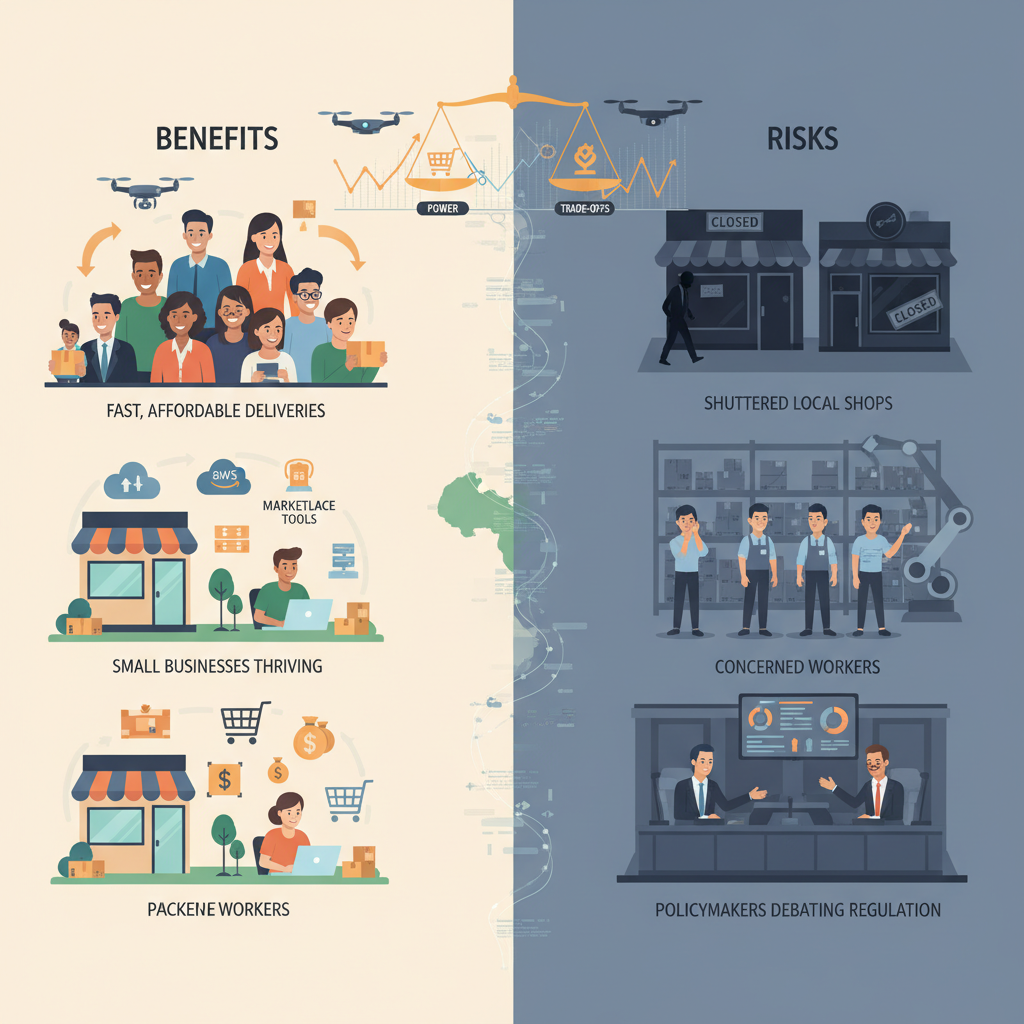
    Split-screen illustration showing benefits and risks of Amazon's power with regulators debating policy

    Wherever Amazon pushes the frontier, regulators and communities eventually follow.

    Key tensions on this frontier:

    • Antitrust and competition – Does Amazon’s role as both marketplace and seller create unfair advantages over third‑party sellers?
    • Labor and working conditions – What happens to warehouse workers, drivers, and small business owners as Amazon optimizes for speed and cost?
    • Local economies – How do small retailers, malls, and main streets adapt when more spending flows online through one platform?

    Different countries and regions are already experimenting with:

    • Stricter marketplace rules
    • Data and privacy protections
    • Worker protections and unionization efforts

    We’re still early here. The “rules of the game” on the Amazon frontier are not fully written yet.

    Takeaway: As Amazon expands, so does the debate over what fair competition and responsible growth should look like.

    So… Is the Amazon Frontier Good or Bad?

    Conceptual balance of Amazon's convenience and opportunities against concentration of power and local disruption

    The honest answer: it’s both, depending on where you stand.

    Upsides

    • Unmatched convenience – Fast delivery, broad selection, easy returns.
    • Lower prices (for now) – Intense competition that can benefit consumers.
    • New business opportunities – Third‑party sellers, AWS‑powered startups, app developers, and logistics partners.

    Downsides

    • Pressure on small businesses – Harder to compete on price and convenience.
    • Concentration of power – More economic and digital infrastructure controlled by one company.
    • Data and privacy concerns – More of your life routed through Amazon products and services.
    Takeaway: The Amazon frontier isn’t a simple win or loss; it’s a shifting landscape where different players gain and lose in different ways.

    How to Navigate the Amazon Frontier (as a Person or a Business)

    People, businesses, and policymakers navigating Amazon's expanding digital and physical landscape

    You can’t control the frontier, but you can choose how you participate in it.

    As a consumer

    • Be intentional: Use Amazon for what it’s best at, not for literally everything.
    • Support alternatives when it matters: Local stores, direct‑to‑consumer brands, indie bookstores.
    • Watch your defaults: One‑click and subscriptions are great — until they’re not.

    As a small business or creator

    • Treat Amazon as a channel, not your whole business.
      • Sell on Amazon to reach customers, but keep building your own brand and email list.
    • Leverage AWS and tools — strategically
      • Use the cloud to move faster, but avoid locking yourself into one provider if it’s risky.
    • Differentiate on what Amazon can’t easily copy
      • Deep community, unique storytelling, niche expertise, or truly custom experiences.

    As a policymaker or community leader

    • Pay attention to local impacts
      • Jobs created vs. jobs displaced.
      • Tax structures vs. public services.
    • Encourage digital literacy and entrepreneurship
      • Help residents and small businesses not just survive but use the frontier to their advantage.
    Takeaway: On the Amazon frontier, you’re not powerless — but you do have to be deliberate.

    Final Thought: The Frontier Keeps Moving

    Ever-shifting Amazon frontier line moving across AI, logistics, global markets, and the connected home

    Frontiers are never fixed. Once a region or sector becomes “normal,” the frontier jumps to the next edge.

    With Amazon, that might mean:

    • New types of AI‑driven shopping
    • Deeper integration of physical stores and online logistics
    • More global expansion into under‑served markets
    • New devices and services inside your home

    You don’t need to track every Amazon press release to stay sane. But understanding the Amazon frontier — where it’s pushing next, and what that means for your choices — is one of the quiet skills of modern life.

    Because whether you love Amazon, hate it, or feel vaguely guilty while clicking “Buy Now,” you’re already living on its frontier.


  • Inside Amazon’s Doppler HQ in Seattle


    Inside Amazon’s Doppler HQ in Seattle


    Inside Amazon’s Doppler HQ in Seattle

    Amazon Doppler tower and Spheres in Seattle’s Denny Triangle on an overcast day with active sidewalks and urban energy

    If you’ve ever walked through downtown Seattle and wondered, “What is that glassy Amazon tower next to the Spheres—and why is it called Doppler?”, this one’s for you.

    Amazon’s Doppler building isn’t just another corporate high‑rise. It’s a mashup of tech history, clever sustainability, urban design, and yes, an outdoor dog park 17 floors in the air. Let’s unpack it.


    Street-level view diagram of Amazon’s Doppler block showing the tall tower, retail base, meeting center, and cycle track in a walkable urban campus

    What is the Amazon Doppler building?

    Doppler (also known as Amazon Tower I and Rufus 2.0 Block 14) is a 37‑story office tower that anchors Amazon’s headquarters campus in Seattle’s Denny Triangle neighborhood. It sits at 2021 7th Avenue, near the intersection of Westlake Avenue and 7th, just a short walk from Westlake Center and McGraw Square.

    Construction started in 2013, the tower topped out in early 2015, and Amazon employees began moving in that December. The project was developed and managed by Seneca Group, designed by architecture firm NBBJ, and built by Sellen Construction. The building provides roughly 1 million square feet of office space, about 20,000 square feet of retail, a large meeting center, and six levels of underground parking. (en.wikipedia.org)

    It’s also part of a three‑tower campus that includes Day 1 and re:Invent, plus the visually iconic Amazon Spheres just across the street. (en.wikipedia.org)

    Quick takeaway: Think of Doppler as Amazon’s flagship HQ tower—office space on top, retail and public realm at the base, and a big role in reshaping Denny Triangle.


    Conceptual illustration of Doppler tower overlaid with Amazon Echo silhouettes and sound waves, highlighting codename-inspired building names

    Why is it called “Doppler”?

    This is where it gets nerdy in the best way.

    Amazon has a habit of naming its buildings after internal product codenames. In this case, “Doppler” was the internal codename for the Amazon Echo smart speaker before it launched publicly in 2014. (aboutamazon.com)

    So no, it’s not a physics joke about the Doppler effect (though tech people will absolutely make that joke). It’s a quiet nod to the device that helped kick off the whole Alexa ecosystem.

    Inside Doppler, you’ll see this playful naming culture show up everywhere—from artwork and spaces themed around customer reviews to other buildings nearby named Day 1, Fiona, Houdini, and more, each tied to a different Amazon product codename or concept. (aboutamazon.com)

    Quick takeaway: The name “Doppler” is essentially a product Easter egg—Echo’s pre‑launch alias immortalized in glass and steel.


    Isometric architectural diagram of the Doppler tower, meeting center, and retail base illustrating mixed-use, walkable campus design

    Design and architecture: More than a glass box

    On paper, Doppler is a 524‑foot, LEED Gold–certified office building with 37 floors of workspace, a multi‑story meeting center that can seat roughly 1,800 people, and thousands of underground parking stalls. (en.wikipedia.org)

    In practice, it’s also a test case for what a dense, urban HQ can look like when a company invests heavily in public realm and amenities.

    Key design moves

    • Public‑facing ground floor: Doppler’s base is wrapped with retail—about 20,000 square feet of shops, restaurants, and cafés. This helps keep the streets active, rather than walling off the neighborhood with a corporate fortress. (senecagroup.com)
    • Urban campus, not a single tower: The building is part of a three‑block development—often referred to as the Rufus 2.0 campus—designed to work as a walkable mini‑district, not just a set of isolated towers. (siteworkshop.net)
    • Meeting Center: A connected five‑story meeting center provides large venues for all‑hands, events, and conferences, with stadium‑style seating for up to about 2,000 people. (senecagroup.com)
    • Dog‑ and bike‑friendly details: Beyond the famous dog park (we’ll get to that), the site includes one of downtown Seattle’s first grade‑separated cycle tracks, making it easier and safer for cyclists to navigate through Denny Triangle. (siteworkshop.net)

    Landscape architecture firm Site Workshop designed the surrounding open spaces, which later became part of what Amazon calls the Urban Arboretum—a campus‑wide network of plant‑rich plazas, stairs, and breezeways that thread between buildings. (seattlespheres.com)

    Quick takeaway: Architecturally, Doppler is less about one flashy gesture and more about layering retail, transit, landscape, and workspace into a single, dense city block.


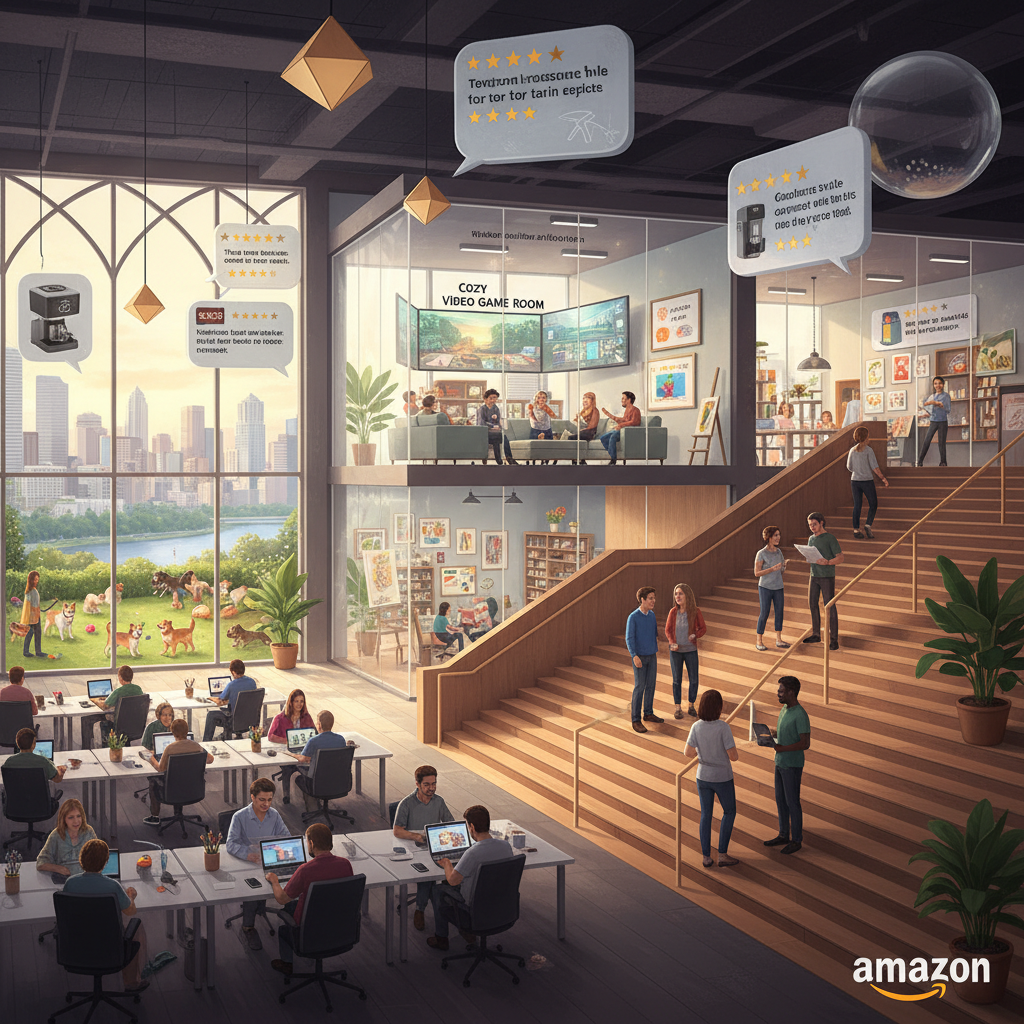
    Warm interior illustration of Amazon Doppler with open-plan office, community stairs, creative spaces, and a glimpse of the 17th-floor dog park

    Inside Doppler: What it’s like to work there

    If you’re an Amazon employee (“Amazonians,” in company lingo), Doppler is a whole ecosystem.

    Everyday spaces

    According to Amazon, Doppler includes:

    • Multiple eateries and a coffee stand right inside the building, plus a market that sells everything from flowers to frozen foods and kombucha. (aboutamazon.com)
    • A video game room and the Expressions Lab, a creative studio meant to give employees a way to decompress and explore art. (aboutamazon.com)
    • Community stairs—tiered seating on the second floor that doubles as a hangout, informal meeting area, and event venue. (aboutamazon.com)

    Each floor also features blown‑up customer product reviews on the walls—some funny, some heartfelt—as a constant reminder of Amazon’s customer‑obsessed culture. (aboutamazon.com)

    The 17th‑floor dog park (yes, really)

    One of the most talked‑about features: an outdoor dog park on the 17th floor. Employees can bring their dogs to work, then take them for fresh air and playtime with sweeping views of Seattle. (aboutamazon.com)

    It’s not just cute; it’s part of a broader employee‑experience play. Pet‑friendly offices are proven to reduce stress and increase social interaction, and Amazon has leaned hard into being a dog‑friendly workplace across its Seattle campus.

    Connection to the Urban Arboretum

    At street level, Doppler’s stairway along 7th Avenue leads you into the Urban Arboretum—lush planting beds with species like evergreen hydrangea (Dichroa febrifuga) and Himalaya cobra lily, plus the Petros sculpture by Pacific Northwest artist Julie Spiedel. (seattlespheres.com)

    Walk up the stairway and through the breezeway between Doppler and the Amazon Meeting Center, and you’re in a shaded mid‑block corridor full of ferns and seasonal plant surprises. This space is open to the public, not just employees.

    Quick takeaway: Inside Doppler, there’s a deliberate mix of heads‑down workspace, social hubs, creative labs, and playful features—right down to the rooftop dog park and an urban botanical garden at your front door.


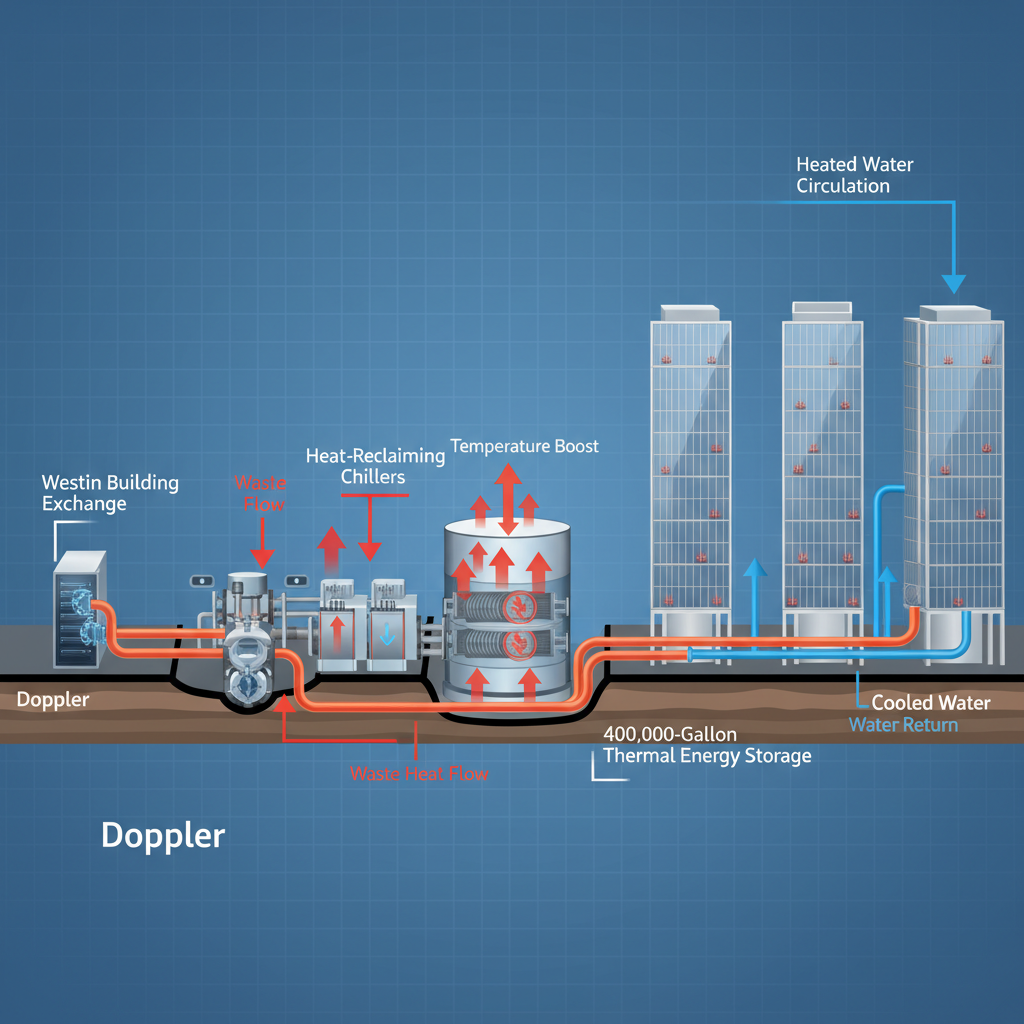
    Technical infographic cross-section of Doppler’s district energy system recycling waste heat from the neighboring Westin data center

    Sustainability: How Doppler uses recycled heat

    One of the most innovative aspects of the Amazon Doppler building is something you’ll never see: the heat system.

    Amazon partnered with the neighboring Westin Building Exchange, a massive telecommunications and data‑center hub, to create a shared district energy system. Instead of venting its excess heat into the sky via cooling towers, the Westin pipes warm water across the street to a central plant housed in Doppler. (aboutamazon.com)

    Here’s what happens next:

    1. Warm water (around 65°F) comes from the Westin Building’s cooling system into Doppler.
    2. Inside Doppler, a set of heat‑reclaiming chillers concentrate that low‑grade heat, boosting the water temperature to about 130°F—hot enough to heat office spaces across Amazon’s campus.
    3. A 400,000‑gallon storage tank lets Amazon store that heat and also act as an emergency water backup for the Westin Building.
    4. If there’s more heat than needed, an enormous cooling stack on Doppler’s roof safely releases the excess. (aboutamazon.com)

    The result: Amazon heats large portions of its Denny Triangle campus using recycled waste heat instead of relying solely on traditional boilers or electric systems. It’s a major efficiency win and a showcase project in Amazon’s broader sustainability initiatives.

    Quick takeaway: Doppler is basically a giant heat recycler, turning a neighboring data center’s “problem heat” into a clean energy source for thousands of office workers.


    Pedestrian perspective at Doppler Stairway and breezeway with lush planting, sculpture, and people moving through Seattle’s evolving downtown

    Doppler’s role in Seattle’s urban evolution

    Doppler didn’t just add more office space; it helped kick off a major transformation of the Denny Triangle area.

    From hotel site to HQ tower

    The tower sits on a relatively small, irregular 0.32‑acre site that used to be home to the Sixth Avenue Inn, a mid‑century hotel demolished as part of the redevelopment. Amazon’s Acorn Development LLC bought the property in 2012 for just over $66 million before starting construction in 2013. (pcad.lib.washington.edu)

    Since opening, Doppler and its sister towers have helped anchor a surge of new apartments, restaurants, and transit improvements in the neighborhood—along with the now‑famous Spheres, which serve as a plant‑filled conservatory and workspace. (siteworkshop.net)

    Economic ups and downs

    Doppler also shows up in regional economic stories. For example, during one recent round of tech‑sector belt‑tightening, state filings showed that Amazon’s Doppler building accounted for more than 350 of the jobs cut in Washington, more than any other site in the state. (axios.com)

    It’s a reminder that as visible as Doppler is on the skyline, it’s just as central in conversations about Seattle’s job market, housing pressures, transit planning, and post‑pandemic downtown recovery.

    Quick takeaway: Doppler is both an architectural landmark and an economic barometer for downtown Seattle.


    Public enjoying the Urban Arboretum around Doppler, with lush planting, café seating, and views toward the Amazon Spheres

    Visiting or experiencing the Doppler area

    You can’t just stroll into Doppler’s office floors without an Amazon badge, but you can experience a lot of what surrounds it.

    Here’s how:

    • Walk the Urban Arboretum: Start at the Doppler Stairway on 7th Avenue, wander up through the lush landscaping and sculpture, then continue via the breezeway toward the Spheres and the rest of the campus. (seattlespheres.com)
    • Explore ground‑floor retail: Many of the restaurants and cafés at Doppler’s base are open to the public, adding to the neighborhood’s food scene. (senecagroup.com)
    • Join an Amazon HQ tour: Amazon periodically offers campus tours that include views of Doppler, the Spheres, and other nearby buildings—plus a public exhibit space under the Spheres. (en.wikipedia.org)

    If you’re an architecture, urban‑design, or sustainability nerd, you’ll get a lot out of just walking the block and noticing how the tower, landscaping, retail, and transit all fit together.

    Quick takeaway: You might not get to use the 17th‑floor dog park, but you can experience Doppler’s public spaces and its role in the larger Amazon campus.


    Wide view of Amazon’s Doppler HQ integrated into Seattle’s Denny Triangle skyline and streetscape

    Why the Amazon Doppler building matters

    Zooming out, Doppler stands at the intersection of a few big trends:

    • Corporate HQs moving into dense downtowns instead of isolated suburban campuses.
    • Sustainable infrastructure—like heat‑recovery systems and transit‑friendly design—baked directly into commercial development.
    • Workplaces as experiences, where amenities, art, pets, plants, and public realm are as intentional as the floorplate layout.

    If you’re researching the Amazon Doppler building for a trip, a design project, or just pure curiosity, it’s a fascinating case study in how a tech giant reshapes a city block—not only with a tall tower, but with a whole ecosystem of spaces above, below, and around it.

    And if you ever find yourself walking up that fern‑filled stairway on 7th Avenue, look up. You’re standing at the literal base of Echo’s old codename.


  • Amazon Smile: What Really Happened


    Amazon Smile: What Really Happened


    Amazon Smile: What Really Happened

    If you ever felt oddly proud that your late-night Amazon shopping was “for charity,” you’re not alone.

    For years, AmazonSmile let people support their favorite nonprofits just by buying the stuff they were going to buy anyway. Then one day, poof — Amazon announced it was shutting the whole thing down.

    So what actually was AmazonSmile, why did Amazon retire it, and what should shoppers and nonprofits do now?

    Let’s unpack it in plain English.


    Person shopping on AmazonSmile at night, illustrating shopping for charity

    A cozy, slightly nostalgic look at the AmazonSmile era — when late-night shopping felt a little more virtuous.

    What Was AmazonSmile?

    AmazonSmile was a program that let customers shop at a special URL — smile.amazon.com — and have 0.5% of their eligible purchases donated to a charity of their choice. Same products, same prices, same Prime — just with a small charitable kickback.

    How it worked (when it existed)

    1. You’d go to smile.amazon.com instead of the main site.
    2. You’d pick a charity — big names like the Red Cross or tiny local rescues, schools, churches, etc.
    3. Amazon would donate 0.5% of your eligible purchase price to that organization.

    To be clear: this was Amazon’s money, not an extra charge to you. You weren’t “paying more” to give — you were just redirecting a slice of Amazon’s revenue.

    Quick takeaway
    AmazonSmile made giving feel effortless, but the actual donation amounts per person were small.


    Infographic showing how AmazonSmile routed 0.5% of purchases to nonprofits

    A simple visual of how AmazonSmile once worked: a tiny slice of Amazon’s revenue flowing to your chosen charity.

    Is AmazonSmile Still Available?

    Here’s the part many people missed:

    AmazonSmile officially ended in early 2023.

    Amazon shut down the program globally, telling customers and charities that the impact was too spread out across millions of organizations to create meaningful change for most of them.

    So if you’re still typing amazon smile or smile amazon into Google hoping to support your favorite rescue, school, or nonprofit at checkout:

    • You’ll be redirected back to the main Amazon site.
    • You can’t choose a charity and trigger the old 0.5% donations anymore.
    Quick takeaway
    As of now, you can’t use AmazonSmile. It’s over, and it’s not just “down for maintenance.”


    Concept illustration comparing AmazonSmile era and post-shutdown focused giving

    From fragmented micro-donations to fewer, bigger bets: how Amazon framed the shift away from AmazonSmile.

    Why Did Amazon Shut Down AmazonSmile?

    Amazon gave a few key reasons when they announced the closure:

    1. The impact was too fragmented

    There were over a million eligible charities. That sounds great in theory — but it meant donations were spread incredibly thin.

    For many smaller organizations, annual donations from AmazonSmile were often modest — think tens or hundreds of dollars per year, not tens of thousands.

    From Amazon’s perspective, they were running a big, complex global program with a relatively small and scattered impact.

    2. Amazon wanted “more focused” giving

    Alongside shutting down AmazonSmile, Amazon said it planned to focus more on direct, larger-scale philanthropy — things like:

    • Disaster relief
    • Affordable housing in regions where it has major offices
    • Education and workforce development initiatives

    Whether you see that as smart strategy or convenient PR spin is up to you. But that was the official line.

    3. Administrative and brand reasons (the unspoken stuff)

    Let’s be real:

    • Running a global charity program across millions of nonprofits is administratively heavy.
    • The marketing benefit may have been shrinking as more people took it for granted.
    • The 0.5% rate, while nice psychologically, probably didn’t move the needle much for how people chose where to shop.
    Quick takeaway
    Publicly, Amazon said AmazonSmile’s impact was too small and spread too thin. Behind the curtain, cost, complexity, and strategy likely played big roles.


    Infographic showing total AmazonSmile donations versus individual and nonprofit-level amounts

    Big global totals, modest everyday impact: how AmazonSmile’s dollars looked from different angles.

    How Much Did AmazonSmile Actually Give?

    Over its lifetime, AmazonSmile did add up to serious money in total.

    Across millions of customers and organizations, the program distributed hundreds of millions of dollars globally.

    But here’s the important nuance:

    • Per individual shopper, the yearly impact was usually small — often just a few dollars.
    • Per small nonprofit, it might be anywhere from $50–$1,000 per year, depending on how heavily they promoted it and how Amazon-focused their donor base was.

    Many nonprofits appreciated the extra, but very few relied on it as a core revenue stream. For some, it was more of a “nice surprise check” than a budget pillar.

    Quick takeaway
    In aggregate, AmazonSmile gave a lot. For most individual orgs and shoppers, it felt more symbolic than transformational.


    Person placing an online order while seeing a subtle message about helping their favorite charity

    The secret sauce: everyday orders quietly whispering, “You just did something good.”

    Why People Loved (and Overestimated) AmazonSmile

    1. It felt effortless

    You didn’t have to:

    • Pull out a credit card
    • Fill out donation forms
    • Remember to give each month

    You just bought cat litter and phone chargers, and boom — you “helped save the world.”

    That psychological ease is powerful.

    2. It turned routine shopping into a feel-good habit

    Even if you knew the money was small, there was something satisfying about seeing:

    “Your purchases have generated $23.17 for [Your Favorite Charity].”

    It made your everyday consumption feel a little less selfish.

    3. It created a mental shortcut: “I already give through Amazon”

    Here’s the trap: because giving was automatic, some people mentally treated it like they were already donating regularly — and then didn’t make more direct, higher-impact gifts.

    Quick takeaway
    AmazonSmile was great for making people feel generous, even when the actual dollar amounts were modest.


    Supporter setting up recurring donations and exploring alternatives after AmazonSmile

    Life after AmazonSmile: turning “set it and forget it” generosity into something even more impactful.

    What Can You Do Now That AmazonSmile Is Gone?

    If you’re a shopper or a nonprofit wondering, “Okay, now what?”, you’ve got options.

    For Shoppers: How to Still Support Charities While Shopping

    You can’t revive AmazonSmile, but you can:

    1. Give directly (this is the highest impact move)

    Instead of hoping 0.5% of your purchase trickles to charity:

    • Take a look at what your AmazonSmile totals used to be per year (if you remember them).
    • Consider setting up a recurring monthly donation to that same charity instead — even $5–$20/month is usually more than what your shopping would’ve generated.

    Nonprofits can do a lot more with a predictable direct donation than with a small, variable corporate kickback.

    2. Use employer matching if available

    Many employers will match your donations, effectively doubling them.

    If you used to rely on AmazonSmile as your main “set it and forget it” giving mechanism, redirect that energy into:

    • Giving directly
    • Turning on employer match if your company offers it

    3. Look into other shopping-based charity tools

    While nothing is a 1:1 replacement for AmazonSmile on Amazon itself, there are:

    • Browser extensions that route affiliate commissions to charity when you shop across multiple retailers
    • Retailers with built-in give-back programs (e.g., some brands donate a percent of profits or products to specific causes)

    They all come with their own pros/cons, but the principle is similar: a slice of the transaction goes to charity, usually at no extra cost to you.

    Takeaway for shoppers
    If you liked AmazonSmile because it was easy, recreate that feeling with a small, automatic monthly donation and, if you want, a couple of give-back tools stacked on top.

    For Nonprofits: Life After AmazonSmile

    If your organization used to promote AmazonSmile, you’re not powerless now that it’s gone.

    Here’s how to pivot:

    1. Reframe the loss in your messaging

    Be honest, but strategic:

    • Acknowledge that AmazonSmile has ended.
    • Share what it meant for your org in concrete terms — e.g., “In 2022, AmazonSmile funded roughly two weeks of food for our shelter animals.”
    • Invite supporters to replace that impact directly: “A monthly gift of $10 can fully replace and even exceed what AmazonSmile used to provide.”

    2. Launch a “Replace AmazonSmile” mini-campaign

    Make it a specific, time-bound push:

    • “Help us replace AmazonSmile in 30 days.”
    • Show the total amount you used to get in a typical year.
    • Break it down into a clear goal: “If 75 people give $10/month, we’re covered.”

    People respond well to clear, concrete, solvable problems.

    3. Double down on recurring giving

    AmazonSmile worked because it was automatic.

    Your best replacement strategy is to:

    • Heavily promote monthly giving (“Join our Sustainers Circle,” “Rescue Champions,” etc.).
    • Make sign-up incredibly simple (one-click options, Apple Pay/PayPal, etc.).
    • Reinforce the emotional benefit: “You’re providing stable, predictable support our team can rely on.”

    4. Diversify your “easy giving” tools

    Consider:

    • Text-to-give or QR codes at events
    • Donation links in email signatures and social media bios
    • Partnerships with local businesses that do round-up at checkout or 1% give-back days
    Takeaway for nonprofits
    Treat AmazonSmile’s end as a nudge to build more direct, reliable funding streams you actually control.


    Visual metaphor of AmazonSmile’s global totals versus individual impact

    AmazonSmile’s legacy in one glance: impressive in aggregate, modest up close.

    Was AmazonSmile Ever a Game-Changer?

    Depends on how you look at it.

    • For huge national charities: It sometimes added up to meaningful money due to sheer volume.
    • For small local orgs: It was usually a nice bonus, not a budget-maker.
    • For individual shoppers: It offered emotional satisfaction more than financial firepower.

    From a charity effectiveness standpoint, direct giving and recurring donations almost always beat “X% of your shopping” models.

    But from a behavioral standpoint, AmazonSmile proved something important:

    People love feeling generous without friction.

    The future of online giving will probably keep leaning into that — more automation, more integration, more “set it once and forget it” generosity.

    Quick takeaway
    AmazonSmile itself may be gone, but the idea it popularized — frictionless giving baked into everyday life — is absolutely here to stay.


    Motivational scene guiding users through next steps after AmazonSmile

    From invisible giving to intentional impact: your next chapter after AmazonSmile.

    What You Should Do Next

    If you came here by typing something like “amazon amazon smile” wondering how to keep helping your favorite cause, here’s your simple 3-step plan:

    1. Pick your charity. The one you used with AmazonSmile is a great start.
    2. Set up a small recurring donation. Aim to beat what AmazonSmile likely produced — even $5–$15/month helps.
    3. Add one more easy win. Turn on employer matching, use a give-back card or extension, or support brands with clear, transparent donation programs.

    AmazonSmile made giving feel almost invisible.

    Now you get to make it intentional — and, honestly, far more impactful.


  • LPN Jobs at Amazon: A New Path


    LPN Jobs at Amazon: A New Path


    LPN Jobs at Amazon: A New Path

    LPN scrolling Amazon job listings at night with hospital imagery fading into safety and telehealth icons

    If you’re an LPN scrolling job boards and wondering, “Does Amazon hire nurses like me?” you’re not alone.

    Short answer: yes… but not in the way a hospital does.

    Amazon isn’t running med–surg floors or long‑term care units, but it does tap Licensed Practical Nurses (LPNs) and other nurses in newer healthcare lines of business, safety programs, and virtual care. Let’s break down what LPN jobs at Amazon can actually look like, how to find them, and whether they’re worth your license and sanity.


    What Does “LPN at Amazon” Actually Mean?

    Amazon fulfillment center with an on-site clinic where an LPN provides first aid to a warehouse worker

    When people say “LPN at Amazon,” they usually imagine:

    • Working in an on‑site clinic at a massive fulfillment center
    • Doing triage and first aid for warehouse workers
    • Maybe something with Amazon Clinic or virtual care

    Parts of that are true, but there are a few important realities:

    1. Amazon doesn’t staff traditional hospital‑style nursing units.
      You’re not going to be hanging multiple IV antibiotics on an inpatient floor for Amazon.
    2. Most clinical roles at Amazon skew toward RNs, NPs, PAs, and MDs.
      LPN roles are more limited and more location‑dependent.
    3. You’ll often see LPN‑compatible work hiding under titles like “Onsite Medical Representative,” “Occupational Health Technician,” or “Workplace Health & Safety” roles. These are sometimes open to EMTs, paramedics, and nurses with the right background.

    Takeaway: “LPN at Amazon” usually means safety, occupational health, or clinic/virtual support, not traditional bedside nursing.

    Types of Amazon Roles an LPN Might Qualify For

    Split screen of an LPN doing telehealth from home and patients connected to an Amazon-branded interface

    Exact job titles change all the time, but here are the most common buckets where an LPN can realistically fit.

    1. On‑Site Medical / Workplace Health & Safety Roles

    Many large Amazon fulfillment centers and warehouses have on‑site medical teams responsible for:

    • First aid and basic assessment for workplace injuries
    • Supporting return‑to‑work and modified duty plans
    • Health, ergonomics, and safety education for employees
    • Documenting incidents and coordinating with occupational health providers

    These roles may appear under titles such as:

    • “Onsite Medical Representative”
    • “Workplace Health & Safety (WHS) Medical”
    • “Occupational Health & Safety Technician”

    Some postings are open to:

    • LPNs/LVNs
    • EMTs/paramedics
    • Military medics/corpsmen

    They often want:

    • An active state license (for LPN/LVN)
    • BLS/CPR
    • Comfort with documentation and basic triage

    Takeaway: If you’ve ever thought, “I’d love a job that mixes basic nursing with safety and injury prevention,” this is your lane.

    2. Virtual Care & Telehealth Support (Emerging Area)

    Amazon has explored healthcare through initiatives like Amazon Clinic and pharmacy services. While many telehealth roles specify RN or NP, watch for support roles that may accept LPNs, such as:

    • Clinical support specialist
    • Care coordinator / patient support
    • Prior authorization or medication coordination

    These may involve:

    • Reviewing basic health info and routing it correctly
    • Educating patients on simple treatment plans or medications (within defined protocols)
    • Assisting with intake before a provider visit
    • Messaging and follow‑up via secure platforms

    Reality check: These roles are fewer and more competitive for LPNs than for RNs, but if you have:

    • Strong phone/virtual communication skills
    • Experience in primary care, telehealth, or clinic triage

    …you’ll be a stronger candidate.

    Takeaway: Telehealth at Amazon is more of a “watch this space” area for LPNs—possible, but not as abundant as safety roles (yet).

    3. Clinical-Adjacent Corporate Roles

    You might not see “LPN” in the title, but your license + healthcare experience can make you a good fit for roles like:

    • Clinical quality reviewer (looking at documentation or processes)
    • Healthcare customer support (for pharmacy or clinic products)
    • Training specialist for health/safety topics

    These usually want:

    • Comfort with computers, EMR‑style systems, and documentation
    • Strong communication (phone, email, chat)
    • Ability to interpret medical information and explain it simply

    Takeaway: Don’t search only “LPN” — search keywords like “clinic,” “healthcare,” “medical,” “occupational health,” “safety,” and “telehealth.”

    How to Find LPN-Friendly Roles on Amazon’s Job Site

    Close-up of Amazon jobs search showing medical and safety roles with an LPN typing and keyword notes

    Let’s talk strategy, not just wishful thinking.

    Step 1: Start Broad, Then Filter

    On the Amazon jobs site:

    1. In the search bar, try keywords like:
      • “LPN” or “LVN”
      • “Onsite Medical”
      • “Workplace Health and Safety”
      • “Occupational Health”
      • “Clinic” or “Telehealth”
    2. Filter by location (city/state) or choose “remote” if you’re aiming for virtual roles.

    You may find that some postings don’t explicitly say “LPN” but list acceptable backgrounds that include LPN/LVN, EMT, paramedic, or military medic. Read those carefully.

    Step 2: Read the Required Credentials Section Slowly

    Look for phrases like:

    • “Licensed Practical Nurse (LPN) or Licensed Vocational Nurse (LVN) credential”
    • “EMT, paramedic, RN, LPN, or equivalent clinical background”

    If it only lists RN/NP/PA/MD and makes no mention of LPN or “equivalent experience,” it’s usually not flexible.

    Step 3: Match Your Clinical Background to the Work

    You’ll stand out if you can say, for example:

    • “I have 4 years of LPN experience in occupational health, urgent care, or primary care.”
    • “I’ve worked with work-related injuries, triage, and return-to-work documentation.
    • “I’m very comfortable with charting, documentation, and protocol-driven care.

    Takeaway: The right keywords in your search and resume matter as much as the license letters after your name.

    What It’s Actually Like: Realistic Pros and Cons for LPNs

    Infographic of pros and cons of LPN roles at Amazon around a thoughtful nurse

    No job is perfect. Let’s be honest about the trade‑offs.

    Potential Pros

    • More predictable schedule than many bedside roles, especially in corporate or warehouse settings.
    • Focus on prevention, first aid, and safety instead of heavy bedside tasks.
    • Exposure to occupational health, ergonomics, and corporate wellness—great if you want to get out of traditional bedside care.
    • Experience with a large, complex company that can open doors to future non‑clinical or leadership roles.

    Potential Cons

    • You might miss hands‑on clinical complexity (no ICU‑style problem solving or heavy medications).
    • Some roles can feel more like safety officer + paperwork than “full scope” nursing.
    • LPN roles may be limited geographically—not every facility has a clinic staffed this way.
    • Pay can vary; in some markets it may be competitive with clinic pay, in others it may not beat hospital shift differentials.

    Takeaway: Amazon can be a solid “exit ramp” from traditional bedside work, but make sure the scope and pay match your goals.

    How to Position Yourself as an LPN for Amazon

    LPN updating a resume with safety and triage-focused bullet points and visions of future Amazon roles

    If you decide to go for it, don’t just upload your resume and pray. Tailor it. Ruthlessly.

    Emphasize These Skills on Your Resume

    Highlight experiences that sound like occupational health and safety, even if you didn’t have that title:

    • Triage and initial assessment of injuries or acute complaints
    • Return‑to‑work clearances or light-duty coordination (if you’ve done anything similar)
    • Employee / patient education on safe body mechanics, chronic conditions, or medication use
    • Incident documentation, charting, and communication with providers
    • Participation in quality improvement, policy updates, or safety committees

    Use Amazon-Relevant Language in Your Bullet Points

    Instead of:

    • “Assisted patients with daily care and medication administration.”

    Try:

    • “Performed rapid assessment and triage for acute injuries and illnesses in a fast‑paced clinic setting.”
    • “Educated employees on safe lifting techniques and prevention of repetitive‑strain injuries.”

    See the difference? One sounds like bedside; the other sounds like workplace health and safety.

    Bonus Points If You Have…

    • Occupational health, urgent care, ED, or primary care experience
    • Certifications in occupational health, safety, or ergonomics
    • Experience with workers’ comp, incident reporting, or OSHA‑related procedures

    Takeaway: You are not “just an LPN”—you are a clinician with specific, transferable skills. Show them in Amazon’s language.

    Is an Amazon LPN-Type Role Right for You?

    LPN considering telehealth and corporate wellness options through Amazon-branded interfaces

    Ask yourself a few blunt questions:

    1. Do I want out of traditional bedside or long‑term care?
      If you’re burned out on 12s and short staffing, this can be a much‑needed change of pace.
    2. Will I be okay with less “hardcore” clinical work?
      If you live for complex care and rapid interventions, you might find safety‑focused roles under‑stimulating.
    3. Am I interested in occupational health, safety, or corporate wellness long term?
      These roles can be a strong bridge into non‑hospital careers.
    4. Does the pay and schedule work for my real life?
      Run the numbers with your actual bills, commute, and responsibilities, not just vibes.

    Takeaway: If you want a healthcare‑adjacent, lower‑acuity, more predictable role, Amazon can be a smart move. If you want high‑acuity adrenaline, probably not.

    Next Steps: How to Move Forward

    Amazon jobs site showing onsite medical and safety roles with an LPN’s notebook of search terms

    If you’re an LPN seriously considering Amazon, here’s a simple action plan:

    1. Search smarter.
      Go to the Amazon jobs site and search:

      • “LPN” / “LVN”
      • “Onsite medical representative”
      • “Workplace health and safety” + your city/state
    2. Rewrite your resume around safety + triage.
      Use language that mirrors occupational health, injury prevention, and employee education.
    3. Set job alerts.
      LPN‑friendly roles may be rare in your area—alerts help you pounce when something opens.
    4. Talk to others who’ve done it.
      Search for LPNs or nurses on LinkedIn who list Amazon in their experience. Many are open about what their day‑to‑day really looks like.
    5. Think long‑term.
      Ask: “Does this move get me closer to the kind of work and life I want 3–5 years from now?”

    If “LPN at Amazon” was just a random late‑night Google spiral, now you’ve got a clearer picture: it’s not fantasy, but it is a niche. With the right background and positioning, you can absolutely use your LPN license in a role that’s more about safety, prevention, and employee health than bedside chaos.

    And if nothing else, you now know exactly what to type into that search bar—no more guessing at “lpn he amazon.”


  • Amazon Moments: Rewarding Customer Loyalty


    Amazon Moments: Rewarding Customer Loyalty


    Amazon Moments: Rewarding Customer Loyalty

    If you’ve ever added something to your Amazon cart just to hit free shipping, you already understand the power of incentives. Amazon Moments lets you harness that same psychology inside your own app or website—without building a logistics empire.

    If you’ve ever added something to your Amazon cart just to hit free shipping, you already understand the power of incentives.

    Now imagine using that same psychology inside your own app or website.

    That’s basically the promise behind Amazon Moments: turn user actions into trackable, reward-powered growth.

    Let’s break down what Amazon Moments is, why it matters, and how to use it without lighting your marketing budget on fire.


    Illustration connecting Amazon cart behavior to in-app rewarded actions via Amazon Moments

    Everyday “add to cart for free shipping” behavior, reimagined as precise in-app reward triggers.

    What Is Amazon Moments?

    Amazon Moments is a cross‑platform marketing and loyalty solution that lets you reward specific user actions with real-world rewards—paid for on a cost-per-action (CPA) basis.

    Instead of paying for clicks or impressions, you only pay when users actually do the thing you care about: sign up, hit a milestone, subscribe, make a purchase, complete a level, renew, etc.

    Those users can then redeem a reward (like a product, digital content, or coupon) fulfilled by Amazon. You define:

    • The action: e.g., “Finish Level 5,” “Subscribe for 3 months,” “Refer a friend,” “Spend $50+ in one order.”
    • The audience: specific segments, geos, or platforms.
    • The reward: actual products, credits, or perks delivered via Amazon.
    • The budget: you bid a maximum CPA and Amazon only charges when the action is completed.
    Quick takeaway: Amazon Moments is like building your own loyalty or rewards program—without having to warehouse swag, manage shipping, or build complex catalogs.

    Diagram showing the shift from clicks and impressions to key user behaviors rewarded with Amazon gifts

    Shift your spending from vague attention metrics to concrete, revenue-driving user behaviors.

    Why Marketers Care About ‘Moments’ (Not Just Impressions)

    Most performance campaigns still revolve around:

    • Cost per click
    • Cost per install
    • Cost per thousand impressions

    All of those are… fine. But clicks don’t equal habit, and impressions don’t equal loyalty.

    Amazon Moments shifts the unit that matters from traffic to behavior. You design a moment—a meaningful action in your lifecycle—and tie a reward to it.

    Examples of high-value Amazon moments:

    • A casual player becomes a daily active user for 7 days.
    • A free user converts to paid for the first time.
    • A first-time buyer returns for a second purchase within 30 days.
    • A podcast listener subscribes and listens to 5 episodes.

    You’re not just “getting users”; you’re training users to do the right things.

    Quick takeaway: In 2025, attention is cheap. Action is expensive. Moments focuses your budget where it actually changes revenue.

    Product team mapping an app journey and attaching Amazon Moments rewards to milestones

    Map the behaviors that matter most, then attach rewards where they’ll move the needle.

    How Does Amazon Moments Work in Practice?

    Let’s walk through a simple flow.

    1. You define your goal

    You start by deciding what behavior you want to pay for. For example:

    • “Complete onboarding in 24 hours.”
    • “Watch 10 videos in the app.”
    • “Spend at least $25 in one order.”

    This becomes your moment.

    2. You set your CPA and choose rewards

    You decide how much a completed action is worth to you.

    • If a new subscriber is worth $50 in LTV, maybe you’re willing to pay $10–$15 in rewards.
    • If a 2nd purchase predicts long-term retention, maybe you’ll pay $5 to nudge it along.

    Then you set up a catalog of eligible rewards for that moment—these can be physical items, Amazon credit, or other digital rewards.

    3. Users earn rewards when they hit the moment

    Once integrated, your app or site notifies Amazon (via API/SDK) when a user completes the desired action.

    That user receives:

    • A notification, banner, or message that they’ve earned a reward
    • A unique link or mechanism to redeem via Amazon

    Amazon handles:

    • Showing them their reward
    • Checkout / purchase flow
    • Fulfillment and shipping

    You handle:

    • Driving the right actions
    • Controlling the economics

    4. You measure and iterate

    Because Moments is CPA-driven and event-based, it naturally fits into your analytics stack.

    You can track:

    • How many users completed the target action
    • Effective cost per completed action
    • Downstream impact (retention, ARPU, LTV)
    Quick takeaway: Amazon Moments plugs into your existing product analytics. You’re not guessing—it’s measured against hard events.

    Three example mobile screens showing Amazon Moments rewards in games, subscriptions, and ecommerce

    From games to subscriptions to ecommerce, the pattern is the same: hit the moment, unlock the reward.

    Real-World Amazon Moments Examples

    Let’s make it concrete with a few scenarios.

    Example 1: Mobile Game Boosting Retention

    A midcore game struggles with early churn. They use Amazon Moments to reward:

    • Completing the tutorial
    • Reaching Level 10
    • Making a first in-app purchase over $4.99

    For each milestone, users earn a small physical reward (e.g., a collectible or toy) or Amazon credit.

    Result? Players push through early friction because they’re chasing both in-game progress and real-world rewards. Churn drops, and ARPU goes up because more users reach monetization points.

    Lesson: When progression feels more valuable, people stick around.

    Example 2: Subscription App Driving Upgrades

    A meditation app has tons of free users, but paid conversion is low.

    They create a Moment:

    “Subscribe for 3 months and get an Amazon reward worth $10.”

    Because they know a 3‑month subscriber is likely to keep paying, they’re willing to give away a portion of that future value up front.

    Users who hit the 3‑month mark get a reward link, making the habit of using the app feel extra rewarding (literally).

    Lesson: Tie rewards to commitment, not just sign-ups.

    Example 3: E‑commerce Brand Encouraging Repeat Orders

    A DTC brand selling consumables struggles to get customers to place a second order—classic retention problem.

    They integrate Amazon Moments so that:

    • First-time buyers who place a second order within 45 days earn an Amazon product reward.

    Customers now have a tangible reason to restock sooner rather than later.

    Lesson: Use Moments to close key lifecycle gaps: trial → repeat → loyal.

    Side-by-side comparison of traditional points programs versus Amazon Moments simplicity

    Cut the clutter of traditional loyalty and highlight one clear action → one clear Amazon reward.

    Key Benefits of Amazon Moments

    Let’s zoom out and look at why teams consider Amazon Moments in the first place.

    1. Pay For Outcomes, Not Hopes

    Because you’re paying per completed action, you avoid the classic sinkhole of buying impressions or installs that never convert.

    • Better budget efficiency
    • Cleaner attribution to business value

    2. Built-In Trust & Fulfillment

    Rewarding people with something shipped by Amazon carries inherent trust:

    • Users know they’ll actually get the reward
    • You don’t have to build logistics, manage inventory, or handle customer support for rewards

    3. Flexible Across Platforms and Channels

    Amazon Moments can be used across:

    • Mobile apps (iOS/Android)
    • Web apps and sites
    • Email and lifecycle campaigns
    • Referral and ambassador programs

    Anywhere you can track a user action, you can, in theory, attach a Moment.

    4. Easy to Communicate to Users

    “Do X, get a reward from Amazon” is much easier to explain than complex point systems.

    Takeaway: You get performance-style accountability with loyalty-style stickiness.

    Circular growth loop showing Amazon Moments rewards feeding engagement and retention

    Design a growth loop: valuable action → Amazon reward → more engagement → more valuable actions.

    When Amazon Moments Doesn’t Make Sense

    It’s not magic. There are cases where Moments isn’t the right tool.

    1. Your Core Product Experience Is Weak

    If your app or site doesn’t deliver real value, no amount of rewards will fix that.

    You might temporarily goose metrics, but retention will crater as soon as rewards stop. Moments should amplify a good experience, not cover up a bad one.

    2. Your Unit Economics Are Fuzzy (or Negative)

    If you don’t know your:

    • LTV per user
    • Payback period
    • Margins

    …then you’re guessing at what you can afford to pay per action.

    Without solid numbers, you may over‑reward and quietly destroy profitability.

    3. Your Audience Doesn’t Value Physical Rewards

    Some products or communities thrive on status, access, or exclusive content, not stuff.

    In those cases, consider whether Moments can still work (via digital or credit rewards) or if your own native rewards system might be more on‑brand.

    Takeaway: Use Amazon Moments as a scalpel, not a hammer. It should make a win bigger, not try to turn a loss into a win.

    How to Design a High-Impact Amazon Moment

    If you decide to try Amazon Moments, don’t just pick a random milestone and hope.

    Here’s a simple playbook.

    1. Map Your Customer Journey

    List the major steps:

    1. Discover product
    2. Sign up / install
    3. Complete onboarding / first key action
    4. Return in the first 7 days
    5. Make first purchase or upgrade
    6. Make second purchase / renew subscription
    7. Become a promoter (referrals, reviews)

    Identify two or three steps that:

    • Strongly predict long-term retention or revenue
    • Have significant drop-off today

    Those are your best candidate Moments.

    2. Attach Meaningful, Not Massive, Rewards

    Your reward should be:

    • Large enough to feel real (not a $1 coupon most people won’t use)
    • Small enough to be sustainable at scale

    Think:

    • $5–$15 equivalent value for high-intent or high-LTV actions
    • Smaller perks for mid-funnel milestones

    3. Communicate Clearly and Early

    Make sure users know:

    • What they need to do
    • By when (if there’s a window)
    • What they’ll get

    Use:

    • Onboarding tooltips
    • In-app banners
    • Email sequences

    Example: “Create your first project in the next 3 days and earn a reward, fulfilled by Amazon.”

    4. Protect Against Abuse

    Any time there’s a reward, there will be people who try to game it.

    You can mitigate this with:

    • Limits per account or per device
    • Verification steps for high-value rewards
    • Cooldowns or minimum time windows between actions and redemptions

    5. Test, Measure, Iterate

    Start small:

    • Choose 1–2 Moments
    • Run for 4–8 weeks
    • Compare cohorts with and without rewards

    Look at:

    • Incremental lifts in completion of the target action
    • Changes in retention, ARPU, and LTV
    • Actual cost per incremental action (not just any action)
    Takeaway: The best Moments are data‑backed, predictable, and repeatable. Treat this like an experiment, not a one-time promo.

    Amazon Moments vs. Traditional Loyalty Programs

    You might be thinking: “Is this just a points program with extra steps?”

    Not quite.

    Traditional loyalty:

    • Points for almost every action
    • Big, complex catalogs of rewards
    • Often slow gratification (save up for weeks or months)

    Amazon Moments:

    • Focuses on specific, strategic actions
    • Immediate or near-immediate gratification
    • Rewards handled, shipped, and fulfilled via Amazon

    For many products, you might even run both:

    • A lightweight in‑app points/badges system for everyday engagement
    • Amazon Moments for major milestones that change user behavior
    Takeaway: Moments isn’t a replacement for loyalty; it’s a sharper tool to move the metrics that matter most.

    Is Amazon Moments Worth It?

    It’s worth exploring if:

    • You know your unit economics reasonably well.
    • You can clearly define one or more high-value user actions.
    • Your audience is likely to respond to Amazon-powered rewards.
    • You have at least basic analytics and event tracking in place.

    It’s probably not worth it (yet) if:

    • You’re pre-product-market fit.
    • You don’t know what behaviors correlate with long-term success.
    • Your main problem is awareness, not activation or retention.

    Final Thoughts: Design the Moment, Then Add Amazon

    The real power of Amazon Moments isn’t just the rewards catalog or shipping muscle.

    It’s the discipline of asking:

    “What specific actions in our product create long-term value—and how do we nudge more users to take them?”

    Once you’ve answered that, plugging Amazon in as the reward engine becomes the easy part.

    Start with one moment.
    Track it ruthlessly.
    Learn from it.

    Then—when you see the lift—you can add a few more moments that genuinely matter, instead of bribing users randomly.

    That’s how you turn a simple Amazon moment into a repeatable growth system.


  • Amazon Arbitrage Made Simple


    Amazon Arbitrage Made Simple


    Amazon Arbitrage Made Simple

    If you’ve ever scanned Amazon prices and thought, “Wait… people are really making money just reselling stuff?”—yes, they are. And no, it’s not magic.

    It’s called Amazon arbitrage, and if you like hunting for deals and don’t mind some boring-but-profitable systems, it can absolutely be a real side hustle (or full-time gig) instead of just a TikTok buzzword.

    Let’s walk through what it is, how it works, what it really takes, and whether it’s worth jumping in.


    Side-hustler scanning products in a store aisle and comparing Amazon arbitrage prices

    A savvy side-hustler checking in-store prices against Amazon listings—buy low, sell high in action.

    What Is Amazon Arbitrage?

    Amazon arbitrage is when you buy products from one place at a lower price and resell them on Amazon at a higher price, keeping the difference after fees.

    In practice, there are two main flavors:

    • Retail arbitrage – You buy from physical stores (Walmart, Target, TJ Maxx, clearance racks, liquidation stores, etc.) and resell on Amazon.
    • Online arbitrage – You buy from websites (Target.com, Walmart.com, brand sites, closeout sites) and ship to your home (or prep center), then into Amazon.

    Example:

    • You find a LEGO set on Target clearance for $25.
    • On Amazon, that exact set is selling for $54.99.
    • After Amazon fees and shipping, your profit might be ~$12–15 per unit.
    • You buy 10 units, send them to Amazon FBA, and the profit scales.

    That’s arbitrage in a nutshell: you’re not inventing products—you’re moving existing products from where they’re cheap to where buyers are already paying more.

    Quick takeaway: Amazon arbitrage is basic buy-low-sell-high, powered by Amazon’s massive customer base and your ability to spot price gaps.

    Step-by-step workflow diagram for Amazon arbitrage from seller account to restocking

    A clear, step-by-step workflow: from opening your seller account to shipping inventory and restocking winners.

    How Does Amazon Arbitrage Actually Work Step-by-Step?

    Let’s break this into a simple workflow.

    1. Open an Amazon Seller Account

    You’ll need:

    • An Amazon Seller account (Individual or Professional)
    • Tax info, bank info, and identity verification

    Most arbitrage sellers go with the Professional plan once they’re serious because:

    • You can use advanced tools and reports
    • You don’t pay the per-item fee (helpful once you’re selling more than a few dozen items/month)

    2. Decide: FBA or FBM?

    Two main fulfillment options:

    • FBA (Fulfilled by Amazon) – You ship inventory to Amazon’s warehouses. They handle storage, shipping, customer service, and returns. You pay FBA and storage fees.
    • FBM (Fulfilled by Merchant) – You store and ship products yourself (or via a 3rd party). Lower Amazon fees, but more work.

    Most arbitrage sellers use FBA because:

    • Prime badge = higher conversion
    • You can scale without shipping orders every day

    3. Research Products & Scan for Profits

    This is where the game is won or lost.

    You’re looking for:

    • Products you’re allowed to sell (not gated/ restricted)
    • Enough demand (they actually sell regularly)
    • A price difference big enough to leave room for Amazon fees + shipping + your profit

    Common tools & methods:

    • Amazon Seller App – Free, lets you scan barcodes in stores and see estimated fees and ROI.
    • Keepa / similar tools – Show price history and sales rank trends so you don’t buy something that used to sell well but is now dead.
    • Online arbitrage extensions – Chrome extensions that overlay profit data on other retail sites.

    Typical target: Many sellers aim for at least 30–40% ROI and a few dollars minimum net profit per item after all fees.

    4. Buy, Prep, and Label the Inventory

    Once the numbers make sense:

    • Buy the products
    • Remove clearance stickers, price tags, etc.
    • Polybag or bubble-wrap if required (to meet Amazon packaging standards)
    • Label items with FNSKU barcodes (or use Amazon’s label service for a small fee)

    If you do online arbitrage, you can:

    • Ship products to your home and prep them yourself
    • Or use a prep center that receives, inspects, preps, and forwards to Amazon for you (popular for scaling).

    5. Ship to Amazon FBA

    In your Seller Central account:

    • Create a shipping plan
    • Print box labels
    • Ship via UPS or partnered carriers

    Once your items arrive and check in:

    • They go live on your Amazon listing (you’re sharing the buy box with other sellers)
    • Sales start rolling in when you’re priced competitively and the listing has demand

    6. Monitor Prices, Reprice, and Restock

    This is ongoing work:

    • Use repricing rules or software to stay competitive without racing to the bottom
    • Track sell-through rate, profit, and returns
    • Reinvest profits into more inventory that meets your criteria
    Quick takeaway: Amazon arbitrage is a repeatable system: research → buy → prep → ship → monitor → reinvest.

    Collage of popular products used in Amazon arbitrage like toys, beauty, grocery multipacks

    High-velocity arbitrage staples: toys, health & beauty, grocery multipacks, and seasonal clearance finds.

    What Kinds of Products Work Best for Amazon Arbitrage?

    There’s no single magic category, but some patterns show up frequently.

    Popular categories:

    • Toys & games (especially Q4 / holiday season)
    • Health & personal care
    • Grocery and pantry items
    • Household essentials
    • Branded clothing/shoes (if ungated)

    You’re usually looking for:

    • Brand-name items with steady demand
    • Discontinued or seasonal products going on clearance
    • Multipacks or bundles (e.g., 3-pack of a grocery item) that customers prefer buying on Amazon

    Examples:

    1. Seasonal candy – Bought after a holiday on clearance, resold as multipacks.
    2. Discontinued shampoo scent – Loyal fans will pay a premium when it vanishes from shelves.
    3. Board games – Target clearance at $8, selling on Amazon at $29.99 with strong sales rank.
    Quick takeaway: You’re not guessing “what might sell.” You’re piggybacking on products that already have proven demand on Amazon.

    Split-screen of startup costs on one side and growing Amazon arbitrage profits dashboard on the other

    From boxes and barcodes to dashboards and deposits—your earnings scale with capital, consistency, and smart sourcing.

    How Much Money Can You Make with Amazon Arbitrage?

    Short answer: it depends entirely on your capital, consistency, and how smart your sourcing is.

    Realistic ranges people see (once they’ve learned the ropes):

    • Side hustlers: A few hundred to a few thousand dollars a month in profit
    • Part-time serious sellers: $1,000–$5,000+ profit/month
    • Full-time, scaled operations: beyond that, often by adding wholesale and private label later

    Factors that impact your earnings:

    • Capital – How much you can invest in inventory
    • Time – How many hours you can spend sourcing
    • Tools – Better data = fewer bad buys
    • Risk management – Avoiding IP issues, bad categories, and slow movers
    Quick takeaway: Amazon arbitrage can be lucrative, but it’s not a lottery ticket—it’s a margin business that rewards data and discipline.

    Side-by-side view of Amazon arbitrage startup costs and growing sales metrics

    Startup reality: a modest stack of supplies on one side, a growing sales dashboard on the other.

    Costs, Fees, and Startup Budget

    You don’t need tens of thousands to start, but you do need some money for:

    • Inventory – Even a test batch might be $200–$500
    • Amazon fees – Referral fees, FBA fees, storage fees
    • Shipping to Amazon – UPS partnered shipping is cheaper but still a cost
    • Supplies – Boxes, tape, labels, polybags, bubble wrap
    • Software (optional but helpful) – Keepa, sourcing tools, repricers

    A common recommendation:

    • Start with whatever you can afford to lose without stress (e.g., $300–$1,000)
    • Treat it as paid education while you learn the system
    Quick takeaway: Don’t go into debt to start arbitrage. Use a realistic budget and scale as your process proves itself.

    Visual comparison of Amazon arbitrage pros and cons for a typical seller

    Two sides of the arbitrage coin: flexible, learn-fast business vs. time, margins, and policy headaches.

    Pros and Cons of Amazon Arbitrage

    Let’s be honest about both sides.

    Pros

    • Low product-creation risk – You’re selling what already sells.
    • Fast path to first sales – You can get revenue flowing faster than building a brand from scratch.
    • Flexible – Great as a side hustle; you can source evenings/weekends.
    • Learn Amazon fast – You gain hands-on experience with FBA, shipping, pricing, and customer behavior.

    Cons

    • Time-consuming sourcing – You’ll scan a lot of duds before you find winners.
    • Thin margins at times – Competition can erode profits if you’re not careful.
    • Not infinitely scalable – Pure arbitrage usually hits a ceiling unless you add wholesale or private label.
    • Policy risk – Brand restrictions, IP complaints, and shifting rules are part of the terrain.
    Quick takeaway: Arbitrage is a great entry point into Amazon—but probably not the final form of a long-term e‑commerce empire.

    Amazon arbitrage seller overwhelmed by inventory and learning from common mistakes

    Avoidable pain: most “expensive lessons” come from skipping the boring checks—fees, rank, history, and rules.

    Common Mistakes New Arbitrage Sellers Make

    Learn from other people’s pain, not your wallet.

    1. Ignoring Amazon fees
      They see a $10 gap between store price and Amazon price and assume it’s profit. After fees, shipping, and taxes, it might be $1—or a loss.
    2. Not checking sales rank and history
      Just because something is listed for $80 doesn’t mean it sells for $80. Always check sales rank and price history.
    3. Buying too deep, too fast
      Finding one good product and buying 200 units before proving demand is a fast track to sitting on stale inventory.
    4. Chasing every hot tip
      Telegram groups, Discords, TikToks: people shout “buy this now!” Without your own analysis, you can end up as the last one holding the bag.
    5. Ignoring Amazon’s condition rules
      Selling shelf-damaged boxes as “New” can earn you bad reviews or even account issues.
    Quick takeaway: Your real superpower isn’t finding deals—it’s saying no to 95% of them.

    Beginner Amazon arbitrage seller at a kitchen table preparing their first FBA shipment

    A simple, serious start: a laptop, the Seller App, a $300 test budget, and your very first FBA shipment.

    Simple Starter Strategy for Amazon Arbitrage

    If you want a practical entry point, try this:

    Step 1: Learn the Basics (1–3 days)

    • Set up your Amazon Seller account.
    • Watch a few in-depth tutorials on using the Amazon Seller App and Keepa.
    • Read Amazon’s guidelines on condition, restricted products, and FBA requirements.

    Step 2: Start with Retail Arbitrage (1–2 weeks)

    • Visit local stores: Walmart, Target, TJ Maxx, Marshalls, Ross, grocery chains.
    • Focus on clearance and end-cap shelves.
    • Use the Amazon Seller App to:
      • Scan products
      • Check if you’re allowed to sell them
      • View fees and net profit estimates
    • Buy a small test batch of clear winners (good ROI, solid demand).

    Step 3: Ship to FBA and Learn the Flow

    • Prep your first 20–50 units
    • Create your first FBA shipment
    • Watch how quickly items check in and sell (or don’t)

    Step 4: Analyze and Adjust

    • Which categories sold fastest? Which had the best margins?
    • Were your estimates accurate after fees and returns?
    • Refine your sourcing rules based on real data.

    Step 5: Add Online Arbitrage (Optional)

    • Once you’re comfortable, start sourcing from websites to save time and scale.
    • Consider a prep center if you don’t want inventory stacked in your living room.
    Quick takeaway: Don’t overcomplicate it. One small, well-executed shipment will teach you more than 100 hours of YouTube.

    Motivational scene showing Amazon arbitrage seller learning skills for future ecommerce models

    Think of arbitrage as “Amazon school you get paid to attend”—skills that transfer to wholesale, private label, and beyond.

    Is Amazon Arbitrage Still Worth It?

    Yes—for the right person.

    Amazon arbitrage makes the most sense if:

    • You like hunting for deals and patterns
    • You’re willing to treat it like a real business (track numbers, follow rules)
    • You want a relatively low-barrier entry into e‑commerce to learn the ropes

    It’s less ideal if:

    • You hate repetitive tasks like scanning, labeling, boxing
    • You’re looking for 100% passive income
    • You’re unwilling to deal with occasional Amazon headaches (policy changes, delayed check-ins, returns)

    Think of arbitrage as “Amazon school you get paid to attend.” You’ll learn sourcing, pricing, logistics, inventory management, and risk—all skills that transfer into:

    • Wholesale
    • Private label
    • Shopify or other e‑commerce models

    Beginner Amazon arbitrage seller planning first shipment with a $300–$500 test budget

    Your next move: a small test budget, a clear 2–3 week timeline, and the confidence that comes from real data.

    What to Do Next

    If this sounds like your kind of nerdy fun (and profit):

    1. Create your Amazon Seller account.
    2. Download the Amazon Seller App and start scanning in your next store visit—even if you don’t buy anything yet.
    3. Set a small test budget (e.g., $300–$500) and aim to send in your first shipment within 2–3 weeks.

    Give yourself permission to treat the first month as a paid experiment. Your goal isn’t to get rich immediately—it’s to get data, skills, and confidence.

    Because once you realize you can turn a Saturday clearance run into actual Amazon payouts… you’ll never look at a red clearance sticker the same way again.