Category: Uncategorized

  • Understanding Amazon Digital Services Charges


    Understanding Amazon Digital Services Charges

    Understanding Amazon Digital Services Charges

    Why Amazon is charging you for “Digital Services” — and how to stop it.

    Person reviewing bank statement with Amazon Digital Services charge highlighted

    Why Is Amazon Charging Me for “Digital Services”? (And How to Stop It)

    You’re scanning your bank statement, minding your business, when you see it:

    AMAZON DIGITAL SERVICES – $9.99

    Cue the confusion. Is this Prime? Kindle? Some mysterious subscription for something you swear you didn’t buy?

    Let’s untangle what “digital services Amazon charge” actually means, which charges are legit, which ones might be mistakes, and how to cancel or get your money back.

    Visual collage of Amazon digital services like Prime, Kindle, Audible, and Music around a digital services statement

    What Is an Amazon Digital Services Charge?

    Amazon Digital Services” (or variations like Amazon Digital Svcs, Amazon Digital Services LLC, or AMZN Digital) is how Amazon labels charges for non-physical products on your card or bank statement.

    These are usually:

    • Subscriptions
    • Digital content (movies, books, music, apps)
    • In-app purchases via Amazon

    If you didn’t get a package on your doorstep, but you did get charged, it’s probably a digital service.

    Quick takeaway: If you see Amazon Digital Services on your statement, you paid for something online from Amazon that isn’t a physical product.

    Infographic showing common Amazon digital services and how to navigate orders and subscriptions

    Common Types of Amazon Digital Services (What You Might Be Paying For)

    Here’s a breakdown of the most common Amazon digital services that show up as charges.

    1. Amazon Prime & Related Add‑Ons

    a) Amazon Prime Membership
    Your regular Prime subscription (monthly or annual) can sometimes show as a digital services charge, especially if processed through Amazon’s digital billing arm.

    Typical amounts in the U.S. (as of 2025–2026):

    • Monthly: around $14.99
    • Annual: around $139

    If the number looks close to those, that might be your Prime renewal.

    b) Prime Video Channels
    These are add‑on subscriptions inside Prime Video, such as:

    • Max (formerly HBO Max)
    • Paramount+
    • Starz
    • Showtime
    • AMC+

    Each channel usually has its own monthly fee, commonly between $4.99–$15.99. These also show up as Amazon Digital charges.

    Takeaway: If you’ve been binging a show on a premium channel inside Prime Video… yeah, that $8.99 probably isn’t a mystery. It’s that channel.

    2. Kindle & eBook Purchases

    If you or someone on your account:

    • Bought a Kindle eBook
    • Rented or purchased a textbook
    • Subscribed to a digital magazine or newspaper

    …it often appears as an Amazon Digital Services charge.

    You might see smaller amounts like:

    • $0.99
    • $2.99
    • $9.99

    If you have 1‑Click purchasing enabled on Kindle devices/apps, it’s very easy to buy a book with a tap—especially if kids or other family members use the device.

    Takeaway: Tiny random charges? Often eBooks, digital comics, or magazines.

    3. Audible (Audiobooks & Subscriptions)

    Amazon owns Audible, and in many cases, Audible subscriptions and a la carte audiobook purchases show as Amazon/Amazon Digital charges.

    Common Audible charges:

    • Monthly subscription: typically around $7.95–$14.95+ depending on the plan and promos
    • Extra credit packs or individual audiobooks: varies widely

    If you ever signed up for a free trial and forgot to cancel, this might be it.

    Takeaway: Love audiobooks? Your card statement loves reminding you.

    4. Amazon Music & Music Subscriptions

    You may see charges from:

    • Amazon Music Unlimited (individual, family, or student plan)
    • Amazon Music add‑ons or upgrades from the Prime-included music tier

    These usually bill monthly and may show as Amazon Digital rather than just “Amazon Music.”

    Takeaway: If you asked Alexa to “play ad‑free music” and agreed to something mid-song… that might be what you’re seeing.

    5. Apps, Games, and In‑App Purchases (Especially via Fire Devices)

    If you use:

    • Fire TV
    • Fire tablets
    • Amazon Appstore on Android

    …you can be charged for:

    • Apps and games
    • In‑app purchases (coins, skins, extra lives, etc.)
    • Game subscriptions

    Parents often discover Amazon Digital charges this way when:

    • Kids click “Buy” instead of “Back” in a game
    • In‑app purchases are not password-protected

    Takeaway: Mystery $1.99, $4.99, $9.99 charges, especially multiple in a row? Very possibly in‑app purchases.

    6. Movie & TV Rentals/Purchases (Prime Video)

    Even with Prime, not everything is free. You can still be charged for:

    • Movie rentals (usually around $2.99–$6.99)
    • Movie purchases (often $9.99–$24.99, depending on new releases)
    • TV season passes or single episodes

    These can appear as Amazon or Amazon Digital Services on your card.

    Takeaway: That new release you rented at 11:30 p.m. on a Saturday? Your bank statement remembers.

    7. Other Amazon Digital Subscriptions

    Less common but still under the “digital services” umbrella:

    • Kindle Unlimited
    • Prime Reading extras
    • Amazon Kids+/Freetime
    • Cloud storage (if still active on your account)

    If you’ve ever hit “Start free trial” for anything digital on Amazon, assume it may convert into an Amazon Digital Services charge later.

    Takeaway: Free trials are not your enemy… forgetting to cancel them is.

    Step-by-step view of navigating Amazon account orders and digital subscriptions

    How to See Exactly What the Digital Charge Is For

    Instead of guessing, here’s how to trace an Amazon Digital Services charge to a specific purchase.

    Step 1: Log In and Check Your Order History

    1. Go to Amazon.com and sign in.
    2. Hover over “Accounts & Lists” and click “Your Orders.”
    3. Use the filters at the top:

      • Select “Digital Orders” or
      • Filter by date range to match the date of the bank charge.

    You’ll see:

    • eBooks
    • Movies/TV
    • Apps & games
    • Other digital items

    Match the order total and date to your bank statement.

    Step 2: Check “Memberships & Subscriptions”

    Some recurring Amazon digital services don’t show in regular orders. To find those:

    1. Go to “Your Account.”
    2. Click “Memberships & Subscriptions” (wording may vary slightly).
    3. Review:

      • Active subscriptions
      • Billing amounts
      • Next charge date

    Look for things like:

    • Prime Video Channels
    • Kindle Unlimited
    • Amazon Music
    • Amazon Kids+
    • Third‑party subscriptions via Amazon Pay

    Step 3: Check Prime Video & Digital Content Specifically

    For Prime Video:

    1. Go to Prime Video.
    2. Under your profile/account, find “Channels” or “Your Subscriptions.”
    3. You’ll see which premium channels you’re paying for and their monthly costs.

    For Audible:

    1. Go to Audible and sign in with your Amazon account.
    2. Check “Account Details” and “Membership.”

    Quick tip: Write down (or screenshot) the subscription name and exact price so you can match it to your statement.

    Parent checking unexpected Amazon Digital Services charges while child plays on a tablet

    I Don’t Recognize the Charge. Could It Be Fraud?

    Sometimes the charge is legit but confusing. Other times… yeah, it might be unauthorized.

    Common Non-Fraud Explanations

    Before assuming the worst, check these possibilities:

    • Shared accounts: Does a partner, roommate, parent, or child use your Amazon login?
    • Household/Family Library: If you’ve set up Amazon Household, other adults or teens on the account may have purchased digital content.
    • Multiple cards: Maybe the charge hit a card you don’t normally use for Amazon.

    Ask:

    “Hey, did anyone rent a movie / buy a book / subscribe to a channel on our Amazon account?”

    You’d be surprised how often the “fraud” is a surprise season pass someone bought “just this once.”

    Signs It Might Be Actual Fraud

    • You don’t have an Amazon account with that email/number.
    • You checked ALL orders & subscriptions and nothing matches.
    • You see multiple rapid‑fire charges you didn’t authorize.
    • The charge is linked to an email you don’t recognize.

    In these cases, move to damage‑control mode.

    Screen showing Amazon account security and subscription controls toggled for safety

    How to Cancel Amazon Digital Services (Step‑by‑Step)

    Once you track down what the charge is, here’s how to cancel it.

    Cancel a Subscription (Prime Channels, Kindle Unlimited, Music, etc.)

    1. Go to Your Account → Memberships & Subscriptions.
    2. Find the subscription you want to cancel.
    3. Click “Manage Subscription” or “Cancel Subscription.”
    4. Follow the prompts until you get explicit confirmation.

    Most subscriptions:

    • Stay active until the end of the current billing period.
    • Won’t refund automatically, but sometimes pro‑rated or partial refunds are possible if you contact support.

    Turn Off 1‑Click and In‑App Purchases (Especially for Kids)

    To reduce accidental digital charges:

    1. Go to Your Account → Login & security → Advanced security settings (and/or Digital content & devices depending on layout).
    2. Disable 1‑Click purchasing for certain devices if possible.
    3. Set up Parental Controls on:

      • Fire tablets
      • Fire TV
      • Amazon Kids+ profiles
    4. Require a PIN or password before purchases.

    This dramatically cuts down on surprise “my 6‑year‑old spent $60 on gems” moments.

    Illustration of Amazon customer contacting support to request digital charge refund

    How to Get a Refund for an Amazon Digital Services Charge

    Amazon’s refund policies for digital items are stricter than for physical items, but not hopeless.

    Try the Self‑Service Refund Path First

    For certain Kindle eBooks and digital purchases, you may see a:

    • “Return for refund” or
    • “Cancel purchase”

    link in your Digital Orders section, especially if you:

    • Act quickly (often within 7 days or less, sometimes just a few hours for accidental purchases)

    If that option is available, use it.

    Contact Amazon Customer Support

    If there’s no self‑service refund button, or you think the charge is unauthorized:

    1. Go to Help → Customer Service on Amazon.
    2. Choose “Something else” or “Prime & More → Digital services” (wording may vary).
    3. Select the specific order/charge.
    4. Use Chat or Phone to explain:

      • You don’t recognize it or
      • It was an accidental purchase (e.g., child clicked, mis‑tap on device).

    Amazon is often willing to:

    • Issue a refund one time as a courtesy
    • Reverse charges for obvious unauthorized activity
    • Block future purchases or require PINs

    Just don’t expect unlimited refunds on “oops, my bad” purchases.

    If You Suspect Real Fraud

    If you truly believe your card details were stolen:

    1. Contact your bank or card issuer immediately.

      • Report the transaction as unauthorized.
      • Request a new card number.
    2. Change your Amazon password and enable two‑factor authentication.
    3. Review all recent orders and remove any unknown payment methods.

    Takeaway: Amazon support is generally reasonable, but your bank is your final line of defense.

    Checklist illustration of steps to secure Amazon account and prevent surprise digital charges

    How to Prevent Future Mystery Digital Charges

    Let’s make this the last time you have to Google “digital services Amazon charge.”

    1. Clean Up Old Subscriptions

    • Visit Memberships & Subscriptions and cancel anything you don’t actively use.
    • Check Prime Video Channels and Audible separately.

    Do a quick “subscription audit” every few months.

    2. Tighten Account Security

    • Use a strong, unique password for Amazon.
    • Turn on two‑factor authentication (2FA).
    • Don’t share your login casually—use Amazon Household instead so you can separate purchases.

    3. Use Parental Controls & PINs

    On any device kids can access:

    • Enable Parental Controls.
    • Require a PIN for purchases.
    • Consider disabling voice purchasing on Alexa devices.

    4. Turn Off 1‑Click (or Limit It)

    If you don’t absolutely need it, turning off 1‑Click purchasing reduces accidental taps.

    5. Watch Email Receipts

    Make sure your Amazon account email is one you actually check. Every digital purchase usually triggers a confirmation email. Spotting something weird early makes refunds and disputes much easier.

    Takeaway: A few tweaks now can save you from a monthly “what the heck is this charge?” ritual.

    TLDR checklist infographic with steps to identify and stop Amazon Digital Services charges

    TL;DR: What to Do When You See an Amazon Digital Services Charge

    If you skimmed everything, here’s your quick action plan:

    1. Look up the charge in Amazon
      Check Your Orders → Digital Orders and Memberships & Subscriptions plus Prime Video Channels.
    2. Decide what it is
      Prime, channels, eBooks, Audible, Music, apps, or in‑app purchases — or possibly unauthorized use.
    3. Cancel what you don’t want
      Use “Manage Subscription → Cancel”.
    4. Request a refund
      Try self‑service first, then contact Amazon support if necessary.
    5. Lock things down
      Add PINs, parental controls, 2FA, and clean up old subscriptions.

    Once you know how Amazon’s digital services charges work, your statement becomes a lot less scary—and a lot more like a receipt for things you actually chose to pay for.


  • Can You Delete Amazon Order History?


    Can You Delete Amazon Order History?


    Can You Delete Amazon Order History?

    Person late at night anxiously staring at laptop showing Amazon order history search for delete

    If you’ve ever panic-searched “delete Amazon order history” after a slightly embarrassing purchase… you’re not alone.

    Whether you’re trying to hide gifts from your partner, keep your kids from seeing what you bought, or just clean up years of random late-night orders, you’ve probably realized something annoying:

    Amazon does not let you actually delete your order history.

    But you can hide it pretty effectively.

    This guide walks you through what’s possible, what’s not, and the best workarounds to keep your Amazon activity a little more private.


    Infographic showing Amazon orders being moved into an Archived Orders drawer instead of deleted

    Can You Really Delete Amazon Order History?

    Let’s rip off the Band-Aid:

    No, you cannot permanently delete Amazon order history from your account.

    Amazon keeps a record of your orders for things like:

    • Returns and refunds
    • Warranties and customer service
    • Legal and accounting requirements

    That history lives on Amazon’s side. You don’t get a “hard delete” button.

    But here’s the good news: you can hide past orders from your main order list, stop them from popping up in recommendations, and cover your tracks on shared devices.

    Think of it less like shredding documents and more like locking them in a drawer.

    Quick takeaway
    You can’t erase history, but you can make it hard for anyone else using your account or devices to stumble across it.

    Amazon order list with one item being moved to Archived Orders to hide it from main view

    Option 1: “Archive” Orders to Hide Them

    Amazon’s closest thing to “delete order history” is the Archive Order feature.

    What does archiving an Amazon order do?

    When you archive an order:

    • It’s removed from your default “Your Orders” list.
    • It’s moved to a separate “Archived Orders” section.
    • The order still exists (for Amazon and for you if you go looking for it), but it’s much less visible.

    Perfect for: gifts, private purchases, or anything you don’t want front and center.

    How to archive Amazon orders (desktop)

    • Go to Amazon.com and log in.
    • Hover over or click “Returns & Orders” (top right).
    • Find the order you want to hide.
    • On that order, click “Archive order” (you may need to click the three-dot “… More” button first, depending on layout).
    • Confirm if Amazon asks.

    That order will now disappear from your default order view.

    How to view archived Amazon orders

    If you want to see those hidden orders again:

    • Go to “Returns & Orders.”
    • Look for a filter or link that says “Archived orders.”
    • Click it, and you’ll see anything you’ve archived.

    (If the layout changes over time: look for filters, drop-down menus, or search “archived orders” in Amazon’s help section—same idea, just moved.)

    Can you archive orders in the Amazon app?

    The Amazon mobile app doesn’t always show the archive option as clearly as desktop, and in some versions, it’s missing entirely. If you don’t see it:

    • Open a browser on your phone.
    • Go to Amazon.com and switch to Desktop Site mode (usually in your browser’s menu).
    • Then follow the desktop steps above.
    Quick takeaway
    Archiving is your main tool for hiding specific orders—especially effective if other people casually check your order history.

    Split-screen Amazon interface before and after clearing embarrassing browsing and viewing history

    Option 2: Remove Search, Browsing, and Viewing History

    Even if you archive orders, Amazon still loves to tattle on you via:

    • Search history
    • Browsing history
    • “Because you bought…” recommendations

    Time to clean that up too.

    Delete your Amazon browsing history (desktop)

    • Go to Amazon.com and log in.
    • On the top navigation bar, look for “Browsing History.””
      • If you don’t see it, click the three horizontal lines (≡) for “All” and look for it under your account options.
    • On the Browsing History page:
      • To remove individual items: click “Remove from view” under each product.
      • To clear everything: look for “Manage history”, then select “Remove all items from view.”
      • You can also toggle “Turn Browsing History on/off.”

    Clear recently viewed items in the app

    The app layout changes often, but typically:

    • Open the Amazon app and log in.
    • Tap your profile icon or the menu (≡).
    • Look for “Browsing history” or “Your account” → “Browsing history.”
    • Remove individual items or clear all, similar to desktop.

    Remove search suggestions

    When you tap the Amazon search bar, you might see previous… questionable searches.

    To clear them:

    • Tap the search bar.
    • Next to each past search, tap the small “X” to remove it.
    Quick takeaway
    Hiding orders is step one. Cleaning browsing and search history is step two if you don’t want your past shopping dictating what Amazon flashes at you—or others.

    Family using different devices each with their own profile connected to a shared Prime account

    Option 3: Stop Certain Items Influencing Recommendations

    Sometimes you don’t care if an order is visible—you just don’t want Amazon turning one random purchase into a lifestyle.

    You buy one clown wig and suddenly it’s:

    “Recommended for you: 37 other clown accessories.”

    You can stop specific items from influencing recommendations.

    How to remove items from your Amazon recommendations

    • Go to “Account & Lists” (top right on desktop).
    • Click “Your Recommendations” or “Improve Your Recommendations.”
    • Look for items you don’t want used for personalization.
    • Use options like “Not interested” or “Don’t use for recommendations” (wording varies).

    This doesn’t erase order history, but it does reduce how loudly your past purchases shape what Amazon shows you—or what your partner sees over your shoulder.

    Quick takeaway
    Use recommendations controls when your main issue is embarrassing suggestions, not visibility of the order itself.

    Amazon Household visual with adults and kids on devices under one shared Prime badge

    Option 4: Hide Orders with Separate Profiles or Accounts

    If your real problem is shared access—for example:

    • You share an Amazon account with a spouse.
    • Kids use your Amazon app or Echo devices.
    • Roommates have access to a shared Fire TV or tablet.

    Then you may want to separate things more structurally.

    Use Amazon Household (for families)

    Amazon Household lets you share Prime benefits while keeping order history and recommendations separate for:

    • Two adults
    • Teens
    • Children

    Each adult gets their own profile, login, and order history, but you still share Prime perks like shipping and Prime Video (with control over who sees what).

    Create a separate Amazon account (for full privacy)

    If you want maximum separation (for example, for surprise gifts—or just… “other” reasons):

    • Create a completely separate Amazon account with a different email.
    • Use incognito/private browsing when accessing it on shared devices.
    • Don’t sync this account to shared apps or devices.

    Downside: you may not share Prime benefits or digital content between accounts without setting up a Household, and some people prefer to keep everything under one login.

    Quick takeaway
    If “delete Amazon order history” is really “hide what I buy from other people using my account,” a separate profile or account is often the cleanest fix.

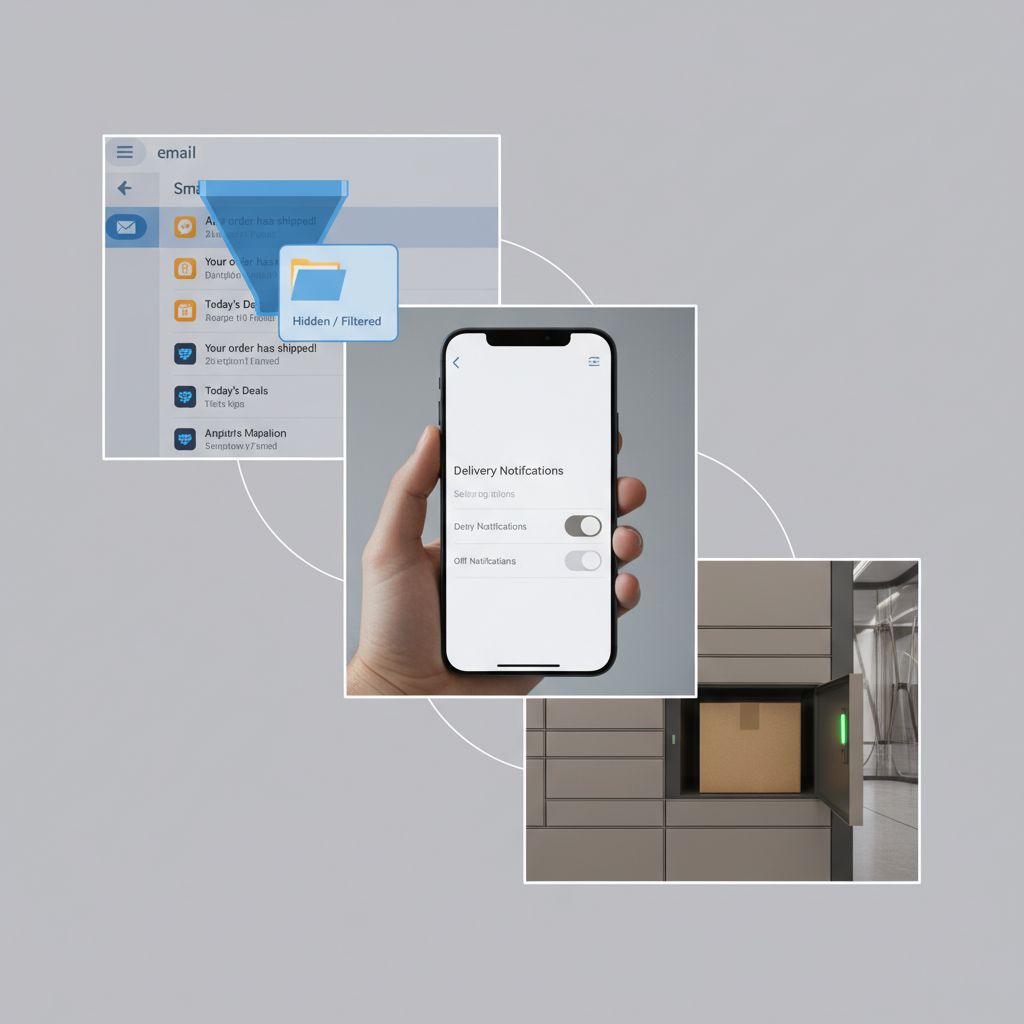
    Cozy living room with smart devices where delivery notifications are being turned off to protect privacy

    Option 5: Lock Down Your Devices (So Others Don’t See Your Stuff)

    Even if your Amazon account is tidy, your devices can still leak information:

    • Push notifications: “Your order of [very specific item] is out for delivery.”
    • Alexa announcements: “A shipment of [item] has been delivered.”
    • Fire TV or tablet showing recent searches.

    What you can do

    • Turn off delivery notifications on lock screens.
      • On iPhone/Android, go to Settings → Notifications → Amazon and adjust.
    • Disable Alexa ordered item announcements.
      • In the Alexa app, go to Settings → Notifications → Amazon Shopping and turn off delivery/product titles.
    • Log out of Amazon on shared Fire TVs, tablets, and browsers.
    • Use device PINs or profiles on shared tablets or phones.
    Quick takeaway
    You can scrub your Amazon history all day, but if Alexa announces your order to the whole house, the game is over.

    Lock and file cabinet labeled Amazon Orders with folders in an Archived section and privacy shield blocking others

    Can You Ask Amazon Support to Delete Order History?

    In general, Amazon customer support will not remove individual orders from your account history just because you don’t want to see them.

    However, there are two relevant angles:

    1. Data privacy requests (depending on your region’s laws)

    • In some jurisdictions, you can request that companies delete certain data about you.
    • This is typically more about your personal data profile, not selective removal of one random order.

    2. Account closure

    • If you permanently close your Amazon account, Amazon may delete or anonymize some data tied to that account over time.
    • This is a nuclear option: you lose access to purchases, Kindle books, Prime, digital content, subscriptions, and apps linked to that account.

    Both of these are more like “end the entire account and its services,” not “erase that one thing I regret buying in 2019.”

    Quick takeaway
    Support won’t clean up isolated orders for you. Account closure is technically the closest thing to a full reset—but it comes with big tradeoffs.

    Conceptual Amazon order privacy image with archived folders and icons for history, recommendations, and notifications

    Smart Habits if You Care About Amazon Privacy

    If you don’t want to keep fighting your order history forever, a few habits go a long way:

    1. Use a separate account for sensitive purchases.
      Keep it off shared devices, use private browsing, and don’t stay signed in.
    2. Regularly archive and clean history.
      Once a month, quickly:

      • Archive sensitive orders
      • Clear browsing history
      • Remove weird items from recommendations
    3. Lock down notifications and shared devices.
      Turn off product-title notifications and Alexa announcements, especially in shared spaces.
    4. Review Amazon Household settings.
      If you share Prime, make sure each adult has their own account, not a single free-for-all login.
    Quick takeaway
    Treat your Amazon account like email or banking—shared access should be intentional, not accidental.

    Final summary visual of Amazon orders being archived with others blocked by a privacy shield

    Summary: You Can’t Delete, But You Can Disappear

    To recap the core idea:

    • You cannot permanently delete Amazon order history from your account.
    • You can:
      • Archive specific orders so they don’t show up in the main history.
      • Clear browsing and search history.
      • Stop certain items from powering recommendations.
      • Use separate accounts or Amazon Household to separate people’s activity.
      • Lock down notifications and devices so your orders aren’t broadcast.

    Think of it like this:

    Amazon remembers.

    But with the right settings, no one else has to see what it remembers.


  • Understanding Amazon Digital Services Charges


    Understanding Amazon Digital Services Charges


    Understanding Amazon Digital Services Charges

    If you’ve ever opened your bank statement, seen a mysterious line that says “AMAZON DIGITAL SERVICES” and immediately thought, “Okay, which subscription did I accidentally sign up for this time?” — you’re not alone.

    Let’s break down what Amazon Digital Services charges are, how to figure out exactly where they came from, and what to do if you didn’t approve them.


    Person reviewing a bank statement with an Amazon Digital Services charge highlighted

    What Is an Amazon Digital Services Charge?

    In plain English: “Amazon Digital Services” is a catch‑all label Amazon uses for many of its digital products and subscriptions, not physical items.

    These charges might appear on your bank or credit card statement as:

    • AMAZON DIGITAL SVCS
    • AMZN DIGITAL
    • AMZN DIGITAL*<something>
    • AMAZON.COM BILLING AGREEMENT

    They’re usually tied to things like:

    • Streaming services (Prime Video channels, MGM+, Paramount+, etc.)
    • Kindle eBooks and digital magazines
    • Audible credits or subscriptions
    • Amazon Music Unlimited
    • Apps, games, or in‑app purchases via Amazon
    • Kindle Unlimited or other reading subscriptions

    Takeaway: If it’s digital — movies, books, music, or app content — it may show up as an Amazon Digital Services charge.

    Infographic of digital content types feeding into Amazon Digital Services charges

    Common Types of Amazon Digital Services Charges

    Here’s a breakdown of the most common things that trigger these charges.

    1. Kindle eBooks and Digital Reading

    If you or someone on your account bought:

    • A Kindle eBook
    • A digital comic or manga
    • A digital magazine or newspaper subscription

    …it will usually be billed as a digital services charge.

    Pro tip: One‑time book purchases are usually a single charge. Subscriptions (like a monthly magazine) repeat on a schedule.

    2. Kindle Unlimited or Other Reading Subscriptions

    Kindle Unlimited is a subscription service that gives you access to a large catalog of eBooks and audiobooks for a monthly fee. That recurring fee often appears as Amazon Digital Services rather than “Kindle Unlimited” on some bank statements.

    Same goes for:

    • Some magazine subscriptions
    • Certain specialty reading services through Amazon

    Takeaway: If the charge repeats on the same date each month and you read on a Kindle or the Kindle app, Kindle Unlimited is a prime suspect.

    3. Amazon Prime Video & Add‑On Channels

    Even if you already pay for Amazon Prime, you can still get extra digital charges for things like:

    • Prime Video channel add‑ons (Starz, MGM+, Paramount+, Discovery+, etc.)
    • Individual movie rentals or purchases
    • TV season passes or single episodes

    These often show as Amazon Digital Services or AMZN Digital.

    Red flag pattern: Multiple small charges around the same time? Could be a mix of rentals and purchases.

    4. Amazon Music Subscriptions

    If you subscribe to:

    • Amazon Music Unlimited (individual, family, or student plan)
    • Amazon Music add‑ons in certain regions

    …those may also appear under the Amazon Digital label on your statement.

    Clue: If you use Alexa or an Echo device to play music, it’s worth double‑checking if a free trial turned into a paid plan.

    5. Audible Memberships and Credits

    Even though Audible has its own branding, it’s owned by Amazon. Audible charges for:

    • Monthly membership
    • Extra credit packs
    • Standalone audiobook purchases

    …can sometimes look like Amazon Digital Services, especially if they’re tied to your Amazon login.

    If you see a monthly charge in the $7–$25 range and you listen to audiobooks at all, Audible is a likely candidate.

    6. Apps, Games, and In‑App Purchases

    If you have:

    • A Fire tablet
    • A Fire TV device
    • An Android phone or tablet with the Amazon Appstore
    • Kids using Amazon devices or profiles

    …then apps, games, and in‑app purchases (gems, coins, credits, subscription upgrades) may appear as Amazon Digital Services.

    This is a big one for parents — kids accidentally (or very intentionally) tapping “Buy” inside games.

    Takeaway: If you have children, or shared devices, never rule out surprise game purchases.

    Step by step illustration of checking Amazon digital orders on a laptop

    How to See Exactly What the Charge Is For

    Instead of guessing, you can usually identify the exact source in a few minutes.

    Step 1: Log In to Your Amazon Account

    1. Go to Your Orders (on desktop or in the app).
    2. Use the filters at the top and switch to Digital Orders or Digital Content and Devices.
    3. Look for orders on the same date and amount as the mystery charge.

    If it’s a rental, app, eBook, or video purchase, it should appear here.

    Step 2: Check Your Subscriptions & Memberships

    You might not see subscriptions in the regular orders list. Instead, check:

    • Your Memberships & Subscriptions in your Amazon account
    • Prime Video Channels (under Prime Video → Settings → Channels)
    • Manage Your Content and Devices for Kindle stuff
    • Digital Services and Device Support pages if linked from your account

    Look for anything:

    • With a monthly or yearly renewal date
    • With a price that matches (or is close to) the mystery amount

    Step 3: Check Other Accounts You Control

    Here’s the sneaky part: the charge might not be on your login, but still tied to your card.

    Consider:

    • Household/Family accounts (Amazon Household)
    • Kids’ profiles on Fire tablets or Fire TV
    • A partner or roommate who has your card saved

    If multiple people use Amazon with your payment method, ask if anyone recently:

    • Rented a movie
    • Subscribed to a channel
    • Bought books or game currency

    Takeaway: One card can be connected to several Amazon logins or profiles.

    Parent surprised by a digital bill while child plays a mobile game with in app purchases

    How to Dispute or Cancel an Amazon Digital Services Charge

    If you figure out what the charge is and you don’t want it, here’s what to do.

    1. Cancel the Underlying Subscription

    Once you’ve identified the culprit (Kindle Unlimited, a Prime Video channel, Amazon Music, etc.):

    1. Go to Memberships & Subscriptions in your Amazon account.
    2. Select the service.
    3. Click Cancel, End Membership, or Turn Off Auto‑Renew.

    Amazon usually:

    • Lets you finish the current paid period (you keep access until the next billing date), or
    • In some cases, offers a partial or full refund if the subscription was just renewed and unused.

    2. Request a Refund (When It Makes Sense)

    Amazon is often pretty good about digital refunds — especially if:

    • It’s a recent accidental purchase (like a single movie rental or book)
    • You haven’t used or downloaded the item yet
    • It’s the first time this has happened

    To request a refund:

    1. Go to Your Orders → Digital Orders.
    2. Find the item.
    3. Click Return for Refund or Problem with order (wording may vary).
    4. Follow the prompts and explain briefly: e.g., “Accidental purchase by child,” or “Unauthorized subscription renewal.”

    For subscriptions or channels, you may need to:

    • Use the Help/Customer Service section and start a chat or phone call.

    Honest note: Refunds for ongoing subscriptions are not guaranteed, but Amazon support is often reasonable, especially if you catch it quickly.

    3. If You Truly Don’t Recognize the Charge

    If you can’t match the charge to any order or subscription after checking all accounts:

    1. Contact Amazon Customer Support directly:

      • Use Chat or Phone in the Help section of your account.
      • Provide the date, amount, and last 4 digits of the card.
    2. Ask them to:

      • Identify what the charge is for
      • Confirm which Amazon account it’s tied to
      • Cancel any related subscriptions

    If Amazon cannot find anything on their side, or if they confirm it looks suspicious:

    1. Call your bank or card issuer:

      • Report the charge as unauthorized.
      • Ask them to block further charges from that merchant if needed.
      • Request a new card number if you suspect your card is compromised.

    Takeaway: Always start with Amazon; if that fails, escalate to your bank.

    Customer chatting online with support about identifying and refunding a digital charge

    How to Prevent Surprise Amazon Digital Services Charges

    You can tighten things up so this doesn’t keep happening.

    1. Turn On Purchase Restrictions (Especially for Kids)

    On Fire tablets, Fire TV, and some apps you can:

    • Require a PIN for purchases
    • Disable 1‑Click purchases
    • Turn off in‑app purchases entirely in kids’ profiles

    This dramatically cuts down on accidental game purchases or surprise rentals.

    2. Audit Your Subscriptions Every Few Months

    It’s easy to forget you signed up for:

    • A free trial during a holiday promo
    • A channel to watch one specific show
    • A reading or music plan you “would totally use”

    Every quarter or so:

    1. Open Memberships & Subscriptions in your Amazon account.
    2. Sort by Active.
    3. Ask yourself honestly: “Do I still use this?”
    4. Cancel the ones that don’t pass the test.

    Your future bank statement will thank you.

    3. Use Separate Cards or Virtual Cards (Advanced Move)

    If you want maximum control:

    • Use a separate card just for subscriptions.
    • Or use virtual card numbers (offered by some banks and card providers) so you can:
      • Put spending limits on them
      • Quickly kill a single merchant’s access without changing your main card

    This way, if a subscription you forgot about keeps billing you, it won’t hit your main account.

    Security and subscription control concept with card, phone, and shield icon

    Quick FAQ About Amazon Digital Services Charges

    1. Is Amazon Digital Services the same as Amazon Prime?

    Not exactly. Prime is a broader membership (shipping, video, etc.). Some add‑ons and digital extras under your Prime account might show up as “Amazon Digital Services,” but your main Prime charge is usually labeled more clearly.

    2. Why do I see multiple Amazon Digital charges in one day?

    That can happen if several small digital items were purchased separately: multiple rentals, kids buying in‑game items, or multiple book purchases.

    3. Can someone use my card on their Amazon account without me knowing?

    If they have your card details, yes. That’s why, if Amazon can’t match the charge to your account, you should talk to your bank.

    4. Are all Amazon Digital Services charges recurring?

    No. Some are one‑time purchases (like a single audiobook or a movie rental), others are subscriptions (like Kindle Unlimited, channels, or music).

    Person reviewing subscriptions and charges for Amazon digital services on devices

    Final Takeaway: Don’t Ignore the Line Item

    If you see an Amazon Digital Services charge:

    1. Check your Amazon orders (especially Digital Orders).
    2. Review your subscriptions for active digital services.
    3. Ask household members if they bought something.
    4. Cancel or request refunds where appropriate.
    5. Contact Amazon, then your bank if you can’t identify it.

    Mystery charges are annoying, but once you know that “Amazon Digital Services” is basically Amazon’s bucket for all things streamed, downloaded, or subscribed, it gets a lot easier to track down what’s going on — and stop paying for things you don’t actually use.


  • Mastering Your Amazon Reimbursement Report


    Mastering Your Amazon Reimbursement Report


    Mastering Your Amazon Reimbursement Report

    If you sell on Amazon long enough, one thing becomes painfully obvious:

    Amazon makes mistakes.

    Inventory disappears. Fees go sideways. Customer refunds don’t quite add up. And unless you’re watching your Amazon reimbursement reports like a hawk, you’re probably leaving real money on the table.

    Let’s fix that.

    In this post, we’ll break down what an Amazon reimbursement report is, how it actually works, where to find it, and how to use it to get every dollar Amazon owes you—without losing your mind in spreadsheets.


    Frustrated Amazon FBA seller surrounded by boxes and confusing reimbursement numbers, representing Amazon mistakes and money left on the table

    What is an Amazon reimbursement report?

    In simple terms, an Amazon reimbursement report tracks situations where Amazon owes you money and either:

    • Has reimbursed you already, or
    • Should reimburse you but hasn’t yet.

    Common reasons Amazon reimburses FBA sellers include:

    • Lost or damaged inventory in Amazon’s warehouse
    • Customer refunds where stock was never returned
    • Order issues caused by Amazon (wrong item shipped, shipping damage, etc.)
    • Overcharged fees (e.g., wrong dimensions/weight)

    Your reimbursement-related data is scattered across a few different reports and sections inside Seller Central—there isn’t just one big magical “Amazon reimbursement report” button. But once you know where to look, you can turn all that raw data into a clear picture of:

    • What’s been reimbursed
    • What’s still missing
    • Where you’re leaking profit
    Takeaway: Think of reimbursement reports as your audit trail for Amazon’s mistakes (and their attempts to fix them).

    Diagram showing FBA Reimbursements, Inventory Adjustments and Payments views feeding into a central reimbursement audit trail

    Where do you find Amazon reimbursement data in Seller Central?

    If you’ve ever clicked around Seller Central and thought, “Why is this so confusing?”—you’re not alone.

    Here’s where reimbursement-related information actually lives for FBA sellers:

    1. FBA Reimbursements report

    This is the closest thing to an official Amazon reimbursement report.

    Path (Seller Central):
    Reports → Fulfillment → Reimbursements (under Payments section)

    This report shows:

    • Date of each reimbursement
    • Reason type (lost, damaged, customer return, etc.)
    • ASIN/SKU
    • Quantity reimbursed
    • Amount credited

    You can filter by date range and export to CSV for deeper analysis.

    2. Inventory Adjustment & Inventory Reconciliation reports

    To understand what should have been reimbursed, you need to see what happened to your inventory.

    Key reports:

    • Inventory Adjustments – shows lost, found, damaged, and disposed units
    • Inventory Reconciliation – ties together inventory received, sold, returned, and adjusted

    Path:
    Reports → Fulfillment → Inventory Adjustments / Inventory Reconciliation

    You’ll compare these to the Reimbursements report to catch gaps.

    3. Payments → Transaction View

    Your Payments dashboard also shows individual reimbursement transactions mixed in with everything else.

    Path:
    Reports → Payments → Transaction View

    Filter by Transaction type = Reimbursement to see:

    • Exact payout amounts
    • Settlement periods
    • How reimbursements flow into your disbursements
    Takeaway: Your “Amazon reimbursement report” is really a combo of the Reimbursements, Inventory Adjustments, and Payment Transaction View reports.

    Amazon-style warehouse scene highlighting lost and damaged units with callouts for reimbursement types

    What types of reimbursements does Amazon pay?

    To use your Amazon reimbursement reports properly, you need to know what you’re even eligible for. Here are the main buckets.

    1. Lost inventory (in Amazon’s control)

    If units go missing inside Amazon’s fulfillment network (not during inbound shipping that you controlled), Amazon is generally responsible.

    Examples:

    • Units checked into the FC but never become available
    • Stock that shows as “lost” in the Inventory Adjustments report

    Often, Amazon auto-reimburses—but not always, and not always correctly.

    How to use reports:

    • Pull Inventory Adjustments for reason codes like Lost or Missing
    • Check if corresponding reimbursements exist in the Reimbursements report

    2. Damaged inventory

    If Amazon damages your inventory while it’s in their warehouses or during fulfillment, you may be owed money.

    Common scenarios:

    • FC worker damages a unit
    • Item damaged during shipment to customer (when Amazon is carrier)

    Report usage:

    • Look for Damaged or Warehouse Damaged in Inventory Adjustments
    • Match those events to reimbursements

    3. Customer returns & refunds

    Customer refunds get messy fast.

    Issues that should trigger reimbursements:

    • Customer refunded, but never returned the item (after the allowed window)
    • Customer returned a different or unsellable item
    • Amazon marks the return as Customer Damaged but fails to reimburse correctly

    Report usage:

    • Use Returns and Inventory Adjustments reports
    • Confirm if refunded orders resulted in returned units
    • Cross-check with Reimbursements and Payments → Transaction View

    4. Overcharged FBA or referral fees

    If Amazon mismeasures an item (dimensions or weight) or mis-categorizes an ASIN, you might pay inflated FBA or referral fees.

    Signals this might be happening:

    • Suddenly lower margins on a stable SKU
    • FBA fee spikes after a repackage or labeling change

    Report usage:

    • Compare Fee Preview vs. actual fees on orders
    • If fixed, Amazon may issue fee reimbursements, which appear in the Reimbursements and Payments reports
    Takeaway: Every “reason code” in your reimbursement report tells a story. Learn the stories, and you learn where your money is hiding.

    Spreadsheet and analytics view showing matched Amazon reimbursement and inventory reports with a step-by-step workflow

    How to read and analyze your Amazon reimbursement report (step-by-step)

    Let’s turn this from abstract theory into a simple workflow.

    Step 1: Export your key reports

    At least monthly (weekly if you’re high volume), export:

    • FBA Reimbursements (last 30–90 days)
    • Inventory Adjustments
    • Inventory Reconciliation
    • Payments → Transaction View filtered by reimbursements

    Save them as CSV files so you can work in Excel or Google Sheets.

    Step 2: Group reimbursements by reason type

    Inside your Reimbursements export, group or filter by reason or type. Common categories:

    • Lost inventory
    • Damaged inventory
    • Return-related
    • Fee corrections

    This gives you an overview of why Amazon is paying you back and which issues happen most.

    Questions to ask:

    • Are certain ASINs constantly being lost or damaged?
    • Are return-related reimbursements higher than you expected?

    Step 3: Match inventory events to reimbursements

    This is where most sellers stop—and where the real money is.

    1. In Inventory Adjustments, filter for events like Lost, Missing, Damaged, Warehouse Damaged.
    2. For each event (or at least high-value SKUs), look for a matching reimbursement in the Reimbursements report:
      • Same ASIN/SKU
      • Similar date range
      • Similar quantity

    If you find inventory losses with no matching reimbursements, that’s a red flag.

    Step 4: Check timing and amounts

    Sometimes Amazon reimburses partially or late.

    Look for:

    • Quantities reimbursed that are less than quantities lost/damaged
    • Reimbursement values that don’t reflect your real item value (Amazon may reimburse below your average selling price in some cases)

    If you disagree with a value, you can often open a case with supporting evidence (invoices, historical sales data, etc.).

    Step 5: Flag missing or incorrect reimbursements

    Create a simple sheet with columns like:

    • ASIN/SKU
    • Type of issue (lost, damaged, refund not returned, fee overcharge, etc.)
    • Date of inventory event/refund
    • Expected reimbursement amount
    • Actual reimbursement (if any)
    • Status (Not filed / Case opened / Closed)

    This becomes your reimbursement pipeline.

    Takeaway: Your Amazon reimbursement report isn’t just a statement; it’s the starting point for an audit process you control.

    Side by side comparison of manual reimbursement audits versus automated tools and services

    Real-world examples: what this looks like in practice

    Example 1: The disappearing FBA units

    You ship 200 units of a private label product to Amazon.

    • Check-in shows 200 received.
    • A month later, Inventory Adjustment shows 5 units lost at the fulfillment center.
    • You wait a couple of weeks. No reimbursement appears.

    You:

    1. Export Inventory Adjustments → confirm 5 units lost.
    2. Export Reimbursements → no matching record.
    3. Open a case with Seller Support including:
      • SKU/ASIN
      • Date of loss
      • Screenshots/export showing the adjustment

    Result: Amazon reimburses you for 5 units at their estimated value—money you’d have missed if you never checked.

    Example 2: The refund that never came back

    A customer is refunded for a $60 item.

    • The order is refunded on January 5.
    • No return is ever logged in your Returns report.
    • Inventory levels do not increase.

    After the return window passes:

    1. You confirm via Returns + Inventory Adjustments that no unit came back.
    2. You check Reimbursements and Payments reports—no reimbursement.
    3. You open a case, pointing out:
      • Order ID
      • Refund date
      • No return received

    Result: Amazon issues a reimbursement, turning a loss back into neutral.

    Takeaway: Real money is often hiding in tiny inconsistencies—your reports help you spot them.

    Profit protection concept with Amazon reports as a shield guarding recovered funds and a reimbursement audit checklist

    Should you do reimbursement auditing manually or use a tool/service?

    Let’s be honest: if you sell a lot of SKUs at scale, checking reimbursement reports by hand can become a part-time job.

    You basically have three options:

    1. Fully manual (DIY spreadsheets)

    Best for: Smaller accounts, a few SKUs, or very tight budgets.

    Pros:

    • Full control and visibility
    • No extra costs (just your time)

    Cons:

    • Time-consuming
    • Easy to miss reimbursement windows if you’re not consistent

    2. Software tools (FBA auditing platforms)

    There are third-party tools that:

    • Connect to your Seller Central
    • Scan your inventory, adjustments, and reimbursements
    • Flag potential missed reimbursements

    Pros:

    • Saves huge amounts of time
    • Continuous monitoring

    Cons:

    • Monthly subscription cost
    • Still may require you to submit or review cases

    3. Reimbursement services (done-for-you)

    Some services will:

    • Audit your account
    • Open cases on your behalf
    • Take a percentage of recovered funds as their fee

    Pros:

    • Hands-off
    • Expertise in how to phrase and time cases

    Cons:

    • They take a cut
    • You need to vet for compliance with Amazon’s TOS
    Takeaway: If you’re doing more than a few thousand dollars a month in FBA sales, it’s usually worth investing in either a tool or a part-time process owner for reimbursements.

    Analytics dashboard with CSV reimbursement and inventory reports being matched and color coded in a workflow

    Best practices for staying on top of Amazon reimbursements

    To turn your Amazon reimbursement reports into a real profit-protection system, build simple habits.

    1. Set a review cadence

    • Under $50k/month in sales: review monthly
    • $50k–$250k/month: review bi-weekly
    • $250k+/month: review weekly or use an automated tool

    2. Track high-value and high-risk SKUs

    Not every SKU needs deep auditing all the time.

    Prioritize:

    • High-priced items
    • Fragile items (more likely to be damaged)
    • SKUs with complex packaging or dimensions (fee issues)

    3. Watch the calendar

    Amazon has time limits for when you can file reimbursement claims (these can vary by issue type and marketplace).

    If you wait too long, you might be permanently ineligible to recover those funds.

    4. Keep clean documentation

    When opening cases, strong documentation wins:

    • Invoices or purchase orders
    • Historical sales prices
    • Screenshots or report exports
    • Exact order IDs, dates, SKUs, and quantities

    5. Make it someone’s job

    Whether it’s you, a VA, or a team member, assign clear ownership:

    • Who pulls the reports
    • Who audits them
    • Who opens and tracks cases
    Takeaway: Reimbursements are not a one-time project. They’re a recurring process—treat them like one.

    Amazon reimbursement reports forming a shield around recovered funds with a recurring audit routine checklist

    Turning Amazon reimbursement reports into found profit

    Most Amazon sellers obsess over sales and ads…and then quietly lose thousands a year to unclaimed reimbursements.

    But once you:

    • Know where to find your Amazon reimbursement reports,
    • Understand what the different reason codes and adjustments mean,
    • Build a simple audit workflow (manual, tool-based, or done-for-you),

    …you stop playing defense and start recovering money that was already yours.

    If you do nothing else, here’s a minimalist action plan:

    1. Log into Seller Central and export your FBA Reimbursements and Inventory Adjustments for the last 60–90 days.
    2. Spot-check your top 10 SKUs for lost/damaged events with no matching reimbursements.
    3. Open cases for any obvious misses.
    4. Put a recurring reminder on your calendar to repeat this every month.

    You might be surprised how quickly those “little” reimbursements add up.

    Because on Amazon, you don’t just make money by selling more.

    You also make money by losing less.


  • How To Actually Get Amazon Gift Cards Free


    How To Actually Get Amazon Gift Cards Free


    How To Actually Get Amazon Gift Cards Free

    Person carefully avoiding sketchy free Amazon gift card offers on their computer screen

    If you typed “amazon gift cards free” into a search bar, you’ve probably already seen some… interesting things.

    Sketchy generators. Shady apps. Sites that promise a $500 Amazon card for answering “one quick survey.”

    Let’s be real: most of that is either a waste of time or dangerously close to a scam.

    This guide breaks down the legit ways to get free Amazon gift cards, what’s not legit, and how to avoid getting burned—while still stacking up real credit toward your next cart.


    First, can you really get Amazon gift cards for free?

    Comparison of scammy versus legitimate free Amazon gift card methods in a split-screen style

    Short answer: yes, but not from magic codes or generators.

    Real “free” Amazon gift cards usually come from:

    1. Reward programs (points for shopping, searching, or taking surveys)
    2. Cashback apps (you buy stuff you were already going to buy, earn points, redeem for Amazon)
    3. Promotions & trade-ins (Amazon and partners sometimes give gift cards as bonuses)
    4. Side gigs & microtasks (small tasks or freelance work paid out as gift cards)

    You’re trading either time, data, or existing spending. If a site claims you’ll get big Amazon gift cards for nothing at all… that’s your red flag.

    Takeaway: Free Amazon gift cards are real, but they’re earned—not magically generated.

    Red flags: How to spot Amazon gift card scams fast

    Infographic showing common Amazon gift card scam red flags and safe alternatives

    Before we jump into the legit options, it’s worth knowing what to avoid.

    Be very skeptical of any site, app, or “generator” that:

    • Asks for your Amazon login or password
    • Promises instant $100+ cards for zero effort
    • Sends you to endless pages of “Complete 3 offers to continue”
    • Requires you to download unknown software or browser extensions from random sites
    • Tells you to pay a fee to unlock your “free” card

    If it sounds like “infinite free money” and doesn’t clearly explain how they pay for it (ads, sponsors, market research, etc.), walk away.

    Takeaway: Protect your Amazon account like it’s your bank. Because in many ways, it is.

    1. Survey & rewards sites that pay in Amazon gift cards

    Person relaxing at home using survey and reward sites to earn small Amazon gift cards

    These don’t make you rich, but they can fund a few Amazon purchases each year.

    Typical model:

    • You answer surveys, watch short videos, test apps, or complete small tasks.
    • You earn points.
    • You redeem points for Amazon gift cards (often starting at $1–$10).

    Common types of platforms:

    • Survey panels – You’re paid for your opinions for brands and researchers.
    • “Get-paid-to” (GPT) sites – You do a mix of surveys, offers, and tasks.
    • Receipt or data-sharing apps – You share shopping or browsing data in exchange for rewards.

    What to look for in a legit site:

    • Clear company name and contact info
    • Transparent payout options (Amazon, PayPal, etc.)
    • Reasonable minimum cashout (ideally $1–$10)
    • Decent online reviews, not just from one sketchy site

    Realistic earnings: Maybe $5–$50/month in Amazon gift cards if you’re consistent and pick higher-paying tasks.

    Pro tip: Don’t join 20 sites. Pick 2–4 good ones, focus your time, and learn which tasks pay best.

    Takeaway: Surveys and GPT sites are slow but steady. Think “snack money,” not salary.

    2. Cashback apps: Turn normal shopping into Amazon credit

    Online shopper using a cashback portal and converting rewards into Amazon gift cards

    Cashback apps and portals are one of the easiest ways to earn free Amazon gift cards—because you’re not changing your spending, just how you shop.

    Basic idea:

    1. You click through a cashback app/website before shopping at a partner store.
    2. The store pays the app a commission for sending you.
    3. The app shares part of that commission with you as cashback.
    4. You redeem that cashback as Amazon gift cards (or sometimes direct cash, then you buy a card yourself).

    Where you earn:

    • Online retailers (clothes, electronics, travel, etc.)
    • Grocery or gas via linked cards at some services
    • Special promos like “extra points on your first purchase”

    Why this is powerful:

    • You’re not doing “extra work”—just one extra click before checkout.
    • Some apps let you stack rewards with coupon codes or credit card cashback.

    Realistic earnings:

    • Casual use: $5–$15/month
    • Heavy online shoppers: $50+ over a few months, especially around holidays
    Takeaway: If you buy online even semi-regularly, cashback apps are one of the lowest-effort ways to accumulate Amazon gift cards.

    3. Amazon’s own promos: Trade-ins, reload bonuses, and more

    Visual collage of Amazon trade-ins, reload bonuses, and promotional credits feeding into an Amazon balance

    Amazon itself occasionally gives you free credit or gift cards for doing certain actions. These deals come and go, but they’re worth checking.

    Common promo types:

    a) Amazon Trade-In

    You send in eligible items (like old devices, books, or games) and Amazon gives you an Amazon gift card in return. It’s not “free” in the pure sense, but if those items were collecting dust, it sure feels like free money.

    b) Gift card reload or purchase bonuses

    Sometimes Amazon offers a small bonus (like $5–$10) when you:

    • Reload your own gift card balance with a certain amount
    • Buy a gift card as a new customer or with a certain payment method

    You’re still spending money—but if you were going to spend that amount on Amazon anyway, it’s like a mini freebie on top.

    c) Promotional credits

    Occasionally, Amazon gives credits for:

    • Using a specific payment method for the first time
    • Choosing no-rush shipping
    • Buying certain digital content (eBooks, movies, etc.)

    These might not be traditional gift cards, but they reduce what you pay at checkout.

    Takeaway: Always check your Amazon account and promotions area before big purchases. There might be free credit waiting.

    4. Microtasks & side gigs that pay in Amazon gift cards

    Person completing online microtasks and user tests with rewards flowing into Amazon gift card icons

    If you’re okay putting in a bit more time, you can earn Amazon gift cards from actual work, just in smaller bites.

    Examples of micro-earning methods:

    • Online microtasks – Categorizing images, simple data entry, moderation, or short writing pieces
    • User testing – Testing websites or apps and giving feedback on the experience
    • Freelance gigs – Some clients may offer Amazon gift cards as payment options for small one-off jobs

    Pros:

    • Generally pay more per hour than surveys
    • Some tasks can build real skills (like usability testing or writing)

    Cons:

    • Not always consistent or available
    • Some platforms are location-limited
    Takeaway: If you’ve got a spare hour here and there, microtasks can turn your time into a steady trickle of Amazon credit.

    5. Refunds, rewards points, and credit card perks

    Credit card points and bank rewards visually transforming into Amazon gift cards

    Not as flashy as “free codes,” but credit card points and bank rewards can quietly turn into Amazon gift cards.

    How this often works:

    • Many credit cards earn points or cashback on every purchase.
    • Those points can usually be redeemed for:
      • Amazon gift cards directly, or
      • Statement credits that free up cash (which you can then use on Amazon)

    Some banks and apps also run:

    • Spend $X, get Y bonus points promos
    • Shopping portals tied to your card with extra rewards

    Tips:

    • Never overspend just for rewards; that kills the benefit.
    • If you already use a rewards card, check if Amazon gift cards are a redemption option—you might be sitting on free money.
    Takeaway: If you’re responsible with credit, rewards programs can be a quiet but powerful Amazon gift card generator.

    6. Giveaways, loyalty programs, and social media opportunities

    Social media and brand loyalty programs occasionally rewarding users with Amazon gift cards

    This category is hit-or-miss, but it’s still real.

    You can sometimes snag free Amazon gift cards from:

    • Brand giveaways on social media (Instagram, TikTok, X, etc.)
    • Email lists or loyalty programs that occasionally reward subscribers
    • Community events, webinars, or online workshops that offer Amazon cards as attendance or raffle prizes

    How to avoid wasting time:

    • Focus on brands or creators you actually like or follow anyway
    • Avoid anything that requires excessive personal details
    • Be suspicious of “tag 20 friends to win $500” type contests
    Takeaway: Treat giveaways as a bonus, not a strategy. Nice when it hits, not worth chasing full-time.

    What does NOT work: Myths about free Amazon gift cards

    Warning-style graphic debunking myths like code generators and fake unclaimed Amazon gift cards

    Let’s quickly kill a few persistent myths around “amazon gift cards free.”

    1. “Code generators”

    There is no legit software that just spits out real Amazon codes on demand.

    Why? Because real Amazon codes cost real money. If someone had a way to do that, they wouldn’t be giving it away in a random YouTube video.

    2. “We found your unclaimed gift card”

    Be very wary of emails, texts, or DMs that claim you have an “unclaimed” Amazon gift card and need to click a link to get it.

    Often, these are phishing attempts trying to:

    • Steal your Amazon login
    • Install malware
    • Harvest personal data

    Always access your account by typing amazon.com yourself, not clicking mystery links.

    3. “Just pay a small fee to unlock your free card”

    Any “free” offer that requires payment upfront is… not free.

    Takeaway: If the method relies on magic, mystery, or urgency, assume it’s fake.

    How to build a simple strategy for free Amazon cards

    Roadmap infographic showing a simple strategy flowing into a pile of Amazon gift cards

    If you want a realistic, low-stress way to earn Amazon gift cards over time, try this approach:

    1. Pick 1–2 survey/reward sites you like.
      • Use them during downtime: TV time, commuting, waiting in line.
    2. Install or sign up for 1 cashback app/portal.
      • Route as much of your normal online shopping through it as possible.
    3. Check Amazon promotions monthly.
      • Look for reload bonuses, trade-in opportunities, or payment-method promos.
    4. Use one solid rewards credit card (if you already have one and use it responsibly).
      • Redeem points for Amazon gift cards or statement credits.
    5. Throw in microtasks or user tests occasionally.
      • Especially if you want to speed things up before a big purchase.

    Over a few months, this combo can easily stack up to $50–$200+ in Amazon gift cards, depending on how active you are and how much you normally spend online.

    Takeaway: It’s not overnight, but with a simple system, free Amazon credit builds up faster than you’d think.

    Final thoughts: “Free” is really about smart leverage

    Optimistic but realistic illustration of different earning methods merging into an Amazon balance

    When people search for “amazon gift cards free,” they’re often hoping for a hack.

    The truth is less sexy but way safer:

    • You trade time (surveys, microtasks, testing)
    • You leverage spending you already do (cashback, credit card points, Amazon promos)
    • You occasionally get lucky (giveaways, loyalty surprises)

    Do a bit of each, stay far away from anything that looks scammy, and over time you’ll have a small but steady stream of Amazon credit—ready to turn into books, gadgets, or whatever else keeps ending up in that cart.

    If you want, I can help you design a custom “Amazon gift card plan” based on how much time you’re willing to spend and what you already do online.


  • Amazon Fire TV Piracy App Crackdown Explained


    Amazon Fire TV Piracy App Crackdown Explained


    Amazon Fire TV Piracy App Crackdown Explained

    If your “free TV” suddenly died on your Fire Stick, you didn’t break it. Amazon probably did.
    Over the past year, Amazon has started blocking Fire TV piracy apps—including some you sideloaded yourself. For a lot of people, that means one day everything worked, and the next day… “This app has been disabled because it can put your device or personal data at risk.”
    Let’s unpack what’s actually happening, why Amazon is doing this, what’s getting blocked, and what your realistic options are going forward.


    Amazon Fire TV interface showing a disabled piracy app warning on screen in a modern living room

    What is Amazon doing to Fire TV piracy apps?

    Amazon is rolling out changes—via software updates and new device designs—that stop certain third‑party streaming apps from running at all, especially those linked to piracy.

    There are two parallel moves:

    1. Device‑level blocking on existing Fire TVs
      Amazon says it will now “block apps identified as providing access to pirated content, including those downloaded from outside our Appstore.” This applies to both store apps and sideloaded apps on Fire TV devices.
      The block happens on the device itself, not just in the Appstore. VPNs won’t help, because once an app is on the block list, Fire OS simply refuses to launch it. (tech.yahoo.com)
    2. New Fire TV devices that mostly kill sideloading
      Amazon’s newer Fire TV Stick 4K Select runs a Linux‑based OS called Vega OS instead of Android. On this model, apps can only be installed from the Amazon Appstore; sideloading is essentially reserved for registered developers. (androidcentral.com)
    Takeaway: Fire TV has gone from “do whatever you want if you know how to sideload” to “we decide what runs here,” especially if piracy is involved.

    Conceptual illustration of Amazon Fire TV with multiple piracy apps visually locked or blocked

    Which Amazon Fire TV apps are being blocked?

    Amazon is not publishing an official public blacklist, but we can piece together a picture from user reports and coverage.

    Known or widely reported as blocked

    On Android‑based Fire TV devices, several apps have been explicitly disabled at the system level over the past year, particularly those linked with questionable or malicious behavior as well as piracy:

    • Flix Vision / FlixVision
    • Live NetTV
    • Blink Streamz
    • Ocean Streamz
    • UK Turks App (androidauthority.com)

    Users report a common pattern:

    • The app installs (often via Downloader or another sideloading method).
    • Seconds later, a warning appears saying the app is unsafe or could put your device or personal data at risk.
    • You’re given options like Keep or Uninstall, but even if you keep it, the app:
      • Disappears from your app grid, and
      • Shows a caution icon and a message saying it’s disabled if you try to launch it from settings. (firesticktricks.com)

    In earlier waves, Amazon said some of these apps were blocked for malicious behavior—for example, bundling SDKs that hijacked user bandwidth or behaved like malware—on top of piracy concerns. (androidauthority.com)

    Apps that may be at risk (but not officially named)

    Coverage and community chatter frequently mention apps like Stremio, MagisTV, CyberFlix and similar IPTV / movie‑aggregator tools as potential future targets, because they’re widely used for unauthorized streaming. Amazon hasn’t officially confirmed any specific future additions to the block list. (bgr.com)

    Takeaway: If an app’s main purpose is “every movie, every channel, totally free,” you should assume it’s on borrowed time on Fire TV.

    Stylized flowchart graphic showing how Amazon flags and disables piracy apps on Fire TV

    How does Amazon decide what’s a “piracy app”?

    This is where things get fuzzy—and a bit controversial.

    Amazon is working with the Alliance for Creativity and Entertainment (ACE), a major anti‑piracy coalition backed by big studios and streaming services. ACE maintains a database of known piracy services and platforms. Amazon appears to be using that intel (and likely its own telemetry) to decide what to block. (tech.yahoo.com)

    The enforcement process (what you’ll actually see)

    According to reporting and Amazon’s statements, the system works roughly like this: (tomsguide.com)

    1. Your Fire TV checks installed apps against a piracy list.
      This includes both:

      • Apps from the Amazon Appstore, and
      • Apps you sideloaded using APK files.
    2. You get a warning.
      A message notifies you that a certain app is unsafe, unauthorized, or provides access to pirated content. You’re prompted to uninstall it voluntarily.
    3. If you ignore the warning, Amazon blocks it.
      The app is disabled at the system level and can no longer be opened. On some devices, it may even disappear from your app row.

    And because this happens on the device, not via network filtering, VPNs, DNS tricks, or geo‑hopping won’t bypass the block—once an app is flagged, Fire OS simply refuses to launch it. (techradar.com)

    Takeaway: This isn’t just “we don’t list it in the store” anymore. It’s “we won’t let it run,” full stop.

    Split screen comparison between an older sideload-friendly Fire TV and a newer Vega OS Fire TV with locked down apps

    Is sideloading on Fire TV now dead?

    Not entirely—but it’s getting squeezed from both sides.

    On older / Android‑based Fire TV devices

    • Sideloading technically still works in many regions and models. You can still:
      • Enable “Apps from Unknown Sources” (where available), and
      • Sideload apps via tools like Downloader or ADB.
    • However, if the app is on Amazon’s unauthorized or piracy list, it will be auto‑disabled right after installation or during a later scan.
    • An Amazon spokesperson has said sideloading is meant for developers to test apps, and that consumer use beyond that is effectively “misusing the feature.” (pcworld.com)

    On newer Vega OS devices (like Fire TV Stick 4K Select)

    • No consumer sideloading in normal use. Vega OS is designed specifically to lock out unauthorized apps and rely solely on the Amazon Appstore, with sideloading restricted to registered developers. (androidcentral.com)

    Realistically, Fire TV is moving toward “closed console” territory—more like a game console or Apple TV than a hack‑friendly Android box.

    Takeaway: You might still sideload some legit tools today (file managers, utilities, etc.), but Fire TV is no longer the “wild west” it once was.

    Editorial illustration showing legal, security, and platform control forces around an Amazon Fire TV device

    Why is Amazon blocking piracy apps now?

    There are three big drivers.

    1. Legal and political pressure

    Fire TV devices have been widely associated with illegal sports and IPTV streams. In some markets, reports claim that a significant portion of illegal sports streaming traffic ran through “dodgy Fire Sticks” and similar IPTV boxes. (androidcentral.com)

    Broadcasters and rights holders don’t love that. Amazon also sells streaming rights (think Thursday Night Football, Prime Video originals), so hosting the piracy ecosystem on its own hardware is, at best, an awkward look.

    2. Security and privacy concerns

    Amazon stresses that many of these piracy apps are security nightmares—bundling malware, data‑harvesting SDKs, or sketchy network behavior. That’s how some early blocks were justified even before the full piracy crackdown: apps were flagged as malicious, not just “free movies.” (androidauthority.com)

    Even if you don’t care about copyright law, you probably do care about apps quietly hijacking your bandwidth or scraping your data.

    3. Platform control (and business)

    Let’s be blunt: a tightly controlled app ecosystem is good business. It:

    • Protects Amazon’s brand and relationships with content partners.
    • Reduces support headaches from bricked or infected devices.
    • Keeps more viewing within apps that can show ads, sell subscriptions, or integrate with Amazon’s services.
    Takeaway: Anti‑piracy is the headline, but this is also about security, liability, and long‑term platform control.

    Living room TV showing legal free streaming apps and an alternative open streaming device on the media stand

    Does this affect legal apps like Kodi or Plex?

    This is the gray zone everyone is nervous about.

    Kodi: the poster child for “dual‑use” software

    In the past, Amazon removed Kodi from the Appstore because it could be used to facilitate piracy via third‑party add‑ons, even though the base app itself is legal and has many legitimate uses (local media, radio, DVR, etc.). Kodi remained available on Fire TV via sideloading. (pcworld.com)

    Under the new crackdown, the big question is whether apps that are legal on their own but commonly used for piracy will get swept up. So far, Amazon and ACE haven’t clearly said where they’ll draw that line.

    Plex, Emby, VLC, etc.

    Apps like Plex, Emby, VLC, and others with strong mainstream and legitimate use cases are still welcome in the Appstore and generally not targeted. They operate more as media players or servers, not “watch every paid channel for free” front ends. (pcworld.com)

    Takeaway: Pure piracy apps are in the crosshairs. Dual‑use tools like Kodi live in a risk zone, especially if their reputation is heavily tied to piracy.

    TV home screen highlighting legal free streaming apps and an additional open streaming device as an alternative

    What if you’ve been using piracy apps on Fire TV?

    Let’s be honest: a lot of people bought Fire Sticks specifically because “a guy at work” could load them up with free channels.

    With Amazon’s crackdown, you have a few options—none of which are magic.

    1. Shift to legal free streaming apps

    You can still watch plenty without paying extra, using:

    • Tubi, Pluto TV, Freevee, The Roku Channel, Plex’s free streaming section, etc.
    • Local network apps (NBC, ABC, FOX, etc. in the U.S.) that offer free next‑day content.

    These are fully supported on Fire TV and won’t get blocked.

    2. Re‑evaluate your paid subscriptions

    If you were pirating mainly because “everything is everywhere and it’s too expensive”, you’re not wrong about the fragmentation. But you can:

    • Rotate subscriptions monthly (e.g., Netflix for one month, then cancel and do Max the next).
    • Target only the services that carry the shows and sports you actually watch.
    • Look for bundles or carrier/credit card perks that include streaming discounts.

    3. Move to a more open device (if you insist on sideloading)

    If your priority is retaining full control and sideloading freedom (for legit or otherwise uses), consider:

    • Chromecast with Google TV, Android TV boxes, or NVIDIA Shield (which still support APK sideloading and VPNs). (techradar.com)
    • DIY setups like a Raspberry Pi with Kodi or Linux.
    Two big caveats: Piracy is still illegal, no matter what device you use. And many of the same malware and data‑harvesting risks follow you to these platforms.

    4. Accept that some apps are gone for good on Fire TV

    If your favorite app has:

    • Suddenly vanished from your Fire TV home screen,
    • Started showing disabled‑app warnings, or
    • Refuses to open after a recent update,

    you’re probably not getting it back on that device—no matter how many times you reinstall it.

    Takeaway: There’s no clever toggle or VPN trick that reverses a firmware‑level block. Your real choices are: go legal on Fire TV, or move your tinkering to a different platform.

    Symbolic image of an Amazon Fire TV stick constrained by legal, security, and business forces

    Will this kill piracy overall?

    Not even close.

    What it will do is push heavy piracy users off Fire TV and onto more open hardware, and make “fully loaded Fire Sticks” much harder to maintain or sell.

    But from Amazon’s perspective, that’s fine:

    • It cleans up the brand image around Fire TV.
    • It reduces legal and security exposure.
    • It aligns Amazon with studios and leagues instead of pirates.

    For everyday users who never touched a shady app, the effect is mostly positive: fewer malware‑ridden apps, more consistent behavior, and (in theory) safer streaming.

    For power users and cord‑cutting tinkerers, this is another reminder: when you buy into a closed ecosystem, the rules can change with a firmware update.

    Fire TV interface with disabled piracy app warning overlay, illustrating Amazon crackdown summary

    Quick summary: Amazon Fire TV piracy apps blocked

    If you just need the TL;DR, here it is:

    • Amazon is blocking known piracy apps on Fire TV at the device level, including some sideloaded ones like Flix Vision, Live NetTV, Blink Streamz, and similar services.
    • Blocks are informed by an anti‑piracy partnership with ACE and enforced via software updates.
    • VPNs and clever settings won’t help once an app is on the block list; Fire OS simply refuses to run it.
    • Newer devices like the Fire TV Stick 4K Select (Vega OS) are even more locked down and largely forbid sideloading for normal users.
    • Legit apps and legal free‑to‑watch services are unaffected, but dual‑use tools (like Kodi) live in a murky gray zone.
    • If you relied on piracy apps, your choices are: move to legal apps and smarter subscription strategies, or switch to a more open streaming platform knowing the legal and security risks.

    Streaming isn’t getting simpler—but at least now you know why your Fire Stick suddenly decided to go straight‑edge.


  • Landing an Amazon Co‑op for Fall 2025


    Landing an Amazon Co‑op for Fall 2025


    Co‑ops • Amazon • Fall 2025

    Landing an Amazon Co‑op for Fall 2025

    Amazon Co‑op Fall 2025: How to Land It, Survive It, and Actually Enjoy It

    You’ve heard the legends:

    “My friend did an Amazon co‑op, came back with three job offers, a fat resume line, and free hoodies.”

    If you’re eyeing an Amazon co‑op for Fall 2025, you’re probably wondering:

    • When do I apply?
    • What’s different from a normal internship?
    • How hard is it to get in?
    • And seriously… is it worth pausing school for a full semester?

    Let’s break it all down so you can make smart moves now instead of panic‑applying in May.


    Student standing between university campus and Amazon office, choosing a Fall 2025 co‑op path

    What Is an Amazon Co‑op, Exactly?

    Amazon co‑ops (also called extended internships in some regions) are usually full‑time, multi‑month work terms where you take a break from classes and work like a regular engineer, analyst, or operations specialist.

    They’re common in:

    • Software development / SWE
    • Data / business / operations
    • Robotics, hardware, mechatronics (especially near robotics or devices teams)
    • Supply chain & operations (fulfillment centers, logistics)

    Key differences from a typical 10–12 week summer internship:

    • Longer duration – often 4–6 months depending on school partnership and location.
    • Tied to your university’s co‑op program in many cases.
    • Deeper project ownership – extra months = more responsibility, more chances to ship something real.

    Takeaway: Think of an Amazon co‑op as “internship on hard mode”: longer, more responsibility, more growth.

    Timeline from January to September 2025 with resumes, coding prep, interviews, and co‑op offer

    When to Apply for an Amazon Co‑op (Fall 2025 Timeline)

    Fall 2025 sounds far away. It isn’t.

    Amazon and other big tech employers recruit 6–9 months ahead for many student roles, sometimes earlier at large target schools. For a Fall 2025 co‑op (roughly August/September–December 2025), expect:

    Rough timing (U.S./Canada oriented)

    • January–March 2025
      Many Fall 2025 co‑op job postings start appearing, especially through university co‑op offices and career portals. Some may appear even earlier for certain schools.
    • March–June 2025
      Peak application and interview window. You want your resume, GitHub/portfolio, and LeetCode prep solid before this.
    • June–July 2025
      Many offers for Fall terms get finalized. Background checks, relocation details, housing planning, etc.
    • August/September 2025
      Start of the co‑op term. Exact dates depend on your school calendar and the specific team.

    Your school’s co‑op office may have slightly different cycles (especially for quarter systems), but the punchline is the same:

    If you’re reading this in early 2025 and want a Fall 2025 Amazon co‑op, your prep window is now, not “later this summer.”

    Takeaway: Treat January–March 2025 as your application readiness deadline, not your starting line.

    Side by side of software and operations students preparing for Amazon co‑op roles

    Who Amazon Actually Hires for Co‑ops

    Amazon is big, but the funnel is still competitive. Here’s the profile that typically does well for technical co‑ops (like SDE) and operations/analyst co‑ops.

    For Software / Technical Co‑ops

    You don’t need to be a prodigy, but you should generally have:

    • Degree path: CS, CE, Software Engineering, Data Science, or related. Some ECE/Math/Physics with coding experience also get in.
    • Core skills:
      • Solid grasp of data structures & algorithms (arrays, strings, hash maps, trees, graphs, sorting/searching, Big‑O).
      • Comfort in one major programming language used at Amazon (Java, Python, C++, or sometimes TypeScript/JavaScript).
    • Projects or experience:
      • Personal projects (web apps, tools, bots, games, open‑source contributions).
      • Or prior internships / research that involved real coding.
    • Soft skills:
      • Can explain your work clearly.
      • Can collaborate and ask questions without disappearing for a week.

    For Operations / Supply Chain / Business Co‑ops

    You’re a strong candidate if you have:

    • Degree path: Industrial engineering, supply chain, business, analytics, operations research, or similar.
    • Skills:
      • Comfort with data tools (Excel, SQL is a plus, maybe Python/R in analytics roles).
      • Analytical thinking and process improvement mindset.
    • Experience:
      • Campus leadership, warehouse/operations experience, or project work (e.g., optimizing a process in a student org or class).

    Takeaway: You don’t need 20 internships. You do need at least one strong language + basic CS fundamentals + visible projects (or real operations experience for ops roles).

    Student researching Amazon co‑op postings on multiple job boards and university portals

    How to Find Amazon Co‑op Postings for Fall 2025

    You don’t need insider magic. You need a repeatable search habit.

    1. Amazon Jobs Site

    • Go to the main careers site.
    • Filter by:
      • Student Programs / Internships & Co‑ops
      • Location (U.S., Canada, or whatever region you want)
      • Keywords like “co‑op”, “coop”, “extended internship”, or simply “Fall 2025” as the term gets closer.

    2. Your University’s Co‑op / Career Portal

    Many true co‑op roles are only visible through:

    • Your university’s co‑op office portal
    • Career platforms like Handshake, Symplicity, or a custom system

    These sometimes have exclusive postings where Amazon has set up a pipeline specifically for your school.

    3. LinkedIn & Other Job Boards

    • Search Amazon + co-op + Fall 2025 (or Fall, Autumn 2025).
    • Set job alerts so you don’t have to manually check every day.

    4. Student Programs Branding

    Amazon sometimes groups roles under “Amazon Student Programs” or similar branding instead of explicitly saying “co‑op” in the title. Many “internship (4–6 months)” roles function like co‑ops even if the label differs.

    Takeaway: Use multiple channels and set up alerts. The people who “just happened” to see the posting early… usually set good alerts.

    Student perfecting a one‑page resume and GitHub profile for an Amazon Fall 2025 co‑op

    Application Strategy for Amazon Co‑op Fall 2025

    Let’s talk about how to stop your resume from getting insta‑yeeted into the void.

    1. Resume: One Page, Zero Fluff

    For student roles, keep it one page. Key sections:

    1. Header: Name, school, graduation date, contact info, GitHub/portfolio link.
    2. Education: Degree, GPA (if strong), relevant coursework.
    3. Experience: Internships, research, part‑time tech/ops roles.
    4. Projects: 2–4 of your best, with clear impact.
    5. Skills: Languages, tools, frameworks (no “Teamwork” in the skills section, please).

    Use bullet points with measurable impact:

    • “Built an internal dashboard in React + Node used by 4 teammates to automate X, reducing manual work by 30%.”

    2. Tailor (Lightly) for Co‑op Language

    If the job description mentions:

    • “4–6 month co‑op”
    • “Extended internship”
    • “Available from August–December 2025”

    Then weave availability into your resume/cover letter:

    “Available for a full‑time co‑op from August–December 2025 through [Your University]’s co‑op program.”

    3. Don’t Skip Internal School Steps

    Some universities require you to:

    • Register the co‑op with your co‑op office
    • Get adviser approval
    • Enroll in a zero‑credit or co‑op course

    If Amazon asks “Is this co‑op approved by your school?” you want to be able to say yes or “in progress, I’ve started the paperwork,” not “Wait what paperwork?”

    Takeaway: A sharp, concise resume + clear availability + school alignment beats a generic internship resume blast.

    Split view of Amazon SDE and operations co‑op day in the life, from standups to fulfillment center walks

    How Amazon Interviews Co‑op Candidates

    Spoiler: The process is very similar to SDE internships.

    For Software / Technical Roles

    Expect some mix of:

    1. Online Assessment (OA)
      Usually involves:

      • 1–2 coding questions (LeetCode Easy/Medium level)
      • Maybe a debugging or “work style” section reflecting Amazon’s Leadership Principles
    2. Virtual Interviews (often 1–2 rounds)
      • Coding:
        • Arrays, strings, hash maps
        • Basic trees/graphs
        • Sliding window, two pointers, simple DP
      • Behavioral:
        • “Tell me about a time you disagreed with someone.”
        • “Tell me about a time you owned a project end‑to‑end.”
      • These map heavily to Leadership Principles like “Ownership,” “Customer Obsession,” “Bias for Action,” etc.

    For Operations / Business / Supply Chain Roles

    You’re more likely to see:

    • Behavioral interviews (Leadership Principles heavy)
    • Scenario questions:
      • “A fulfillment center is missing its delivery targets. What data would you look at first?”
      • “You notice a safety risk on the floor and your manager disagrees it’s a priority. What do you do?”
    • Possibly a case‑style or data exercise using Excel/SQL.

    Prep Plan (3–8 Weeks)

    • Coding:
      • Do 80–120 LeetCode Easy/Medium problems focused on core patterns.
      • Timebox: 1–2 hours per day.
    • Leadership Principles stories:
      • Draft 1–2 stories each for: Ownership, Bias for Action, Have Backbone; Disagree and Commit, Learn and Be Curious, Deliver Results.
      • Use the STAR format (Situation, Task, Action, Result).

    Takeaway: If you treat this exactly like prepping for a typical big‑tech internship interview, you’re on the right track.

    Amazon co‑op weekly flow for SDE and operations students, from standups to KPI checks

    What It’s Actually Like Inside an Amazon Co‑op

    No, you won’t be “just getting coffee.” You’ll be more like a junior engineer or analyst with training wheels.

    Realistic Day‑to‑Day (SDE Example)

    A typical week might look like:

    • Daily standups with your team
    • Picking up tickets from the sprint board
    • Writing and testing code, opening PRs, addressing feedback
    • Pair‑programming or shadowing teammates
    • Occasional intern/co‑op events or tech talks

    You’ll usually get:

    • A manager who handles performance and big picture
    • A mentor or onboarding buddy for day‑to‑day questions

    Realistic Day‑to‑Day (Operations/FC Example)

    You might:

    • Walk the floor of a fulfillment center
    • Track KPIs (throughput, defects, safety incidents)
    • Work on small process improvements
    • Coordinate with area managers and associates

    Workload & Culture

    • Expect 40+ hour weeks; crunch can exist but varies a lot by team.
    • The culture is fast‑paced and metrics‑driven.
    • Ownership is real: you’re often given a project that matters, not just shadow work.

    Takeaway: It’s more intense than a chill campus job, but also way higher impact on your future career.

    Pros and cons visual balance of taking an Amazon Fall 2025 co‑op versus staying in school

    Is an Amazon Co‑op for Fall 2025 Worth It?

    If you’re on the fence about pausing school, here are the tradeoffs.

    Pros

    1. Massive resume boost
      “Software Development Engineer Co‑op at Amazon” or “Operations Co‑op at Amazon” signals you can perform in a big‑tech / large‑scale environment.
    2. Co‑op length = deeper learning
      In 4–6 months you can:

      • Own a real feature or process
      • See a project from design → implementation → iteration
    3. Future job leverage
      • Can lead to return offers (though never guaranteed).
      • Makes getting other internships much easier.
    4. Money & networking
      • Typically well‑paid compared to campus jobs.
      • You meet people who can refer you later.

    Cons

    1. Graduation date may shift
      A full semester out can push graduation by 4–6 months depending on your program.
    2. Academic fatigue / momentum
      Some students find it hard to transition back to full‑time classes after working.
    3. Relocation logistics
      You might need to move to a different city for just a few months.

    Who it’s especially worth it for:

    • Students without prior industry experience
    • People targeting big tech or large‑scale systems in the future
    • Anyone in a school that already strongly supports co‑ops (Northeastern, Waterloo, Cincinnati, Drexel, etc.)

    Takeaway: If your goal is a strong tech/ops career, an Amazon Fall 2025 co‑op is usually a high‑ROI gamble.

    Student creating an action checklist for landing an Amazon Fall 2025 co‑op

    Action Plan: What to Do This Week

    Let’s turn this into a checklist you can actually follow.

    Step 1: Clarify Eligibility & Dates

    • Confirm with your academic adviser:
      • Are you allowed to take a Fall 2025 co‑op?
      • Will it delay graduation, and are you okay with that?
    • Check if your school has a formal co‑op program or if you’d do it as a regular internship plus a leave of absence.

    Step 2: Fix Your Resume & Projects (2–3 Weeks)

    • Update to a tight, one‑page resume.
    • Polish 2–4 strong projects:
      • Hosted demos if possible (e.g., simple web apps).
      • Clear READMEs on GitHub.
    • Add any current roles, clubs, hackathons with concrete impact.

    Step 3: Start Interview Prep Now

    • Pick one language (Java, Python, or C++ is safest).
    • Create a daily LeetCode habit.
    • Draft Leadership Principles stories in a doc and rehearse them aloud.

    Step 4: Set Up Job Alerts

    • On Amazon’s careers site, LinkedIn, and your campus portal, set alerts for:
      • “Amazon co‑op Fall 2025”
      • “Amazon student programs Fall 2025”
      • “Amazon extended internship”

    Step 5: Light Networking (No Cringe Required)

    • Find current or past Amazon co‑ops/interns from your school on LinkedIn.
    • Send short, respectful messages, like:

    “Hi [Name], I’m a [year/major] at [School] interested in Amazon’s Fall 2025 co‑op. I saw you did [role/team]. Would you be open to a 10–15 minute chat sometime this month? I’d love to hear what the experience was like and any tips you’d share for someone applying from [School].”

    Some won’t reply. That’s fine. You only need a few good conversations.

    Takeaway: A simple, consistent plan beats one weekend of panic‑grinding.

    Student packing a suitcase with an Amazon Fall 2025 co‑op offer letter and badge on the desk

    Final Thoughts: Your Fall 2025 Self Will Thank You

    If you want an Amazon co‑op in Fall 2025, you don’t need to be the smartest person in your class. You need to:

    • Start early (like, now‑ish), not three days before a deadline.
    • Build visible, real projects and sharpen core fundamentals.
    • Learn how to tell good stories around Amazon’s Leadership Principles.
    • Use your university’s co‑op system instead of ignoring it.

    Do that, and “Amazon co‑op Fall 2025” becomes less of a dream and more of a calendar event you’re actually packing for.


  • Decoding Amazon’s Button Color Palette


    Decoding Amazon’s Button Color Palette


    Decoding Amazon’s Button Color Palette

    If you’ve ever clicked “Add to Cart” on Amazon without thinking… congratulations, you’ve just been gently herded by one of the most optimized button color palettes on the planet.

    Let’s unpack why Amazon’s buttons look the way they do, what psychology is hiding underneath, and how you can steal the same principles for your own product.


    Amazon-inspired e-commerce product page with bold yellow and orange CTA buttons on a calm neutral layout

    What Is the Amazon Button Color Palette?

    When most people think of “Amazon colors,” they picture:

    • A bold yellow / orange-yellow primary button (the classic “Add to Cart”)
    • A strong solid orange (often for “Buy Now”)
    • A deep navy / charcoal header and nav
    • Lots of white and light grays in the background
    • Sparse blue for links and secondary actions

    In short: bright, warm CTAs floating on a calm, low-drama background.

    But this isn’t random. That yellow–orange button palette is carefully engineered to:

    • Stand out from everything else on the page
    • Feel urgent without feeling aggressive
    • Be legible and accessible across devices

    Let’s get more specific.


    Close-up Amazon style add to cart button with hex color callouts for each state

    Amazon’s Core Button Colors (Approximate Hex Values)

    Amazon constantly A/B tests, so exact values may shift slightly over time, but designers have reverse-engineered a few stable, widely used values for the Amazon-style button palette.

    Here’s a practical breakdown you can use as a starting point:

    Primary “Add to Cart” Button

    Often represented approximately as:

    • Background: #FFD814 (Amazon-esque yellow)
    • Hover: #F7CA00 (slightly darker yellow)
    • Active/Pressed: #F0B800 (deeper, warmer yellow)
    • Text: #111111 or #0F1111 (very dark gray, almost black)
    • Border: #FCD200 or a slightly darker yellow edge

    This gives you that bold yellow pill-shaped CTA that screams: Click me, I’m safe and obvious.

    Secondary “Buy Now” / High-Intent Button

    This is usually closer to a bright orange:

    • Background: #FFA41C or #FF9900
    • Hover: #FA8900 (deepened orange)
    • Active: #F08000
    • Text: #111111 (again, nearly black)

    Designers sometimes treat this as a more urgent or immediate action. It feels a bit hotter and more intense than yellow.

    Disabled / Low Emphasis State

    For disabled or unavailable states, Amazon-style buttons typically:

    • Desaturate the color (pale yellow or pale gray)
    • Reduce contrast with borders and text

    For example:

    • Background: #F7F8FA (light gray)
    • Text: #A2A6AC (muted gray)

    This makes the button visible but clearly not interactive.


    Comparison of cool neutral e-commerce UI vs same layout with a single warm yellow or orange CTA button

    Why Amazon Uses Yellow and Orange for Buttons

    Let’s be real: Amazon could afford any color they want.
    So why these?

    1. High Contrast Against a Neutral UI

    Amazon’s layout is heavy on:

    • White backgrounds
    • Light gray panels
    • Dark gray/black text

    On that stage, a yellow or orange CTA is impossible to miss.

    If their buttons were blue, they’d compete with links and other UI elements. If they were red, they’d feel like a warning. Yellow and orange sit in the perfect spot: visible, friendly, energetic.

    Takeaway
    If your UI is cool and neutral (white, gray, blue), a warm CTA (yellow/orange) will naturally stand out.

    2. Warm Colors = Energy, Action, and Comfort

    Color psychology is not magic, but it’s not fake either.

    • Yellow is often associated with positivity, energy, and attention.
    • Orange adds a sense of action and urgency, but it’s less aggressive than red.

    Together, they form a spectrum that says: This is important, but not scary.

    When your entire business depends on people feeling comfortable clicking purchase, that nuance matters.

    Takeaway
    Warm colors tend to feel inviting and active. They’re popular for CTAs for a reason.

    3. Brand Consistency (Without Overusing the Logo Color)

    Amazon’s logo famously uses black and orange, with the smile-arrow in orange.

    Now imagine if the entire UI were blasting that orange everywhere. It would feel chaotic.

    Instead, Amazon:

    • Uses orange/yellow for high-value CTAs
    • Keeps the rest of the UI muted (whites, grays, dark blues)
    • Lets the CTA and logo pop without overwhelming the eyes
    Takeaway
    Your brand color doesn’t have to coat your whole UI. Use it strategically where action matters most.

    Component sheet of Amazon-inspired buttons showing shape, padding and labels like Add to Cart and Buy Now

    Anatomy of an Amazon-Style Button

    Let’s break down what makes an Amazon-like button feel like Amazon, beyond just color values.

    1. Shape and Spacing

    • Rounded corners but not overly pill-like
    • Generous padding on left and right (feels tappable on mobile)
    • Clear separation from surrounding elements (margin/whitespace)

    It looks like a button, not a simple text label with a border.

    2. Subtle Depth

    Amazon buttons often have:

    • A slight gradient or light-to-dark effect
    • A border that’s 1 shade darker than the background

    That tiny hint of depth helps signal “this is clickable” without full-on skeuomorphism.

    3. Clear, Short Labels

    • “Add to Cart”
    • “Buy Now”
    • “Proceed to Checkout”

    No fluff. No clever puns. Just clear intent.

    Takeaway
    You can copy every hex code from Amazon and still fail if your buttons look cramped, flat, or unclear. Typography, spacing, and affordance matter just as much.

    Design workshop scene showing CSS code for Amazon-like buttons beside button previews

    Example: Simple Amazon-Inspired Button Styles (CSS)

    Here’s a minimal CSS snippet to get an Amazon-style color palette for your buttons:

    :root {
      --amazon-yellow: #ffd814;
      --amazon-yellow-hover: #f7ca00;
      --amazon-yellow-active: #f0b800;
      --amazon-orange: #ffa41c;
      --amazon-orange-hover: #fa8900;
      --amazon-orange-active: #f08000;
      --amazon-text-dark: #111111;
    }
    
    .btn-amazon-primary {
      background: var(--amazon-yellow);
      color: var(--amazon-text-dark);
      border: 1px solid #fcd200;
      border-radius: 999px;
      padding: 0.6rem 1.6rem;
      font-weight: 500;
      cursor: pointer;
    }
    
    .btn-amazon-primary:hover {
      background: var(--amazon-yellow-hover);
    }
    
    .btn-amazon-primary:active {
      background: var(--amazon-yellow-active);
    }
    
    .btn-amazon-buy-now {
      background: var(--amazon-orange);
      color: var(--amazon-text-dark);
      border: 1px solid #e08600;
      border-radius: 999px;
      padding: 0.6rem 1.6rem;
      font-weight: 600;
      cursor: pointer;
    }
    
    .btn-amazon-buy-now:hover {
      background: var(--amazon-orange-hover);
    }
    
    .btn-amazon-buy-now:active {
      background: var(--amazon-orange-active);
    }

    You can tweak radius, padding, and fonts to match your product, but this gives you a quick starting point.


    UX cheat-sheet infographic showing primary, secondary, tertiary and disabled button styles with hex codes

    How to Design Your Own “Amazon-Like” Button Palette (Without Copying)

    You don’t need to clone Amazon to learn from it. Here’s a simple process.

    1. Start With Your Brand Color Strategy

    Ask:

    • What is my primary brand color?
    • Is it warm (red/orange/yellow) or cool (blue/green/purple)?
    • What emotion do I want for my primary action: urgent, calm, premium, playful?

    If your brand is blue, it might be smart to:

    • Use blue for headers/nav
    • Use orange/yellow as a high-contrast CTA

    If your brand is already warm, you may need a more neutral UI so the buttons don’t blend in.

    2. Build a Contrast-First Palette

    For each button state, define:

    • Background color (main fill)
    • Text color (must pass accessibility contrast, ideally WCAG AA or better)
    • Border color (slightly darker or lighter variant)
    • Hover/active state colors (1–2 steps darker or lighter)

    Test your colors on:

    • Light backgrounds
    • Dark text around them
    • Both desktop and mobile mockups

    3. Define Button Types and Hierarchy

    Amazon doesn’t just have “a button.” It has a system.

    You’ll usually want at least:

    1. Primary CTA – main action (purchase, subscribe, start trial)
    2. Secondary CTA – alternative but important action (learn more, add to wishlist)
    3. Tertiary / Ghost Button – low-priority or outline-only actions
    4. Disabled State – visible but clearly unavailable

    Give each a consistent:

    • Color
    • Weight (fill vs outline)
    • Position

    This prevents your UI from turning into a “button salad.”

    4. Test With Real Content, Not Just Dribbble Shots

    Buttons that look pretty in a Figma shot can die quickly in real life.

    Test your Amazon-style palette on:

    • Crowded product pages
    • Mobile views with long forms
    • Dark mode (if you support it)

    Watch for:

    • Do people instantly recognize what’s clickable?
    • Is there ever a moment where the user wonders, “Where do I go next?”

    If so, your buttons aren’t loud enough—or there’s too much competing noise on the page.


    Infographic comparing warm CTA on neutral UI and notes about high contrast and friendly energy

    Common Mistakes When Copying the Amazon Button Palette

    Stealing the hex codes is easy. Getting the effect is harder.

    Mistake 1: Using Amazon Yellow on an Already Warm UI

    If your site already uses lots of reds, oranges, or yellows, an Amazon-style yellow button might disappear into the chaos.

    Instead, consider:

    • Cool neutrals for the base UI
    • Warm CTAs

    Or flip it:

    • Warm brand visuals
    • Cool, high-contrast CTA like teal or blue

    Mistake 2: Overusing the CTA Color Everywhere

    If everything is yellow or orange—badges, alerts, highlights—the button stops being special.

    Reserve the strongest warm color for your primary action only. Use softer or more neutral tones for supporting elements.

    Mistake 3: Neglecting Accessibility

    A bright yellow button with light gray text? Looks cute. Fails users.

    Always ensure:

    • Button text has strong contrast against the background
    • Focus states (for keyboard users) are clearly visible
    • Hover and active states are distinguishable, not just microscopic hue shifts

    Compact cheat-sheet of Amazon-inspired button palette including primary, secondary and disabled colors

    Quick Reference: Amazon-Inspired Button Color Palette

    Here’s a compact cheat sheet you can adapt:

    Primary CTA (Add to Cart style)

    • Background: #FFD814
    • Hover: #F7CA00
    • Active: #F0B800
    • Text: #111111
    • Border: #FCD200

    Secondary CTA (Buy Now style)

    • Background: #FFA41C
    • Hover: #FA8900
    • Active: #F08000
    • Text: #111111
    • Border: #E08600

    Disabled

    • Background: #F7F8FA
    • Text: #A2A6AC
    • Border: #D5D9D9

    Tweak saturation and brightness to fit your brand, but keep the high contrast + warm-on-neutral logic.


    Neutral e-commerce layout with disciplined use of warm CTA buttons illustrating Amazon-like strategy

    Final Thoughts: Don’t Just Copy Amazon—Think Like Them

    Amazon’s button color palette works not because yellow is “magic,” but because it’s:

    • High-contrast against a quiet interface
    • Warm and inviting instead of alarming
    • Used consistently and sparingly for the most important actions

    If you want Amazon-level performance, don’t just chase their colors.

    Chase their discipline:

    • Clear visual hierarchy
    • Relentless testing
    • Systems over vibes

    Use the palette ideas in this post as a starting point—but let your own brand and users have the final say.


  • Amazon Assessment Answers: What Actually Matters


    Amazon Assessment Answers: What Actually Matters


    Amazon Assessment Answers: What Actually Matters

    If you searched “amazon assessment answers” hoping for a secret answer key… I have good news and bad news.

    Bad news: There is no legit master sheet of Amazon online assessment answers that will magically get you hired.

    Good news: You can absolutely prepare in a smart, targeted way so that the questions feel familiar, your answers are stronger, and your chances shoot way up.

    This post breaks down how the Amazon assessments really work, what Amazon is actually testing for, and how to respond in a way that matches what they want—without cheating or memorizing random screenshots from Reddit.


    Candidate calmly preparing for an Amazon online assessment at a laptop with floating question cards

    What Is the Amazon Online Assessment, Really?

    Amazon uses a set of online assessments (often called OA1, OA2, etc. for tech roles, and different names for non-tech) to screen huge numbers of candidates quickly.

    Depending on your role, you might see:

    • Work style assessment (personality / behavioral)
    • Work sample assessment (job-simulation tasks)
    • Coding & data structures problems (for software / technical roles)
    • Logical reasoning / numerical reasoning
    • Language or writing tasks (for content, operations, etc.)

    All of these are trying to answer one question:

    “Would this person do well working at Amazon, with Amazon’s problems and Amazon’s culture?”

    Once you understand that, “amazon assessment answers” stops meaning “what exact options do I click?” and starts meaning “how do I think like Amazon when I answer?”

    Takeaway
    You’re not being tested on whether you can guess HR’s favorite multiple choice. You’re being tested on judgment, problem-solving, and culture fit.

    Branching question bank graphic showing randomized and adaptive Amazon assessment questions

    Why You’ll Never Find a Real Answer Key (And Why That’s Okay)

    Let’s be blunt: if Amazon used the same fixed questions and answers, those questions would be fully leaked within days.

    So what do they do instead?

    • Huge question banks. You and a friend may get totally different scenarios.
    • Adaptive questions. Some assessments adjust what comes next based on earlier answers.
    • Scenario variations. Same core idea, different numbers, details, or characters.

    On top of that, Amazon cares a lot about integrity. Trying to cheat via leaked answers can get you flagged or banned from reapplying if they detect it.

    But you don’t need a key if you know the rules of the game.

    Takeaway
    Stop hunting for leaked answer screenshots. Start learning the patterns and principles Amazon rewards.

    Infographic of Amazon Leadership Principles around a candidate silhouette

    The Real “Amazon Assessment Answers”: Think Like the Leadership Principles

    If there is a “secret sauce,” it’s this: almost every behavioral and work-style question is secretly testing your alignment with Amazon’s Leadership Principles.

    Some of the big ones that frequently show up:

    • Customer Obsession – You prioritize the customer impact.
    • Ownership – You take responsibility, not just for your task, but for the outcome.
    • Bias for Action – You move with urgency and make decisions with incomplete info.
    • Dive Deep – You pay attention to details and data.
    • Learn and Be Curious – You seek to understand and improve.
    • Deliver Results – You actually get things done, not just talk about them.

    When you see a scenario like:

    “Your manager is out and a customer is angry. You have limited information and a deadline approaching. What do you do?”

    They’re not grading whether you pick Option A versus B based on vibes. They’re checking:

    • Do you obsess over fixing the customer problem?
    • Do you show ownership instead of saying “I’ll wait for my manager”?
    • Do you move, not stall—Bias for Action?
    • Do you try to get data or context—Dive Deep?
    Takeaway
    The best “amazon assessment answers” are the ones that scream: I think and act according to your Leadership Principles.

    Workplace dashboard scenario showing decision-making with customer impact and data

    How to Approach the Work Style Assessment (Personality Part)

    The work style assessments are those “What would you do?” or “Which statement sounds more like you?” questions. They often look like simple personality tests, but they’re more targeted.

    1. Be Consistent, Not Perfect

    Don’t answer as if you’re a flawless superhero. Instead, answer in a way that shows:

    • You’re customer-focused
    • You take ownership
    • You’re data-informed
    • You move quickly but aren’t reckless

    If in one question you say you always double-check data carefully, but in another you say you rarely review work before sending—those contradictions can hurt you.

    2. Don’t Over-Optimize for Niceness

    Amazon values being respectful, but many top-scoring answers:

    • Push for results
    • Challenge ideas when needed
    • Escalate issues if customer impact or safety is at risk

    Picking the most “polite” or “people-pleasing” option every time won’t necessarily score well.

    3. Extreme Answers Are Usually Wrong

    Questions like:

    “I always follow the process exactly as written, even if it slows things down.”

    Amazon culture is big on improvement, innovation, and Bias for Action. Blindly following process with no flexibility rarely matches their ideal. Look for answers that:

    • Respect process and
    • Focus on customer impact, data, and speed
    Takeaway
    Aim to be a data-driven, customer-obsessed owner who moves fast, learns, and improves—not a perfect robot or a people-pleasing chameleon.

    Amazon-style work simulation with metrics, emails, and prioritization bubbles

    How to Answer Scenario / Simulation Questions

    Many Amazon roles include job simulations:

    • You’re a manager dealing with conflicting priorities.
    • You’re in operations resolving shipment or inventory issues.
    • You’re in support, handling escalations and tricky customers.

    These often look like long emails, chats, or dashboards followed by multiple-choice decisions.

    Here’s a simple decision framework that tends to line up with strong Amazon-style answers:

    Step 1: Clarify the Customer Impact

    Ask yourself:

    • Who is the “customer” in this scenario?
    • What is the worst thing that happens to them if I do nothing?

    The higher the impact on the customer, the more urgent and serious your response should be.
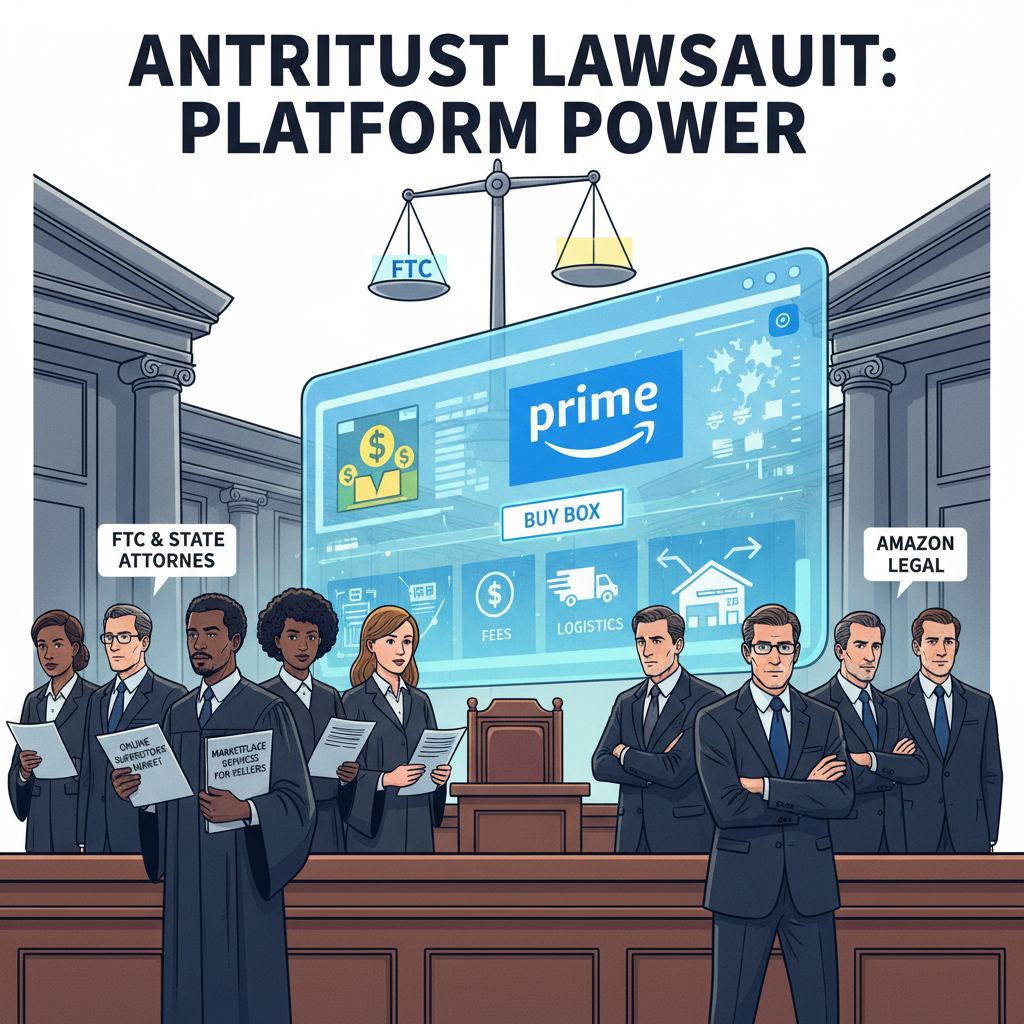
    Step 2: Show Ownership, Not Deflection

    Good answers:

    • Take responsibility for moving the problem forward
    • Propose a path instead of waiting passively
    • Communicate clearly with stakeholders about what you’ll do next

    Weak answers:

    • Push the problem to someone else without adding value
    • Wait indefinitely for more info
    • Ignore or downplay clear issues

    Step 3: Use Data and Prioritization

    Amazon loves people who Dive Deep. So in scenario answers that mention metrics, SLAs, or dashboards:

    • Use numbers to justify your choice when possible
    • Prioritize tasks based on impact, deadlines, and customer effect

    Step 4: Balance Speed and Rigor

    In time-sensitive scenarios, strong answers:

    • Act quickly on the biggest known risks
    • But still check the most critical assumptions

    For example, you might:

    • Immediately stop a faulty process that harms customers
    • While you investigate root cause and prevent recurrence
    Takeaway
    In simulation questions, the “right” Amazon assessment answers usually protect the customer, show ownership, use data, move fast, and fix the root cause—not just the symptom.

    Coding assessment scene with engineer, code, algorithms, and countdown timer for Amazon OA prep

    What About Coding Assessments for Amazon (OA1/OA2)?

    If you’re applying for a software engineer or SDE internship role, you’ll likely see coding questions similar to what you’d find on LeetCode or HackerRank.

    Here’s how to “answer” these the right way:

    1. Expect Classic Data Structures & Algorithms

    You’ll often see problems involving:

    • Arrays, strings, hash maps
    • Trees, graphs, queues, stacks
    • Greedy algorithms, dynamic programming
    • Sorting, searching, and complexity tradeoffs

    You don’t need secret Amazon-specific tricks. You need:

    • Clean problem understanding
    • A correct and efficient approach
    • Working code that handles edge cases

    2. Practice With a Timer

    Most Amazon coding assessments are timed. To prep:

    • Solve 2–3 problems a day with a strict time limit
    • Practice writing from scratch in the language you’ll use (Java, Python, C++, etc.)
    • Focus on clarity: good variable names, helper functions, comments if needed

    3. Don’t Panic on Edge Cases

    Before you hit “submit,” quickly ask:

    • What if the input is empty?
    • What if it’s very large?
    • What if values repeat or are negative?

    Often, fixing one or two simple edge cases can move you from partial credit to a pass.

    Takeaway
    The best “answers” here are just good algorithm prep, solid coding habits, and calm testing under time pressure.

    Side-by-side weak vs strong answer visualization for a delayed shipment scenario

    Example: Turning a Weak Answer into a Strong Amazon Answer

    Let’s say the scenario is:

    A key shipment to a major customer is delayed due to an internal error. They’re upset and threatening to cancel future business. What do you do?

    Weak answer (what many people pick):

    • Apologize
    • Explain it wasn’t your fault
    • Offer a small discount
    • Promise to do better next time

    This sounds reasonable—but it’s light on Ownership, Dive Deep, and Deliver Results.

    Stronger Amazon-style answer:

    • Immediately acknowledge and apologize for the impact on the customer (Customer Obsession)
    • Take responsibility on behalf of the team, not blaming colleagues (Ownership)
    • Offer specific, meaningful options: expedited shipping, alternative inventory, or other compensation based on policy (Deliver Results)
    • Quickly investigate the root cause of the delay using system data/logs (Dive Deep)
    • Implement or propose a process fix to prevent recurrence and communicate back to the customer what changed (Learn and Be Curious)

    See the difference? The second answer doesn’t just soothe feelings; it fixes the problem and the system.

    Takeaway
    When in doubt, layer in multiple Leadership Principles into your decision.

    Conceptual warning infographic about gaming tests and leaked answer sheets

    Red Flags That Can Hurt Your Amazon Assessment Score

    Even strong candidates sometimes tank the assessment by doing these:

    1. Trying to “game” the test too hard
      Overthinking every option as “What do they want?” instead of “What would a strong, data-driven owner do?” can make your answers inconsistent.
    2. Being conflict-avoidant in every scenario
      If you never escalate, never challenge a bad decision, and always just go along—that doesn’t align well with Amazon’s culture of insisting on high standards.
    3. Ignoring data that’s clearly given
      If a question gives you metrics, trends, or SLAs, and you choose an answer that acts like those numbers don’t exist, that’s a bad sign.
    4. Blaming others or hiding mistakes
      Amazon heavily values Ownership and earning trust. Answers that dodge responsibility or shift blame usually score poorly.
    Takeaway
    Answer like a high-ownership, numbers-aware teammate who cares more about the customer and outcome than about avoiding hard conversations.

    Focused candidate preparing for Amazon assessment with leadership principles and scenarios

    How to Prepare for the Amazon Assessment (Without Cheating)

    Here’s a simple prep plan you can follow over a few days:

    Day 1–2: Learn the Culture

    • Read through Amazon’s Leadership Principles and rewrite each in your own words.
    • For each principle, think of one real story from your past that shows it (job, school, projects, volunteering).

    Day 3–4: Practice Scenarios

    • Look up example Amazon-style behavioral questions (search for Amazon behavioral questions leadership principles).
    • For each, ask: “Which principle is this testing?”
    • Practice choosing options that:
      • Protect customer impact
      • Show ownership
      • Use data
      • Deliver results

    Day 5–7: If It’s a Tech Role, Grind Problems

    • Use sites like LeetCode / HackerRank for 1–2 problems a day.
    • Focus on arrays, strings, hash maps, and sorting/searching.
    • Set a timer equal to typical OA time per problem.

    Right Before the Assessment

    • Check your environment: stable internet, quiet space
    • Read every question carefully (you can’t “undo” some answers)
    • Don’t rush, but don’t obsess over perfection either
    Takeaway
    You don’t need months of preparation. A focused week aligned to how Amazon actually evaluates can make a big difference.

    Calm, confident candidate treating the Amazon assessment as a preview of the job

    Final Word: The Best “Answer” Is Your Fit

    You can’t (and shouldn’t) brute-force your way into Amazon with a collection of leaked “amazon assessment answers.”

    What you can do is:

    • Understand what Amazon values
    • Practice thinking and deciding with those values in mind
    • Prep the skills (coding, analysis, communication) that the role requires

    Then, when you sit down for the assessment, the questions won’t feel like trick puzzles. They’ll feel like a preview of the job—and a chance to show you already think like someone who belongs there.

    If you’d like, tell me what role you’re applying for (SDE, operations, marketing, warehouse, etc.), and I can walk you through the most likely assessment format and how to tailor your preparation.


  • Amazon 401(k): How To Max It Out


    Amazon 401(k): How To Max It Out


    Amazon 401(k): How To Max It Out

    If you work at Amazon and you’re not taking full advantage of the 401(k), that’s basically leaving free money in your manager’s inbox.

    Let’s fix that.

    This guide breaks down how the Amazon 401(k) works, what’s changed recently, and how to actually use it like someone who likes Future You.

    Quick note: Amazon can and does update its benefits. Always double‑check the latest plan details in your Amazon Benefits portal or with Fidelity (Amazon’s 401(k) provider in the U.S.). This post gives you a clear framework so updates are easy to plug in.


    Amazon employee checking a 401(k) dashboard with a smiling Future You in the background

    Your Amazon 401(k) is basically a “Future You” funding machine—if you actually turn it on.

    What is the Amazon 401(k) in plain English?

    Your Amazon 401(k) is an employer‑sponsored retirement plan managed through Fidelity. You put in a percentage of your paycheck, Amazon adds its own contributions (subject to eligibility and limits), and the money is invested for the long term.

    Key pieces:

    • Pre‑tax or Roth contributions (and sometimes after‑tax, depending on plan options and role)
    • Amazon contributions (employer match and/or non‑elective contributions depending on program and eligibility)
    • A lineup of investment options (target‑date funds, index funds, etc.)
    • Tax advantages now, later, or both
    Takeaway: The Amazon 401(k) is a tax‑favored bucket where both you and Amazon can stash money for your retirement.


    Infographic showing 2025 401(k) contribution limits for Amazon employees

    Think of IRS limits as three buckets: your contributions, catch‑up if 50+, and the combined total cap.

    How much can you contribute to Amazon’s 401(k)?

    The IRS sets the annual 401(k) contribution limits, and your Amazon plan has to obey those.

    For 2025 (most recent IRS numbers available as of January 2026):

    • Employee contribution limit: $23,000
    • Age 50+ catch‑up: additional $7,500 (so $30,500 total employee contributions)
    • Overall limit (employee + employer): $69,000 (or $76,500 with catch‑up)

    These limits apply across all 401(k) plans you participate in during the year. If you changed jobs mid‑year, you need to make sure you don’t overcontribute.

    Takeaway: Aim to at least hit the level that earns the full Amazon employer contribution, then work your way up toward the IRS max if you can.


    Conceptual visualization of employee and Amazon 401(k) contributions flowing into a vault with a vesting schedule

    Two streams—yours and Amazon’s—flow into the same 401(k) vault, but Amazon’s usually unlocks over time.

    Amazon 401(k) match and employer contributions (conceptually)

    Amazon’s exact match formula and eligibility can vary by role, region, and employment status, and it has changed over the years. But here’s how the structure typically works so you can plug in your specifics from the benefits site.

    1. Employee contributions

    You choose a percentage of your eligible pay to contribute each paycheck. You’ll usually see options like:

    • Traditional 401(k): Pre‑tax, lowers your taxable income today. You’ll pay taxes when you withdraw in retirement.
    • Roth 401(k): After‑tax, no deduction now, but qualified withdrawals in retirement are tax‑free.

    You can split contributions between the two as long as the total stays under the IRS annual limit.

    2. Amazon contributions

    Amazon may:

    • Match a percentage of what you contribute (up to a cap), and/or
    • Provide non‑elective contributions (money they put in regardless of whether you contribute, depending on program and eligibility)

    The exact formula (e.g., “X% match on the first Y% of pay”) is in your Amazon Benefits documentation. The logic, though, is universal:

    • There’s a magic percentage of your pay that unlocks the full company contribution.
    • Contributing less than that = leaving money on the table.

    3. Vesting (when Amazon’s money becomes fully yours)

    Your own contributions are always 100% vested—you can’t lose them.

    Amazon’s contributions often have a vesting schedule, meaning you earn ownership over time (e.g., a percentage per year of service). If you leave before you’re fully vested, you may forfeit some of the employer money.

    Check in your plan details:

    • Vesting schedule: Is it immediate, graded (e.g., 20% per year), or cliff (e.g., 100% after 3 years)?
    • Hire date and service years: These determine your vested percentage.
    Takeaway: Know your company match formula and vesting schedule. Then, at minimum, contribute enough to capture all of Amazon’s free money.


    Split-screen illustration comparing Traditional vs Roth 401(k) tax treatment over time

    Traditional helps cut taxes now; Roth helps future you keep more of your withdrawals later.

    Traditional vs Roth in the Amazon 401(k): which should you pick?

    Let’s talk taxes (but in a way that doesn’t put you to sleep).

    Traditional 401(k>

    Traditional 401(k)

    • Contributions are pre‑tax.
    • They lower your taxable income now (good if you’re in a high bracket today).
    • Withdrawals in retirement are taxed as ordinary income.

    Roth 401(k)

    • Contributions are made after tax.
    • No tax break now, but qualified withdrawals in retirement are tax‑free.
    • Great if you expect your future tax rate to be equal or higher than today, or you’re early in your career at a relatively low income.

    A simple Amazon‑employee rule of thumb

    This is not personalized tax advice, but here’s a common approach:

    • Early‑career / lower tax bracket: Tilt more toward Roth 401(k).
    • Mid‑ to late‑career / higher tax bracket: Tilt more toward Traditional 401(k) to reduce taxes now.
    • Unsure? Split contributions (e.g., 50/50). That gives you tax diversification later.
    Takeaway: You don’t have to choose “Team Traditional” or “Team Roth” forever; you can adjust your mix as your income and tax situation change.


    Amazon employee reviewing salary, RSUs, bonus, and 401(k) contribution levels on a dashboard

    Your RSUs and base pay live in different lanes. Your 401(k) percentage is tied to eligible pay, not vesting stock.

    How Amazon 401(k) works with RSUs (stock) and other comp

    Amazon comp can include:

    • Base salary
    • RSUs (restricted stock units)
    • Bonuses (in some roles/levels)

    Your 401(k) contributions are usually based on eligible pay, which typically includes base salary and sometimes bonuses, but not the value of RSUs when they vest (those are taxed as income separately, but they don’t automatically flow into the 401(k)).

    A realistic scenario

    Example:

    • You make $150,000 base salary.
    • You also have RSUs that vest worth, say, $80,000 this year.
    • You decide to contribute 10% of your salary to the 401(k).

    You’re contributing: 10% of $150,000 = $15,000 (toward the $23,000 annual IRS limit). The RSU income you recognize when they vest does not automatically increase your 401(k) contributions.

    A lot of Amazon employees who get meaningful RSU income choose to:

    • Max out their 401(k) early in the year via paycheck percentage, and
    • Use vested RSUs (after paying taxes) to build additional brokerage investments or an emergency fund.
    Takeaway: Don’t assume rising RSUs will automatically boost your 401(k) savings. You still need to set and adjust your contribution rate.


    Investment options inside an Amazon 401(k) including target-date, index, and bond funds

    Picking investments can be simple: a single target‑date fund beats analysis paralysis every time.

    Investment options inside the Amazon 401(k)

    Your 401(k) doesn’t just sit in cash (unless you pick the cash option). It’s invested in funds you choose from the plan menu.

    Common options in the Amazon 401(k) lineup generally include:

    • Target‑date funds (TDFs):
      • You pick a fund closest to your expected retirement year (e.g., 2050).
      • The fund automatically adjusts from aggressive (more stocks) to conservative (more bonds) as you age.
      • Easiest “set it and mostly forget it” option.
    • Index funds:
      • Track broad markets like the S&P 500, total U.S. stock market, or international stocks.
      • Typically low‑cost and tax‑efficient.
    • Bond funds:
      • Provide stability and income.
      • Useful as you get closer to retirement or want lower volatility.
    • Other specialized funds:
      • May include sector funds, global funds, or stable value funds.

    A simple portfolio framework for Amazon employees

    Not investment advice, just a common pattern:

    • If you don’t want to think about it: Choose a single target‑date fund that matches your retirement year.
    • If you’re comfortable being hands‑on:
      • 80–100% in a U.S. and international stock index mix when younger
      • Gradually add bond index funds as you approach retirement or if volatility stresses you out.
    Takeaway: Fees and simplicity matter more than having a perfectly optimized portfolio. A low‑cost target‑date fund is better than analysis paralysis.


    Illustration of an Amazon employee leaving the company with 401(k) rollover options

    Leaving Amazon? Your 401(k) doesn’t quit with you—you get to choose where it lives next.

    Vesting, leaving Amazon, and what happens to your 401(k)

    Life happens. Maybe you’re moving, switching industries, or just deciding you’ve had enough of orange badges. What happens to the 401(k)?

    1. Your contributions

    • Always 100% yours, no matter when you leave.

    2. Amazon contributions

    • You keep the vested portion.
    • Any unvested employer contributions are forfeited when you leave.

    3. Your options when you leave

    Typically, you can:

    1. Leave it in the Amazon 401(k) (if your balance meets the plan’s minimum requirement).
    2. Roll it over to:
      • A new employer’s 401(k), or
      • An IRA (Traditional or Roth, depending on tax treatment).
    3. In some cases, cash out (usually a bad idea):
      • You’ll owe income tax.
      • If you’re under 59½, you’ll likely owe a 10% early withdrawal penalty on top.

    Most financially savvy Amazon alumni either leave the account where it is for a while or roll it over to consolidate everything into one place.

    Takeaway: When you leave Amazon, your 401(k) doesn’t disappear. Just don’t impulsively cash it out.


    Tiered savings illustration showing match, 10–15 percent saving, and maxing out the 401(k)

    Think in tiers: grab the match, push toward 10–15%, then chase the IRS max if your budget allows.

    How much should you put into your Amazon 401(k)?

    Let’s break this down into tiers.

    Tier 1: Don’t leave free money behind

    • Contribute at least enough to get the full Amazon match / employer contribution.
    • If you can only do that, it’s still huge. A 3–5% extra of salary every year can be six figures over a career.

    Tier 2: Aim for 10–15% of income

    Many financial planners suggest 10–15% of your gross income going toward retirement (including employer contributions).

    • If Amazon contributes, say, 3–4%, you might aim for 6–12% from your own paycheck.

    Tier 3: Max it out if you can

    If your income allows and other priorities (emergency fund, high‑interest debt) are handled, consider:

    • Maxing the IRS limit ($23,000 for 2025; more with catch‑up if 50+).
    • Then potentially investing additional savings in:
      • An HSA (if eligible), or
      • A taxable brokerage account.
    Takeaway: The most important step is hitting the full Amazon contribution. After that, work toward 10–15% of income, then the IRS max as your budget allows.


    Checklist illustration of a new Amazon employee setting up their 401(k) in about 30 minutes

    Give your 401(k) 30 focused minutes once, then let automation carry most of the weight.

    New Amazon employee? Here’s a 30‑minute setup checklist

    If you just joined and your head is spinning from onboarding, here’s the CliffsNotes version.

    Step 1: Log into Fidelity via Amazon Benefits

    • Find your 401(k) section.
    • Turn auto‑enrollment ON (or bump up the default percentage if you’re already auto‑enrolled).

    Step 2: Choose your contribution rate

    • Find out what percentage unlocks the full Amazon contribution.
    • Set your contribution at least to that.
    • If possible, round up another 1–2%—you’ll barely notice it after a couple of paychecks.

    Step 3: Pick Traditional vs Roth (or both)

    • Early career / lower bracket? Lean Roth.
    • Higher income / high bracket? Lean Traditional.
    • Indecisive? Split 50/50 and revisit in a year.

    Step 4: Select your investments

    • Easiest option: pick a target‑date fund closest to your planned retirement year.
    • More advanced: build a simple 2–3‑fund mix of U.S. stock index + international stock index + bond index.

    Step 5: Turn on automatic increases (if available)

    • Enable a 1% per year auto‑increase until you hit your target savings rate.
    • That way, your savings grows quietly in the background without you constantly revisiting it.
    Takeaway: In under an hour, you can set up a system that keeps building your retirement savings while you focus on everything else.


    Common 401(k) mistakes visual checklist for Amazon employees

    Avoid the usual traps: skipped match, idle cash, and too much AMZN in every corner of your life.

    Common mistakes Amazon employees make with their 401(k)

    A few patterns show up over and over:

    1. Not contributing enough to get the full Amazon employer contribution
      • This is the big one. Always at least hit the match.
    2. Letting everything sit in cash or the default fund without checking
      • Make sure your money is actually invested in a way that fits your age and risk tolerance.
    3. Overlapping risk with too much Amazon stock + RSUs
      • If your RSUs already give you big exposure to Amazon stock, it’s often wise to keep your 401(k) mostly in diversified funds, not more AMZN.
    4. Ignoring vesting schedules when planning to leave
      • If you’re close to a vesting milestone, know what’s at stake.
    5. Waiting years to start contributing
      • Starting at 4% today usually beats starting at 10% 10 years from now. Time in the market > timing the market.
    Takeaway: The bar for “doing pretty well” is lower than you think: diversify, get the full Amazon contribution, and start early.


    Future self relaxing on a beach, happily funded by a well-used Amazon 401(k)

    A few small decisions now can mean Future You is on a beach—not still checking Slack.

    Final thoughts: your Amazon 401(k) is a tool, not homework

    It’s easy to treat your 401(k) like yet another corporate portal you’ll “deal with later.” But later quietly turns into years—and those are years of lost compound growth and free employer money.

    If you do nothing else this week:

    1. Log into your Amazon 401(k) account.
    2. Confirm you’re contributing enough to get the full employer contribution.
    3. Make sure your investments match your age and risk comfort (a target‑date fund is perfectly fine).

    Do that, and you’re already ahead of a huge percentage of people.

    Future You—probably somewhere on a beach, not checking Slack—will be very, very grateful.