Amazon Fire TV Blocking Your Streaming Apps?

Your Amazon Fire TV was working perfectly yesterday…
Today? Suddenly Netflix won’t open, YouTube won’t load, and a random app says it’s “not available in your region.”
Did your TV wake up and choose violence?
If your Amazon Fire TV is blocking streaming apps – whether they’re randomly disappearing, force-closing, or saying “unavailable” – this guide walks you through why it happens and exactly how to fix it.
Quick Answer: Why Is My Amazon Fire TV Blocking Streaming Apps?
Most of the time, blocked or missing streaming apps on Fire TV come down to one (or more) of these:
- Account / Region issues – Your Amazon account region doesn’t match your current location or the app’s region.
- Parental controls or content restrictions – Fire TV or your profile is blocking certain apps or age-rated content.
- Network restrictions – Work/school/Wi‑Fi network is blocking streaming or specific domains.
- VPN / DNS settings – A VPN, Smart DNS, or custom DNS is triggering geo-blocking or app errors.
- Out-of-date software or app versions – Older Fire OS or app builds stop working.
- Storage or corrupted data – Fire TV is full or the app cache/data is messed up.
- App removed or unsupported – The app has been pulled from the Amazon Appstore or no longer supports your device.
We’ll go through each, step-by-step.
- Restart Fire TV + router.
- Check parental controls & profile restrictions.
- Turn off VPN/Smart DNS and test.
- Check Amazon account country & app availability.
- Clear app cache/data or reinstall the app.
- Update Fire OS.
Now let’s dig in.
1. First Things First: Simple Resets (That Actually Work)
Before you dive into obscure settings, knock out the low-effort stuff that fixes a shocking number of Fire TV problems.
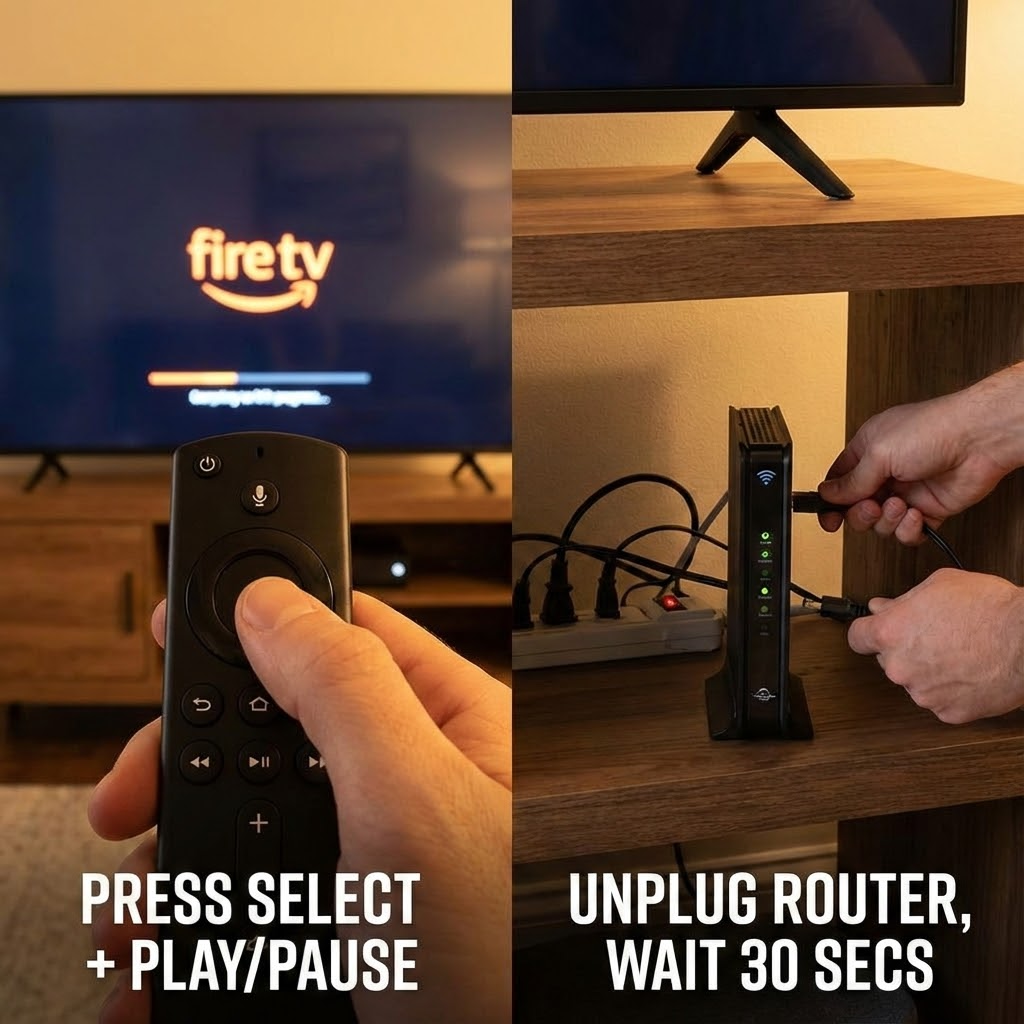
Restart your Fire TV the right way
Not just turning the TV off – actually reboot the Fire device.
On your Fire TV:
- Go to Settings > My Fire TV (or Device & Software).
- Select Restart.
Or, use the remote shortcut:
- Hold Select (center button) + Play/Pause together for about 5 seconds.
Power cycle your modem/router
If streaming apps won’t load or say “no internet,” your Wi‑Fi might be the real villain.
- Unplug modem and router for 30–60 seconds.
- Plug them back in, wait a couple of minutes.
- Try the apps again.
2. Check If Only Some Apps Are Blocked (Key Diagnostic Step)
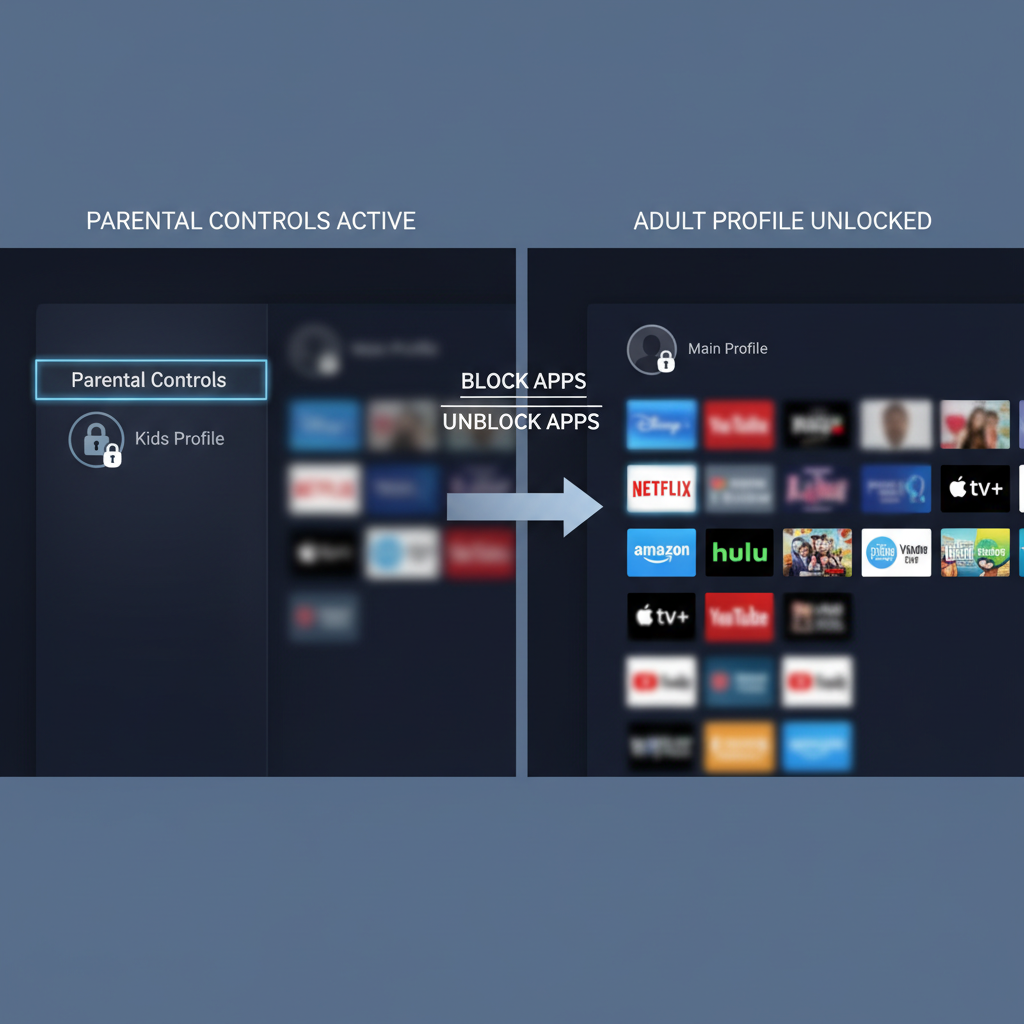
Figure out if all streaming apps are blocked or just some.
Ask yourself:
- Do ANY apps work? (Prime Video, YouTube, Pluto TV, etc.)
- Are only paid/subscription apps failing? (HBO Max/Max, Hulu, Netflix, Disney+)
- Do you get error codes? (e.g., “App unavailable in your region,” “Unable to connect,” error numbers)
If ALL streaming apps are blocked
This usually points to:
- Network problems
- VPN or DNS interference
- Fire OS bugs
- Massive parental controls
If ONLY specific apps are blocked
This usually means:
- Region/app availability issue
- App-specific bug or corrupt data
- The app has been removed or no longer supports your device
- Account/subscription issue with that service
3. Parental Controls & Profile Restrictions (The Silent App Killer)
If your Fire TV suddenly started blocking apps after a kid’s profile was used, or after enabling some “safety” feature, this section is for you.
Check Fire TV parental controls
- Go to Settings > Preferences > Parental Controls.
- If Parental Controls is ON, select it and enter your PIN.
- Review:
- App Restrictions / Appstore Restrictions
- Viewing Restrictions (by age rating)
- Purchase Restrictions (app installs may be blocked)
If certain apps are marked as restricted, they may:
- Not appear on the home screen
- Prompt for a PIN
- Refuse to open
You can either:
- Turn Parental Controls OFF temporarily and test the app.
- Or loosen the restriction level (e.g., allow apps rated Teen or above).
Check Amazon Household / Kids profiles
If you’re using a Kids profile or a restricted profile:
- Switch to an adult profile.
- Try installing/opening the app again.
If it works on the adult profile, your Kids profile simply doesn’t allow that app.
4. Region & Geo-Blocking: “This App Is Not Available” Problems
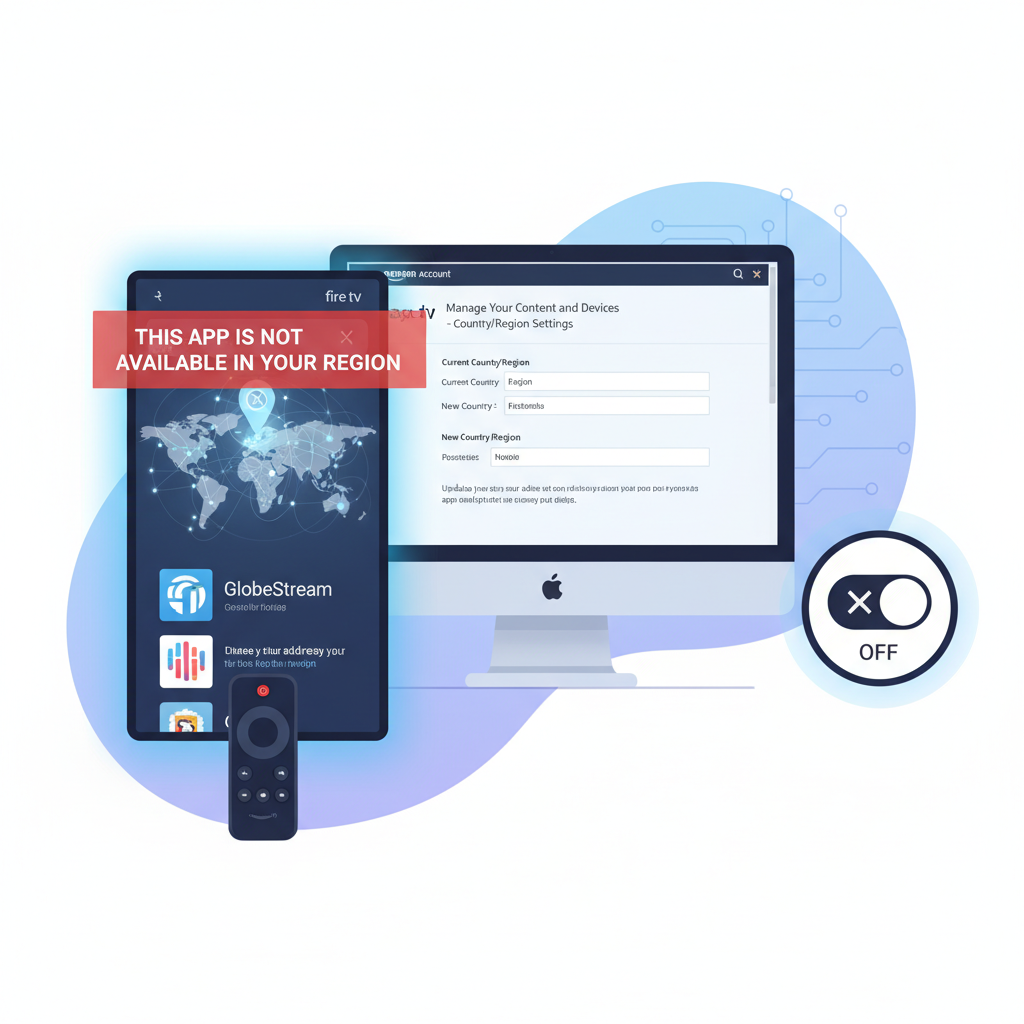
One of the most confusing Fire TV issues is when the Appstore says:
“This app is not available in your region”
or the app installs but then refuses to play content because of location.
Check your Amazon account country/region
Your Fire TV gets its Appstore region from your Amazon account.
On a phone or computer:
- Go to Your Account on Amazon.
- Find Content & Devices or Manage Your Content and Devices.
- Look for Preferences > Country/Region Settings.
- Confirm the country is where you actually are.
If your account is set to a different country, you may:
- See some apps missing from the Fire TV Appstore.
- Be unable to install certain streaming services meant for your actual location.
Changing your country may:
- Affect your digital content availability.
- Require a local address and possibly a local payment method.
VPNs & Smart DNS: Helping or Hurting?
If you’re using a VPN or Smart DNS to access other regions, it can:
- Unlock some services
- But also break others that don’t like VPN IPs
Try this:
- Turn off the VPN on your router or Fire TV.
- Reboot your Fire TV.
- Test the blocked app again.
If it works without the VPN, you’ve found the culprit. You may need to:
- Use a different VPN location
- Use a more streaming-friendly VPN provider
- Or accept that some apps just dislike VPNs on principle
5. Network Restrictions: Is Your Wi‑Fi the Real Villain?

If your Fire TV works at home but not at work, school, or a hotel, it’s very likely network-level blocking.
Common signs your network is blocking streaming
- Other devices on the same Wi‑Fi can’t stream either.
- Some apps work (like basic ones) but big-name streaming apps buffer forever or show connection errors.
- You’re on public Wi‑Fi that requires sign-in or has content filtering.
What you can do:
1. Test with a mobile hotspot
- Turn on hotspot on your phone.
- Connect Fire TV to that hotspot.
- Try the app again.
- If it works, your original Wi‑Fi is blocking something.
2. If it’s your own router:
- Log in to router admin page.
- Check for Parental Controls, Access Control, QoS, or Firewall settings.
- Make sure the Fire TV isn’t on a restricted list.
3. If it’s work/school/hotel Wi‑Fi:
- You may just be out of luck if they block streaming.
- In some hotels, you can connect via the captive portal browser on Fire TV or use a travel router to “bridge” the connection.
6. App-Specific Issues: When One App Refuses to Behave
If only one or two apps are blocked or misbehaving on your Amazon Fire TV, treat them individually.
Step 1: Force stop + clear cache
- Go to Settings > Applications > Manage Installed Applications.
- Select the problem app (e.g., Netflix, Max, Hulu).
- Choose Force Stop.
- Then select Clear Cache.
- Try opening the app again.
Step 2: Clear data (you’ll be logged out)
If clearing cache doesn’t help:
- Repeat the steps above.
- This time choose Clear Data.
- Re-open the app and sign back in.
Step 3: Uninstall and reinstall
- From the same Manage Installed Applications screen, select Uninstall.
- Go back to the Appstore on Fire TV.
- Search for the app and reinstall it.
If you can’t reinstall because the Appstore says it’s not available or doesn’t show the app at all:
- The app may have been removed from the store for your device or region.
- Check the app provider’s website to see if they still support Fire TV.
7. Fire OS Updates, Storage, and Older Devices
Sometimes your Fire TV isn’t blocking apps – it’s just old, full, or out of date.
Update your Fire TV software (Fire OS)
- Go to Settings > My Fire TV > About.
- Select Check for Updates or Install Update.
- Let it download and reboot.
Newer Fire OS versions often fix bugs, login problems, and compatibility issues with updated streaming apps.
Free up storage space
If your Fire TV storage is nearly full, apps can:
- Crash on launch
- Fail to update
- Behave randomly
Check your storage:
- Go to Settings > My Fire TV > About > Storage.
- If space is low, uninstall apps you don’t use:
- Settings > Applications > Manage Installed Applications > [Select app] > Uninstall
Check if your device is just too old
Some older Fire TV devices eventually stop being supported by newer versions of certain apps. When that happens, you may notice:
- Apps no longer updating
- Appstore saying “not compatible with your device”
In that case, your choices are:
- Use alternative apps/services that still support your device.
- Or, realistically, consider upgrading to a newer Fire TV Stick or Fire TV device.
8. What If Your Amazon Account Itself Is the Problem?
In more rare cases, your Amazon account can be the reason apps are blocked or missing.
Possible issues:
- Your account has purchase restrictions enabled.
- Your 1‑Click payment method or billing info is invalid, affecting app downloads.
- There’s a Household/Family setup that limits what certain profiles can install.
Things to check in your Amazon account (on web or mobile browser)
- Digital content & devices
- Make sure your Fire TV is registered to the correct account.
- Payment methods
- Ensure you have at least one valid card on file (sometimes needed for app downloads, even if they’re free).
- Amazon Kids / Household
- If using Amazon Kids, check which apps are allowed for your child profile.
If you recently changed your Amazon password or added 2FA, make sure your Fire TV is still properly signed in.
9. Advanced: VPNs, Custom DNS, and “I Got Fancy and Now It’s Broken”
If you’ve tweaked your Fire TV or router with:
- Custom DNS (e.g., Smart DNS providers)
- System-wide VPN on your router or Fire TV
- Sideloaded apps that use special network settings
Then some apps may:
- Think you’re in a different country
- Fail DRM checks
- Refuse to play content or even open
How to test if your network tweaks are the issue
- Disable VPN/Smart DNS on your router or Fire TV.
- On Fire TV, go to Settings > Network, forget the current network.
- Reconnect to your regular Wi‑Fi with default settings.
- Restart Fire TV.
- Test the blocked apps again.
If they start working:
- Re-enable your VPN/Smart DNS more selectively.
- Some people dedicate one SSID (Wi‑Fi network name) to VPN and leave another one “clean” just for streaming devices.
10. When Nothing Works: Last Resorts
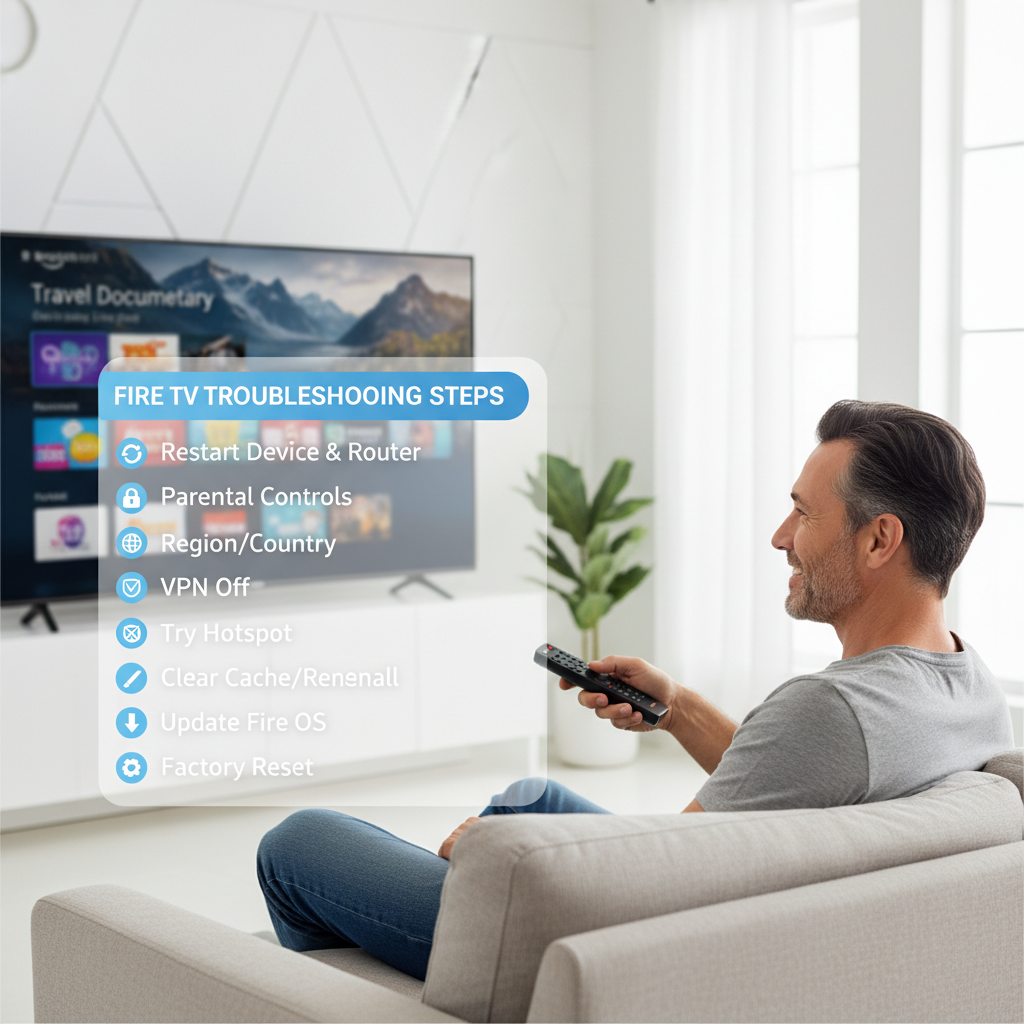
If you’ve tried everything above and your Amazon Fire TV is still blocking streaming apps:
Option A: Deregister and re-register your Fire TV
- On Fire TV, go to Settings > My Account or Account & Profile Settings.
- Choose Deregister.
- Restart the device.
- Sign back in with your Amazon account.
This can clear weird account-linking bugs.
Option B: Factory reset (nuclear option)
Warning: This erases all apps, settings, and accounts. You’ll start fresh.
- Go to Settings > My Fire TV > Reset to Factory Defaults.
- Confirm and wait for the device to wipe and reboot.
- Set it up again like new.
If streaming apps still won’t work after a factory reset on a good network, you’re likely dealing with:
- A hardware failure
- Or a very old, no-longer-supported Fire TV model
At that point, contacting Amazon Support or considering a newer model is usually the most time-effective path.
Final Cheat Sheet: Fixing Blocked Streaming Apps on Amazon Fire TV
Here’s a rapid-fire checklist you can run through:
- Restart Fire TV and router.
- Test different apps – is it all apps or just some?
- Check parental controls and profile restrictions.
- Verify Amazon account country/region and app availability.
- Disable VPN/Smart DNS temporarily and reconnect.
- Try another network (phone hotspot test).
- Clear cache/data for the problematic app; reinstall if needed.
- Update Fire OS and free up storage.
- Deregister / re-register your Fire TV.
- Factory reset only if absolutely necessary.
If your Amazon Fire TV is blocking streaming apps, it’s almost always a mix of network + account + settings – not some mysterious curse.
Walk through these steps systematically, and in most cases, you’ll be back to your regularly scheduled binge-watching in under an hour.
And hey, if nothing else worked… the universe might just be telling you to go outside for a bit. Then come back and try a new Fire TV Stick.
Leave a Reply