How To Remove Kindle USB Downloads Safely
If you’ve ever stared at your Amazon account thinking, “Why is this book still showing as ‘Download & transfer via USB’… and where on earth is the remove button?”, you’re in the right place.
Let’s walk through how Amazon Kindle’s Download & transfer via USB actually works, what’s stored where, and how to safely remove those files—from your Kindle, your computer, and (where possible) your Amazon content list.
Spoiler: you can clean up more than you think, but not everything vanishes completely.
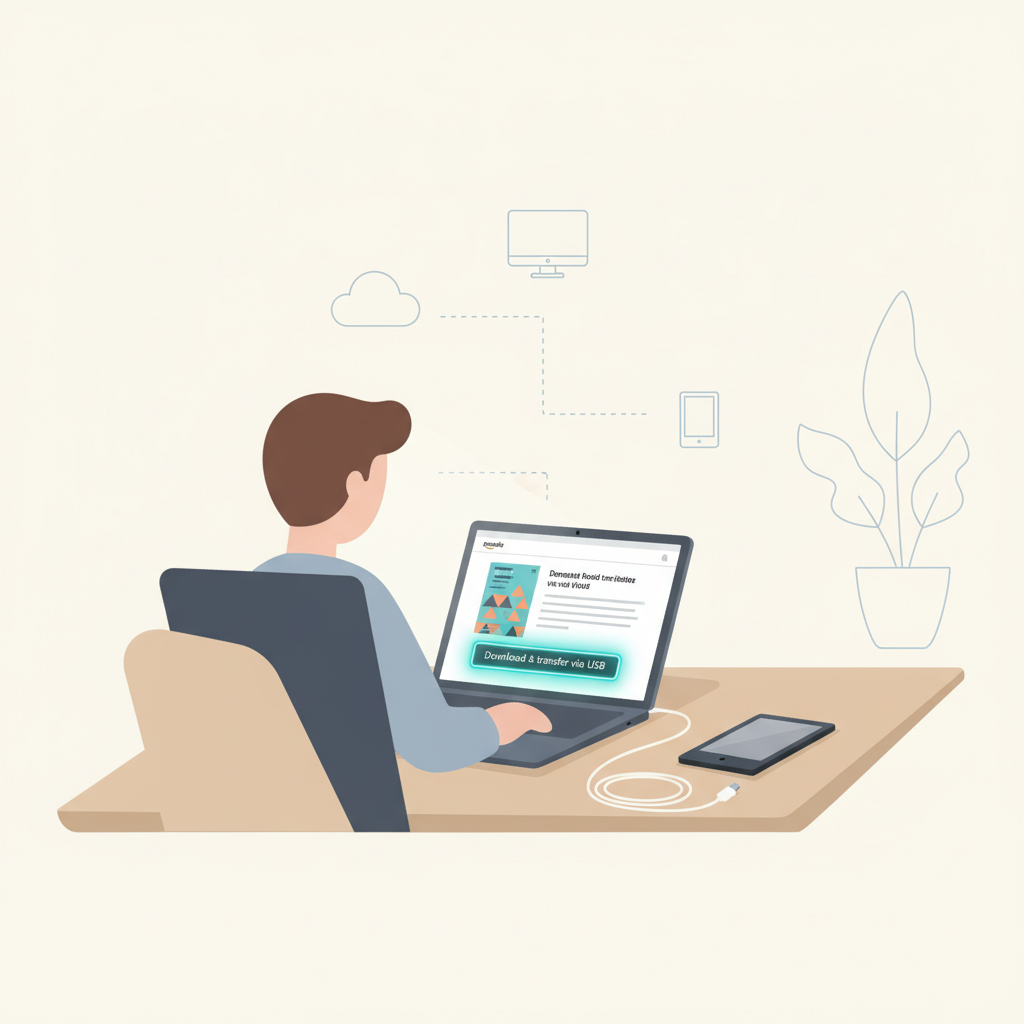
What does “Download & transfer via USB” on Amazon Kindle actually mean?
When you click “Download & transfer via USB” on an eBook’s product page in your Amazon account, you’re telling Amazon:
“Give me the book file so I can sideload it to a specific Kindle device using a USB cable (instead of Wi‑Fi).”
A few key points:
- You must pick a registered Kindle device (not just the Kindle app) from the dropdown.
- Amazon gives you a .azw, .azw3, .kfx, or .mobi file (format depends on the book and Kindle model).
- That file is DRM‑tied to that device—you can’t just share it freely with other people or non‑registered devices.
So there are really three places this “USB download” can live:
- On your computer (usually in your Downloads folder).
- On your Kindle e‑reader (once you copy it via USB).
- In your Amazon account, as part of your “Content & Devices” library.
To “remove” it properly, you want to think about all three.
The USB download is just another copy of a book you own, tailored to one Kindle. You control where the file lives—but not the fact that the purchase exists in Amazon’s cloud.
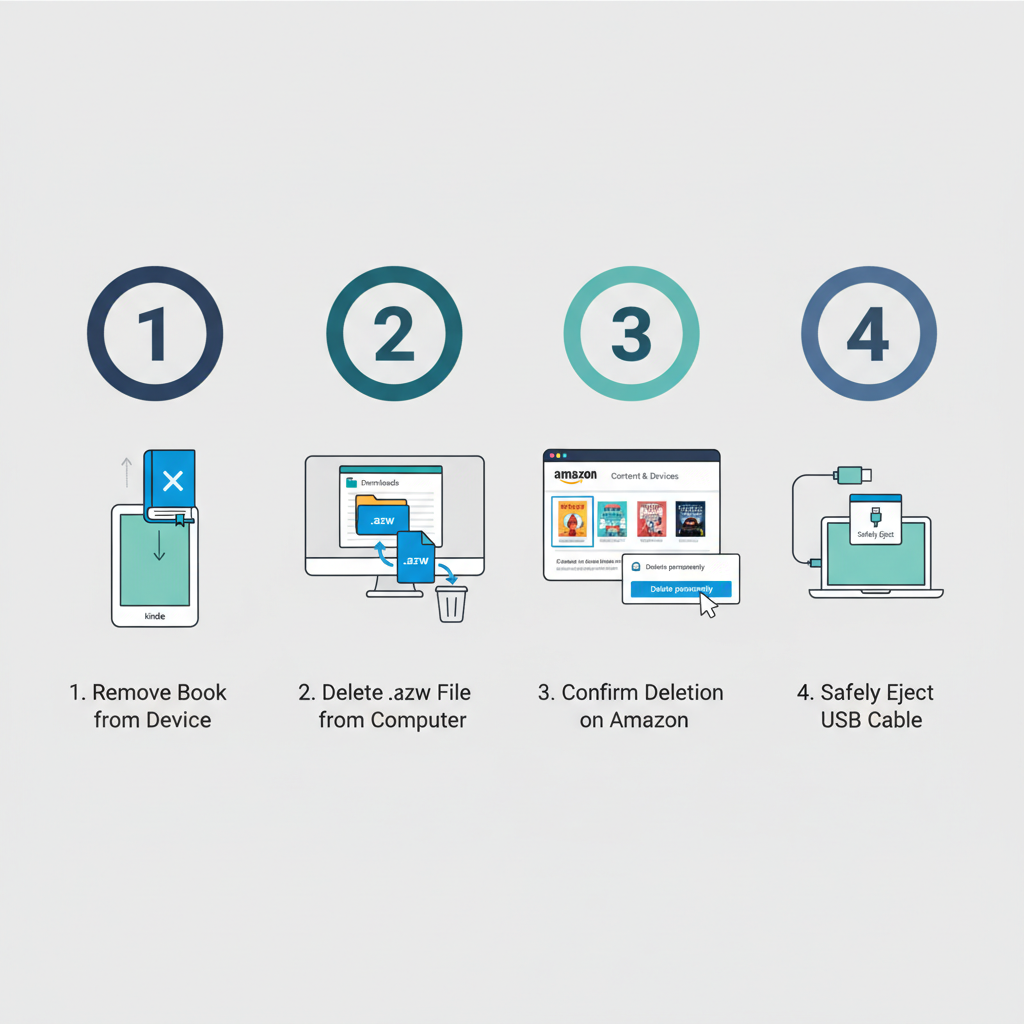
Step 1: Removing Kindle USB-transferred books from your device
Let’s start with the Kindle itself. If you’ve already transferred the book via USB and now want it gone:
On a modern Kindle e‑reader (touchscreen models)
- Wake and unlock your Kindle.
- From the Home screen, find the book you transferred.
- Press and hold the book cover (long-press).
- Tap “Remove Download” or “Delete This Book” (wording varies slightly by generation).
- Remove Download: removes the file from that Kindle but keeps it in your Amazon cloud library.
- Delete Permanently/Remove from Device & Cloud (sometimes appears via a “Manage in Library” option): removes it from the device and may start the removal process from your account (or open a prompt to manage in your Amazon account).
If you only see “Remove Download”, that’s normal. Permanent deletion from your Amazon library happens via the website (we’ll cover that next).
On older Kindle e‑readers (with buttons)
- Go to Home.
- Use the 5‑way controller to highlight the title.
- Press the left arrow or open the Menu.
- Select “Remove from Device”.
This only removes the file locally; the book is still in your Amazon account.
Removing from the Kindle itself is easy—but it usually doesn’t erase your ownership. Think of it like uninstalling an app without deleting your account.
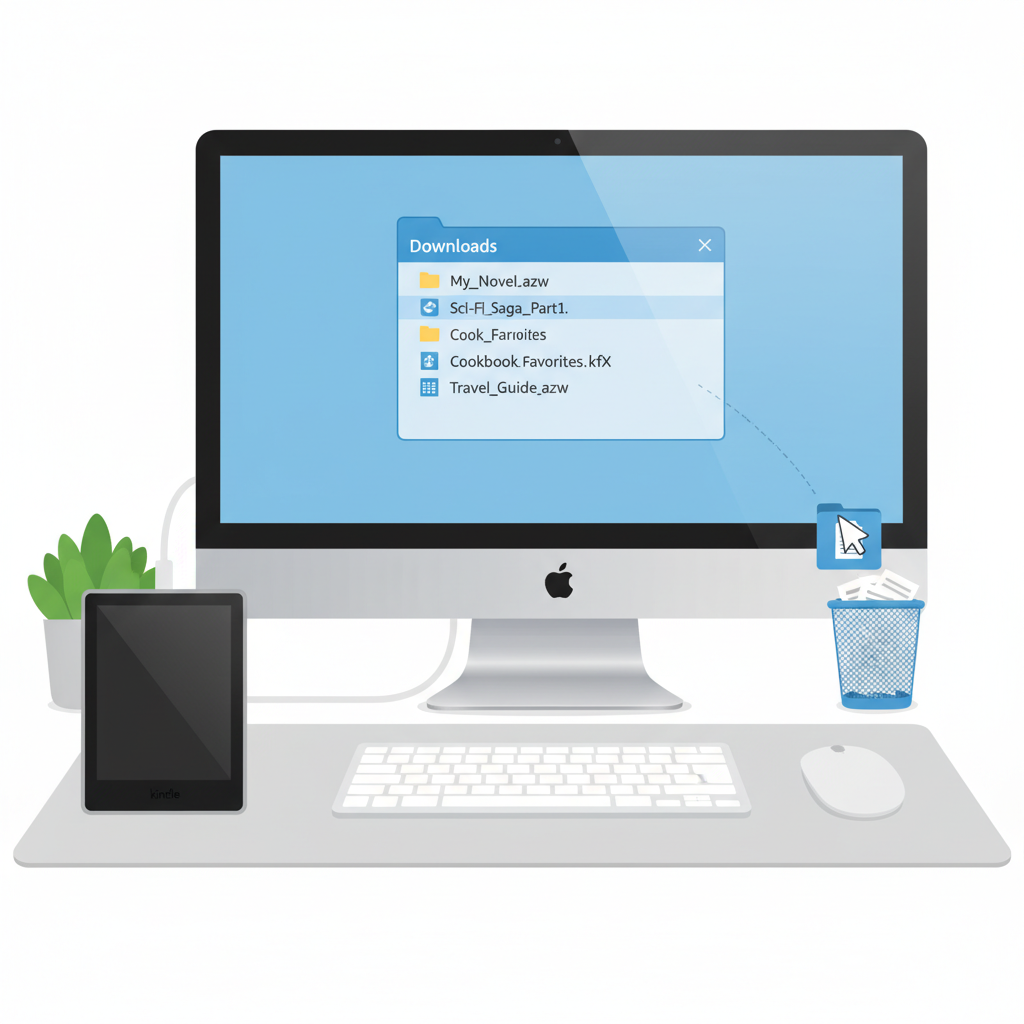
Step 2: Deleting the downloaded Kindle file from your computer
If you used Download & transfer via USB, Amazon delivered a file to your computer. If you don’t want that hanging around:
1. Find the Kindle file
Typical locations:
- Windows:
C:\Users\[YourName]\Downloadsor your chosen download folder. - Mac:
~/Downloads.
Look for a file with an extension like:
.azw.azw3.kfx- Occasionally
.mobi(older books)
The filename might be something like:
TitleOfBook-EBOK.azw- or a long alphanumeric name.
2. Delete the file
Once you’ve found it:
- On Windows: Right‑click → Delete (or select and press
Delete). - On Mac: Drag it to Trash, or right‑click → Move to Trash.
If you want to be extra thorough, empty the Trash/Recycle Bin.
Does deleting the file on your computer cancel your Kindle ownership?
No. Your purchase remains in your Amazon cloud library. You can always redownload it via Wi‑Fi or re‑use Download & transfer via USB in the future.
Deleting the local USB download on your computer is purely about storage and privacy. Amazon still knows you own the book.
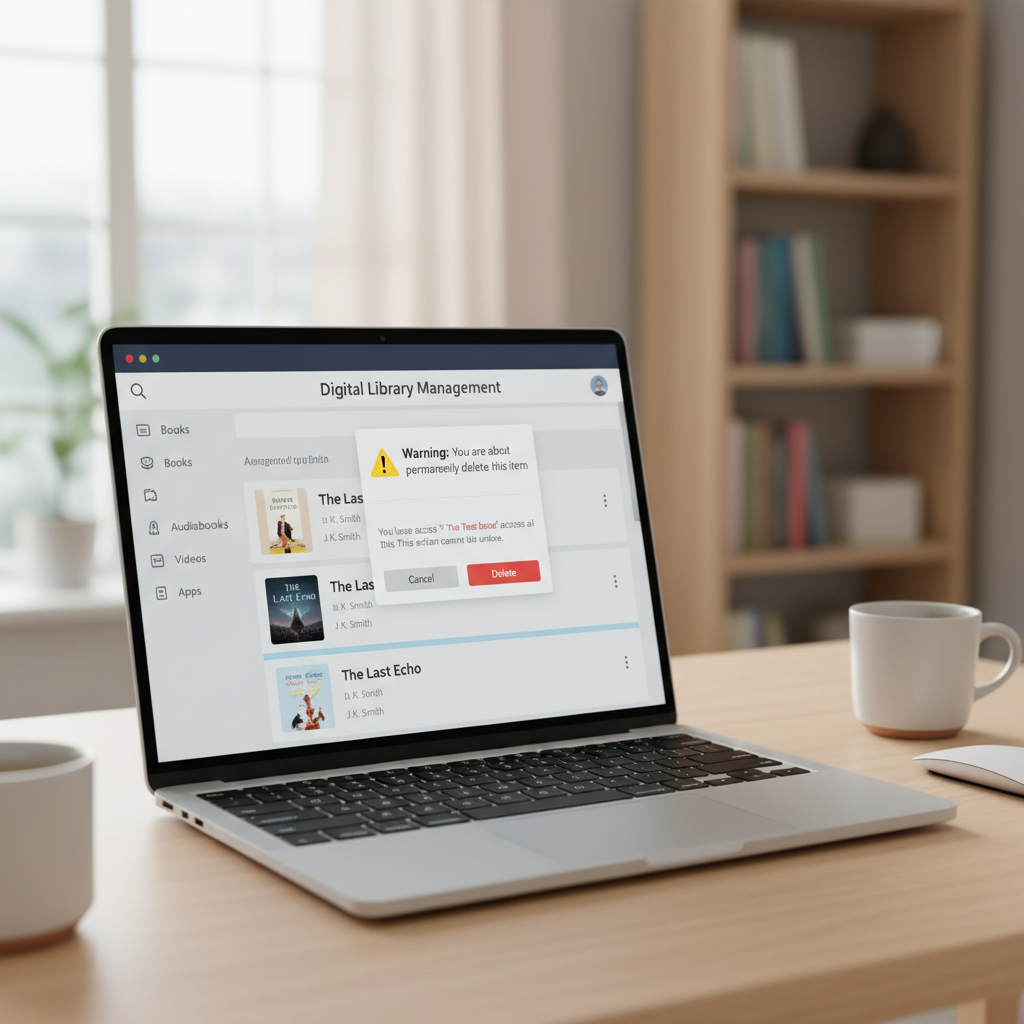
Step 3: Managing or removing Kindle books from your Amazon account
Here’s where people get confused: “I deleted it from my Kindle and my PC. Why is it still in my library?”
Because your Amazon account holds your digital purchases.
How to remove a Kindle book from your Amazon content library
- Go to Amazon.com and sign in.
- Hover over Accounts & Lists.
- Click “Content & Devices”.
- Make sure you’re on the Content tab.
- Search for the book by title or author.
- Click the three-dot (…) button next to the title.
- Select “Delete permanently” or “Remove from library”.
- Confirm when Amazon warns you that you’ll lose access.
Once you do this:
- The title is removed from your Amazon library.
- It will no longer show up on registered devices or apps.
- To get it again, you’d have to repurchase it.
What about USB-transferred titles specifically?
There’s no separate category for “USB-only” downloads. A book you downloaded via Download & transfer via USB is still just a normal Kindle purchase in your library.
If you delete it permanently from Content & Devices, all copies—Wi‑Fi or USB—are essentially orphaned. Existing local files might still open on a specific device (depending on DRM and sync), but you:
- Can’t redownload from Amazon.
- Can’t send it to other devices.
If you want the book gone for good, the real power move is in Content & Devices → Delete permanently.
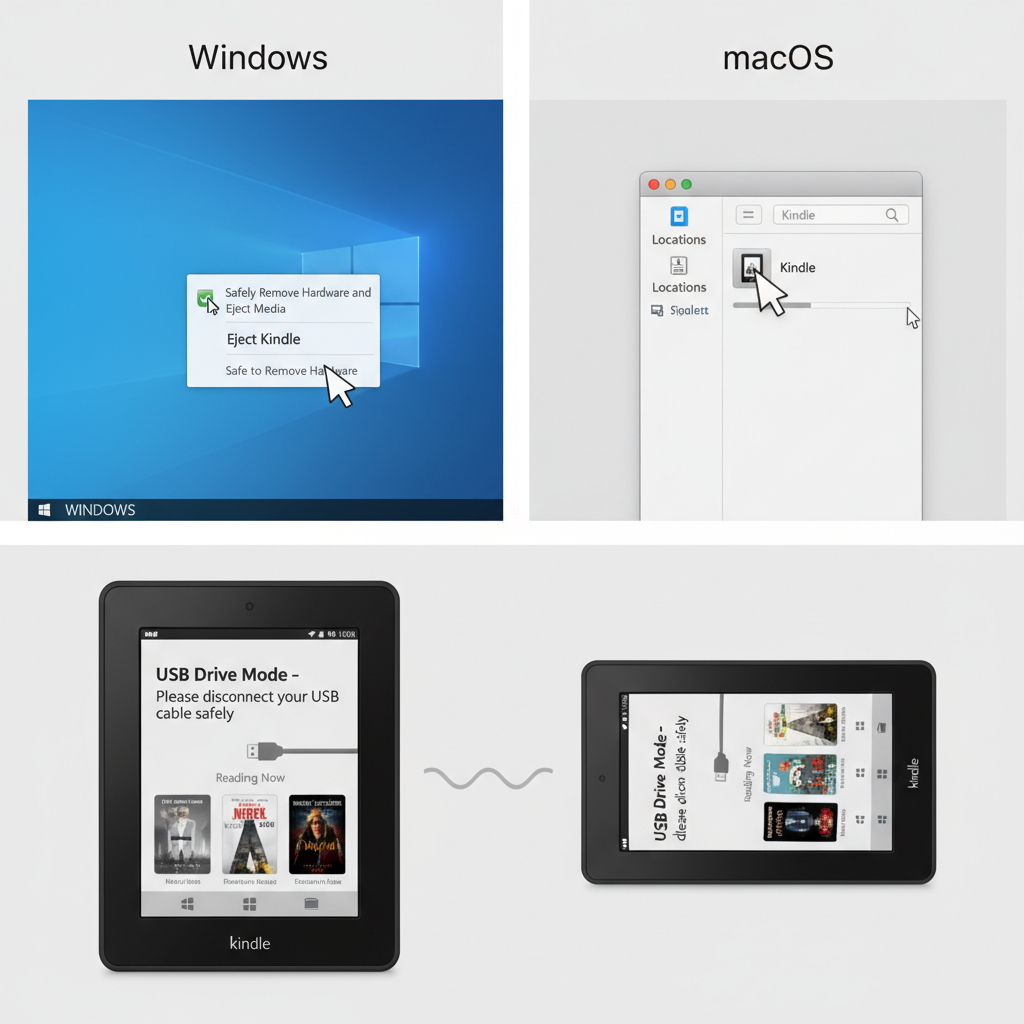
Safely ejecting your Kindle after USB transfer (yes, this matters)
While we’re here, let’s talk about USB removal itself—because yanking the cable out mid‑transfer can corrupt files.
On Windows
- After copying the book file to your Kindle’s “documents” or “books” folder, close File Explorer.
- Click the Safely Remove Hardware / Eject icon in the system tray (near the clock).
- Choose Eject Kindle.
- Wait for the “Safe to remove hardware” message, then unplug.
On macOS
- After copying the file, close Finder windows that are accessing the Kindle.
- In Finder’s sidebar, click the eject icon next to your Kindle.
- Wait until the Kindle disappears from the sidebar.
- Unplug the USB cable.
On your Kindle screen, you’ll usually see it switch from “USB Drive Mode” back to your normal Home screen.
Safely ejecting your Kindle is boring but important. It helps ensure your newly transferred or newly deleted books don’t end up half‑broken.
How to clean up “phantom” Kindle books that won’t go away
Sometimes you:
- Remove a USB‑transferred book from the device.
- Delete the file from your computer.
- But the title still shows up as a cover on your Kindle with a small download icon.
That usually means:
- The book is still in your Amazon library, but just not stored locally.
To hide or remove these:
Option 1: Show only downloaded items
On most recent Kindles:
- From Home, tap the Filter/Sort icon.
- Choose “Downloaded” only.
This won’t delete anything, but it hides cloud‑only items.
Option 2: Permanently delete from your Amazon account
Use the Content & Devices → Delete permanently steps above.
Once deleted:
- The book cover should disappear from your Kindle after a sync.
- If it lingers, try Menu → Sync My Kindle or restart the device.
“Phantom” covers usually mean the book is still in your Amazon cloud. Remove it there, and your Kindle will fall in line.
Common scenarios with Amazon Kindle USB downloads (and what to do)
Let’s run through a few real‑world examples.
Scenario 1: You borrowed a Kindle book and used USB transfer
If it’s a Kindle Unlimited or Prime Reading title that you downloaded via USB:
- When the loan ends, your access to that title will stop.
- Even if you still have the file sitting in your Kindle’s storage, it typically won’t open.
What to do:
- Remove it from the device using the normal “Remove Download” or “Remove from Device” option.
- There’s no need to manage it in Content & Devices unless you want to tidy your list of borrowed items.
Scenario 2: You want to free space on an older Kindle, but keep your books
Storage is tight. You’ve USB‑transferred a ton of books over the years.
Best move:
- On the Kindle, long‑press each book and choose “Remove Download”.
- Don’t delete from Content & Devices if you might want it later.
- Turn on Show: Downloaded filter so your Home screen only shows books that are actually on the device.
You keep your library in the cloud, but free gigabytes of space.
Scenario 3: You downloaded a book via USB to the wrong Kindle
You picked the wrong device in the Download & transfer via USB dropdown.
Good news:
- The purchase is on your account, not locked to that one device.
Fix it:
- On the correct Kindle, connect to Wi‑Fi.
- Go to your Library.
- The book should appear with a download icon—tap to download.
- Optionally remove it from the wrong Kindle: long‑press → Remove Download.
USB transfer chooses a device-specific file, but your purchase itself is still universal to your account.
Quick FAQ: Amazon Kindle download, transfer via USB, and removal
1. If I delete a USB‑transferred book from my Kindle, can I get it back?
Yes. As long as you haven’t permanently deleted it from Content & Devices, you can:
- Redownload via Wi‑Fi from your Library, or
- Use Download & transfer via USB again from your Amazon account.
2. Does “Download & transfer via USB” charge me again?
No. It’s just another delivery method for a book you already own. You’re not repurchasing.
3. Can I remove the record of the purchase from my Amazon account?
Yes, but only by using Content & Devices → Delete permanently. Once you do that, Amazon treats it as if you never bought it (and you lose rights to redownload).
4. Is it safe to unplug my Kindle without ejecting?
Technically, sometimes you’ll get away with it. But it can cause:
- File corruption for books in the middle of transferring.
- The Kindle needing a restart or rescan.
Always eject/safely remove first. It’s a 5‑second habit that can save you headaches.
5. What’s the difference between “Remove Download” and “Delete Permanently”?
- Remove Download / Remove from Device: Only removes the local file on that Kindle. You still own the book in the cloud.
- Delete Permanently / Remove from Library (on Amazon website): Removes the title from your Amazon account itself.
Final mini‑checklist: how to fully clean up a Kindle USB download
If your goal is to clean up everything related to a particular Amazon Kindle download & transfer via USB, here’s the sequence:
1. On your Kindle
- Long‑press the book → Remove Download (or Remove from Device).
2. On your computer
- Find the downloaded
.azw/.azw3/.kfxfile → Delete it → Empty Trash/Recycle Bin.
3. In your Amazon account (optional but final)
- Go to Content & Devices → find the book.
- Click
…→ Delete permanently → confirm.
4. Physically disconnect
- Safely eject your Kindle from your computer before unplugging the USB cable.
Do all that, and you’ve:
- Freed space on your Kindle.
- Removed stray files from your computer.
- (Optionally) scrubbed the title from your Amazon library.
And the next time you hit “Download & transfer via USB”, you’ll know exactly how to undo it later—no mystery files, no phantom books, no “wait, why is this still here?”
Leave a Reply