Fix Amazon Music Playlists In Android Auto
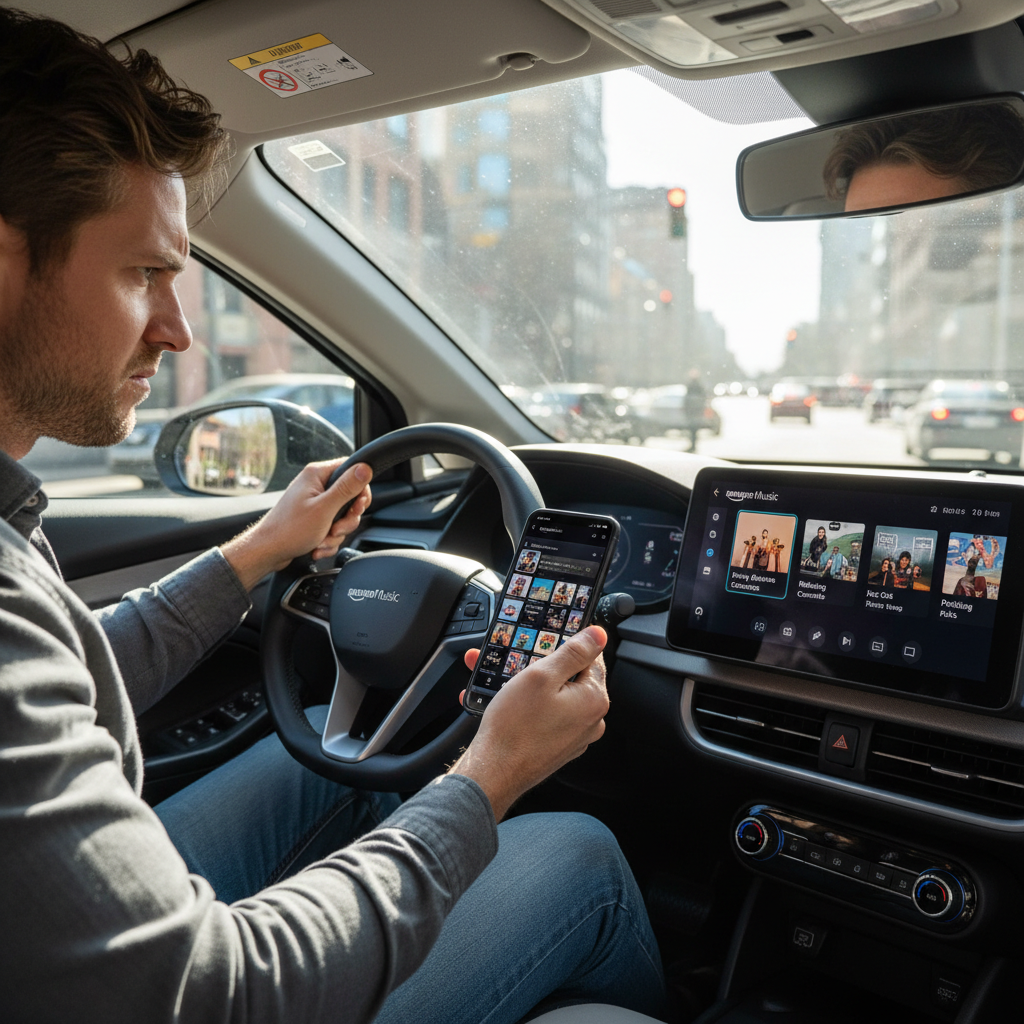
When half your Amazon Music playlists vanish the moment you plug into Android Auto.
If your Amazon Music playlists mysteriously vanish the moment you plug into Android Auto, you’re not alone.
You know the playlists exist. You can see them on your phone. But inside Android Auto? Half of them are missing, others are out of date, and you’re left jabbing at the screen at every red light.
Let’s clean this up.
In this post we’ll walk through why Amazon Music on Android Auto does not show all playlists, what’s really going on under the hood, and the practical fixes (and workarounds) that actually help.

First, understand what Android Auto actually chooses to show.
Quick answer: Why Amazon Music on Android Auto hides playlists
Here’s the short version:
- Android Auto doesn’t show every single playlist — it pulls a subset based on Amazon’s app logic and what Android Auto allows.
- Downloaded and recently used playlists tend to show more reliably.
- Very long lists, old playlists, or some smart/auto-generated lists may not sync properly into Android Auto.
- Sometimes it’s just good old-fashioned cache bugs or an outdated app.
Now let’s go step-by-step so you can actually get those playlists back on your car screen.
Side-by-side comparison: which playlists actually make it into Android Auto.
Step 1: Confirm what does show up in Android Auto
Before changing anything, plug your phone into the car (or connect wirelessly if your car supports it):
- Open Android Auto on your car display.
- Tap Amazon Music.
- Go to Library → Playlists.
- Compare that list with what you see on your Amazon Music phone app under Library → Playlists.
Pay attention to:
- Do downloaded playlists show up more consistently?
- Are older playlists missing while newer ones appear?
- Are some Amazon-curated or automatically generated playlists absent?
This pattern will usually tell you which fix to try first.
A clean sync and reset often clears out stale playlist data.
Step 2: Force a clean sync (phone + apps)
A lot of playlist visibility issues are just stale data. Here’s a proper refresh sequence that’s better than just “turn it off and on again.”
A. Reboot the basics
On your Android phone:
- Close Amazon Music completely.
- Open the Recent apps screen.
- Swipe Amazon Music away so it’s not running in the background.
- Restart your phone. Don’t skip this. It restarts the Android Auto and media services too.
- Restart your car’s infotainment system if your vehicle supports a reboot (often by holding the power/volume knob for a few seconds).
Then reconnect Android Auto and check playlists again.
B. Sign out and back into Amazon Music
If a simple reboot doesn’t help:
- Open Amazon Music on your phone.
- Go to Settings → Sign Out (exact wording can vary by version).
- Close the app, reopen it, and sign back in.
- Wait a bit for your library to fully resync (especially if you have a lot of playlists).
- Connect to Android Auto and re-check.

Keeping Amazon Music, Android Auto, and Google services updated prevents a lot of weird behavior.
Step 3: Update everything (yes, it matters)
Outdated apps are a huge cause of weird Android Auto behavior.
A. Update Amazon Music
- Open Google Play Store on your phone.
- Search for Amazon Music.
- If you see Update, tap it.
After updating:
- Open the app once on your phone.
- Let it sit for a minute or two so it can refresh your account and playlists.
- Then reconnect to Android Auto.
B. Update Android Auto and Google Play services
- In the Play Store, search Android Auto → update if available.
- Search Google Play services → update if available.
These pieces control how music apps talk to Android Auto. A mismatch between versions can cause display or connection issues.
Offline playlists are far more likely to appear and behave in Android Auto.
Step 4: Download key playlists for offline use
Android Auto tends to behave better with downloaded content. Even if you have unlimited data, this can be the difference between “missing playlist” and “oh, there it is”.
On your phone, in the Amazon Music app:
- Go to Library → Playlists.
- Open the playlist you want.
- Toggle Download (or tap the download icon).
Once the playlist has completed downloading:
- Reconnect to Android Auto.
- Open Amazon Music → Library → Playlists.
Many people find that once a playlist is downloaded to the device, it finally appears in the car.

Sometimes a cursed playlist just needs a new name or a clean clone.
Step 5: Rename or recreate “problem” playlists
Sometimes a specific playlist just refuses to show up in Android Auto, no matter what you do. In that case, try changing it.
A. Try a simple rename
On your phone in Amazon Music:
- Open the problematic playlist.
- Tap the three dots (⋮) or More.
- Choose Edit playlist.
- Change the name to something simple, like
Road Trip RockorCar Mix 1. - Save, then close and reopen the app.
Check Android Auto again after a couple of minutes.
B. Clone the playlist
If renaming doesn’t help, recreate it:
- Create a new playlist in Amazon Music.
- Add the same songs from the old playlist.
- You can open the original, select tracks, and add them to the new one.
- Give it a simple name and, if possible, download it.
- Check if the new playlist appears in Android Auto.
Treat your car playlists like a highlight reel, not your entire library.
Step 6: Make your library Android Auto–friendly
Android Auto is designed for quick, low-distraction browsing — not deep library management. That means:
- Super long lists can get truncated or slow.
- Tons of similarly named playlists can confuse the UI.
- Very old or rarely used playlists may be deprioritized.
Here’s how to set your Amazon Music library up for success in the car.
A. Keep a dedicated “Car” set of playlists
Create a few clearly named, car-friendly playlists like:
Car – Daily MixCar – WorkoutCar – Chill
Keep them:
- Shorter (not 1,000 songs if you can avoid it).
- Downloaded for offline use.
- Regularly used, so they stay near the top of “recent” lists.
B. Clean up very old or unused playlists
On your phone:
- Archive or delete playlists you haven’t touched in years.
- Merge similar lists together.
This won’t directly force Android Auto to show more playlists, but it often makes navigation more predictable and keeps the ones you actually use front-and-center.
A quick cache clear can be the difference between ‘buggy’ and ‘works fine’.
Step 7: Clear Amazon Music cache (Android)
If things still look wrong, your Amazon Music app may just have corrupted or stale local data.
On your Android phone:
- Go to Settings → Apps → Amazon Music.
- Tap Storage & cache (or similar, depending on your phone).
- Tap Clear cache.
Important:
- Start with Clear cache only.
- Avoid Clear data unless you’re okay re-downloading offline music and reconfiguring settings, because it basically resets the app.
After clearing the cache:
- Open Amazon Music again.
- Let it reload your library.
- Connect Android Auto and check the playlists.
Even if a playlist doesn’t show visually, voice commands can often still reach it.
Step 8: Know the current limitations (so you don’t go insane)
Even if you do everything “right,” there are still some limitations you should be aware of:
- Not all playlist types are equal.
- Editorial or algorithmic playlists (like some recommendations or smart mixes) sometimes don’t surface the same way as your own manual playlists.
- Voice vs. touch.
- Occasionally, a playlist that doesn’t appear in the visual list can still be played by voice: try saying, “Hey Google, play my playlist ‘’ on Amazon Music.”
- Car UI restrictions.
- Android Auto intentionally restricts deep list browsing to reduce driver distraction, so sometimes fewer lists or categories are shown.
If a specific playlist won’t appear in the interface but does play via voice, treat that as a working (if imperfect) workaround.
If the UI won’t cooperate, you can still force the right playlist into the car.
Extra workarounds if nothing else works
If you’ve tried everything and Amazon Music on Android Auto still refuses to cooperate with your playlists, consider these options:
1. Use “Recently Played” to your advantage
On your phone, right before driving:
- Open the playlist you want.
- Start playing it for a few seconds.
- Pause it.
- Then plug into Android Auto.
Often, that playlist will now appear under Recent or at the top of your Amazon Music view in the car.
2. Start playback on your phone first
Another common workaround:
- Start playing the desired playlist in Amazon Music on your phone.
- Then connect to Android Auto.
Android Auto will usually pick up the currently playing track/playlist, and you can control it from there even if you can’t see it in the playlist list.
3. Consider downloading to another app for driving
If Amazon Music’s Android Auto integration is a dealbreaker for you, some people:
- Maintain separate playlists in another service with stronger Android Auto support.
- Use Amazon Music at home and a different app in the car.
Not ideal, but it’s an honest option if you drive a lot and rely heavily on curated playlists.
The more specific details you share with support, the harder it is to get a generic script reply.
When to contact Amazon support (and what to tell them)
If the issue is persistent and clearly not user error, it’s worth contacting Amazon support.
When you do, share practical details so they can’t just give you generic advice:
- Your phone model and Android version.
- Your car make/model/year or aftermarket head unit.
- Amazon Music app version installed.
- Whether the playlists are downloaded or streaming-only.
- Which specific playlists don’t appear and whether they’re:
- Personal vs. Amazon-created.
- New vs. old.
- Very long vs. short.
The more concrete your info, the more likely they are to log it as a reproducible bug instead of telling you to “restart your phone” for the fifth time.
Once everything works, keep a ‘Tested in the Car’ playlist as your known-good baseline.
Summary: Making Amazon Music + Android Auto actually usable
To recap the best moves when Amazon Music on Android Auto does not show all playlists:
Quick checklist
- Reboot and resync: Restart phone and car, sign out/in of Amazon Music.
- Update everything: Amazon Music, Android Auto, and Google Play services.
- Download key playlists: Offline playlists tend to show up more reliably.
- Rename or recreate stubborn playlists: Simple names, fresh lists.
- Curate a “Car” collection: A handful of short, clear, downloaded playlists.
- Clear Amazon Music’s cache: Reset stale app data without wiping everything.
- Use workarounds: Start playback on your phone first, or use voice commands.
Do all of that, and you’ll usually go from “Why are half my playlists missing?” to “Everything I need is right there on the screen.”
And hey, once it’s all working, do yourself a favor: make one last playlist called Tested in the Car so the next time something breaks, you’ve got a known-good list ready to troubleshoot with.
Leave a Reply