Mastering Amazon Position GIFs for Better Listings
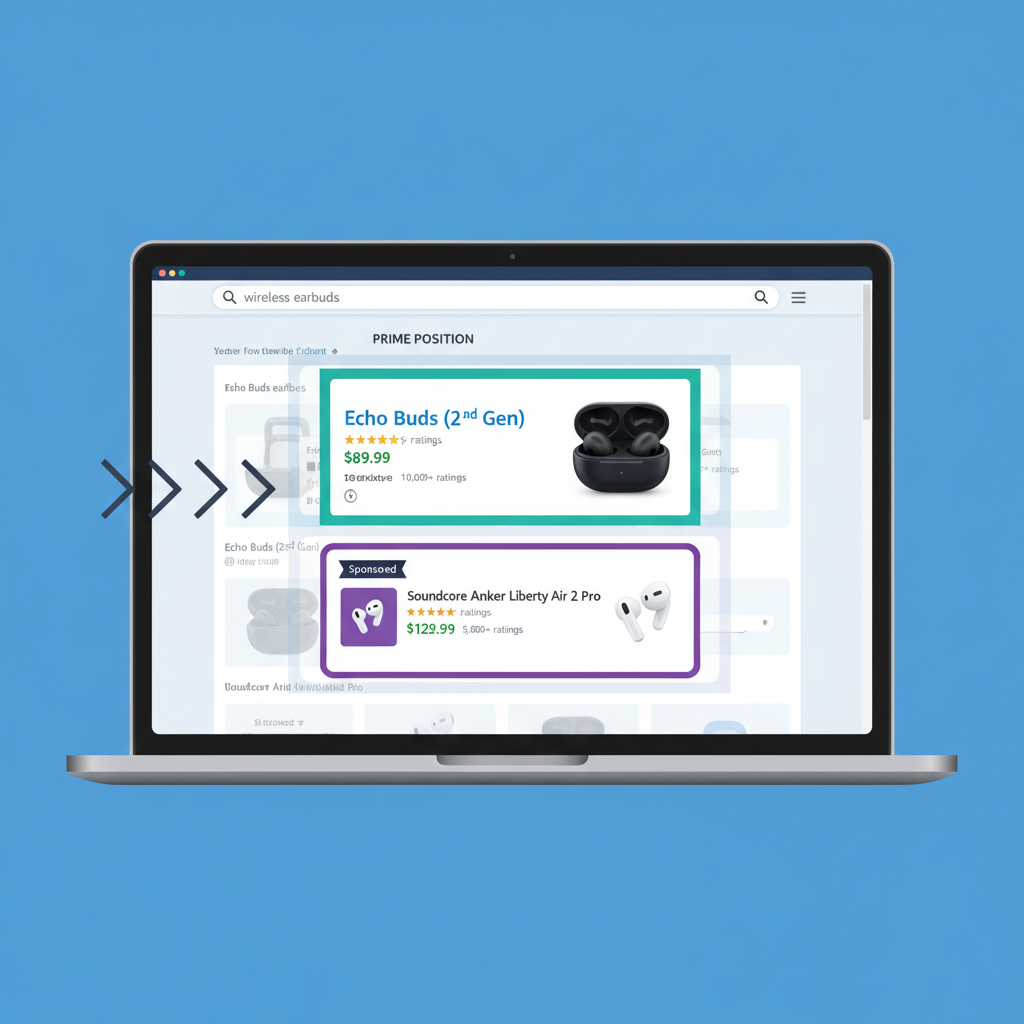
If you’ve ever tried to explain “where” something appears on Amazon using only words, you know the pain.
“Scroll a bit… no, up… past the sponsored… you see the third organic result… on the right… under the video… actually never mind.”
This is exactly why the phrase “Amazon position GIF” keeps popping up in seller chats, Slack channels, and agency briefs.
In this post, we’ll break down what people actually mean by an Amazon position GIF, how it’s used in Amazon marketing and reporting, and how to create clean, high-impact GIFs that make your team, clients, or boss instantly get what’s going on with your listings and ads.
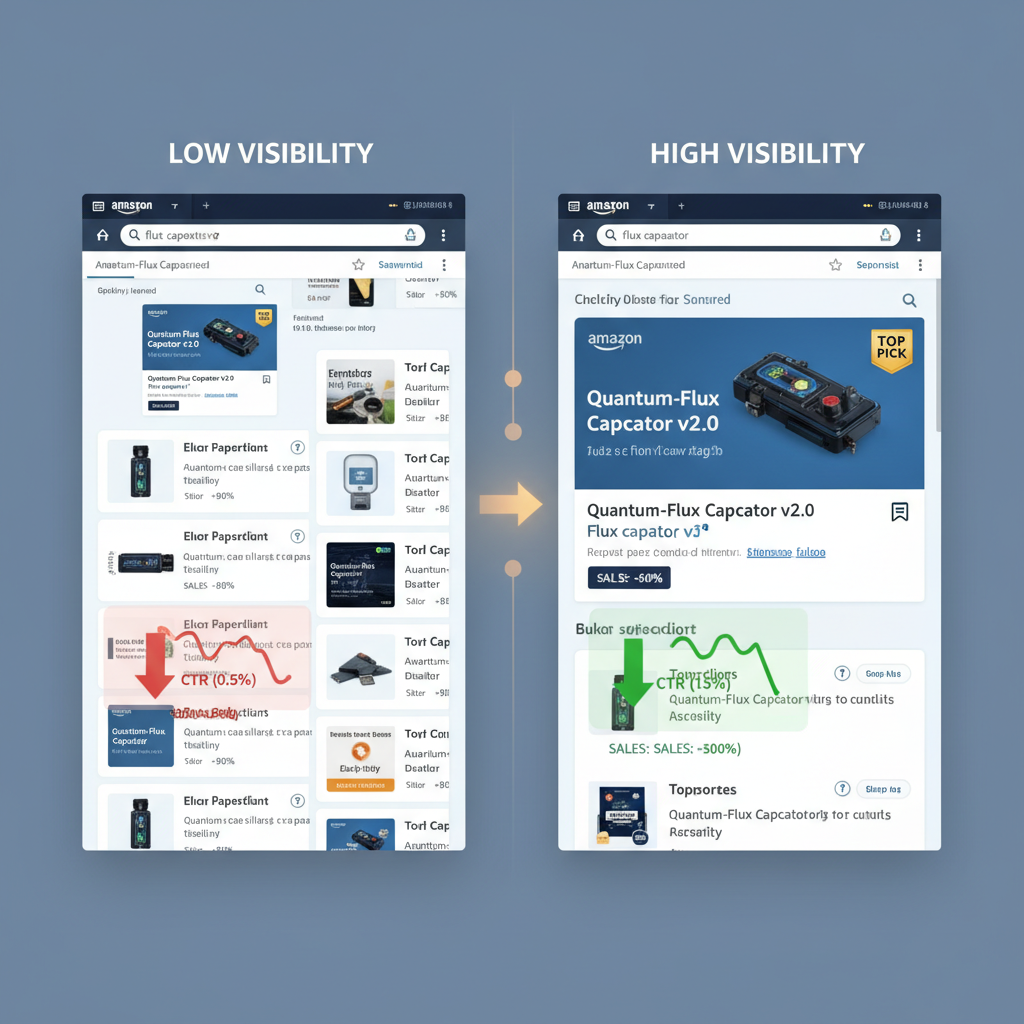
What Is an “Amazon Position GIF”?
When sellers say Amazon position GIF, they usually mean one of two things:
- A GIF that visually shows where a product or ad appears on an Amazon search results page
- Example: A looping animation highlighting a Sponsored Product ad in position #1 vs #4, or the difference between top-of-search and rest-of-search.
- A GIF that explains or demonstrates Amazon’s “average position” or placement changes over time
- Example: A sequence showing how an ASIN moved from page 3 to page 1, or how an ad campaign gradually climbed to top-of-search.
In both cases, the GIF’s job is the same: turn abstract position data into something a human can understand in three seconds.
An Amazon position GIF is just a short screen recording (exported as a GIF) that visually communicates where you show up on Amazon and how that position changes.

Why Amazon Position (Rank) Matters So Much
Before we talk GIFs, let’s talk position. On Amazon, visibility is everything.
A few key realities:
- Most shoppers don’t go past page 1 of search results. Many don’t even scroll past the first screenful of products.
- Sponsored placements at top of search (first few rows) usually have dramatically higher click-through rates than placements lower on the page or on later pages.
- For organic listings, moving from position #18 to #6 can feel small in a spreadsheet—but it can massively change real sales.
Because of this, Amazon sellers and advertisers obsess over things like:
- Organic rank by keyword (where your ASIN appears when someone searches a term)
- Ad placement (top of search, product pages, rest of search)
- Share of voice (how often you appear vs competitors for high-value keywords)
On Amazon, your position often matters more than your price tweaks or tiny creative changes. If people don’t see you, they can’t buy you.
When to Use an Amazon Position GIF (With Examples)
So where do these GIFs actually help in the real world? Here are some high-impact scenarios.
1. Explaining Performance to Non-Technical Stakeholders
If you manage Amazon for a brand or report to leadership, you’ve probably said:
“Our average position improved, which drove more clicks and sales.”
…and watched eyes glaze over.
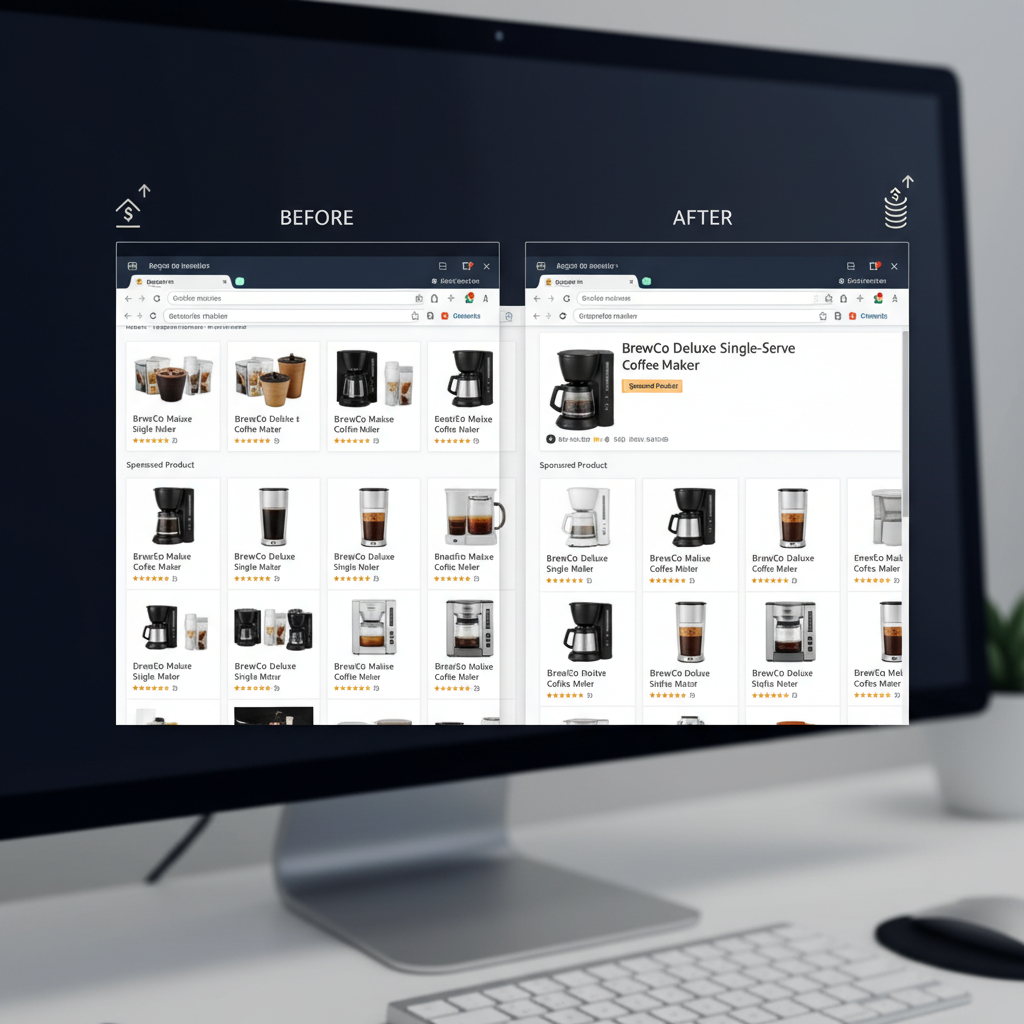
Instead, imagine a GIF that:
- Shows the search term typed into Amazon
- Scrolls to where your product used to show (page 2, low on the page)
- Cuts to a recent search where your product appears top-of-search in the first row
Now your line in the deck is:
“Here’s how our ranking moved over the last 45 days for ‘wireless dog fence’—from buried on page 2 to front-row, first-view.”
Suddenly, the term Amazon position becomes intuitive.
2. Demonstrating Ad Placement Tests
Running Sponsored Products or Sponsored Brands? Placement can change with bid adjustments and dynamic bidding.
Create an Amazon position GIF to:
- Show before/after of a campaign where you turned on Top of Search (first page) placement.
- Highlight how raising bids moves your ad from mid-page to the first visible row.
This works brilliantly in:
- Weekly performance recaps
- “What we did” sections in client reports
- Internal training for new PPC managers
3. Competitive Benchmarking & Share of Voice
Want to prove that a competitor is dominating a niche?
Make a GIF:
- Type in a core keyword
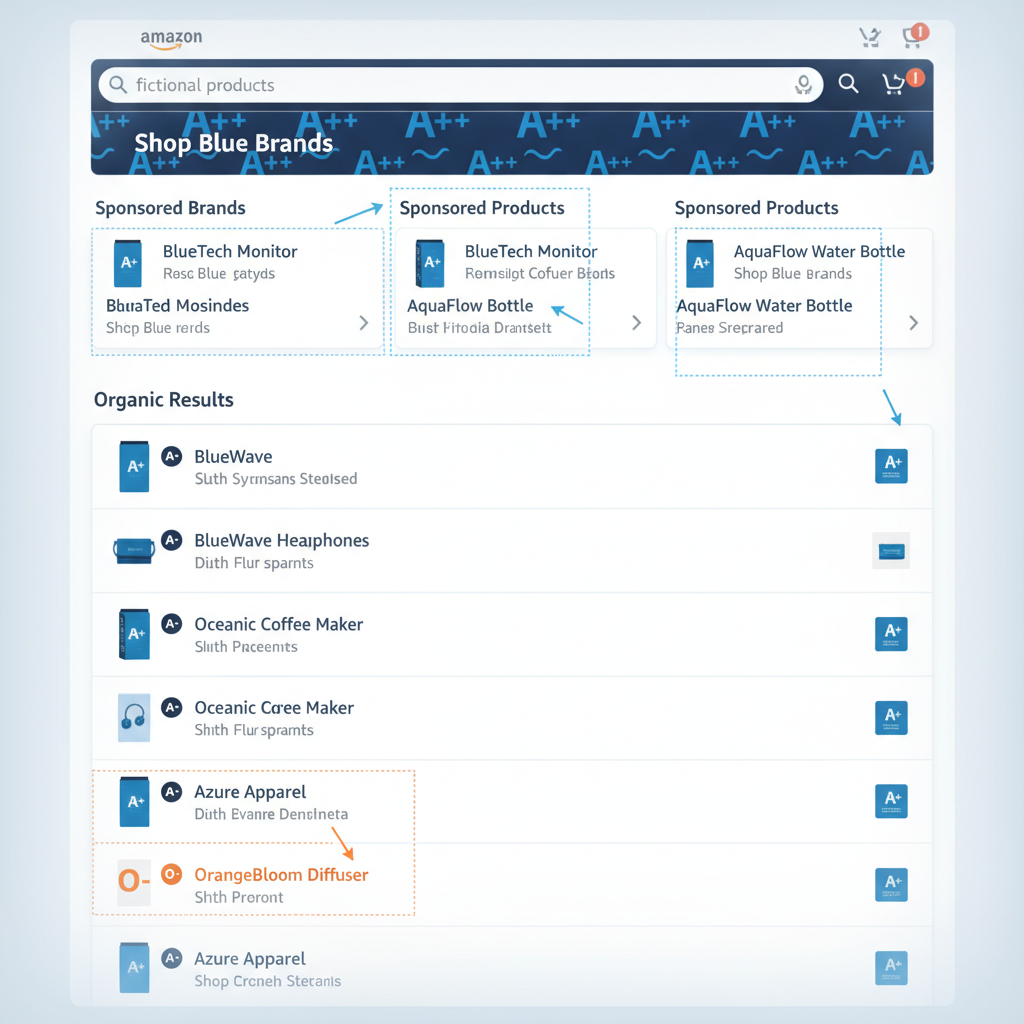
- Slowly scroll and highlight how often their brand shows up (Sponsored Brands banner, Sponsored Products, organic top 10)
- Repeat with your brand
Put two GIFs side by side in a slide or Loom video.
Now “they’re beating us on Amazon” isn’t a vague complaint—it’s visual, specific, and urgent.
Use Amazon position GIFs whenever a screenshot almost explains the story, but motion and sequence would make it instantly obvious.
How to Create an Amazon Position GIF (Step-by-Step)
You don’t need fancy software. You just need a screen, a browser, and a few tools.
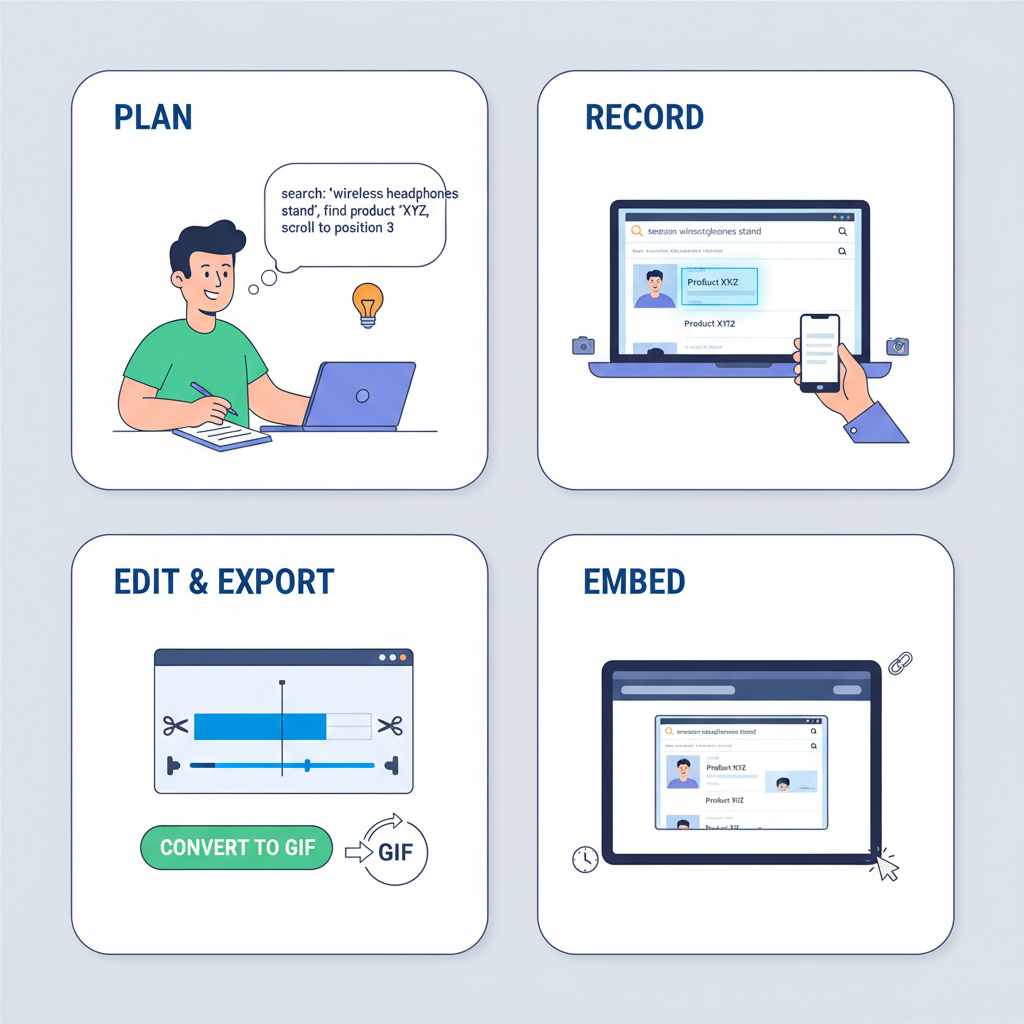
Step 1: Plan the Story in One Sentence
Before recording anything, answer this:
“What single story do I want this GIF to tell?”
Examples:
- “We moved from page 3 to page 1 for ‘organic coffee pods’.”
- “Our Sponsored Product now shows at top-of-search instead of mid-page.”
- “Competitor X appears 5 times on page 1; we appear once.”
That sentence will determine:
- Which keyword you search
- What you scroll to
- Where you start and stop the recording
Step 2: Capture the Screen (Amazon Search or Product Page)
Use any lightweight screen recorder that supports GIF export, such as:
- Loom (export as MP4, then convert to GIF)
- ScreenToGif (Windows)
- Kap (macOS)
- Browser extensions that record and output GIFs directly
Recording tips:
- Use an incognito/private window so you’re not logged in (removes some personalization).
- Clear or hide distracting browser toolbars and bookmarks.
- Zoom the page to 90–110% so product tiles are readable in the final GIF.
- Keep the recording between 4–12 seconds. Short and loopable is best.
Step 3: Edit and Convert to GIF
Once you have your short MP4/recording:
- Trim the clip to the essentials (no extra cursor wandering).
- Optionally, add a highlight box or cursor ring around your product or ad.
- Export as GIF with:
- Reasonable width (e.g., 800–1200px)
- Optimized colors (most tools have “optimize for smaller size” presets)
If your recorder doesn’t export GIF directly:
- Use an online MP4 → GIF converter.
- Or use tools like Photoshop, ScreenToGif, or Gifski.
Step 4: Test the GIF Where You’ll Use It
Before sending it around:
- Drop it into PowerPoint, Google Slides, Notion, or an email to confirm it loops correctly.
- Check that text and price/details near your listing are legible at the size you’ll present.
If it’s blurry or too small, try:
- Re-recording while zoomed in more in your browser.
- Cropping to just the section of the page that matters.
The best Amazon position GIFs are short, clear, and intentional. Plan the story > record > trim > optimize.
Best Practices for High-Impact Amazon Position GIFs
To make your GIFs genuinely useful (not just “cool visuals”), follow these guidelines.
1. One Idea per GIF
Don’t cram three concepts into one loop.
Bad example:
- Start at search results for keyword A
- Scroll to your listing
- Switch to keyword B
- Open your PDP
- Show reviews
Good example:
- One keyword, one scroll, one clear before/after.
2. Label or Frame the Context
If your platform allows it (slides, docs, reports), add text above or below the GIF, like:
- “Keyword: ‘wireless doorbell camera’ – Sponsored Product position change (30 days)”
- “Competitor share of voice – page 1, US marketplace”
This way, someone skimming can understand without sound or explanation.
3. Mind Privacy and Compliance
When you record live pages:
- Avoid exposing personal Amazon account details (log out or use a clean browser profile).
- Be careful when recording client accounts—only share what’s allowed under your contracts/NDAs.
4. Keep File Sizes Reasonable
Huge GIFs can:
- Make slides laggy
- Fail to send over email
- Load slowly in shared docs
Quick fixes:
- Shorten duration (cut every unnecessary second).
- Reduce resolution slightly (e.g., from 1440px wide to 960px).
- Limit color palette using your export tool’s optimization options.
5. Use Consistent Styles for Reporting
If you’re an agency or large brand team, create reusable patterns:
- Same browser zoom level for all GIFs
- Similar framing and scroll speed
- Consistent labels (“Before optimization”, “After optimization”, date ranges)
This makes monthly and quarterly decks look professional and easy to compare.
Treat Amazon position GIFs like mini data visualizations—they should be consistent, quick to digest, and clearly labeled.
Real-World Use Cases: From Data to Story
Let’s walk through a few simple scenarios where Amazon position GIFs turn raw numbers into compelling narratives.
Use Case 1: Organic Rank Improvements
You’ve spent weeks:
- Optimizing titles and bullets
- Adding better images and A+ content
- Improving price and coupons
Your rank tracker shows movement from position 45 to 11 for a key keyword.
In your report:
- Screenshot: Looks like two rows of numbers. Some people won’t care.
- GIF: Shows product buried late on page 2 a month ago vs appearing above the fold today.
Outcome? Stakeholders can see the payoff of the SEO work.
Use Case 2: Justifying Higher Bids for Top-of-Search
You’re proposing more aggressive bidding for a profitable keyword.
You include two GIFs:
- Today: ad appears mid-page, easily lost in noise.
- With higher bids (you tested it for a week): ad jumps to the top carousel.
Next to that, you show:
- CTR up
- Conversion rate steady or improved
- ACoS or ROAS still on target
The Amazon position GIF turns “I want to raise bids” into “Here’s the literal shelf space we’re buying.”
Use Case 3: Competitive Threat Alert
A new brand shows up everywhere for your core terms.
You record an Amazon position GIF:
- Search the keyword
- Scroll slowly, highlighting how often that new brand appears in ads and organic
Then you write:
“In the last 30 days, Brand X has aggressively expanded presence on page 1. This is what our shopper now sees.”
That’s much harder to ignore than a line in a spreadsheet.
The power of an Amazon position GIF is storytelling. It makes your ranking and placement data emotionally obvious.
How to Name, Store, and Reuse Your GIFs
Once you start making these, you’ll want a system.
File naming ideas:
keyword-organic-position-before-2026-02.gifkeyword-sponsored-top-of-search-after-2026-03.gifbrandX-share-of-voice-page1-2026-Q1.gif
Storage tips:
- Keep them in a shared drive (Google Drive, Dropbox, Notion, internal wiki).
- Organize by brand → marketplace → keyword → date range.
- Link them in your standard reporting templates so you can swap in updated loops each month.
Over time, this becomes a visual history of your Amazon presence—super helpful for:
- New hires ramping up
- Quarterly business reviews
- Case studies and pitch decks
Final Thoughts: Make Position Impossible to Ignore
Most Amazon teams are already tracking position, rank, and placement in spreadsheets and dashboards.
The difference between good and great communication is how you show it.
An Amazon position GIF is a tiny thing:
- 5–10 seconds long
- Silent
- Lightweight
But it can:
- Make wins feel real
- Make threats look urgent
- Turn dry reports into stories people remember
If you’re spending real money or real time on Amazon SEO and ads, consider this your nudge:
Don’t just say “our position improved.” Show it.
Your future self (and your stakeholders) will thank you.
Leave a Reply