Mastering Your Amazon Reimbursement Report
If you sell on Amazon long enough, one thing becomes painfully obvious:
Amazon makes mistakes.
Inventory disappears. Fees go sideways. Customer refunds don’t quite add up. And unless you’re watching your Amazon reimbursement reports like a hawk, you’re probably leaving real money on the table.
Let’s fix that.
In this post, we’ll break down what an Amazon reimbursement report is, how it actually works, where to find it, and how to use it to get every dollar Amazon owes you—without losing your mind in spreadsheets.

What is an Amazon reimbursement report?
In simple terms, an Amazon reimbursement report tracks situations where Amazon owes you money and either:
- Has reimbursed you already, or
- Should reimburse you but hasn’t yet.
Common reasons Amazon reimburses FBA sellers include:
- Lost or damaged inventory in Amazon’s warehouse
- Customer refunds where stock was never returned
- Order issues caused by Amazon (wrong item shipped, shipping damage, etc.)
- Overcharged fees (e.g., wrong dimensions/weight)
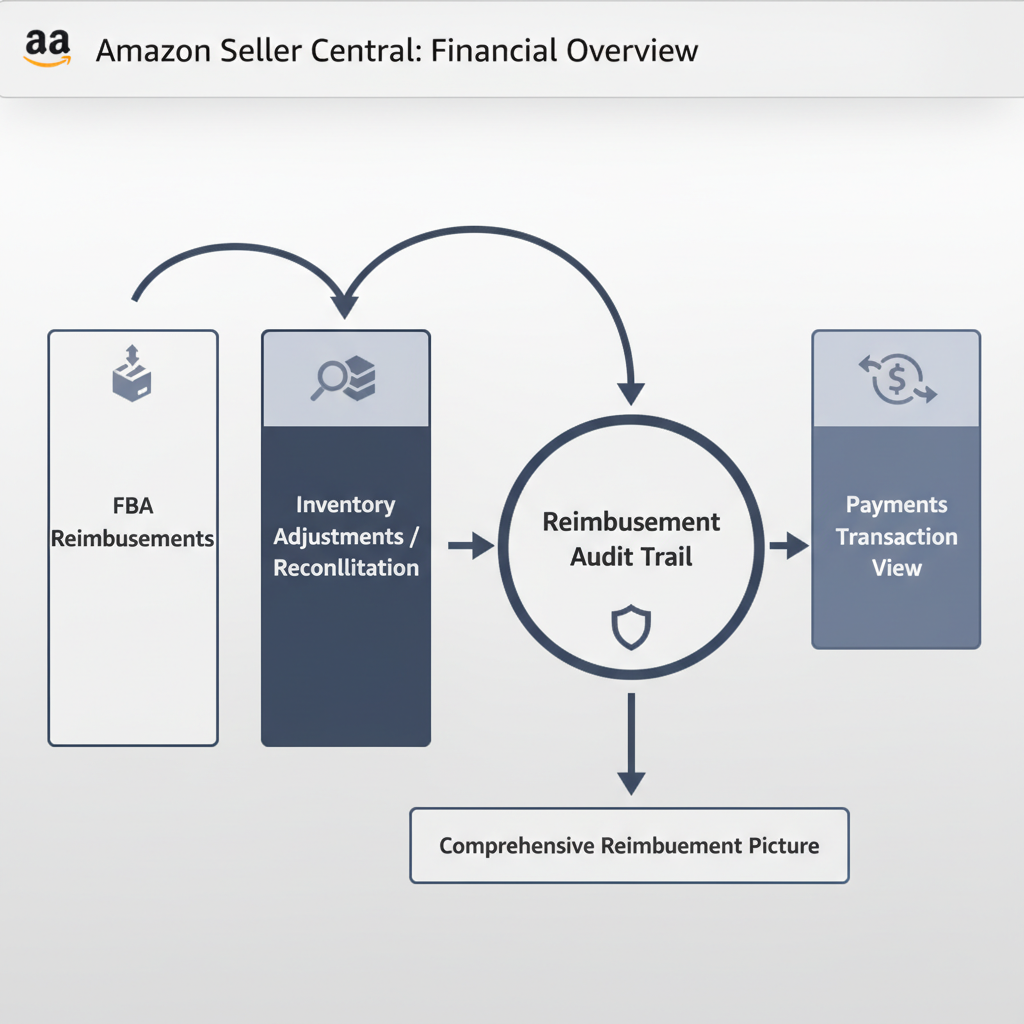
Your reimbursement-related data is scattered across a few different reports and sections inside Seller Central—there isn’t just one big magical “Amazon reimbursement report” button. But once you know where to look, you can turn all that raw data into a clear picture of:
- What’s been reimbursed
- What’s still missing
- Where you’re leaking profit
Where do you find Amazon reimbursement data in Seller Central?
If you’ve ever clicked around Seller Central and thought, “Why is this so confusing?”—you’re not alone.
Here’s where reimbursement-related information actually lives for FBA sellers:
1. FBA Reimbursements report
This is the closest thing to an official Amazon reimbursement report.
Path (Seller Central):
Reports → Fulfillment → Reimbursements (under Payments section)
This report shows:
- Date of each reimbursement
- Reason type (lost, damaged, customer return, etc.)
- ASIN/SKU
- Quantity reimbursed
- Amount credited
You can filter by date range and export to CSV for deeper analysis.
2. Inventory Adjustment & Inventory Reconciliation reports
To understand what should have been reimbursed, you need to see what happened to your inventory.
Key reports:
- Inventory Adjustments – shows lost, found, damaged, and disposed units
- Inventory Reconciliation – ties together inventory received, sold, returned, and adjusted
Path:
Reports → Fulfillment → Inventory Adjustments / Inventory Reconciliation
You’ll compare these to the Reimbursements report to catch gaps.
3. Payments → Transaction View
Your Payments dashboard also shows individual reimbursement transactions mixed in with everything else.
Path:
Reports → Payments → Transaction View
Filter by Transaction type = Reimbursement to see:
- Exact payout amounts
- Settlement periods
- How reimbursements flow into your disbursements
What types of reimbursements does Amazon pay?
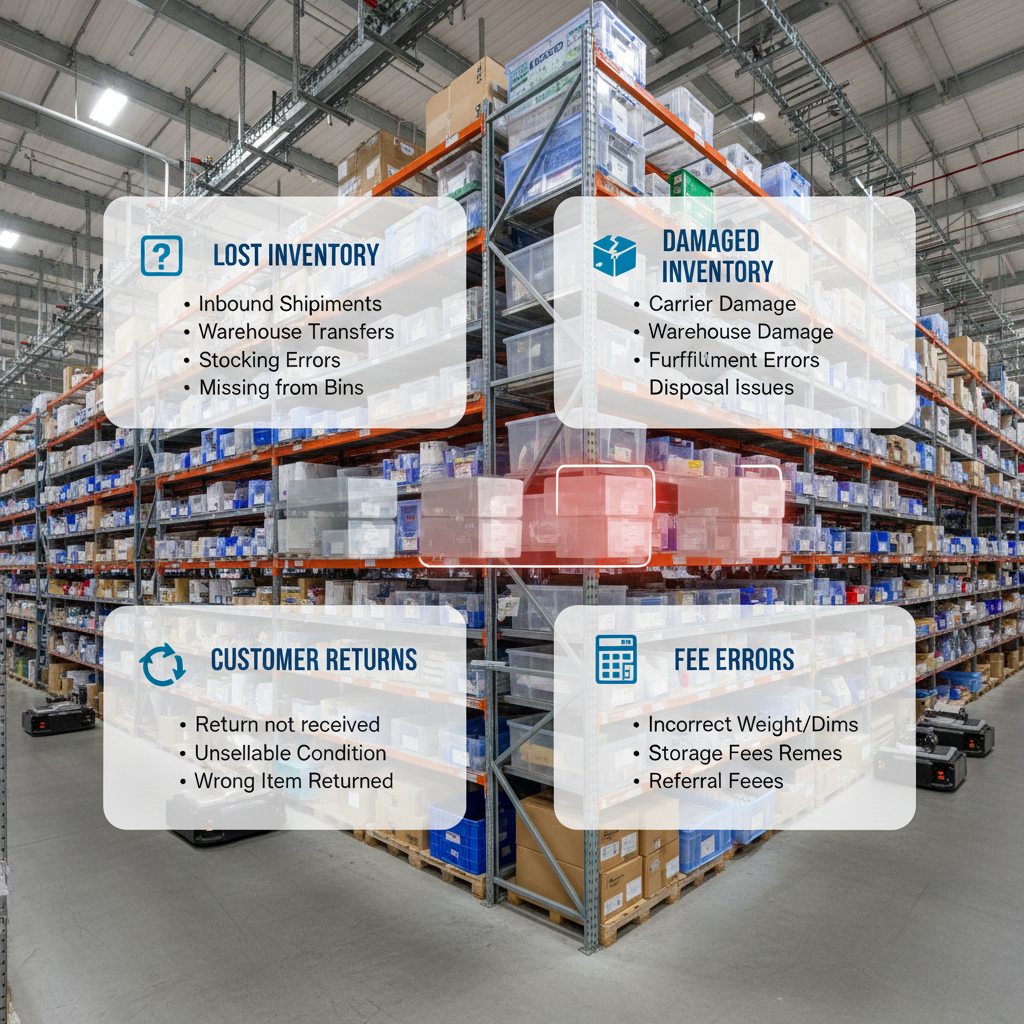
To use your Amazon reimbursement reports properly, you need to know what you’re even eligible for. Here are the main buckets.
1. Lost inventory (in Amazon’s control)
If units go missing inside Amazon’s fulfillment network (not during inbound shipping that you controlled), Amazon is generally responsible.
Examples:
- Units checked into the FC but never become available
- Stock that shows as “lost” in the Inventory Adjustments report
Often, Amazon auto-reimburses—but not always, and not always correctly.
How to use reports:
- Pull Inventory Adjustments for reason codes like
LostorMissing - Check if corresponding reimbursements exist in the Reimbursements report
2. Damaged inventory
If Amazon damages your inventory while it’s in their warehouses or during fulfillment, you may be owed money.
Common scenarios:
- FC worker damages a unit
- Item damaged during shipment to customer (when Amazon is carrier)
Report usage:
- Look for
DamagedorWarehouse Damagedin Inventory Adjustments - Match those events to reimbursements
3. Customer returns & refunds
Customer refunds get messy fast.
Issues that should trigger reimbursements:
- Customer refunded, but never returned the item (after the allowed window)
- Customer returned a different or unsellable item
- Amazon marks the return as
Customer Damagedbut fails to reimburse correctly
Report usage:
- Use Returns and Inventory Adjustments reports
- Confirm if refunded orders resulted in returned units
- Cross-check with Reimbursements and Payments → Transaction View
4. Overcharged FBA or referral fees
If Amazon mismeasures an item (dimensions or weight) or mis-categorizes an ASIN, you might pay inflated FBA or referral fees.
Signals this might be happening:
- Suddenly lower margins on a stable SKU
- FBA fee spikes after a repackage or labeling change
Report usage:
- Compare Fee Preview vs. actual fees on orders
- If fixed, Amazon may issue fee reimbursements, which appear in the Reimbursements and Payments reports

How to read and analyze your Amazon reimbursement report (step-by-step)
Let’s turn this from abstract theory into a simple workflow.
Step 1: Export your key reports
At least monthly (weekly if you’re high volume), export:
- FBA Reimbursements (last 30–90 days)
- Inventory Adjustments
- Inventory Reconciliation
- Payments → Transaction View filtered by reimbursements
Save them as CSV files so you can work in Excel or Google Sheets.
Step 2: Group reimbursements by reason type
Inside your Reimbursements export, group or filter by reason or type. Common categories:
- Lost inventory
- Damaged inventory
- Return-related
- Fee corrections
This gives you an overview of why Amazon is paying you back and which issues happen most.
Questions to ask:
- Are certain ASINs constantly being lost or damaged?
- Are return-related reimbursements higher than you expected?
Step 3: Match inventory events to reimbursements
This is where most sellers stop—and where the real money is.
- In Inventory Adjustments, filter for events like
Lost,Missing,Damaged,Warehouse Damaged. - For each event (or at least high-value SKUs), look for a matching reimbursement in the Reimbursements report:
- Same ASIN/SKU
- Similar date range
- Similar quantity
If you find inventory losses with no matching reimbursements, that’s a red flag.
Step 4: Check timing and amounts
Sometimes Amazon reimburses partially or late.
Look for:
- Quantities reimbursed that are less than quantities lost/damaged
- Reimbursement values that don’t reflect your real item value (Amazon may reimburse below your average selling price in some cases)
If you disagree with a value, you can often open a case with supporting evidence (invoices, historical sales data, etc.).
Step 5: Flag missing or incorrect reimbursements
Create a simple sheet with columns like:
- ASIN/SKU
- Type of issue (lost, damaged, refund not returned, fee overcharge, etc.)
- Date of inventory event/refund
- Expected reimbursement amount
- Actual reimbursement (if any)
- Status (Not filed / Case opened / Closed)
This becomes your reimbursement pipeline.
Real-world examples: what this looks like in practice
Example 1: The disappearing FBA units
You ship 200 units of a private label product to Amazon.
- Check-in shows 200 received.
- A month later, Inventory Adjustment shows 5 units lost at the fulfillment center.
- You wait a couple of weeks. No reimbursement appears.
You:
- Export Inventory Adjustments → confirm 5 units lost.
- Export Reimbursements → no matching record.
- Open a case with Seller Support including:
- SKU/ASIN
- Date of loss
- Screenshots/export showing the adjustment
Result: Amazon reimburses you for 5 units at their estimated value—money you’d have missed if you never checked.
Example 2: The refund that never came back
A customer is refunded for a $60 item.
- The order is refunded on January 5.
- No return is ever logged in your Returns report.
- Inventory levels do not increase.
After the return window passes:
- You confirm via Returns + Inventory Adjustments that no unit came back.
- You check Reimbursements and Payments reports—no reimbursement.
- You open a case, pointing out:
- Order ID
- Refund date
- No return received
Result: Amazon issues a reimbursement, turning a loss back into neutral.
Should you do reimbursement auditing manually or use a tool/service?
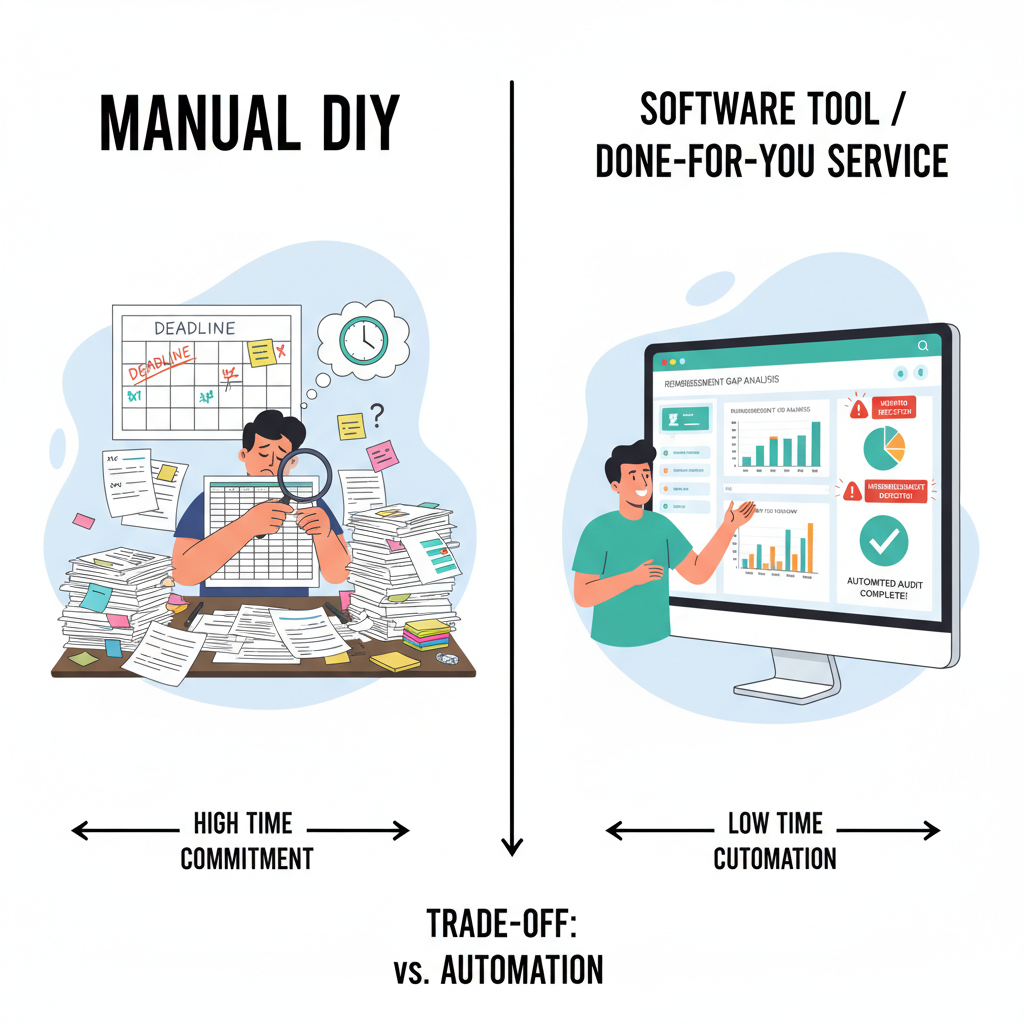
Let’s be honest: if you sell a lot of SKUs at scale, checking reimbursement reports by hand can become a part-time job.
You basically have three options:
1. Fully manual (DIY spreadsheets)
Best for: Smaller accounts, a few SKUs, or very tight budgets.
Pros:
- Full control and visibility
- No extra costs (just your time)
Cons:
- Time-consuming
- Easy to miss reimbursement windows if you’re not consistent
2. Software tools (FBA auditing platforms)
There are third-party tools that:
- Connect to your Seller Central
- Scan your inventory, adjustments, and reimbursements
- Flag potential missed reimbursements
Pros:
- Saves huge amounts of time
- Continuous monitoring
Cons:
- Monthly subscription cost
- Still may require you to submit or review cases
3. Reimbursement services (done-for-you)
Some services will:
- Audit your account
- Open cases on your behalf
- Take a percentage of recovered funds as their fee
Pros:
- Hands-off
- Expertise in how to phrase and time cases
Cons:
- They take a cut
- You need to vet for compliance with Amazon’s TOS
Best practices for staying on top of Amazon reimbursements
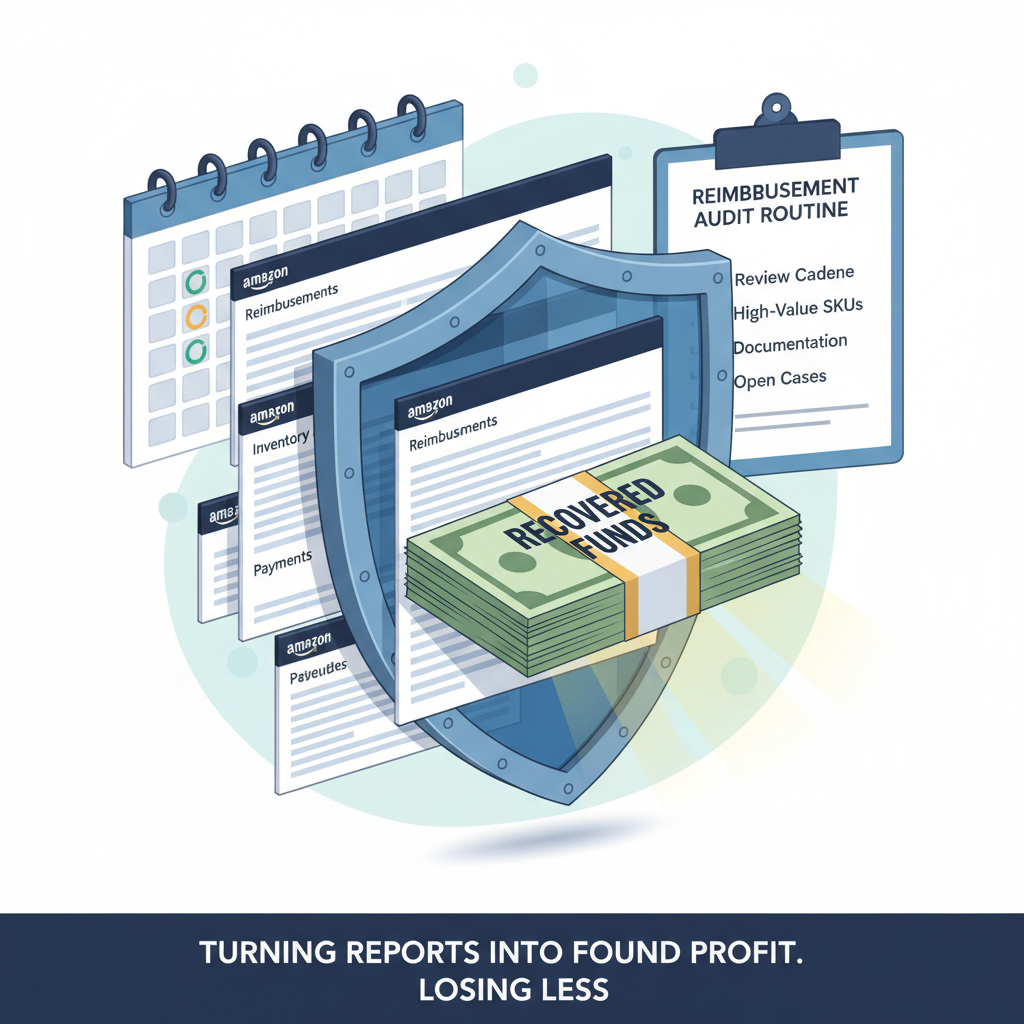
To turn your Amazon reimbursement reports into a real profit-protection system, build simple habits.
1. Set a review cadence
- Under $50k/month in sales: review monthly
- $50k–$250k/month: review bi-weekly
- $250k+/month: review weekly or use an automated tool
2. Track high-value and high-risk SKUs
Not every SKU needs deep auditing all the time.
Prioritize:
- High-priced items
- Fragile items (more likely to be damaged)
- SKUs with complex packaging or dimensions (fee issues)
3. Watch the calendar
Amazon has time limits for when you can file reimbursement claims (these can vary by issue type and marketplace).
If you wait too long, you might be permanently ineligible to recover those funds.
4. Keep clean documentation
When opening cases, strong documentation wins:
- Invoices or purchase orders
- Historical sales prices
- Screenshots or report exports
- Exact order IDs, dates, SKUs, and quantities
5. Make it someone’s job
Whether it’s you, a VA, or a team member, assign clear ownership:
- Who pulls the reports
- Who audits them
- Who opens and tracks cases
Turning Amazon reimbursement reports into found profit
Most Amazon sellers obsess over sales and ads…and then quietly lose thousands a year to unclaimed reimbursements.
But once you:
- Know where to find your Amazon reimbursement reports,
- Understand what the different reason codes and adjustments mean,
- Build a simple audit workflow (manual, tool-based, or done-for-you),
…you stop playing defense and start recovering money that was already yours.
If you do nothing else, here’s a minimalist action plan:
- Log into Seller Central and export your FBA Reimbursements and Inventory Adjustments for the last 60–90 days.
- Spot-check your top 10 SKUs for lost/damaged events with no matching reimbursements.
- Open cases for any obvious misses.
- Put a recurring reminder on your calendar to repeat this every month.
You might be surprised how quickly those “little” reimbursements add up.
Because on Amazon, you don’t just make money by selling more.
You also make money by losing less.
Leave a Reply