Amazon Watch Party: The Complete Guide
Remember when “movie night” meant arguing over DVDs and someone losing the remote in the couch? Cute. Now you can watch the same movie or show with friends in different cities, chatting in real time, all without leaving your couch (or your sweatpants).
That’s where Amazon Watch Party comes in.
If you’ve ever wanted to host a virtual movie night, binge a show with your long-distance partner, or do a group reaction to the latest episode everyone’s screaming about online, this guide is for you.
We’ll cover:
- What Amazon Watch Party is and how it works
- What you need to use it
- Step-by-step setup on desktop and mobile
- How to host smoother, less-chaotic watch parties
- Common issues and how to fix them

What Is Amazon Watch Party?
Amazon Watch Party is a built-in feature in Prime Video that lets multiple people watch the same movie or show at the same time with synced playback and a chat window on the side.
Think of it as a virtual living room inside Amazon’s streaming platform:
- One person hosts and controls the playback (pause, play, skip).
- Up to a set number of people (varies by region, typically up to 100) can join the same session.
- Everyone watches the same content at the same time.
- There’s a text chat where you can react, roast, and quote lines in real time.
What Do You Need for an Amazon Watch Party?
Before you start inviting people, make sure your setup checks these boxes.
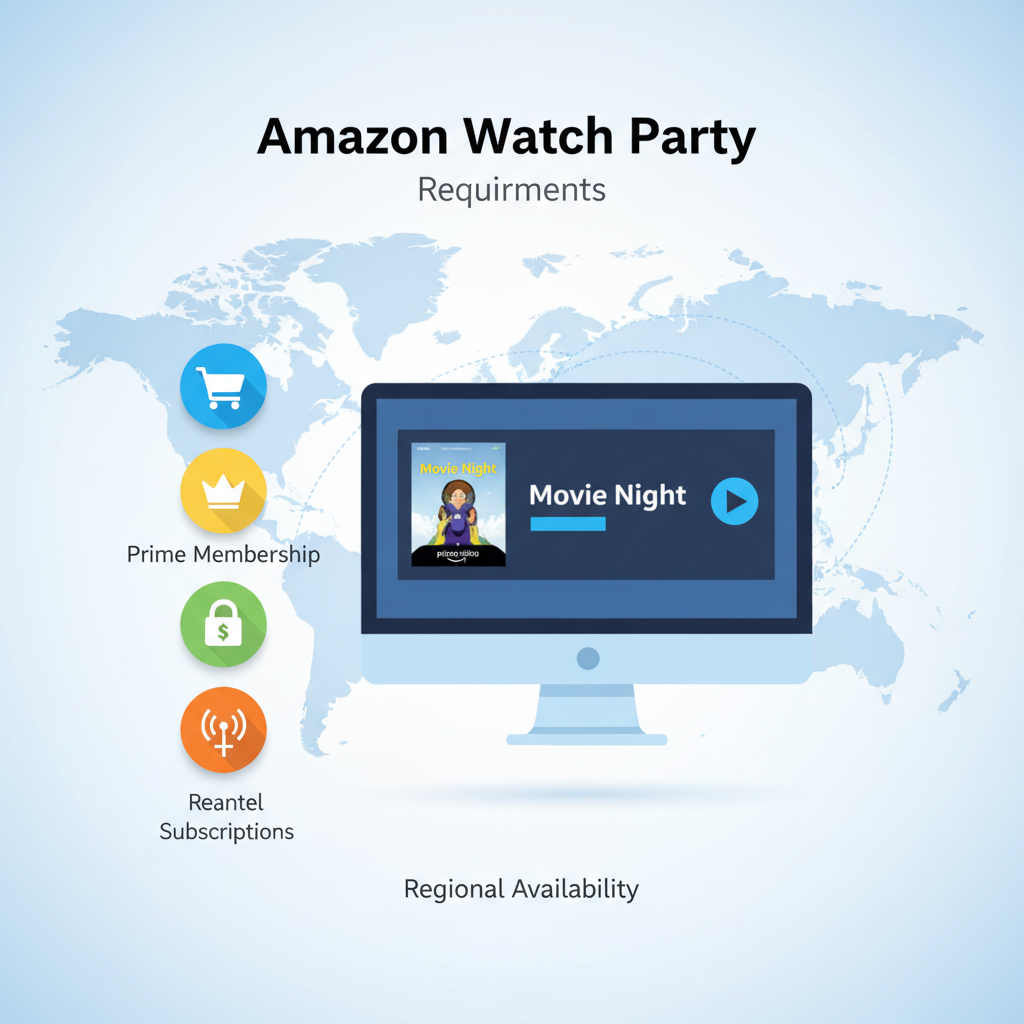
1. A Supported Device
Amazon Watch Party is primarily supported on:
- Desktop web browsers (like Chrome, Firefox, Edge) via the Prime Video website.
- Some Fire TV devices and Prime Video apps (support can vary by region and device generation).
Note: Watch Party does not reliably work in every mobile browser or smart TV app, and availability can shift by region. If you want the least headache, use a desktop browser.
2. Prime Video Access
Every participant needs:
- An Amazon account, and
- Access to the same title through one of these:
- Amazon Prime membership with Prime Video
- Rental or purchase of the movie/show
- Subscription to the specific channel the content is on (e.g., a paid channel add-on)
In other words: if you’re watching a movie that’s only available via a paid channel, everyone joining needs access to that channel too.
3. Same Region Catalog
Content libraries can differ between countries. If one friend is in the U.S. and another is abroad, a title might be available in one region but not the other.
Quick check: Before you plan a big watch night with international friends, confirm everyone can see the movie or show in their Prime Video catalog.
How to Use Amazon Watch Party on Desktop (Step-by-Step)
This is the most reliable way to use Amazon Watch Party, and usually where new features show up first.
Step 1: Open Prime Video
- Go to the Prime Video website in a supported browser.
- Sign in to your Amazon account.
Step 2: Choose What You Want to Watch
- Find the movie or TV episode you want to watch.
- Open the title’s detail page.
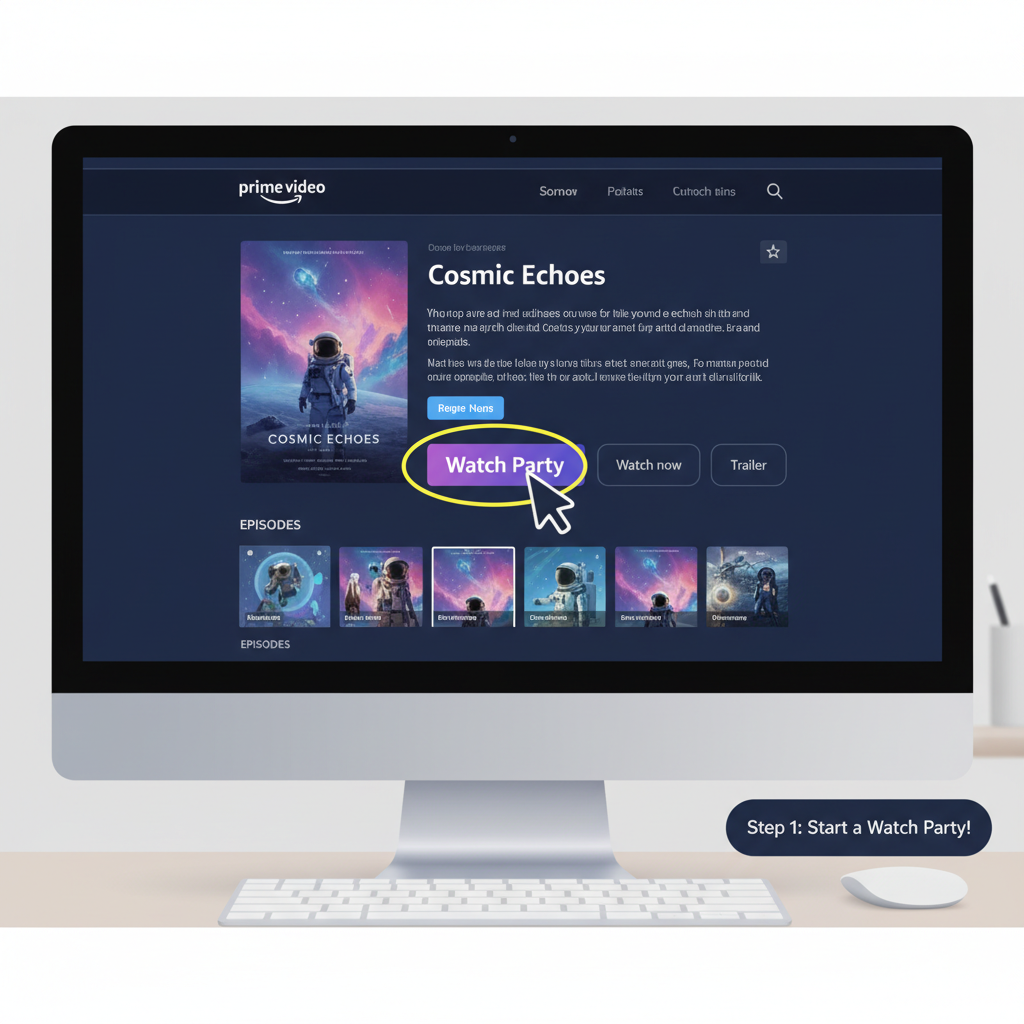
You’ll typically see a “Watch Party” button or icon near the Play or Watch Now button (exact layout can change over time, but it’s usually obvious once you’re on the title page).
Step 3: Start the Watch Party
- Click Watch Party.
- Enter a name or nickname that will appear in the chat.
- Click Create Watch Party.
Amazon will then create a session and give you a shareable link.
Step 4: Invite Your Friends
- Copy the Watch Party link.
- Share it via text, email, group chat, Discord, wherever your friends live online.
- Your friends click the link, sign in to Prime Video, and join.
They’ll need access to the same content. If they don’t, they’ll be prompted to sign up, rent, or purchase.
Step 5: Press Play and Control the Party
As the host, you can:
- Play / pause / scrub the video.
- Everyone will stay in sync with your controls.
- Chat in the sidebar while the video plays.
If someone arrives late, they can still join from the link; they’ll simply start watching where the party currently is.
Can You Use Amazon Watch Party on Mobile or TV?
This is where things get a bit… nuanced.
Mobile
- The Prime Video app may not support creating or joining Watch Parties in every region or on every OS version.
- If you want a sure thing, use a desktop browser instead, even on a tablet or laptop.
Fire TV / Smart TVs
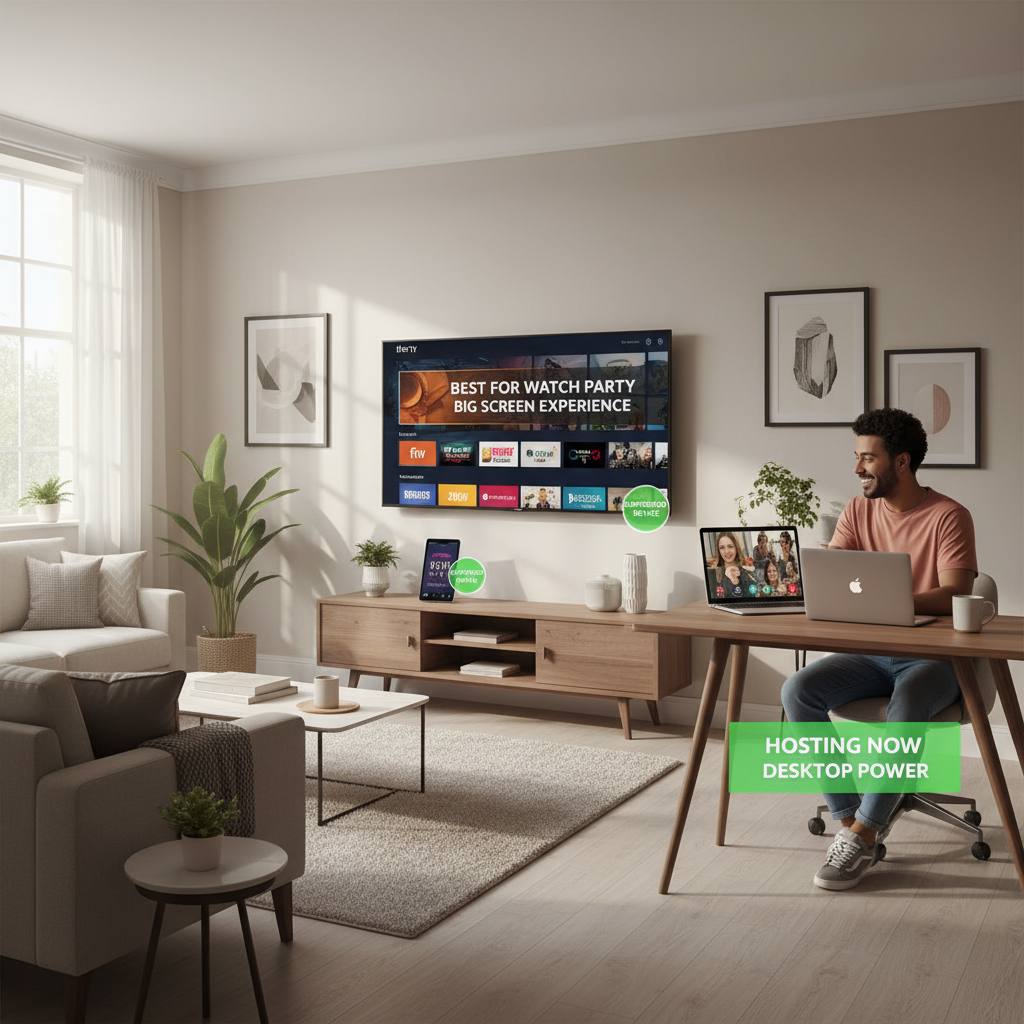
Some Fire TV devices and newer app versions can support Watch Party, letting you use your TV for the main screen and possibly your phone or another device for chat.
But support can vary a lot by:
- Device model
- App version
- Region
Best practice: If you insist on using a TV, do a short test run with a friend before planning a big group hang.
What Can You Watch in an Amazon Watch Party?
You can’t just sync anything in the Prime Video app, but there’s a lot you can do.
Eligible Content
Typically, you can host Watch Parties with:
- Prime Video titles included with your Prime membership
- Rentals and purchases (if everyone has rented or bought the title)
- Channel subscriptions (Starz, Paramount+, etc., as long as everyone has the same channel)
Ineligible Content
Some content may not support Watch Party due to licensing restrictions. If there’s no Watch Party button on the title page, that title likely isn’t eligible.
How Many People Can Join an Amazon Watch Party?
The exact number can depend on region and Amazon’s current limits, but historically Watch Party has supported dozens of participants (often up to 100 per session in many regions).
That makes it useful for:
- Friend groups and families
- Remote birthdays or celebrations
- Small community or club events
Just remember: the more people in chat, the faster it scrolls. If you’re hosting a big group, set some ground rules (more on that next).

How to Host a Great Amazon Watch Party (Not a Chaotic One)
Technology is only half the story. The other half is: are people actually having fun?
Here are some practical tips.
1. Decide the Vibe Up Front
Is this:
- A serious movie night (no talking during key scenes)?
- A roast fest (talk all you want, memes encouraged)?
- A live reaction party for a finale or sports-style event?
Let everyone know in advance so expectations are aligned.
2. Test Before You Invite 20 People
Do a mini test with one trusted friend:
- Start a Watch Party
- Send the link
- Make sure they can join, see video, and use chat
Fixing issues in a calm two-person test is much nicer than troubleshooting while 15 people spam, “I HAVE NO SOUND.”
3. Use Another App for Voice Chat (If You Want)
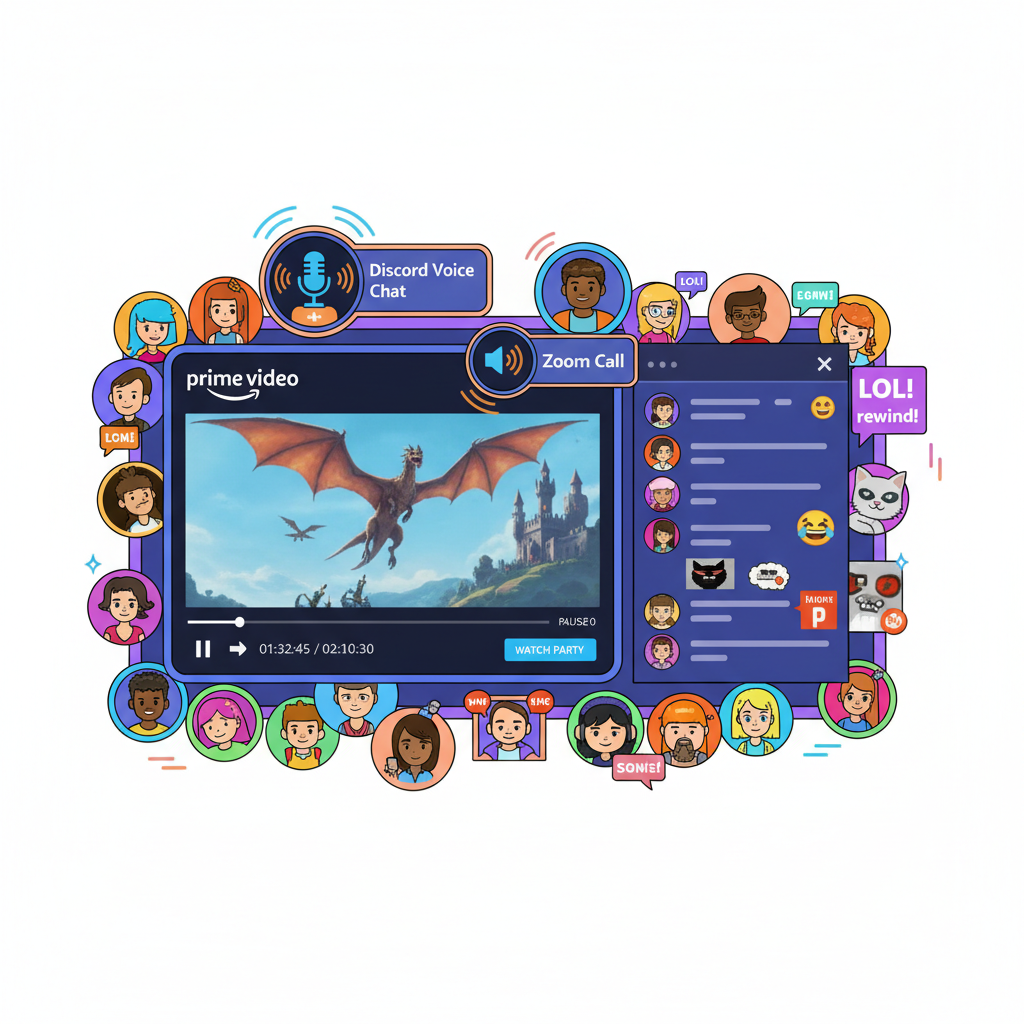
Amazon Watch Party has text chat, but no built-in voice chat.
If you want to talk while watching, combine it with:
- Discord voice channels
- Zoom / Google Meet / Teams
- A group phone call
Just remind people to mute themselves if there’s background noise.
4. Set a Schedule and Be On Time
Send details like:
- Date and time (with time zone for long-distance friends)
- Title you’re watching
- How long it is
- Link to the Watch Party right before start time
Aim to start 10–15 minutes after the scheduled time to allow latecomers to join without constant pausing later.
5. Have an Intermission Plan
For longer movies or marathons:
- Plan a midpoint break (bathroom, refill snacks, stretch)
- Tell everyone: “We’ll pause around halfway for 5 minutes.”
Common Amazon Watch Party Problems (and How to Fix Them)
Let’s troubleshoot the usual chaos.
1. The Watch Party Button Is Missing
Try this:
- Make sure you’re on PrimeVideo.com in a supported desktop browser.
- Check if you’re signed into your Amazon account.
- Confirm the title is eligible (if there’s no button after a refresh, it might not support Watch Party).
2. Friend Can’t Join the Party
Ask them to check:
- Are they logged into an Amazon account?
- Do they have Prime Video access or have they rented/purchased the title?
- Are they in a different country or region where the title isn’t available?
- Are they trying to join from a non-supported device or browser?
A quick workaround: have them switch to a desktop browser and try again.
3. Video Is Laggy or Out of Sync
While Amazon handles sync for everyone, bad internet can still cause:
- Buffering
- Slight delays
Ask everyone to:
- Close unnecessary tabs or apps using bandwidth
- Switch from Wi‑Fi to a more stable connection if possible
- If needed, leave and rejoin the Watch Party
4. No Chat or Chat Not Updating
- Have them refresh the page.
- Ensure no aggressive browser extensions or ad blockers are interfering.
Fun Ideas for Your Next Amazon Watch Party
Need inspiration beyond “uh, what do we watch?” Here are a few themes that work really well with Amazon Watch Party.
1. Long-Distance Date Night
- Pick a rom-com or shared favorite movie.
- Cook or order the same kind of food (pizza, takeout, popcorn).
- Use text chat or a separate voice call for commentary like you’re on the same couch.
2. Sibling or Family Rewatch
- Revisit a childhood classic everyone remembers.
- Share family stories in chat — “Remember when dad fell asleep in the theater during this scene?”
3. Season Premiere or Finale Party
- Pick a buzzy show episode dropping on Prime Video.
- Watch together in real-time instead of dodging spoilers on social media.
4. Movie Club or Classroom-Style Discussion
- Watch a documentary or thought‑provoking film.
- Pause occasionally (as the host) for short breaks to discuss in chat or another call.
Is Amazon Watch Party Worth Using?
If you:
- Have friends or family in different places,
- Struggle to find time for in‑person movie nights,
- Or just love reacting together in real time…
…then yes, Amazon Watch Party is absolutely worth trying.
You’re already paying for Prime Video (or individual rentals/purchases). Watch Party is a free feature layered on top that makes your streaming time more social and memorable.
Final takeaway: Amazon Watch Party turns passive watching into a shared event — and in a world where everyone’s scattered across cities and time zones, that’s kind of a big deal.
If you want to start simple, pick a 30–40 minute episode, test the feature with one or two friends, and go from there. You might never go back to watching alone again.
Leave a Reply