Can You Use a Vanilla Gift Card on Amazon?
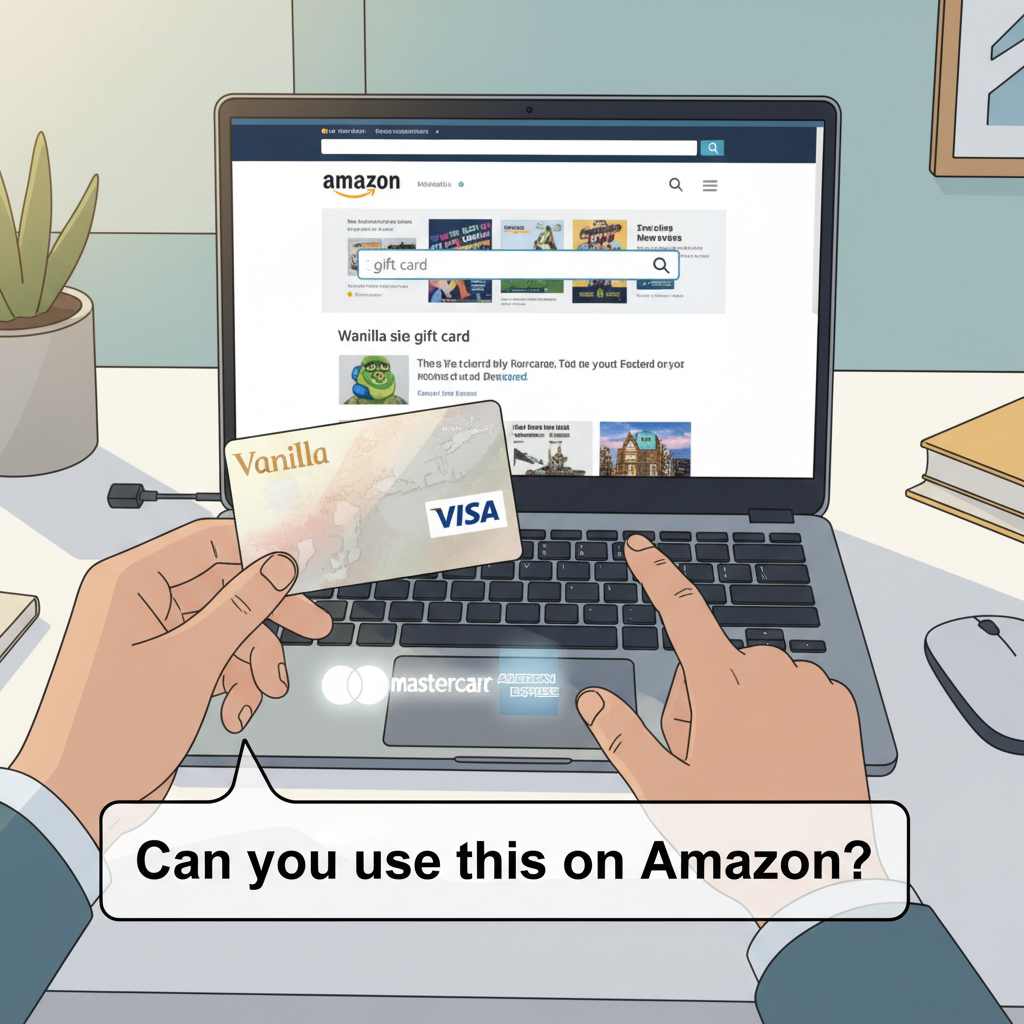
Wondering if that Vanilla Visa in your hand will actually work on Amazon? Yes—here’s exactly how.
You’ve got a Vanilla Visa gift card burning a hole in your wallet, and Amazon is calling your name.
But then the panic hits:
“Wait… can I actually use a Vanilla gift card on Amazon, or is this going to error out 17 times and ruin my day?”
Let’s walk through exactly how it works, what Amazon doesn’t tell you up front, and how to avoid the classic “payment declined” drama.
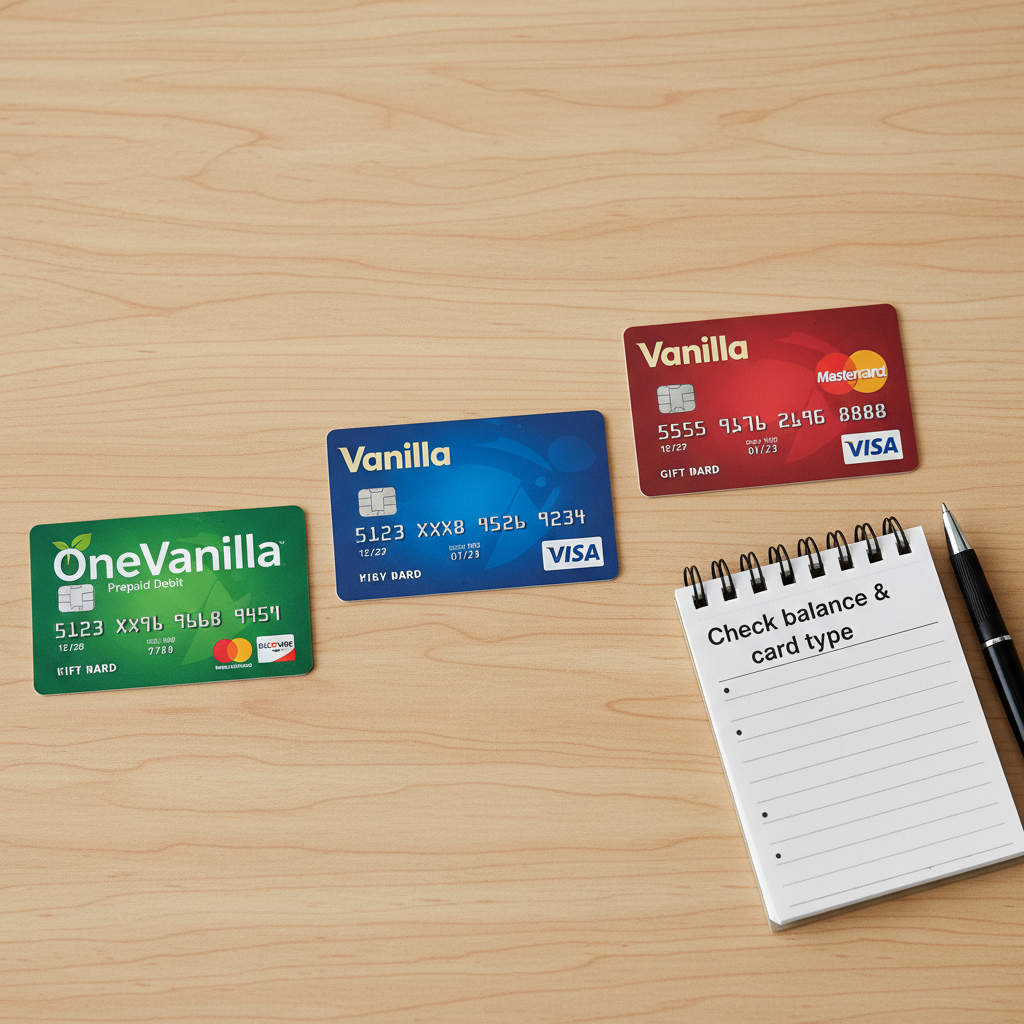
First things first: understand what kind of Vanilla card you’re holding before you try to use it on Amazon.
Quick Answer: Yes, You Can Use a Vanilla Gift Card on Amazon (With a Catch)
Yes — you can usually use a Vanilla Visa, Mastercard, or Discover gift card on Amazon, but not as a “gift card” balance like an Amazon gift card.
Instead, you have to treat it like what it actually is: a prepaid debit/credit card.
In plain English:
- You add it as a new payment method (like a normal credit/debit card).
- Or you use it to buy an Amazon eGift Card and then load that to your Amazon balance.
Both work. One is just a lot less fussy.
FAST TAKEAWAY:
- Vanilla gift card = prepaid card, not an Amazon-style gift code.
- Use it at checkout or to buy an Amazon eGift Card and then spend that balance like normal.
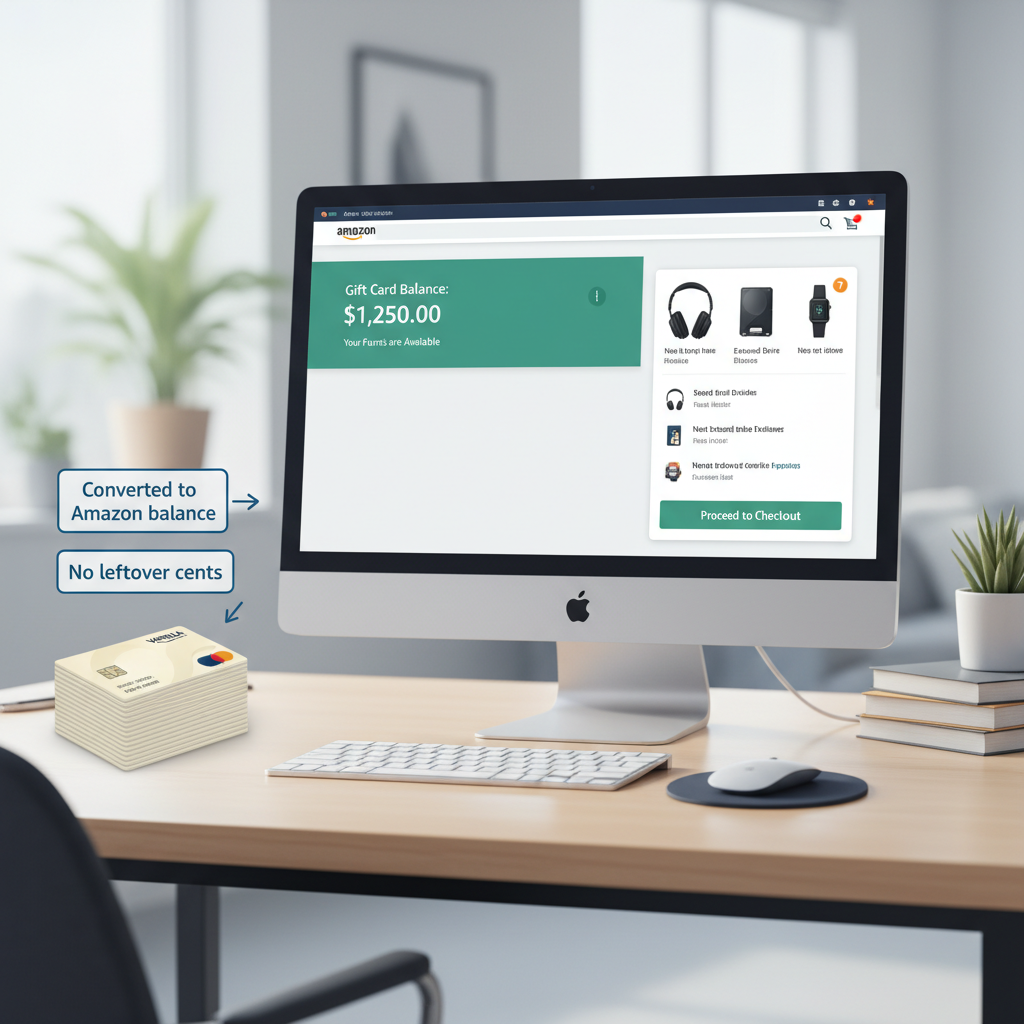
Check the logo—if it’s Visa, Mastercard, or Discover, Amazon will usually treat it like any other card.
Step 1: Figure Out What Type of Vanilla Gift Card You Have
Not all “Vanilla” cards are identical, but most fall into these buckets:
- Vanilla Visa Gift Card
- OneVanilla Prepaid Visa or Mastercard
- Vanilla Discover or Mastercard Gift Cards
If your card has a Visa, Mastercard, or Discover logo, Amazon will generally treat it like any other credit/debit card.
Flip the card over and make sure you can see:
- A card network logo (Visa/Mastercard/Discover)
- A toll-free number or website to check balance
- The card number, expiration date, and security code (CVV)
If you don’t see those things, it might be a store-only or restricted card, which usually won’t work on Amazon.
Takeaway: If it looks and acts like a Visa/Mastercard/Discover card, Amazon can almost always take it.
Adding your Vanilla card to Amazon’s payment methods is simple—until the total is higher than your balance.
Option 1: Add Your Vanilla Gift Card as a Payment Method on Amazon
This is the most straightforward method… but also the one where small mistakes cause declines.
How to add a Vanilla gift card on Amazon
-
Check your card balance first
Go to the website or phone number on the back of the card and confirm your exact remaining balance down to the cent. -
Go to your Amazon payment settings
- Log in to your Amazon account.
- Go to Accounts & Lists → Your Payments.
- Click Add a payment method → Add a credit or debit card.
-
Enter the Vanilla card info
- Name on card: you can usually enter your own name. If it’s a generic gift card with no name, many people use their own first and last name.
- Card number
- Expiration date
- CVV (security code)
-
Use it at checkout (with a big warning)
If your purchase total is more than the balance on the Vanilla card, Amazon will decline it. They don’t do automatic “split payments” between two cards.That means:
- You must:
- Either place an order that’s less than or equal to the card’s balance, or
- Use the card to buy an Amazon eGift card first (more on that next).
- You must:
Why this often fails:
- People try to buy $40 of stuff with a $25 Vanilla card.
- Amazon can’t partially charge the Vanilla card and then the rest on your normal card in one step.
- Result: declined, even though money is on the card.
Takeaway: Use this method only if your entire order can be covered by the Vanilla card balance.
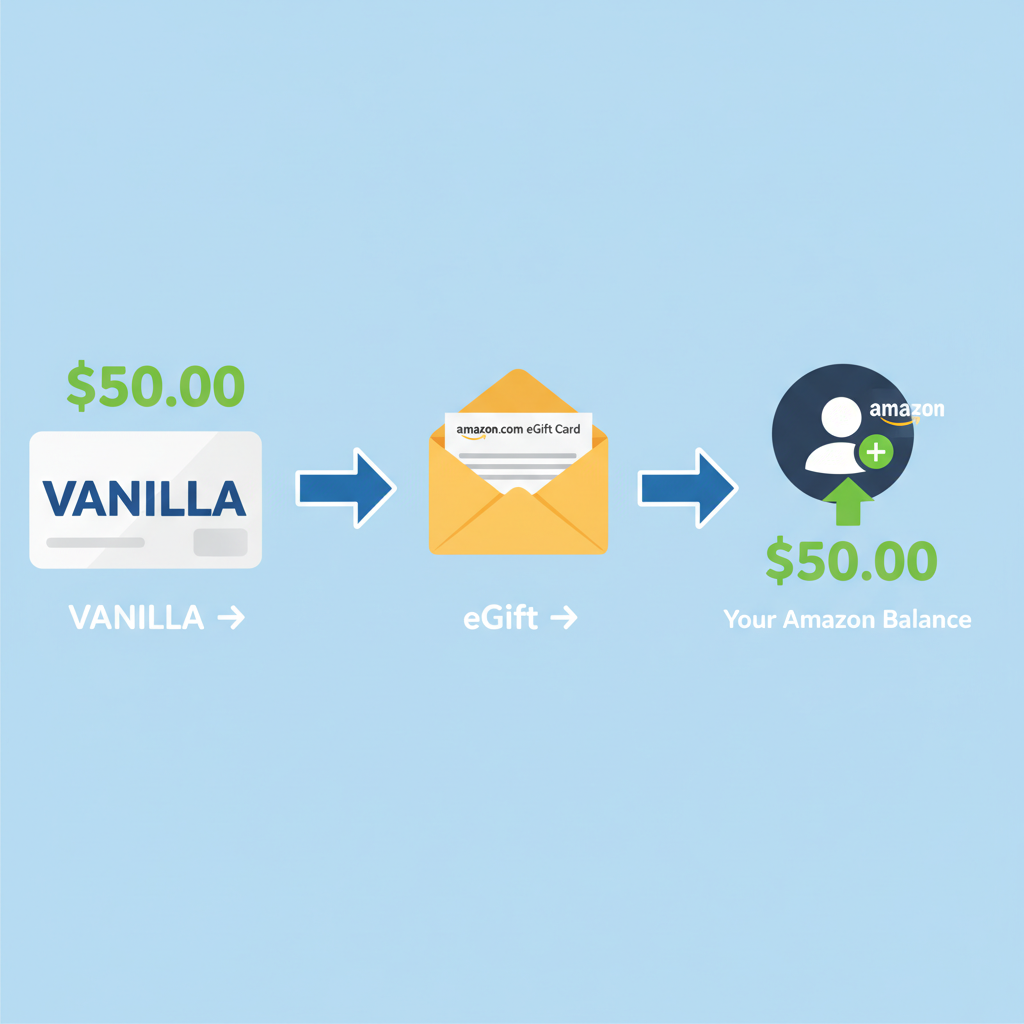
The smoothest route: convert your Vanilla balance into an Amazon eGift Card, then let Amazon handle the rest.
Option 2 (Recommended): Use Your Vanilla Card to Buy an Amazon eGift Card
This is the cleanest way to use every last cent on a Vanilla gift card without guesswork.
Why this works better
- Amazon can do split payments between an Amazon gift balance and a card, but not easily between two cards.
- Once you convert your Vanilla balance into an Amazon gift card balance, you can mix it with any other payment method effortlessly.
Step-by-step: Turn Vanilla → Amazon balance
-
Check the exact balance on your Vanilla card
Let’s say it’s $23.17. -
Go to Amazon’s eGift Card page
- Search for “Amazon eGift Card” on Amazon.
- Choose the Email delivery option.
- In the “Amount” field, type the exact remaining balance (e.g., $23.17).
-
At checkout, pay with your Vanilla gift card
- Choose Add a credit or debit card.
- Enter the Vanilla card info.
- Make sure the order total matches or is slightly less than the balance on the Vanilla card.
-
Redeem the eGift card to your account
- The eGift card arrives by email (usually within minutes).
- Click Apply to Your Amazon Account or copy-paste the claim code into Gift Cards → Redeem a Gift Card.
Now your money is safely sitting as Amazon gift card balance.
Next time you check out:
- Amazon automatically uses your gift card balance first.
- If your purchase costs more, it’ll charge the rest to your saved debit/credit card.
Takeaway: This method almost always works and lets you use 100% of that random $7.42 left on the card.
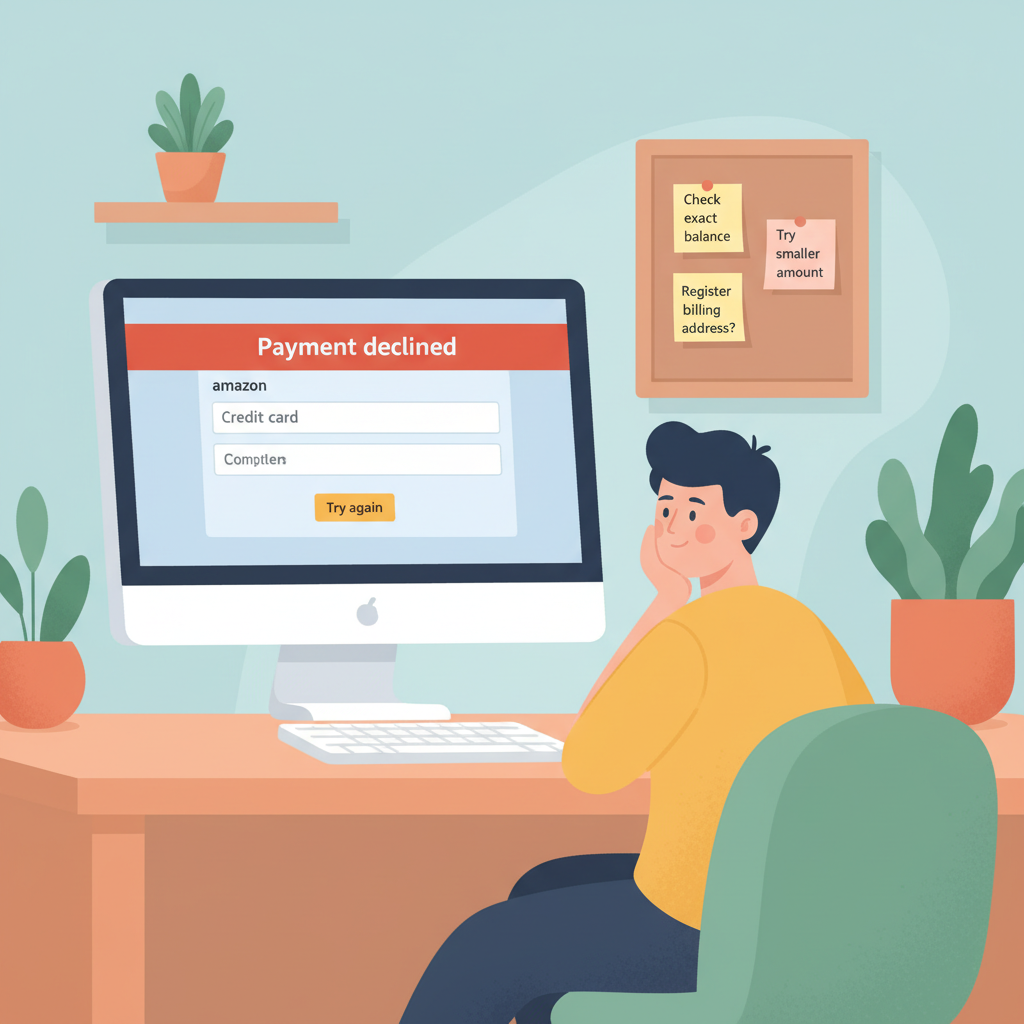
Hit a “Payment declined” wall? It’s usually a balance, hold, or billing-detail issue—not that your card is cursed.
Common Problems People Hit (And How to Fix Them)
1. “Payment declined” even though the card has money
This usually happens because:
- Your order total > card balance, and Amazon won’t partially charge the card.
- There’s a temporary hold on the card (some cards place a pre-authorization when you check the balance or try a transaction).
- The amount is too close to the balance (for example, the card has $25.00 but there’s a small tax or authorization that pushes the total beyond that).
Fix:
- Check the exact balance again.
- Try purchasing an eGift card for a few cents less than the balance.
- Or make a smaller purchase than the full balance.
2. “Invalid card info” or “We couldn’t verify this card”
Double-check:
- Card number, expiration date, and CVV.
- Zip code or billing address, if requested.
Some Vanilla/OneVanilla cards allow you to register a billing address online. If Amazon asks for a billing address, use the same one you registered with the card site.
If your card isn’t registered to any address, use the address recommended by the issuer (often your real mailing address).
Fix:
- Go to the card issuer’s website (on back of card) and register your card if that’s an option.
- Re-enter the information on Amazon after registration.
3. You have a weird leftover amount ($1.09, $2.63, etc.)
This is where the eGift card trick shines.
Try this:
- Check your exact remaining balance.
- Go to Amazon’s eGift Card page.
- Manually enter that exact amount.
- Pay with the Vanilla card.
If it still fails, lower the amount by a few cents (for example, card shows $2.63 → try $2.50).
Takeaway: That last couple of dollars doesn’t have to die in plastic purgatory.
Three half-empty cards? Turn each into an eGift Card and enjoy one clean Amazon balance.
Can You Use Multiple Vanilla Gift Cards on One Amazon Order?
Not directly.
Amazon doesn’t allow you to:
- Load multiple different prepaid cards in one purchase and have them each cover part of the total.
But you can work around this:
- Convert each Vanilla card into a separate Amazon eGift card, one at a time.
- Redeem those eGift cards into your Amazon gift balance.
- Now your full combined balance can be used on any future order.
Example:
- Card 1: $15.62 → buy a $15.62 Amazon eGift card.
- Card 2: $25.00 → buy a $25.00 Amazon eGift card.
- Redeem both.
- You now have $40.62 in your Amazon balance, usable in one order.
Takeaway: Directly? No. Indirectly via gift balance? Absolutely yes.
Vanilla cards can have fees in the background—move that money into your Amazon balance before they nibble it away.
Are There Any Fees or Gotchas With Vanilla Gift Cards on Amazon?
A few things to keep in mind:
- No extra Amazon fee to use the card itself.
- Some Vanilla cards may charge:
- A purchase fee when the card is first bought.
- Inactivity fees if the card sits unused for a long time (varies by issuer and state).
- Once you convert to Amazon gift balance, there are no extra fees from Amazon, and the balance generally does not expire under current policies.
Always check the card’s terms and conditions, especially if it’s been sitting in a drawer for a couple of years.
Takeaway: Use it sooner rather than later so fees (if any) don’t quietly nibble away your balance.
Once everything’s converted, Amazon just pulls from your balance first—no declines, no mental math.
Real-Life Scenarios (And What You Should Do)
Scenario 1: “I have a $50 Vanilla Visa and want to buy a $48 item.”
You can:
- Add the Vanilla card as a payment method and check out directly.
(Order total is less than balance — you’re good.) - Or: use it to buy a $50 Amazon eGift card, load it to your balance, and use that for this or future orders.
Scenario 2: “I have $20 left on my Vanilla card and a $60 Amazon cart.”
In this case:
- If you try to pay the $60 cart directly with the $20 Vanilla card, it will likely be declined.
- Better: buy a $20 Amazon eGift card with the Vanilla card, apply it to your balance, then:
- $20 comes from your Amazon balance, and
- $40 from your regular debit/credit card.
Scenario 3: “I have three almost-empty Vanilla cards with random amounts.”
Strategy:
- Check each card’s balance.
- For each one, buy an Amazon eGift card for that exact (or slightly lower) amount.
- Redeem all eGift codes to your Amazon account.
- Enjoy one nice, clean balance instead of three tiny plastic headaches.
TL;DR: Best Way to Use a Vanilla Gift Card on Amazon
If you remember nothing else, remember this:
- Yes, you can use a Vanilla Visa/Mastercard/Discover gift card on Amazon.
- Treat it like a credit/debit card, not like an Amazon gift code.
For fewer errors and maximum use of the balance:
- Check the card’s exact balance.
- Use it to buy an Amazon eGift card for that amount.
- Redeem the eGift card to your Amazon account.
- Let Amazon gift balance + your normal card handle future orders.
Do that, and you’ll turn that random plastic gift into actual stuff at your door — no declined payments, no leftover pennies, no drama.
Leave a Reply