Does The Amazon Smart Plug Have A MAC Address?
How to actually find that mystery MAC address hiding behind your “smart” plug.

If you’ve ever tried to lock your Wi‑Fi network down with MAC address filtering, you’ve probably hit this exact moment:
- You buy an Amazon Smart Plug.
- You open your router settings.
- You realize you have no idea which mystery device is the plug.
So you ask the obvious question: does an Amazon Smart Plug even have a MAC address? And if so… where is it hiding?
Let’s walk through it in plain English.
Short answer: yes, your Amazon Smart Plug does have a MAC address
Every Wi‑Fi device needs a MAC address to talk to your router. That includes:
- Laptops
- Phones
- Smart TVs
- Smart plugs (including the Amazon Smart Plug)
So yes—every Amazon Smart Plug has at least one unique MAC address associated with its Wi‑Fi radio.
You usually don’t see it during normal setup because Amazon tries to make pairing plug‑and‑play through the Alexa app. But the MAC is still there under the hood, and you can find it if you need it for things like:
- MAC address filtering on your router
- IP reservations (assigning it a static IP via DHCP)
- Network inventory or documentation
Takeaway: If it’s on Wi‑Fi, it has a MAC. Your Amazon Smart Plug is no exception.

Quick refresher: what’s a MAC address, and why should you care?
A MAC address (Media Access Control address) is basically your device’s “license plate” on the local network:
- It’s a 12‑digit hexadecimal value, usually shown like:
AA:BB:CC:DD:EE:FForAA-BB-CC-DD-EE-FF. - It’s burned into the network hardware (your Wi‑Fi chip) at the factory.
- Your router uses it to identify each device uniquely, even if IP addresses change.
Why you might need your Amazon Smart Plug’s MAC address
Common reasons:
-
MAC address filtering
You’ve enabled MAC filtering on your router so only approved devices can connect. To let the plug online, you’ll need to add its MAC. -
Static IP via DHCP reservation
You want your plug to always get the same IP so it’s easier to track, log, or integrate with home automation that references IP addresses. -
Network security and inventory
You like knowing exactly what’s on your network (instead of mystery devices called “Espressif” or “Generic Wi‑Fi Module”).
Takeaway: MAC addresses are how your router knows who’s who. For smart home nerds and security‑conscious users, the plug’s MAC can absolutely matter.
Where to find the MAC address on an Amazon Smart Plug
Here’s where things get mildly annoying:
Some consumer IoT gear prints the MAC right on the device or box. Amazon Smart Plugs… often don’t do this in a clean, obvious way.
But you still have several ways to discover it.
Option 1: Check your router’s connected devices list
This is usually the fastest and most reliable method.
- Plug in the Amazon Smart Plug and set it up normally via the Alexa app so it’s online.
- Log into your Wi‑Fi router (usually via a browser at an address like
192.168.0.1or192.168.1.1). - Go to something like:
- “Connected Devices”
- “Device List”
- “DHCP Clients”
- “Wireless Clients”
- Look for an entry that matches the plug. It may show as:
Amazon-xxxorAmazon Plug- A generic name but with a manufacturer like Amazon, Amazon Technologies Inc., or similar
- Once you’ve found it, your router should display its MAC address next to the device name.
Pro tip: If your list is crowded, unplug the smart plug for a few seconds, refresh the device list, then plug it back in and refresh again. The new/returning device is usually your plug.
Takeaway: Your router already knows the plug’s MAC. You’re just reading what it sees.
Option 2: Look for labels on the device or packaging
Depending on the generation or batch, some Amazon Smart Plugs include:
- A label or sticker with barcodes and numbers
- A printed code that may include the MAC address or at least a serial number
You’re looking for something labeled:
MACMAC ID- Or a 12‑character hex string split by colons or hyphens (e.g.,
3C:5A:B4:1F:2E:90)
Not all versions make this obvious, and some only show a serial number—not the full MAC—so don’t be surprised if this method doesn’t pan out.
Takeaway: It’s worth a 30‑second look at the plug and box, but don’t rely on this method alone.
Option 3: Use a network scanner app
If your router’s interface is limited or you can’t easily tell which device is which, a network scanning tool can help.
On your phone or computer (connected to the same Wi‑Fi):
- Install a local network scanner such as:
Fing(iOS/Android)Advanced IP Scanner(Windows)Angry IP Scanner(multi‑platform)
- Run a scan of your local network.
- Look for a device with:
- Manufacturer listed as Amazon or Amazon Technologies Inc.
- An IP address that appears when the plug is powered and disappears when it’s unplugged
- The scanner will usually display the MAC address alongside the IP and manufacturer.
Takeaway: If your router UI is unhelpful, a simple network scan can make everything visible.
Does the Amazon Smart Plug use MAC randomization?
You might have seen phones and laptops use randomized MAC addresses for Wi‑Fi privacy, especially when they probe for networks. That raises a fair question:
Does the Amazon Smart Plug change its MAC address?
No—at least under normal operation, IoT devices like the Amazon Smart Plug typically use a fixed hardware MAC address when associated with your home network. The whole point is to be stable, easy to identify, and reliably reachable.
If you see multiple similar Amazon MACs on your network, that usually means:
- You have more than one Amazon device (Echo, Fire TV, more plugs, etc.).
- Your router is exposing both 2.4 GHz and 5 GHz radios and you’re seeing different devices on each band.
Takeaway: Expect your smart plug’s MAC to stay the same. That’s good news for IP reservations and MAC filtering.
Can you change the MAC address of an Amazon Smart Plug?
Practically speaking: no.
Unlike a PC or rooted phone where you can spoof a MAC address in software, the Amazon Smart Plug is a locked‑down, single‑purpose device.
- There’s no user‑exposed setting to modify the MAC.
- The firmware is closed and not meant for user hacking.
If you need to “change” which MAC is allowed on your network, you change it on the router side (update your allow/deny lists) rather than on the plug itself.
Takeaway: Treat the plug’s MAC as permanent. Adjust your network, not the plug.
What if I use MAC filtering and the plug won’t connect?
If you’re running MAC filtering and your Amazon Smart Plug refuses to cooperate, here’s a simple troubleshooting flow:
- Temporarily disable MAC filtering on your router.
- Factory reset the Amazon Smart Plug (usually by holding down its button for about 12 seconds until the LED flashes). Then set it up again in the Alexa app.
- Once it’s online, locate it in your router’s connected device list using the steps above.
- Write down or copy the MAC address.
- Re‑enable MAC filtering, and add that MAC address to your allowed list.
If it still doesn’t connect:
- Double‑check that you
- Entered the MAC correctly (common mistake: confusing
Bwith8, or0withO). - Are using the right Wi‑Fi band (Amazon Smart Plug generally uses 2.4 GHz networks; ensure that’s enabled).
- Entered the MAC correctly (common mistake: confusing
- Try restarting both the router and the plug.
Takeaway: The safest workflow is to connect first with MAC filtering off, grab the MAC, then lock things back down.
How to keep track of MAC addresses as your smart home grows
If you’re just now thinking about MAC addresses, wait until you’ve added:
- 6 smart plugs
- 3 smart bulbs
- 2 smart speakers
- 1 slightly confused router
Things can get messy fast. A few habits can save you a lot of guesswork later:
-
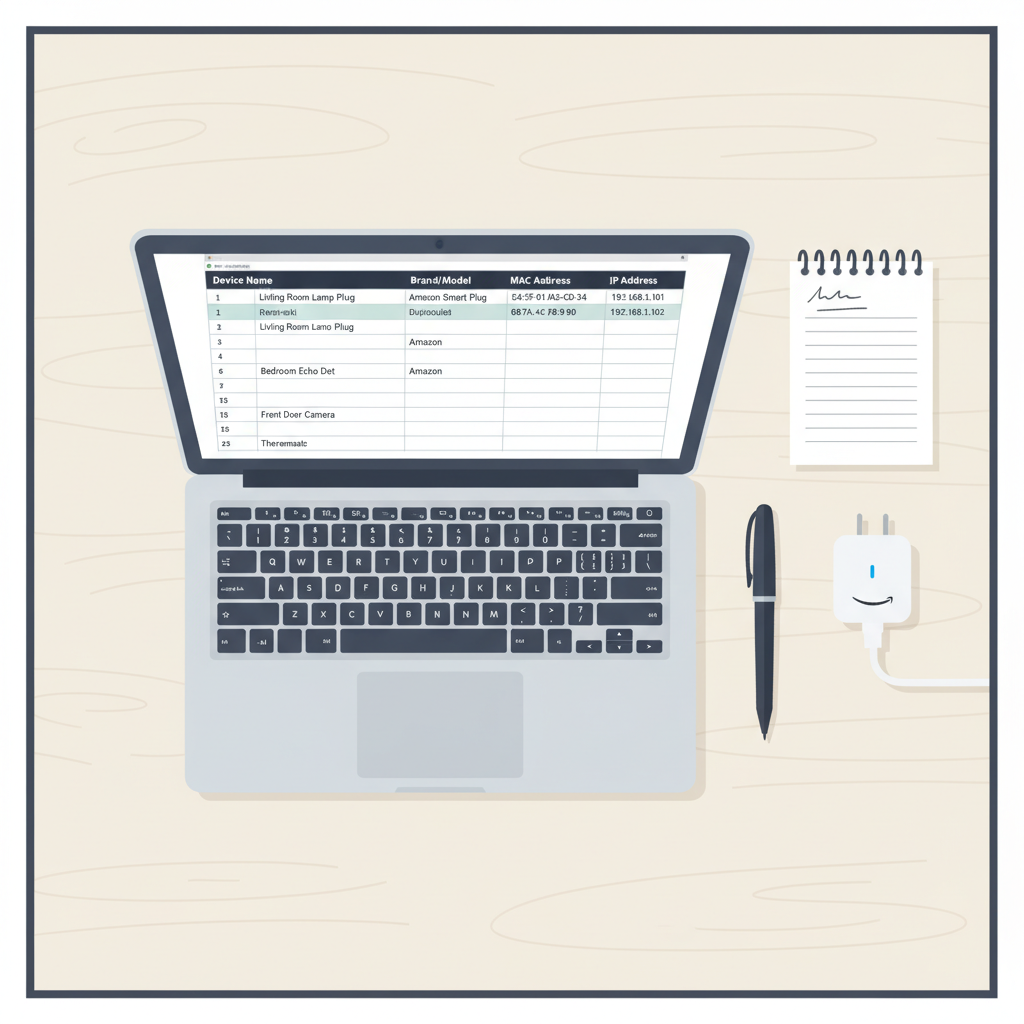
Keep a simple spreadsheet or note
Track each device with:- Device name (e.g., “Living Room Lamp Plug”)
- Brand/model
- MAC address
- IP address (if reserved)
-
Use good names in your router UI
Many routers let you rename clients. Changeamazon-1234toAmazon Smart Plug – Office Lamp. -
Group devices by room in Alexa
This doesn’t show the MAC, but it keeps your mental model aligned with how your network is actually laid out.
Takeaway: Spend 5 extra minutes documenting now; save 30 minutes of future “which device is this?!” detective work.
Final recap: does an Amazon Smart Plug have a MAC address?
Let’s tie it all up:
- Yes, every Amazon Smart Plug has a MAC address—otherwise it couldn’t join your Wi‑Fi.
- You can usually find it via your router’s connected device list, a network scanner app, or occasionally on labels on the device/packaging.
- The MAC address is fixed, not user‑changeable, and generally not randomized like modern smartphones.
- If you use MAC filtering, the easiest method is:
- Turn filtering off
- Get the plug online
- Grab the MAC from your router
- Then turn filtering back on and add it to the allowed list
Once you’ve done that, your Amazon Smart Plug should behave like any other trusted device on your home network—just a very tiny one that controls way too much power over your coffee maker.
If you tell me your router model, I can walk you through exactly where to click to see the MAC address step‑by‑step.
Leave a Reply