How To Cancel Amazon Music Fast
If you’ve ever tried to cancel anything on a big subscription platform, you already know: finding the “Cancel” button can feel like playing hide-and-seek on expert mode.
Amazon Music is no exception.
The good news? You can cancel Amazon Music—whether it’s Amazon Music Unlimited, a free trial, or a subscription you started through Apple/Google or your mobile carrier—as long as you know where to look.
This guide walks you step-by-step through how to cancel Amazon Music on desktop, mobile, and third‑party billing platforms, plus what happens to your music afterward.
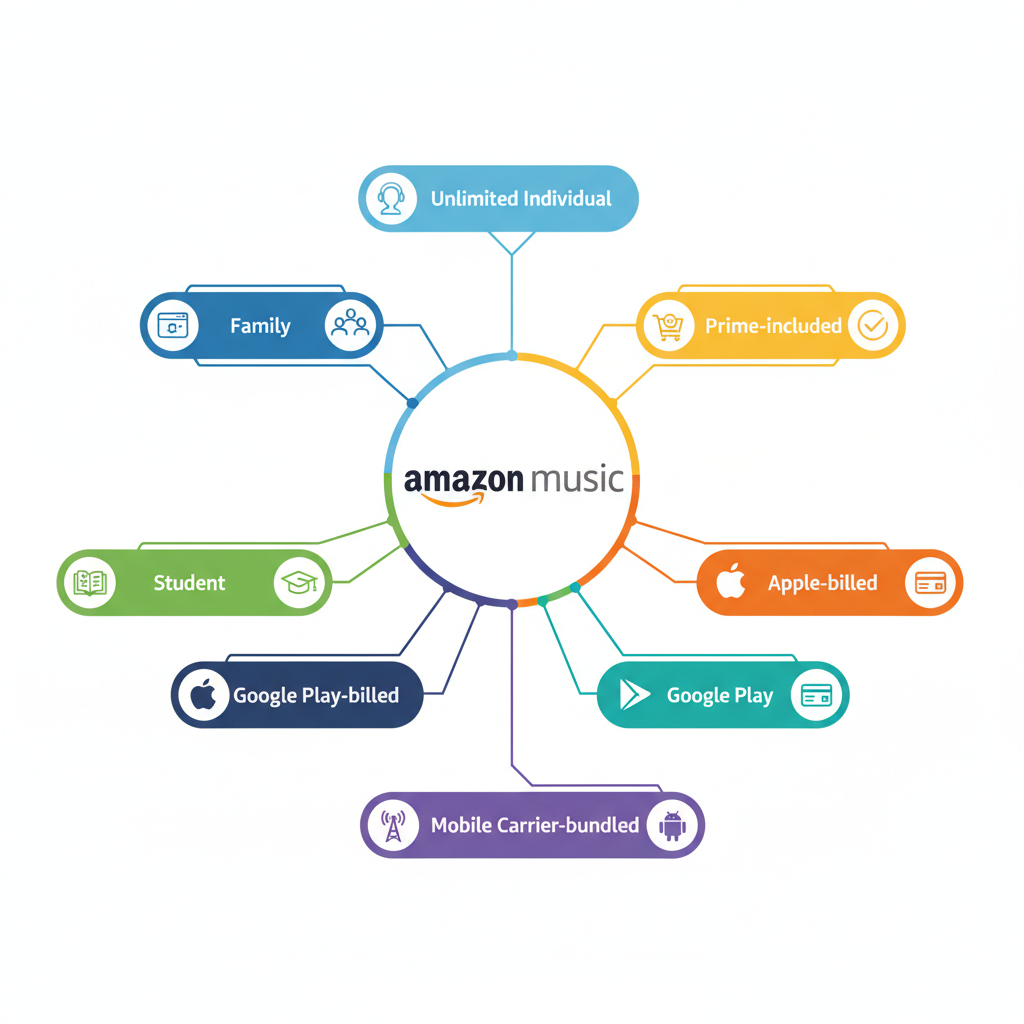
Quick Overview: Which Amazon Music Subscription Do You Have?
Before you start rage‑clicking, figure out what type of Amazon Music plan you’re on and who is billing you. That determines where you need to cancel.
Common setups:
- Amazon Music Unlimited (Individual/Family/Student) billed directly through Amazon
- Amazon Music Unlimited through Prime (discounted but still a separate subscription)
- Amazon Music Prime (included with your Amazon Prime membership)
- Amazon Music Unlimited via Apple (iOS) – billed through your Apple ID
- Amazon Music Unlimited via Google Play (Android)
- Amazon Music via a mobile carrier or third party (e.g., Verizon, T‑Mobile, etc.)
Open Amazon Music mobile app → Settings → Your Subscription (or similar wording). It will show your plan and often where it’s billed.
How To Cancel Amazon Music Unlimited on the Amazon Website
This is the most common situation: you signed up directly with Amazon, and they bill your card on file.
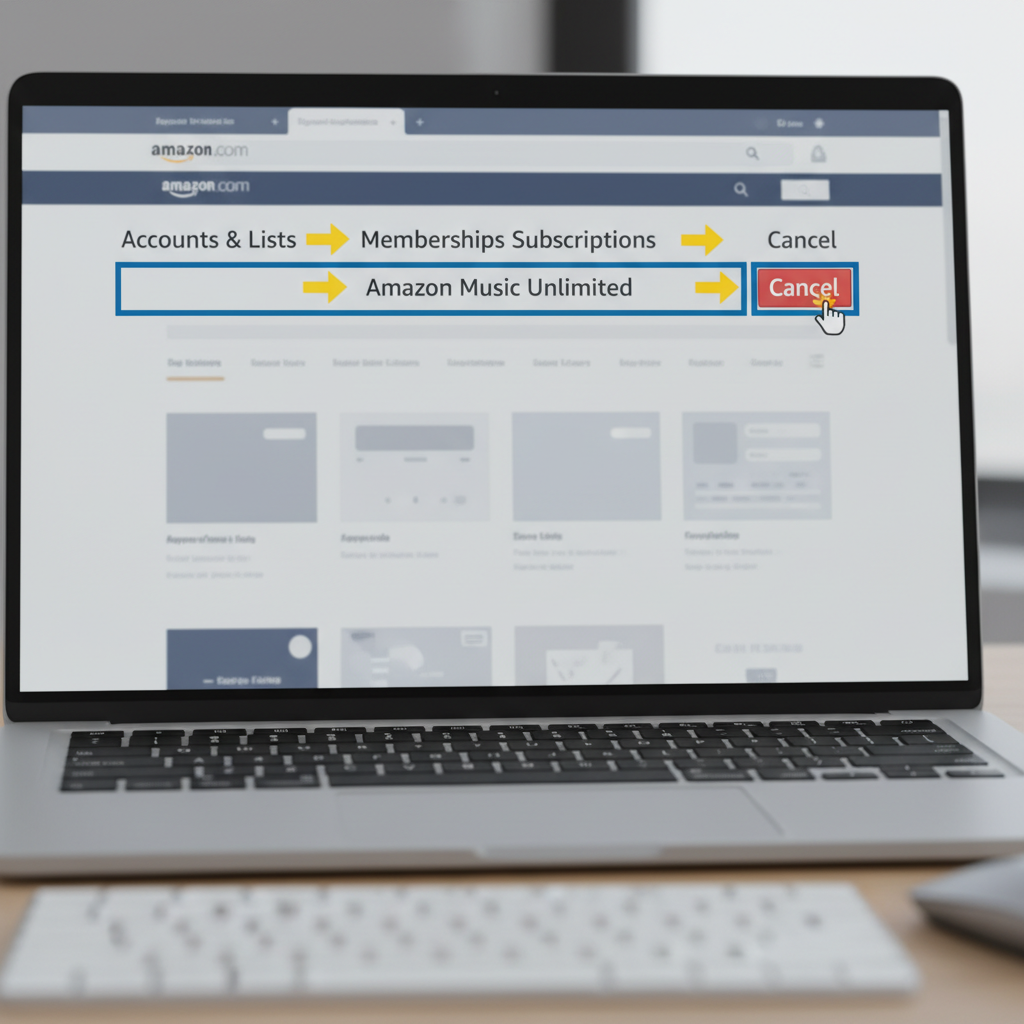
Step‑by‑step on desktop (browser)
- Go to Amazon.com and sign in.
- Hover over Accounts & Lists (top right) and click Memberships & Subscriptions (sometimes just “Memberships & Subscriptions” in the menu).
- Under Music subscriptions, look for Amazon Music Unlimited (or whatever your plan is called).
- Click Manage Subscription (or Manage on the right side).
- Find and click Cancel subscription or Cancel.
- Amazon may show multiple screens trying to keep you (e.g., “Switch to monthly,” “Pause instead of cancel”). Continue selecting Cancel or End Now/End at Renewal until you see confirmation.
You should end with a page that clearly states your renewal date and that your subscription will end on that date.
Step‑by‑step in a mobile browser
If you’re on your phone but using a browser (Safari, Chrome, etc.):
- Go to Amazon.com in your mobile browser and sign in.
- Tap the menu (☰) → Account → Memberships & Subscriptions.
- Find Amazon Music Unlimited.
- Tap Manage Subscription.
- Tap Cancel subscription and keep confirming until you see the end date.
How To Cancel Amazon Music in the Amazon Music App
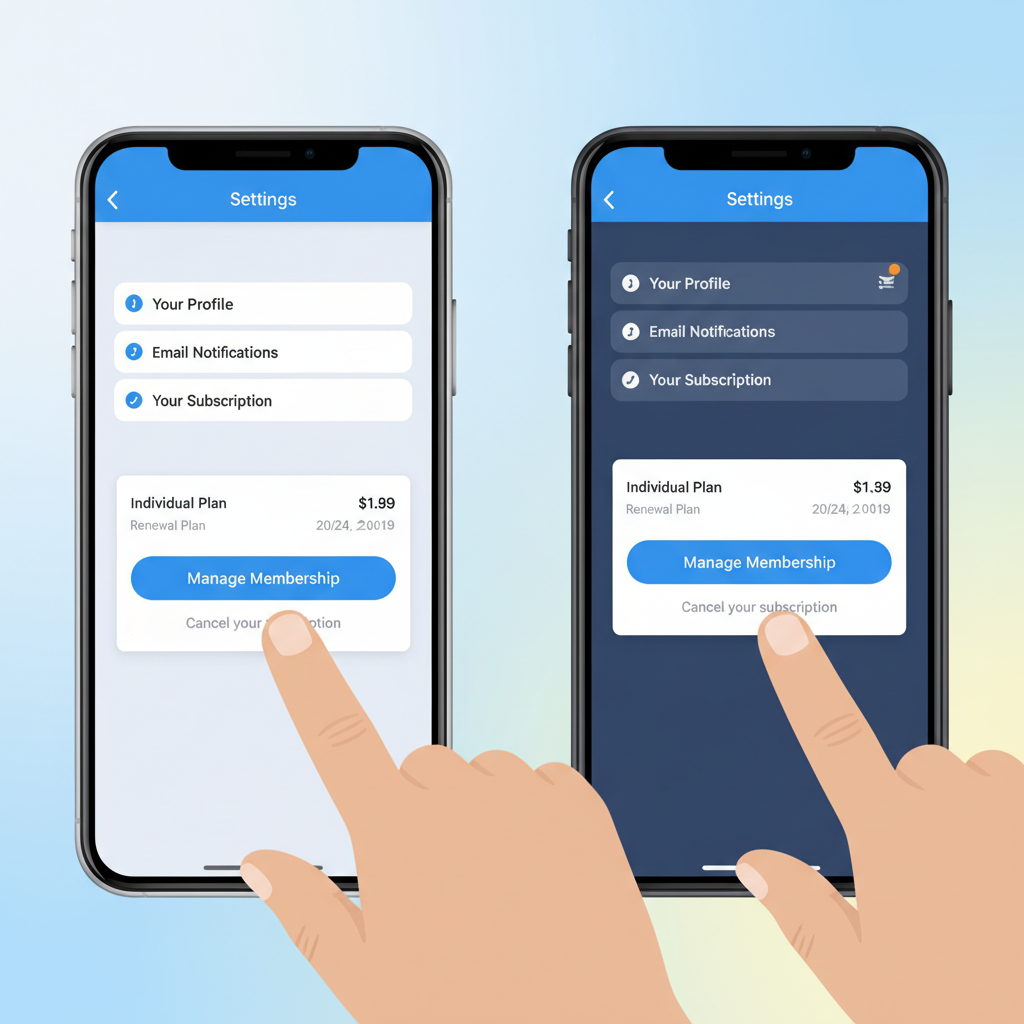
You can usually jump to the right place from inside the Amazon Music app, but often it hands you off to Amazon’s site or your phone’s app store.
On iPhone/iPad (Amazon billing, not Apple)
- Open the Amazon Music app.
- Tap the gear icon or three dots for Settings.
- Tap Your Subscription (or Amazon Music Unlimited).
- If Amazon is billing you directly, you’ll see a link like Go to Amazon or Manage your subscription.
- Tap that—it will open your browser to the manage/cancel page.
- Follow the same steps as in the website section: Manage Subscription → Cancel.
On Android (Amazon billing, not Google Play)
- Open the Amazon Music app.
- Go to Settings.
- Tap Your Subscription.
- Tap Manage Subscription (or the equivalent link).
- You’ll be taken to an Amazon page—log in if prompted.
- Hit Cancel subscription and confirm.
How To Cancel Amazon Music Billed Through Apple (iPhone/iPad)
If you subscribed via your Apple ID (using the App Store), Amazon won’t let you cancel from their website. You must cancel through Apple.
How to tell if Apple is billing you
Signs it’s billed by Apple:
- You saw an Apple receipt email when you signed up.
- In Amazon Music’s Your Subscription screen, it says something like “Your subscription is billed through Apple.”
Cancel Amazon Music via iOS settings
On iPhone or iPad:
- Open Settings.
- Tap your name/Apple ID at the top.
- Tap Subscriptions.
- Find Amazon Music or Amazon Music Unlimited in the list.
- Tap it → tap Cancel Subscription (or Cancel Free Trial).
- Confirm.
Or via the App Store
- Open the App Store.
- Tap your profile icon (top right).
- Tap Subscriptions.
- Tap Amazon Music.
- Tap Cancel Subscription and confirm.

How To Cancel Amazon Music Billed Through Google Play (Android)
If you subscribed through Google Play, you have to cancel there.
Confirm it’s billed by Google Play
You likely:
- Got a Google Play receipt in your Gmail.
- See a note in Amazon Music like “Subscription managed by Google Play.”
Cancel via Google Play Store
- Open the Google Play Store app.
- Tap your profile icon (top right).
- Tap Payments & subscriptions → Subscriptions.
- Find Amazon Music.
- Tap it → tap Cancel subscription.
- Follow the prompts until you see confirmation and end date.
How To Cancel Amazon Music From a Mobile Carrier or Third Party
Some phone/internet providers bundle Amazon Music Unlimited as part of a promo or plan (for example, with certain unlimited phone plans).
In that case, the subscription might not even appear under your Amazon account, or it will show as managed by another provider.
How to handle carrier/third‑party bundles
- Check Your Subscription inside the Amazon Music app.
- If it says something like “Your subscription is provided by [Carrier Name]”, that’s your clue.
- Log in to your carrier account (Verizon, T‑Mobile, etc.) online or via their app.
- Go to Add‑ons / Extras / Entertainment / Subscriptions (names vary).
- Find Amazon Music in your add‑ons.
- Choose Remove or Manage → Cancel.
- If you can’t find it, contact your carrier’s customer support and ask them to remove Amazon Music from your plan.
How To Cancel Amazon Music Prime (Music That Comes With Prime)
This part is a little different.
If you’re using Amazon Music Prime, that’s the version included with your Amazon Prime membership. It’s not a separate Amazon Music subscription you turn off by itself.
To stop being charged for that, you’d have to cancel Prime entirely.
Cancel Amazon Prime (and lose Amazon Music Prime with it)
- Go to Amazon.com and sign in.
- Hover over Accounts & Lists → click Prime Membership.
- Click Manage membership.
- Choose End membership or similar wording.
- Follow the steps until it confirms your Prime end date.
Be aware: canceling Prime means losing Prime free shipping, Prime Video, and other benefits—not just Amazon Music.
What Happens to Your Music After You Cancel?
So you’ve finally hit Cancel—now what?
Here’s what typically happens when you cancel Amazon Music Unlimited or a similar paid plan:
- You keep access until the end of the current billing period.
If you cancel on the 10th and your renewal date is the 25th, you still get full access until the 25th. - Downloaded songs stop working offline after your subscription ends.
The files are essentially licenses, not permanent downloads. They’ll appear but won’t play. - Playlists made from Unlimited tracks remain, but songs may be grayed out.
Any songs that are only available via Unlimited or that leave the service will become unplayable. - If you still have Prime, your account usually drops back to Amazon Music Prime.
You’ll get a smaller catalog and more limits, but your account itself still works.
How To Make Sure Your Amazon Music Subscription Is Really Canceled
Let’s be honest: most of us have canceled something, relaxed, and then—surprise—got billed again.
Do a quick check so you’re not dealing with that in 30 days.
1. Check your Amazon subscriptions page
- Go to Account → Memberships & Subscriptions.
- Confirm Amazon Music Unlimited is:
- Gone or
- Showing “Ends on [date]” instead of auto‑renewing.
2. Watch for confirmation emails
- Amazon (or Apple/Google/your carrier) usually sends a cancellation confirmation email.
- If you don’t see it, check spam/junk.
3. Verify after your original renewal date
- After the renewal date passes, open Amazon Music.
- If you see prompts like “Upgrade to Amazon Music Unlimited”, you’re no longer subscribed.
How To Avoid Accidental Re‑Subscriptions
You know how easy it is to tap one wrong button and suddenly you’re in a 30‑day free trial you never wanted?
A few simple habits can help:
- Turn off one‑click or in‑app purchasing for kids’ profiles/devices if others use your account.
- Be careful with pop‑ups in the Amazon Music app that say things like “Try Unlimited for free”—they can start a trial that auto‑renews.
- Use a subscription tracker app or a simple calendar reminder near your renewal date if you’re just “trying it out.”
Short FAQ: Canceling Amazon Music
Often, you’ll just keep access until the end of your billing period instead of getting a refund. Sometimes, especially with very recent renewals, you may be able to request a refund through Amazon customer support, Apple, or Google Play, depending on who billed you. Results vary.
No. Deleting the app does not cancel your subscription. You must cancel through Amazon, Apple, Google Play, or your carrier.
You’ll lose access to songs that require a paid plan, but the playlists themselves usually stay in your account, just with unplayable or grayed‑out songs.
Depending on your region and current offers, Amazon may show you an option to pause your Music Unlimited subscription. If you truly don’t want to be billed, always confirm you selected Cancel, not pause.
Yes. You can usually still access ad‑supported stations or, if you keep Amazon Prime, Amazon Music Prime, which has a more limited catalog and features compared to Unlimited.
If you’ve made it this far, you now know more about canceling Amazon Music than most people who work in customer support scripts.
Cancel on the right platform, double‑check your end date, and you’re free to move on—to silence, Spotify, vinyl, or whatever your ears are craving next.
Leave a Reply