Can You Delete Amazon Order History?
If you’ve ever panic-searched “delete Amazon order history” after a slightly embarrassing purchase… you’re not alone.
Whether you’re trying to hide gifts from your partner, keep your kids from seeing what you bought, or just clean up years of random late-night orders, you’ve probably realized something annoying:
Amazon does not let you actually delete your order history.
But you can hide it pretty effectively.
This guide walks you through what’s possible, what’s not, and the best workarounds to keep your Amazon activity a little more private.
Can You Really Delete Amazon Order History?
Let’s rip off the Band-Aid:
No, you cannot permanently delete Amazon order history from your account.
Amazon keeps a record of your orders for things like:
- Returns and refunds
- Warranties and customer service
- Legal and accounting requirements
That history lives on Amazon’s side. You don’t get a “hard delete” button.
But here’s the good news: you can hide past orders from your main order list, stop them from popping up in recommendations, and cover your tracks on shared devices.
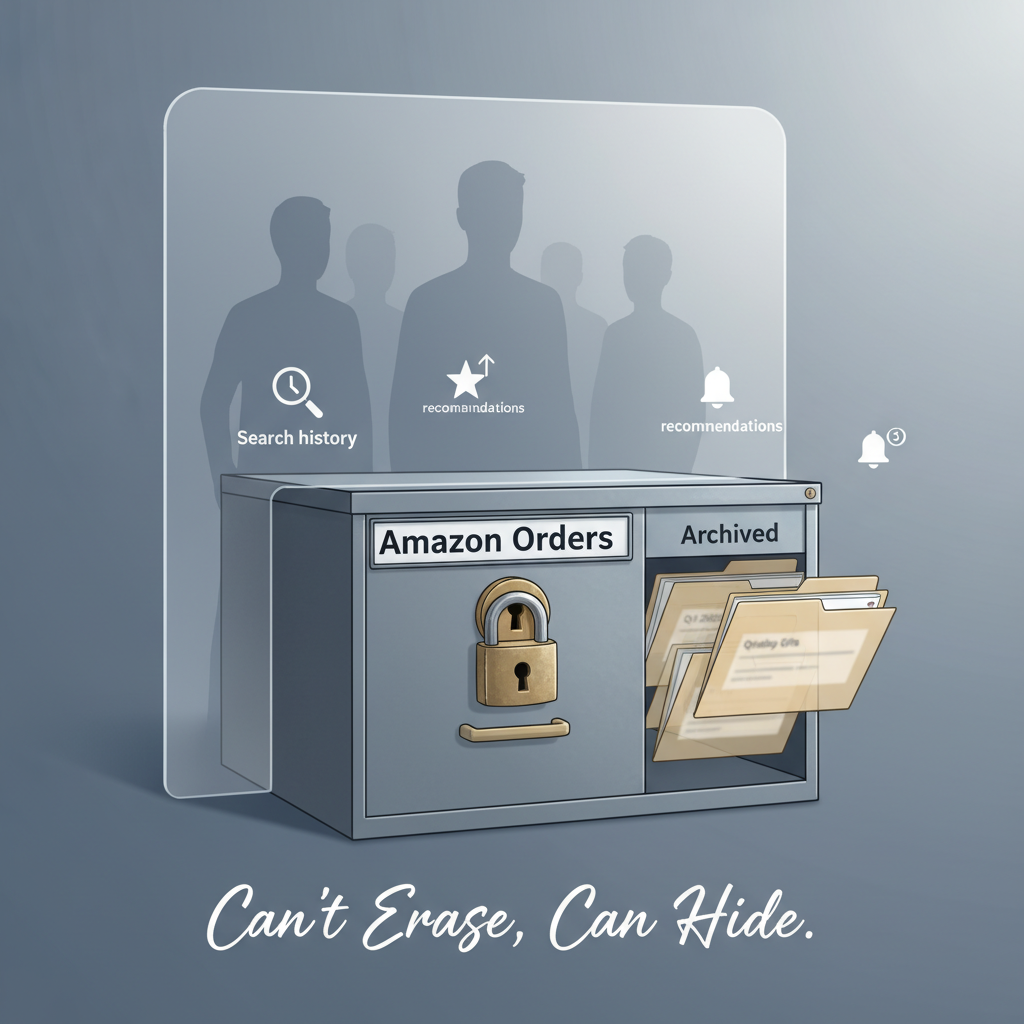
Think of it less like shredding documents and more like locking them in a drawer.
You can’t erase history, but you can make it hard for anyone else using your account or devices to stumble across it.
Option 1: “Archive” Orders to Hide Them
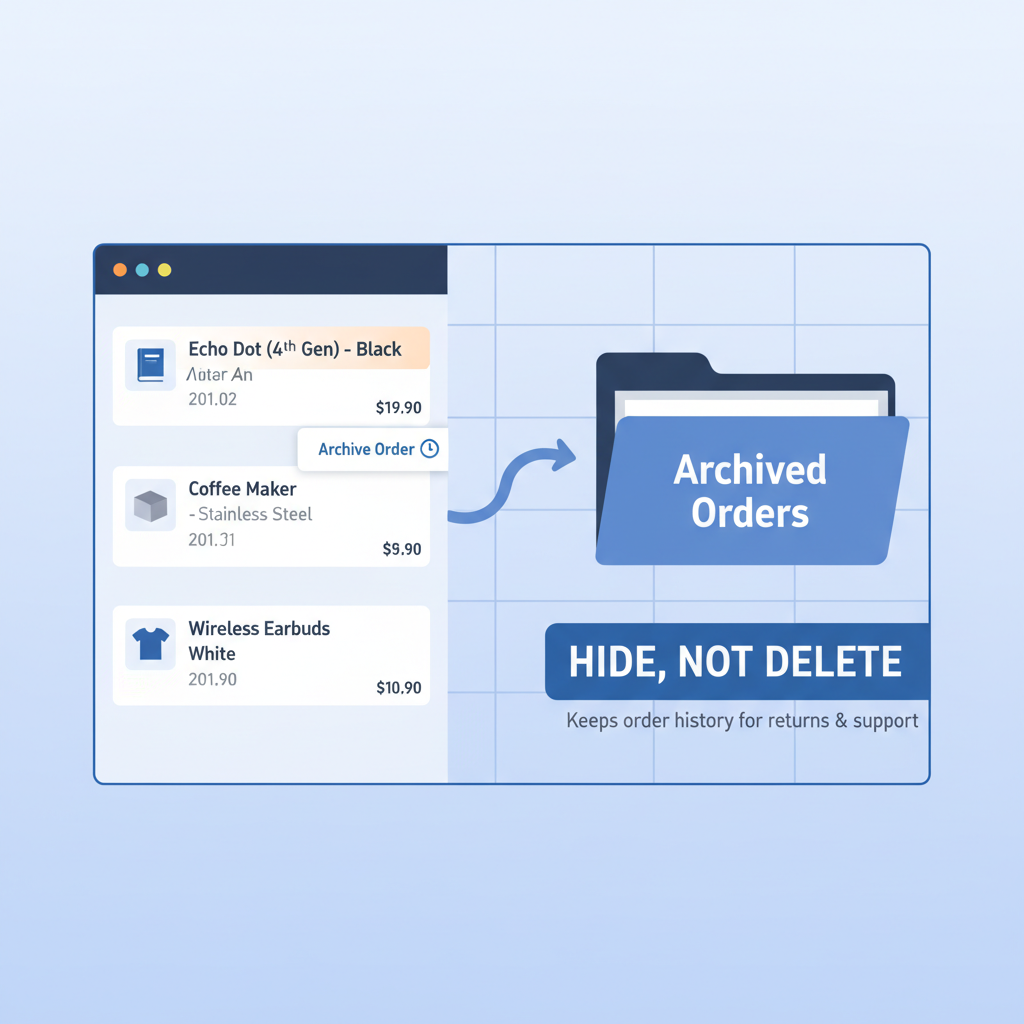
Amazon’s closest thing to “delete order history” is the Archive Order feature.
What does archiving an Amazon order do?
When you archive an order:
- It’s removed from your default “Your Orders” list.
- It’s moved to a separate “Archived Orders” section.
- The order still exists (for Amazon and for you if you go looking for it), but it’s much less visible.
Perfect for: gifts, private purchases, or anything you don’t want front and center.
How to archive Amazon orders (desktop)
- Go to Amazon.com and log in.
- Hover over or click “Returns & Orders” (top right).
- Find the order you want to hide.
- On that order, click “Archive order” (you may need to click the three-dot “… More” button first, depending on layout).
- Confirm if Amazon asks.
That order will now disappear from your default order view.
How to view archived Amazon orders
If you want to see those hidden orders again:
- Go to “Returns & Orders.”
- Look for a filter or link that says “Archived orders.”
- Click it, and you’ll see anything you’ve archived.
(If the layout changes over time: look for filters, drop-down menus, or search “archived orders” in Amazon’s help section—same idea, just moved.)
Can you archive orders in the Amazon app?
The Amazon mobile app doesn’t always show the archive option as clearly as desktop, and in some versions, it’s missing entirely. If you don’t see it:
- Open a browser on your phone.
- Go to Amazon.com and switch to Desktop Site mode (usually in your browser’s menu).
- Then follow the desktop steps above.
Archiving is your main tool for hiding specific orders—especially effective if other people casually check your order history.
Option 2: Remove Search, Browsing, and Viewing History
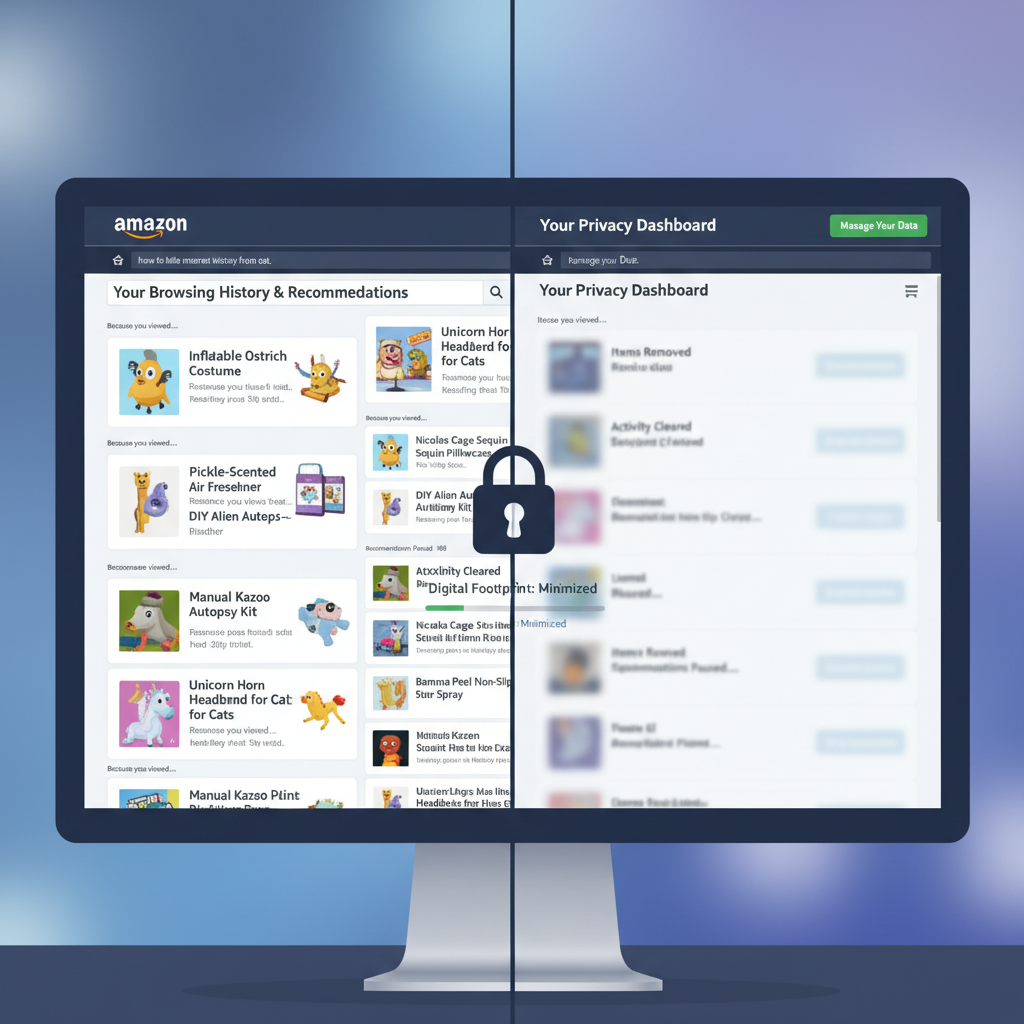
Even if you archive orders, Amazon still loves to tattle on you via:
- Search history
- Browsing history
- “Because you bought…” recommendations
Time to clean that up too.
Delete your Amazon browsing history (desktop)
- Go to Amazon.com and log in.
- On the top navigation bar, look for “Browsing History.””
- If you don’t see it, click the three horizontal lines (≡) for “All” and look for it under your account options.
- On the Browsing History page:
- To remove individual items: click “Remove from view” under each product.
- To clear everything: look for “Manage history”, then select “Remove all items from view.”
- You can also toggle “Turn Browsing History on/off.”
Clear recently viewed items in the app
The app layout changes often, but typically:
- Open the Amazon app and log in.
- Tap your profile icon or the menu (≡).
- Look for “Browsing history” or “Your account” → “Browsing history.”
- Remove individual items or clear all, similar to desktop.
Remove search suggestions
When you tap the Amazon search bar, you might see previous… questionable searches.
To clear them:
- Tap the search bar.
- Next to each past search, tap the small “X” to remove it.
Hiding orders is step one. Cleaning browsing and search history is step two if you don’t want your past shopping dictating what Amazon flashes at you—or others.
Option 3: Stop Certain Items Influencing Recommendations
Sometimes you don’t care if an order is visible—you just don’t want Amazon turning one random purchase into a lifestyle.
You buy one clown wig and suddenly it’s:
“Recommended for you: 37 other clown accessories.”
You can stop specific items from influencing recommendations.
How to remove items from your Amazon recommendations
- Go to “Account & Lists” (top right on desktop).
- Click “Your Recommendations” or “Improve Your Recommendations.”
- Look for items you don’t want used for personalization.
- Use options like “Not interested” or “Don’t use for recommendations” (wording varies).
This doesn’t erase order history, but it does reduce how loudly your past purchases shape what Amazon shows you—or what your partner sees over your shoulder.
Use recommendations controls when your main issue is embarrassing suggestions, not visibility of the order itself.
Option 4: Hide Orders with Separate Profiles or Accounts
If your real problem is shared access—for example:
- You share an Amazon account with a spouse.
- Kids use your Amazon app or Echo devices.
- Roommates have access to a shared Fire TV or tablet.
Then you may want to separate things more structurally.
Use Amazon Household (for families)
Amazon Household lets you share Prime benefits while keeping order history and recommendations separate for:
- Two adults
- Teens
- Children
Each adult gets their own profile, login, and order history, but you still share Prime perks like shipping and Prime Video (with control over who sees what).
Create a separate Amazon account (for full privacy)
If you want maximum separation (for example, for surprise gifts—or just… “other” reasons):
- Create a completely separate Amazon account with a different email.
- Use incognito/private browsing when accessing it on shared devices.
- Don’t sync this account to shared apps or devices.
Downside: you may not share Prime benefits or digital content between accounts without setting up a Household, and some people prefer to keep everything under one login.
If “delete Amazon order history” is really “hide what I buy from other people using my account,” a separate profile or account is often the cleanest fix.
Option 5: Lock Down Your Devices (So Others Don’t See Your Stuff)
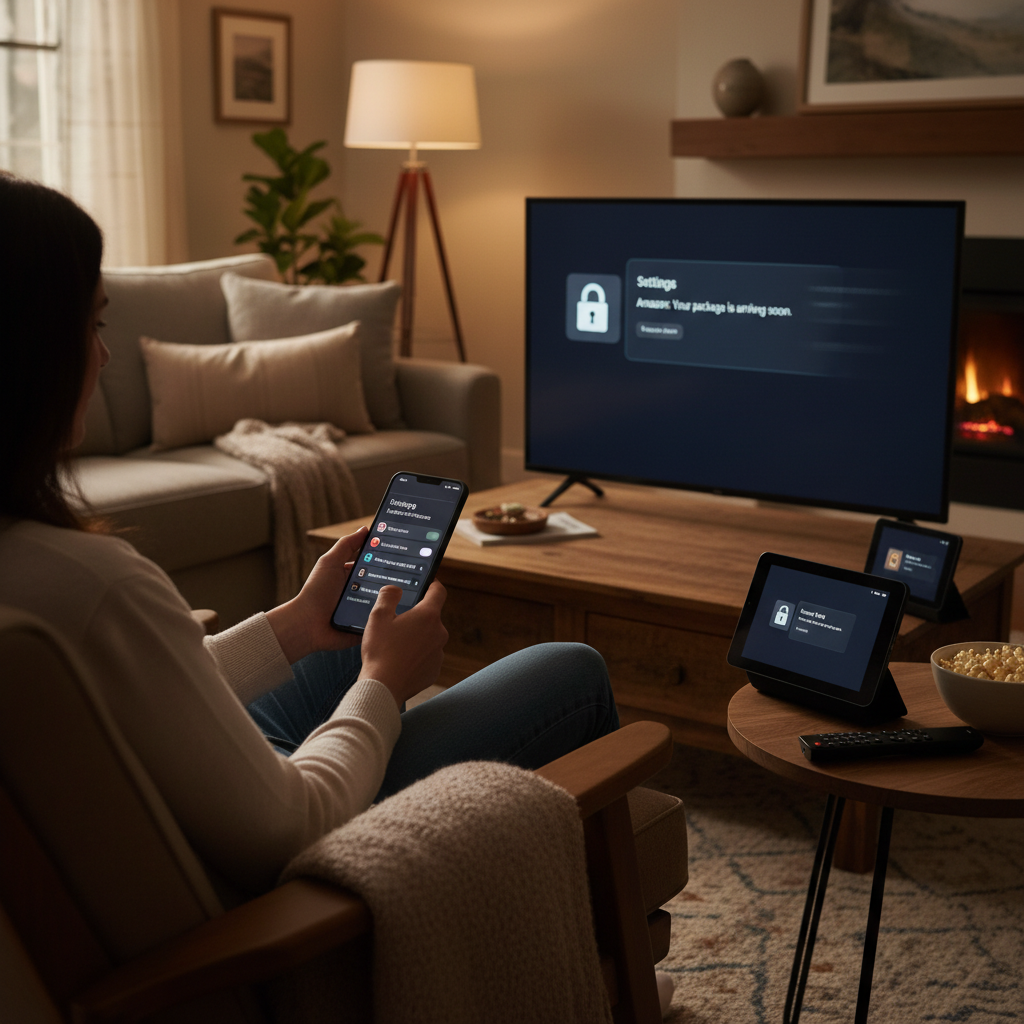
Even if your Amazon account is tidy, your devices can still leak information:
- Push notifications: “Your order of [very specific item] is out for delivery.”
- Alexa announcements: “A shipment of [item] has been delivered.”
- Fire TV or tablet showing recent searches.
What you can do
- Turn off delivery notifications on lock screens.
- On iPhone/Android, go to Settings → Notifications → Amazon and adjust.
- Disable Alexa ordered item announcements.
- In the Alexa app, go to Settings → Notifications → Amazon Shopping and turn off delivery/product titles.
- Log out of Amazon on shared Fire TVs, tablets, and browsers.
- Use device PINs or profiles on shared tablets or phones.
You can scrub your Amazon history all day, but if Alexa announces your order to the whole house, the game is over.
Can You Ask Amazon Support to Delete Order History?
In general, Amazon customer support will not remove individual orders from your account history just because you don’t want to see them.
However, there are two relevant angles:
1. Data privacy requests (depending on your region’s laws)
- In some jurisdictions, you can request that companies delete certain data about you.
- This is typically more about your personal data profile, not selective removal of one random order.
2. Account closure
- If you permanently close your Amazon account, Amazon may delete or anonymize some data tied to that account over time.
- This is a nuclear option: you lose access to purchases, Kindle books, Prime, digital content, subscriptions, and apps linked to that account.
Both of these are more like “end the entire account and its services,” not “erase that one thing I regret buying in 2019.”
Support won’t clean up isolated orders for you. Account closure is technically the closest thing to a full reset—but it comes with big tradeoffs.
Smart Habits if You Care About Amazon Privacy
If you don’t want to keep fighting your order history forever, a few habits go a long way:
- Use a separate account for sensitive purchases.
Keep it off shared devices, use private browsing, and don’t stay signed in. - Regularly archive and clean history.
Once a month, quickly:- Archive sensitive orders
- Clear browsing history
- Remove weird items from recommendations
- Lock down notifications and shared devices.
Turn off product-title notifications and Alexa announcements, especially in shared spaces. - Review Amazon Household settings.
If you share Prime, make sure each adult has their own account, not a single free-for-all login.
Treat your Amazon account like email or banking—shared access should be intentional, not accidental.
Summary: You Can’t Delete, But You Can Disappear
To recap the core idea:
- You cannot permanently delete Amazon order history from your account.
- You can:
- Archive specific orders so they don’t show up in the main history.
- Clear browsing and search history.
- Stop certain items from powering recommendations.
- Use separate accounts or Amazon Household to separate people’s activity.
- Lock down notifications and devices so your orders aren’t broadcast.
Think of it like this:
Amazon remembers.
But with the right settings, no one else has to see what it remembers.
Leave a Reply