How To Use Two Accounts On Amazon Echo (Without Losing Your Mind)

So you bought an Echo for the house… and now everyone’s fighting over the shopping list, music history, and Spotify.
One Echo, two humans, one question: how do you have 2 accounts on an Amazon Echo so each person gets their own stuff?
The good news: Amazon does support multiple accounts and users on Alexa.
The bad news: it’s not super obvious, and there are actually two different systems involved.
This guide walks you step‑by‑step through setting up two accounts on your Echo, how to switch between them, and how to avoid common “Why is this using your playlist again?!” headaches.

First, What Does “Two Accounts” Really Mean on Echo?
There are three related-but-different things people mean when they say “two accounts on Amazon Echo”:
- Two separate Amazon accounts on one Echo
This uses Amazon Household / Amazon Family (naming varies slightly by region and UI). It lets two adults share some benefits, but keep their Amazon shopping, recommendations, and some content separate. You can then say, “Alexa, switch accounts.” (aboutamazon.com) - Multiple personal profiles / voice profiles on one Amazon account
This is where Alexa recognizes who’s speaking and personalizes responses (calendar, messages, some skills) based on voice ID and personal profile, but everything is still under one main Amazon account. (developer.amazon.com) - Kids’ profiles (Amazon Kids / FreeTime)
These are restricted child profiles with parental controls. They’re tied to your main account and/or Household. Not what most adults mean when they say “two accounts,” but useful to know it exists. (aboutamazon.com)
In this post, we’ll mainly focus on #1 (two adult accounts) and then show how voice profiles can make everything smoother.
Overview: The Quick Path To Two Accounts On Echo
At a high level, here’s what you’ll do:
- Create or confirm two separate Amazon accounts (one for each adult).
- Create an Amazon Household / Amazon Family and add the second adult. (aboutamazon.com)
- Make sure your Echo devices are registered to one of those accounts.
- Use Alexa voice commands to switch between accounts.
- (Optional but recommended) Set up voice profiles so Alexa knows who’s talking.
Let’s go step‑by‑step.
Step 1: Make Sure Each Person Has Their Own Amazon Account
You cannot share one login if you want true separate accounts.
Each adult needs:
- Their own email address
- Their own Amazon login (with its own password)
If one person doesn’t have an account yet:
- Go to Amazon in a browser or app
- Sign out, tap Create account, and follow the prompts
Two adults = two Amazon logins. No sharing one login if you want separate profiles and content.
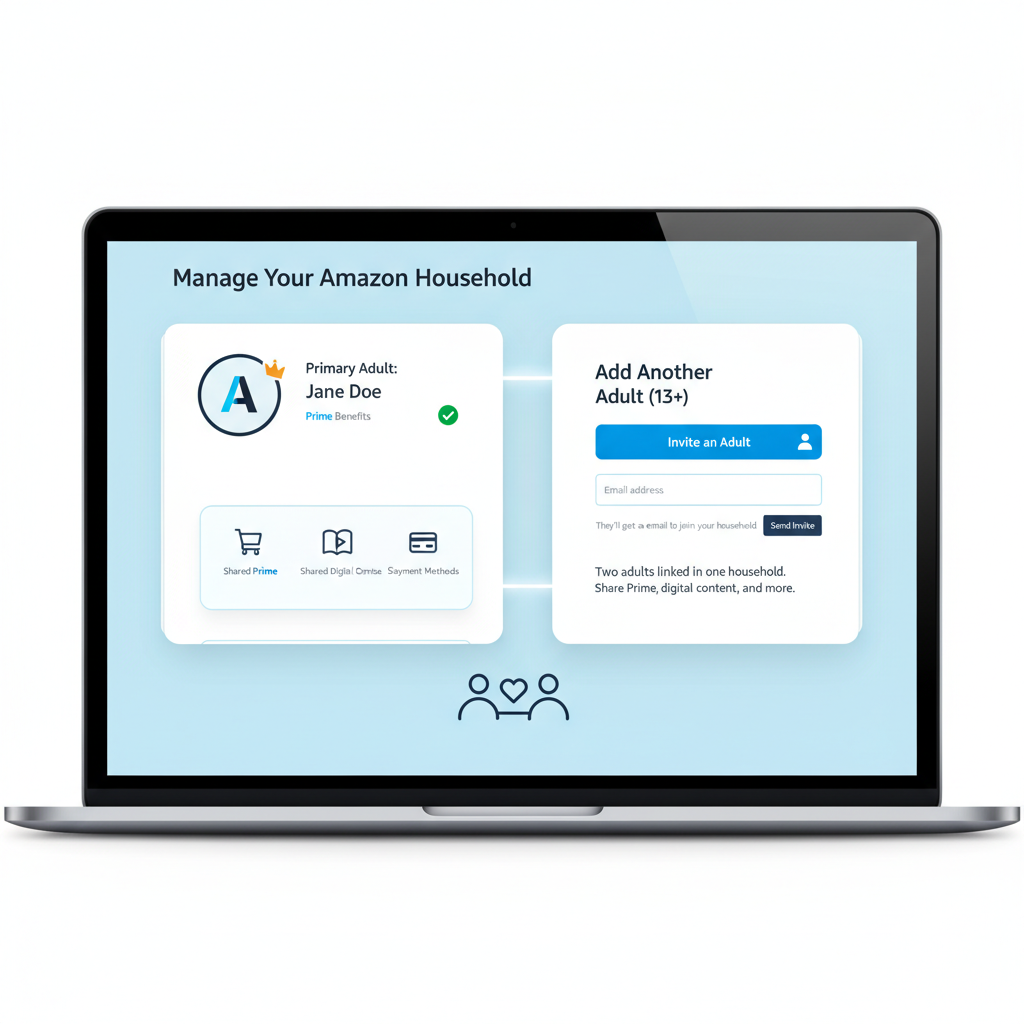
Step 2: Set Up Amazon Household / Amazon Family
This is the feature that lets two adults share benefits and connect their accounts to the same Echo devices, while still keeping order history and some content private. (aboutamazon.com)
How to add a second adult using Amazon Household / Amazon Family
On a computer or mobile browser (recommended for clarity):
- Sign in as the primary adult (the one whose account the Echo is currently using).
- Go to Your Account.
- Look for Your Amazon Household or Your Amazon Family (naming can vary slightly by country/region). (aboutamazon.com)
- Choose Add Adult.
- Either:
- Send an email invitation to the other adult, or
- Add them while you’re together and have them sign in right there.
- Both adults will need to agree to share certain payment methods and digital content (this is required for Household).
Once accepted, you’ll see both adults listed as members of the same Household/Family.
Important caveats
- Only two adults can be in an Amazon Household at a time. (aboutamazon.com)
- If you remove an adult, there’s a cooldown period (Amazon notes you generally can’t immediately join a new Household; historically this has been ~180 days in many regions). (aboutamazon.com)
- By default, Household members can share Prime benefits, some content, and payment methods, so set purchasing controls if that makes you nervous.
Household/Family is the official way to give one Echo access to two separate adult Amazon accounts.
Step 3: Confirm Your Echo Is Set Up Under One of Those Accounts
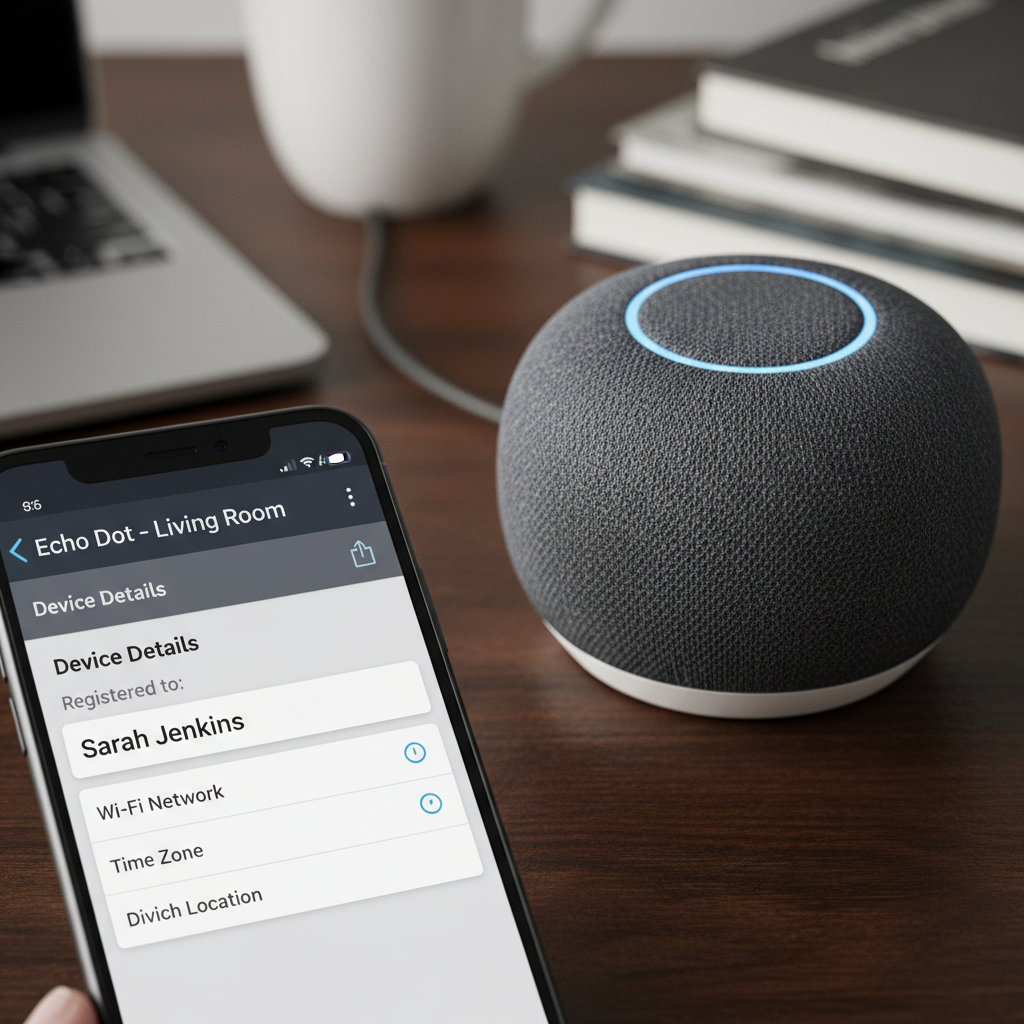
Your Echo devices are always registered to a single Amazon account at a time. That account must be one of the adults in the Household.
To check which account your Echo is using:
- Open the Alexa app (iOS/Android).
- Tap Devices → Echo & Alexa → select your Echo.
- Check the device settings screen for the registration info (e.g., “Registered to John’s Account”).
If it’s not the right account, you can:
- Deregister the device from the current account in the Alexa app or on the Amazon “Manage Your Content and Devices” page.
- Set up the Echo again while signed into the correct Amazon account in the Alexa app.
All your switching magic happens on top of a device that still has one “main” registered account.
Step 4: Switch Between Two Amazon Accounts With Your Voice
Once the two adult accounts are in the same Household/Family, and your Echo is registered to one of them, the fun part starts.
You can now say:
- “Alexa, switch accounts.”
Alexa will toggle between the available adult accounts. - “Alexa, switch to [name]’s account.”
For example: “Alexa, switch to Sarah’s account.” - “Alexa, which account is this?”
Alexa will tell you which adult account is currently active. (aboutamazon.com)
What changes when you switch accounts?
When you switch from one adult account to another, things like:
- Shopping lists
- Orders and recommendations
- Some music services (if linked separately per account)
- Calendars and certain skills
…will behave according to whichever account is active.
Example:
- You: “Alexa, switch to Alex’s account.”
- Then: “Alexa, play my Spotify.”
- Echo uses Alex’s linked Spotify (if Alex has linked Spotify to their account), not yours.
Think of the active account as whoever is “holding the remote” for Alexa at that moment.
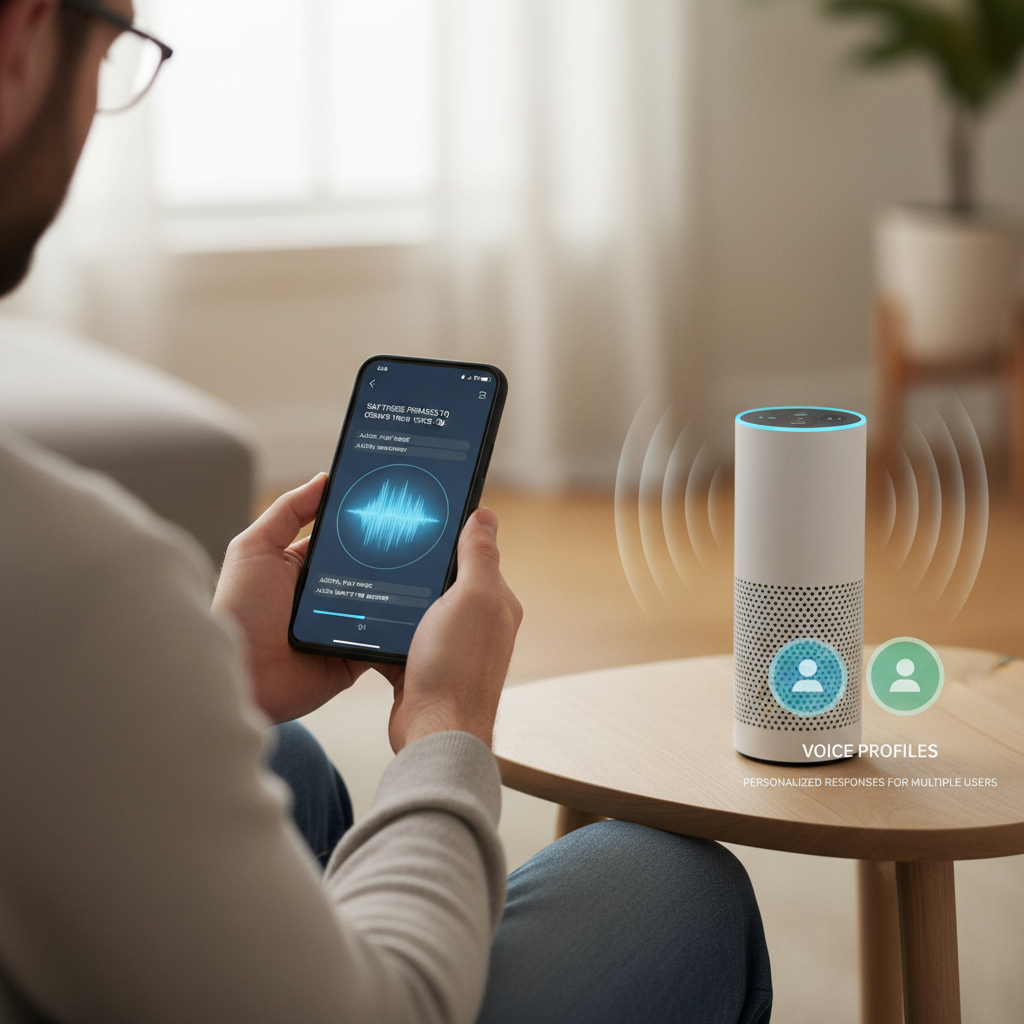
Step 5: Set Up Voice Profiles So Alexa Knows Who’s Talking
If you don’t want to constantly say “Alexa, switch accounts,” you can use voice profiles and personalization.
According to Amazon’s developer documentation, Alexa can create voice IDs for recognized speakers and personalize some experiences (and even some skill account linking) on a per-person basis if they’ve set up a personal profile and enabled personalization. (developer.amazon.com)
How to set up a voice profile (Voice ID)
Each adult should do this on their own phone with the Alexa app:
- Open the Alexa app.
- Tap More (☰) → Settings.
- Tap Your Profile & Family (wording may be Your Profile & Family or Your Profile & familiar).
- Select Voice ID.
- Follow the prompts to read the on‑screen phrases.
- Hit Done.
Repeat for the second adult.
Once set up, Alexa can:
- Recognize who is speaking
- Provide more personalized answers (flash briefings, some skills, etc.)
This doesn’t completely replace account switching in every situation, but it makes multi-user use feel much more natural.
Voice IDs help Alexa respond “per person” instead of treating everyone as one anonymous human.
Bonus: What About Kids’ Profiles On Echo?
If you have children, you can add them as child profiles and use Amazon Kids (formerly FreeTime). This lets you:
- Restrict content by age
- Set time limits
- See activity in a Parent Dashboard
Kids’ profiles live under your Household/Family and work differently from adult accounts. You generally:
- Go to Your Amazon Family / Amazon Household or the Parent Dashboard.
- Add a child profile.
- Enable that child profile on specific Echo devices.
Switching between adult accounts is via:
“Alexa, switch to [adult name]’s account.” (stateofjeffersonrotary.org)
Switching between adult and child modes often involves turning Amazon Kids/FreeTime on or off for that device from the Alexa app, not just a simple voice command.
Adults use Household accounts; kids use Amazon Kids profiles with parental controls.
Common Problems (And How To Fix Them)
1. “Alexa says there’s only one account on this device.”
This usually means:
- You created a second Amazon account, but did not link it via Amazon Household/Family, or
- The Household was created, but the Echo is registered to an Amazon account that’s not in that Household.
Fix:
- Revisit Your Amazon Household / Your Amazon Family and make sure both adults are listed. (aboutamazon.com)
- Confirm the Echo is registered to one of those accounts.
2. “I can’t find ‘Household’ in the Alexa app.”
Over the years, Amazon has shifted some Household management from the Alexa app to the main Amazon account settings in a browser or the Amazon Shopping app. If you don’t see “Household” in Alexa:
- Try going to Your Amazon Household / Your Amazon Family in the browser or Amazon Shopping app instead. (aboutamazon.com)
3. “I added a second profile, but music/Spotify is still messed up.”
A frequent gotcha: a simple profile in the Alexa app is not the same as a full Household adult account.
For truly separate music accounts (e.g., two different Spotify accounts):
- Each adult needs their own Amazon account.
- Both must be part of the same Household.
- Each logs into Alexa (under their own account) and links their own Spotify.
- On the Echo, you then say: “Alexa, switch to [name]’s account,” then “Alexa, play Spotify.” (reddit.com)
4. “The app is buggy or crashes when switching profiles.”
Unfortunately, app bugs do happen.
Try:
- Logging out and back into the Alexa app.
- Clearing cache / reinstalling the Alexa app.
- Managing Household from the Amazon website as a fallback.
If all else fails, Amazon support can see the current Household setup and device registrations.
Most issues come from mixing up “profile” vs “Household” or not linking the second adult correctly.
Quick Recap: Two Accounts On Amazon Echo, Simplified
Here’s the entire process in plain English:
- Create two Amazon accounts (one per adult).
- On the primary adult’s account, go to Your Amazon Household / Your Amazon Family and add the second adult.
- Make sure your Echo is registered to one of the Household adults.
- Start using:
- “Alexa, switch accounts.”
- “Alexa, switch to [name]’s account.”
- “Alexa, which account is this?”
- (Optional) Set up Voice ID for each person so Alexa recognizes who’s talking.
- For kids, use Amazon Kids profiles and manage them from the Parent Dashboard.
Do this once, and you’ll go from “Who messed up my playlist again?” to a calmer, more personalized Echo where everyone gets their own space.
And if your Echo still insists on playing your partner’s 90s boy band playlist under your name?
Well… that’s between you and Alexa.
Leave a Reply