How To Hide Your Amazon Order History
Practical ways to bury your late‑night Amazon decisions—without deleting them.
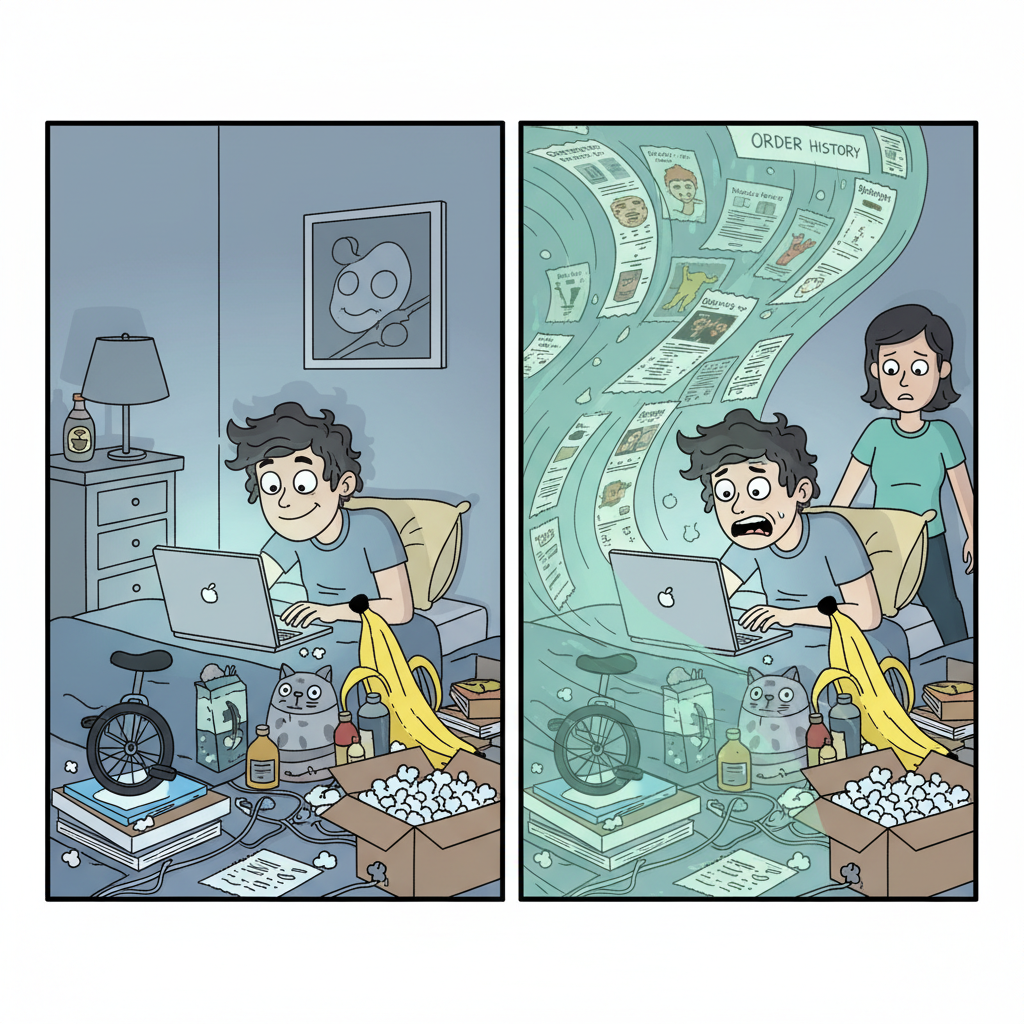
There are two types of people in this world:
- People whose Amazon order history is a chaotic museum of late‑night decisions.
- People who suddenly need to hide that chaotic museum from someone else.
If you’re reading this, you’re probably in group #2.
Whether you’re planning a surprise gift, sharing an account with family, or just don’t want anyone seeing how many times you’ve panic‑bought the same charging cable, learning how to hide Amazon order history is incredibly useful.
Here’s the honest truth: Amazon does not let you permanently delete order history. But you can hide, separate, and lock it down so that other people using your devices or account won’t casually stumble across it.
Let’s walk through all your real options.
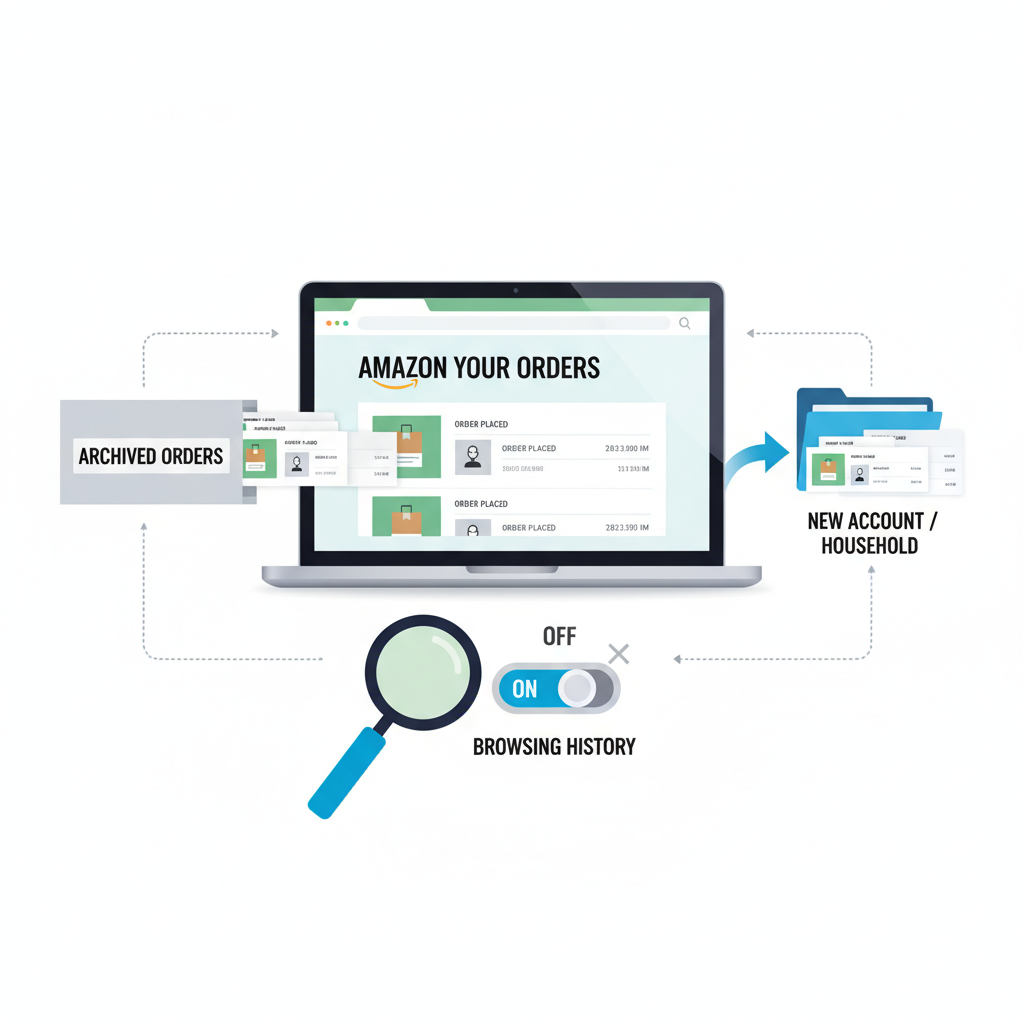
Quick Overview: Ways To “Hide” Amazon Order History
When people say they want to hide Amazon orders, they usually mean one of these:
- “I don’t want my partner/kids/roommate to see certain orders.”
- “I don’t want items showing up in my browsing or recommendations.”
- “I don’t want my order to appear in the main list on this account.”
Since you can’t delete orders, you’ll use a combo of:
- Archive Order (hides it from the main Orders list)
- Separate account or Amazon Household (puts orders in a different profile)
- Hide browsing history (removes product page visits)
- Prime “Private” delivery options (discreet packaging, lockers, etc.)
- Lock down your devices and app (stop casual snooping)
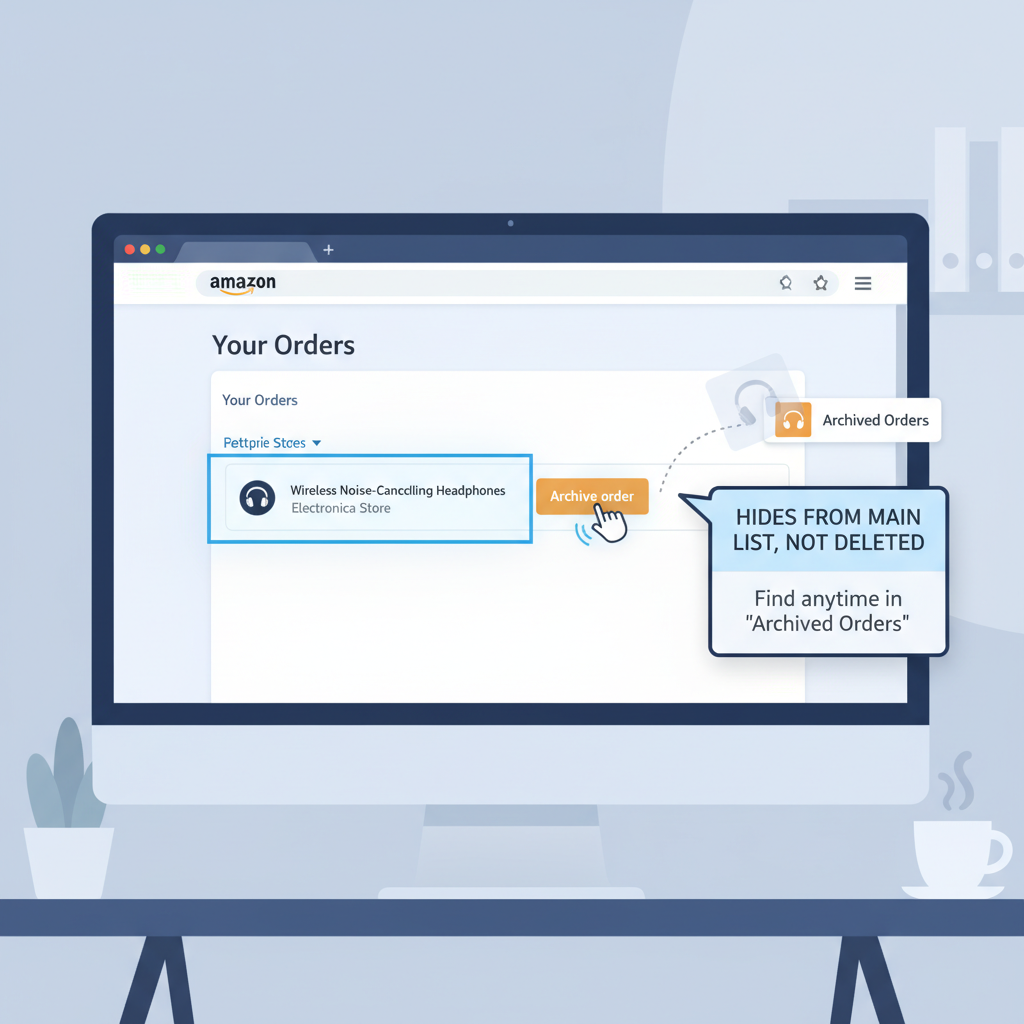
Method 1: Use Amazon’s Archive Feature To Hide Orders
Best for: Hiding specific orders from the main Orders list.
Amazon has a built‑in feature called Archive Order. It doesn’t delete the order, but it moves it into a separate “Archived Orders” section that most people never think to check.
How to archive an Amazon order (desktop)
- Go to Amazon.com and sign in.
- Hover over “Accounts & Lists” and click “Orders” (or click “Returns & Orders” at the top right).
- Find the order you want to hide.
- On that order, look for “Archive order” (usually near the bottom of the order box).
- Click “Archive order” and confirm.
That order will disappear from your main Orders list and move into “Archived orders.”
How to find archived orders again
- Go to Your Orders.
- Look for a filter or link called “Archived orders.”
- Click to view everything you’ve archived.
Important details
- Amazon historically limited how many orders you could archive (around 500–1000), but for most people that’s plenty.
- Archived orders are still visible if someone knows to look for Archived Orders and has full access to your account.

Method 2: Use a Separate Amazon Account (or Profile) For Sensitive Orders
Best for: Gifts, surprise purchases, or anything you never want on a shared account.
If you share an Amazon account with a partner or family, this is the biggest mistake: buying everything on the same login.
Option A: Create a separate Amazon account
You can:
- Use a different email address.
- Order sensitive/secret items only with that account.
- Stay logged out of it on shared devices.
Pros:
- Orders are completely separate.
- No shared order history, no shared recommendations.
Cons:
- You won’t share Prime benefits unless you connect via Household.
- Slightly more effort to manage two accounts.
Option B: Use Amazon Household / Family Sharing (for Prime)
If you have Amazon Prime, you can create an Amazon Household and add another adult. Each adult:
- Has their own login and order history.
- Can share Prime shipping and some benefits.
This way, instead of everyone using the same account, each person has their own order list that others can’t casually browse.
Method 3: Hide Your Amazon Browsing History
Even if you hide orders, Amazon still uses browsing history and viewed items to show:
- “Inspired by your browsing history”
- “Related to items you’ve viewed”
- Recently viewed items on the homepage or app
If you’re shopping for gifts (or…less gift‑like items) and don’t want those thumbnails popping up on the home screen, you’ll want to clean this up.
How to clear items from browsing history (desktop)
- On Amazon.com, hover over “Account & Lists.”
- Click “Browsing History” (you may also see a direct link on the homepage).
- You’ll see a list of items you’ve viewed.
- Under each item, click “Remove from view.”
- To stop tracking for a while, look for a toggle like “Turn Browsing History on/off” and switch it Off.
On the Amazon app
- Open the app.
- Tap the profile icon or menu (☰), depending on your app layout.
- Look for “Browsing history” or sometimes under “Your Account”.
- Remove specific items or clear the entire history.
Method 4: Discreet Shipping & Packaging Options
Hiding order history is one thing. Hiding what’s in the box sitting on your doorstep is another.
If you’re trying to keep a surprise:
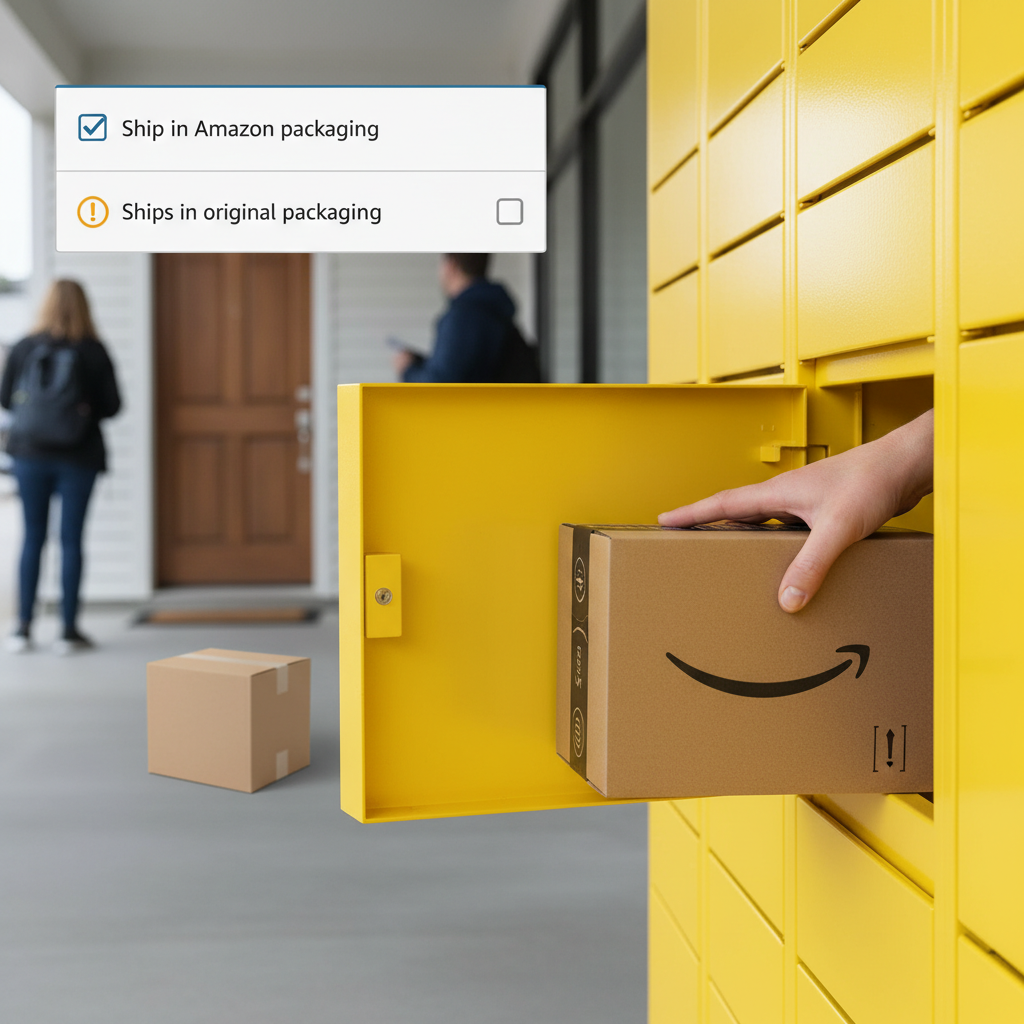
Use Amazon Locker or pickup locations
Instead of shipping to your home, you can:
- Choose an Amazon Locker or pickup point at checkout (if available in your area).
- Pick the package up yourself.
Result: No box on the porch giving away your secret.
Check how the item is packaged
Many items ship in standard Amazon boxes, but some third‑party items might ship in their original branded packaging.
On some product pages, Amazon will tell you if the item “ships in original packaging that reveals what’s inside.” Sometimes there’s an option to “Ship in Amazon packaging” — enable that if discretion matters.
Method 5: Protect Your Account From Curious Eyes
You could archive every order and clear every history, but if someone:
- Knows your password, or
- Has your phone with the Amazon app permanently signed in
…they can still get in.
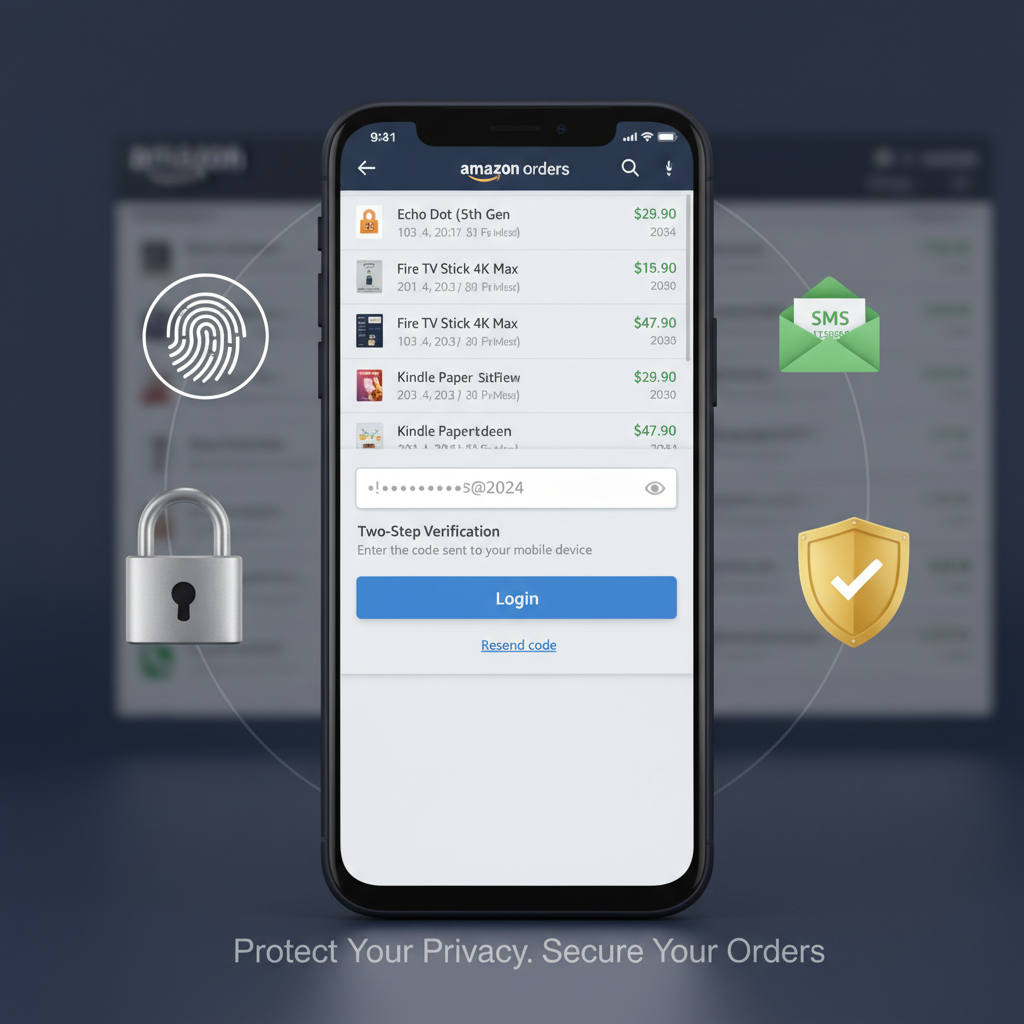
So part of “hiding” Amazon orders is just basic account security.
Steps to lock things down
-
Change your Amazon password
Use a strong, unique password. Don’t reuse your email password.
-
Turn on Two-Step Verification (2FA)
Go to Account → Login & security. Turn on Two-Step Verification and use an authenticator app or SMS.
-
Sign out on shared devices
On shared tablets/TVs/phones, sign out of Amazon or use a profile that others don’t access.
-
Secure your phone/tablet
Use a screen lock (PIN, fingerprint, Face ID). Disable notifications that show order details on the lock screen if that’s a concern.
What You Can’t Do: Hard Truths About Amazon Order History
Let’s clear up a few common myths.
Can you permanently delete Amazon order history?
No. You cannot fully delete past orders from Amazon’s systems or your account history.
You can:
- Hide them via Archive order.
- Make them less obvious via separate accounts.
- Reduce exposure via browsing history cleanup and better security.
But truly deleting? Not an option Amazon gives customers.
Can Amazon customer support delete orders for you?
No. Support can’t erase orders from your history.
Will your bank or card statement show the purchase anyway?
Yes. Even if your Amazon order is archived, your payment method will still show an Amazon charge. If someone has access to your bank or card statements, they will still see that something was purchased from Amazon (though not necessarily what).
Example Scenarios (And What You Should Actually Do)
Scenario 1: Planning a birthday surprise for your partner
- Use your own Amazon account, not the shared one.
-
If you must use the shared account:
- Clear your browsing history for the gift items.
- After ordering, Archive those orders.
- Consider delivering to an Amazon Locker or work address.
Scenario 2: Kids who use the family tablet
- Sign out of Amazon on the tablet or use a separate child profile.
- Archive any orders you don’t want visible in the main list.
- Turn off browsing history or clear it regularly.
Scenario 3: You share an account and don’t want someone seeing personal items
- Create your own Amazon account and, if needed, link it through Amazon Household for shared Prime.
- Order sensitive items only through your personal account.
- Protect your devices with passwords and screen locks.
Step‑By‑Step Summary: How To Hide Amazon Orders Fast
If you just want the TL;DR checklist, here you go:
-
Archive specific orders
Go to Your Orders → Find order → Archive order.
-
Clear and pause browsing history
Go to Browsing History → Remove from view → Turn off history (if desired).
-
Use a separate account or Amazon Household
Create a new Amazon account for sensitive purchases. Share Prime benefits via Amazon Household if you want.
-
Use discreet shipping options
Consider Amazon Locker or pickup points. Choose Amazon packaging when available.
-
Secure your account
Strong password + two‑step verification. Sign out of shared devices. Lock your phone/tablet.
Final Thoughts: Hiding vs. Managing
You might have started this thinking, “How do I delete my Amazon order history?” and ended up discovering that Amazon really doesn’t want you to do that.
But you can:
- Bury sensitive orders in Archived Orders.
- Keep surprise gifts off shared screens by using separate accounts and Household.
- Stop awkward product suggestions with browsing history cleanup.
- Prevent snooping through better security.
You don’t need to be a tech wizard—just a little strategic.
And the next time you’re doom‑scrolling Amazon at 1 a.m., remember: your future self might have to hide this.
Use these tools wisely.
Leave a Reply