How To Host An Amazon Prime Watch Party
You know that moment when you and a friend are texting during a show, and by the time you type “WAIT DID YOU SEE THAT,” they’re already three scenes ahead?
Yeah. That’s exactly the chaos Amazon Prime Video Watch Party was built to fix.
If you’ve ever wanted to sync up movies or shows with friends online—complete with live chat and zero “3, 2, 1, press play” disasters—this guide will walk you through everything you need to know about Amazon Prime watch parties.
We’ll cover what it is, how it works, who can join, what devices it supports, and some pro tips to make your next virtual movie night actually fun (and not a tech-support marathon).
From “WAIT DID YOU SEE THAT?” chaos to perfectly synced reactions with Amazon Prime Video Watch Party.
What Is an Amazon Prime Watch Party?
An Amazon Prime Video Watch Party is a built‑in feature that lets you watch movies and TV shows on Prime Video synchronously with other people online. One person starts the party, sends a link, and everyone watches together in real time with a shared play/pause and a group chat on the side.
Think of it as a virtual living room: one host, multiple guests, one stream that stays in sync for everyone.
Quick facts:
- Available for many titles included with Prime and some titles to rent or buy.
- Each person needs access to the title (Prime membership or individual rental/purchase, depending on the content).
- There’s a built‑in text chat so you can react in real time.
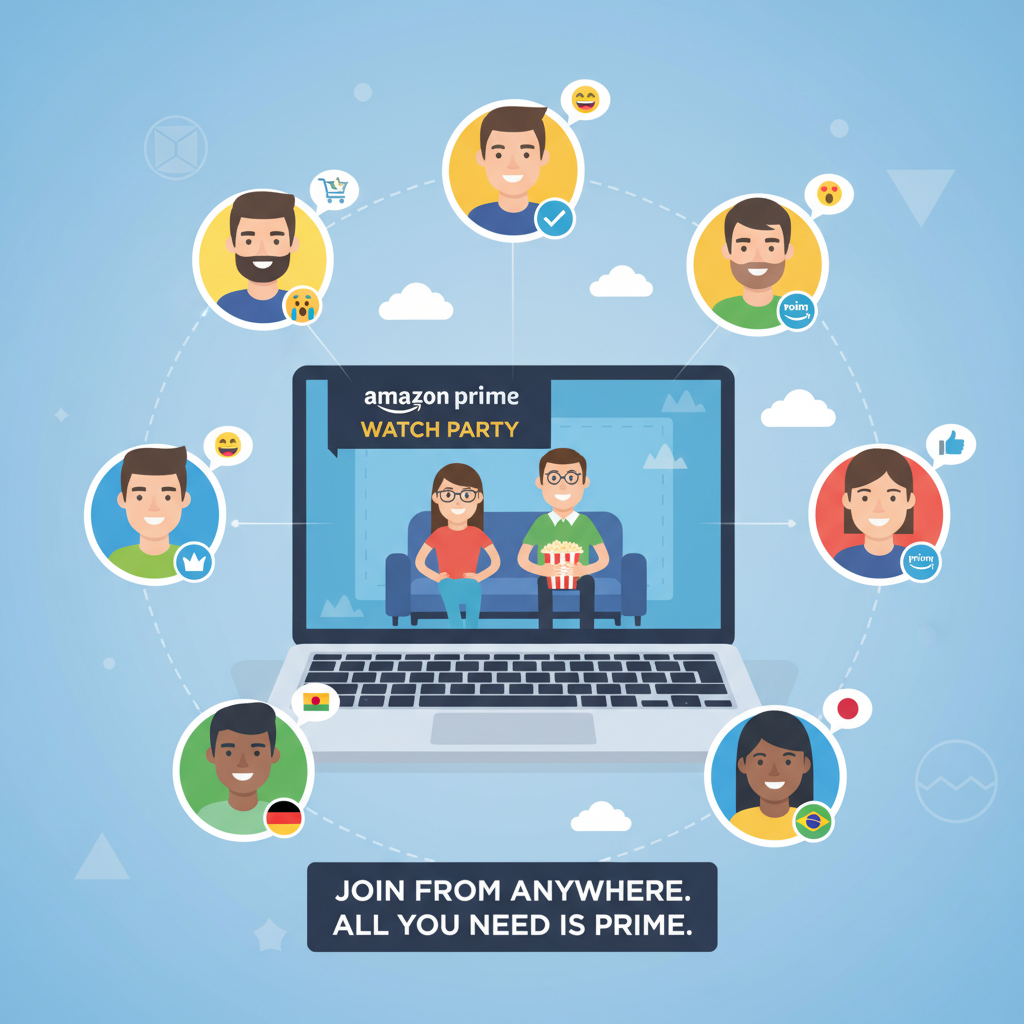
Everyone gets their own access, one shared stream: how Amazon Prime Watch Party keeps movie night in sync.
Who Can Use Amazon Prime Watch Party?
Basic requirements
To host or join an Amazon Prime Video Watch Party, you generally need:
- An Amazon account (duh, but worth saying).
-
Prime Video access:
- Either through a full Amazon Prime membership, or
- A standalone Prime Video subscription.
- To be in a supported region (most major regions are supported, including the U.S., but availability can vary by country and specific title licensing).
- Compatible device and browser (more on that next).
How many people can join?
Amazon has typically allowed up to 100 people in a single Prime Video Watch Party, as long as everyone meets the access requirements for the title. That’s more than enough for friend groups, clubs, or even a casual community event.
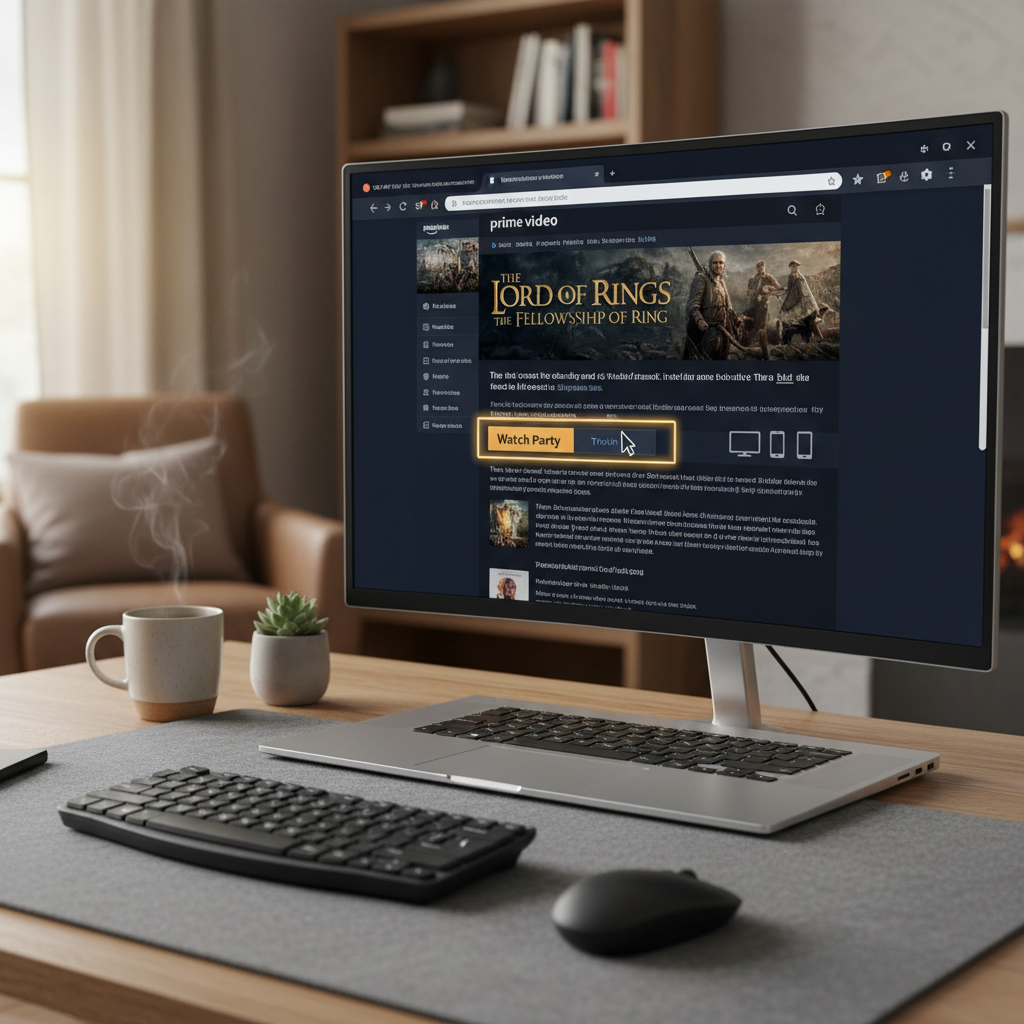
Desktop and laptop browsers are still the smoothest, most reliable way to host or join an Amazon Prime Watch Party.
What Devices Work With Amazon Prime Watch Party?
This is where a lot of people get tripped up.
Watch Party on Prime Video does not work on every single device the same way regular Prime streaming does. Support has expanded over time, but here’s the general reality:
Most reliable: Desktop and laptop browsers
For hosting and joining, your safest bet is:
- Desktop or laptop
- Using a supported browser (e.g., the latest versions of Chrome, Firefox, Edge, or Safari)
Prime’s Watch Party was originally browser‑first, and that’s still the smoothest experience for many users.
Mobile and TV apps
Support for Watch Party inside the Prime Video app on:
- Smart TVs
- Streaming devices (Fire TV, Roku, etc.)
- Mobile devices (iOS/Android)
…has historically been more limited and can vary by region, app version, and device brand.
If you’re planning a big event and want zero surprises, ask everyone to:
- Use a computer with a browser, or
- Double‑check the Watch Party icon is visible on their Prime Video app before party time.
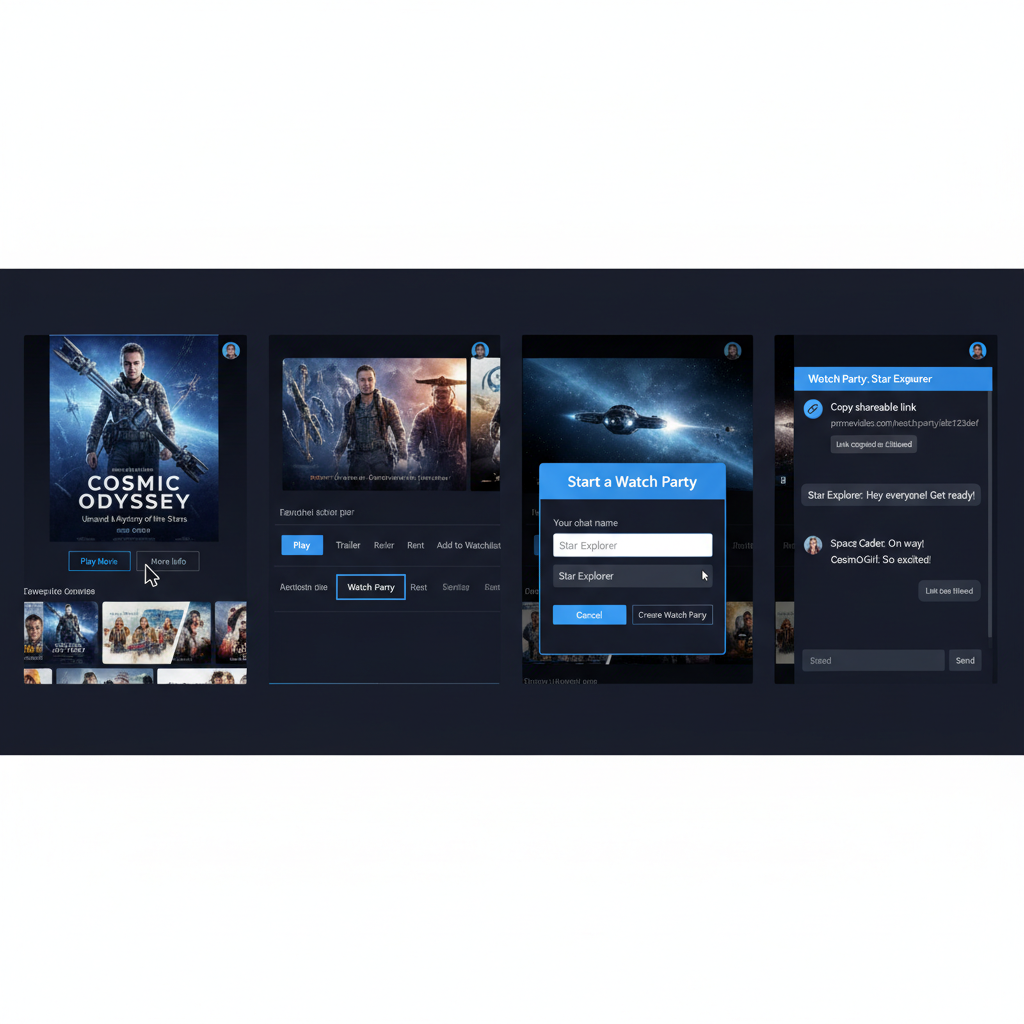
Pick a title, click Watch Party, name yourself, share the link—then sit back and enjoy the synced chaos.
How To Start a Watch Party on Amazon Prime (Step‑By‑Step)
Let’s walk through hosting your first watch party from a desktop browser.
1. Open Prime Video and pick your title
- Go to the Prime Video homepage while logged in.
- Search for the movie or show you want to watch.
- Open the title details page.
Note: Watch Parties work with many—but not all—titles. If you don’t see a Watch Party option, try another title or check if it’s a third‑party channel or add‑on.
2. Look for the “Watch Party” option
On the title page, you’ll typically see a row of options like:
- Watch Now / Play
- Trailer
- Add to Watchlist
- Watch Party (sometimes under “More options” depending on layout)
Click Watch Party.
3. Choose your watch party name
A small window will pop up asking you to choose a chat name (display name) that other viewers will see.
- This is your chance to be “PopcornOverlord” or “SubtitleQueen,” choose wisely.
Click Create Watch Party.
4. Share the watch party link
Once created, Prime Video will generate a shareable link.
- Copy that link and send it via text, email, Discord, group chat, etc.
- Anyone who clicks it and meets requirements (same country/region access, title availability, subscription) can join.
5. Start the show
As host, you’ll see the video player plus a chat panel.
- When everyone has joined, hit Play.
- Your playback controls (pause, play, seeking) will sync for everyone.
For guests, it’s even easier: click, log in, pick a name, and you’re in the shared stream and chat.
How Do Guests Join an Amazon Prime Watch Party?
Joining is even simpler.
- Click the link the host sent you.
- Log into your Amazon account (if you aren’t already).
-
Make sure you can access the title:
- Included with your Prime membership, or
- Rented or purchased on your own account if it’s not free with Prime.
- Enter a chat name if prompted.
- Click Join Watch Party.
You’ll land in the party, see the same video player, and chat with everyone else. The host’s play/pause controls will sync your playback.
Prime-included titles, rentals, and some channel content can all work—if everyone has access to the same thing.
What Can You Watch in a Prime Video Watch Party?
Included with Prime
Most content that’s included with your Prime membership is eligible for Watch Party.
These are ideal for:
- Weekly show nights (The Boys, Reacher, etc.).
- Binge sessions with a friend.
- Family movie nights when people live in different cities.
Rentals and purchases
Many rent or buy titles on Prime Video also support Watch Party—but each participant usually must:
- Individually rent or buy the movie/episode on their own account, if it’s not included with Prime.
So if you’re doing a brand‑new blockbuster movie night:
- Make sure everyone is okay with renting it.
- Remind people to rent it before party time to avoid delays.
Third‑party channels and add‑ons
Titles from add‑on channels (like some premium networks or specialty channels) may:
- Not support Watch Party at all, or
- Require that each guest has that specific channel subscription.
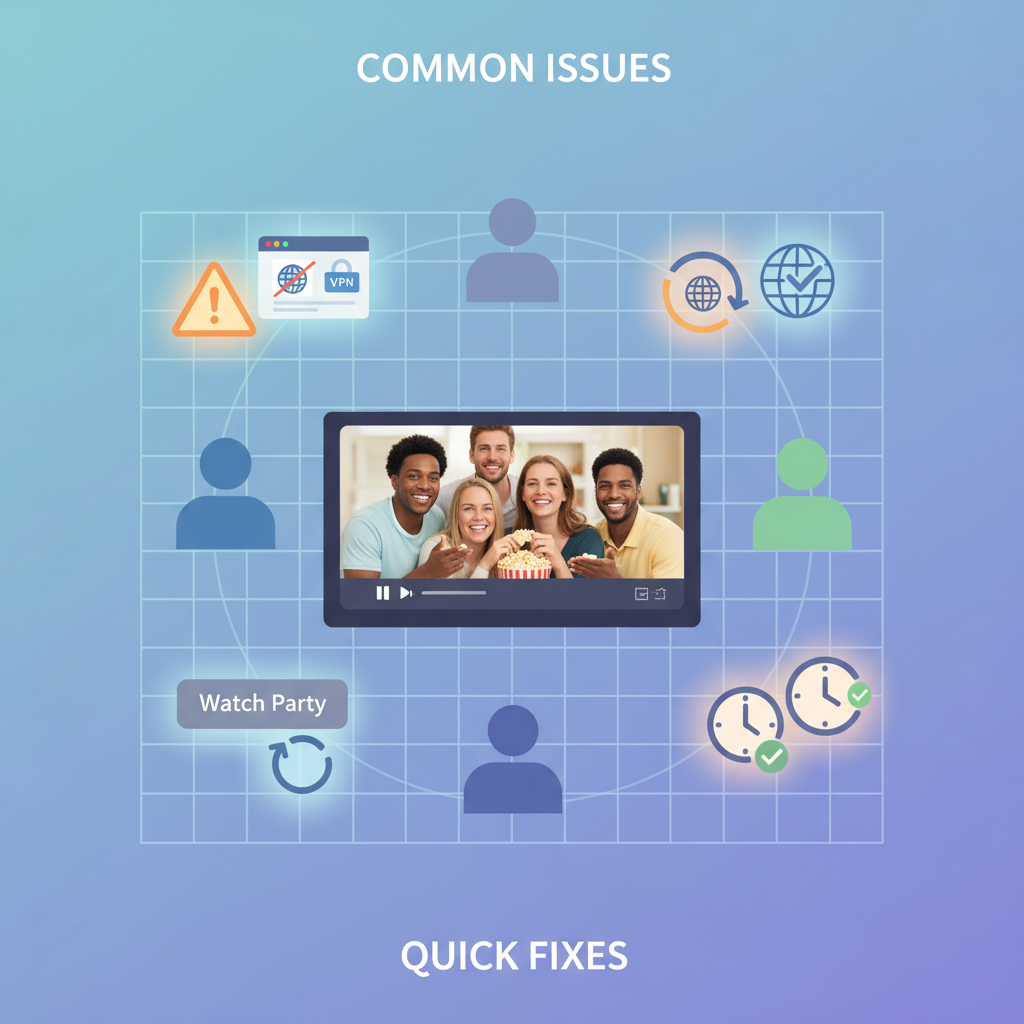
Most watch party chaos comes down to three things: device, region, or access—and all three are fixable.
Common Issues With Amazon Prime Watch Party (And Fixes)
Virtual movie nights are fun—until tech decides otherwise. Here are some of the most common Amazon Prime watch party problems and how to handle them.
1. “I don’t see the Watch Party button”
Possible causes:
- The title doesn’t support Watch Party.
- You’re using an unsupported device or older app.
Fixes:
- Try opening the same title on a desktop browser.
- Check another title that’s included with Prime.
- Update the Prime Video app if you’re on mobile/TV (and still, have a desktop backup plan).
2. “The video is out of sync for one person”
Watch Party is designed to sync playback, but sometimes:
- An unstable connection
- A slow device
…can cause delays.
Fixes:
- Ask the guest to refresh the page.
- Close other heavy bandwidth apps or streams.
- If needed, leave and rejoin the party via the link.
3. “Not available in your location”
This usually means:
- The title isn’t licensed in the viewer’s country.
- Watch Party itself isn’t supported in that region for that content.
Fixes:
- Choose a title that is available to everyone in the party’s country.
- For mixed‑country groups, this can be tricky—sometimes it simply won’t work for certain titles.
4. “I joined, but the play button does nothing”
Often:
- The host hasn’t started the stream yet, or
- The guest doesn’t have access to the title (no subscription/rental on their account).
Fixes:
- Confirm the host has pressed Play.
- Have the guest check whether the title page shows “Watch Now” or asks them to rent/subscribe.
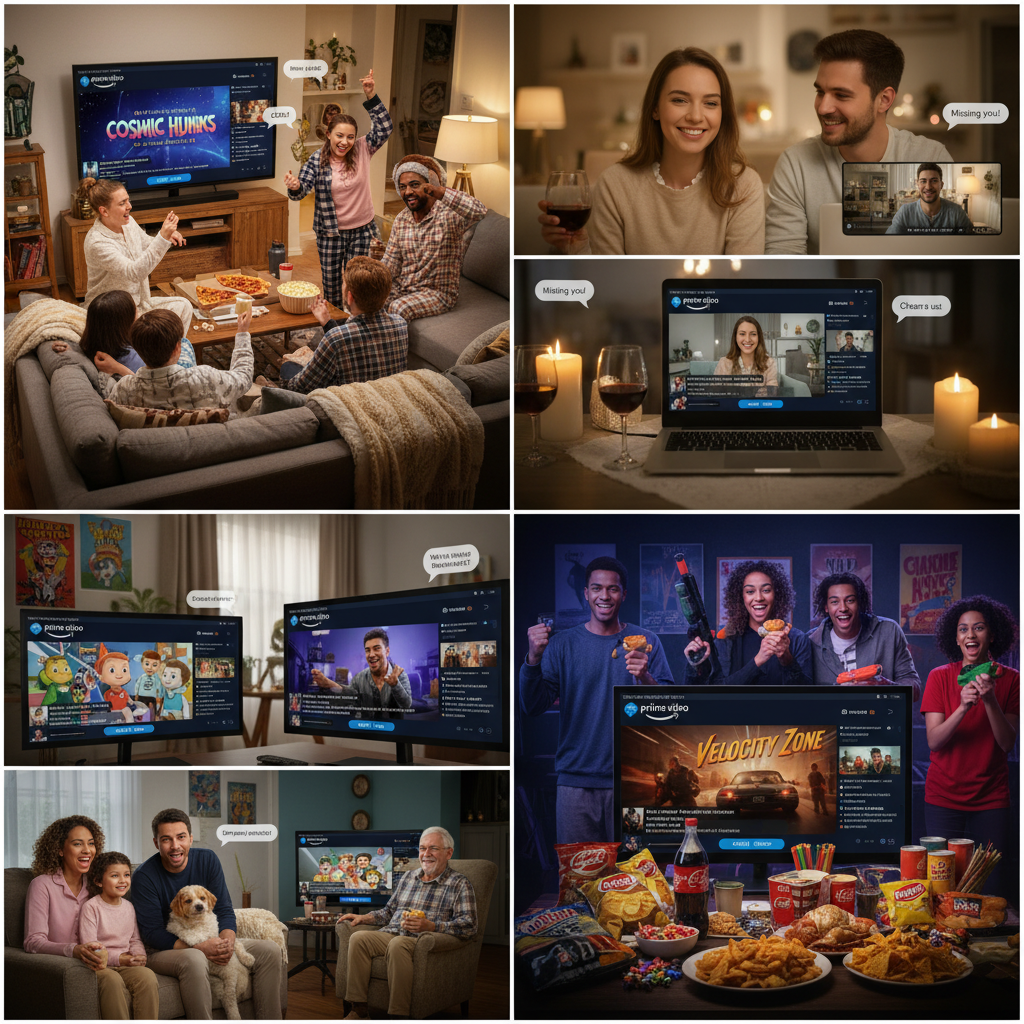
Turn Watch Party into an event: show clubs, long-distance date nights, family movie nights, and themed marathons.
Ideas and Themes for an Amazing Amazon Prime Watch Party
Now for the fun part. Once you know how to host a Prime Video Watch Party, what do you do with it?
1. Weekly show club
Pick a series and make it an event:
- Example: “Thursday Night Reacher Club” with friends.
- Create a recurring group chat and calendar invite.
- Use the Watch Party chat for live reactions, and a separate chat (Discord/WhatsApp) for ongoing theories between episodes.
2. Long‑distance date night
For couples in different cities:
- Choose a romantic comedy or thriller (bonding via jump scares is real).
- Start the Watch Party and hop on a voice call or video call in parallel.
- Use the text chat for silly reactions or inside jokes.
3. Family movie night across states
Got relatives spread across time zones?
- Pick a family‑friendly movie on Prime.
- Have everyone log in a bit early to sort out tech.
- Let the kids spam the chat with emojis while the adults trade commentary.
4. Themed marathon
Examples:
- Action night: back‑to‑back action movies on Prime.
- Nostalgia night: old favorites you all grew up with.
- Holiday watch party: seasonal movies with matching snacks.
Native to Prime, no extensions, huge library—Watch Party is the easiest option if your group already lives on Amazon.
Amazon Prime Watch Party vs. Other Watch‑Together Options
There are other group‑watch options out there (like third‑party extensions that sync Netflix, YouTube, etc.), so where does Prime Video Watch Party fit in?
Pros
- Built directly into Prime Video—no extra extensions or software.
- Official feature, generally more stable than random third‑party hacks.
- Easy invite link; up to a large number of people.
- Works with a huge library of included‑with‑Prime shows and movies.
Cons
- Not every title supports Watch Party, especially some third‑party channels.
- Device support can still be inconsistent across mobile/TV apps.
- Every participant usually needs their own rental/purchase for non‑Prime titles.
A quick pre-party checklist can turn “Can you hear it?” chaos into a smooth, shared movie night.
Quick Checklist for a Smooth Amazon Prime Watch Party
Before your next big watch party, run through this:
- Choose a supported title (check that the Watch Party option appears).
- Confirm everyone has access (Prime or rental/purchase, plus region availability).
- Tell people to use a desktop browser (or confirm their device/app supports Watch Party).
- Create the Watch Party, pick a fun display name.
- Share the link early in your group chat.
- Start on time, and give a 5‑minute grace period for tech issues.
- Use chat creatively: ask questions, run polls (“Team Character A or B?”), drop trivia.
Do that, and your Amazon Prime Video watch party will feel less like a glitchy experiment and more like a real shared experience.
Same movie, same moment, shared reactions—no matter where everyone actually is.
If you’ve been missing “movie night energy” with friends and family who don’t live nearby, Amazon Prime watch parties are one of the easiest ways to bring it back. No syncing headaches, no “what timestamp are you on,” just shared gasps, groans, and laughter—exactly how it should be.
Leave a Reply