How to Permanently Delete Your Amazon Account

Standing at the crossroads between Prime‑powered chaos and a calmer, Amazon‑free life.
How to Permanently Delete Your Amazon Account (Step‑by‑Step Guide)
Thinking about permanently deleting your Amazon account? Bold move. It’s like deciding you’re done with oxygen… but for cardboard boxes and “Arriving Tomorrow” dopamine hits.
If you’re here, you’re probably:
- Over the data tracking
- Over the impulse buys
- Trying to stop your 2 a.m. “Add to Cart” alter ego
Whatever your reason, yes—you can permanently delete your Amazon account and walk away. But this is a burn‑the‑ships move: no going back, no “oopsie, I didn’t mean it.” If you’re serious about a digital detox and want a clean break from Amazon, you need to do this right.
This guide covers:
- What really happens when you delete your Amazon account
- What to do before you delete it (so you don’t lose money or content)
- The exact, step‑by‑step process
- What to do if Amazon’s system glitches mid‑goodbye
Note: We’re talking personal Amazon accounts here—shopping, Prime, Kindle, etc., in the U.S., as of late 2025. Interfaces may shuffle around, but the logic (and the consequences) stay the same.
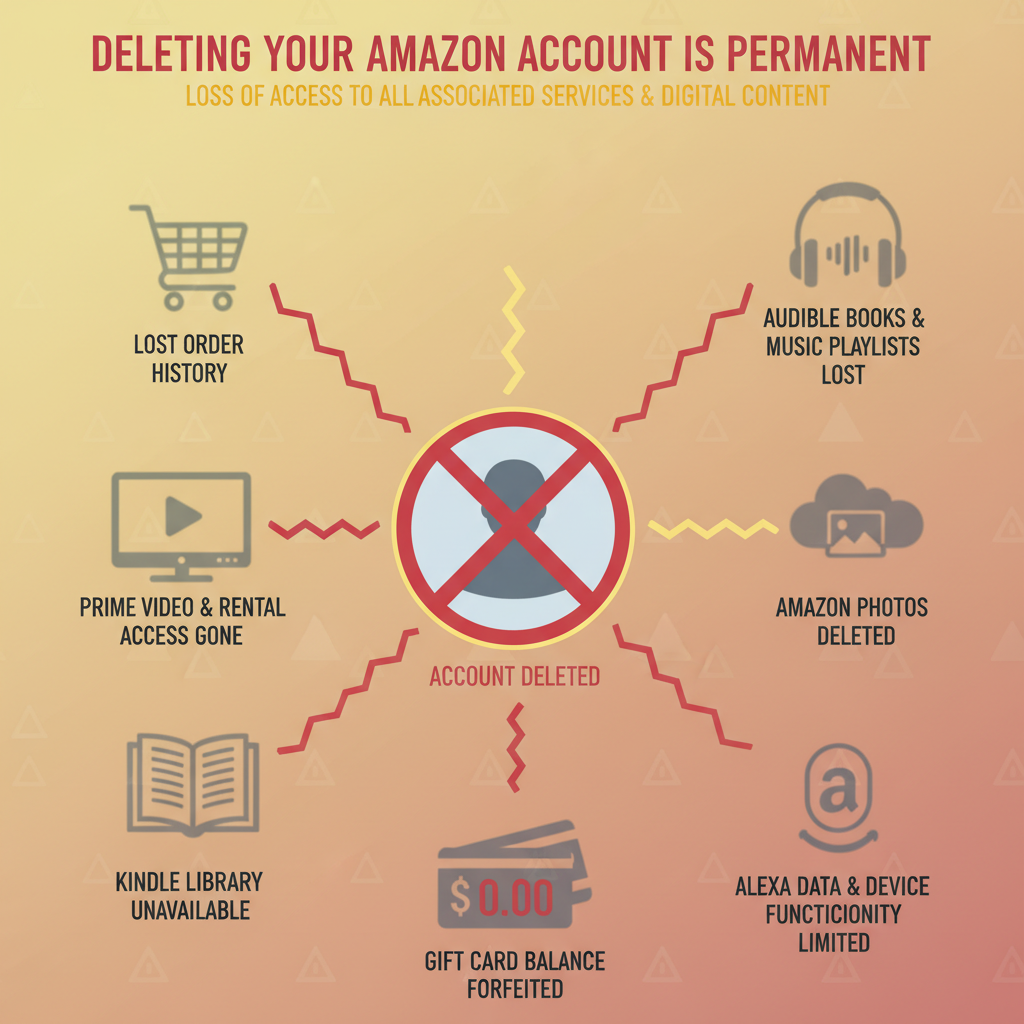
When you delete your Amazon account, a lot more than just your cart disappears.
Before You Delete: Read This Carefully
Think of this section as the, “Are you sure you want to shave your eyebrows?” moment of permanently deleting your Amazon account.
Closing your Amazon account is:
- Permanent
- Irreversible
- Not something support can magically “undo” later
Once it’s gone, you cannot:
- Reopen the same account
- Recover your old data or access your purchases through it
- Scream “BUT MY KINDLE BOOKS” into the void and expect a different outcome
When you delete your Amazon account, you’ll lose access to:
Shopping & Prime Stuff
- Amazon.com shopping
- Order history
- 1‑Click settings
- Saved addresses and payment methods
- Prime benefits, like:
- Prime Video
- Prime Music (if applicable)
- Same‑day / 2‑day shipping
If you rely on Amazon Prime for fast deliveries or streaming, deleting your Amazon account cuts all of that off instantly.
Digital Content & Subscriptions
All the shiny bits tied to that login, including:
- Kindle eBooks and Kindle Unlimited access
- Audible audiobooks and subscriptions (if on the same login)
- Amazon Music purchases and playlists
- Apps/games bought through the Amazon Appstore
Translation: if it lives in the Amazon cloud attached to that account, assume it’s going poof—or at least, that your access to it is gone permanently.
Other Amazon Services Linked to That Login
Here’s the “oh wow I forgot I even had that” zone:
- Amazon Photos
- Amazon Drive (legacy)
- Amazon Fresh / Whole Foods digital services
- Amazon Pay
- Amazon gift card balance
- Amazon‑owned stuff like Comixology and anything else Amazon lists during the account closure flow
If you use Amazon across multiple devices and services, closing your Amazon account is a full‑system shutdown, not just a shopping pause.
Devices Registered to Your Account
All your little Amazon‑branded spies—uh, helpers—will be:
- Unregistered, including:
- Echo / Alexa devices
- Fire TV
- Fire tablets
- Kindle e‑readers
They won’t turn into bricks, but they will need a new Amazon account to work properly. If you delete your Amazon account and plan to keep using those devices, you’ll have to sign in with a fresh profile.
What Amazon Keeps Anyway
Even after you permanently delete your Amazon account, Amazon may retain some data internally for things like:
- Tax and accounting purposes
- Fraud detection
- Legal obligations
You just won’t have an account or dashboard to see or access it. It’s like your data moved into witness protection.
Once you delete your account, your access is gone. Your impulse buying history probably lives on in Amazon’s ledgers forever.
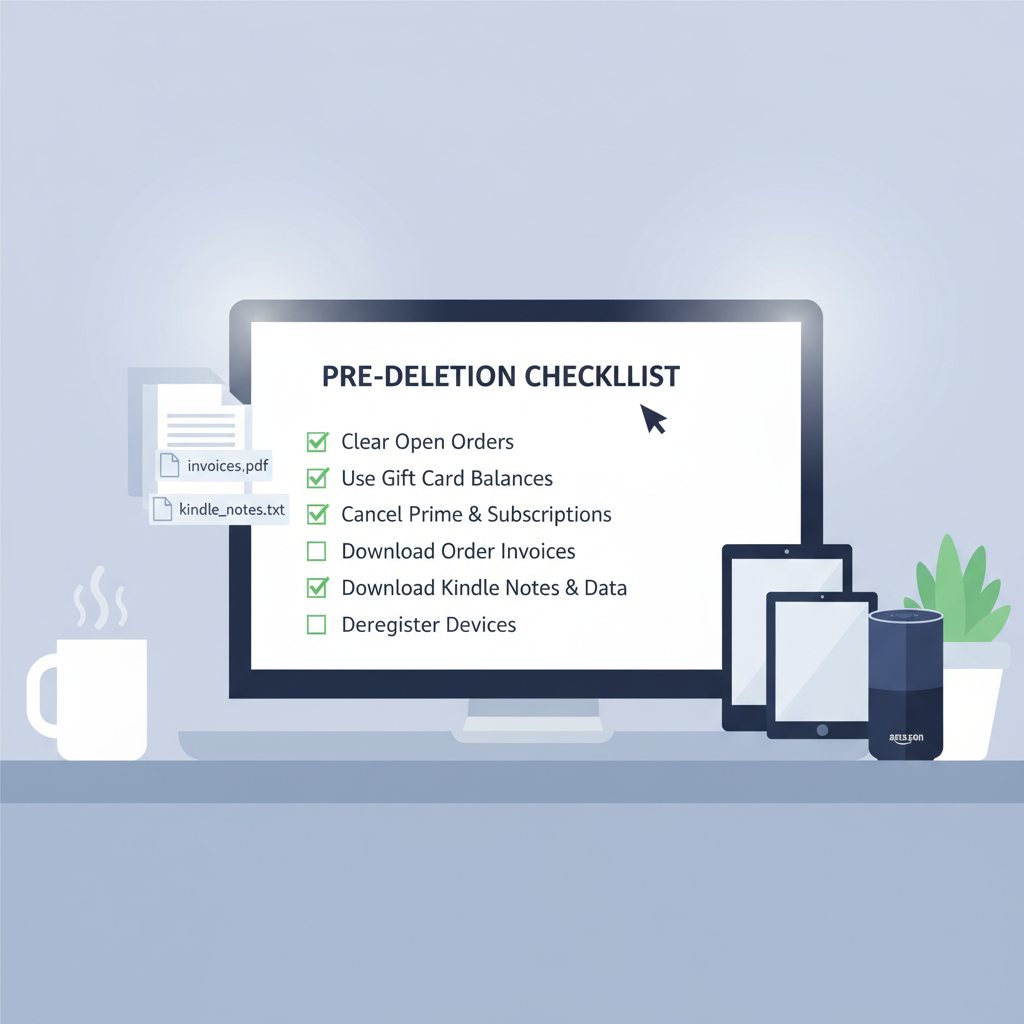
Treat this like a pre‑flight checklist before you hit “Close My Account.”
Step 1: Get Your Account Ready for Deletion
Don’t rage‑quit. Strategic‑quit. Before you permanently delete your Amazon account, you want to walk away without leaving:
- Money behind
- Subscriptions running
- Devices weirdly half‑functional
1.1 Clear Out Any Open Orders
Before you nuke the account:
- Make sure all orders are delivered
- Cancel any:
- Open orders
- Pre‑orders you don’t actually want
- If you’ve recently returned items:
- Wait for refunds to fully process to your payment method
Otherwise you risk:
- Losing items that are mid‑shipment
- Confusing support
- Playing “Where’s my refund?” after your account is already gone
1.2 Use or Transfer Gift Card Balances
This is the part where people accidentally donate money to Amazon for free.
- Go to:
Accounts & Lists → Your Account → Gift cards - Check your gift card balance
- Spend it before closing your account
Important:
- Unused gift card balance is forfeited when you permanently delete your Amazon account
- Same logic for:
- Promo credits
- Digital credits from “no‑rush shipping”
If you’re sitting on a balance, treat this like:
- “Last call at the bar”
But the bar is digital and sells air fryers
1.3 Manage Subscriptions and Memberships
Yes, Amazon will typically cancel subscriptions when the account dies—but you want clarity and any possible refunds.
Go through and review/cancel:
- Amazon Prime
- If you’re eligible, you might get a pro‑rated refund depending on usage and timing
- Subscribe & Save items
- Cancel them so your shampoo doesn’t keep showing up for a person who no longer exists (digitally speaking)
- Digital subscriptions, such as:
- Kindle Unlimited
- Audible (if on same account)
- Amazon Music
- Prime Video channels (HBO, Showtime, etc.)
This:
- Prevents surprise future charges
- Makes the account closure cleaner
- Avoids you yelling at your bank and your bank quietly blaming you
1.4 Download Any Data You Care About
Future‑you doing taxes and warranty claims will thank you.
Strong candidates to save before you delete your Amazon account:
- Order history & invoices
- Especially for:
- Business expenses
- Big‑ticket electronics
- Anything with warranties
- Especially for:
- Kindle highlights and notes
- Export via:
- Kindle apps
- “Your Notes and Highlights” page where available
- Export via:
- Photos from Amazon Photos
- Download anything you don’t want lost in the digital ether
- Important emails / receipts
- Search your email for “Amazon order” and save what matters
Amazon’s not exactly winning awards for “Download All My Stuff in One Button,” so:
- Expect some manual exporting
- Put on a podcast and pretend you’re doing “digital spring cleaning”
1.5 Deregister Devices (Optional but Recommended)
Technically, when your account closes, devices are unregistered automatically.
But cleaning this up yourself is like:
- Washing the dishes before moving out
Steps:
- Go to:
Accounts & Lists → Your Content and Devices - Deregister:
- Kindle e‑readers
- Fire tablets
- Fire TV devices
- Echo / Alexa devices
Helpful if:
- You’re selling or gifting the devices
- You want a smooth setup with a new account later
- You like things not being weird and glitchy
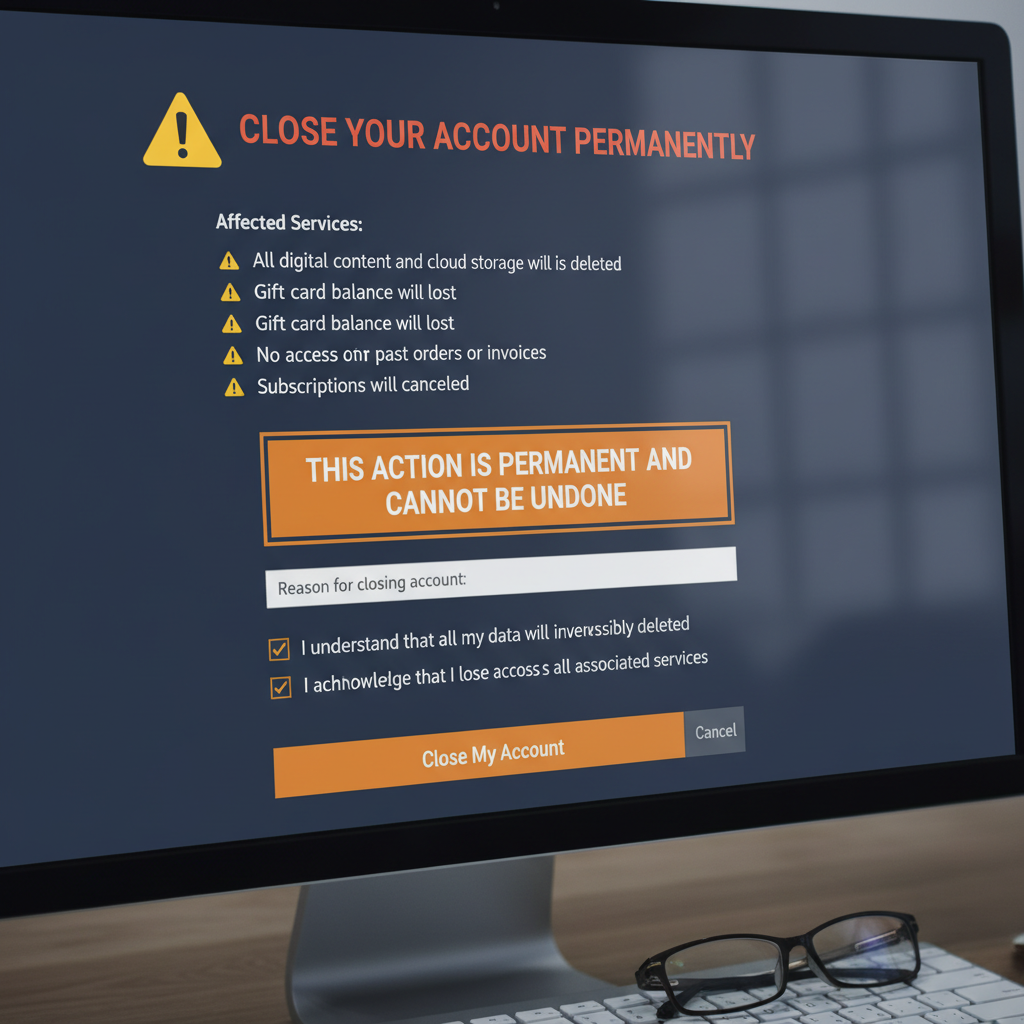
The big red button page: where you tell Amazon you’re really, truly done.
Step 2: Go to the Official “Close Your Amazon Account” Page
Time to find the big red button.
Amazon actually provides a dedicated Close Your Amazon Account page, even if they don’t exactly put it in flashing neon.
How to Get There (Safest Method)
- Open a browser and sign in to the account you want to delete
- In a new tab, search:
Close Your Amazon Account Amazon help - Click the official result:
- It should be on an amazon.com domain
- Confirm you’re logged in as the right account
- Especially if:
- You share devices
- You have multiple Amazon or business logins
- Especially if:
On this page, you’ll usually see:
- A list of services tied to your account
- Warnings about permanent closure
- Links to more info about what will be:
- Deleted
- Retained internally
If this page doesn’t mention half the stuff you use, you’re probably on:
- The wrong account
- Or the wrong region
Back up, double‑check, then continue.
Step 3: Review the Consequences Carefully
Yes, you technically already know what you’re losing—but this is Amazon’s official “No, really, don’t say we didn’t warn you” section.
On the Close Your Account page, look for wording like:
- “Please read this carefully”
- Or similar “we’re not joking” phrasing
This section usually restates that if you permanently delete your Amazon account:
- You’ll lose access to:
- Prime
- Kindle
- Alexa
- Digital content
- Linked services and balances
- The closure is:
- Permanent
- Not reversible
- Some data will be retained for:
- Legal
- Tax
- Fraud‑prevention reasons
Important sanity check:
If you see AWS, Amazon Seller, or Amazon Business tied to this login:
- Pause
- Ask yourself: “Will deleting this break my website/business/livelihood?”
- If yes, maybe don’t hit the big red button yet
This is the part where you really want to be sure you’re deleting:
- The right account
- For the right reasons
Step 4: Submit the Closure Request
Still here? You’re committed. Respect.
On the Close Your Account page:
- Scroll to the bottom
- Look for:
“Please select the main reason for closing your Amazon account” (or similar) - Click “Choose reason”
- Pick one:
- Privacy concerns
- No longer using Amazon
- Duplicate account
- Or whatever fits your vibe
- Pick one:
- If there’s a comments box:
- Optional: type something
- Not optional: resist the urge to write a breakup essay
- Check the box that says something like:
“Yes, I want to permanently close my Amazon account and delete my data.” - Click “Close My Account”
At this point:
- Your request is submitted
- But your account is not yet fully closed
Think of it as:
- You’ve filed the paperwork
- The judge (Amazon) is still waiting for your final “Yes, I mean it”
Step 5: Confirm via Email or Text Within 5 Days
To avoid random trolls or vindictive exes closing your account:
- Amazon adds a second “Are you sure?” step
What happens when you delete your Amazon account:
- You’ll get a confirmation email or SMS
- Subject line often like:
“Confirm Account Closure”
- Subject line often like:
- It will:
- Re‑explain what closing means
- Give you instructions to confirm, usually:
- Clicking a special confirmation link, or
- Replying to the message as directed
Timing notes:
- You generally need to respond within about 5 days
- If you don’t, the request can expire
- Then you’ll have to start over
Pro move:
- Check spam/junk folders
- Search your inbox for “Amazon” and the email subject keywords
Once you confirm via that message:
- Amazon processes the closure
- You’ll usually get a final notification when it’s done
After that, the relationship status is:
- “It’s not complicated. It’s over.”
Step 6: What If the Closure Page or Email Doesn’t Work?
Because technology loves drama, sometimes when you try to permanently delete your Amazon account:
- The Close Account page errors out
- The confirmation email or text never shows up
- The link doesn’t work
If that happens, don’t give up and go buy an air fryer out of frustration. Instead:
6.1 Go Through Amazon Customer Service
- On Amazon.com, scroll down and click:
- “Help” or “Customer Service”
- Navigate through something like:
- “Something else” → “Account settings” → “Close my account”
Or pick the closest match
- “Something else” → “Account settings” → “Close my account”
6.2 Contact a Human (or Chatbot with Human Supervision)
Use one of:
- Live chat
- Phone call
- Email / contact form
When you connect, be clear and firm. For example:
“I want to permanently close my Amazon account and delete my data. The Close Your Amazon Account page or confirmation email isn’t working. Can you process the closure manually?”
They may:
- Re‑verify your identity
- Send a final confirmation email/message
- Then process the closure on their end
Yes, this requires mild social interaction. No, you probably can’t skip it if the automated system breaks.
Once the closure is processed, your Amazon world goes dark—by design.
What Happens After Your Amazon Account Is Closed?
Once you get the “it’s done” confirmation, here’s your new reality after you delete your Amazon account:
- Your login:
- No longer works with that email/phone + password
- Your account dashboard:
- Gone
No order history, no access to saved details
- Gone
- Your devices:
- Unregistered from that account
- Need to be set up with:
- A new account, or
- Another existing one
- Your account data:
- Addresses, payment methods, preferences:
- Typically deleted or anonymized
- Addresses, payment methods, preferences:
- Some data:
- Still kept internally for:
- Tax
- Accounting
- Fraud prevention
- But not tied to an active profile you can use
- Still kept internally for:
If one day you regret this and feel the urge to come back:
- You cannot restore the old account
- But you can make a new account with the same email
Fresh, empty, like your cart after a moment of rare self‑control
Deleting your account is the nuclear option—sometimes you just need better boundaries, not total annihilation.
Should You Delete Your Amazon Account—or Just Lock It Down?
Permanently deleting your Amazon account is the nuclear option. Before you hit the launch button, consider: could you fix your main problem with a lighter touch?
If Your Concern Is: Privacy
Try:
- Turning off or limiting ad personalization
- Removing stored payment methods
- Clearing saved addresses
- Managing Alexa voice recordings:
- Delete history
- Change permissions
This reduces your data footprint without losing access to:
- Past purchases
- Digital content
If Your Concern Is: Overspending
You are not alone. Amazon is the adult version of the candy aisle.
Try:
- Removing saved cards
- Turning off 1‑Click ordering
- Logging out on all devices
- Deleting the Amazon app from your phone
Basically: add friction. Make buying so annoying that your brain has time to say, “Do I actually need this third electric kettle?”
If Your Concern Is: Email Overload
Instead of deleting your Amazon account, you can simply:
- Unsubscribe from:
- Marketing emails
- Promotions
- “You might like this” temptation traps
Result:
- Less inbox chaos
- Continued account access
The whole process, distilled into a simple, screenshot‑worthy checklist.
Quick Recap: How to Delete Your Amazon Account
Here’s the TL;DR checklist version you can screenshot and pretend you always had memorized. These are the core steps to permanently delete your Amazon account:
- Prepare your account
- Make sure all orders are delivered
- Cancel subscriptions and memberships
- Spend any remaining gift card or promo balances
- Download important data (invoices, notes, photos)
- Go to Amazon’s “Close Your Account” page
- While logged into the specific account you want to delete
- Read everything
- Confirm which services and data will be affected
- Submit the request
- (Optionally) choose a reason
- Check the confirmation box
- Click “Close My Account”
- Confirm via email or text
- Within ~5 days, using the link or instructions Amazon sends
- If something breaks
- Contact Amazon support (chat/phone/email)
- Ask for manual account closure
- After confirmation
- Your account is permanently closed
- You’ll need a new account to use Amazon in the future
If you’re serious about a digital detox, Amazon is just one piece of the puzzle.
Next Steps If You’re Serious About a Digital Detox
If you’re on a full “reduce my digital footprint” mission, don’t stop with Amazon. Once you delete your Amazon account, consider:
- Reviewing and deleting old accounts with:
- Other big retailers
- Services you don’t use anymore
- Using a password manager to:
- Track what accounts you have
- Systematically close the ones you don’t need
- Looking up:
- “Privacy,” “Account deletion,” or “Data removal” pages
- For social media, apps, and subscriptions you’ve ghosted
If you made it this far and still want to permanently delete your Amazon account:
- You’re not just rage‑quitting
- You’re making a thoughtful, permanent decision
And yes, in true teacher fashion: this will be on the test, where the test is “Do I mysteriously lose my Kindle library because I didn’t read the warnings?”
Leave a Reply