How To Share An Amazon Cart
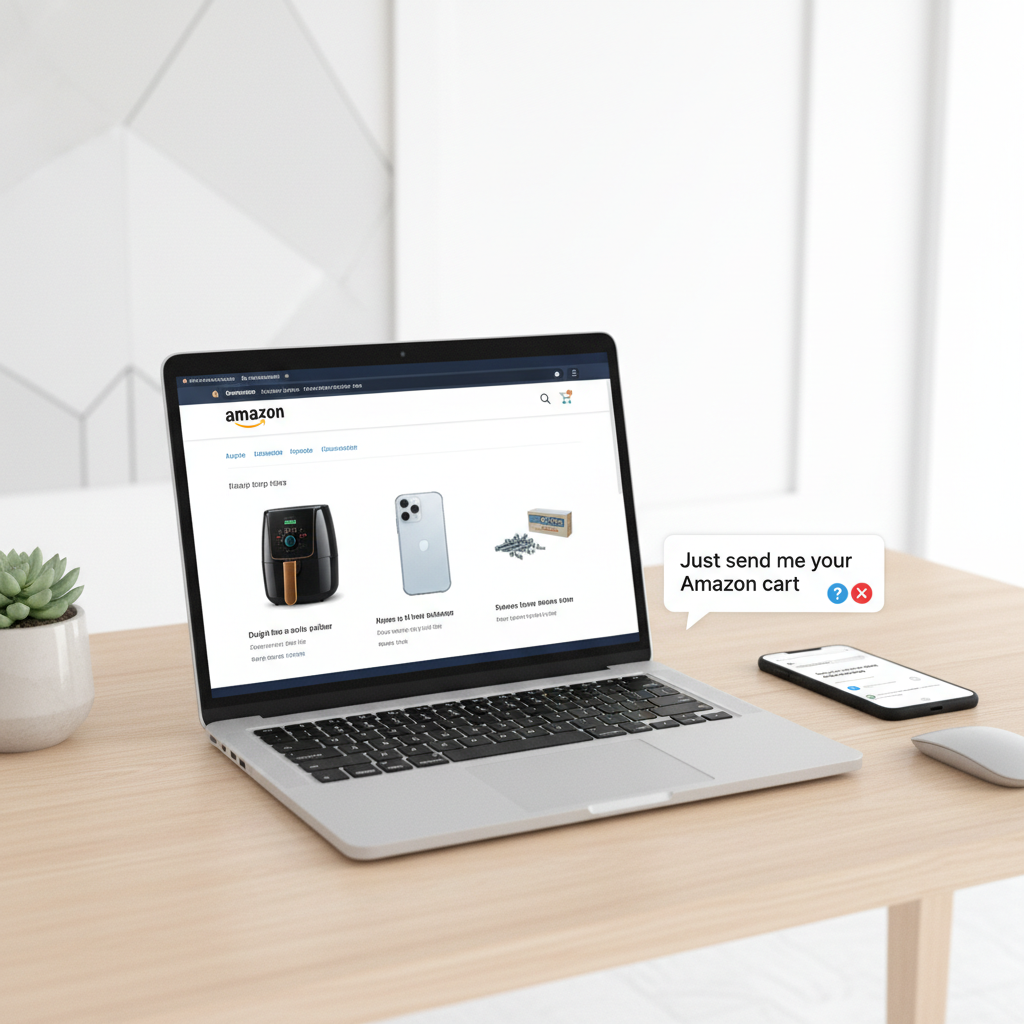
You’ve perfectly curated an Amazon cart: the right air fryer, the exact phone case, and yes… the weirdly specific replacement screws you needed.
Now someone texts: “Just send me your Amazon cart.”
Cue the confusion.
Can you actually share an Amazon cart? Or is it some secret level only power users unlock?
Let’s break it down step-by-step so you can share what matters—whether that’s a birthday list, team purchasing list, or just convincing your friend that this is absolutely the right standing desk.
First, can you really share an Amazon cart?
Short answer: not directly, not in one click.
Amazon doesn’t currently have a native “Share Cart” button that sends your live cart to someone else to buy as-is. Instead, you have a few workarounds that achieve basically the same thing:
- Share a shopping list (recommended)
- Use an Amazon registry (for events: baby, wedding, etc.)
- Send a link with the items (using third-party tools or manual links)
- Share a screenshot or exported list if all else fails
Think of it this way: you’re not really sharing the cart itself, you’re sharing a copy of your items that someone else can quickly add to their cart.
Method 1: Turn your cart into a sharable list (best overall)
The cleanest way to share an Amazon cart is to first turn it into a List, then share that list.
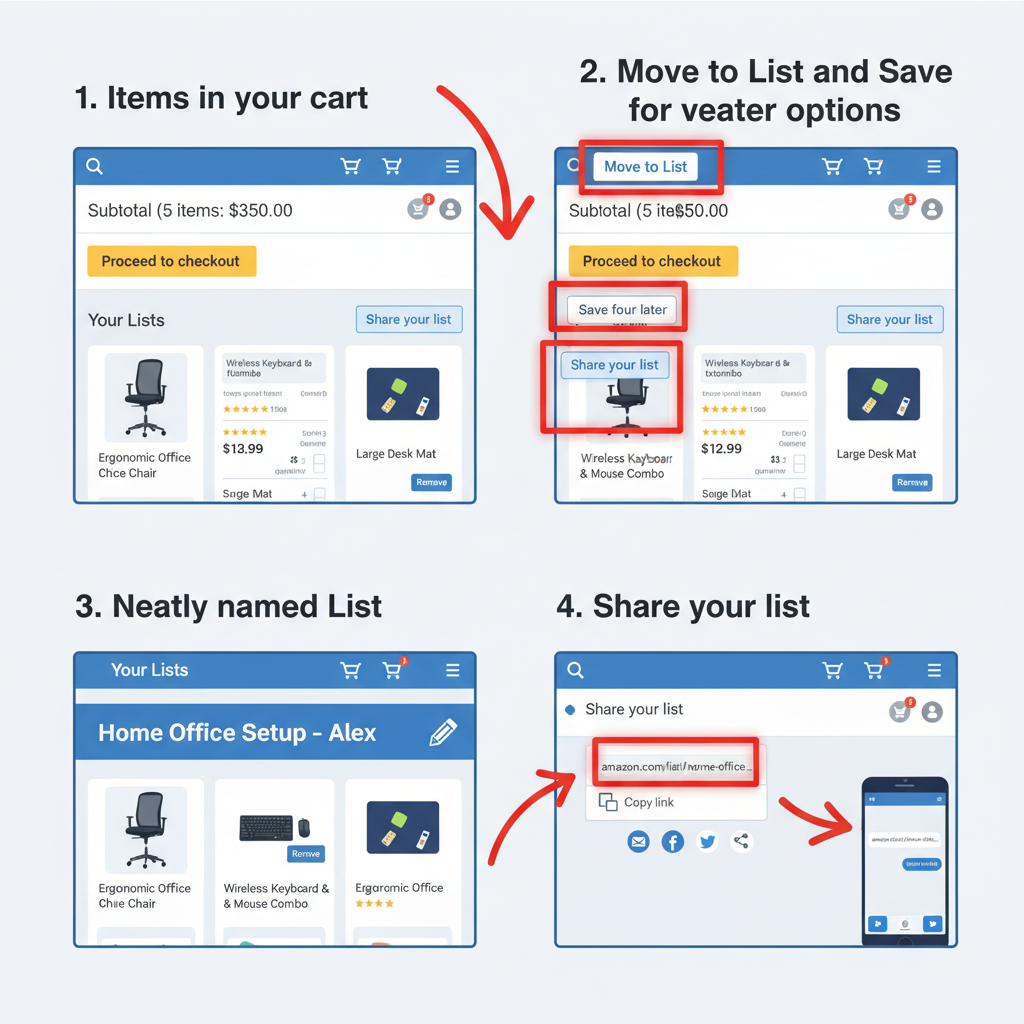
Step 1: Move items from cart to a list
On desktop (web browser):
- Go to your Cart.
- Under each item, click “Save for later” or “Move to List” (if it shows).
- If prompted, create a new list (e.g., “Office Setup,” “Birthday Gifts,” “Vacation Gear”).
- Repeat until everything you want to share is saved to the same list.
On mobile (Amazon app):
- Open the Amazon app and tap the cart icon.
- Under each product, tap the three dots
...or More. - Tap “Move to List”.
- Create or select the list where you want to store those items.
Pro tip: Name the list something obvious for the other person (e.g., “Sam’s Office Gear to Review” instead of just “Shopping List”).
Step 2: Make the list shareable
- Go to Accounts & Lists (top right on desktop) → click “Your Lists.”
- Select the list you created.
- Look for Manage List or Invite / Share depending on your interface.
- Choose how you want to share:
- View only (they can see it, then add to their own cart).
- View and edit (useful if you’re collaborating on what to buy).
- Copy the share link and send it via text, email, Slack, etc.
On mobile, you can usually tap the share icon (little box with an arrow) at the top of the list page and choose your app (Messages, WhatsApp, Email, etc.).
What the other person sees
When they open your link, they’ll see your list with all the items and can:
- Add individual items to their own cart
- Add everything at once (often there’s an “Add all to cart” button)

Method 2: Use Amazon’s built-in registries (for events)
If you’re planning a baby shower, wedding, housewarming, or birthday, Amazon’s gift registries are basically a more powerful, event-focused version of a shared cart.
When to use a registry instead of a list
Use a registry if:
- Multiple people will be buying from your list
- You want items to be marked as purchased so you don’t get duplicates
- You need shipping privacy (people can send gifts without seeing your full address)
How to create and share a registry
- On Amazon, go to “Accounts & Lists” → choose Baby Registry, Wedding Registry, or Custom Gift List (names can vary slightly by region).
- Follow the setup steps: event name, date, shipping address, visibility, etc.
- Add items to the registry via:
- The “Add to Registry” button on product pages
- The registry’s Search & Add tools
- Once ready, click Share or Invite and copy the link.
People you share it with can then:
- Buy directly from the registry
- See which items are still needed
- Ship gifts right to your selected address
Method 3: Use a cart-sharing link (with third-party tools)
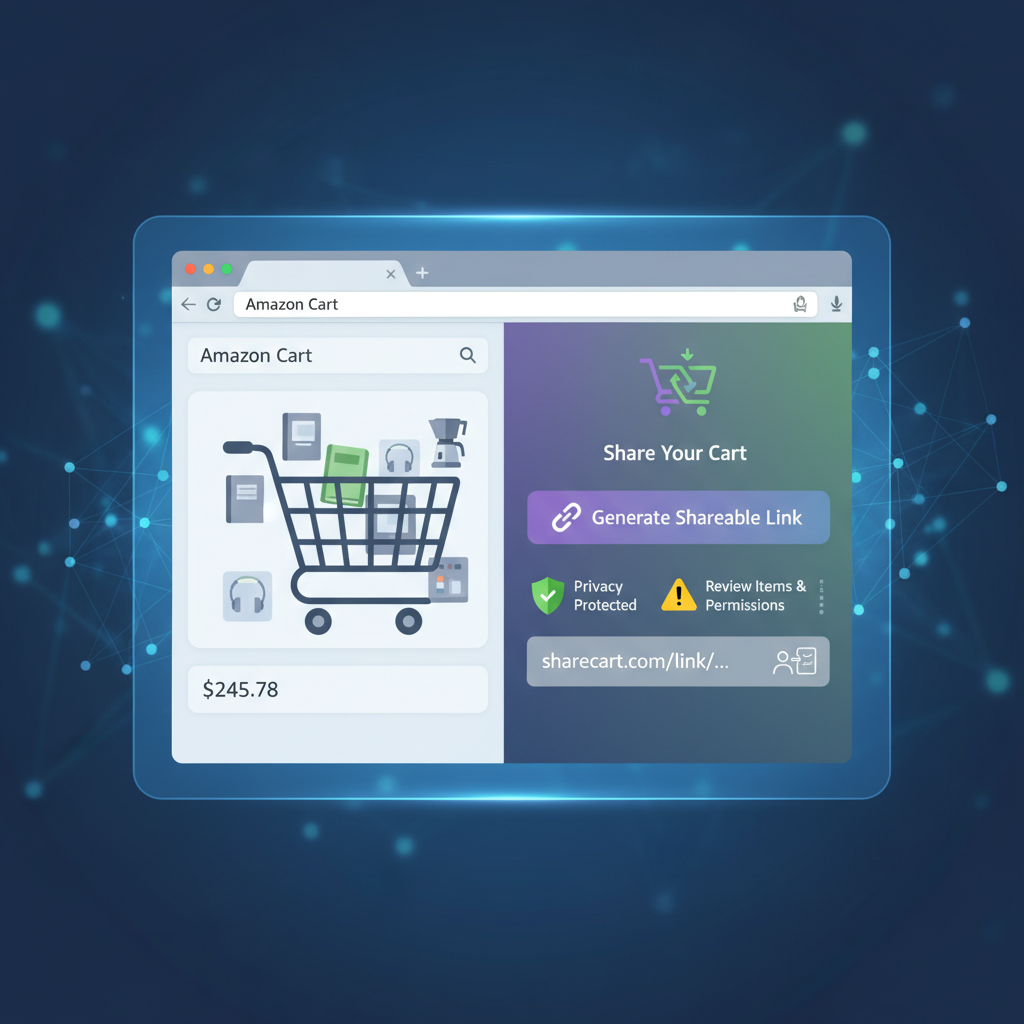
Amazon itself doesn’t give you a one-click “share my cart URL,” but there are third-party services that create a sharable link based on what’s in your cart.
These usually work like this:
- You go to a third-party website that supports Amazon cart sharing.
- Follow their instructions: usually you’ll copy items or use a browser extension.
- They generate a shareable link.
- Someone clicks it and sees the same items pre-loaded on Amazon.
Pros
- Feels closest to a “real” cart share
- Fast if you’re on desktop with extensions
Cons
- You’re trusting a third-party (always check reviews & credibility)
- May not support all regions or item types (e.g., subscriptions, digital goods)
- Items can go out of stock or change in price by the time someone opens it
If you prefer to keep it simple and private, stick to the List method instead.

Method 4: The low-tech ways (screenshots, copy-paste, and links)
If you just need something quick and rough, the “analog” options work just fine.
Option A: Screenshot your cart
- Open your cart.
- Take a screenshot (or several if it’s long).
- Send via text, email, or chat.
This is great when you want someone’s opinion (“Does this look right?”) instead of asking them to buy the items themselves.
Option B: Copy-paste product links
- From your cart, click each product to open its product detail page.
- Copy the URL.
- Paste into a message.
You can also paste multiple links into a note or email titled something like:
“Stuff I’m thinking of getting on Amazon — what do you think?”
Option C: Use the share button on product pages
On each product page:
- Click or tap Share (often represented by an arrow icon).
- Choose your messaging app.
Do this for each item in your cart that you want to share.
How to share your Amazon cart with a friend (step-by-step example)
Let’s walk through a real-world scenario.
Scenario: You’ve picked out everything for your new home office and want your friend (or partner, or manager) to review and maybe pay for it.
- Build your cart as usual.
- Desk, chair, monitor, laptop stand, keyboard, etc.
- Move items to a list.
- On each item: click “Move to List” → create “Home Office Setup – Alex.”
- Open the list and share it.
- Go to Your Lists → select the list → click Share / Invite.
- Choose ‘view and edit’ (if you want feedback).
- This lets your friend tweak items before buying.
- Send the link via text.
- “Here’s my Amazon list for the office setup—mind checking if everything looks good?”
Your friend opens the link, sees exactly what you picked, and can:
- Remove or swap items
- Add everything to their cart and check out
Result: you just did a functional “shared Amazon cart” without needing any hacks.
FAQs about sharing an Amazon cart
Can two people use the same Amazon cart at the same time?
Not really. Your cart is tied to your account, and Amazon doesn’t support multi-user carts. But by sharing a list or registry, you effectively give them a clone of your cart.
If I share a list, will changes update in real time?
Yes—if someone has access to a shared list or editable list, changes you make are reflected when they refresh. But once they’ve added items to their cart and checked out, your list doesn’t change automatically.
Can someone else pay for the items in my cart directly?
Not safely. You should not share your login or payment details. Instead, either:
- They buy from your shared list/registry and ship to you.
- You send them the list and they reimburse you after you purchase.
Can I share my Amazon cart between devices?
Yes, within your own account. If you log into the same Amazon account on your phone and laptop, your cart syncs across them. That’s not “sharing a cart” with another person—it’s just your synced cart.
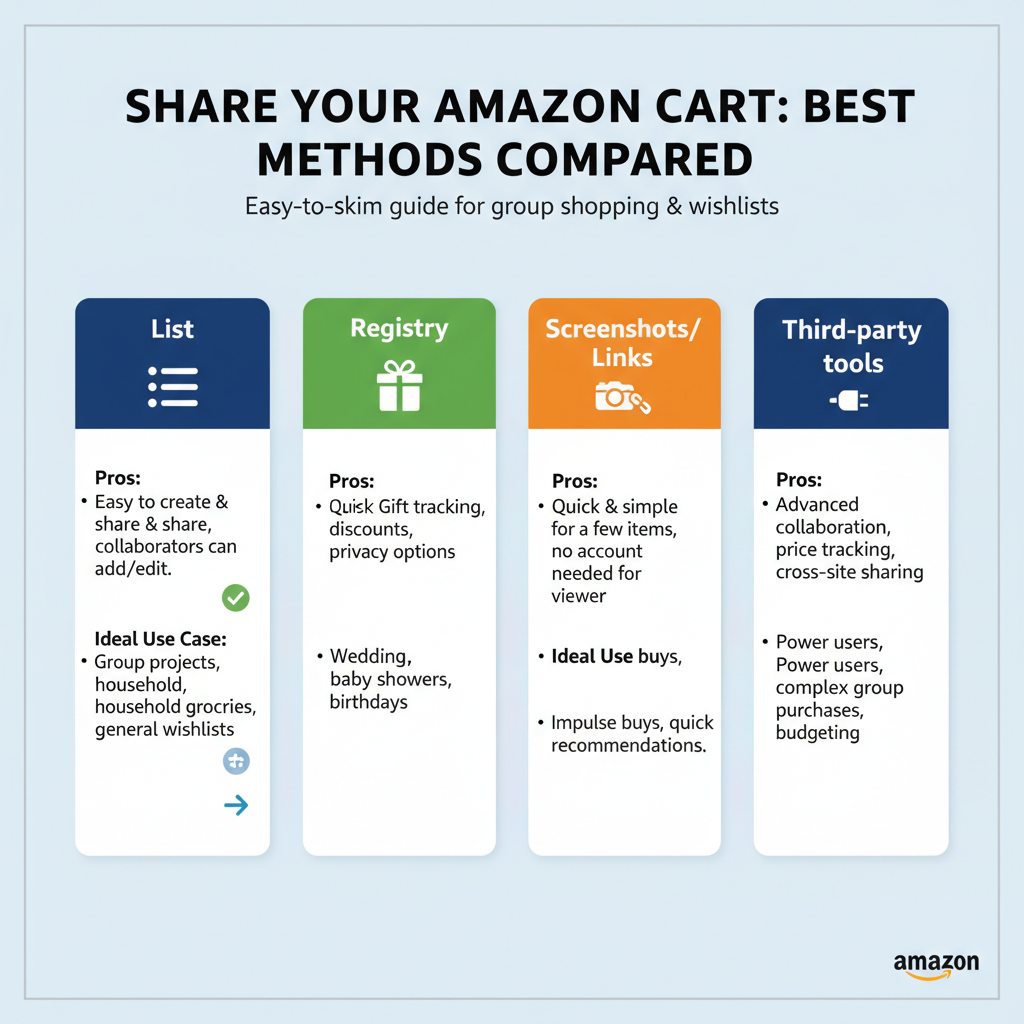
Quick comparison: best way to share an Amazon cart (by situation)
- Getting feedback from a friend: Create a List → Share with “view and edit.”
- Group gifting (wedding, baby, etc.): Use an Amazon registry.
- Fast & dirty share just for opinions: Send screenshots or copy-paste links.
- Techy shortcut for cart replication: Consider a third-party cart-sharing link (with caution).
Final thoughts: sharing your Amazon cart without losing your mind
So no, you’re not missing some magical “Share Cart” button—Amazon simply pushes you toward lists and registries instead of a true shared cart.
But once you know the system, you can:
- Turn your cart into a list in under a minute
- Share that list with anyone via link
- Let them add everything to their cart and check out
In other words: you still get the same outcome—just with a slightly different path.
Next time someone says, “Send me your Amazon cart,” you’ll know exactly what to do…
You’ll send them a link to your list—and secretly enjoy feeling like the organized one.
Leave a Reply