How To Share Your Amazon Cart
You spent 40 minutes curating the perfect Amazon cart…and now someone says, “Send me the link.”
Cue the confusion.
Because, as you’ve probably already discovered, Amazon doesn’t have a big obvious “Share Cart” button. But there are several easy ways to share what’s in your cart (or something very close to it) with a friend, partner, or coworker.
This guide walks through step‑by‑step methods to share your Amazon cart or its contents on desktop and mobile, plus some pro tips and workarounds.

Quick answer: Can you share your Amazon cart directly?
Let’s clear this up first.
No, Amazon doesn’t give you a simple, one-click “share your cart” link that lets someone else open your active cart with quantities, sizes, and all.
But you can easily share:
- A shopping list that mirrors your cart
- An idea list or registry (great for gifts or teams)
- Individual product links (fastest, but messier)
- A third‑party shared cart/quote tool (for advanced use)
Most people don’t care about the technical difference between cart vs list. They just want someone else to see the items, click, and buy. For that, sharing a list is the simplest, cleanest option.
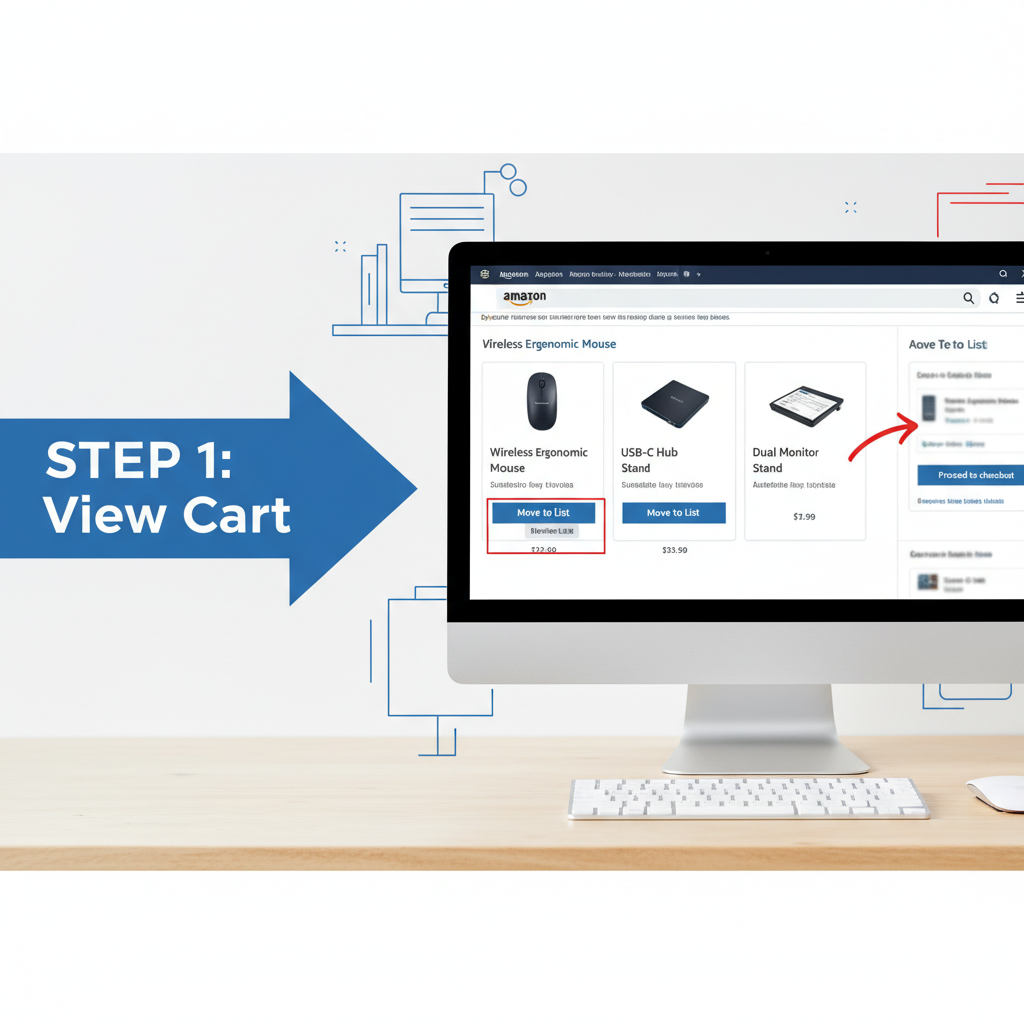
Method 1: Turn your cart into a shareable list (desktop)
If you mainly shop on a laptop or desktop, this is the most reliable way to share your cart contents.
Step‑by‑step
-
Open your cart
- Go to Amazon.com and make sure you’re signed in.
- Click the Cart icon in the top‑right corner.
-
Move cart items to a list
For each item you want to share:
- Under the item, click “Save for later” or look for a 3‑dot menu / “More” option.
- In many cases you’ll see “Move to List” → choose “Create a new list” (e.g., “My Office Setup,” “Nursery Items,” “Birthday Ideas,” etc.).
If you don’t see “Move to List” for an item, you can:
- Open the product page in a new tab.
- Click the “Add to List” button (usually near the Add to Cart button).
- Select the same list for each item.
-
Open your new list
- In the top right of any Amazon page, hover over “Accounts & Lists.”
- Click “Your Lists.”
- Choose the list you just created.
-
Make the list shareable
- On the list page, look for “Send list to others” or “Manage list” depending on your layout.
- Choose one of these share options:
- View only – people can see items and click to buy, but not edit.
- View and edit – collaborators can add/remove items.
-
Copy the share link
- Amazon will generate a URL you can copy.
- Send it via text, email, Slack, or wherever your people live.
How it works for the other person:
When they click your link, they’ll see a list of products with current prices and options. They can then add selected items to their cart and check out.

Method 2: Share your Amazon cart contents from the mobile app
The Amazon app doesn’t let you share the actual cart either, but you can still transform your picks into a shareable list or individual links.
Option A: Build and share a list from the app
- Open the Amazon app and sign in.
- Tap the person icon or menu icon (☰) → go to “Your Lists.”
- Tap “Create a List” and give it a clear name (e.g., “Dorm Room Setup,” “Kitchen Upgrade,” “Baby Registry‑ish”).
- Go back to your cart and, for each item:
- Tap the item to open its product page.
- Tap “Add to List” (you may need to tap the heart icon or 3 dots depending on your version).
- Choose the list you just created.
- When you’re done, return to Your Lists, open the list, and tap “Invite” or “Share”.
- Choose how you want to send the link: text, email, WhatsApp, etc.
Option B: Share individual product links quickly
If you only have a few items, this is faster than building a list:
- Open your cart in the Amazon app.
- Tap the item you want to share to open the product page.
- Tap the Share icon (often three connected dots or the standard share arrow).
- Choose your app (Messages, Mail, Slack, etc.) and send.
- Repeat for each product.
This doesn’t preserve the concept of “a single cart,” but for 3–5 items it’s often all you need.

Method 3: Use Amazon lists as collaborative carts
If you’re shopping with a partner, roommate, or team, lists can act like shared carts where multiple people add and edit items.
How to set up a collaborative list
- On desktop or mobile, create a new list (e.g., “New Apartment Stuff,” “Team Event Supplies”).
- Click or tap “Invite”, “Share”, or “Send list to others.”
- Choose “View and edit” so others can add items and adjust quantities.
- Share the invite link with the people you’re planning with.
Now everyone can:
- Add new items they find
- Comment (on some layouts) or at least discuss in your chat
- Move items to their own carts when they’re ready to buy
Example scenarios
- Couples moving in together – Both partners add furniture, decor, cleaning supplies to a shared list and decide what to actually buy this month vs next.
- Office managers or team leads – Colleagues drop in what they need (monitors, cables, snacks). You review the list, then add the final picks to your cart.
- Event planning – One list for decorations, another for supplies; share with co‑hosts to keep everything in one place.
Method 4: Share a screenshot of your Amazon cart (fast & dirty)
If you need feedback right now and don’t care about links being clickable, a quick screenshot works.
On desktop
- Open your cart.
- Use your system screenshot tool (e.g., Windows + Shift + S on Windows, Shift + Command + 4 on Mac) to capture the cart.
- Paste or save the image and send it via text, email, or chat.
On mobile
- Open the Amazon app and navigate to your cart.
- Take a screenshot (button combo depends on your phone).
- Send the image through your messaging app.
This method is best when you’re asking:
“Do these look good?”
“Am I missing anything?”
…rather than giving someone a ready‑to‑use buying list.
Method 5: Use third‑party “shared cart” tools (advanced)
There are browser extensions and websites that claim to turn your Amazon cart into a shareable link where others can see everything and sometimes even import it to their own carts.
Important notes before using them:
- Security: Never grant full access to your Amazon login or payment details. Reputable tools should work through browser data (your cart contents) without needing your password.
- Accuracy: If product availability, price, or variations (size, color) change, the shared cart may not stay perfectly in sync.
- Trust: Always read recent reviews and privacy policies before installing any extension or logging into a third‑party site.
For most casual users (friends, family, household shopping), Amazon’s own lists are safer and more than enough.
How to share your Amazon cart for specific situations
Let’s match methods to common real‑world scenarios.
1. “Can you check my cart before I buy this?”
Best options:
- Screenshot of your cart → quick opinion.
- List link labeled clearly (e.g., “Home office setup – review?”).
What to do:
- If they just need a vibe check, send a screenshot.
- If they might want to buy the same items later, invest 2–3 minutes to turn it into a list and share the link.
2. Shared household or roommate shopping
Best option: A collaborative list.
- Create a list called “Household Essentials” or “Roommate Supplies.”
- Invite everyone with view & edit access.
- Each month, one person checks out items from that list into their cart.
This keeps everyone aligned and reduces, “Wait, I already bought paper towels!” moments.
3. Gift ideas or wish lists
Best option: Public list or registry.
- Create a list named “Birthday Wishlist,” “Holiday Gifts,” etc.
- Mark it as shareable/public.
- Send the link to family or friends.
They can see what you want, choose what to buy, and avoid duplicates.
4. Team purchasing (office gear, equipment, swag)
Best option: Curated lists + spreadsheet or approvals.
- Create separate lists: “Monitors,” “Cables & Accessories,” “Office Snacks,” etc.
- Share lists with team leads for feedback.
- Once finalized, add agreed items from the list into your cart and check out.
Common questions about sharing your Amazon cart
Can someone else see my address or payment info when I share?
No. When you share a list or a product link, the other person only sees:
- The items
- Pricing and availability on their account
- Product details and reviews
Your shipping address, order history, and payment methods stay private.
Can another person edit my cart directly?
Not really. They can’t log in and change the contents of your active cart unless you:
- Share your login (not recommended), or
- Are both using the same Amazon account on a shared device.
For most people, the safer setup is:
- Use lists for collaboration.
- Each person adds items from shared lists into their own cart.
Do shared lists update automatically?
Yes. When you:
- Add or remove items, or
- Change quantities
…the next time someone opens your shared list link, they’ll see the updated version.
If a product goes out of stock or changes price, Amazon will show that status when they view the list or try to add it to their cart.
Simple checklist: best ways to share your Amazon cart
If you remember nothing else, use this quick guide:
- Want feedback fast?
→ Take a screenshot of your cart and send it. - Want someone to buy the same things later?
→ Create a list, move/add all cart items into it, and share the list link. - Shopping together (roommates, couples, teams)?
→ Use a collaborative list with view & edit access. - Only 1–3 items?
→ Just share individual product links from the product pages. - Need full “cart import” magic?
→ Consider a trusted third‑party shared cart tool, but weigh the security trade‑offs.
In short: Amazon doesn’t hand you a neat “share cart” button, but with lists, links, and the occasional screenshot, you can get all the benefits of sharing your Amazon cart—without leaking any private info or losing your mind.
Next time someone says, “Hey, send me your Amazon cart,” you’ll know exactly what to do—and probably do it faster than they can find their Prime password.
Leave a Reply