How To Switch Your Paramount+ Plan On Amazon
If you’ve ever tried to change a streaming plan inside Amazon and thought, “Why is this so confusing for something that costs less than my coffee habit?” — you’re not alone.
Paramount+ on Amazon is convenient… until you try to switch your plan.
Do you go to Amazon? Paramount+? Your TV? Sacrifice a remote to the streaming gods?
Let’s untangle it.
This guide walks you through how to switch your Paramount+ plan on Amazon step-by-step, explains the gotchas (like free trials and pro-rated charges), and clears up when you can’t change a plan and have to cancel + resubscribe instead.

First, how is Paramount+ billed through Amazon?
When you subscribe to Paramount+ through Prime Video Channels, your subscription is actually managed and billed by Amazon, not Paramount+ directly.
- You pay for Paramount+ on your Amazon account.
- Changes to your plan usually happen via Amazon’s “Memberships & Subscriptions” or the Prime Video Channels page.
- Paramount+ support will often tell you, politely: “You’ll need to manage that through Amazon.”
Quick takeaway: If you originally signed up for Paramount+ as an Amazon Channel, Amazon is the boss of your billing and plan changes.
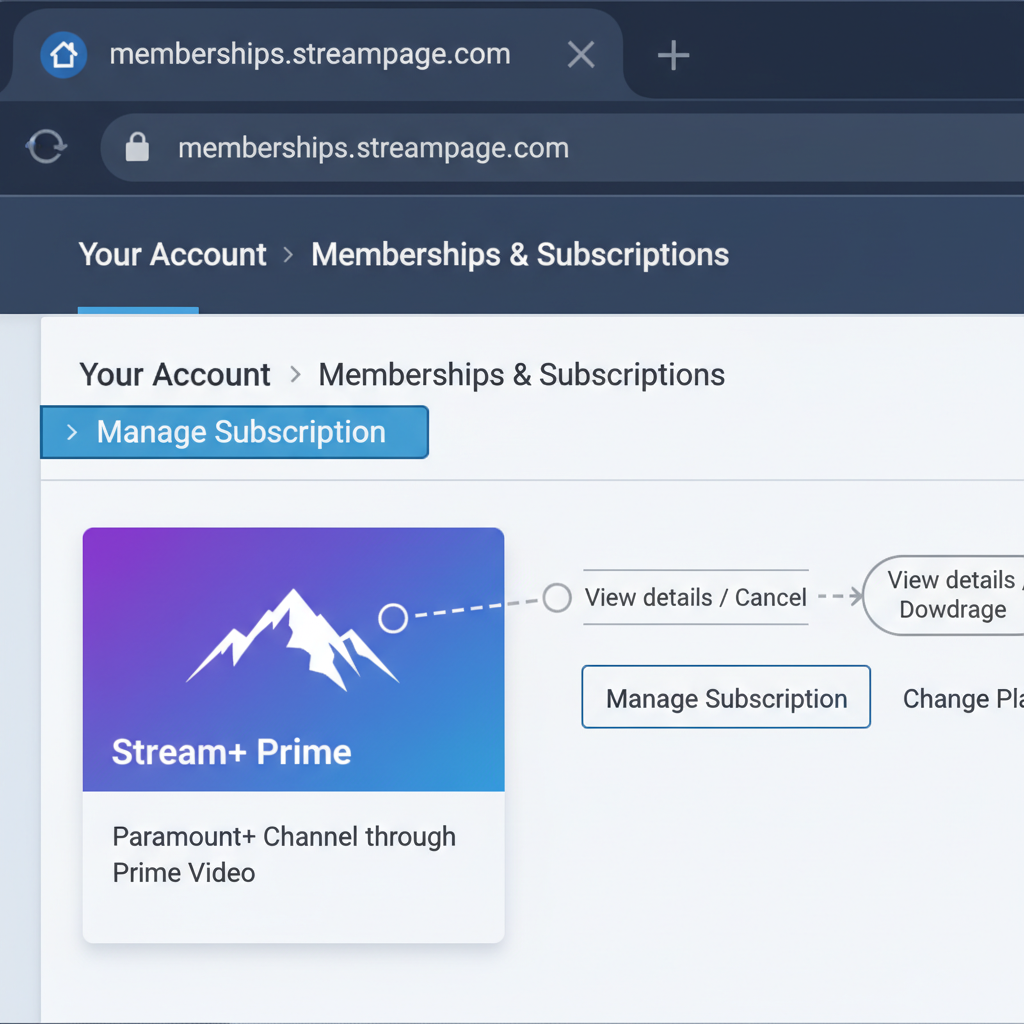
Can you switch your Paramount+ plan directly on Amazon?
Short answer: Sometimes yes… sometimes no. It depends on what you’re trying to switch.
There are a few common scenarios:
- Switching between Paramount+ tiers (e.g., Essential vs. with SHOWTIME)
- Changing billing frequency (monthly vs. annual)
- Upgrading vs. downgrading
- Moving off Amazon billing to pay Paramount+ directly
Let’s walk through each one.
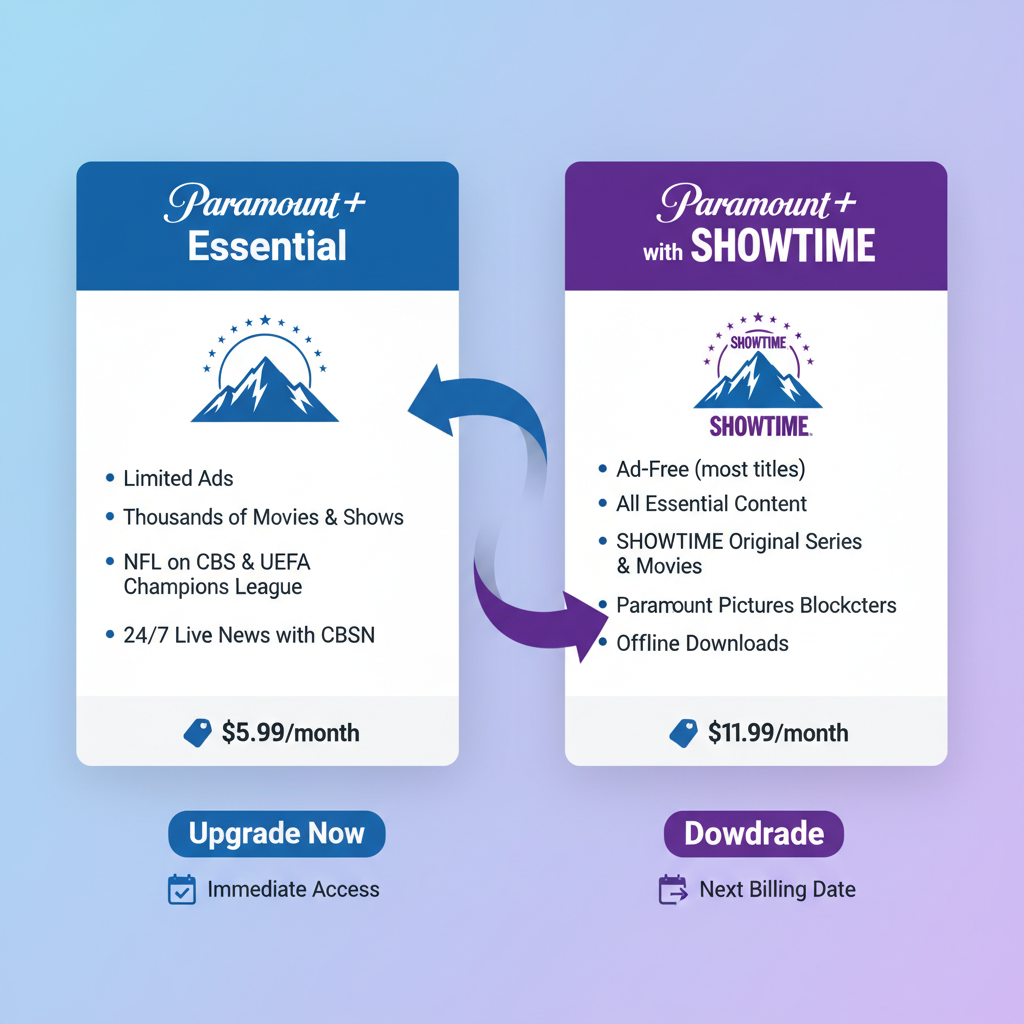
Scenario 1: Switch Paramount+ plan (Essential ↔ with SHOWTIME) on Amazon
If you’re subscribed through Prime Video Channels and want to:
- Upgrade from Paramount+ Essential to Paramount+ with SHOWTIME, or
- Downgrade from with SHOWTIME back to Essential (if offered in your region via Channels)
…here’s what typically works.
Step-by-step: Try switching via Amazon on desktop
- Go to Amazon.com and sign in.
- Hover over Account & Lists and click Memberships & Subscriptions.
- Look for Paramount+ under Prime Video Channels (or just Channels).
- Click Manage Subscription or Manage Your Prime Video Channels.
-
Check if there’s an option like:
- Change plan
- Upgrade or Learn more about a higher tier
- A link that shows different Paramount+ options
- If present, choose your new Paramount+ plan (e.g., Paramount+ with SHOWTIME) and confirm.
You’ll usually see:
- New monthly price listed
- When the change takes effect (often immediately or on your next billing date, depending on Amazon’s setup)
If you don’t see any plan-change buttons, skip down to the “When Amazon won’t let you switch plans” section below.
Quick takeaway: If Amazon shows a Change Plan or Upgrade option under your Paramount+ Channel, you can switch there in a few clicks.
Scenario 2: Change monthly vs. annual billing
Want to save a few bucks by switching from monthly to annual billing, or vice versa?
Here’s what to try:
- Go to Amazon → Account & Lists → Memberships & Subscriptions.
- Find Paramount+ in the list.
- Click Manage Subscription.
-
Check for Plan details or a dropdown that shows:
- Monthly
- Annual
- Choose your preferred billing frequency, then confirm.
If no annual option appears:
- It might not be available on Amazon Channels for your location or current tier.
- In that case, your only way to get annual pricing may be to cancel on Amazon and resubscribe directly through Paramount+ (on their website or app), if they’re offering an annual plan there.
Quick takeaway: Amazon sometimes lets you switch monthly ↔ annual from the same Manage Subscription screen—if the option exists for your particular plan.
Scenario 3: Upgrading vs. downgrading — what actually happens to your billing?
When you switch plans, there are usually two different billing behaviors:
Upgrading your Paramount+ plan on Amazon (e.g., Essential → with SHOWTIME)
- Amazon may charge you the difference and switch you almost immediately.
- Or it may start the new plan on your next renewal date and note this on-screen before you confirm.
Check the confirmation page carefully — it typically says:
- New price
- Next billing date
- Whether the change is effective immediately or later
Downgrading your Paramount+ plan (e.g., with SHOWTIME → Essential)
Downgrades often:
- Stay on the current higher tier until your current billing period ends.
- Then switch you to the lower-cost plan on your next renewal date.
If you were on a free trial, switching mid-trial may:
- End the trial
- Or adjust your upcoming charges
Again: always read the confirmation text on Amazon before clicking.
Quick takeaway: Upgrades might apply right away; downgrades often kick in at the next billing date. Amazon should tell you which it is before you confirm.
Scenario 4: Want to stop using Amazon for Paramount+ billing?
Some people want more flexibility (or better promos) by paying Paramount+ directly instead of through Amazon Channels.
Reality check: there’s no magic “transfer” button.
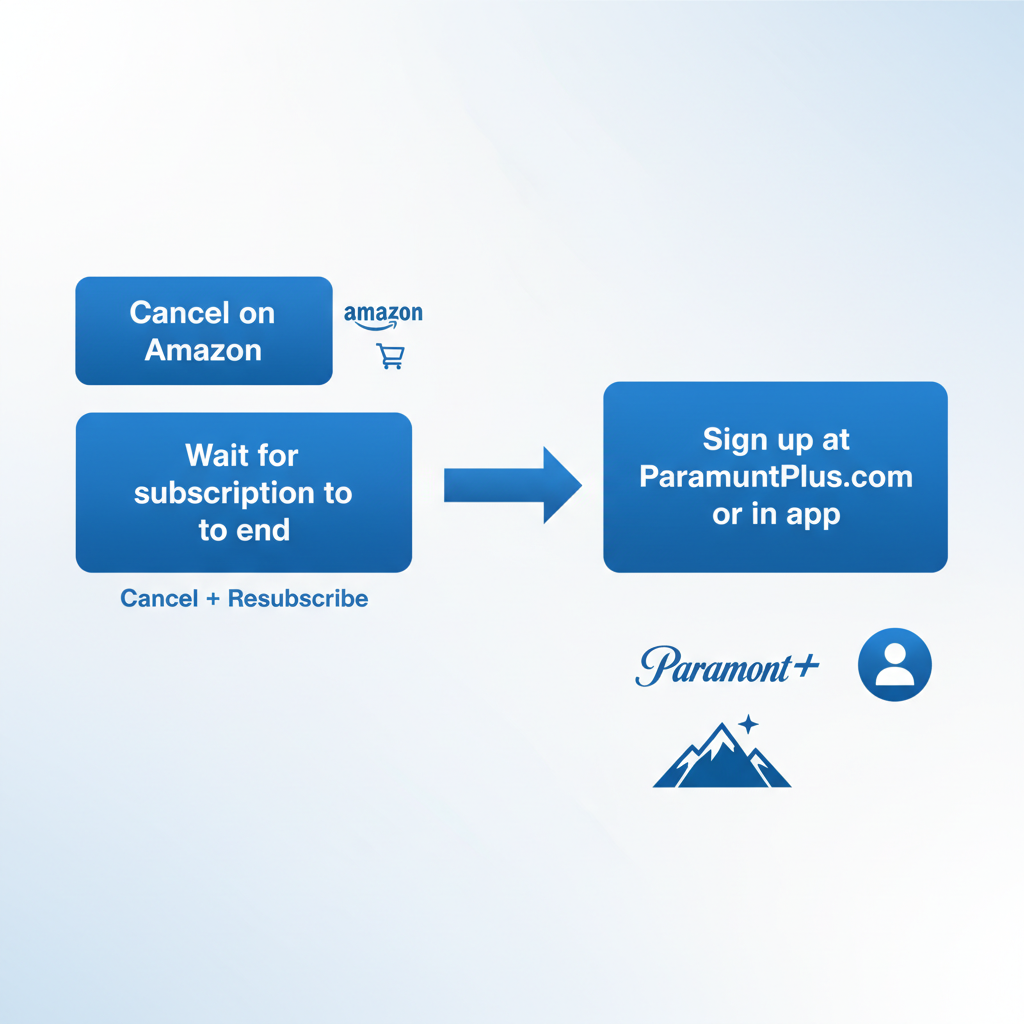
You typically have to:
- Cancel Paramount+ on Amazon (let it run until the end of the paid period, or cancel renewal immediately).
- After it expires, go to ParamountPlus.com or the Paramount+ app.
- Sign up directly with the plan you want (Essential or with SHOWTIME, monthly or annual).
Good news: your watch history and profiles may still be tied to your Paramount+ account, not Amazon, if you were using the same email — but that’s not guaranteed in every setup. Be prepared to set things up again.
Quick takeaway: Moving from Amazon billing to direct Paramount+ billing is basically a cancel + resubscribe situation, not a seamless switch.
When Amazon won’t let you switch plans (and what to do)
Sometimes you do everything “right” and still don’t see a Change Plan option for Paramount+.
Common reasons:
- Your current Paramount+ package isn’t upgradable/downgradable within Channels.
- Amazon only offers one flat version of Paramount+ in your region.
- You’re on a legacy plan or promo that doesn’t support modifications.
- There are technical limitations on mixing Paramount+ + SHOWTIME tiers under Amazon billing.
If that’s you, here are your options:
Option A: Cancel and resubscribe through Amazon with a different plan
- Go to Memberships & Subscriptions.
- Find Paramount+.
- Click Cancel Channel or Cancel Subscription.
- Confirm cancellation (note when service ends — usually the end of your paid period).
- After it expires, go back to Prime Video → Channels.
- Search Paramount+.
- Choose the new plan/tier if multiple options appear (e.g., Paramount+ with SHOWTIME).
Option B: Cancel on Amazon and subscribe directly through Paramount+
If Amazon doesn’t offer the plan you want (for example, you want an annual Paramount+ with SHOWTIME combo and only see monthly on Amazon):
- Cancel Paramount+ on Amazon as above.
- Wait for access to end.
- Go to ParamountPlus.com or open the Paramount+ app.
- Create or sign into your account.
- Pick the plan you actually want (tier + billing frequency).
Quick takeaway: No plan-change option showing? You’re in cancel-and-resubscribe territory.
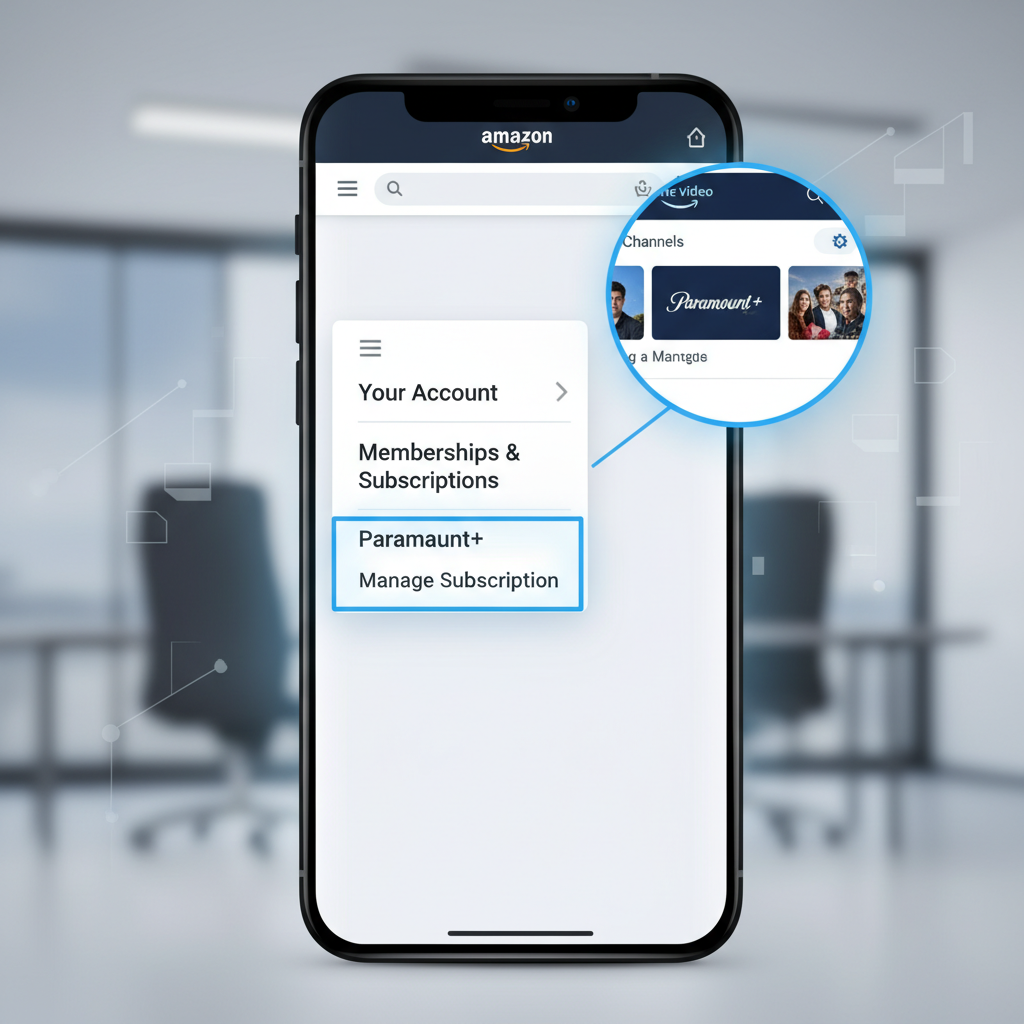
How to switch Paramount+ plan on Amazon from your phone
If you’re mostly on mobile, you can still handle this without jumping to a laptop.
Using a mobile browser (recommended)
- Open Safari or Chrome on your phone.
- Go to Amazon.com and sign in.
- Open the menu (☰) and tap Your Account.
- Look for Memberships & Subscriptions.
- Find Paramount+ under subscriptions.
- Tap Manage Subscription.
- If available, tap Change plan, Upgrade, or similar and follow the prompts.
Using the Prime Video app (sometimes works)
- Open Prime Video.
- Go to My Stuff → Purchases & Rentals or Channels.
- Tap Channels and find Paramount+.
- Tap Manage or a settings icon.
- If a web page opens in-app, follow the same steps you’d see on desktop.
If you get bounced back and forth with no settings option, you’ll usually need to open Amazon in a browser with the desktop site enabled and manage it there.
Quick takeaway: You can do this on mobile, but a browser (with Amazon’s desktop site) gives you the most complete controls.
FAQs about switching your Paramount+ plan on Amazon
Will I lose my watch history or profiles if I change plans on Amazon?
Generally, no — switching tiers within the same billing setup (Amazon Channels → Amazon Channels) usually keeps your basic account data. But if you move from Amazon billing to direct Paramount+ billing, you might be treated like a new subscriber in some cases.
Best practice: use the same email address on Paramount+ and Amazon where possible, and don’t be shocked if you have to rebuild a few watchlists.
Will I be charged twice if I cancel then resubscribe?
If you:
- Cancel Paramount+ on Amazon but don’t wait for the current billing period to end before subscribing somewhere else, you may have overlap (paying Amazon and Paramount+ at the same time).
To avoid that, either:
- Wait for your current period to fully expire, or
- Intentionally accept a short overlap if you can’t tolerate any service downtime.
Can I keep my Amazon free trial if I switch plans?
Changing plans during a free trial may:
- End the trial early, or
- Change your upcoming charges or renewal date.
Amazon usually shows a clear message like:
“Your free trial will end today and you will be charged…”
Quick takeaway: Mid-trial changes can mess with your free days. Don’t click through blindly.
Quick checklist: Paramount+ plan switch on Amazon
Here’s a fast recap you can save:
-
Figure out who bills you.
If you subscribed as a Prime Video Channel, Amazon controls your plan. -
Try to change the plan first.
Amazon → Account & Lists → Memberships & Subscriptions → Paramount+ → Manage Subscription → look for Change Plan/Upgrade. -
If no plan-change option exists:
Decide if you want to stay with Amazon billing or move to Paramount+ directly. Cancel on Amazon, then resubscribe with the plan you want in your chosen place. -
Watch the billing messages.
Note if changes apply immediately or at next renewal. Be careful with free trials and double-charging overlap. -
If things look wrong, contact support.
Use Amazon support for billing/plan issues. Use Paramount+ support for streaming/content/account access issues.
If you tell me:
- Which device you’re on (Fire TV, Roku, iPhone, web browser, etc.) and
- Whether you want to upgrade, downgrade, or move off Amazon entirely,
I can give you an even more specific, click-by-click walkthrough tailored to your exact setup.
Leave a Reply