Understanding Amazon Digital Services Charges
If you’ve ever opened your bank statement, seen a mysterious line that says “AMAZON DIGITAL SERVICES” and immediately thought, “Okay, which subscription did I accidentally sign up for this time?” — you’re not alone.
Let’s break down what Amazon Digital Services charges are, how to figure out exactly where they came from, and what to do if you didn’t approve them.

What Is an Amazon Digital Services Charge?
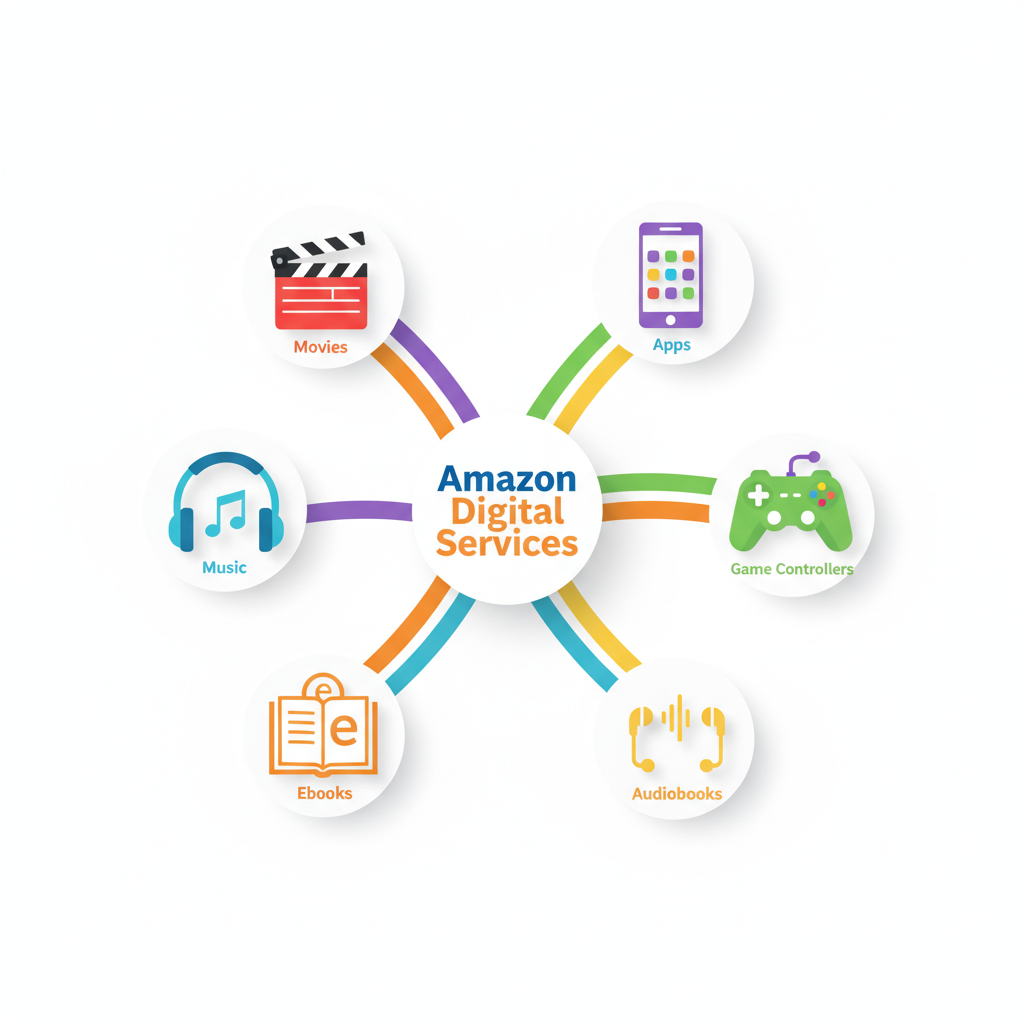
In plain English: “Amazon Digital Services” is a catch‑all label Amazon uses for many of its digital products and subscriptions, not physical items.
These charges might appear on your bank or credit card statement as:
- AMAZON DIGITAL SVCS
- AMZN DIGITAL
- AMZN DIGITAL*<something>
- AMAZON.COM BILLING AGREEMENT
They’re usually tied to things like:
- Streaming services (Prime Video channels, MGM+, Paramount+, etc.)
- Kindle eBooks and digital magazines
- Audible credits or subscriptions
- Amazon Music Unlimited
- Apps, games, or in‑app purchases via Amazon
- Kindle Unlimited or other reading subscriptions
Takeaway: If it’s digital — movies, books, music, or app content — it may show up as an Amazon Digital Services charge.
Common Types of Amazon Digital Services Charges
Here’s a breakdown of the most common things that trigger these charges.
1. Kindle eBooks and Digital Reading
If you or someone on your account bought:
- A Kindle eBook
- A digital comic or manga
- A digital magazine or newspaper subscription
…it will usually be billed as a digital services charge.
Pro tip: One‑time book purchases are usually a single charge. Subscriptions (like a monthly magazine) repeat on a schedule.
2. Kindle Unlimited or Other Reading Subscriptions
Kindle Unlimited is a subscription service that gives you access to a large catalog of eBooks and audiobooks for a monthly fee. That recurring fee often appears as Amazon Digital Services rather than “Kindle Unlimited” on some bank statements.
Same goes for:
- Some magazine subscriptions
- Certain specialty reading services through Amazon
Takeaway: If the charge repeats on the same date each month and you read on a Kindle or the Kindle app, Kindle Unlimited is a prime suspect.
3. Amazon Prime Video & Add‑On Channels
Even if you already pay for Amazon Prime, you can still get extra digital charges for things like:
- Prime Video channel add‑ons (Starz, MGM+, Paramount+, Discovery+, etc.)
- Individual movie rentals or purchases
- TV season passes or single episodes
These often show as Amazon Digital Services or AMZN Digital.
Red flag pattern: Multiple small charges around the same time? Could be a mix of rentals and purchases.
4. Amazon Music Subscriptions
If you subscribe to:
- Amazon Music Unlimited (individual, family, or student plan)
- Amazon Music add‑ons in certain regions
…those may also appear under the Amazon Digital label on your statement.
Clue: If you use Alexa or an Echo device to play music, it’s worth double‑checking if a free trial turned into a paid plan.
5. Audible Memberships and Credits
Even though Audible has its own branding, it’s owned by Amazon. Audible charges for:
- Monthly membership
- Extra credit packs
- Standalone audiobook purchases
…can sometimes look like Amazon Digital Services, especially if they’re tied to your Amazon login.
If you see a monthly charge in the $7–$25 range and you listen to audiobooks at all, Audible is a likely candidate.
6. Apps, Games, and In‑App Purchases
If you have:
- A Fire tablet
- A Fire TV device
- An Android phone or tablet with the Amazon Appstore
- Kids using Amazon devices or profiles
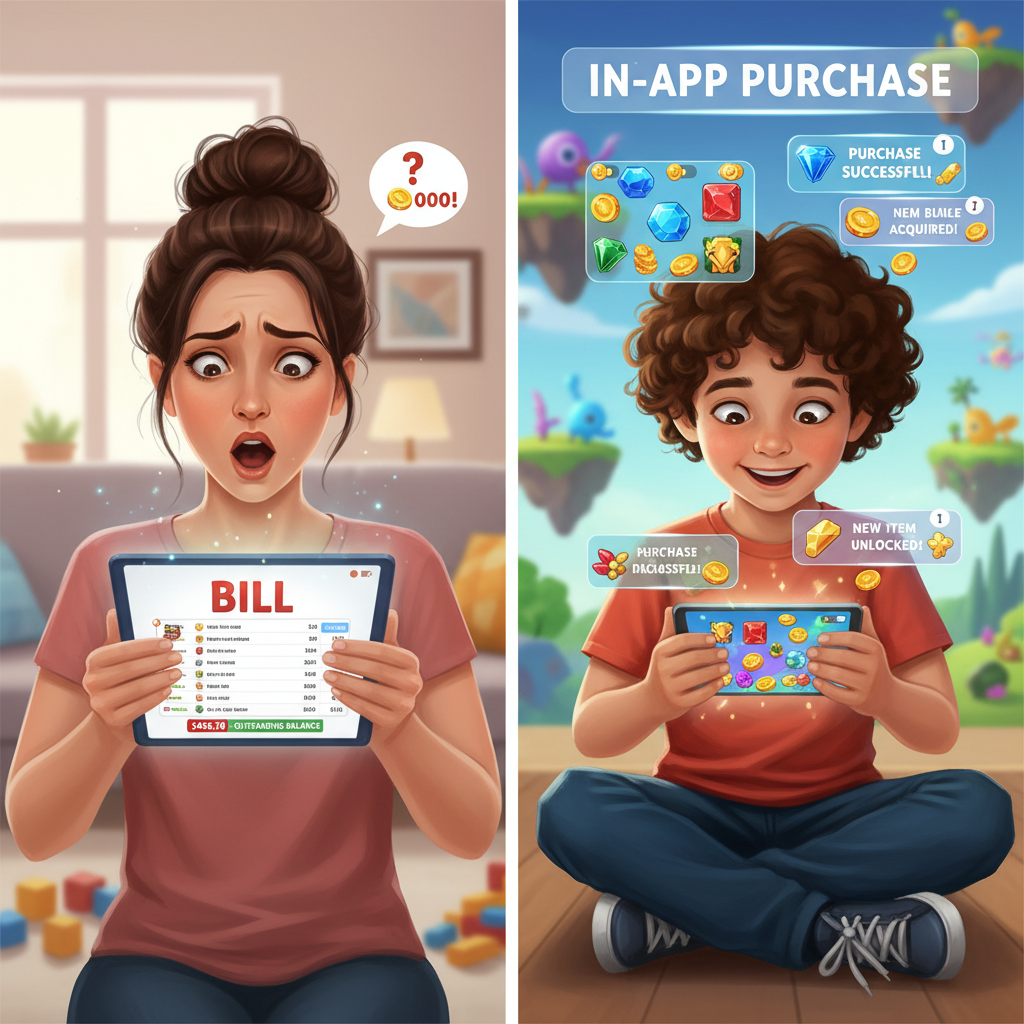
…then apps, games, and in‑app purchases (gems, coins, credits, subscription upgrades) may appear as Amazon Digital Services.
This is a big one for parents — kids accidentally (or very intentionally) tapping “Buy” inside games.
Takeaway: If you have children, or shared devices, never rule out surprise game purchases.
How to See Exactly What the Charge Is For
Instead of guessing, you can usually identify the exact source in a few minutes.
Step 1: Log In to Your Amazon Account
- Go to Your Orders (on desktop or in the app).
- Use the filters at the top and switch to Digital Orders or Digital Content and Devices.
- Look for orders on the same date and amount as the mystery charge.
If it’s a rental, app, eBook, or video purchase, it should appear here.
Step 2: Check Your Subscriptions & Memberships
You might not see subscriptions in the regular orders list. Instead, check:
- Your Memberships & Subscriptions in your Amazon account
- Prime Video Channels (under Prime Video → Settings → Channels)
- Manage Your Content and Devices for Kindle stuff
- Digital Services and Device Support pages if linked from your account
Look for anything:
- With a monthly or yearly renewal date
- With a price that matches (or is close to) the mystery amount
Step 3: Check Other Accounts You Control
Here’s the sneaky part: the charge might not be on your login, but still tied to your card.
Consider:
- Household/Family accounts (Amazon Household)
- Kids’ profiles on Fire tablets or Fire TV
- A partner or roommate who has your card saved
If multiple people use Amazon with your payment method, ask if anyone recently:
- Rented a movie
- Subscribed to a channel
- Bought books or game currency
Takeaway: One card can be connected to several Amazon logins or profiles.
How to Dispute or Cancel an Amazon Digital Services Charge
If you figure out what the charge is and you don’t want it, here’s what to do.
1. Cancel the Underlying Subscription
Once you’ve identified the culprit (Kindle Unlimited, a Prime Video channel, Amazon Music, etc.):
- Go to Memberships & Subscriptions in your Amazon account.
- Select the service.
- Click Cancel, End Membership, or Turn Off Auto‑Renew.
Amazon usually:
- Lets you finish the current paid period (you keep access until the next billing date), or
- In some cases, offers a partial or full refund if the subscription was just renewed and unused.
2. Request a Refund (When It Makes Sense)
Amazon is often pretty good about digital refunds — especially if:
- It’s a recent accidental purchase (like a single movie rental or book)
- You haven’t used or downloaded the item yet
- It’s the first time this has happened
To request a refund:
- Go to Your Orders → Digital Orders.
- Find the item.
- Click Return for Refund or Problem with order (wording may vary).
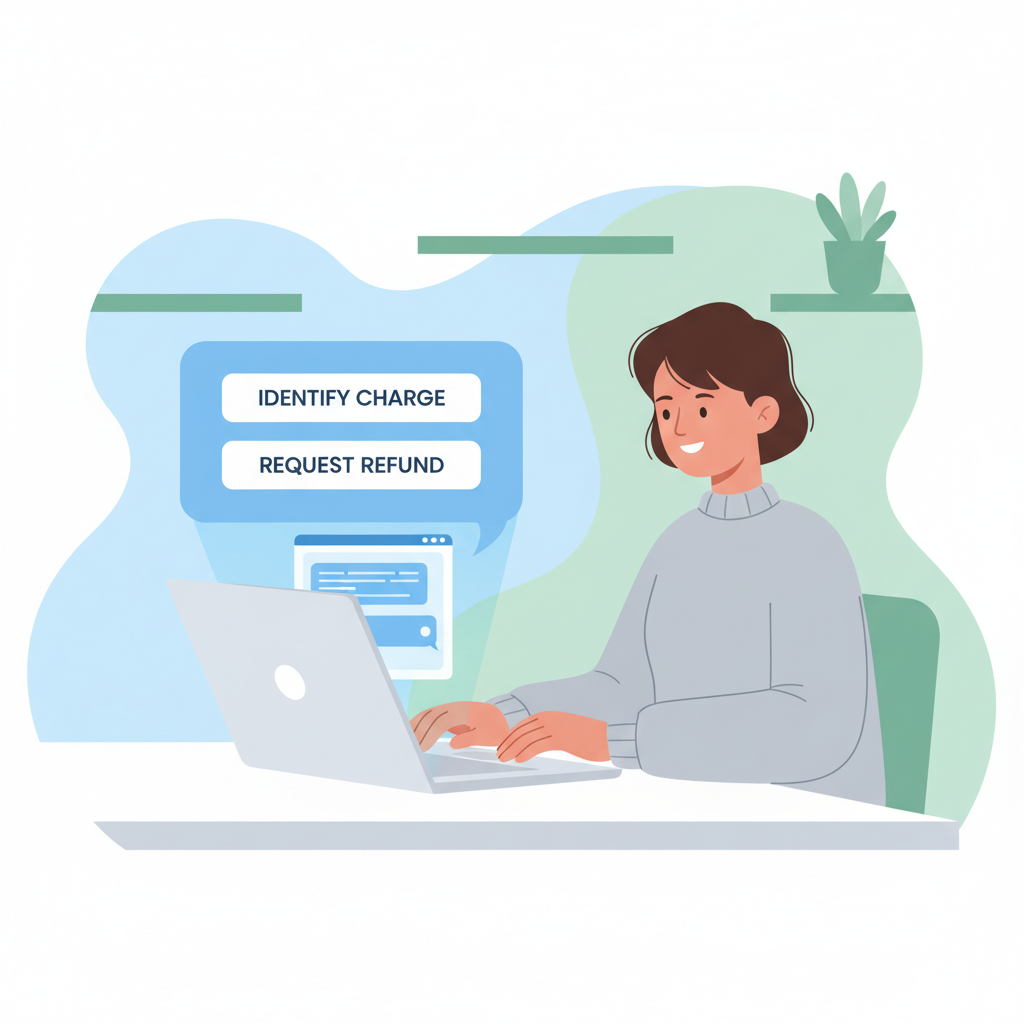
- Follow the prompts and explain briefly: e.g., “Accidental purchase by child,” or “Unauthorized subscription renewal.”
For subscriptions or channels, you may need to:
- Use the Help/Customer Service section and start a chat or phone call.
Honest note: Refunds for ongoing subscriptions are not guaranteed, but Amazon support is often reasonable, especially if you catch it quickly.
3. If You Truly Don’t Recognize the Charge
If you can’t match the charge to any order or subscription after checking all accounts:
-
Contact Amazon Customer Support directly:
- Use Chat or Phone in the Help section of your account.
- Provide the date, amount, and last 4 digits of the card.
-
Ask them to:
- Identify what the charge is for
- Confirm which Amazon account it’s tied to
- Cancel any related subscriptions
If Amazon cannot find anything on their side, or if they confirm it looks suspicious:
-
Call your bank or card issuer:
- Report the charge as unauthorized.
- Ask them to block further charges from that merchant if needed.
- Request a new card number if you suspect your card is compromised.
Takeaway: Always start with Amazon; if that fails, escalate to your bank.
How to Prevent Surprise Amazon Digital Services Charges
You can tighten things up so this doesn’t keep happening.
1. Turn On Purchase Restrictions (Especially for Kids)
On Fire tablets, Fire TV, and some apps you can:
- Require a PIN for purchases
- Disable 1‑Click purchases
- Turn off in‑app purchases entirely in kids’ profiles
This dramatically cuts down on accidental game purchases or surprise rentals.
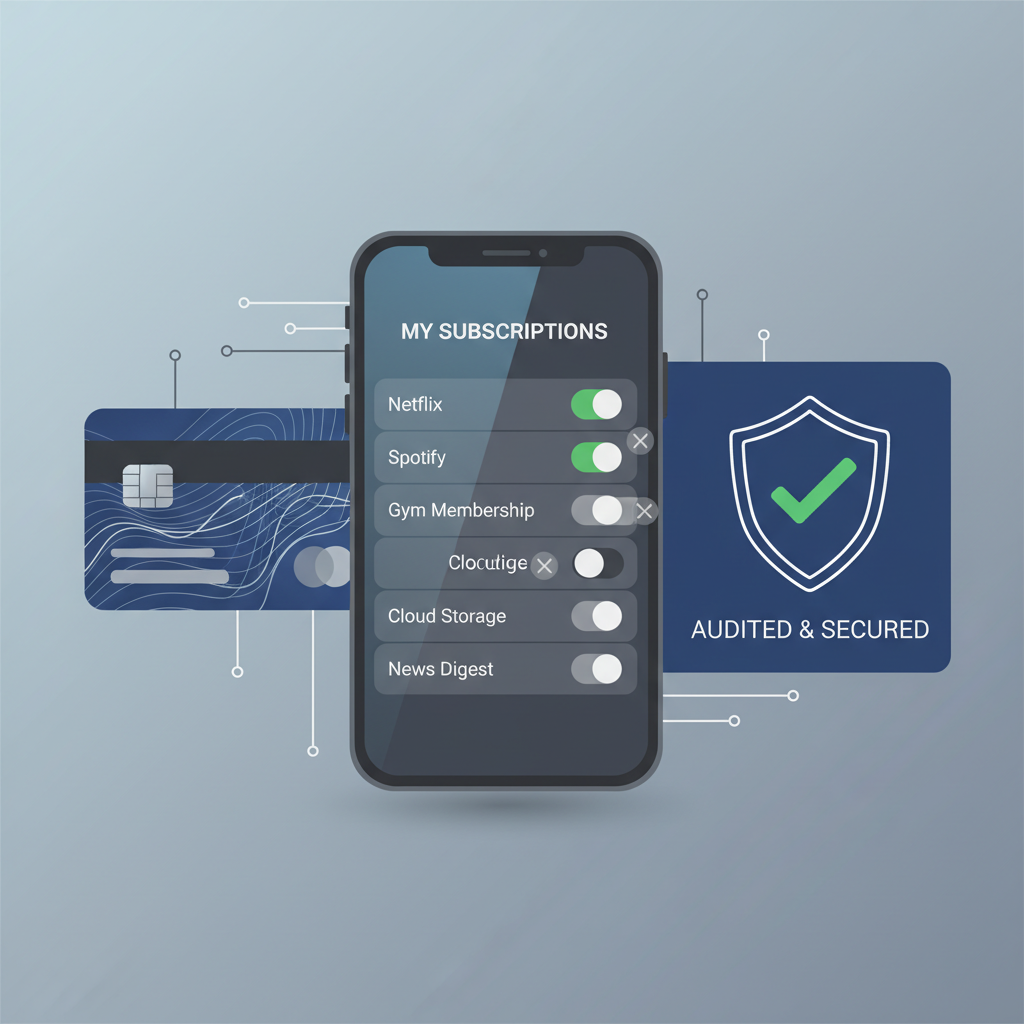
2. Audit Your Subscriptions Every Few Months
It’s easy to forget you signed up for:
- A free trial during a holiday promo
- A channel to watch one specific show
- A reading or music plan you “would totally use”
Every quarter or so:
- Open Memberships & Subscriptions in your Amazon account.
- Sort by Active.
- Ask yourself honestly: “Do I still use this?”
- Cancel the ones that don’t pass the test.
Your future bank statement will thank you.
3. Use Separate Cards or Virtual Cards (Advanced Move)
If you want maximum control:
- Use a separate card just for subscriptions.
- Or use virtual card numbers (offered by some banks and card providers) so you can:
- Put spending limits on them
- Quickly kill a single merchant’s access without changing your main card
This way, if a subscription you forgot about keeps billing you, it won’t hit your main account.
Quick FAQ About Amazon Digital Services Charges
1. Is Amazon Digital Services the same as Amazon Prime?
Not exactly. Prime is a broader membership (shipping, video, etc.). Some add‑ons and digital extras under your Prime account might show up as “Amazon Digital Services,” but your main Prime charge is usually labeled more clearly.
2. Why do I see multiple Amazon Digital charges in one day?
That can happen if several small digital items were purchased separately: multiple rentals, kids buying in‑game items, or multiple book purchases.
3. Can someone use my card on their Amazon account without me knowing?
If they have your card details, yes. That’s why, if Amazon can’t match the charge to your account, you should talk to your bank.
4. Are all Amazon Digital Services charges recurring?
No. Some are one‑time purchases (like a single audiobook or a movie rental), others are subscriptions (like Kindle Unlimited, channels, or music).
Final Takeaway: Don’t Ignore the Line Item
If you see an Amazon Digital Services charge:
- Check your Amazon orders (especially Digital Orders).
- Review your subscriptions for active digital services.
- Ask household members if they bought something.
- Cancel or request refunds where appropriate.
- Contact Amazon, then your bank if you can’t identify it.
Mystery charges are annoying, but once you know that “Amazon Digital Services” is basically Amazon’s bucket for all things streamed, downloaded, or subscribed, it gets a lot easier to track down what’s going on — and stop paying for things you don’t actually use.
Leave a Reply