Understanding Amazon Digital Services Charges
Why Amazon is charging you for “Digital Services” — and how to stop it.
Why Is Amazon Charging Me for “Digital Services”? (And How to Stop It)
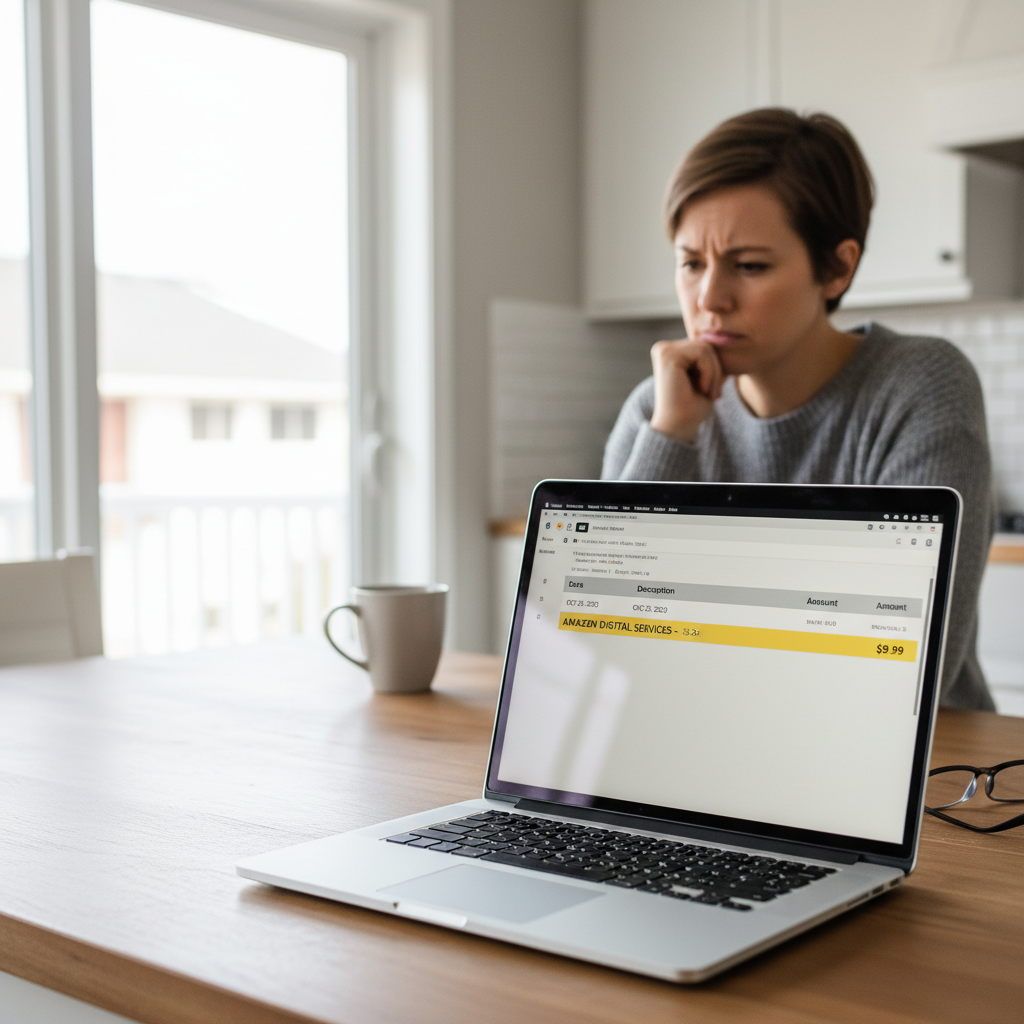
You’re scanning your bank statement, minding your business, when you see it:
AMAZON DIGITAL SERVICES – $9.99
Cue the confusion. Is this Prime? Kindle? Some mysterious subscription for something you swear you didn’t buy?
Let’s untangle what “digital services Amazon charge” actually means, which charges are legit, which ones might be mistakes, and how to cancel or get your money back.
What Is an Amazon Digital Services Charge?
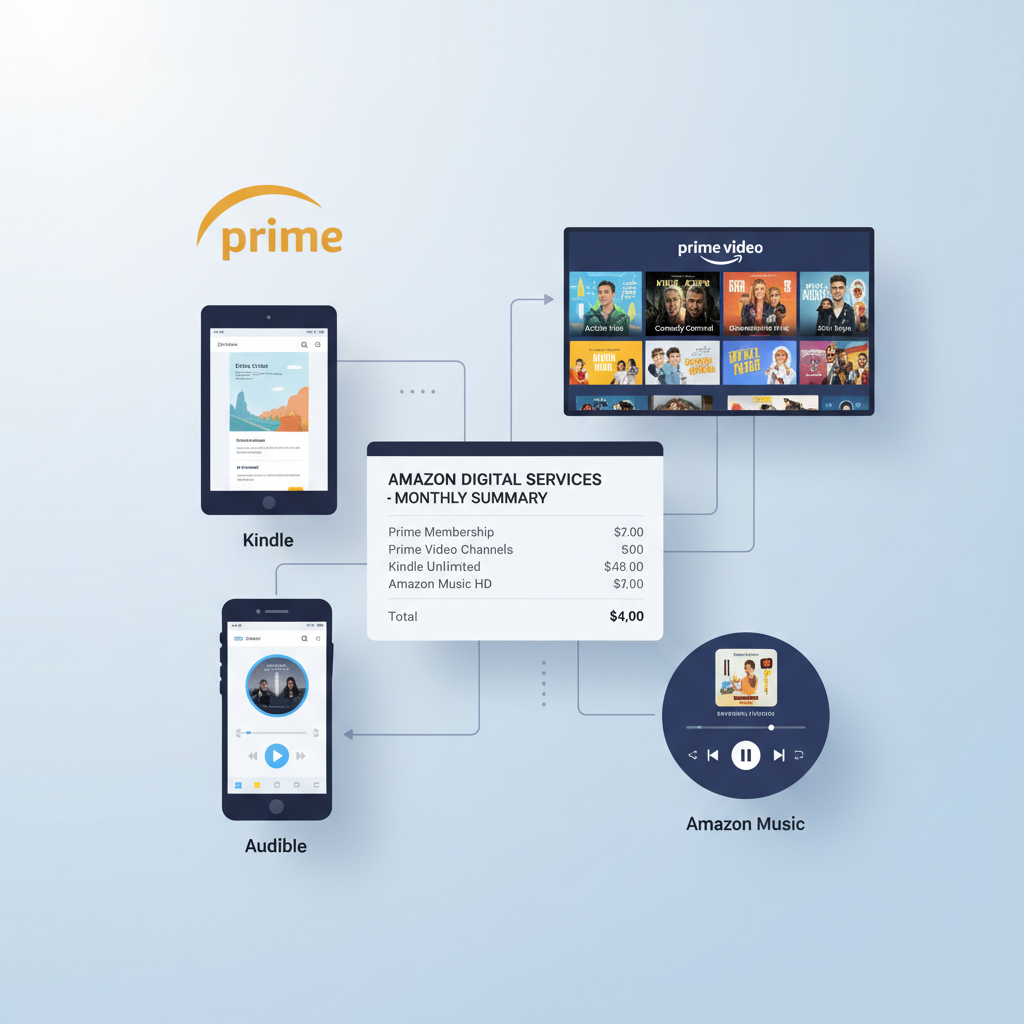
“Amazon Digital Services” (or variations like Amazon Digital Svcs, Amazon Digital Services LLC, or AMZN Digital) is how Amazon labels charges for non-physical products on your card or bank statement.
These are usually:
- Subscriptions
- Digital content (movies, books, music, apps)
- In-app purchases via Amazon
If you didn’t get a package on your doorstep, but you did get charged, it’s probably a digital service.
Quick takeaway: If you see Amazon Digital Services on your statement, you paid for something online from Amazon that isn’t a physical product.

Common Types of Amazon Digital Services (What You Might Be Paying For)
Here’s a breakdown of the most common Amazon digital services that show up as charges.
1. Amazon Prime & Related Add‑Ons
a) Amazon Prime Membership
Your regular Prime subscription (monthly or annual) can sometimes show as a digital services charge, especially if processed through Amazon’s digital billing arm.
Typical amounts in the U.S. (as of 2025–2026):
- Monthly: around $14.99
- Annual: around $139
If the number looks close to those, that might be your Prime renewal.
b) Prime Video Channels
These are add‑on subscriptions inside Prime Video, such as:
- Max (formerly HBO Max)
- Paramount+
- Starz
- Showtime
- AMC+
Each channel usually has its own monthly fee, commonly between $4.99–$15.99. These also show up as Amazon Digital charges.
Takeaway: If you’ve been binging a show on a premium channel inside Prime Video… yeah, that $8.99 probably isn’t a mystery. It’s that channel.
2. Kindle & eBook Purchases
If you or someone on your account:
- Bought a Kindle eBook
- Rented or purchased a textbook
- Subscribed to a digital magazine or newspaper
…it often appears as an Amazon Digital Services charge.
You might see smaller amounts like:
- $0.99
- $2.99
- $9.99
If you have 1‑Click purchasing enabled on Kindle devices/apps, it’s very easy to buy a book with a tap—especially if kids or other family members use the device.
Takeaway: Tiny random charges? Often eBooks, digital comics, or magazines.
3. Audible (Audiobooks & Subscriptions)
Amazon owns Audible, and in many cases, Audible subscriptions and a la carte audiobook purchases show as Amazon/Amazon Digital charges.
Common Audible charges:
- Monthly subscription: typically around $7.95–$14.95+ depending on the plan and promos
- Extra credit packs or individual audiobooks: varies widely
If you ever signed up for a free trial and forgot to cancel, this might be it.
Takeaway: Love audiobooks? Your card statement loves reminding you.
4. Amazon Music & Music Subscriptions
You may see charges from:
- Amazon Music Unlimited (individual, family, or student plan)
- Amazon Music add‑ons or upgrades from the Prime-included music tier
These usually bill monthly and may show as Amazon Digital rather than just “Amazon Music.”
Takeaway: If you asked Alexa to “play ad‑free music” and agreed to something mid-song… that might be what you’re seeing.
5. Apps, Games, and In‑App Purchases (Especially via Fire Devices)
If you use:
- Fire TV
- Fire tablets
- Amazon Appstore on Android
…you can be charged for:
- Apps and games
- In‑app purchases (coins, skins, extra lives, etc.)
- Game subscriptions
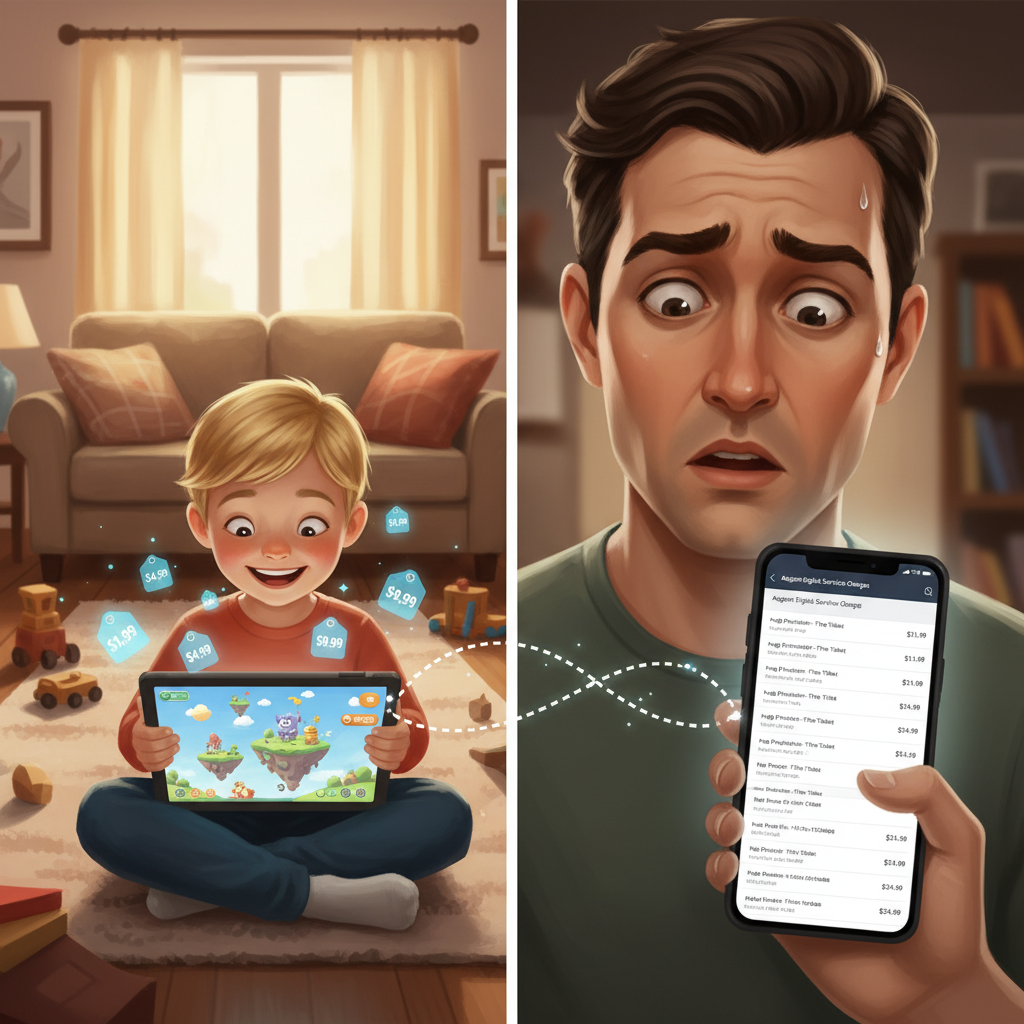
Parents often discover Amazon Digital charges this way when:
- Kids click “Buy” instead of “Back” in a game
- In‑app purchases are not password-protected
Takeaway: Mystery $1.99, $4.99, $9.99 charges, especially multiple in a row? Very possibly in‑app purchases.
6. Movie & TV Rentals/Purchases (Prime Video)
Even with Prime, not everything is free. You can still be charged for:
- Movie rentals (usually around $2.99–$6.99)
- Movie purchases (often $9.99–$24.99, depending on new releases)
- TV season passes or single episodes
These can appear as Amazon or Amazon Digital Services on your card.
Takeaway: That new release you rented at 11:30 p.m. on a Saturday? Your bank statement remembers.
7. Other Amazon Digital Subscriptions
Less common but still under the “digital services” umbrella:
- Kindle Unlimited
- Prime Reading extras
- Amazon Kids+/Freetime
- Cloud storage (if still active on your account)
If you’ve ever hit “Start free trial” for anything digital on Amazon, assume it may convert into an Amazon Digital Services charge later.
Takeaway: Free trials are not your enemy… forgetting to cancel them is.
How to See Exactly What the Digital Charge Is For
Instead of guessing, here’s how to trace an Amazon Digital Services charge to a specific purchase.
Step 1: Log In and Check Your Order History
- Go to Amazon.com and sign in.
- Hover over “Accounts & Lists” and click “Your Orders.”
-
Use the filters at the top:
- Select “Digital Orders” or
- Filter by date range to match the date of the bank charge.
You’ll see:
- eBooks
- Movies/TV
- Apps & games
- Other digital items
Match the order total and date to your bank statement.
Step 2: Check “Memberships & Subscriptions”
Some recurring Amazon digital services don’t show in regular orders. To find those:
- Go to “Your Account.”
- Click “Memberships & Subscriptions” (wording may vary slightly).
-
Review:
- Active subscriptions
- Billing amounts
- Next charge date
Look for things like:
- Prime Video Channels
- Kindle Unlimited
- Amazon Music
- Amazon Kids+
- Third‑party subscriptions via Amazon Pay
Step 3: Check Prime Video & Digital Content Specifically
For Prime Video:
- Go to Prime Video.
- Under your profile/account, find “Channels” or “Your Subscriptions.”
- You’ll see which premium channels you’re paying for and their monthly costs.
For Audible:
- Go to Audible and sign in with your Amazon account.
- Check “Account Details” and “Membership.”
Quick tip: Write down (or screenshot) the subscription name and exact price so you can match it to your statement.
I Don’t Recognize the Charge. Could It Be Fraud?
Sometimes the charge is legit but confusing. Other times… yeah, it might be unauthorized.
Common Non-Fraud Explanations
Before assuming the worst, check these possibilities:
- Shared accounts: Does a partner, roommate, parent, or child use your Amazon login?
- Household/Family Library: If you’ve set up Amazon Household, other adults or teens on the account may have purchased digital content.
- Multiple cards: Maybe the charge hit a card you don’t normally use for Amazon.
Ask:
“Hey, did anyone rent a movie / buy a book / subscribe to a channel on our Amazon account?”
You’d be surprised how often the “fraud” is a surprise season pass someone bought “just this once.”
Signs It Might Be Actual Fraud
- You don’t have an Amazon account with that email/number.
- You checked ALL orders & subscriptions and nothing matches.
- You see multiple rapid‑fire charges you didn’t authorize.
- The charge is linked to an email you don’t recognize.
In these cases, move to damage‑control mode.
How to Cancel Amazon Digital Services (Step‑by‑Step)
Once you track down what the charge is, here’s how to cancel it.
Cancel a Subscription (Prime Channels, Kindle Unlimited, Music, etc.)
- Go to Your Account → Memberships & Subscriptions.
- Find the subscription you want to cancel.
- Click “Manage Subscription” or “Cancel Subscription.”
- Follow the prompts until you get explicit confirmation.
Most subscriptions:
- Stay active until the end of the current billing period.
- Won’t refund automatically, but sometimes pro‑rated or partial refunds are possible if you contact support.
Turn Off 1‑Click and In‑App Purchases (Especially for Kids)
To reduce accidental digital charges:
- Go to Your Account → Login & security → Advanced security settings (and/or Digital content & devices depending on layout).
- Disable 1‑Click purchasing for certain devices if possible.
-
Set up Parental Controls on:
- Fire tablets
- Fire TV
- Amazon Kids+ profiles
- Require a PIN or password before purchases.
This dramatically cuts down on surprise “my 6‑year‑old spent $60 on gems” moments.
How to Get a Refund for an Amazon Digital Services Charge
Amazon’s refund policies for digital items are stricter than for physical items, but not hopeless.
Try the Self‑Service Refund Path First
For certain Kindle eBooks and digital purchases, you may see a:
- “Return for refund” or
- “Cancel purchase”
link in your Digital Orders section, especially if you:
- Act quickly (often within 7 days or less, sometimes just a few hours for accidental purchases)
If that option is available, use it.
Contact Amazon Customer Support
If there’s no self‑service refund button, or you think the charge is unauthorized:
- Go to Help → Customer Service on Amazon.
- Choose “Something else” or “Prime & More → Digital services” (wording may vary).
- Select the specific order/charge.
-
Use Chat or Phone to explain:
- You don’t recognize it or
- It was an accidental purchase (e.g., child clicked, mis‑tap on device).
Amazon is often willing to:
- Issue a refund one time as a courtesy
- Reverse charges for obvious unauthorized activity
- Block future purchases or require PINs
Just don’t expect unlimited refunds on “oops, my bad” purchases.
If You Suspect Real Fraud
If you truly believe your card details were stolen:
-
Contact your bank or card issuer immediately.
- Report the transaction as unauthorized.
- Request a new card number.
- Change your Amazon password and enable two‑factor authentication.
- Review all recent orders and remove any unknown payment methods.
Takeaway: Amazon support is generally reasonable, but your bank is your final line of defense.
How to Prevent Future Mystery Digital Charges
Let’s make this the last time you have to Google “digital services Amazon charge.”
1. Clean Up Old Subscriptions
- Visit Memberships & Subscriptions and cancel anything you don’t actively use.
- Check Prime Video Channels and Audible separately.
Do a quick “subscription audit” every few months.
2. Tighten Account Security
- Use a strong, unique password for Amazon.
- Turn on two‑factor authentication (2FA).
- Don’t share your login casually—use Amazon Household instead so you can separate purchases.
3. Use Parental Controls & PINs
On any device kids can access:
- Enable Parental Controls.
- Require a PIN for purchases.
- Consider disabling voice purchasing on Alexa devices.
4. Turn Off 1‑Click (or Limit It)
If you don’t absolutely need it, turning off 1‑Click purchasing reduces accidental taps.
5. Watch Email Receipts
Make sure your Amazon account email is one you actually check. Every digital purchase usually triggers a confirmation email. Spotting something weird early makes refunds and disputes much easier.
Takeaway: A few tweaks now can save you from a monthly “what the heck is this charge?” ritual.
TL;DR: What to Do When You See an Amazon Digital Services Charge
If you skimmed everything, here’s your quick action plan:
-
Look up the charge in Amazon
Check Your Orders → Digital Orders and Memberships & Subscriptions plus Prime Video Channels. -
Decide what it is
Prime, channels, eBooks, Audible, Music, apps, or in‑app purchases — or possibly unauthorized use. -
Cancel what you don’t want
Use “Manage Subscription → Cancel”. -
Request a refund
Try self‑service first, then contact Amazon support if necessary. -
Lock things down
Add PINs, parental controls, 2FA, and clean up old subscriptions.
Once you know how Amazon’s digital services charges work, your statement becomes a lot less scary—and a lot more like a receipt for things you actually chose to pay for.
Leave a Reply