What Is Amazon Digital Services, Really?
If you’ve ever checked your bank account and thought, “Wait… what is this Amazon Digital Services charge?”—you’re not alone. Here’s how to decode those mystery charges, figure out what they really are, and know when to cancel or dispute them.

If you’ve ever checked your bank account and thought, “Wait… what is this Amazon Digital Services charge?”—you’re not alone.
Let’s unpack what Amazon Digital Services actually is, why it shows up on your statements, and how to tell if it’s legit or something you need to dispute.
What Is Amazon Digital Services?
Amazon Digital Services is an umbrella term Amazon uses for many of its non-physical, digital products and subscriptions. Instead of shipping you a box, they’re selling you access: to apps, music, movies, ebooks, storage, and more.
You’ll usually see it show up as something like:
- AMAZON DIGITAL SVCS
- AMZN DIGITAL
- AMZN Digital 888-802-3080 (or similar support numbers)
So if nothing showed up at your door, but your card got charged—that’s probably a digital service.
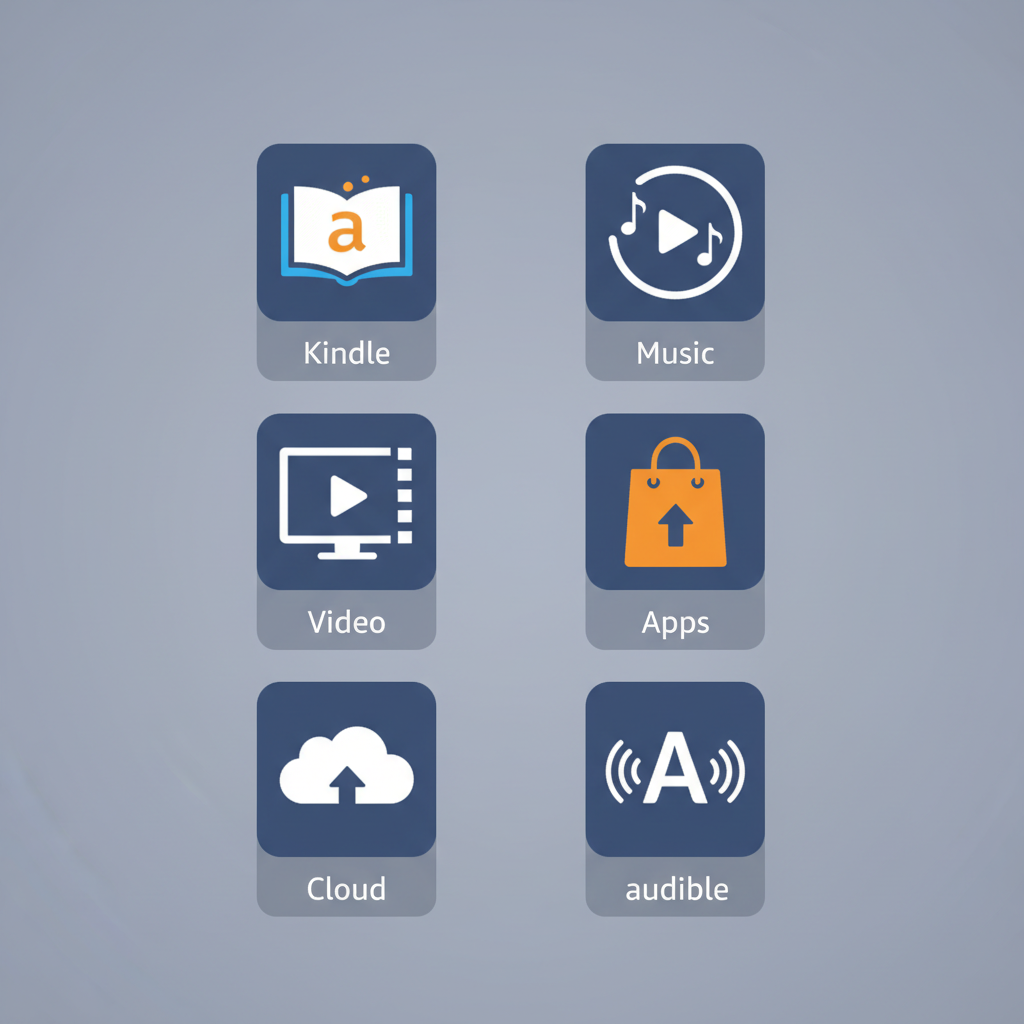
Common Things Amazon Digital Services Covers
Here are the most common legit services that can appear as Amazon Digital Services on your bill:
1. Kindle Content & Subscriptions
This includes:
- Kindle ebooks you buy
- Kindle Unlimited subscription
- Magazine/newspaper subscriptions via Kindle
If you’re a big reader or share an Amazon account with a bookworm, this is a prime suspect.
Check: Go to Account & Lists → Your Payments → Transactions or Manage Your Content and Devices to see recent ebook and subscription charges.
2. Amazon Music & Audio Subscriptions
You might see charges for:
- Amazon Music Unlimited (individual, family, or student plan)
- Additional music channels or add-ons
If you’ve ever signed up for a free trial and forgot to cancel (we’ve all been there), this can quietly renew as Amazon Digital Services.
Check: Under Account → Memberships & Subscriptions → Music.
3. Prime Video & Digital Movies/Shows
Amazon Digital Services often represents:
- Prime Video channel subscriptions (e.g., Max, Paramount+, Starz via Amazon)
- Movie rentals and purchases
- TV season passes
Example: If you added a Prime Video channel during a free trial (“sure, I’ll remember to cancel!”), that paid renewal is likely billed as Amazon Digital Services.
Check: Go to Prime Video → Accounts & Settings → Channels and Purchases & Rentals.
4. Amazon Appstore & In‑App Purchases
If you have a Fire tablet, Fire TV, or use the Amazon Appstore on Android, these charges may be:
- Paid apps
- In‑app purchases in games
- Game credits, tokens, or upgrades
Parents: if your kid has access to a Fire tablet and knows what a shiny button looks like, double‑check this area.
Check:
- Digital content and devices → Apps and more → Your Apps
- Or review your Digital Orders in your Amazon order history.
5. Amazon Drive / Cloud Storage (Legacy) & Photos-Related Services
If you previously upgraded Amazon’s cloud storage (Amazon Drive) or bought extra space tied to Amazon Photos, that may show as a recurring Amazon Digital Services charge.
Even though Amazon has been shifting focus away from Amazon Drive in favor of Photos and other storage models, older plans or transitions can still appear in billing histories.
Check: Go to Amazon Photos / Your Storage from your account to see if you have an active plan.
6. Audible (Sometimes Bundled or Confusingly Labeled)
Audible is owned by Amazon. While it usually bills as Audible, in some regions or scenarios (like promotions or bundled billing), people report it showing up similarly to other Amazon digital descriptions.
Audible charges could relate to:
- Audible Premium Plus membership
- Extra credit packs
Check: Log into Audible → Account Details → Billing history.
Why Does It Show Up Weirdly on My Bank Statement?
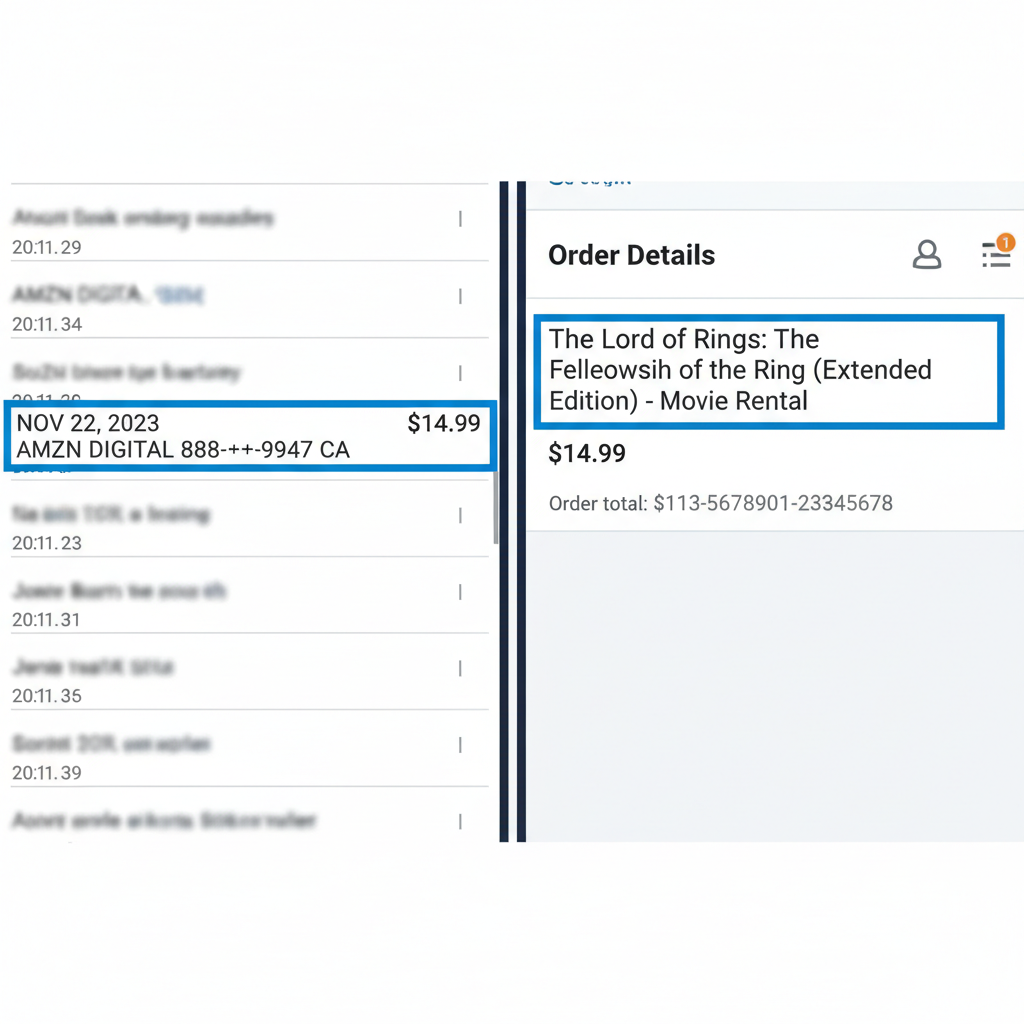
Banks and card processors often show shortened or generic merchant names, which is why you might not see “Kindle Unlimited” or “Paramount+ via Prime Video” spelled out.
Instead, you’ll see one of these vague labels:
- AMAZON DIGITAL SERVICES
- AMZN DIGITAL
- AMZN DIGITAL 888***
That generic label covers a wide range of Amazon-owned digital services. That’s handy for Amazon, but confusing for you.
How to See Exactly What You Were Charged For
If you’re staring at a mystery Amazon Digital Services charge, here’s how to track it down.
Step 1: Log Into Your Amazon Account
Use the same Amazon account that your card is linked to (if you share a family card, check all likely accounts).
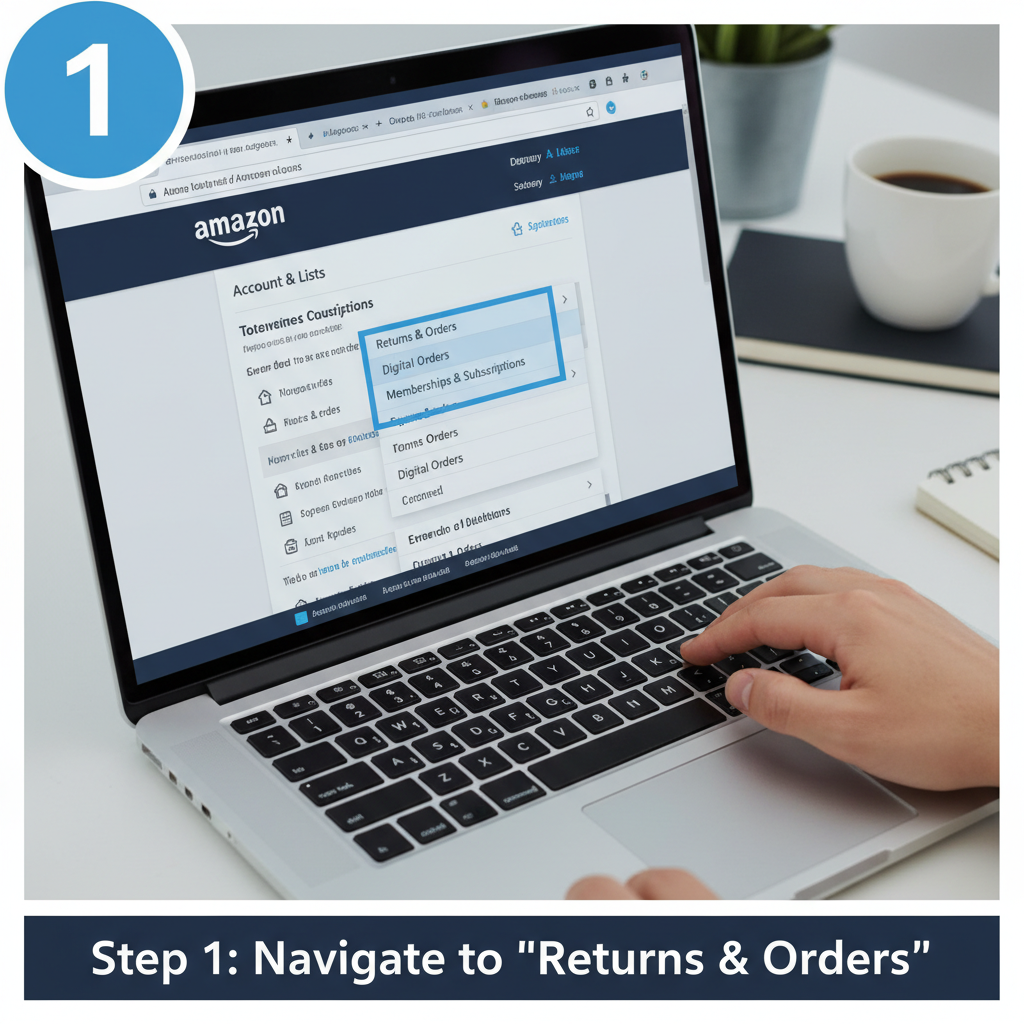
Step 2: Check Your Digital Orders
- Go to “Returns & Orders” on Amazon.
- Filter by Digital Orders.
- Switch the date range to match your billing date.
Look for:
- Kindle books
- Movies/TV rentals or purchases
- Apps or in‑app purchases
Step 3: Review Subscriptions & Memberships
From your account menu, open “Memberships & Subscriptions” (or “Your Memberships and Subscriptions”). Look for:
- Kindle Unlimited
- Amazon Music
- Prime Video Channels
- Third‑party subscriptions billed through Amazon
If you see something you don’t recognize but it lines up with the charge date and amount—that’s likely your answer.
Step 4: Check Child Profiles & Family Devices
If you have:
- Kids’ profiles on Fire tablets
- A shared Fire TV
- Family members using your login
They may have:
- Rented a movie
- Purchased a season
- Clicked in‑app purchases
You can enable purchase restrictions and PIN protection in your device’s settings or in Digital content & devices under your Amazon account.

Is This Charge Legit or Fraudulent?
A charge that reads Amazon Digital Services doesn’t automatically mean fraud—but it also doesn’t guarantee it’s legit.
Use this simple test:
Probably Legit If:
- The charge matches a movie, book, app, or subscription you can see under your account.
- The amount lines up with known prices (e.g., $9.99 for a channel, $14.99 for Music, $11.99 for Kindle Unlimited, etc.).
- Someone in your household says, “Oh yeah, that might’ve been me.”
Suspicious If:
- You don’t see any matching order or subscription in your Amazon account.
- You have multiple charges you don’t recognize across different days.
- You don’t have an Amazon account at all tied to that card.
In suspicious cases, you should:
- Check all possible Amazon accounts tied to your email(s) and card.
- If nothing matches, contact Amazon customer support via the Help section.
- If Amazon confirms no charge on their side, call your bank/card issuer and report it as unauthorized.
How to Cancel Amazon Digital Services You Don’t Want
Let’s say you’ve found the culprit—a long‑forgotten trial or a subscription you no longer use. Here’s how to cancel.
Cancel Prime Video Channels
- Go to Prime Video → Accounts & Settings → Channels.
- Find the channel (e.g., Starz, Paramount+, etc.).
- Click Cancel Channel.
You’ll usually keep access until the end of the current billing period.
Cancel Kindle Unlimited or Other Kindle Subscriptions
- Go to Account → Memberships & Subscriptions.
- Find Kindle Unlimited or the relevant publication.
- Click Manage → Cancel membership/auto‑renew.
Cancel Amazon Music Plans
- Open Amazon Music Settings (from the app or web, under your account).
- Find your Music Unlimited plan.
- Turn off auto‑renew or cancel subscription.
Cancel Other Digital Subscriptions
- Go to Your Memberships & Subscriptions.
- Use filters for Digital, Apps, or Other.
- Click Manage next to any service you don’t want.
How to Prevent Surprise Amazon Digital Services Charges
Once you’ve cleaned things up, it’s smart to lock things down a bit.
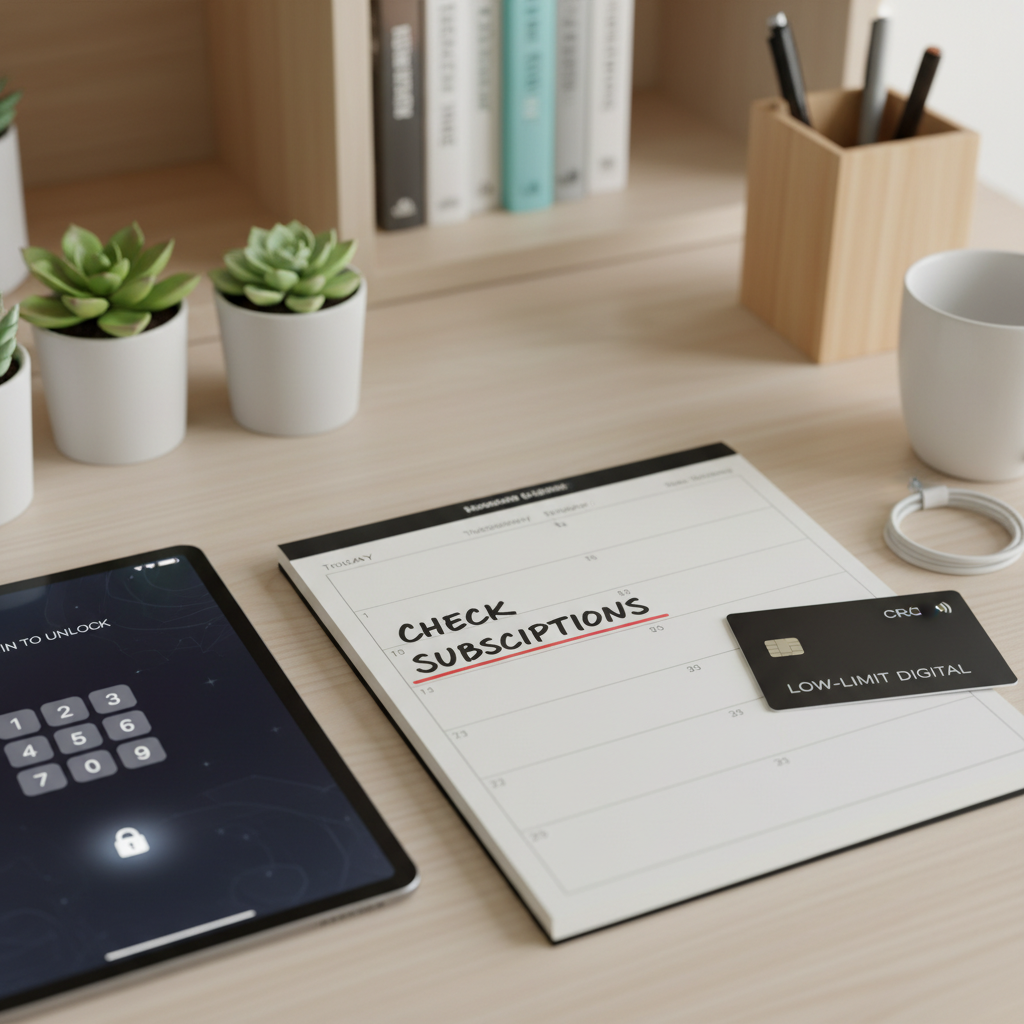
1. Require a PIN for Purchases
On Fire TV, Fire tablets, and some apps, you can:
- Set a PIN for purchases.
- Restrict in‑app purchases.
This is especially useful if kids use those devices.
2. Regularly Review Subscriptions
Put a calendar reminder every 1–3 months to:
- Review Memberships & Subscriptions on Amazon.
- Cancel anything you don’t recognize or no longer use.
3. Use a Virtual Card or Separate Card for Subscriptions
Some people prefer using a low‑limit card or virtual card for:
- Streaming services
- App stores
- Digital memberships
That way, if something goes wrong, it’s easier to isolate.
FAQ: Quick Answers About Amazon Digital Services
What is Amazon Digital Services on my bank statement?
It’s a generic label for Amazon’s digital products and subscriptions—like Kindle books, Prime Video channels, Amazon Music, apps, in‑app purchases, and more.
Is Amazon Digital Services the same as Amazon Prime?
Not exactly. Prime is a broader membership. Some Prime‑related add‑ons (like video channels) can show up as Amazon Digital Services, but your core Prime membership usually appears as a more specific “Amazon Prime” or similar description.
Can Amazon Digital Services be a scam?
The term itself is legitimate, but fraudsters can pose as Amazon or use stolen card info. If a charge doesn’t match any order or subscription in any Amazon account you have, contact Amazon and your bank.
How do I dispute an Amazon Digital Services charge?
First, confirm it’s not a legitimate purchase or subscription in your Amazon account. If you still don’t recognize it:
- Contact Amazon customer support with the charge date and amount.
- If they can’t find it or say it’s not from them, immediately call your bank or card issuer and dispute the charge.
Final Take: Don’t Panic, Just Trace It
Amazon Digital Services sounds vague (and a little sketchy), but most of the time, it’s just:
- A subscription you forgot
- A rental you made at 11:45 p.m.
- A kid tapping “Buy” like it’s a game
Walk through your Digital Orders, Memberships & Subscriptions, and Prime Video / Music / Kindle settings, and you’ll likely find the match.
If you don’t? Treat it seriously, contact Amazon, then your bank.
Mystery solved, budget protected.
Leave a Reply