What Is An Amazon OTP?
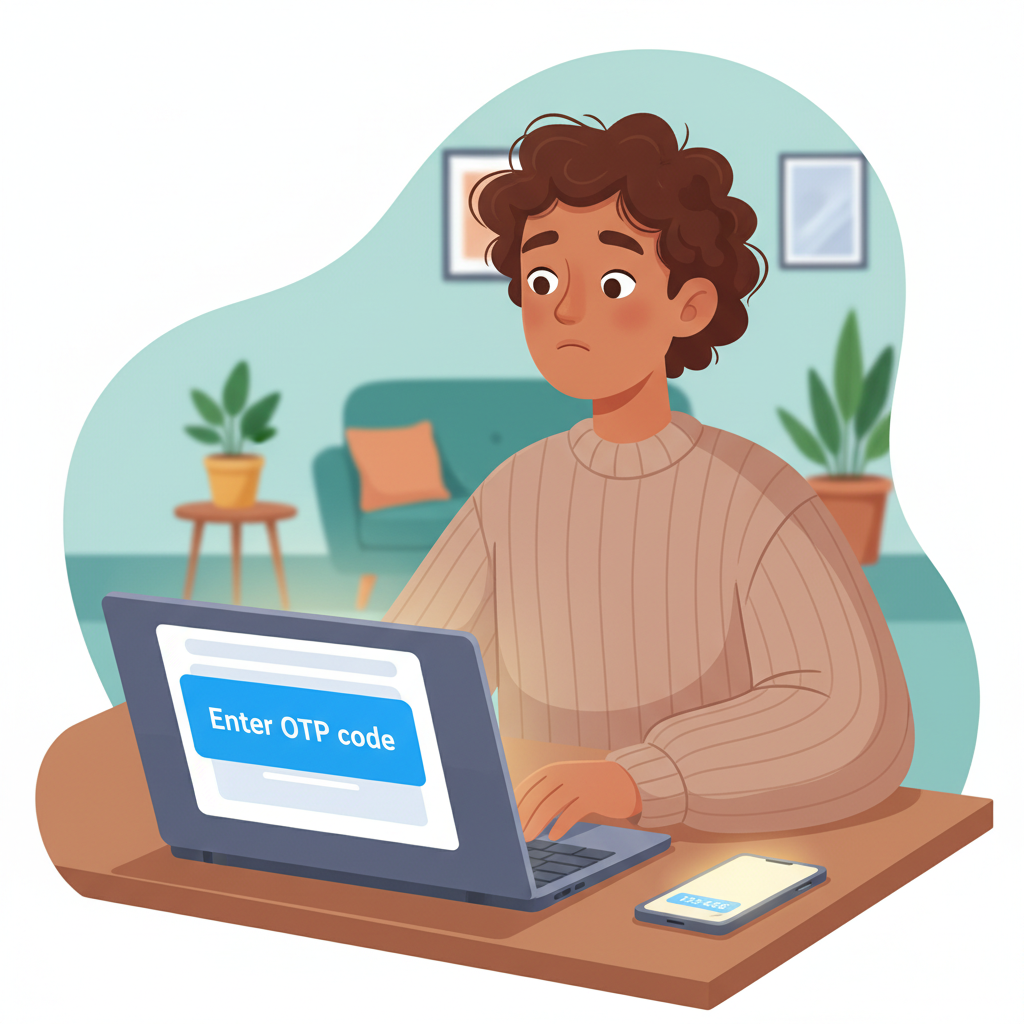
A typical Amazon checkout moment when an OTP suddenly pops up to confirm it’s really you.
You’re happily checking out on Amazon, already picturing your package on the doorstep… and then it happens:
“Enter the OTP we just sent to your phone.”
OTP? Is that a secret code? Did you break something? Are you in trouble?
Relax. You’re not being hacked. In fact, Amazon OTP is there to prevent that.
In this post, we’ll unpack what an Amazon OTP is, why you get it, when to worry, and how to use it safely without getting locked out or scammed.
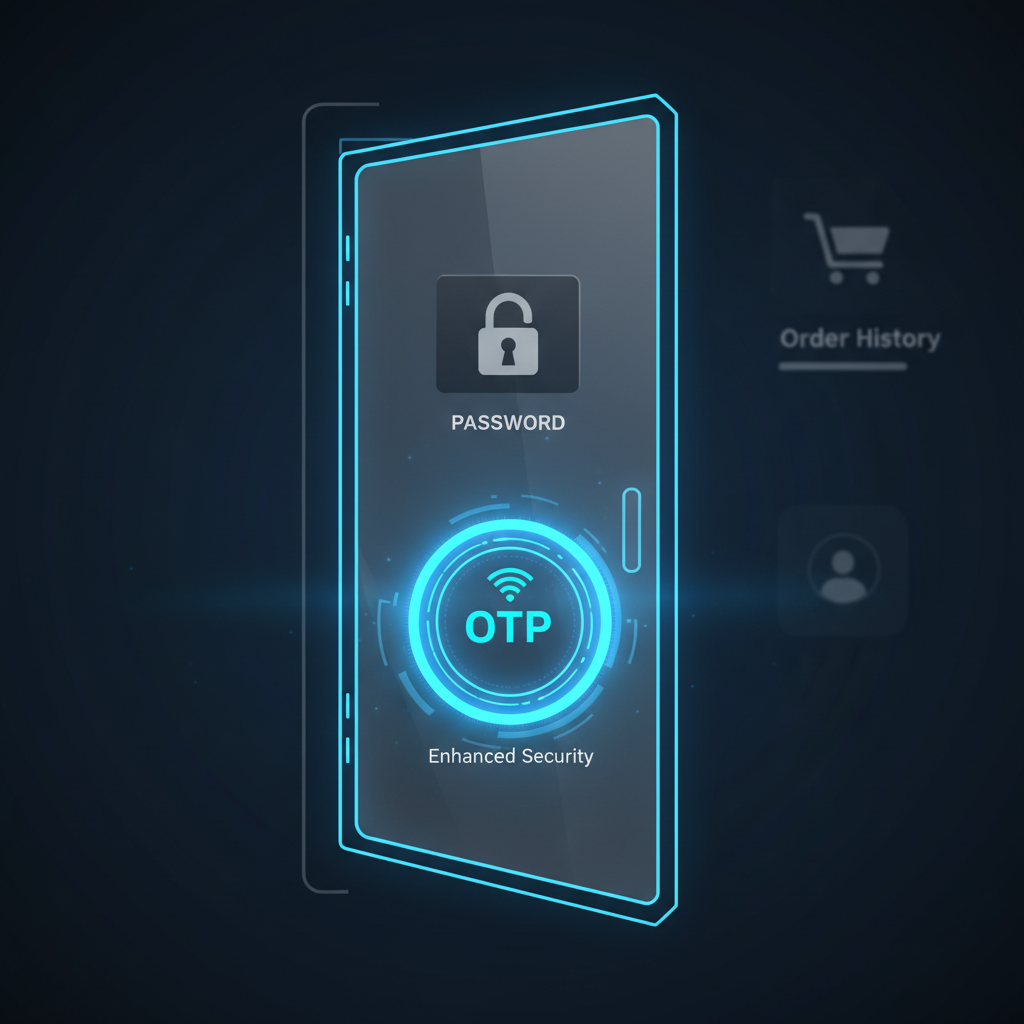
Think of Amazon OTP as the extra deadbolt on the digital door to your account.
What is an Amazon OTP?
“Amazon OTP” stands for Amazon One-Time Password.
It’s a temporary, single-use code that Amazon sends (usually via SMS, email, or authenticator app) to confirm that you are really the person trying to sign in, change settings, or receive a high-value delivery.
Think of it like a digital deadbolt on your Amazon account:
- Password = your key
- OTP = the extra security latch behind the door
Even if someone steals your password, they’d still need the OTP to get in.
An Amazon OTP is a short, time-sensitive security code used to verify your identity or your delivery.
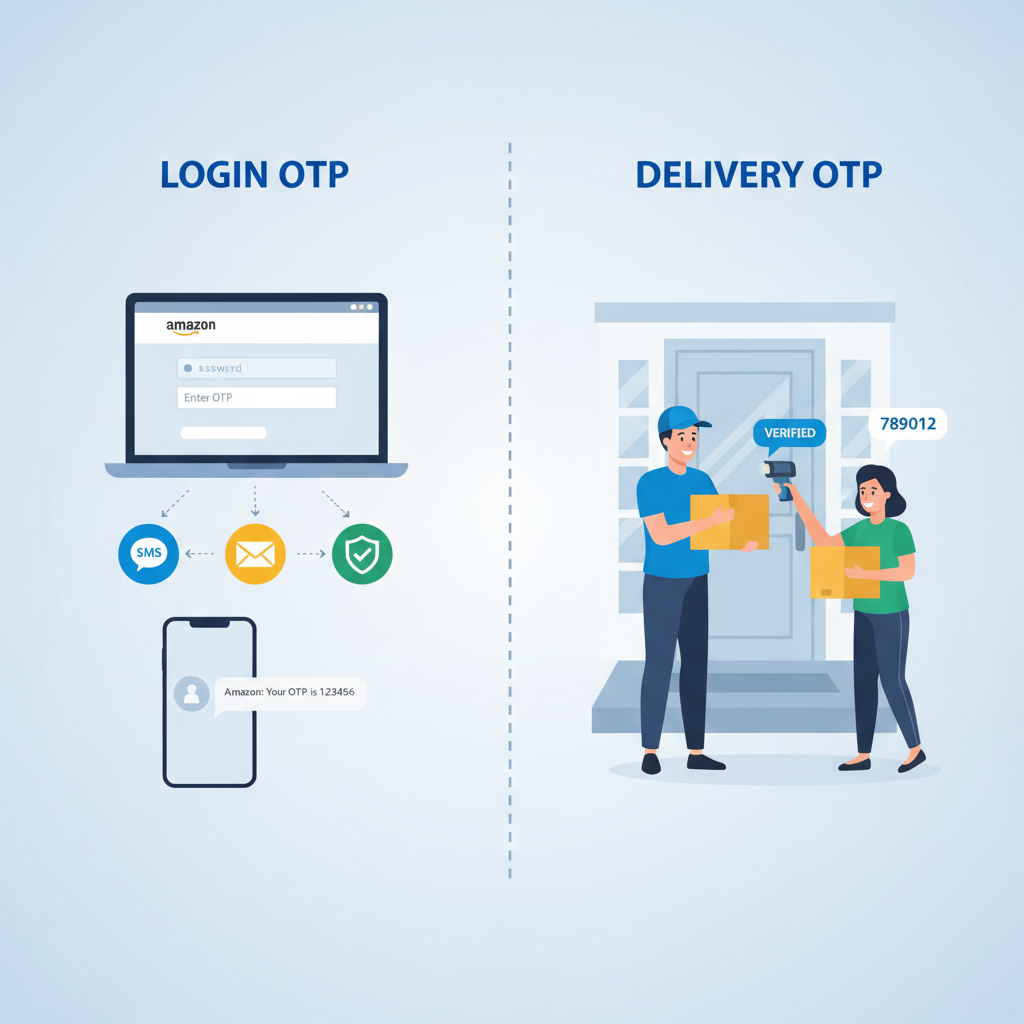
Amazon uses OTPs both for logging in securely and for making sure the right person gets the package.
Why does Amazon send OTP codes?
Amazon uses OTPs for a few main reasons:
1. Account security (login & settings)
Sometimes when you log in—especially from a new device, a new location, or after a suspicious login attempt—Amazon will ask for an OTP.
This can happen when you:
- Sign in from a new browser or device
- Reset your password
- Try to change important account settings (like your phone number or email)
- Access payment or security settings
The OTP makes it harder for attackers to hijack your account, even if they know your password.
If you get an OTP while you are trying to log in, that’s Amazon checking it’s really you.
2. Two-step verification (2FA)
If you turn on Two-Step Verification (also known as 2FA or MFA) in your Amazon security settings, you’ll be asked for an OTP every time you sign in.
In that case, the flow looks like this:
- Enter your email/phone and password
- Amazon sends or prompts you for an OTP (via SMS, app, or call)
- You enter the OTP
This dramatically reduces the chance of someone breaking into your account with just a stolen password.
With 2FA on, Amazon OTP becomes a normal, expected part of signing in.
3. Securing high-value or sensitive deliveries
There’s another kind of Amazon OTP: delivery OTP codes.
For some orders—especially:
- High-value items (electronics, jewelry, etc.)
- Certain locations or buildings
- Selected countries/regions
Amazon may require the person receiving the package to read a 6-digit OTP to the delivery driver. This code is usually emailed or shown in your Amazon app when the package is out for delivery.
No OTP, no handoff.
For some deliveries, an OTP helps make sure your package ends up with you, not a random stranger.
Under the hood, both login and delivery OTPs are short-lived, single-use codes tied to one specific action.
How does an Amazon OTP work, step by step?
Let’s break down the two main situations: sign-in OTP and delivery OTP.
A. Amazon OTP for signing in or changing settings
-
You start an action
For example: logging in from a new phone, changing your password, or enabling 2FA. -
Amazon sends the OTP
Usually via:- Text message (SMS)
- Authenticator app (if you’ve set one up)
-
You enter the code
You type the OTP into the Amazon page or app. -
Amazon verifies it
If it’s correct and still valid (hasn’t expired), you’re allowed to continue. If not, you may be asked to request a new OTP.
Important: These codes are:
- Short-lived – often only valid for a few minutes
- Single-use – once used, they expire
- Tied to that specific action – you can’t reuse them for something else
B. Amazon OTP for deliveries
-
Your order qualifies for delivery OTP
You’ll see a note in your order details or email that a one-time password is required for delivery. -
Amazon generates the OTP
You’ll find it in:- The order details page in your Amazon account
- An email sent when the package is out for delivery
-
Driver arrives
When the delivery driver shows up, they’ll ask for the OTP. -
You show or read the code
You give them the OTP, they enter it into their device, and if it matches, they can complete the delivery.
Whether for login or deliveries, the OTP is a one-time, short-lived code that proves you’re the right person.
Passwords stick around; OTPs are disposable security codes designed to be used once and forgotten.
Is an Amazon OTP the same as your password?
No—and it should never be treated like one.
Here’s the difference:
Password
- You choose it
- Long-term (until you change it)
- Used repeatedly for sign-in
OTP (One-Time Password)
- Amazon generates it
- Very short-term (minutes)
- Used once for a specific action
You should never reuse an OTP or save it as a “password.” It’s not meant to be memorized—just entered once and forgotten.
Your password is permanent-ish; your OTP is disposable.
If you didn’t request an OTP or someone is asking for it, treat that as a serious red flag.
When should you worry about an Amazon OTP?
Most OTPs are normal and expected. But there are a few red flags.
Red flag #1: You get an OTP you didn’t request
If you get a text, email, or app prompt with an Amazon OTP—but you weren’t:
- Logging in
- Changing your password
- Making a big account change
—then someone may be trying to access your account.
What to do:
- Do NOT share the code with anyone.
- Do NOT enter the code anywhere.
- Immediately change your Amazon password.
- Turn on Two-Step Verification (2FA) if you haven’t already.
Red flag #2: Someone asks you for the OTP
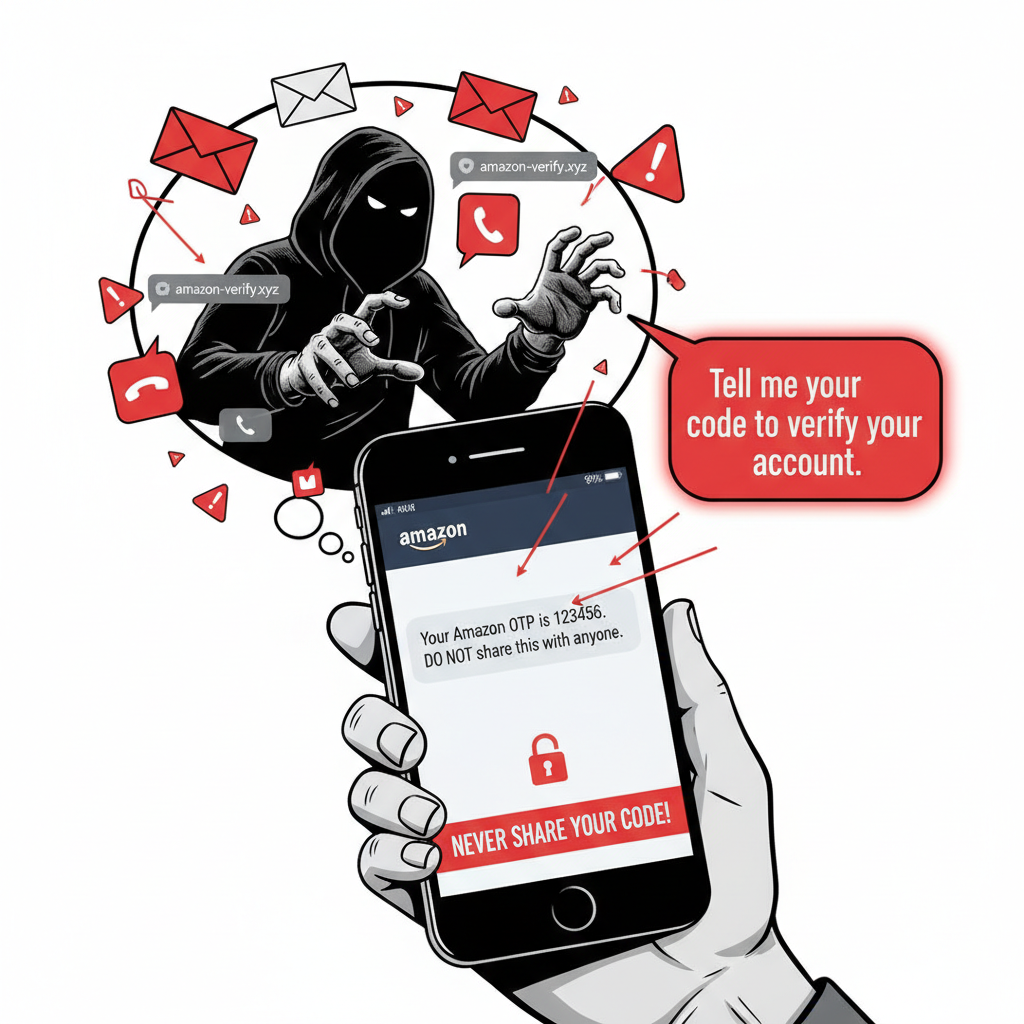
Scammers will often pretend to be from Amazon customer support, a bank, or a delivery service and say things like:
“Please read me the OTP you just received so I can verify your account.”
Nope. That’s a classic phishing move.
Amazon will not ask you to share an OTP that was sent to you, unless you are literally entering it on the official site/app yourself.
What to do:
- Never share OTPs over phone calls, text, email, or chat messages from strangers.
- Only enter OTPs on amazon.com, the Amazon app, or a known Amazon-owned domain.
Red flag #3: The email or link looks sketchy
If the OTP request:
- Comes from a weird email address
- Includes grammar mistakes or urgent fear tactics
- Has links that don’t clearly point to an Amazon-owned site
…it may be a phishing attempt, not a real Amazon OTP.
OTPs are safe—unless someone else is trying to trick you into handing them over.
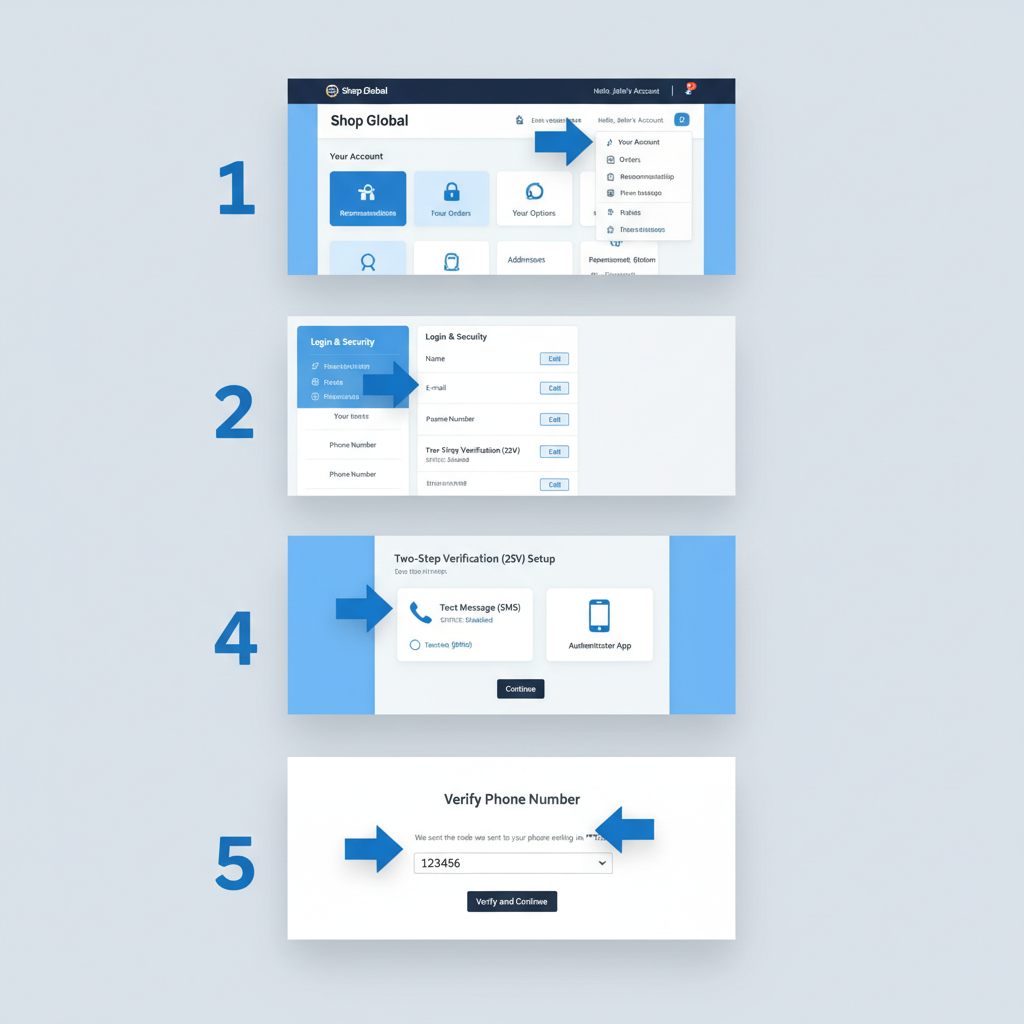
Turning on Two-Step Verification adds one small step to login—and a huge boost to your account security.
How to enable (or disable) Amazon Two-Step Verification (2FA)
If you want to level up your account security, enabling 2FA is one of the best things you can do—even though it means seeing OTPs more often.
How to turn on 2FA / Two-Step Verification
-
Go to Your Account
In the Amazon website or app, open Your Account. -
Open Login & Security
Look for a section like Login & security. -
Find Two-Step Verification (2SV)
There should be an option labeled Two-Step Verification or 2SV. -
Add your verification method
You can typically choose:- Text message (SMS)
- Authenticator app (recommended for better security)
-
Confirm and test
Amazon will send a test OTP. Enter it to confirm everything works.
After that, expect to enter an OTP whenever you sign in from a new device or sometimes even regularly, depending on your settings.
Can you turn 2FA off?
Usually, yes—you can go back to the same Two-Step Verification section and disable it. But consider the risks:
- Easier sign-in, but
- Much easier for attackers if your password is ever leaked
2FA means more OTPs, but it also means your Amazon account is significantly harder to hijack.
Login OTPs guard your whole account; delivery OTPs guard a specific package at your door.
Amazon delivery OTP vs. Amazon login OTP
These two are easy to confuse, but they’re used differently.
Login OTP:
- Used when signing in or changing security details
- Sent to your phone, email, or authenticator app
- Entered on the Amazon site or app
Delivery OTP:
- Used at the door for some deliveries
- Shown in your order details or email
- Read or shown to the delivery driver
Which one is more sensitive?
They’re both important, but:
- Login OTP protects your entire account (orders, address, payment info)
- Delivery OTP protects a specific package
Treat both as private, but be especially careful with login OTPs because they control account access.
OTP not working? A few quick checks usually solve the problem without the drama.
What to do if your Amazon OTP isn’t working
Sometimes OTPs just… don’t cooperate. Here’s what you can try.
1. Check for typos
These codes can be short, but it’s still easy to mix up:
- 0 and O
- 1 and I
- 5 and S
Double-check each digit or character.
2. Make sure it hasn’t expired
Most OTPs expire in a few minutes. If you stepped away from your screen or took a call, it might be dead now.
Try clicking Resend OTP (or similar) to get a fresh code.
3. Confirm you’re using the latest code
If you requested multiple OTPs in a row, only the most recent one will work. Make sure you’re not entering an older message.
4. Check your network / signal
For SMS-based OTPs, poor cell signal can delay delivery. Wait a bit, move to a better spot, or switch to Wi‑Fi calling if needed.
5. Try a different method (if available)
If you have an authenticator app or backup option, try using that instead of SMS.
When an OTP fails, request a new one and be sure you’re entering the latest, unexpired code.
Treat your OTP like a spare key: use it when needed, but never hand it to strangers.
How to keep your Amazon OTPs (and account) safe
Here’s a simple checklist to stay on the safe side:
-
Never share OTPs with anyone.
Not over call, not over text, not over chat. No exceptions. -
Only enter OTPs on official Amazon channels.
Check the URL (should be Amazon-owned), or use the official app. -
Turn on Two-Step Verification.
Yes, it’s an extra step. Also yes, it’s worth it. -
Update your password regularly.
Use a strong, unique password—ideally stored in a password manager. -
Watch for unexpected OTPs.
Treat surprise OTPs as alarm bells. If you didn’t request it, someone else might have.
Your OTP is like a spare key to your front door. Use it when needed, but don’t hand it to strangers.
Once you know what OTPs do (and what to ignore), they become a friendly guard dog, not a scary pop-up.
TL;DR – What is an Amazon OTP?
- Amazon OTP = Amazon One-Time Password, a short-lived code used to verify that it’s really you.
- It’s used for signing in, changing sensitive settings, and sometimes for package delivery.
- OTPs are single-use and time-limited, generated by Amazon and sent to your phone, email, or app.
- If you get an OTP you didn’t request, don’t enter it and don’t share it—update your password and secure your account.
- Turning on Two-Step Verification means more OTPs—and much better protection for your Amazon account.
So the next time Amazon asks you for an OTP, you’ll know: it’s not a glitch, it’s a guard dog. And it’s on your side.
Leave a Reply