Reading Marvel Unlimited On An Amazon Fire HD 10
If you’ve ever tried to read comics on your phone and thought, “Why are these word bubbles so SMALL?”, you’re not alone.
That’s where the Amazon Fire HD 10 + Marvel Unlimited combo comes in: a cheap-ish, big-screen tablet that can become your always-there digital comic bookshelf.
Let’s walk through how good the Amazon Fire HD 10 really is for Marvel Unlimited, how to set it up, and a few tricks to make your reading experience way better.
Quick Answer: Is the Amazon Fire HD 10 Good for Marvel Unlimited?
Yes: the Amazon Fire HD 10 tablet works very well with Marvel Unlimited, especially if you’re looking for an affordable, 10-inch screen to binge comics on.
You’ll get:
- A big display that’s great for full-page art
- Solid battery life for long reading sessions
- Access to the Marvel Unlimited Android app (with one extra setup step)
Caveat: since it’s a Fire tablet, you don’t get Google Play out of the box. You’ll either:
- Use Marvel Unlimited via a browser, or
- Install the Google Play Store and then the official Marvel Unlimited app.
If your main goal is comfortable, budget-friendly comic reading, the Fire HD 10 is a strong choice.
Why the Fire HD 10 Works So Well for Comics
1. The 10-inch display hits the sweet spot
Reading comics on a 6″ phone is… an eye test.
A 10″ screen, like on the Amazon Fire HD 10, lets you:
- View full pages without constantly zooming
- Actually read dialogue without squinting
- Enjoy double-page spreads without them feeling cramped
It’s not as big or sharp as an iPad Pro, but for the price, it’s more than good enough for Marvel Unlimited’s HD pages.
Bigger screen = less pinching and zooming, more actual reading.
2. Price vs. performance is great for a “reader tablet”
If you’re not trying to game or do serious work, the Fire HD 10’s specs are perfectly fine for comics:
- Enough RAM/CPU to smoothly scroll pages
- Plenty of storage for downloaded issues (especially if you add a microSD card)
- Long battery life, so you can read for hours
Marvel Unlimited isn’t very demanding. As long as your tablet can handle high-res images and a stable network connection, you’re good.
You don’t need an expensive iPad to enjoy Marvel Unlimited. The Fire HD 10 is more than capable.
3. Offline reading on a travel-friendly device
Marvel Unlimited allows you to download comics for offline reading (within its app). Combine that with the Fire HD 10’s battery life and you’ve got a great travel reader.
Use cases:
- Long flights or car rides
- Reading on the couch without worrying about outlets
- Kids reading in the back seat with downloaded comics
Fire HD 10 + offline downloads = perfect combo for trips and commutes.
Option 1: Using Marvel Unlimited in the Browser on Fire HD 10
If you don’t want to tweak anything, this is the simplest path.
How to read Marvel Unlimited in the browser
- Connect to Wi‑Fi and open the Silk browser (the default browser on Fire tablets).
- Go to the Marvel Unlimited website and sign in to your account.
- Browse your library, search for titles, and start reading.
Pros:
- Zero extra setup
- No sideloading or Google Play required
Cons:
- No true offline reading in the browser
- The app interface is generally smoother and more optimized for touch
Best for: Casual readers who are mostly online and don’t mind sticking to the browser.
If you just want to test Marvel Unlimited on your Fire HD 10, start in the browser.
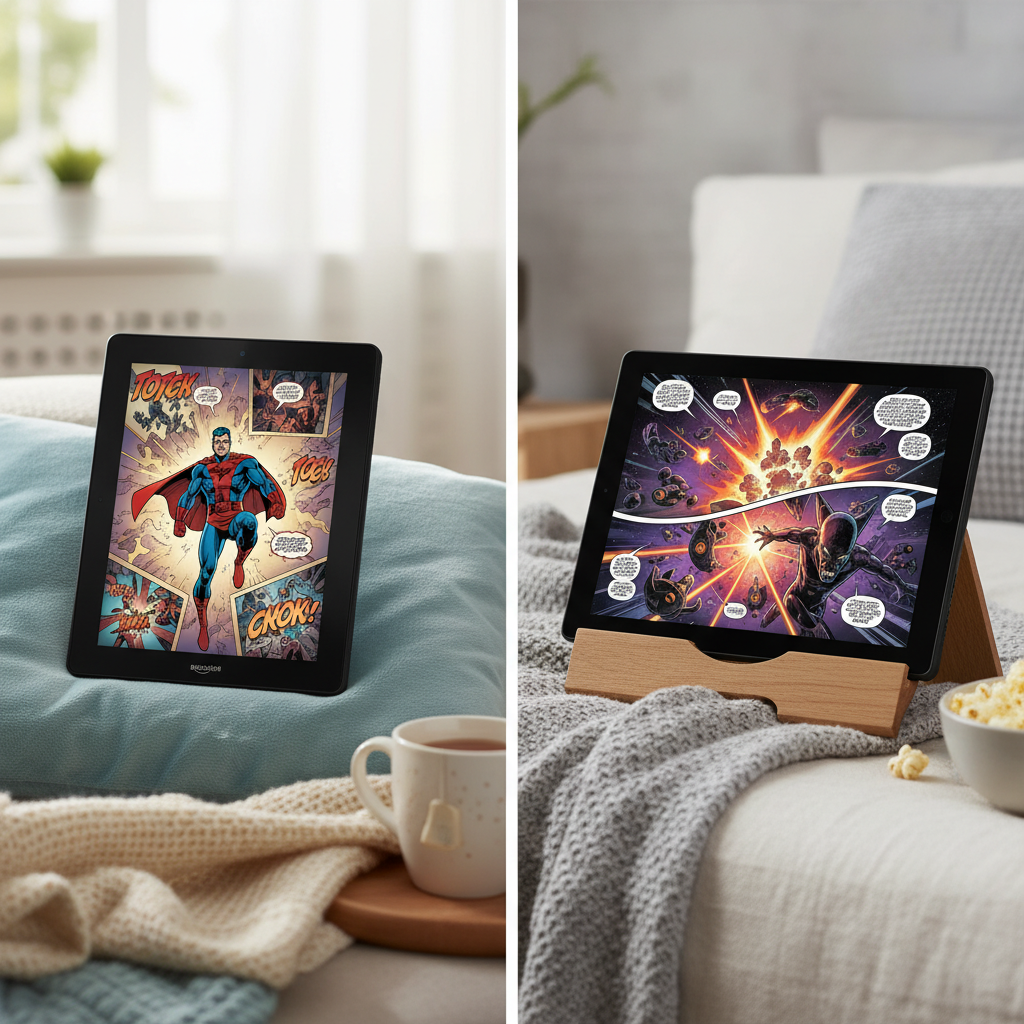
Option 2: Installing the Marvel Unlimited App on an Amazon Fire HD 10
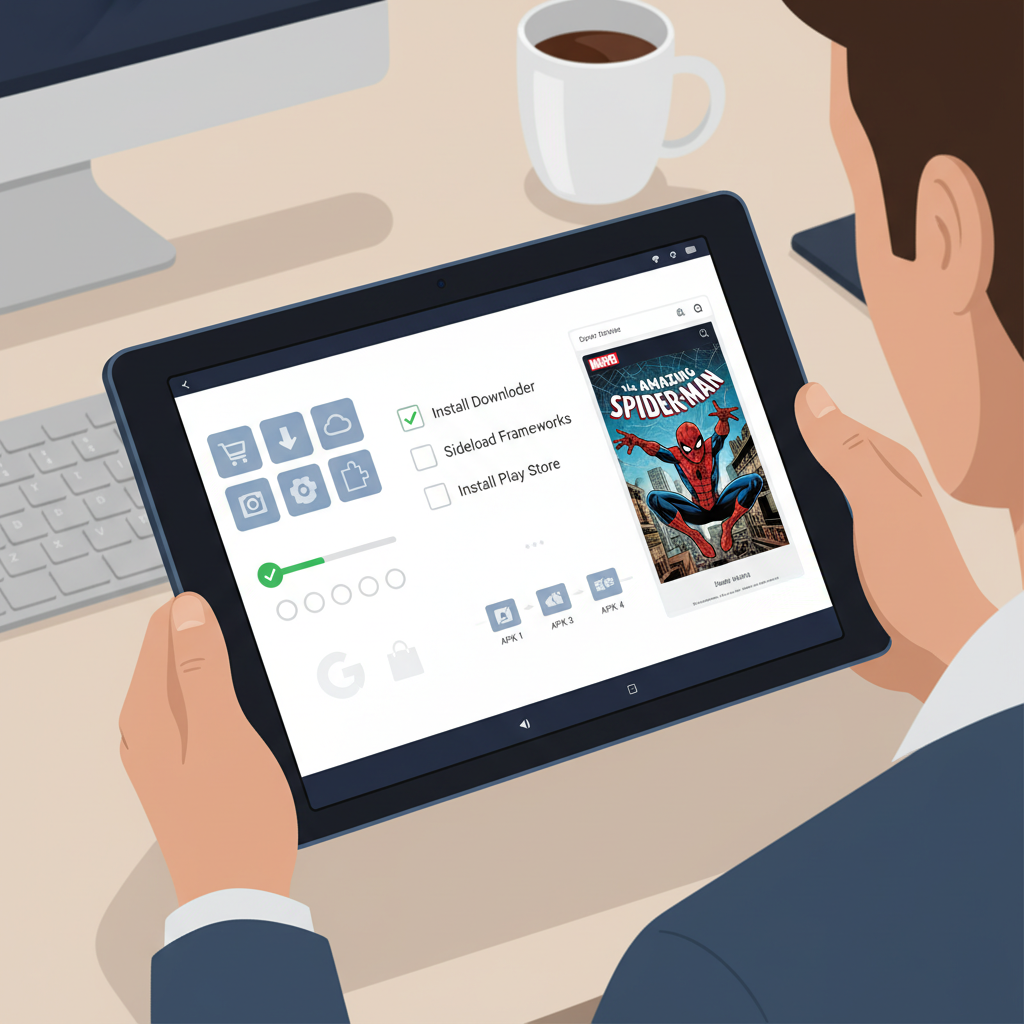
If you want the full Marvel Unlimited experience on your Fire HD 10, you’ll likely want the Android app, which means installing the Google Play Store on your tablet.
Note: Installing Google Play on a Fire tablet is a well-known, common tweak among users, but it’s not officially endorsed by Amazon. Do this only if you’re comfortable with a bit of tech setup.
Step-by-step: Google Play + Marvel Unlimited
Here’s the high-level process people typically follow:
-
Check your Fire OS version
- Go to Settings → Device Options → System Updates.
- Knowing your version helps ensure you follow the right Google Play instructions (search online for a guide matching your Fire OS version).
-
Download the required Google Play components
- Most guides will walk you through installing 4 APK files: Google Account Manager, Google Services Framework, Google Play Services, and Google Play Store.
- Always use trustworthy sources and follow a recent, detailed guide that matches your exact Fire HD 10 model and OS version.
-
Install the APKs in the correct order
- If you install them out of order, Google Play may not work right.
- After installation, restart your Fire HD 10.
-
Open Google Play Store and sign in
- Use your Google account.
-
Search for “Marvel Unlimited” and install the app
- Once installed, Marvel Unlimited behaves like it would on a regular Android tablet.
-
Log in and start downloading comics
- Sign in with your Marvel account.
- Download your favorite runs (e.g., Hickman’s Avengers, Immortal Hulk, Ms. Marvel, etc.) for offline reading.
If you’re willing to spend 15–30 minutes on setup, the Marvel Unlimited Android app on Fire HD 10 gives you a smoother, more powerful reading experience than the browser alone.
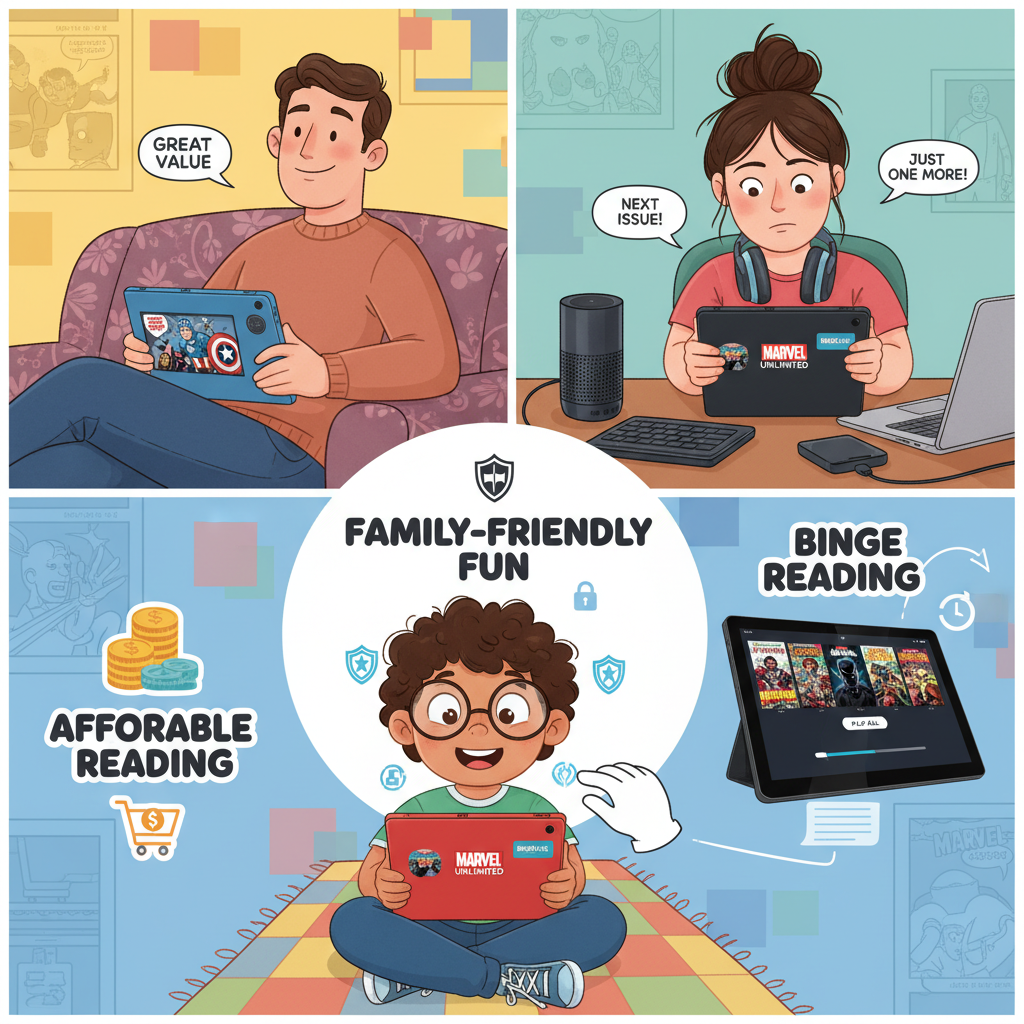
Reading Experience: What It’s Actually Like Day-to-Day
So how does Marvel Unlimited on a Fire HD 10 feel in real use?
1. Page clarity & zooming
On a 10-inch screen:
- Single-page view is usually perfectly readable
- Most modern comics (with cleaner lettering) are easy to read without zoom
- Older books with dense text might still benefit from a quick pinch-to-zoom
Panel-by-panel guided reading (if you like that style) is easier in the app than in a browser, which is another reason people prefer installing the Android app.
2. Portrait vs. landscape
- Portrait mode: Best for standard single-page reading, closest to a real comic book.
- Landscape mode: Great for double-page spreads and cinematic panels.
You might find yourself rotating the tablet during splash pages—this is totally normal comic nerd behavior.
3. Comfort & ergonomics
The Fire HD 10 is light enough to hold one-handed for a while, but for longer sessions:
- Use a stand or case with a kickstand
- Prop it up on a pillow or table
Your wrists will thank you during 3–4 hour binge sessions.
Once you’re settled in with brightness, orientation, and a comfy position, the Fire HD 10 genuinely feels like a dedicated digital comic reader.
Tip: Optimize Your Fire HD 10 for Comic Reading
To make Marvel Unlimited shine on the Fire HD 10, a few small tweaks go a long way.
1. Adjust display settings
- Brightness: Set it just high enough for clarity without torching your eyes.
- Blue light / nighttime mode: Turn it on for night reading so you’re not staring into a small sun at 1 a.m.
2. Expand your storage
If you plan on downloading lots of comics:
- Add a microSD card to your Fire HD 10.
- In Settings, set downloads (when possible) to favor SD storage.
Marvel Unlimited has download limits, but even within those, runs can stack up fast.
3. Clean up distractions
If this is mostly a “reader tablet,” consider:
- Disabling or muting notifications from other apps
- Hiding or ignoring unnecessary apps on the home screen
You open the tablet, and boom—straight into comics instead of being pulled into random games or social media.
A few small setup choices can make your Fire HD 10 feel like it was built just for Marvel Unlimited.
Who Is the Fire HD 10 + Marvel Unlimited Combo Best For?
This setup is especially good if you are:
- A budget-conscious reader who wants a big-ish screen without paying iPad prices.
- A Marvel Unlimited subscriber planning to binge whole runs and events.
- A parent setting up a safe, mostly-comics device for kids (with profiles and parental controls).
- A casual tech user who’s fine sticking to the browser, or a tinkerer who doesn’t mind installing Google Play.
Who might want something else?
- If you’re super picky about screen quality and performance, a flagship Android tablet or iPad will look and feel nicer.
- If you never want to deal with workarounds like installing Google Play, you might prefer a device that supports Marvel Unlimited from its main app store.
For most everyday comic fans, the Fire HD 10 delivers a lot of value for the price.
Final Thoughts: Turning Your Fire HD 10 Into a Marvel Reading Machine
Put simply: the Amazon Fire HD 10 is an excellent, budget-friendly tablet for reading Marvel Unlimited.
If you:
- Don’t mind reading in a browser → You can start reading Marvel Unlimited on your Fire HD 10 today with zero extra setup.
- Are willing to install Google Play → You’ll unlock the full Marvel Unlimited app experience with offline downloads and a smoother interface.
Either way, once you’re a few issues deep into a good run, the hardware almost disappears—and it’s just you, your Fire HD 10, and an endless backlog of Marvel stories.
Now the real question: what are you reading first? House of X/Powers of X? Classic Claremont X‑Men? A wild cosmic Annihilation binge?
Choose your starting point wisely. Your weekend may disappear.
Leave a Reply